¶ How to create SSO User
- Log in under the Employee account
- Go to Partners
- Click Single Sign On button
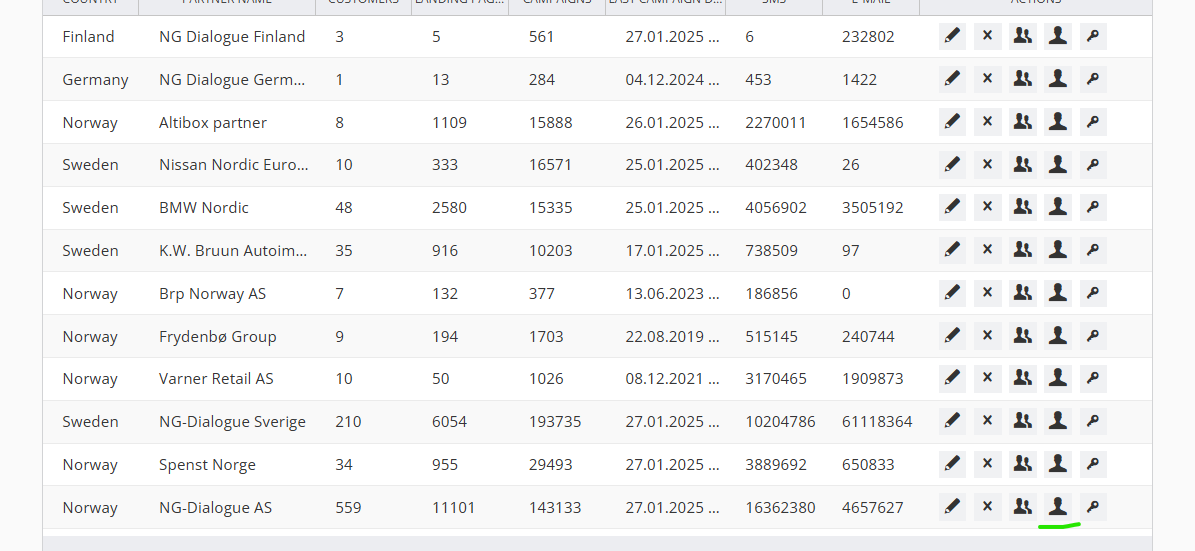
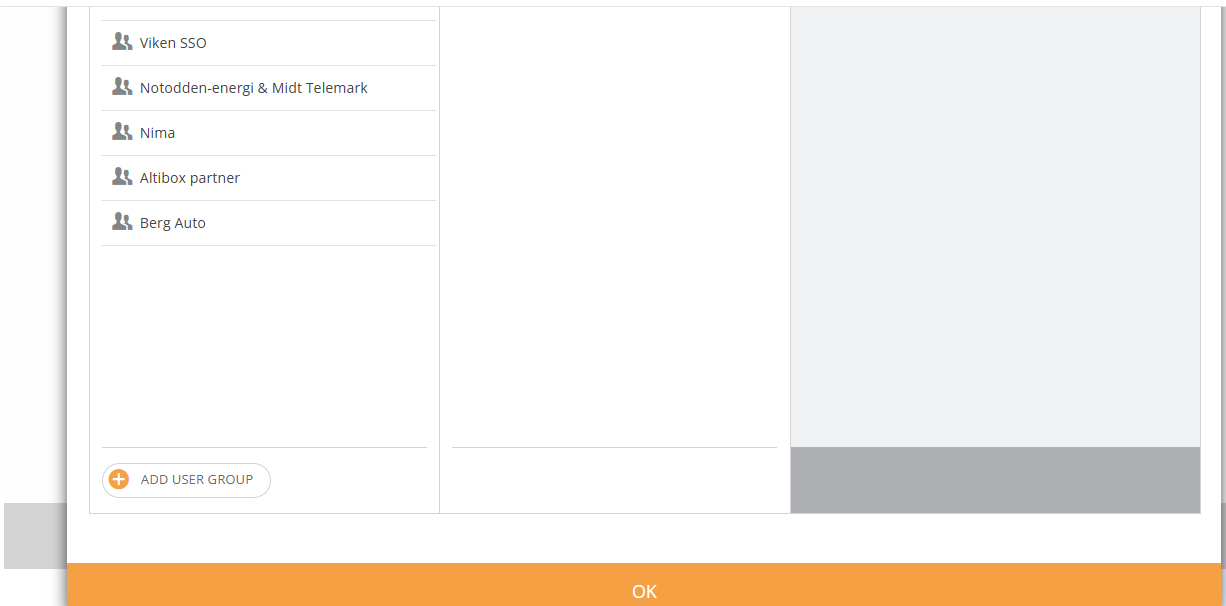
4. Click Add User Group
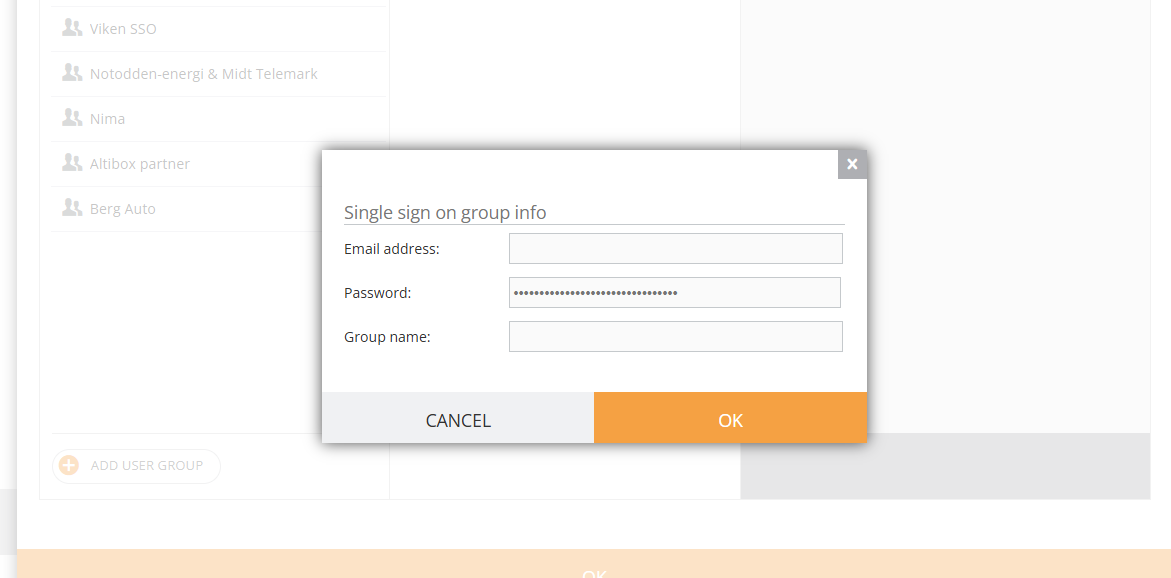
5. Add name and login credentials
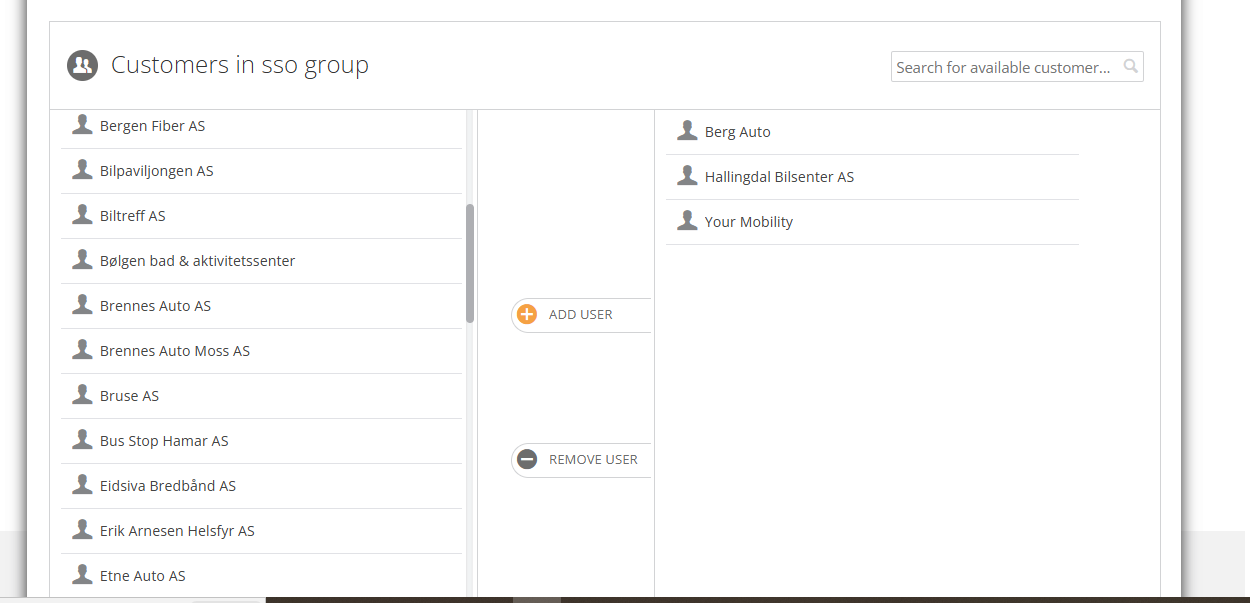
6. Select what customers will be visible to the user
7. Provide them to the user(s) to log in
8. To remove, click “Manage users in the group"
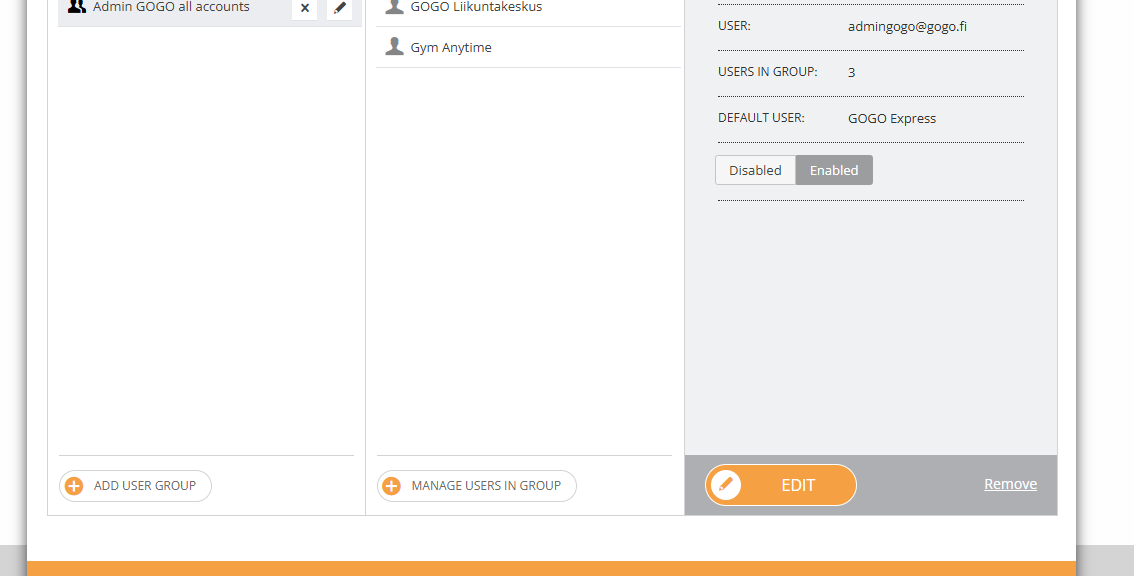
And then click “Remove users”
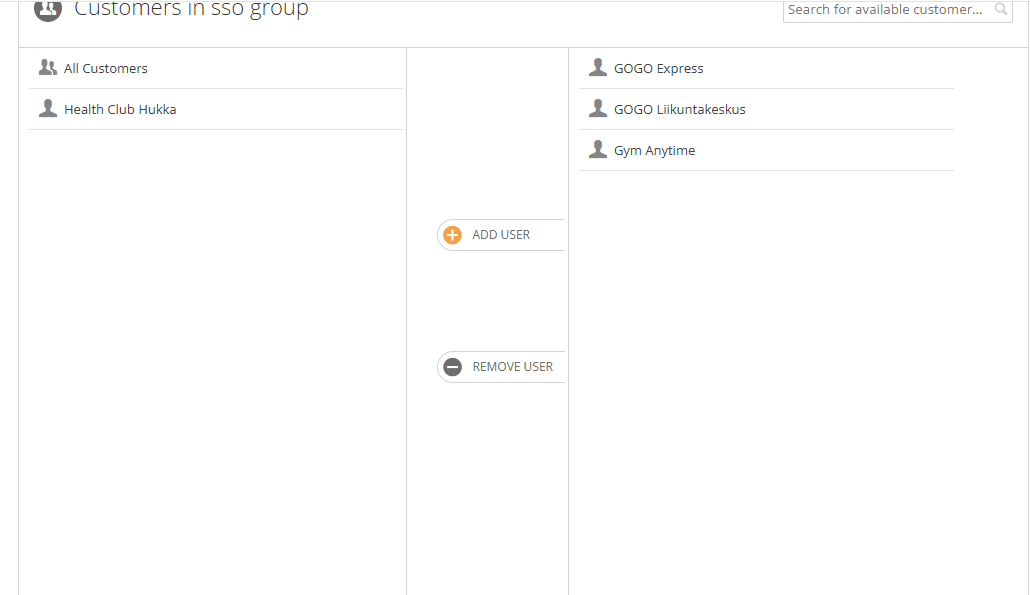
Left panel is a list of available customers, the right - customers that were added to the SSO group. When no customers are added to the group, all customers are allowed.
To restrict access to a certain account, you need to add customers to the group; in this case, "all customers" will be moved to the left panel.
If you wet up a partner to have All Customers shared SSO, every new customer will be added to this SSO group.
¶ How to log in under SSO User
- Log in under the credentials provided for the SSO User
2. Click the Arrow in the upper right corner:
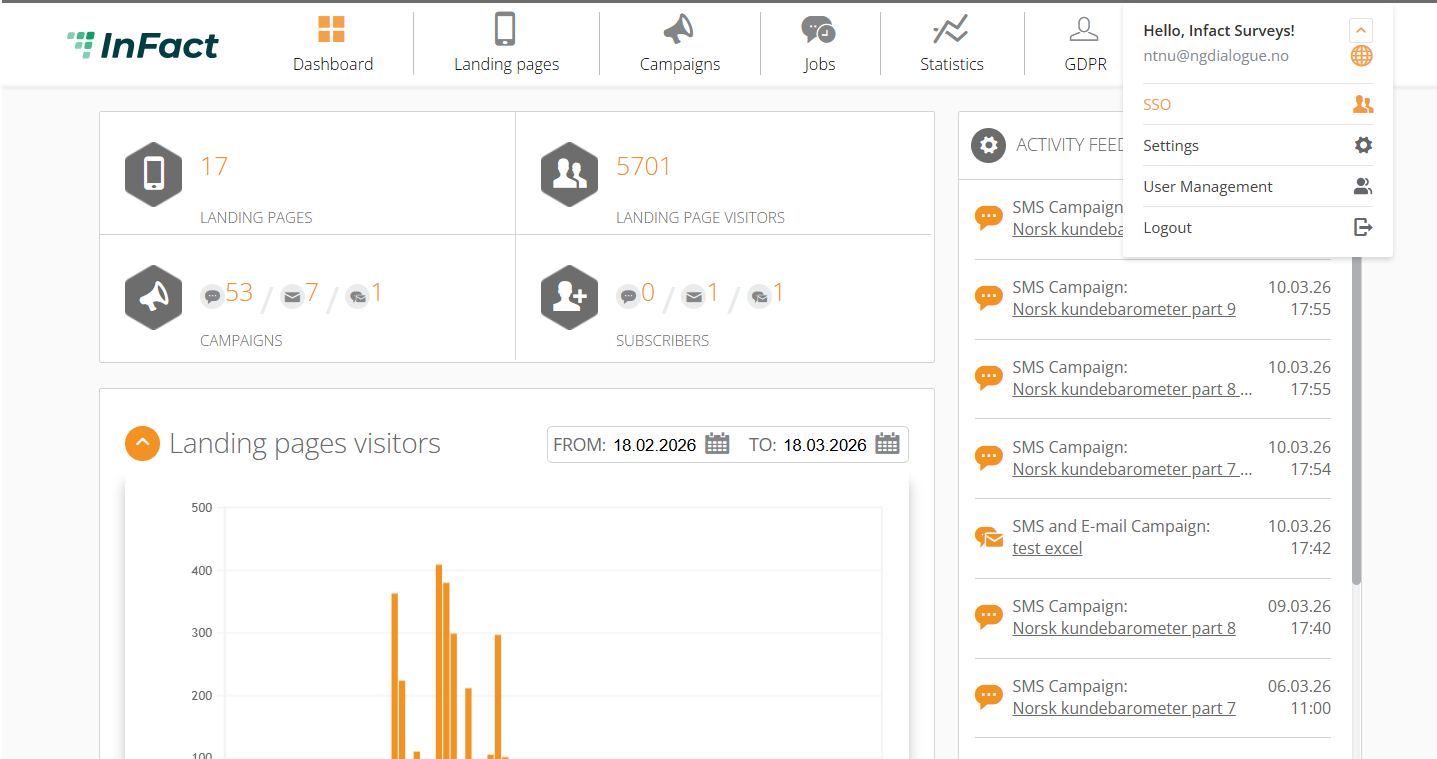
3. Select the account you need:
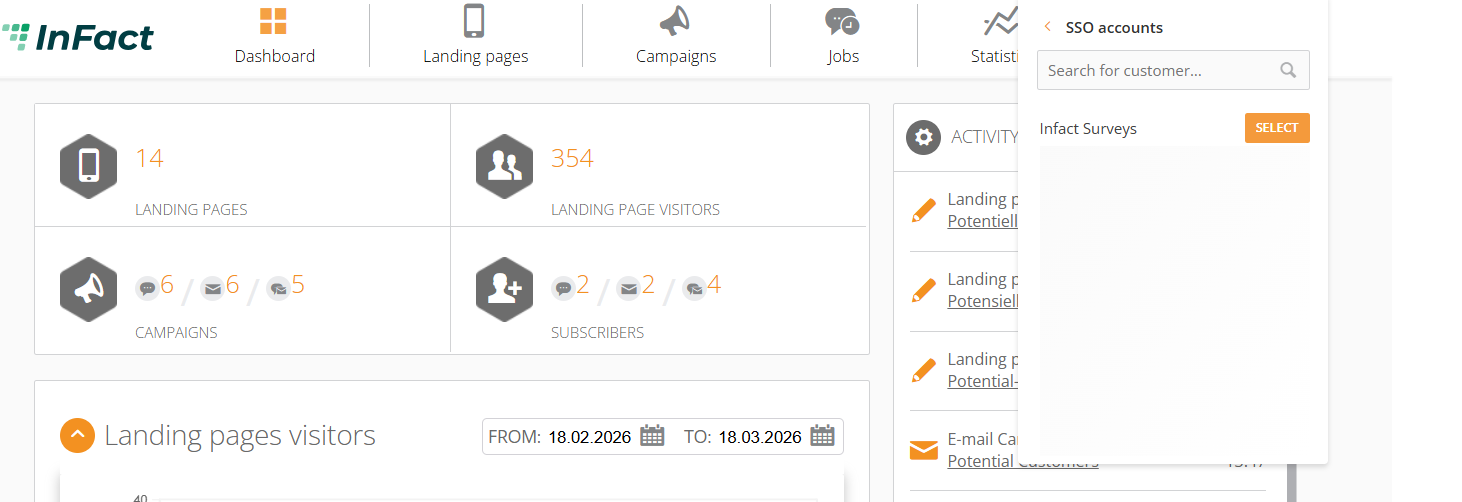
You are logged in:
¶ If you forgot the password
Go to SSO User settings and re-enter a new password in the password textarea: