Subscription management: a new module that adds a routine to manage user subscriptions, and limits for send-outs. It replaces a default unsubscribe routine with a Consent Management Page. In development
¶ Terms:
Subscription - a business type of campaign or single message. e.g. default, marketing, info, alert
Consent - consent to receive messages of various types through predefined communication channels (SMS, Email).
Limit - each recipient has to follow its own limits per subscription and also a general limit (if stated)
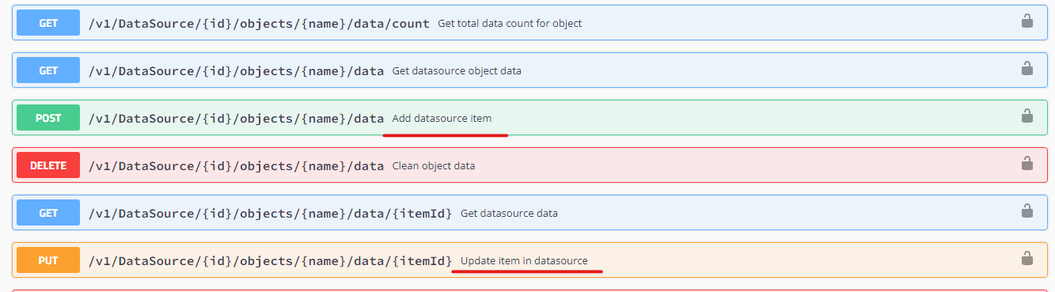
Consent and Subscriptions objects can be added via the next API settings:

To assign a specific subscription to a member or edit their consent, you can use the next APP settings:
¶ Consent
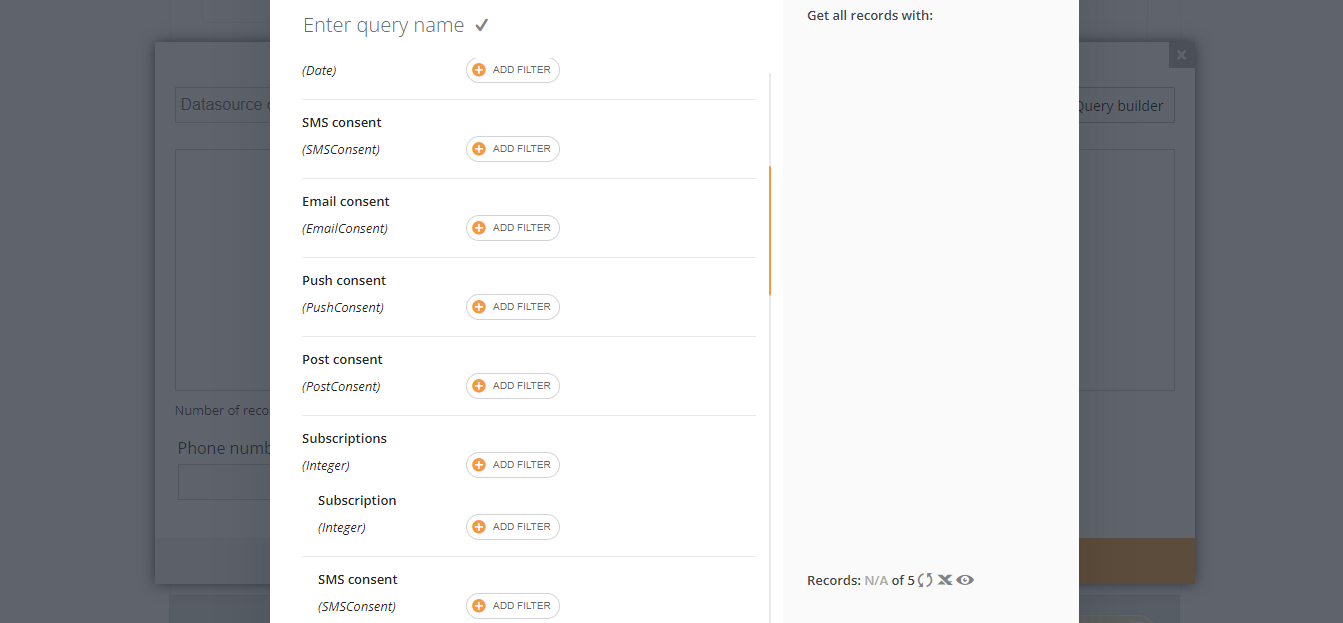
Now consent is applied by default to the datasources that have this feature. When you are running a campaign or creating a job you do not have to add it to the filter, the filter will work automatically when the campaign or job runs.
¶ Limit management (upcoming)
¶ Campaign Wizard
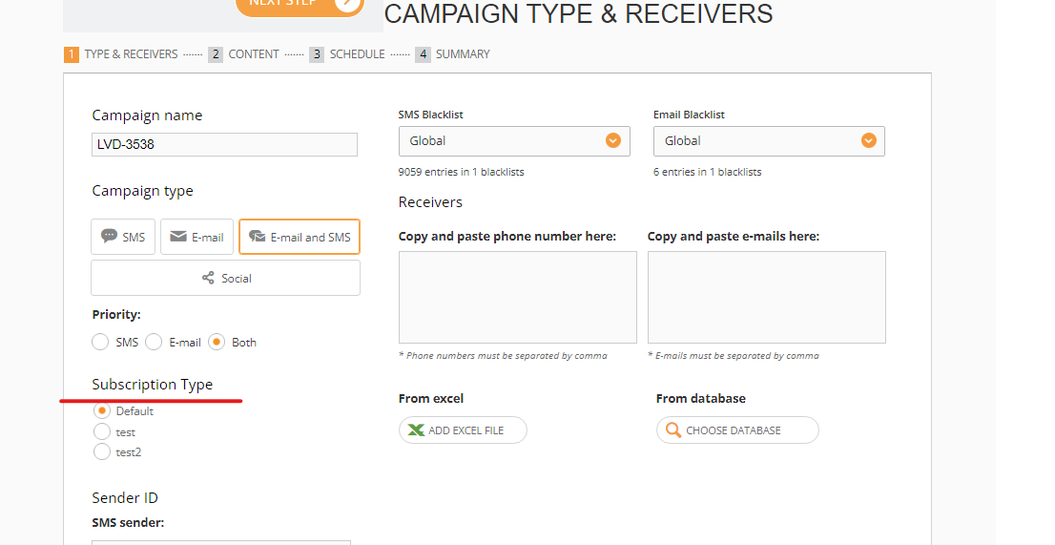
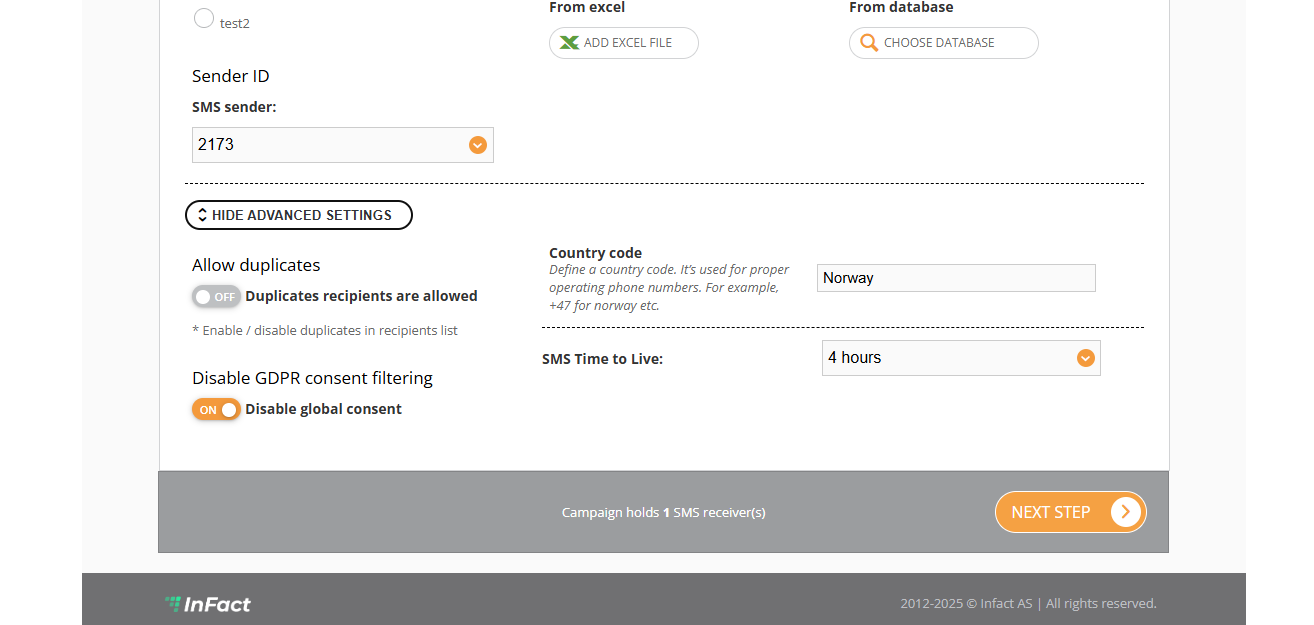
In step 1 of the campaign wizard, we have the Subscription types, for example:
- Default
- Marketing
- Alerts
When one subscription type and recipients are chosen, the wizard updates the count of potential recipients by adding a new counter, that shows an estimated amount of recipients at the moment taking into account General Consents, Subscription consent, and Subscription limits.
¶ Consent Management Page (CMP)
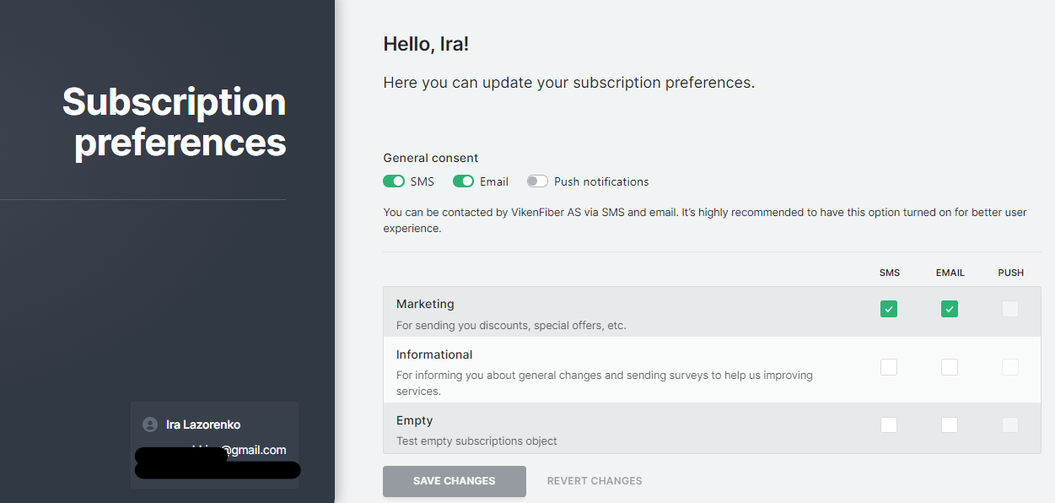
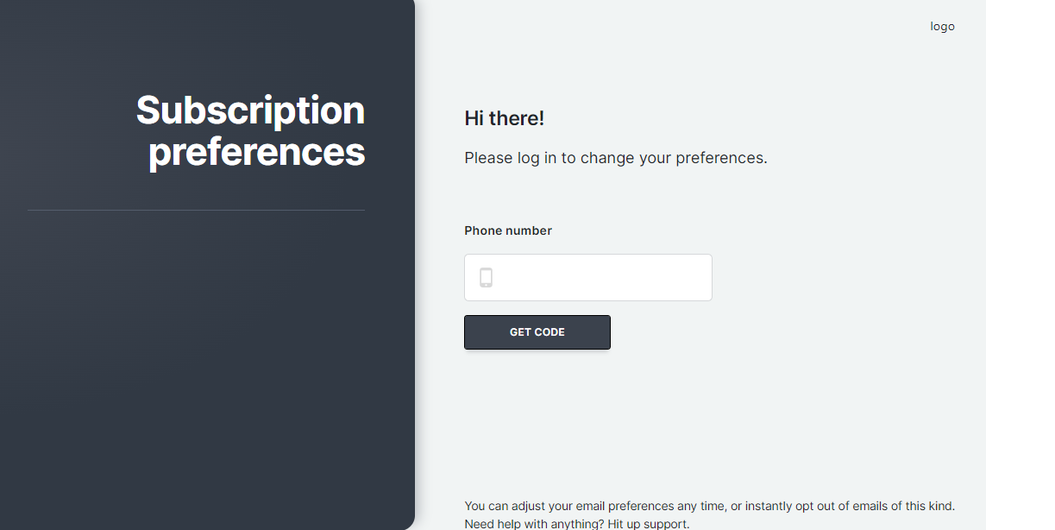
It’s one page that enhances the unsubscribe process by giving a chance to update users’ subscriptions and consents.
The page supports customers’ mods (customer logo, intro text, user policy, footer text, etc.)
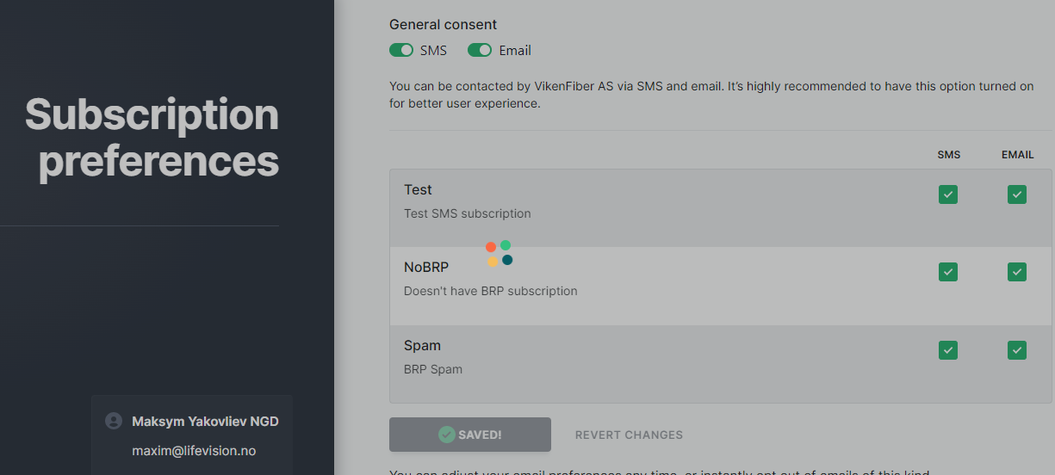
The page shows a list of available subscriptions and consents per subscription.
After you set your preferences and before clicking Save, you can click Revert Changes and get back to the previously saved subscriptions. After you click Save, you cannot restore the previous settings.
¶ Consent Management Page Settings
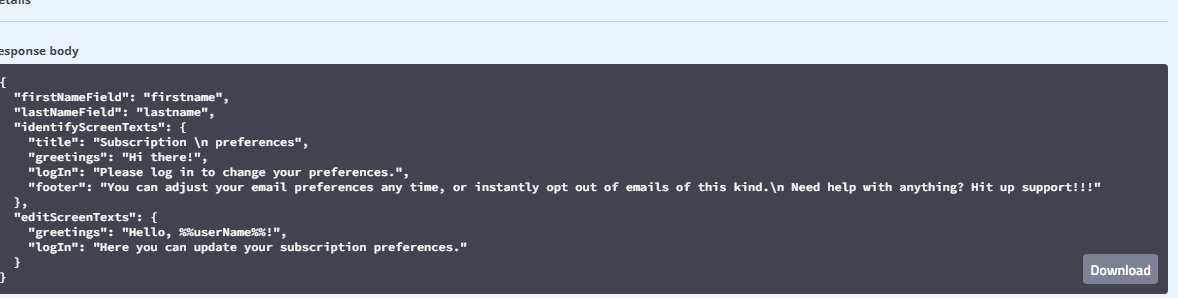
There are public API to load customer’s settings for unauthorised users:
1Get customer settings: 2GET /v1/public/Settings/{type}
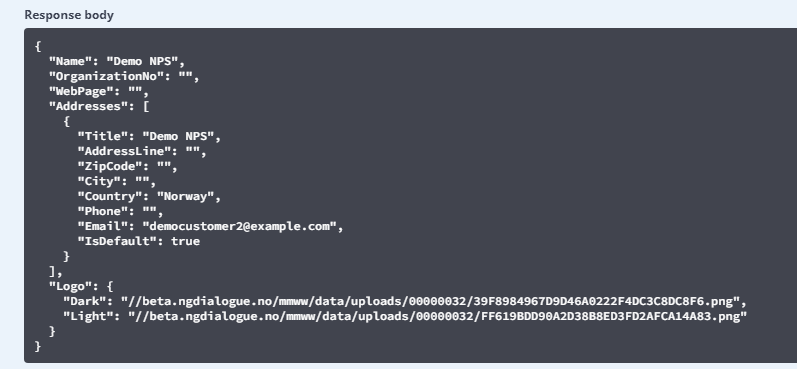
If the customer doesn’t have settings of this type, default settings are loaded. Also, there are 2 APIs to save\load customer settings for a logged-in user:
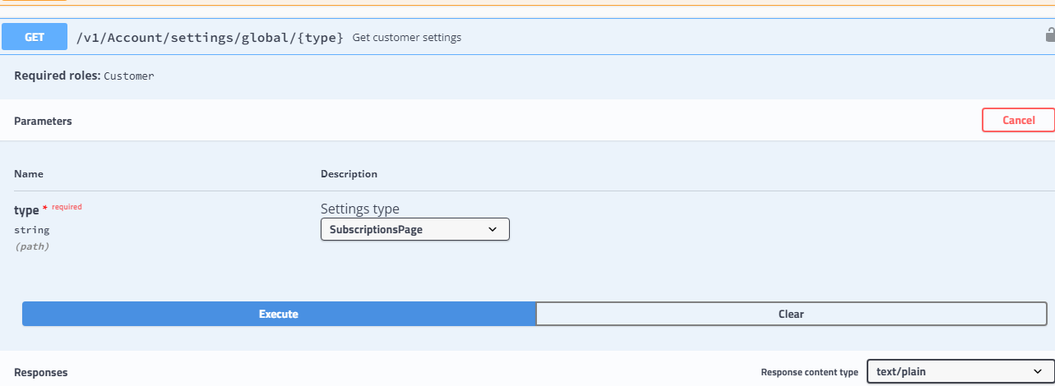
1Get customer settings: 2GET /v1/Account/settings/global/{type} 3 4Save customer settings: 5PUT /v1/Account/settings/global/{type}
¶ Consent Management Page Links
We can load Consent Management Page in the following cases:
The page is opened via the customer’s global domain %%PLATFORM_USER_MANAGEMENT_PAGE%% UserManagement - example;
The page is opened within the member link via the global domain %%PLATFORM_USER_MANAGEMENT_PAGE_WITH_MEMBER%%?member=%%member%% UserManagement - example;
The page is opened via ngdialogue’s domain and with memberlink if the customer does not own a global domain https://betaweb.infact.no/UserManagement?member= example
or without memberlink, but with customerId url parameter (cId) https://betaweb.infact.no/UserManagement?cId=
example of shortened links on beta: https://bs.infact.no/z12CJyO
If the link does not have a member token, it will look like that:
¶ Error and Saving notifications
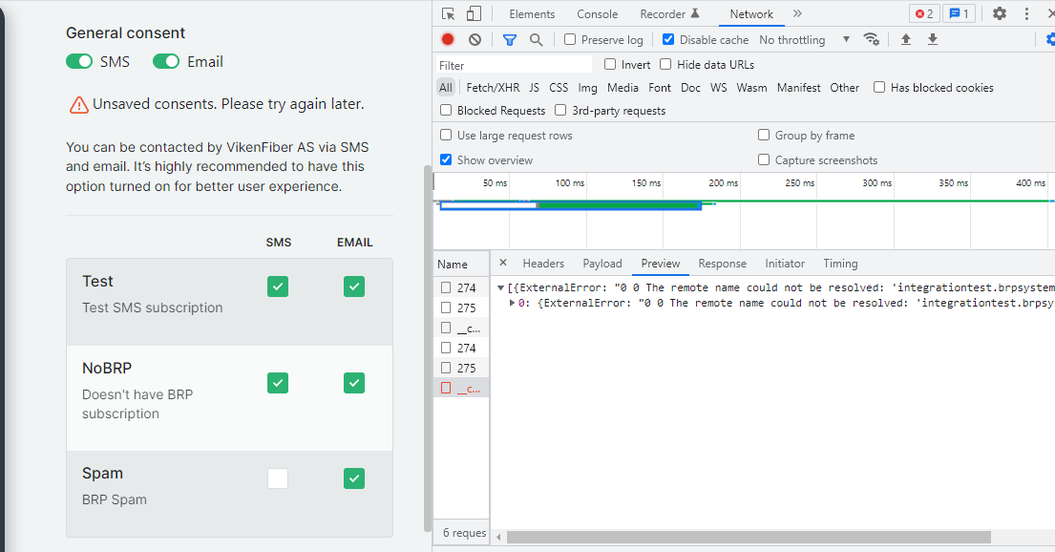
If an error happens on 3rd third-party server (e.g. BRP, IBooking) during an API call, the API must return a specific result so that the client can understand that the error is from another server and show a respective error message to the user. The end customer will see a pop-up about the unsaved element:
¶ Any saving can be reverted to the previous version by clicking “revert changes”
¶ Adding a link to SMS/Email Campaign
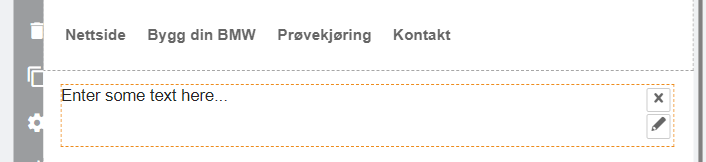
To add a CMP link to an email campaign, you can open Email Builder and edit the text:
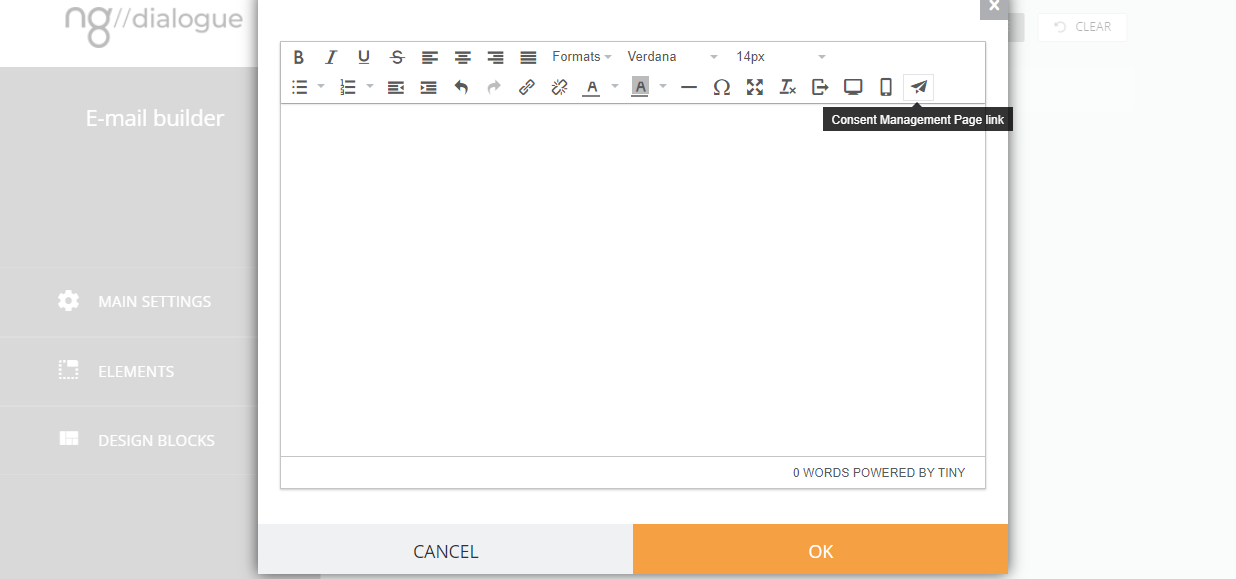
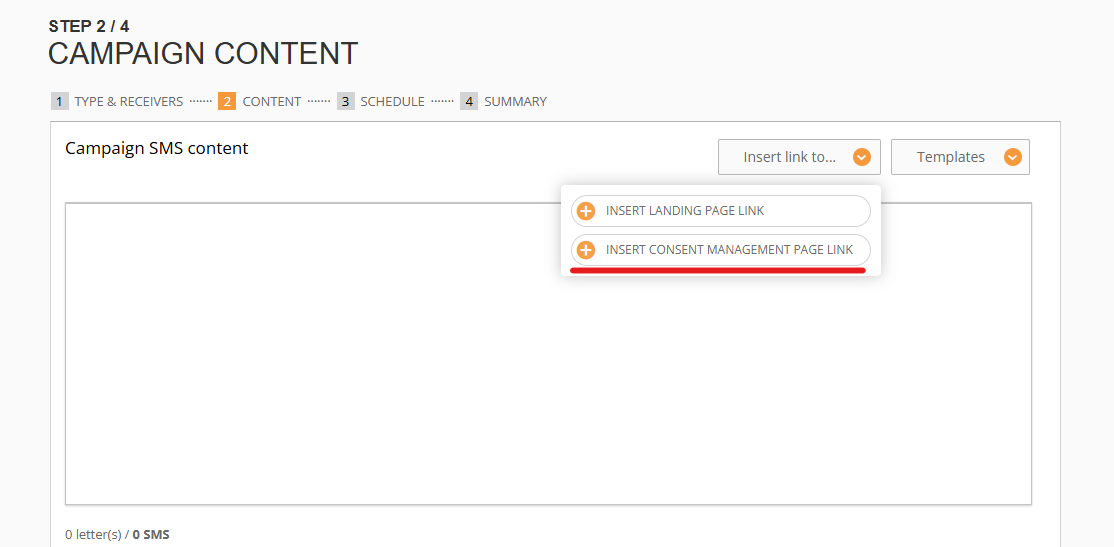
To can also add CMP links to your SMS campaign:
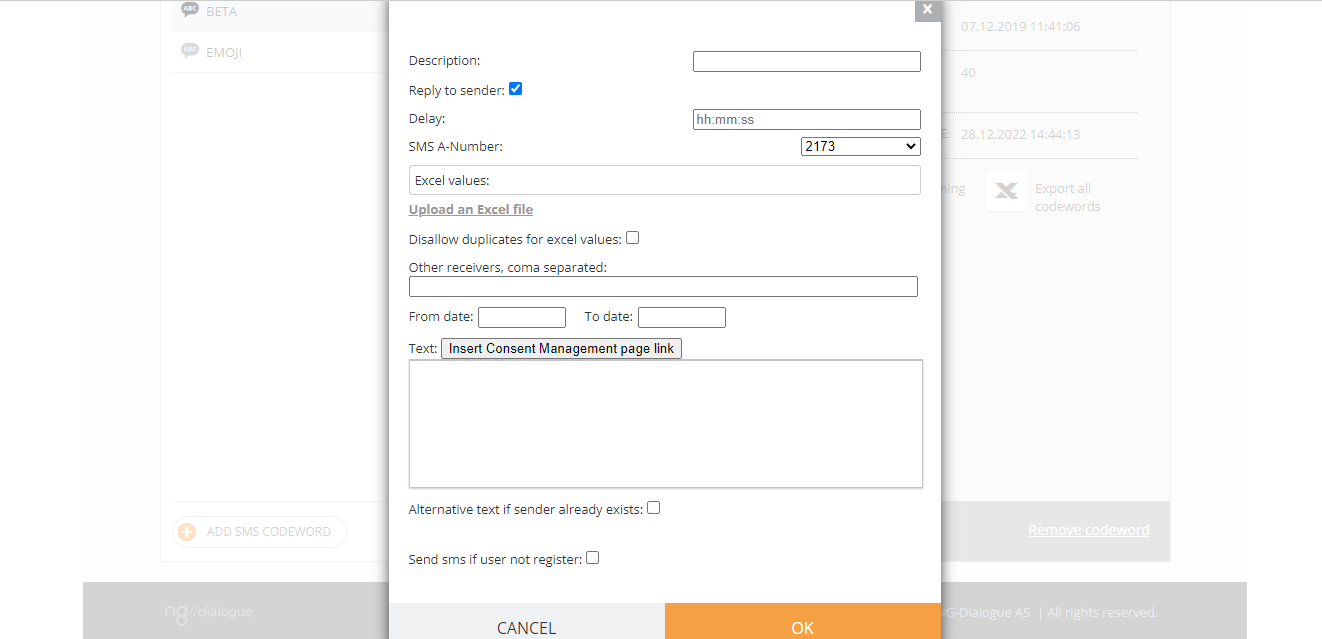
Also, this feature is available in Codeword actions (Reply to Sender):