¶ Statuses and Actions
After your survey has been created, what to do next?
You can either Exit Builder and Save:
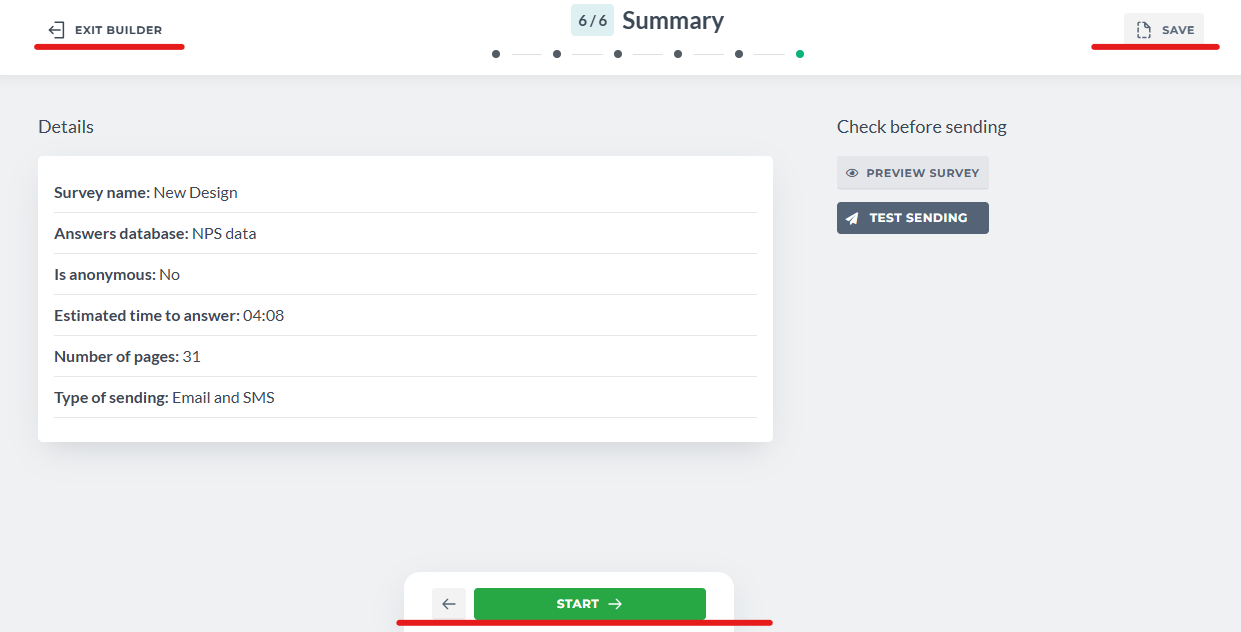
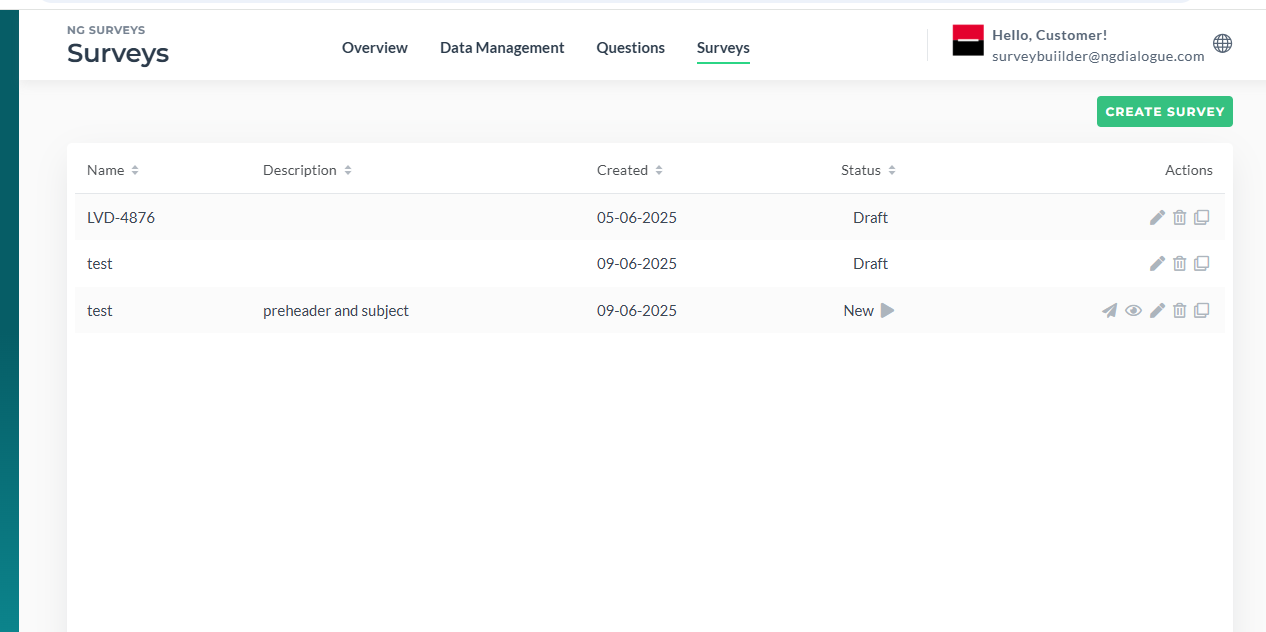
Exit Builder button is available on any previous step and will close the Builder and show the list of Surveys (Main Survey Menu) without saving changes. If you only started creating, no survey will be created. If there was a survey saved, the changes made on this session won't be saved.
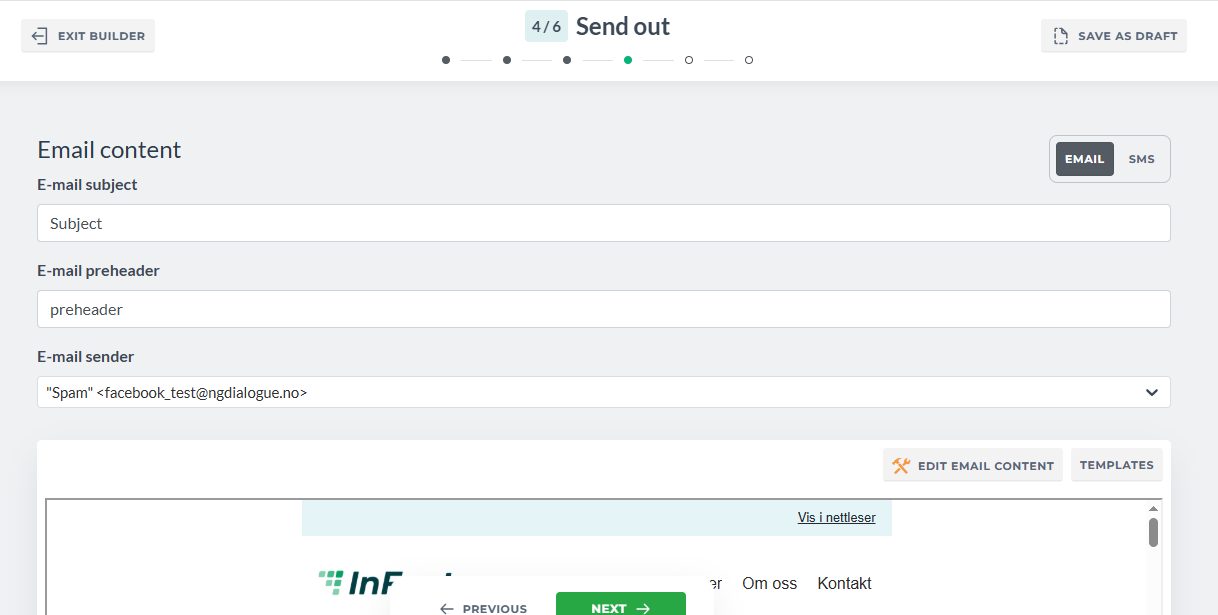
Save as Draft appears on all steps. It allows you to save on any step if there is no info provided (for example, you added questions but did not configure Progress Tracking and want to save the existing progress). Drafts are not completed survey meaning Drafts cannot be previewed or tested:
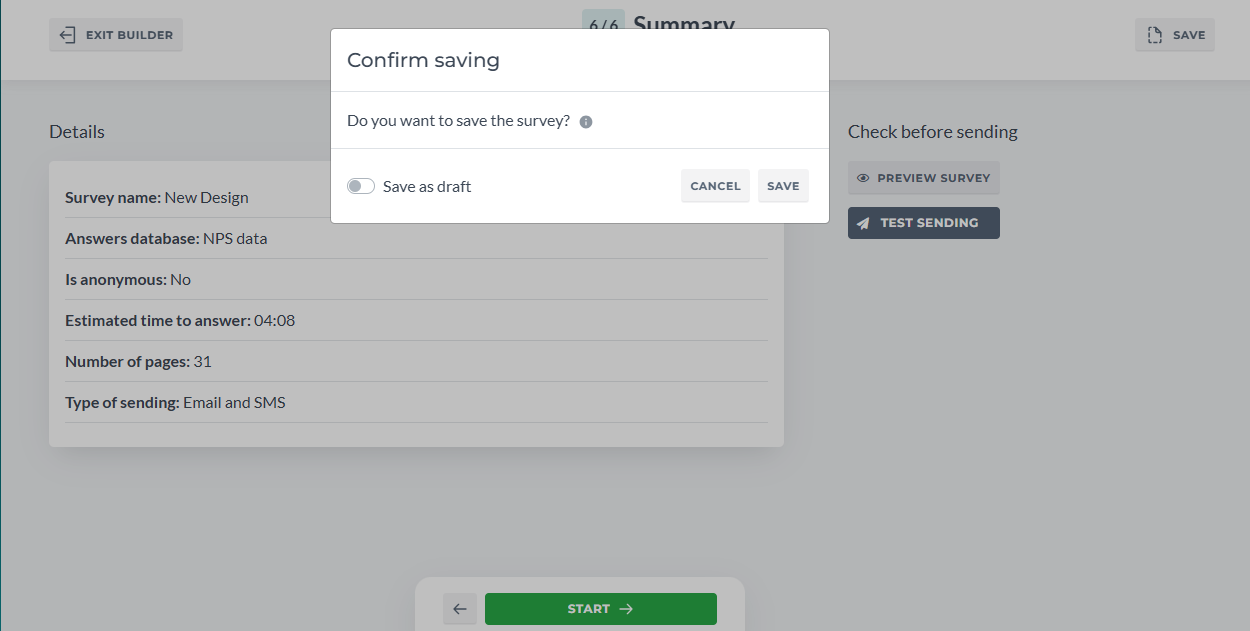
Saving a survey on any step but the last will save it as a draft. Saving on the last step will allow you to save it both as draft and a new survey that can be previewed, tested and send.
Drafts cannot be tested or previewed:
When you are on the final step Summary, clicking Save will allow you to save it as Draft or New Survey:
Unlike Drafts, New Survey can be previewed:
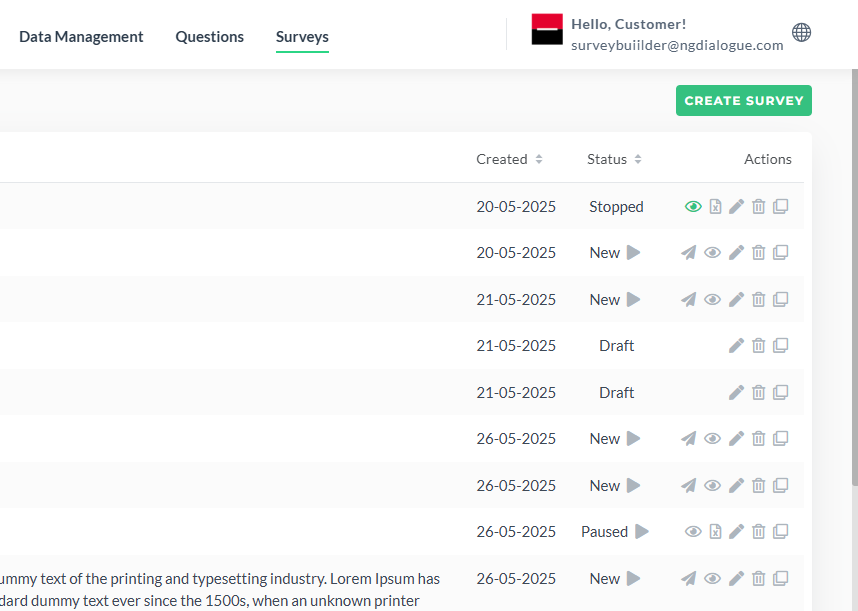
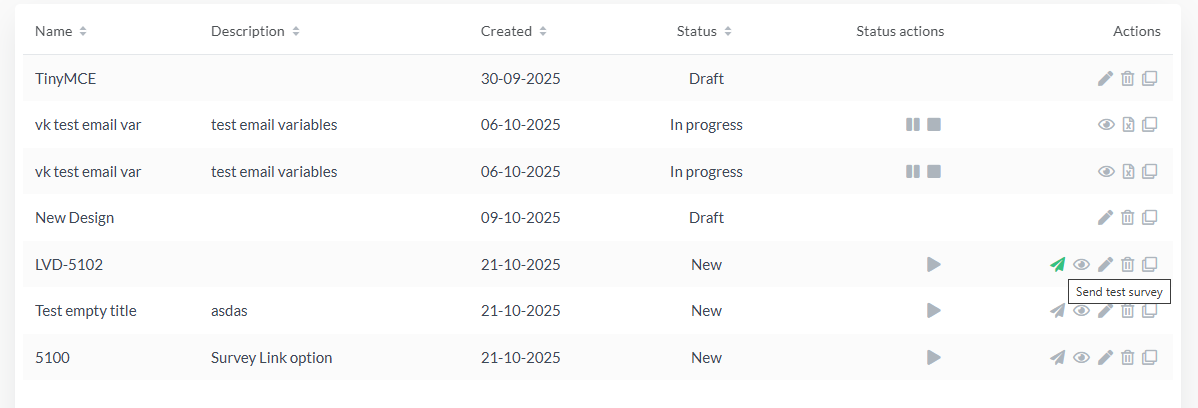
Or tested on the Summary step and via Main Menu:
Once the survey is saved as New, you can find its landing page and its form in the main platform if you need to use the features not covered by Survey Builder (edit landing page design, add labels via form or rename buttons):
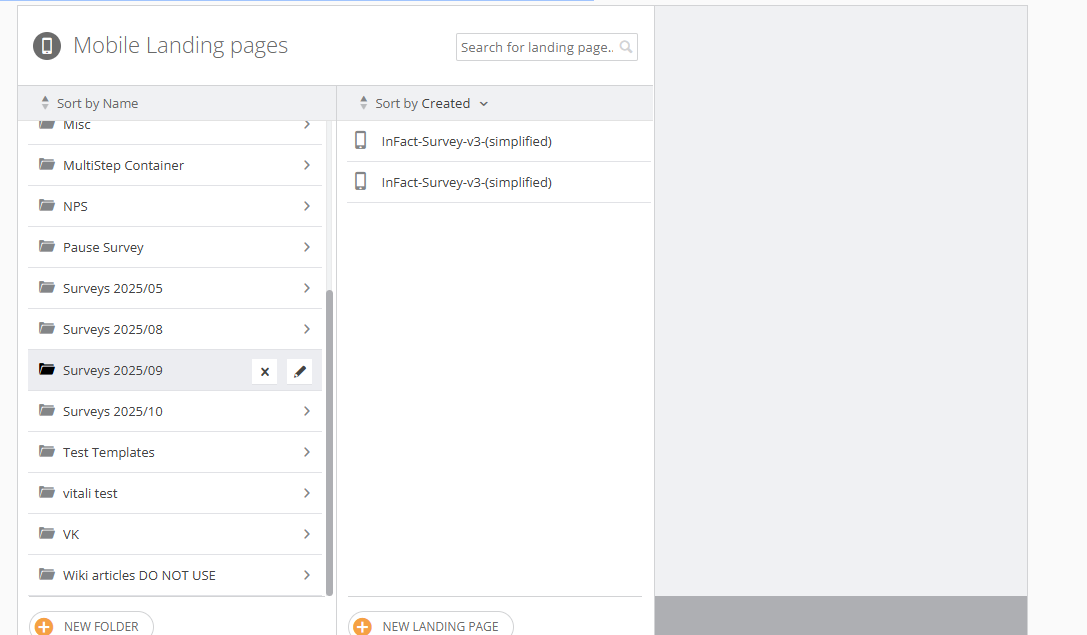
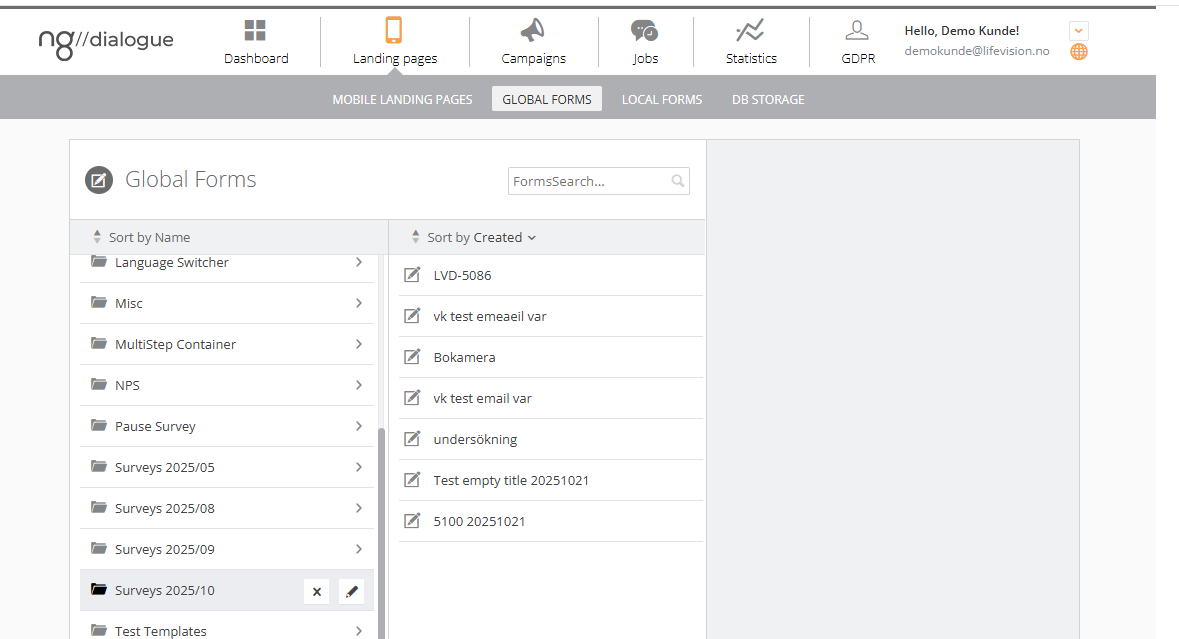
After the changes are made via main platform, do not edit the survey via Survey Builder as it will re-generate the landing page and the form and you will lose the progress. You can only test, preview and start from this moment
If you Start the survey, you will not be able to edit its content via Survey Builder:
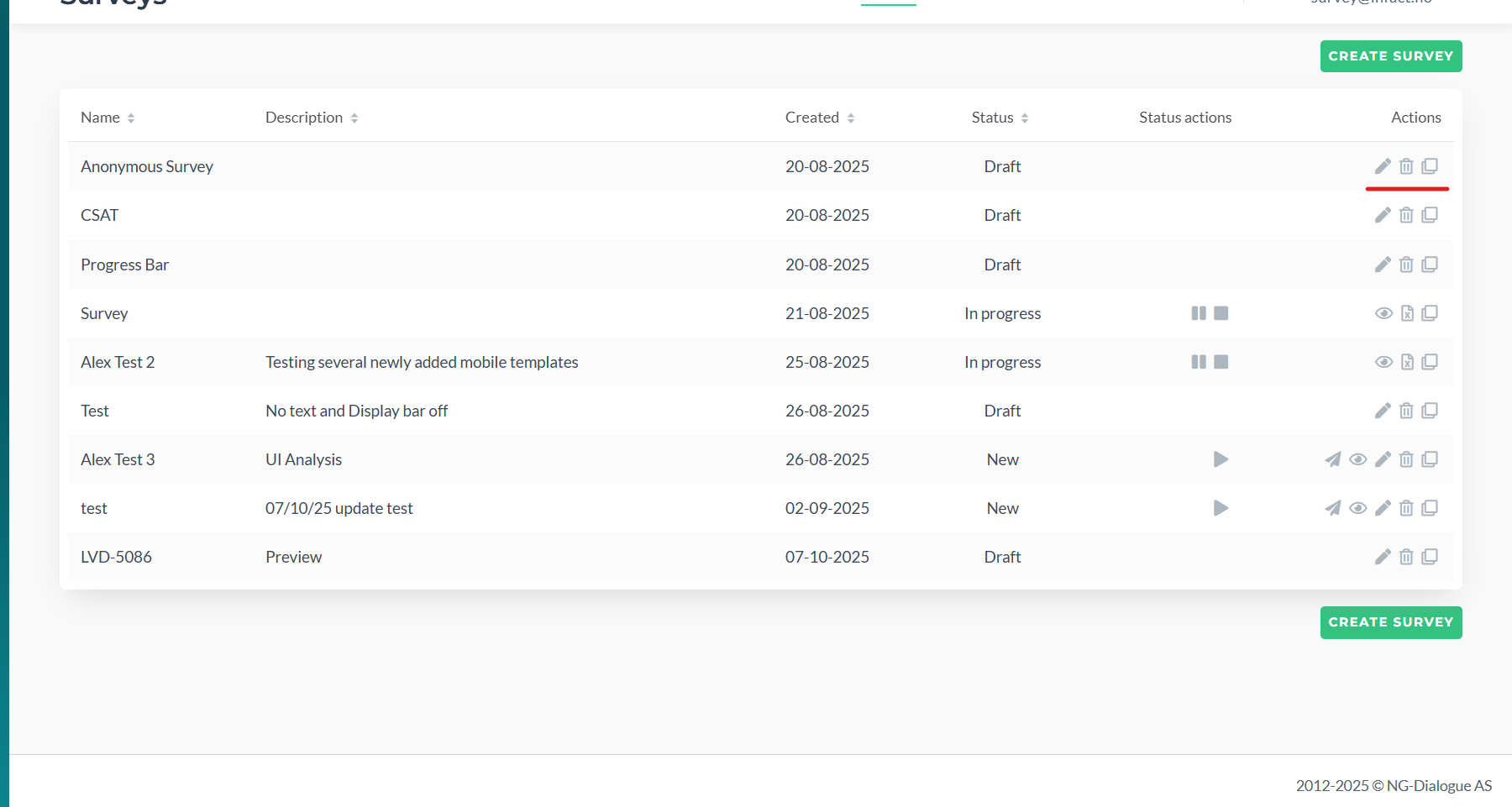
You can also start via Main Menu by clicking Play icon:
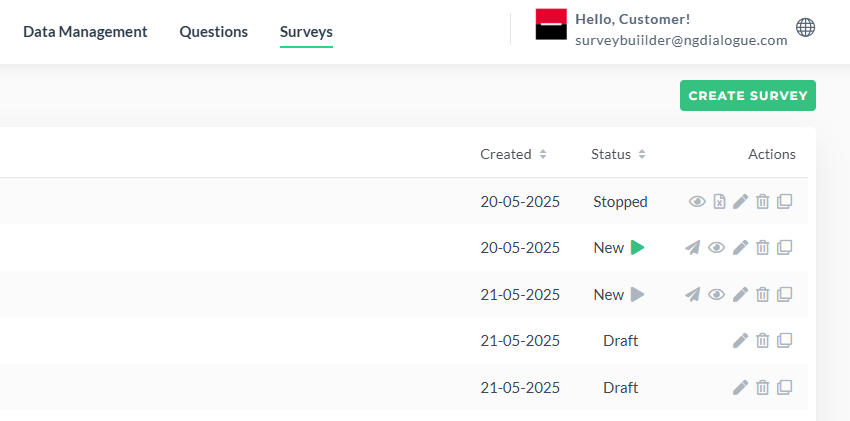
When the survey is being sent, it ias status In Progress.
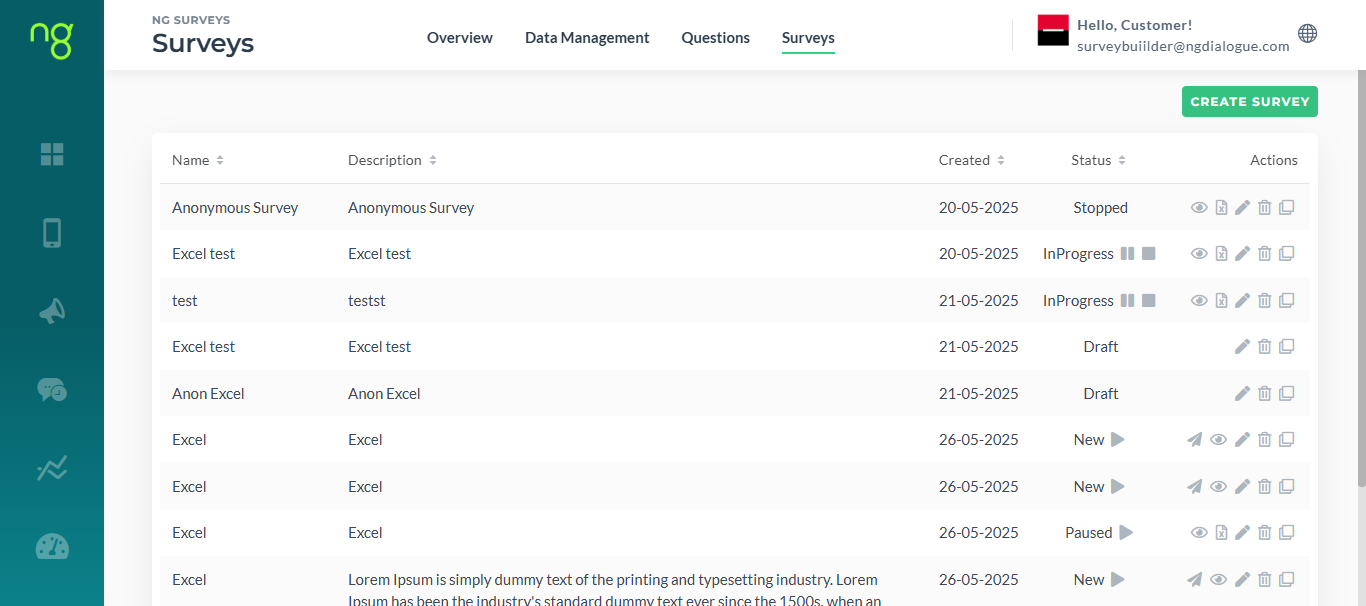
It can be paused if clicking Pause icon:
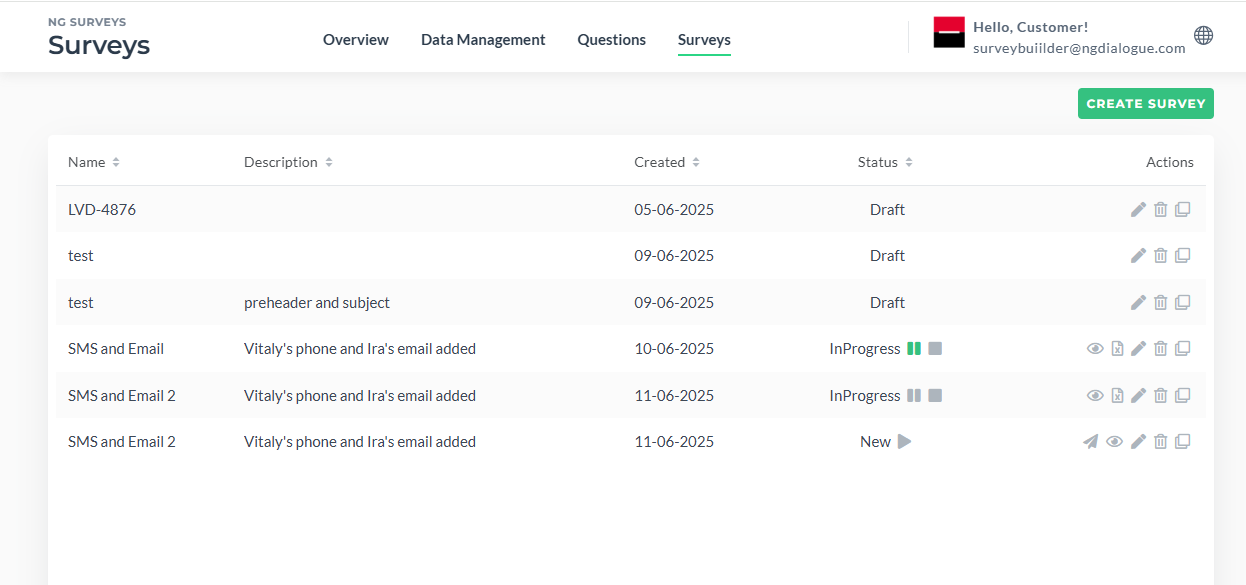
And Restarted:
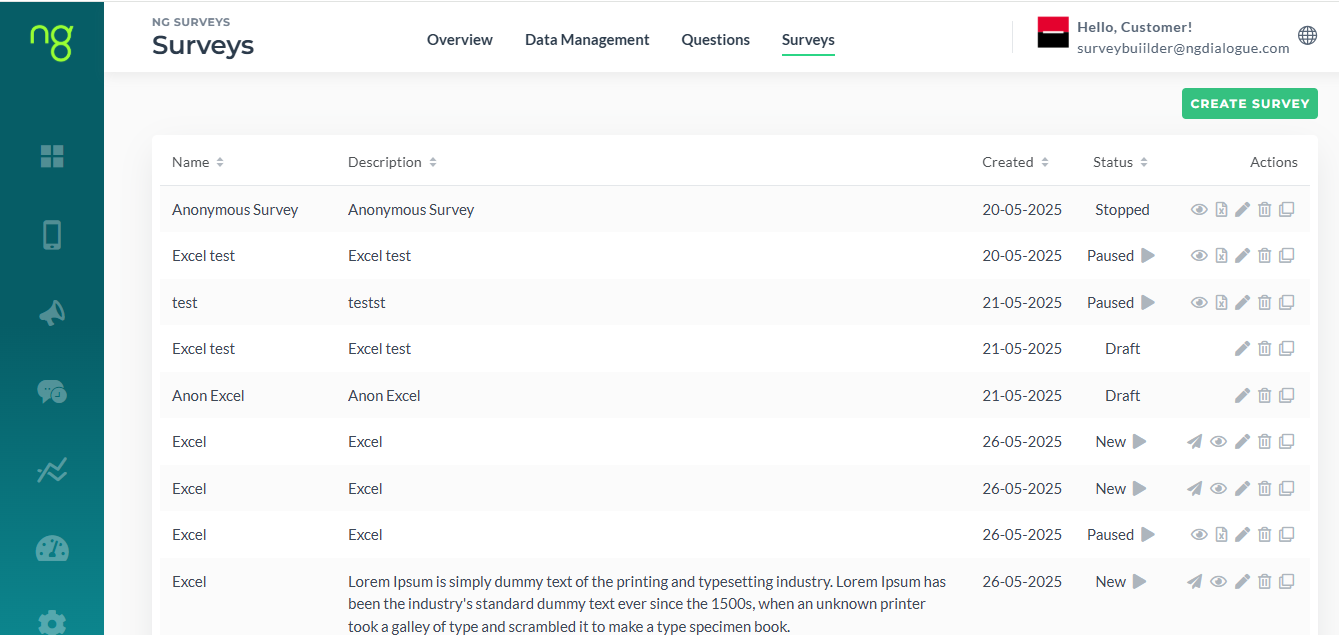
If you click Stop icon, the Survey cannot be restarted:
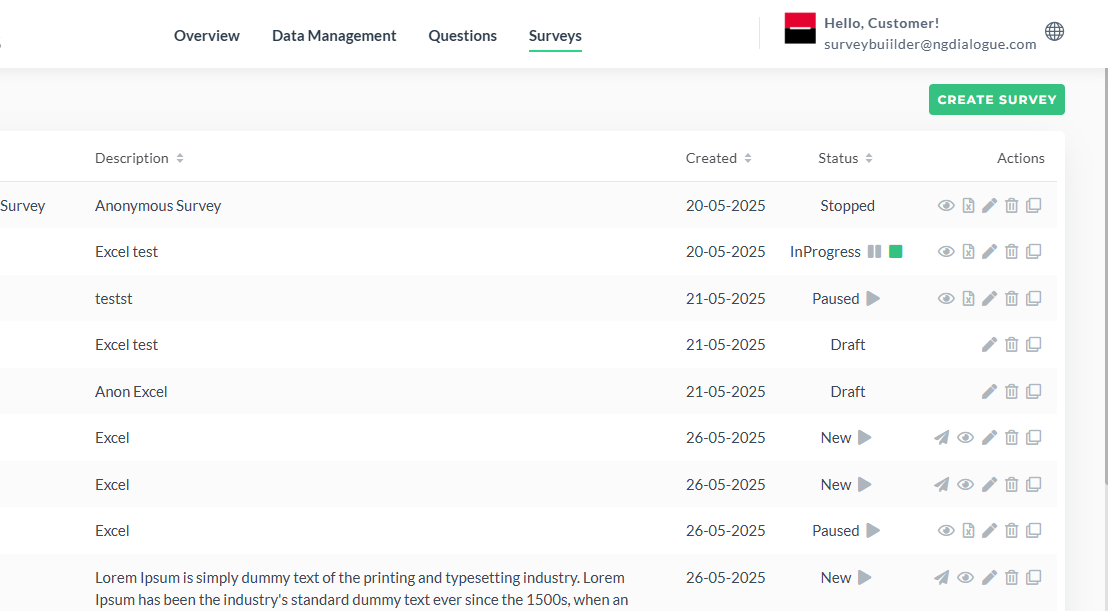
The same with Completed surveys (completed status are shown when the end date in Scheduling is reached).
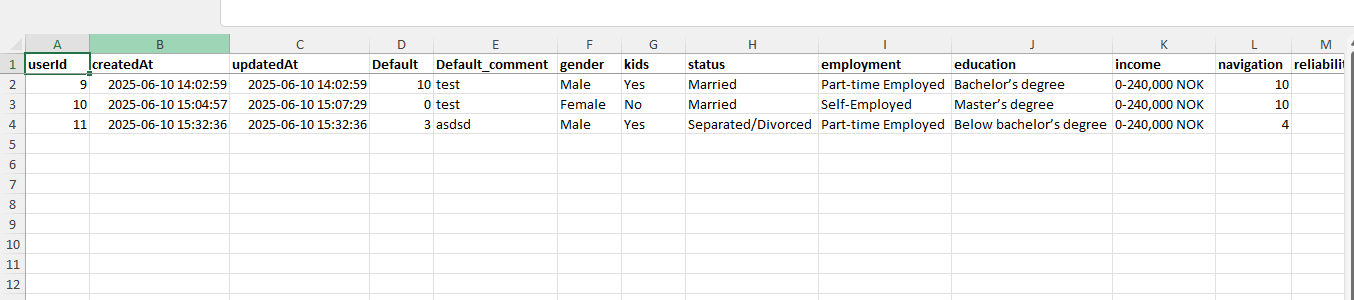
The File icon will allow you to download the survey results in Excel:
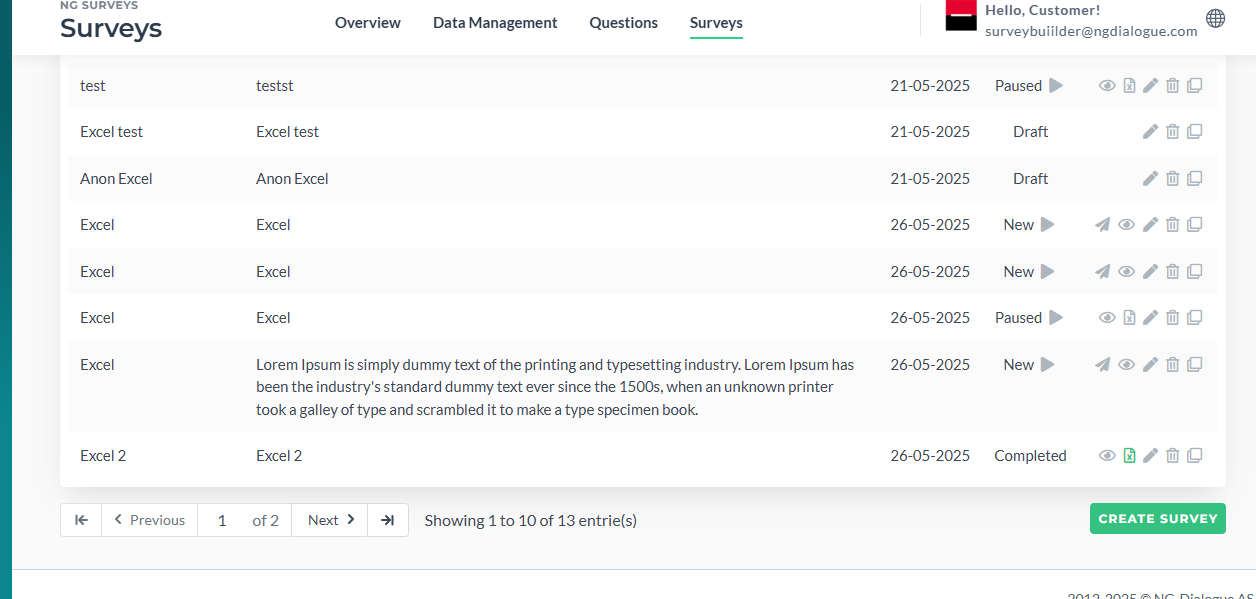
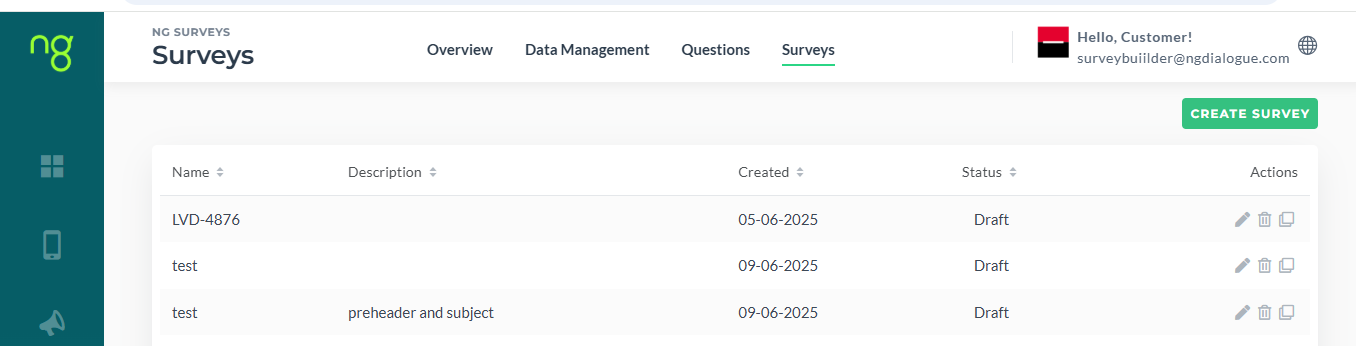
Also, all surveys can be deleted or copied:
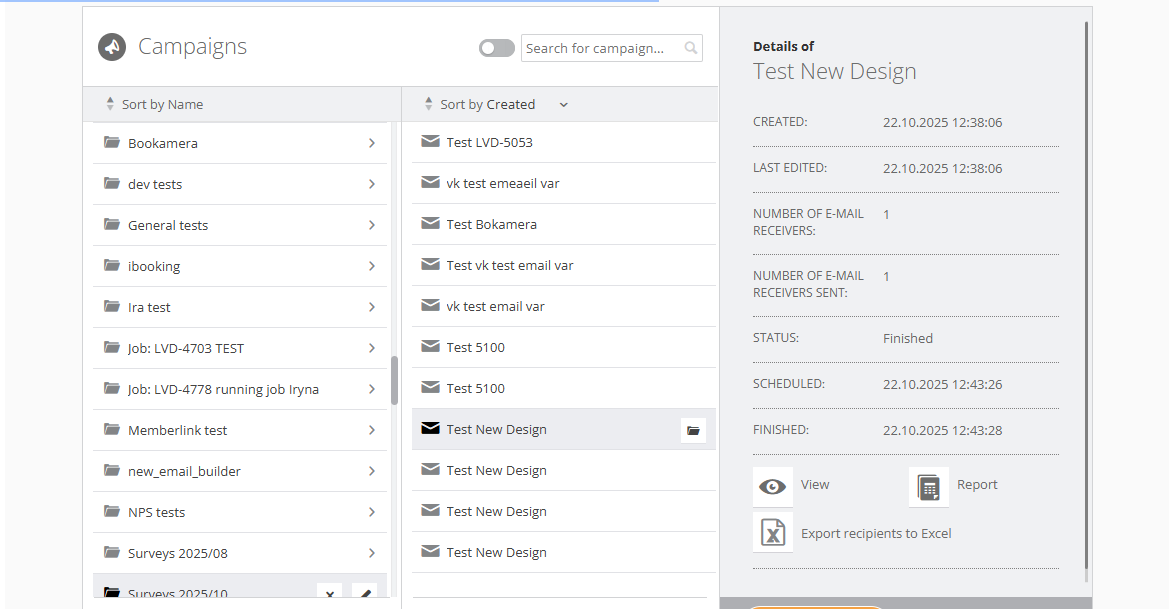
Test sendouts and real sendouts can be found here as well: