¶ Template
Select the template from the list. You can preview it after the survey is saved and change as well or here in Live Preview window:
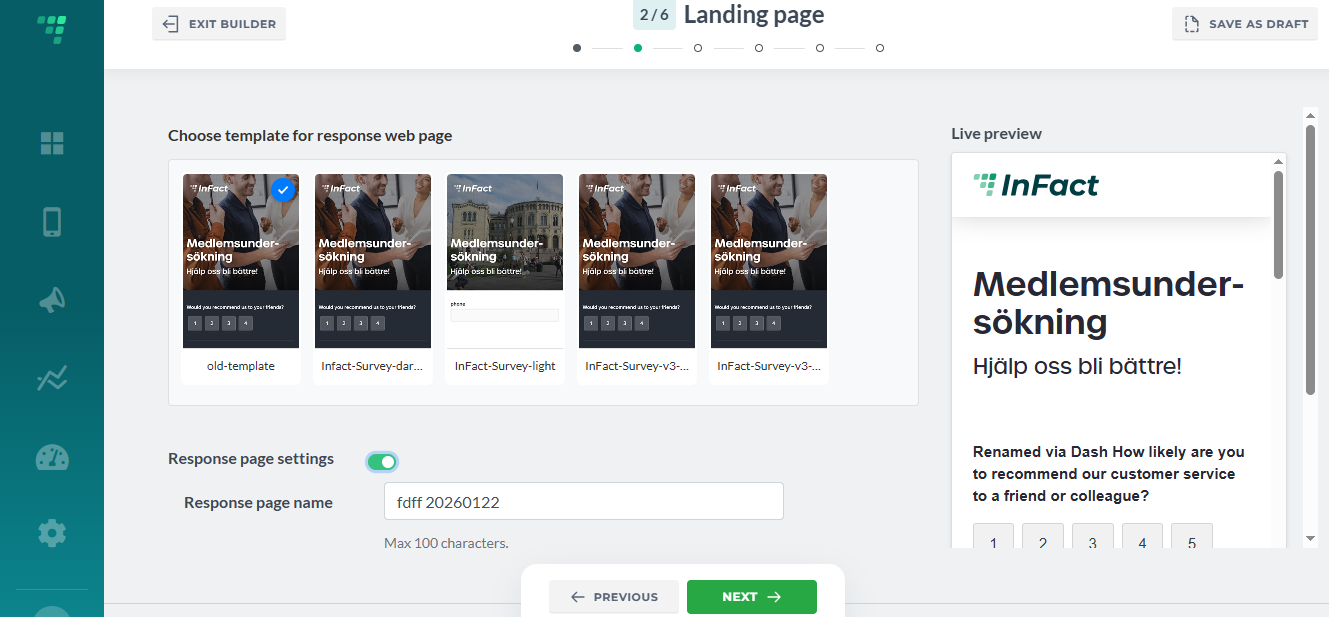
Every Customer has access to default Infact-style templates. Contact your digital advisor regarding custom-styled templates.
¶ Live Preview
This window shows every change live (template, question, progress tracking). You can interact with the elements there, although you cannot use it directly to edit, for example, questions. To do so, go back to the previous step.
¶ Response (Landing) Page Settings
¶ Response Page Name
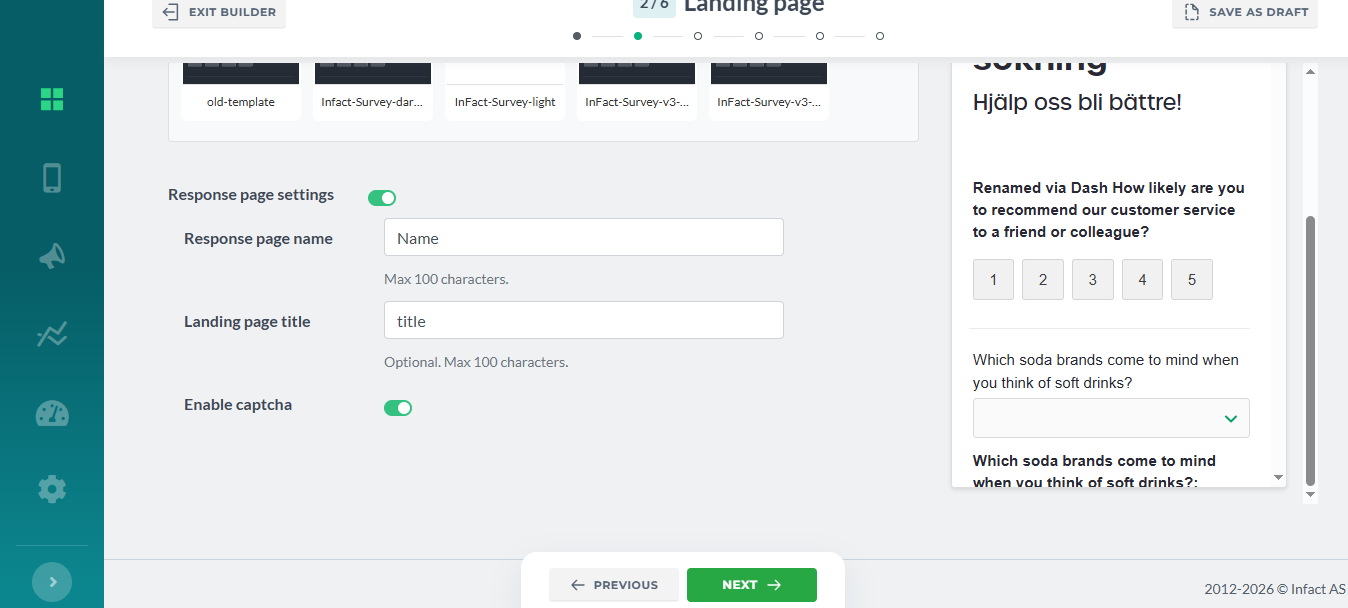
Add a unique name, as this name will be used for survey links when sending out:
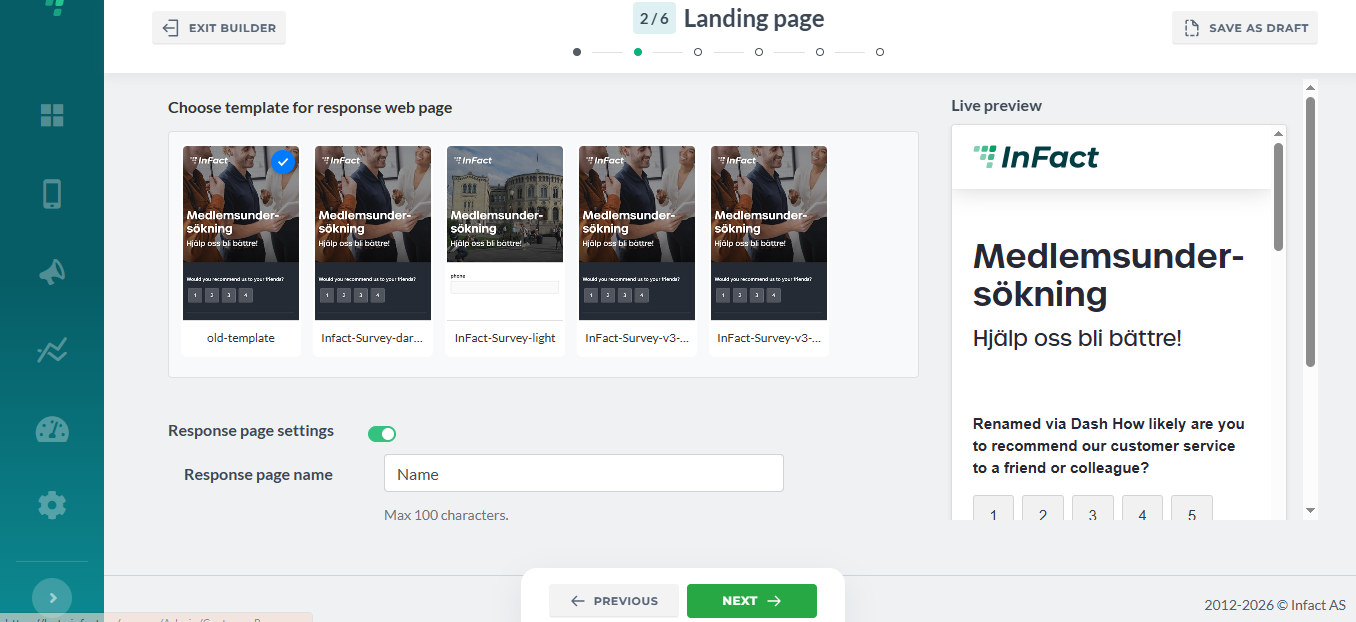
Internal name for you.
Helps you recognise this page in the system. Users will not see it:
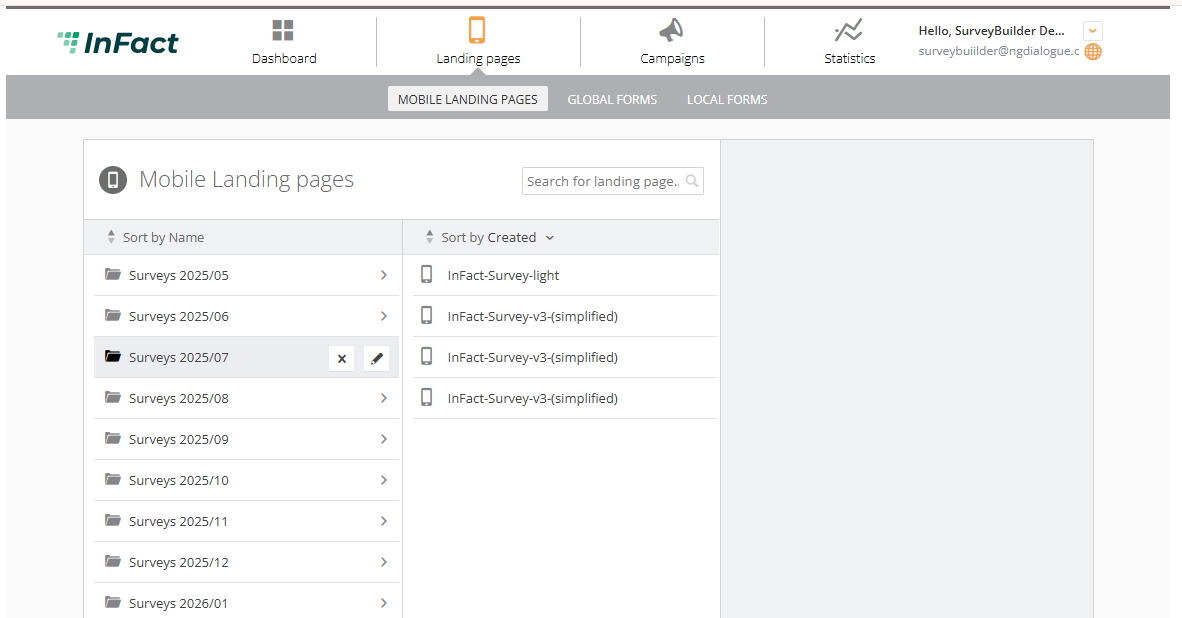
By default, the Response page name is the name of the survey + creation date:
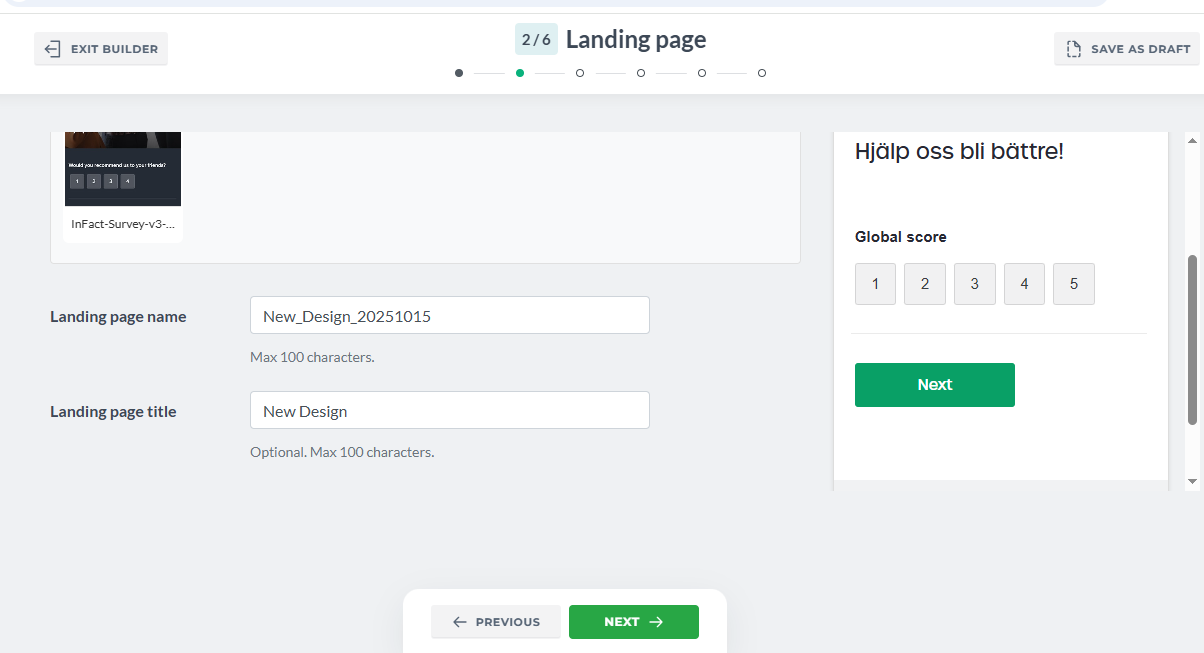
¶ Response Page Title
The title shown to users on the page (for example, in the browser tab or page header).
By default, it is the same as the survey name and if used as a tab title:
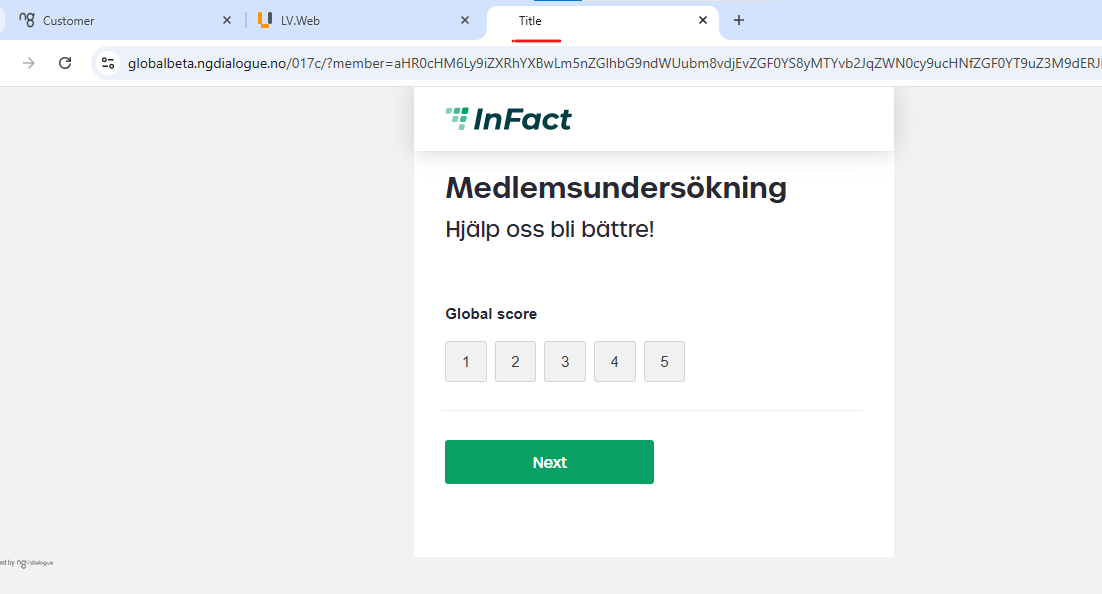
Title is optional. If you leave it empty, the title will be the same as the landing page name.
¶ CAPTCHA
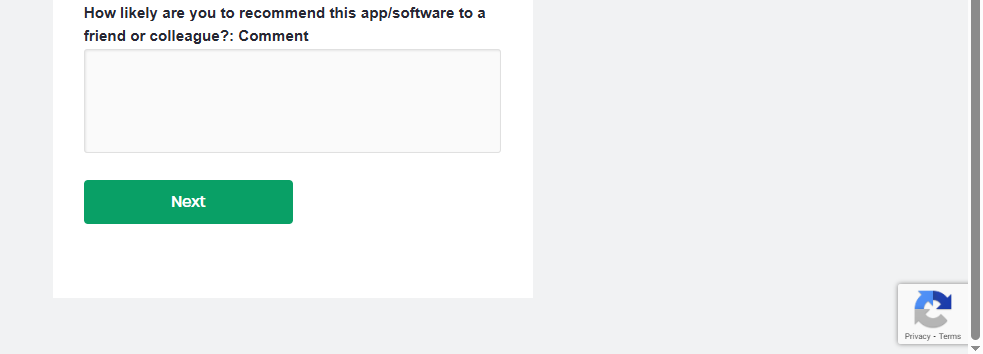
Turn this on to protect the page from bots and spam.
Users will need to confirm they are human.
¶ Progress Tracking
When your survey has more than one page, you can also set up Progress tracking:
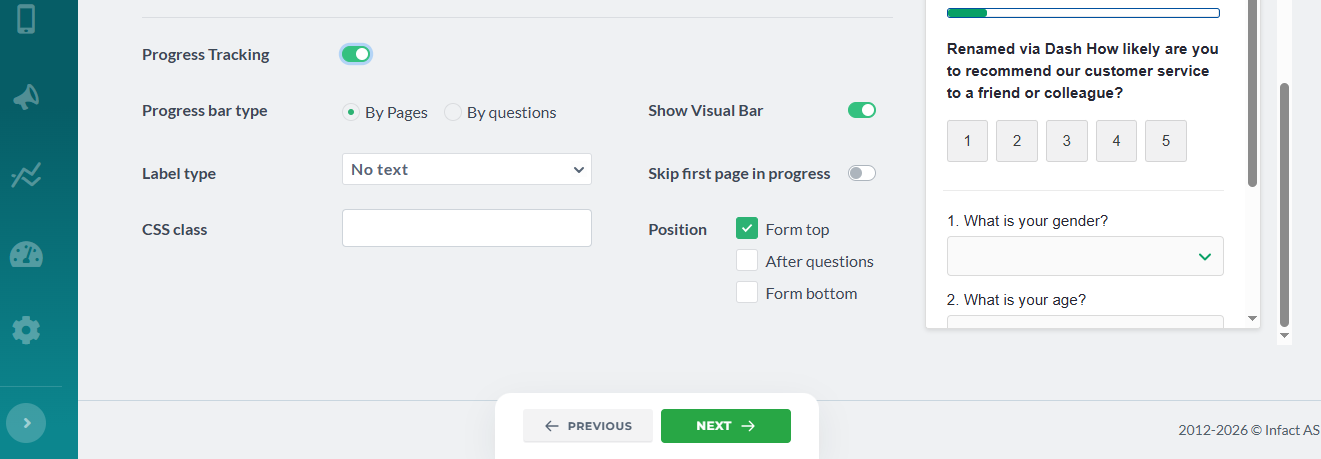
What can be modified within Progress Tracking:
- Label type - show %, show page number or nothing
- Show Visual Bar - do you want to show numbers only or show the actual progress bar
- Progress bar type - show progress by how many pages user goes or by questions they provide an answer to
- Skip first page in progress - if the first page is introductory and you do not want to count it, skip it. If progress bar type is questions, this toggle is blocked
- CSS class - assign a class that has some special style in your template settings or that you will describe later in landing page extensions when it is generated (after the survey is saved)
- Position - place the bar on the top of the form, on the bottom, after questions or combine these options