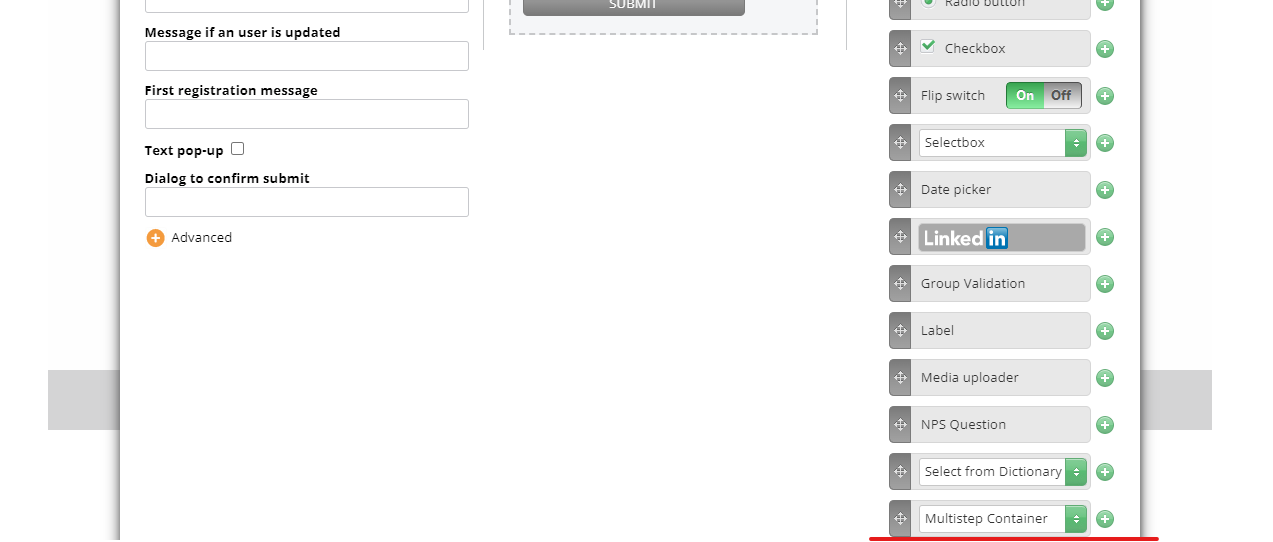
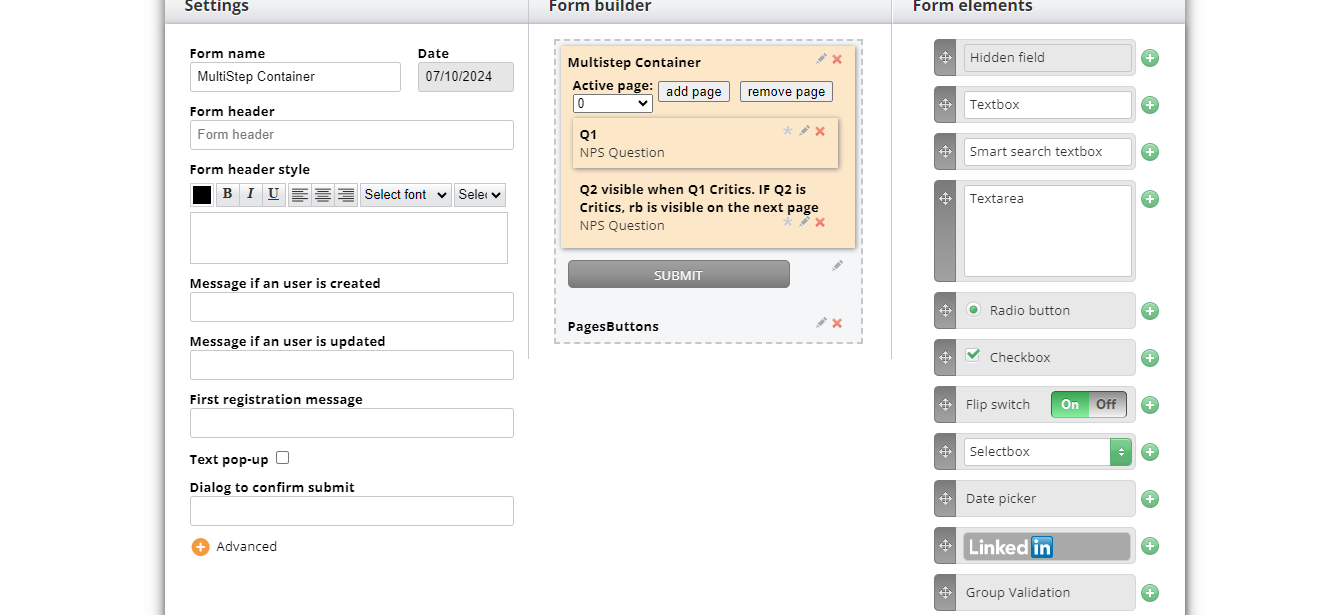
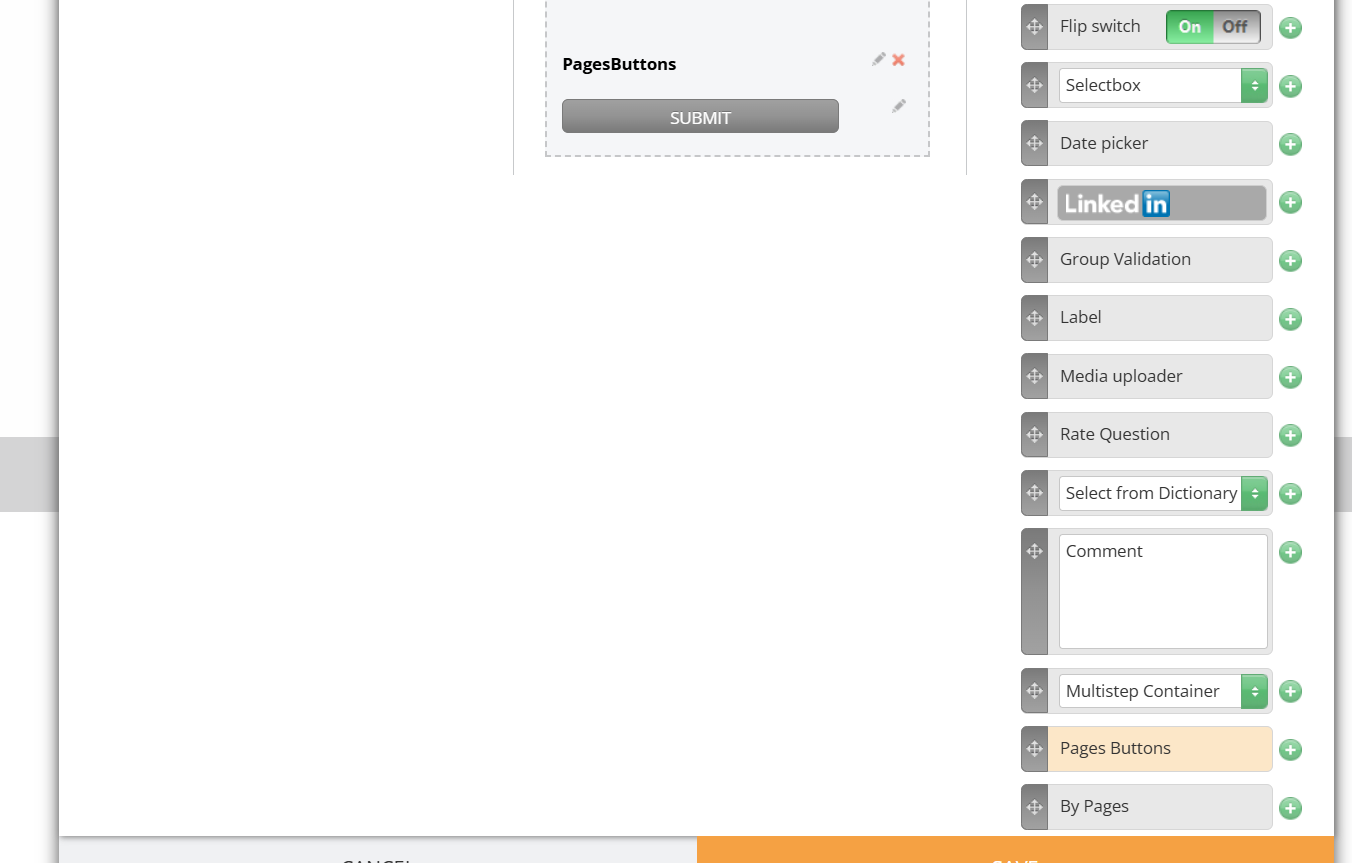
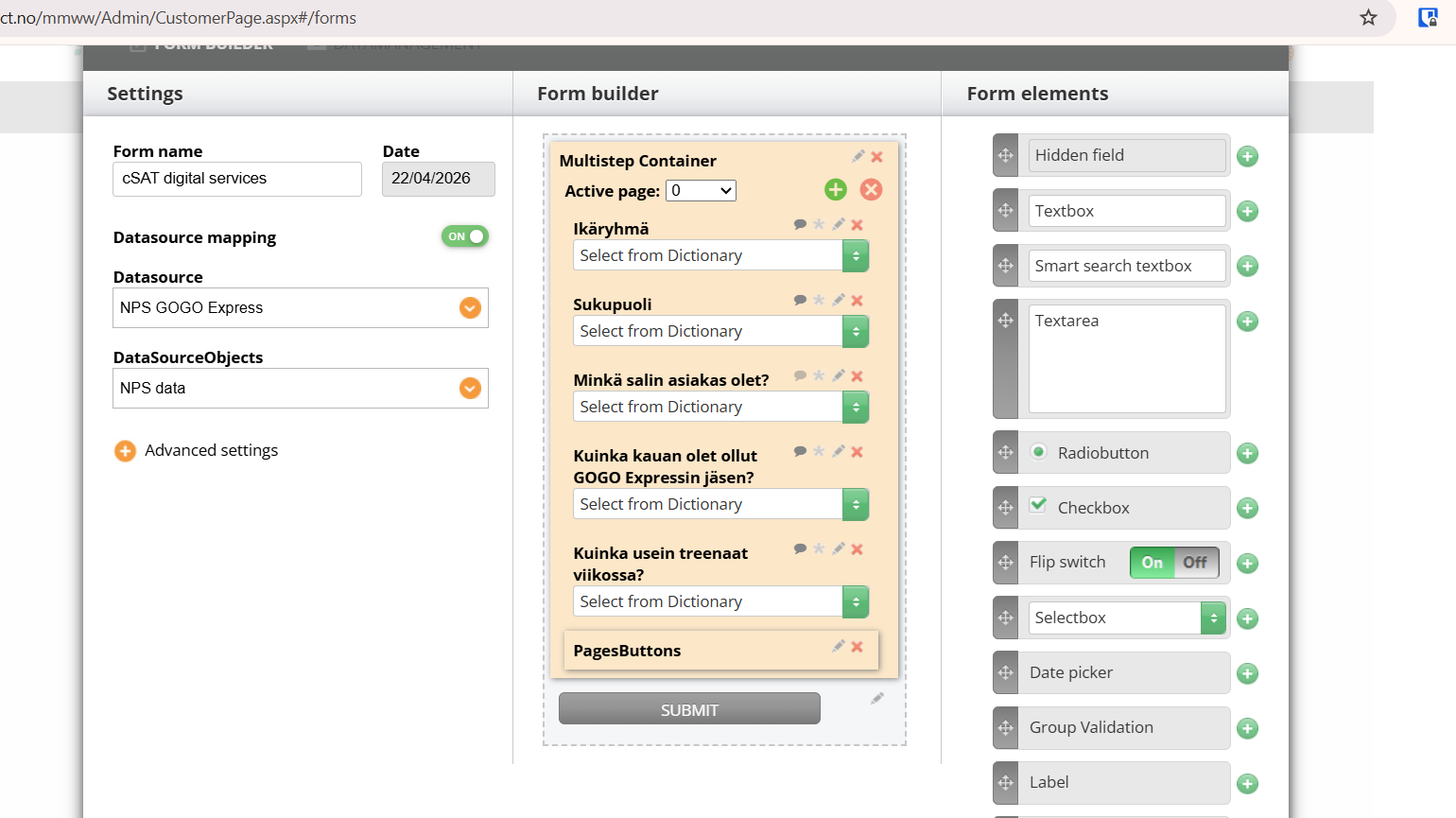
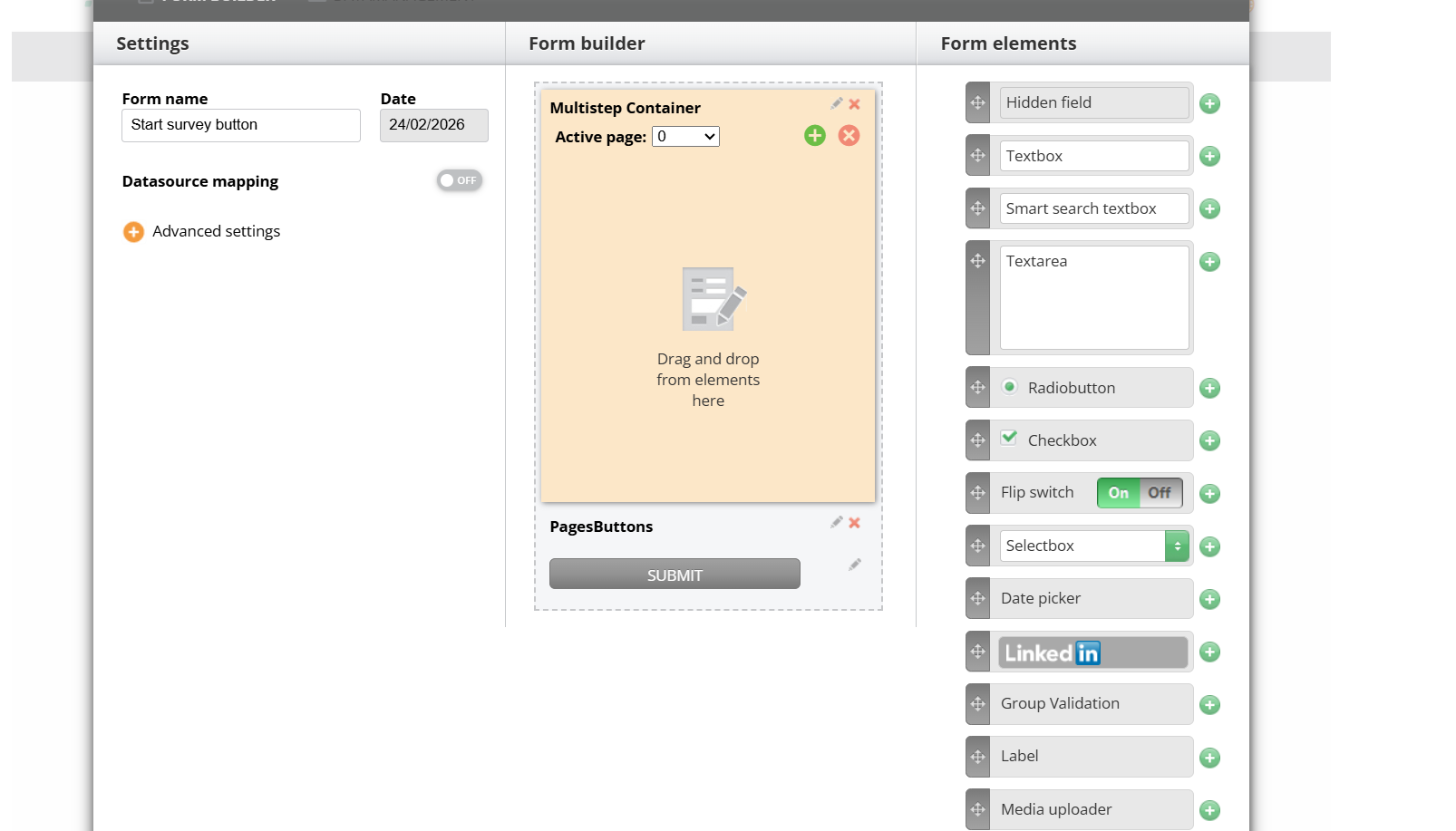
When creating a form, click on MultiStep Containter. If your form is new, you can just click on the “plus” button and the element will appear in the form.
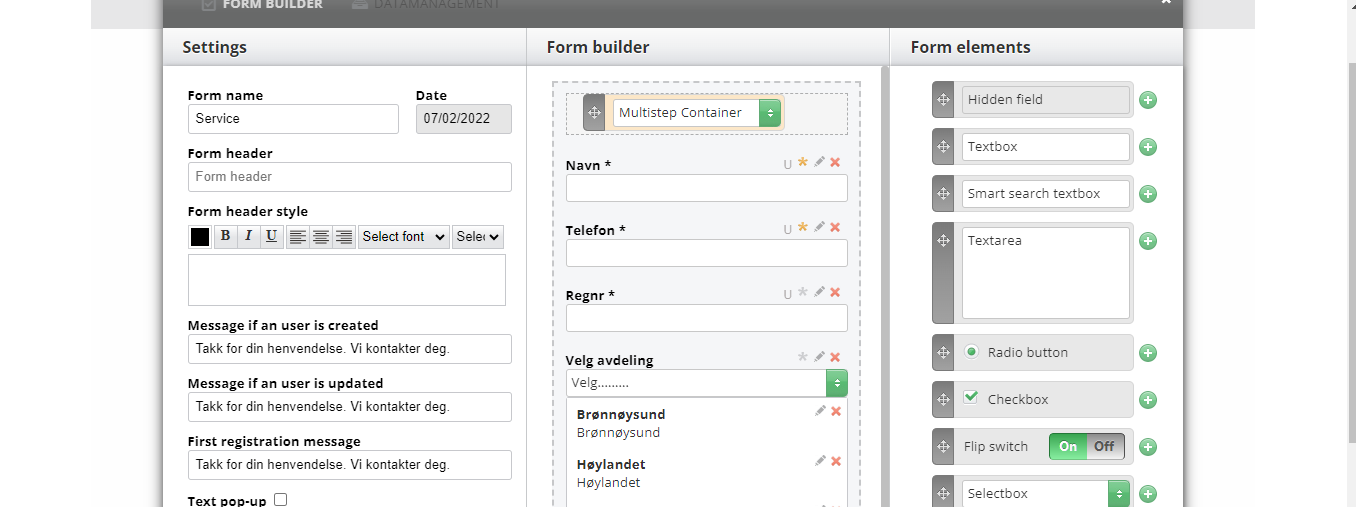
If the form already has some content, it is recommended to scroll to the place you need to add your Container and only then Drag & Drop the element:
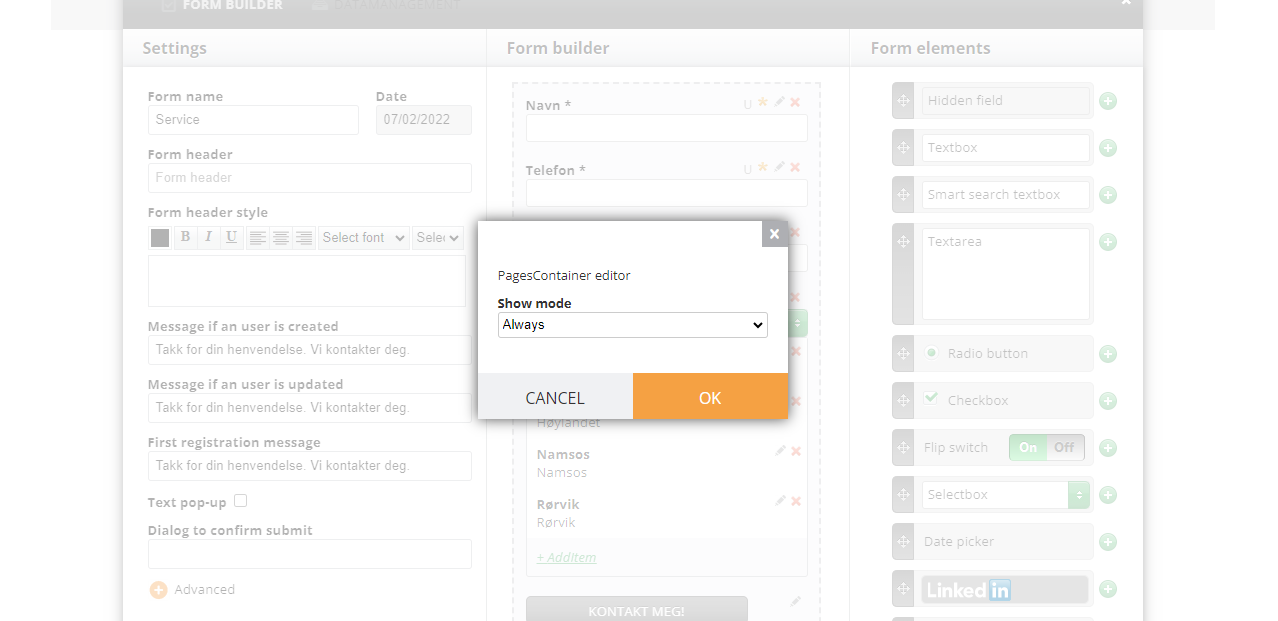
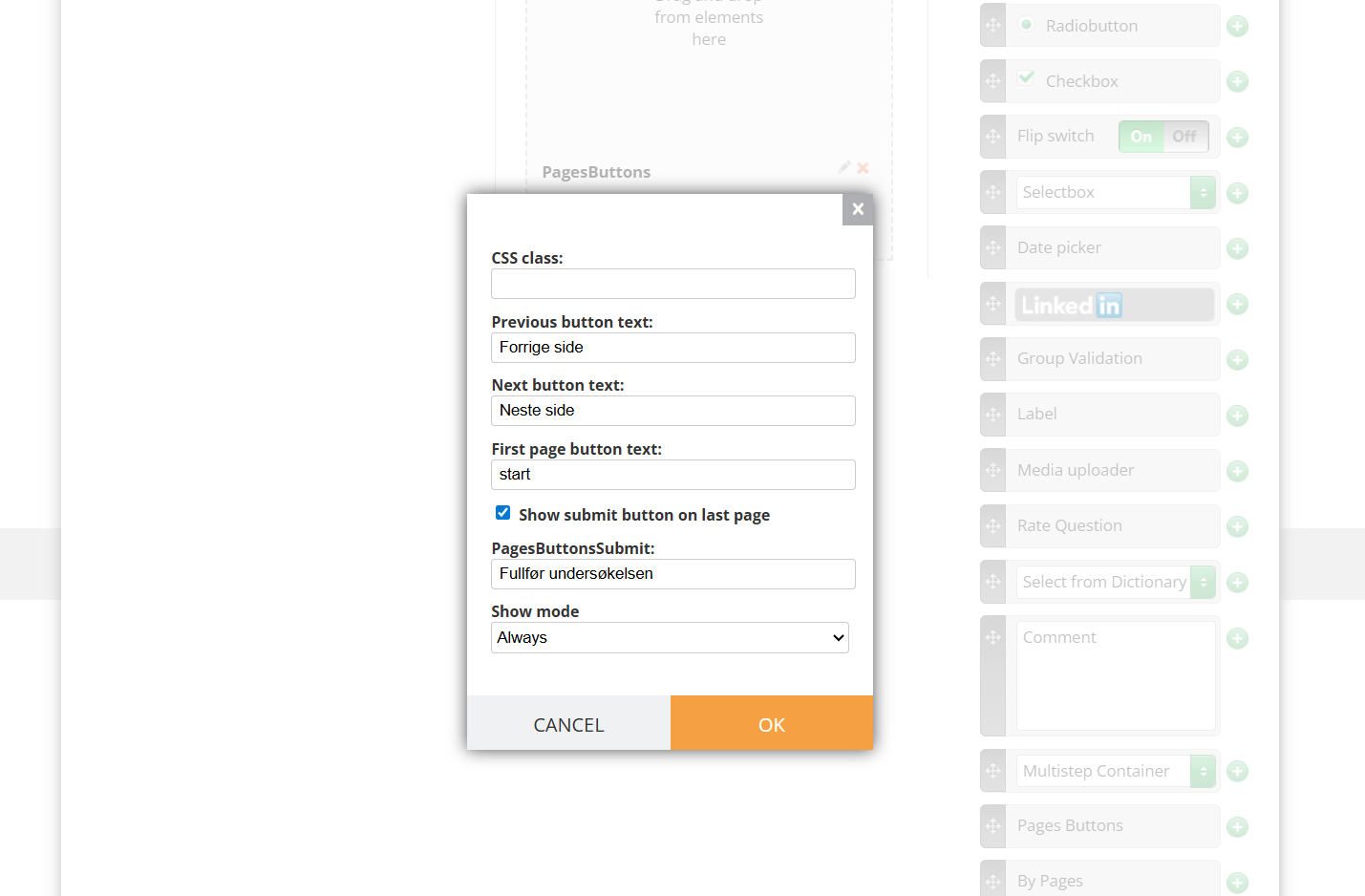
When you see this popup, select the default “Always” if not advised otherwise:
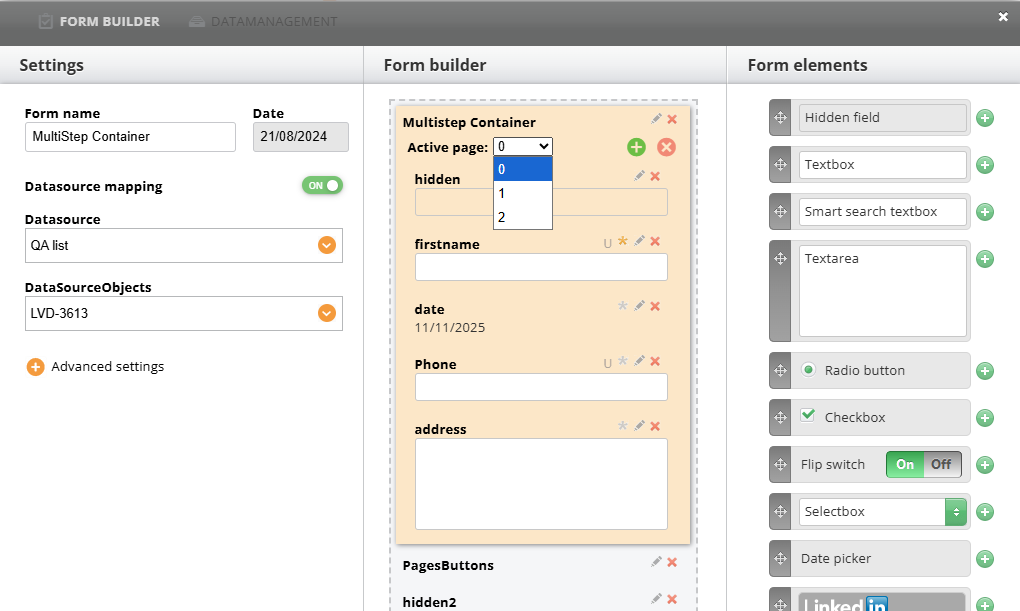
The flow is: add pages, delete them, and drag&drop needed elements inside.
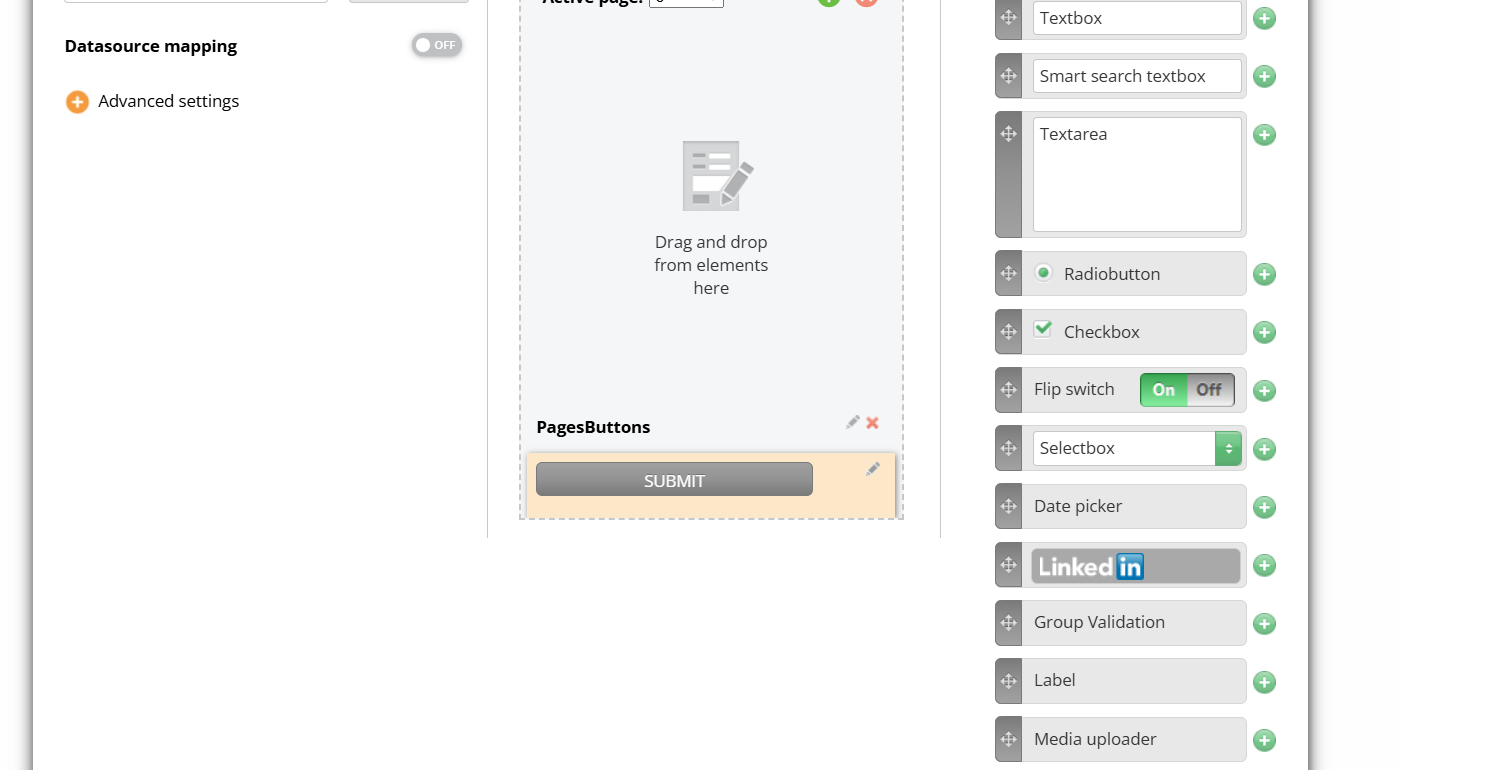
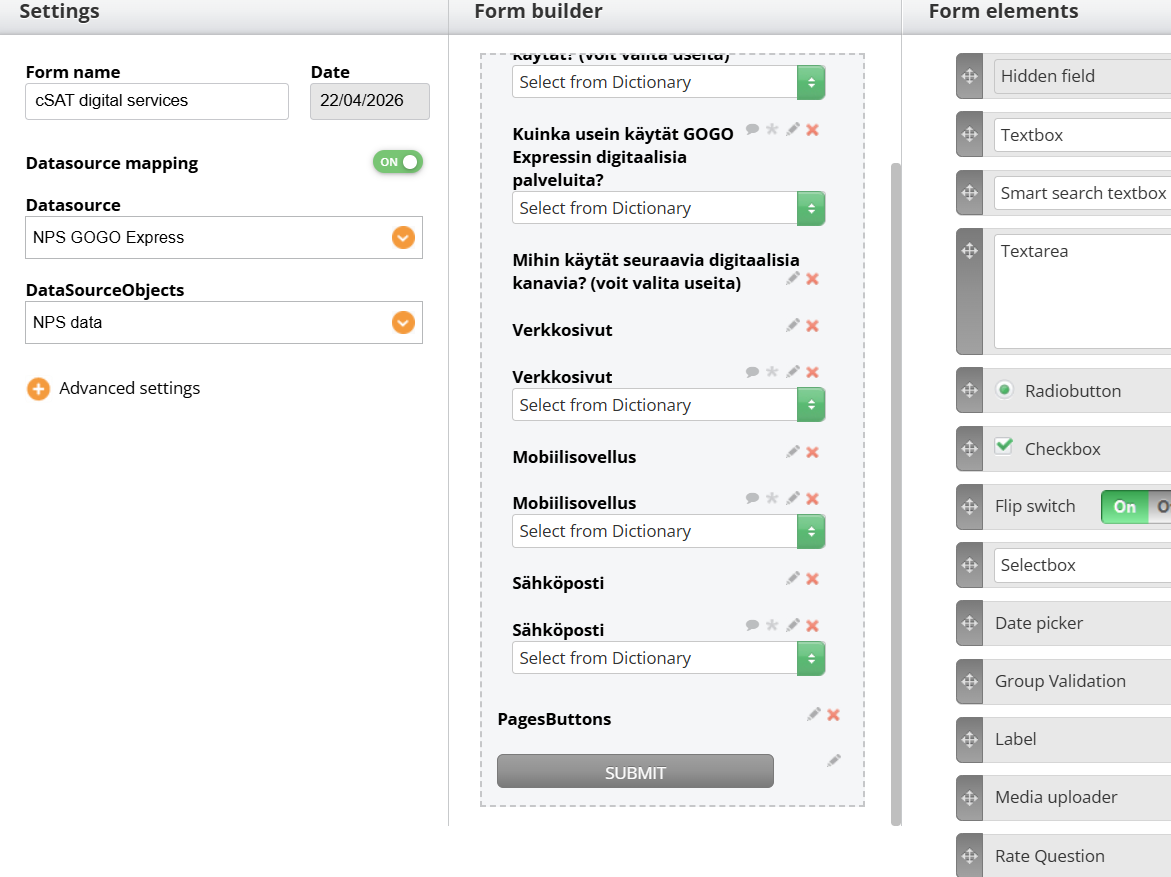
Make sure the Submit button does not get inside the Container the logic won't work
The edges of the Container when visible
The work with elements in Container is the same as without: add elements, name them, add Visibility Rules (which work between elements located on different Steps), map in Advanced, etc.
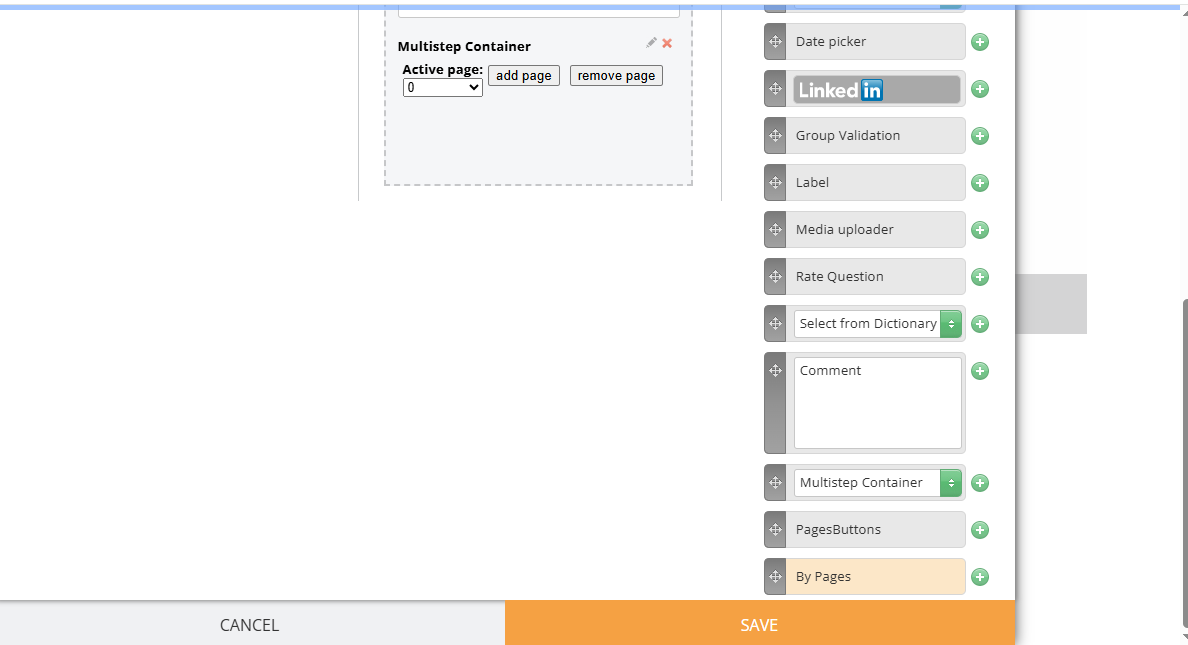
If you need the Submit button to be shown only on the last step, and for there to be Previous and Next buttons, add this element. It becomes visible when you add the Container:
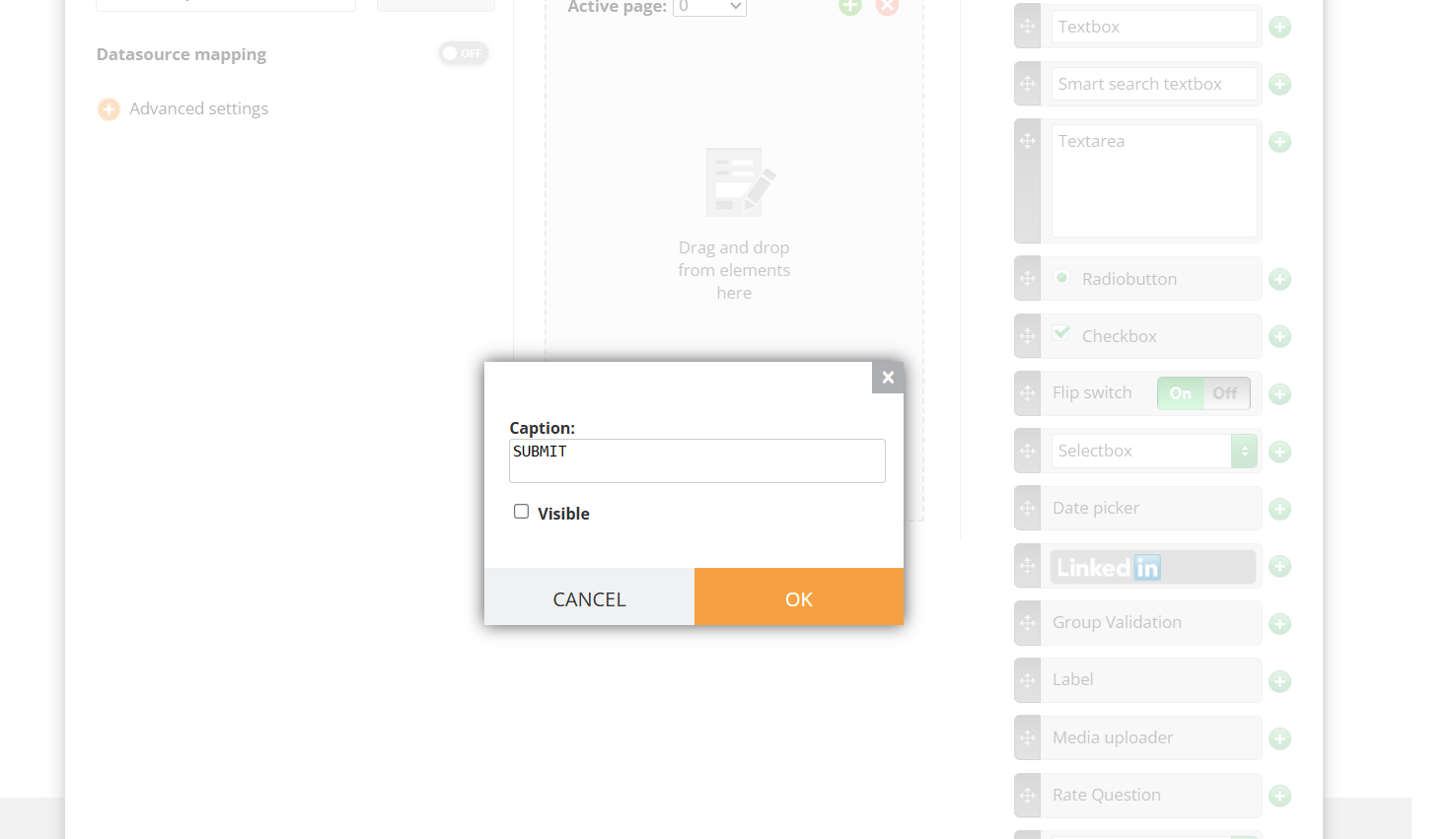
Here is its pop-up:
Note! There is always a Submit button on the form. When you add Multistep container and buttons, you need to make the original Submit button invisible:
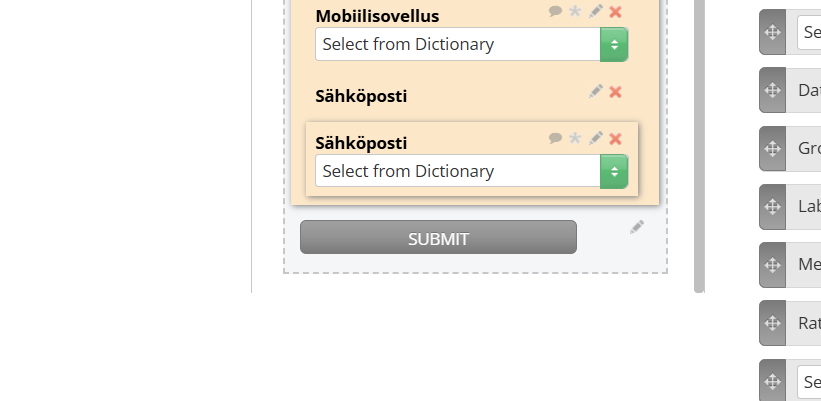
¶ If the buttons do not work and Submit is shown on all the pages?
Sometimes the buttons element gets inside the Multipage Container, which is why it cannot function correctly, as the switch that changes the pages is placed onto one of the pages:
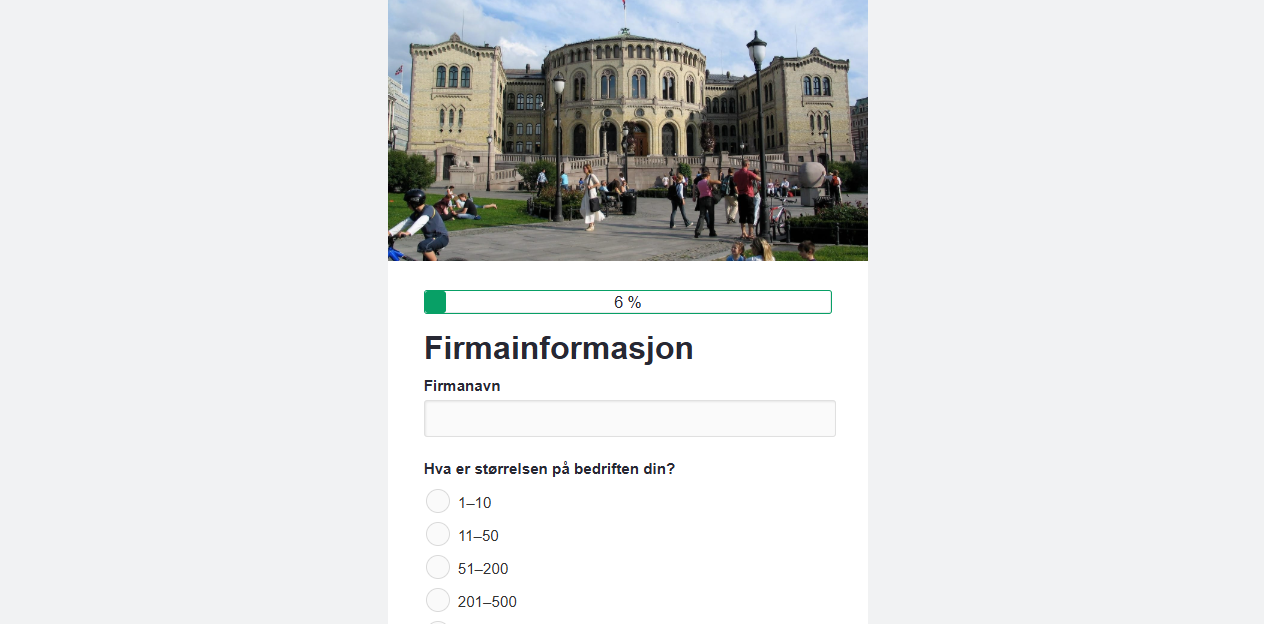
If your solution requires a progress tracker (by question or by page), like shown in the screenshot:
Add this element:
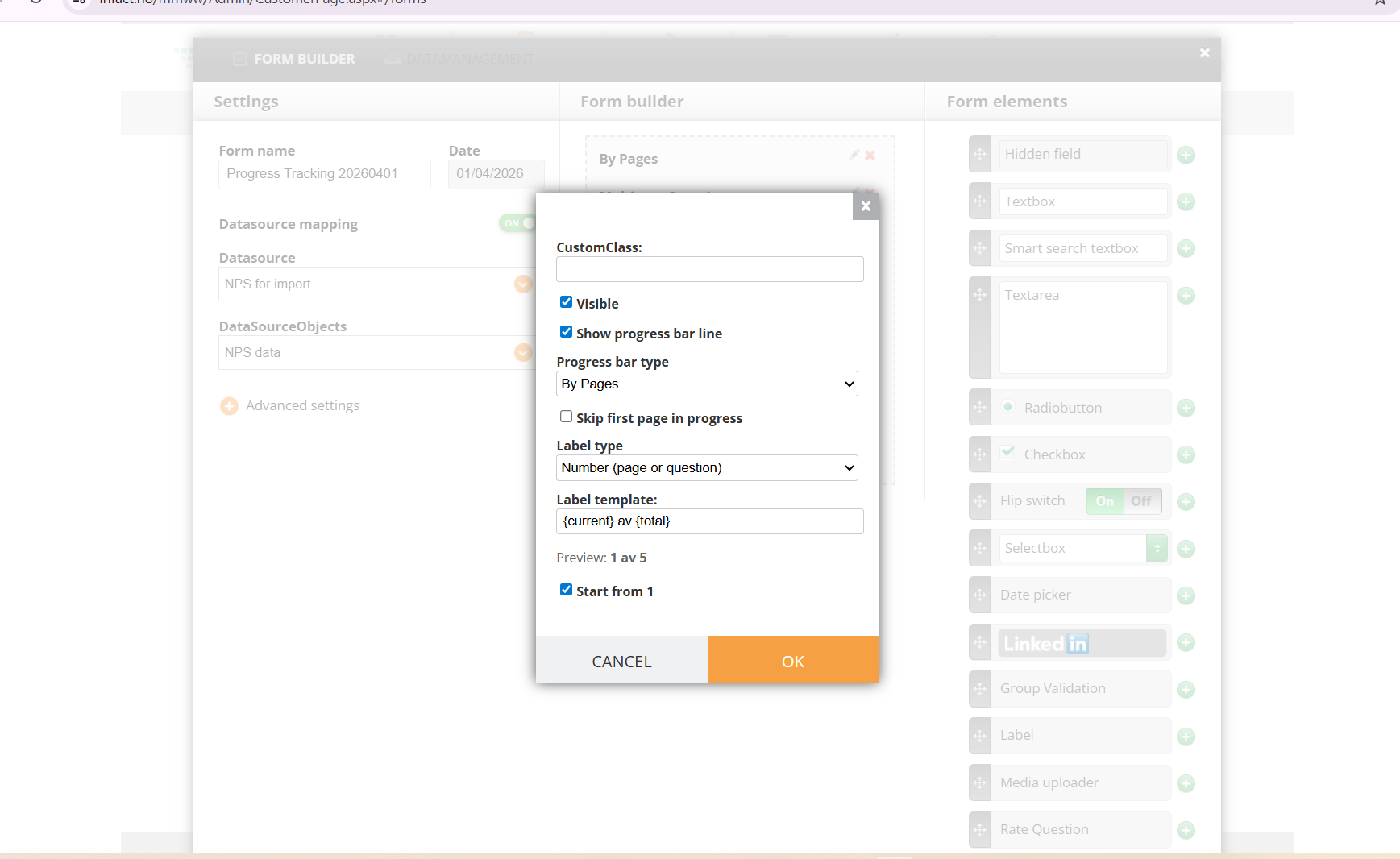
The settings allow you to set the progress as a Par or just a counter, count progress by pages or by question. Show the label as a number, persent or do not show the actual value, just the bar with color. And also to exclude the first page from the progress tracking.
The label text is now customizable, e.g., the default “{current} of {total}“ can be changed to any text in any language.
The review for this label is added.
Add an option to start from 1 and make it the default.