¶ Statuses after Sending out
First time you will see a campaign status, is after you send it.
While the campaign is being send, the status looks like Started. You can already close this window or stay to see the status Completed:
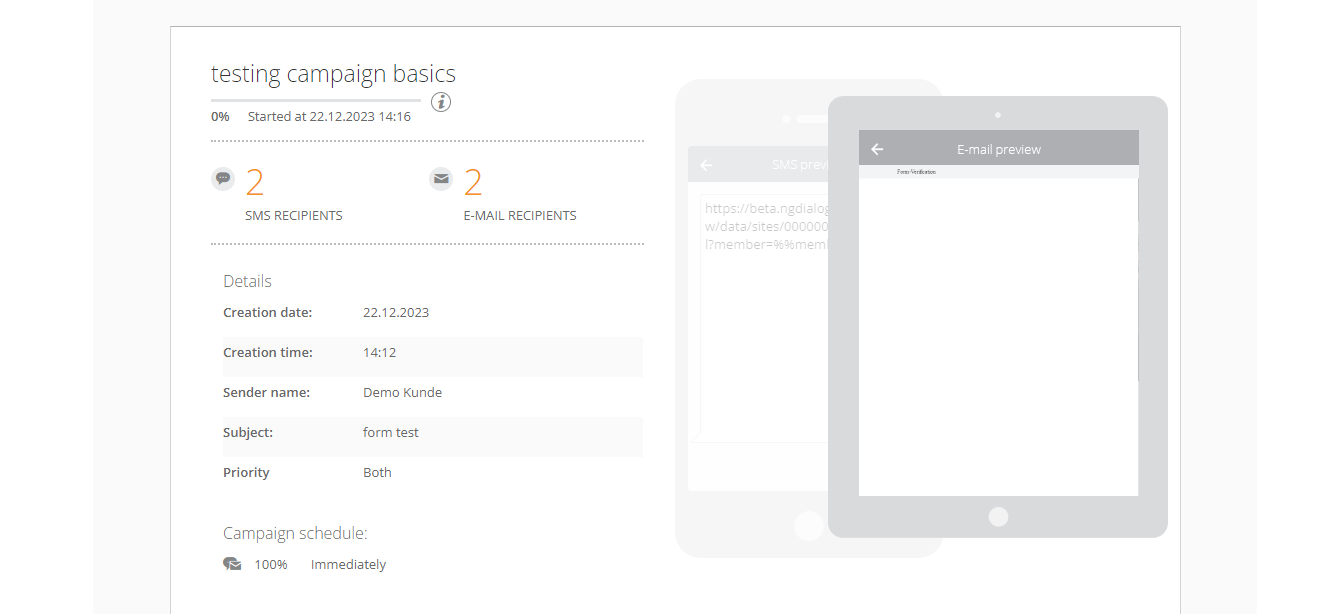
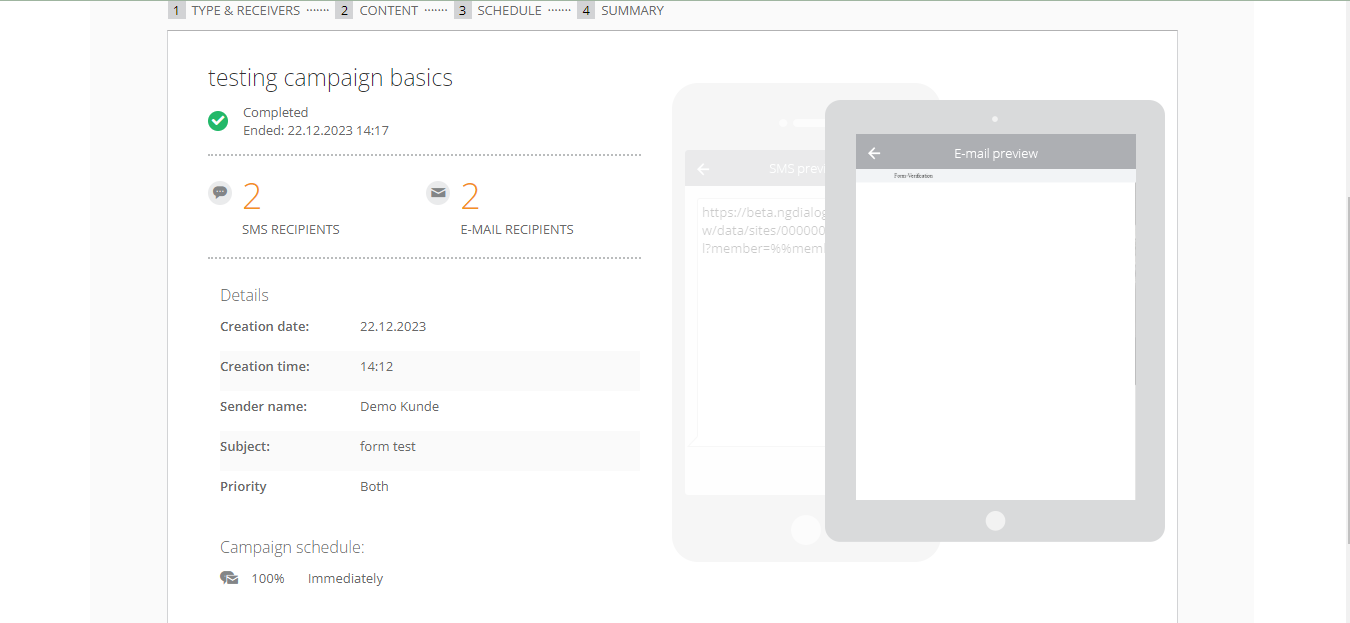
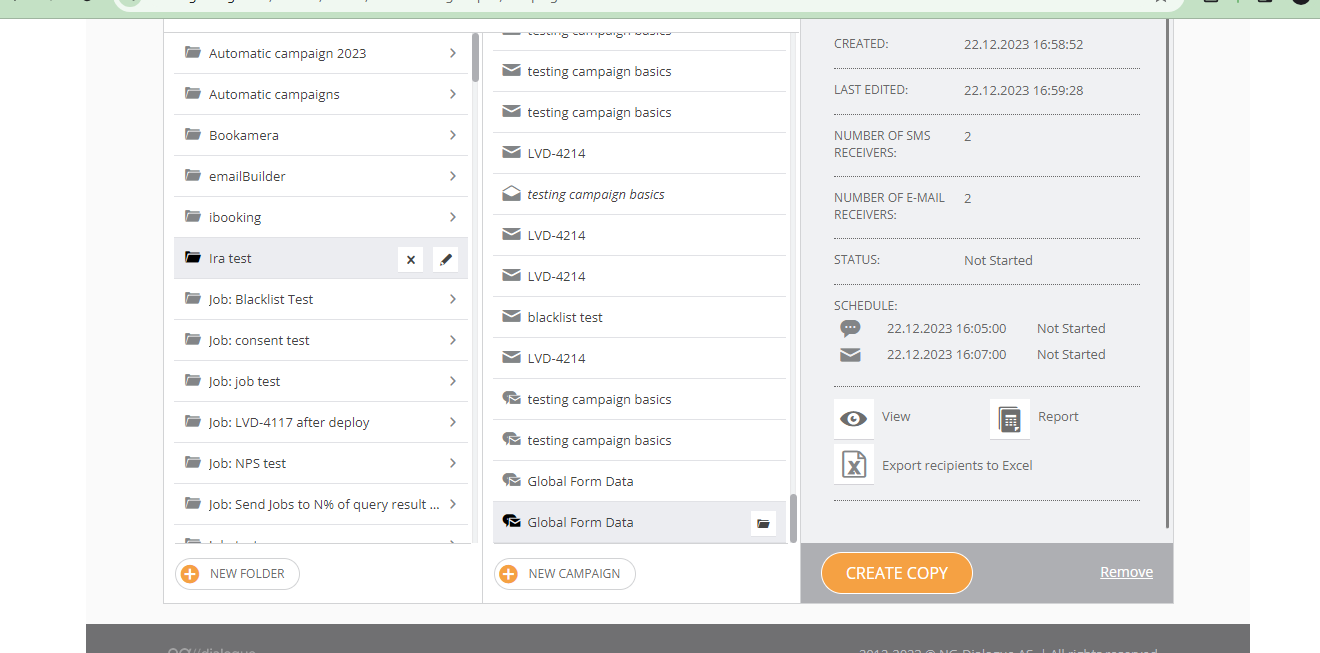
If the campaign has been Scheduled, you won't see a green tick until the campaign has been sent out:
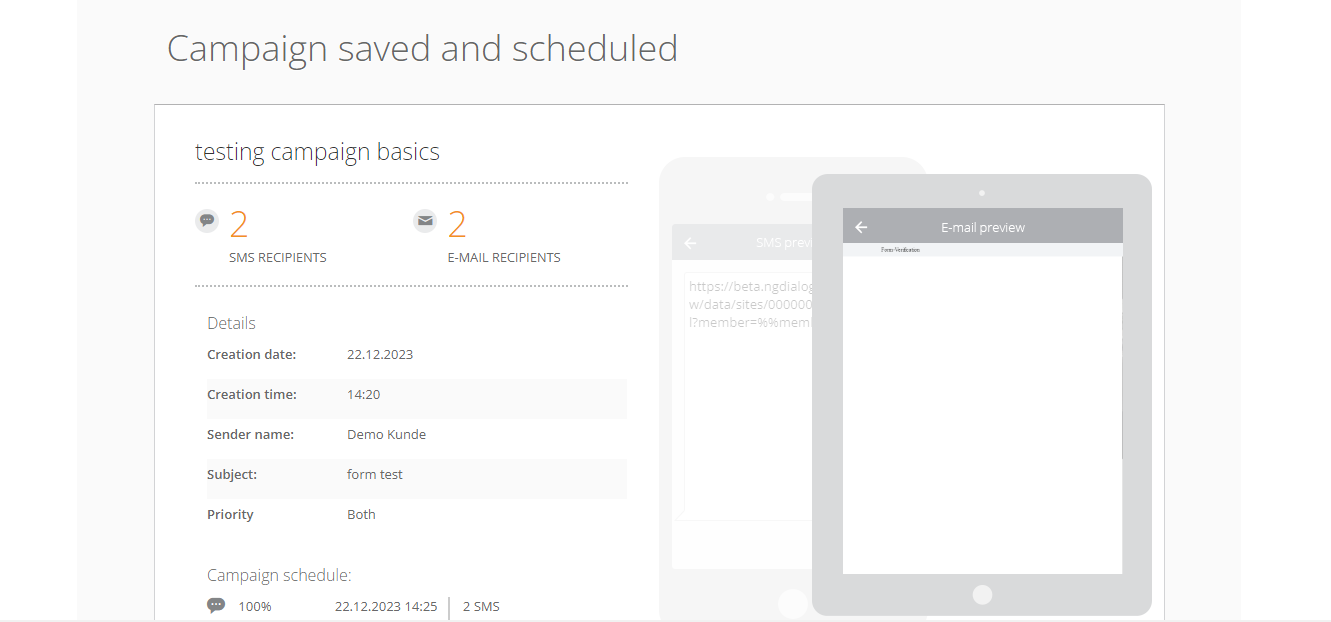
More on campaign statuses and where to check them.
¶ Campaign Details
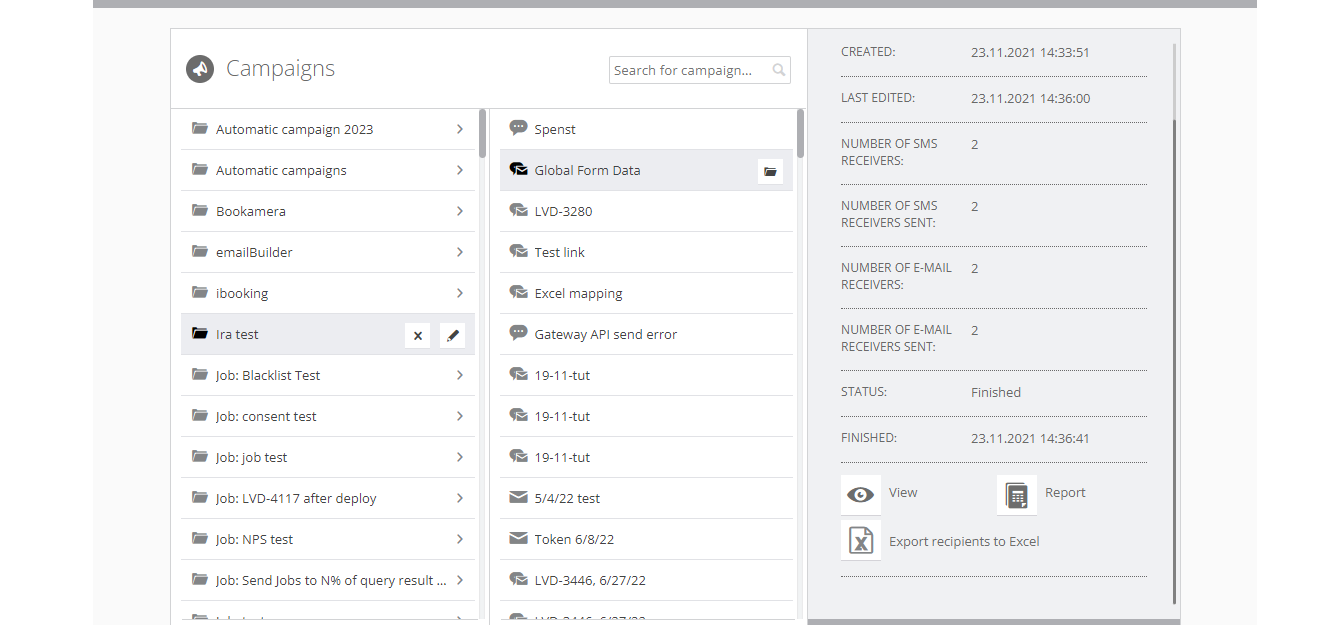
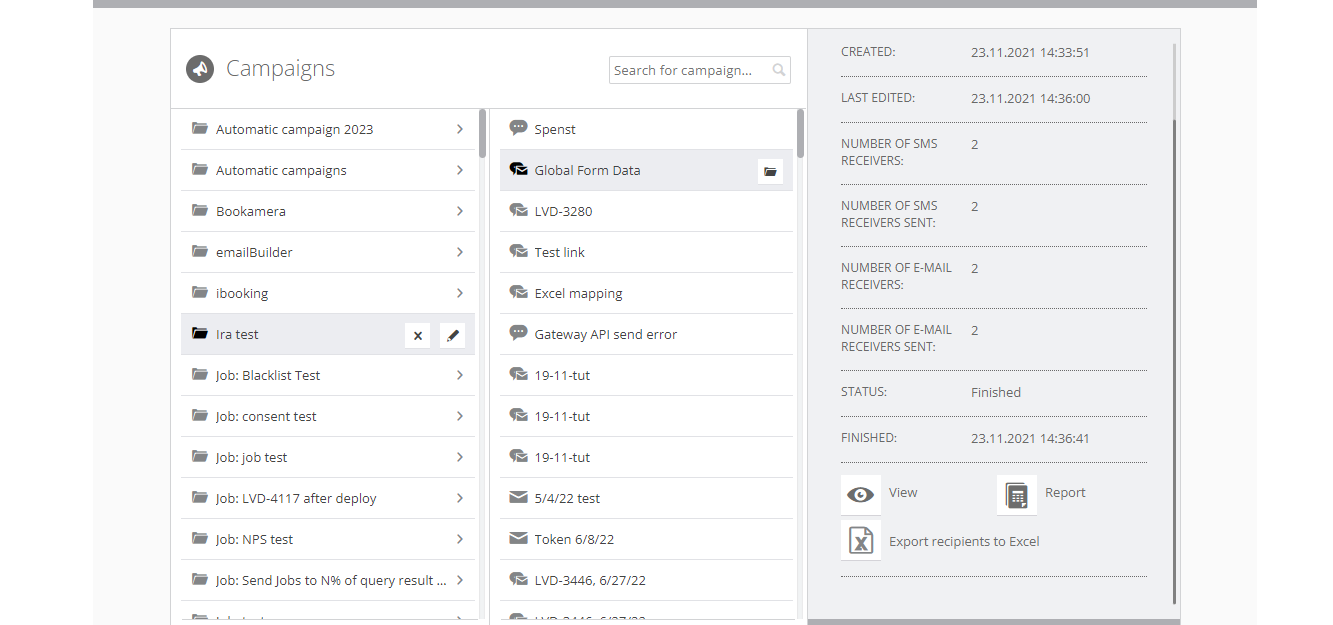
You can always click on your campaign to see its details:
- Created - see the time it was created;
- Last Edited - see the time it was edited (for example, if it is a draft or scheduled campaign with change time);
- Number of Receivers - number of recipients you have uploaded;
- Numbers of SMS/Emails Sent - number of actual SMS and emails sent (due to errors, blacklists, incorrect addresses, etc.)
- Status - see data below
- Finished - time the campaign was sent
- View - view how the campaign looks
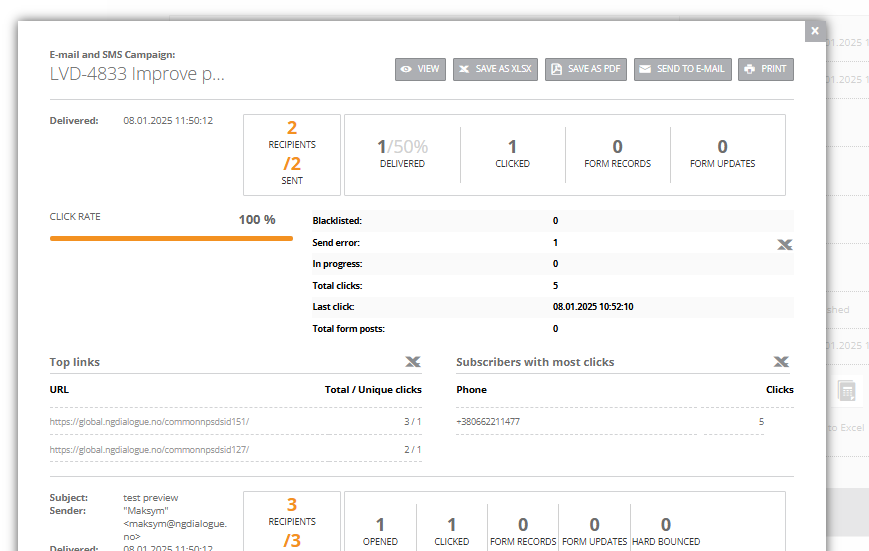
- Report - see all details (explained below)
- Export Recipients to Excel - download Excel with recipients
¶ Statuses
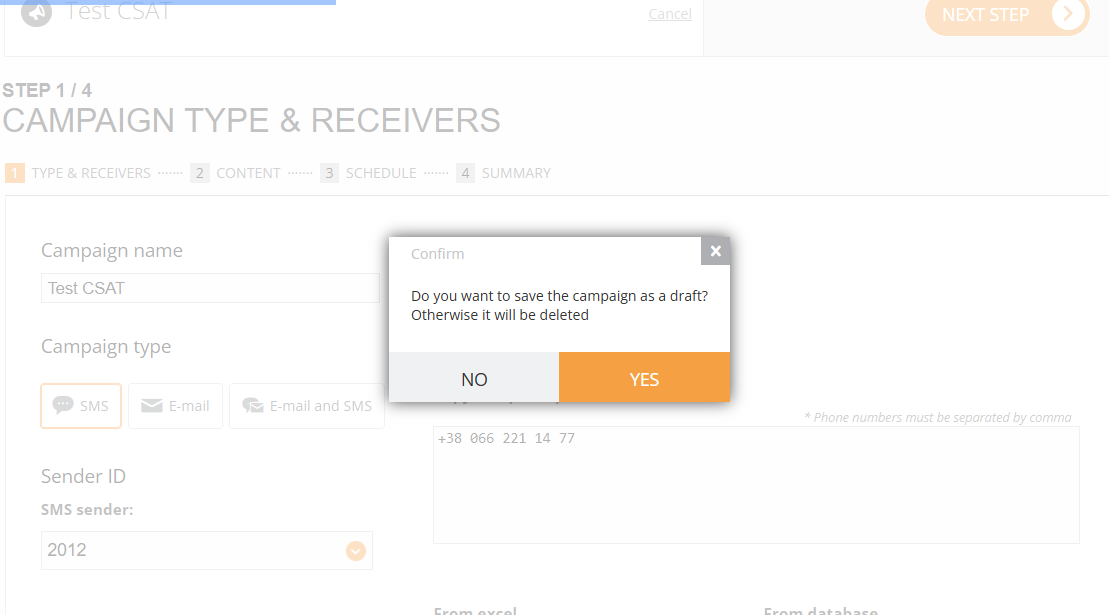
- Draft - if you exit campaign builder by clicking Back and then you see this pop-up and if you click “YES”, the draft will be created:
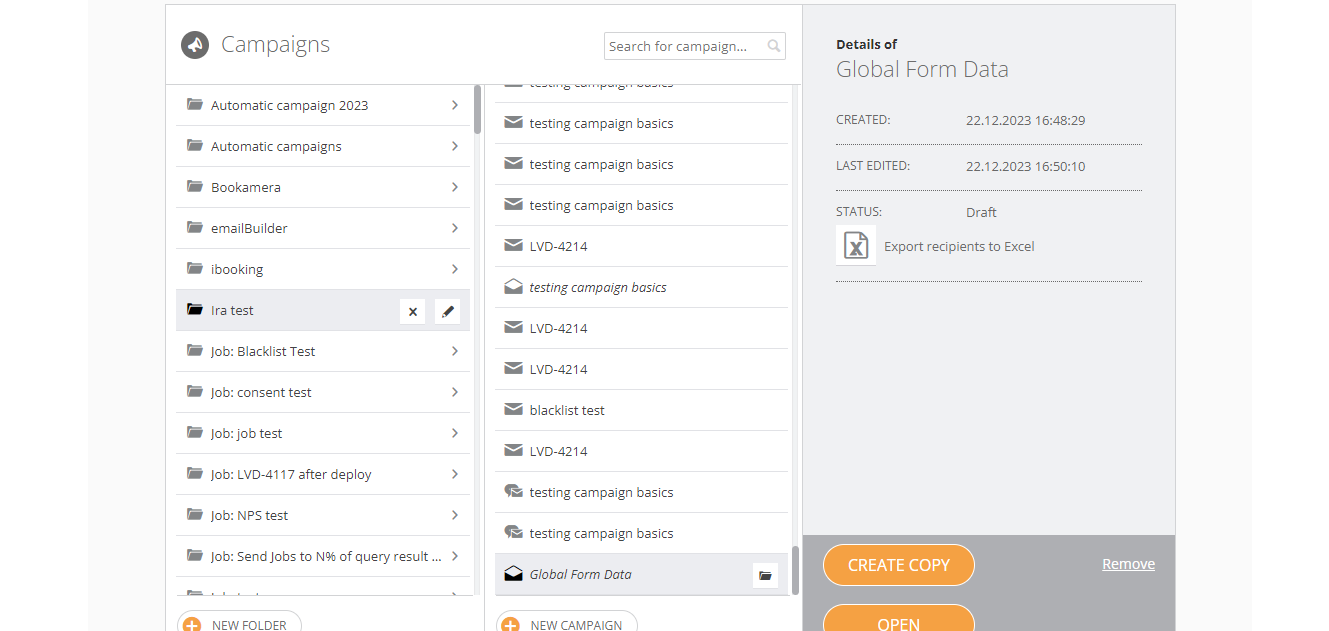
You can open it and continue with it, create a copy and remove it.
- Saving - it sometimes can be seen here:
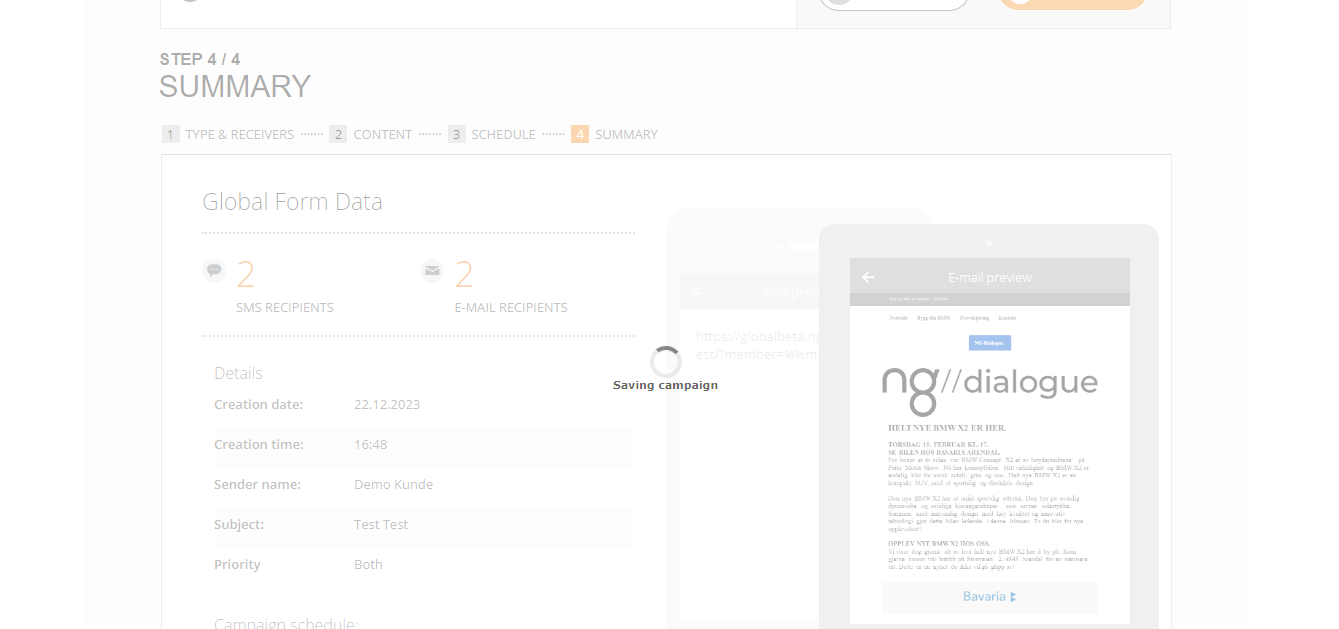
Or if you have a lot of recipients, you will see it in the main menu. If your campaign has status Saving for too long, please, notify us;
- Not started - means the campaign is about to start;
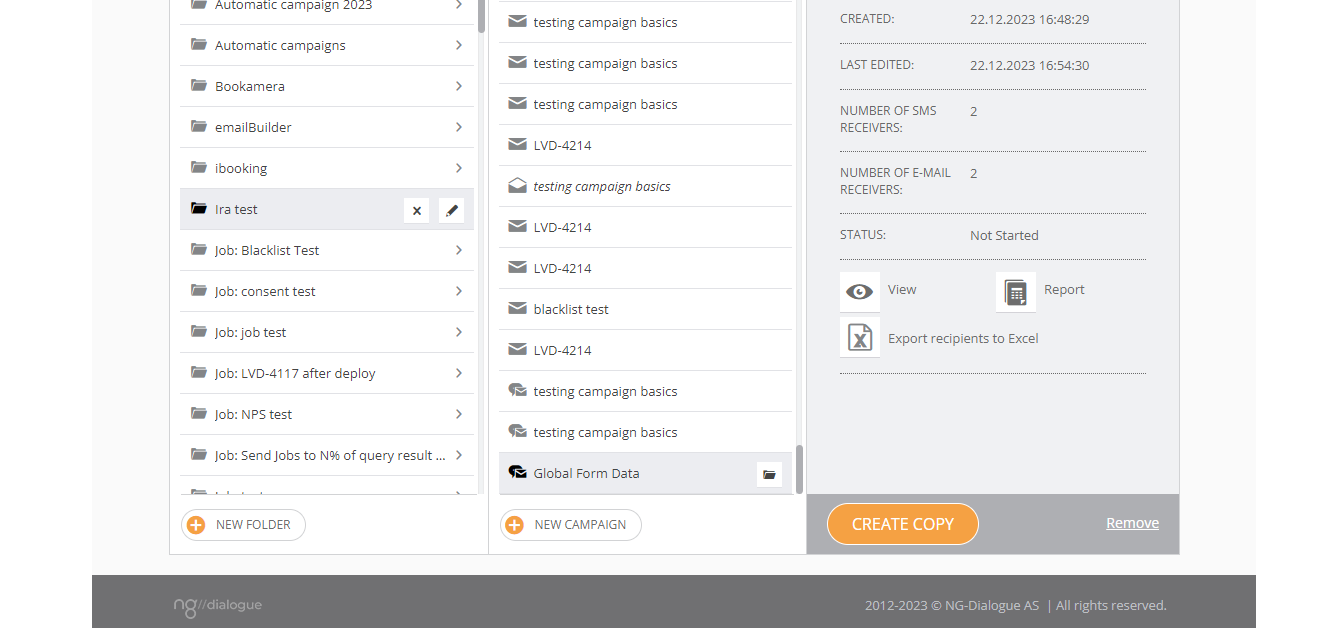
- Started - is being sent out now;
- Scheduled
- Finished
- Error - contact support
¶ Report
You can see all the main statistics here:
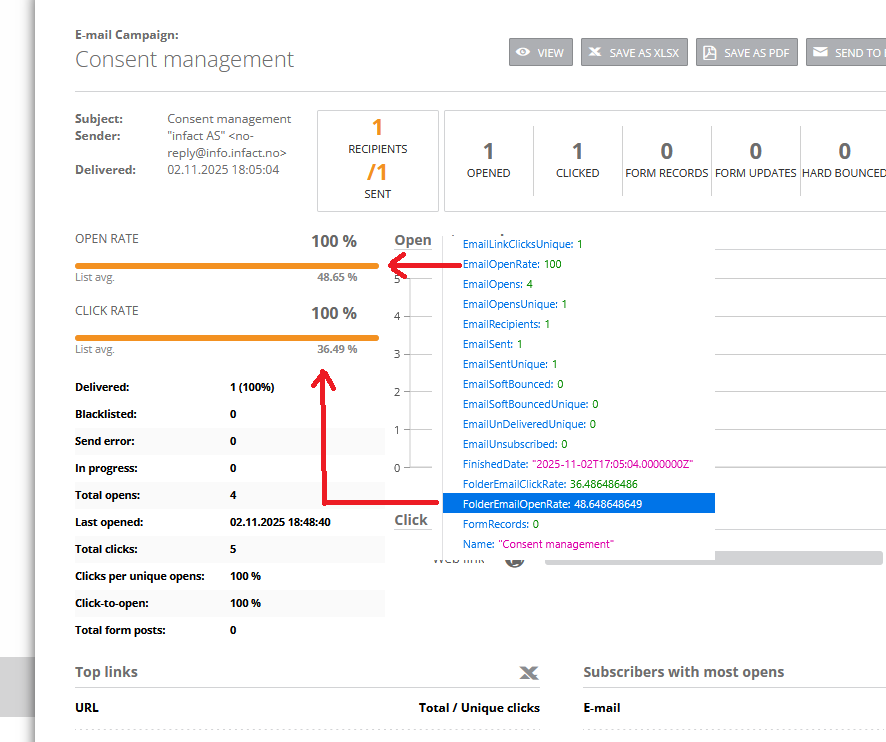
Regarding “List Avg.”, this value means the average value in the current folder:
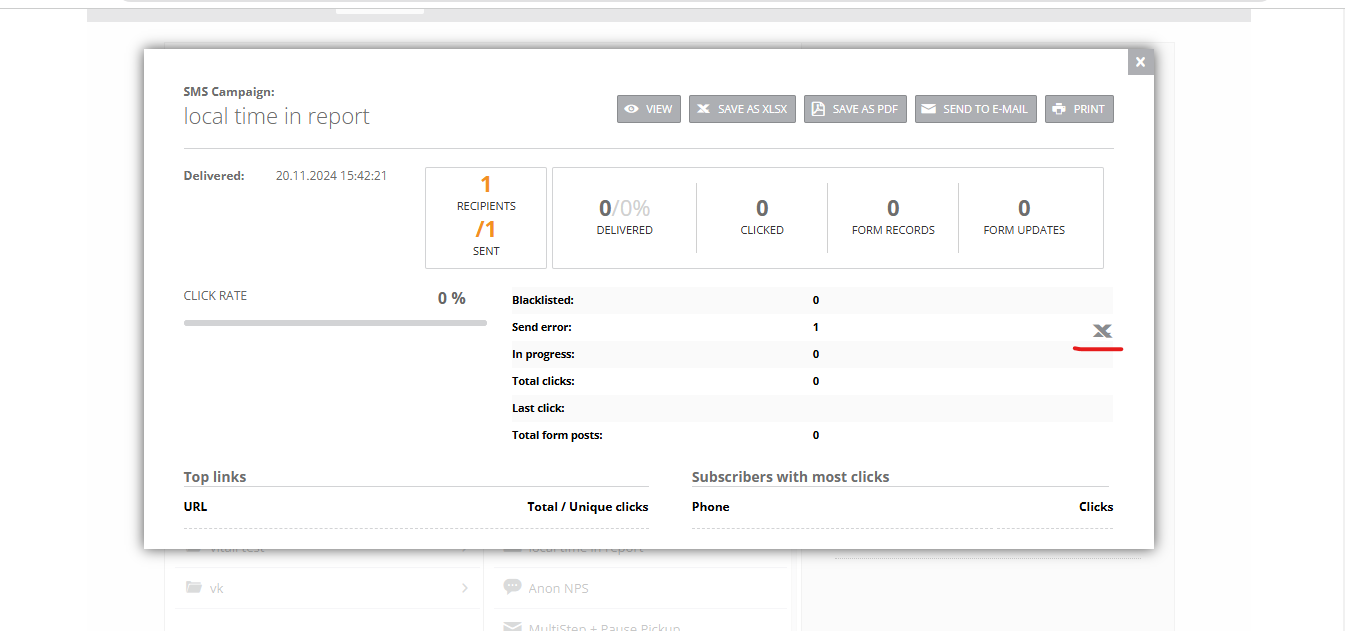
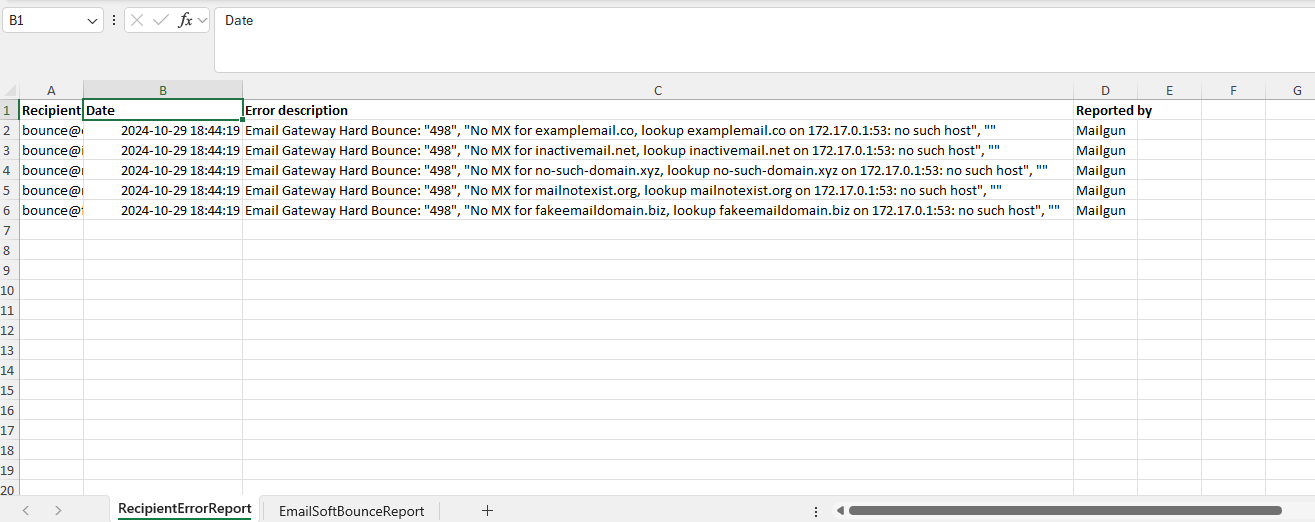
If the campaign is finished and the Send Error is not zero, you can click on the Excel button and download the report:
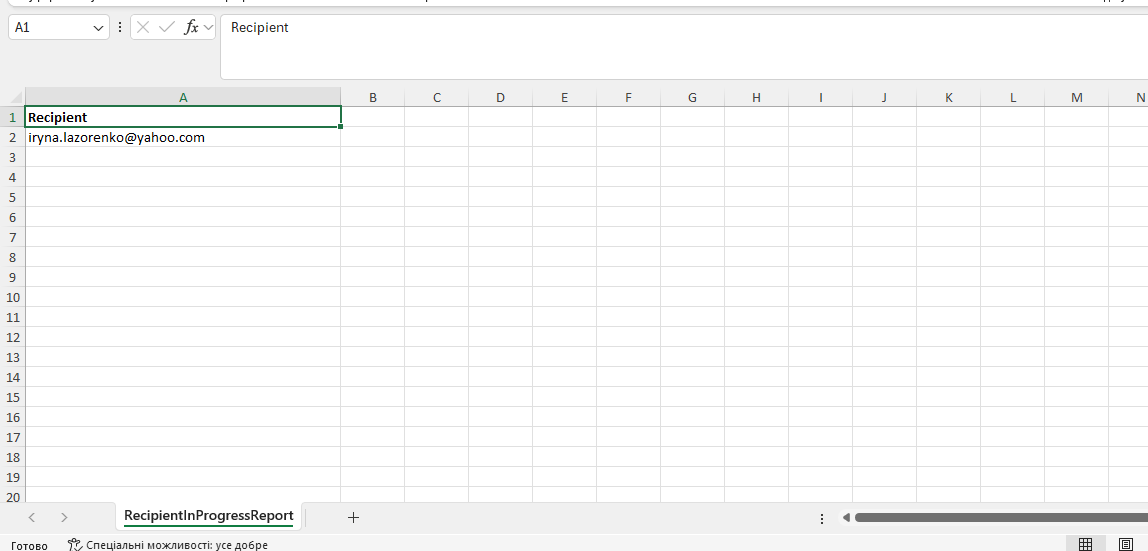
If the campaign is running and “in progress” is not zero, you can click on the Excel button and download a report of undelivered emails and phones
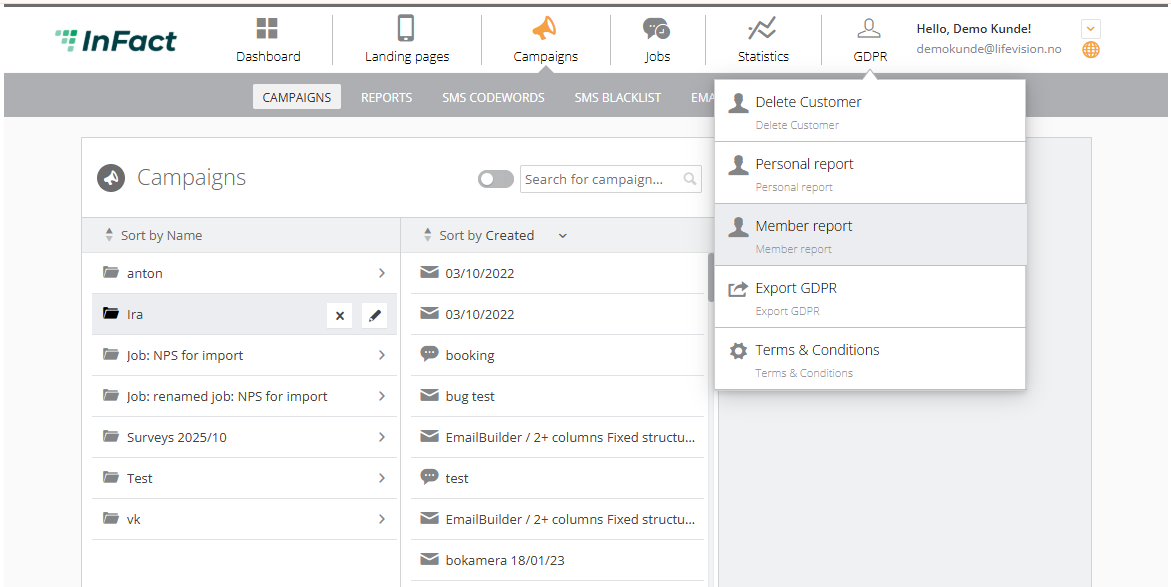
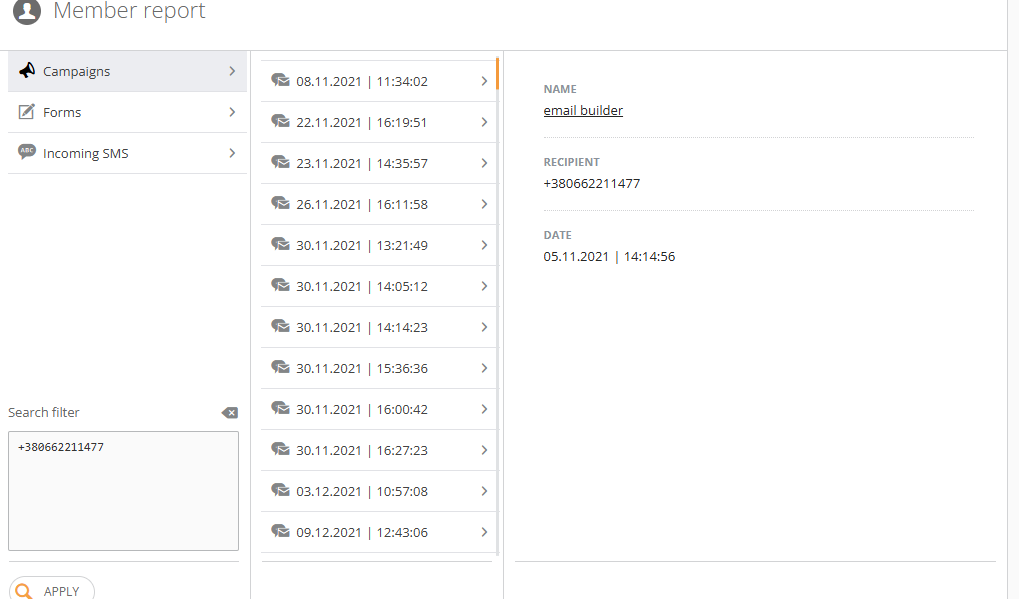
Additionally, you can generate a Member report by phone or email here:
An issue from report: Clicks stats look doubled OR it appears like the email has hidden links (two times more than the email actually has)
These two situations derive from an email click bot that clicks all links to check for malware, looks for hidden links. We cannot fix it that is, we always have total clicks and unique clicks in stats.
Regarding the “hidden links” issue: specifically, Microsoft, when checking the links in the email, might show that it is 2 times more links as the email actually has. This may lead to emails going to spam. To avoid it, use a custom domain. If already using a custom domain, it will be okay; it is just how the click bot works.
If there are still too many links, we can suggest:
- We only add 1 link that is used to track if the email was opened. All other links are in their email template.
- I would suggest starting with custom fonts and seeing if they really need that many.
- If they think this is ok for their email, that can also remove the link to "View in web browser".
- They could also remove the "Unsubscribe" link, but I strongly advise against it. If it's still not enough, they might remove social media links as well
- They can create an empty email, just remove everything from the template and add simple text. This should help to determine if the problem is in the links or related to a different issue