¶ BokameraWidget / guide for setting up landing pages
¶ 1. Create a Bokamera datasource
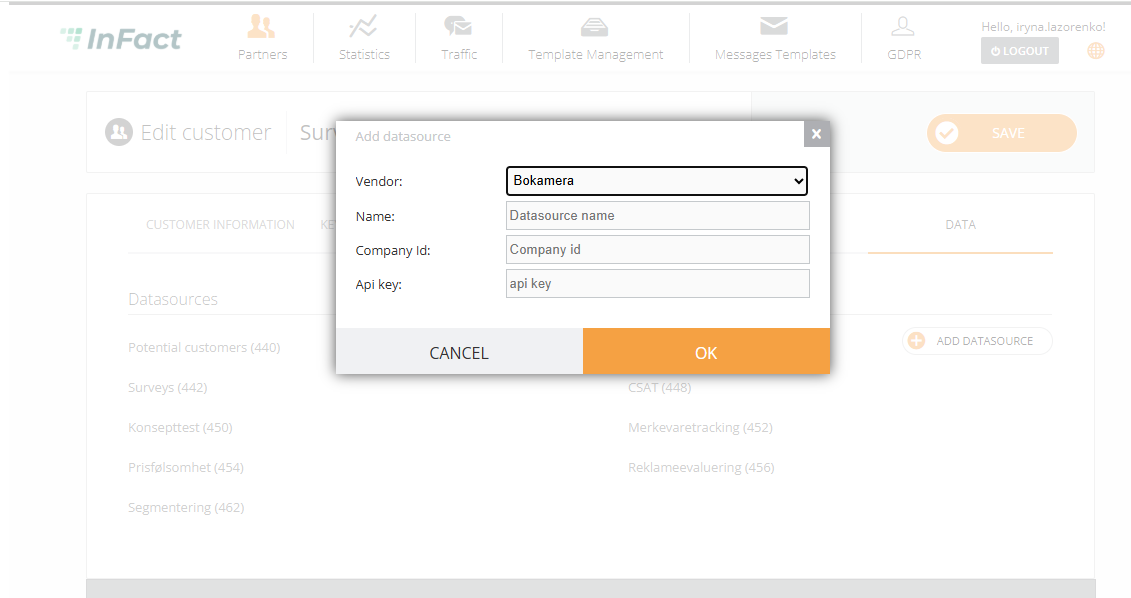
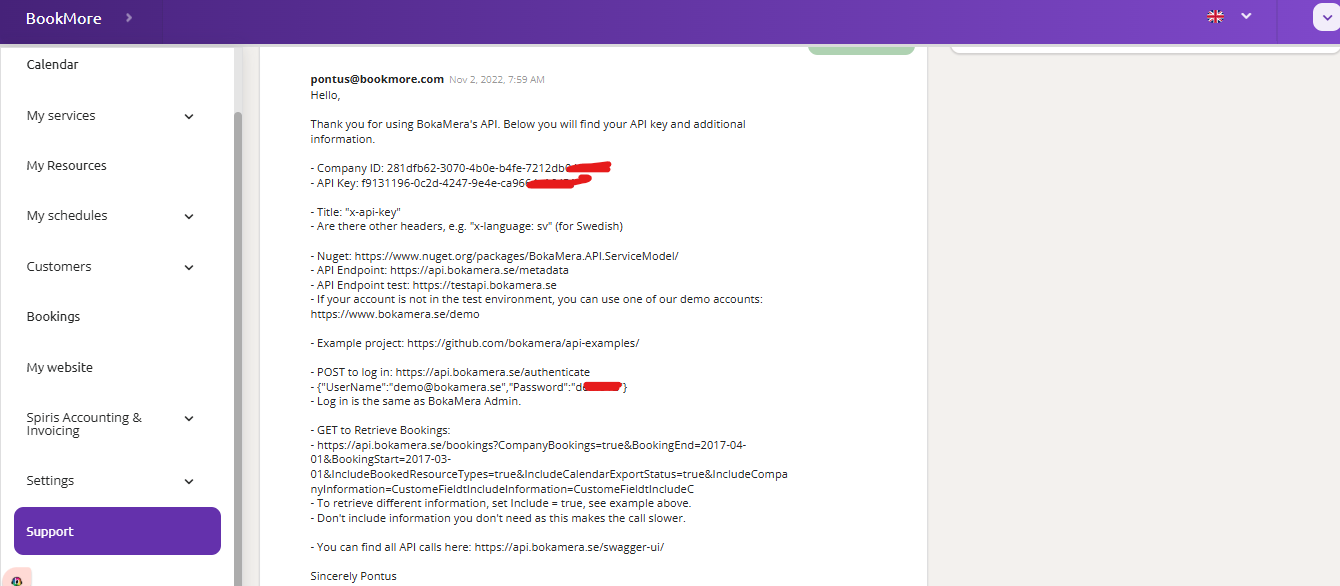
¶ 2. Add API-key, companyID to the settings
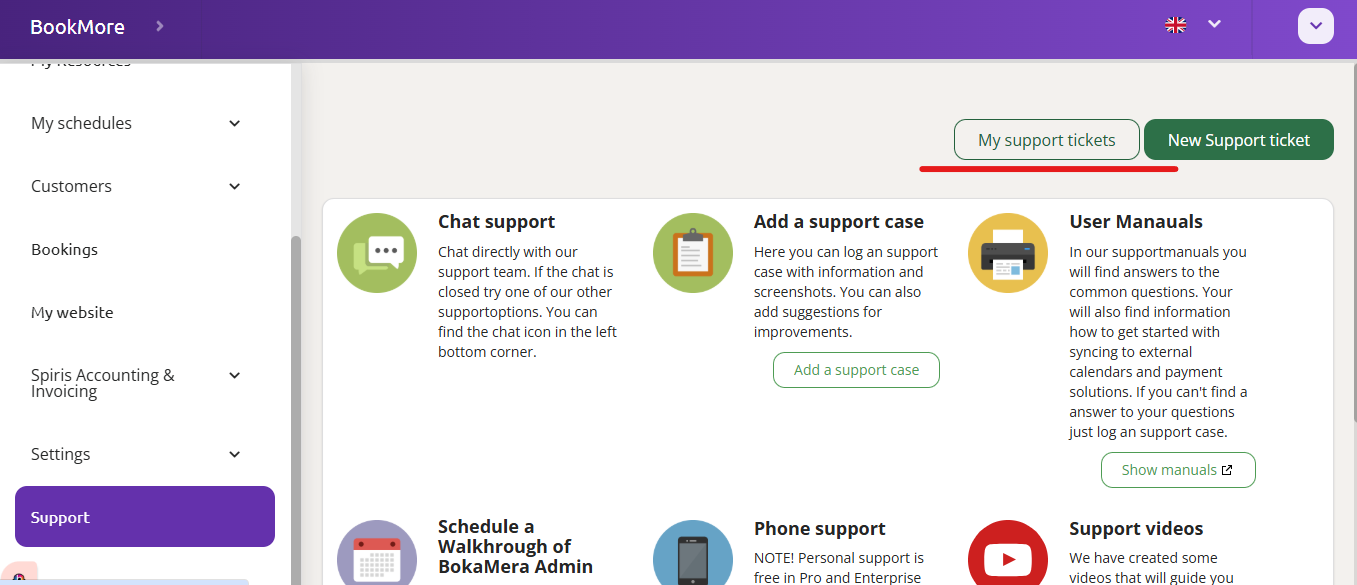
As soon as we have an API key and a company ID from Bokamera, we can proceed with adding all the info. We can see in the Support tickets
¶ 3. Copy forms under superAdmin
Note that log_bookamera (serviceinnkalling) form is created automatically when you create a datasource, and it is already mapped to the datasource:
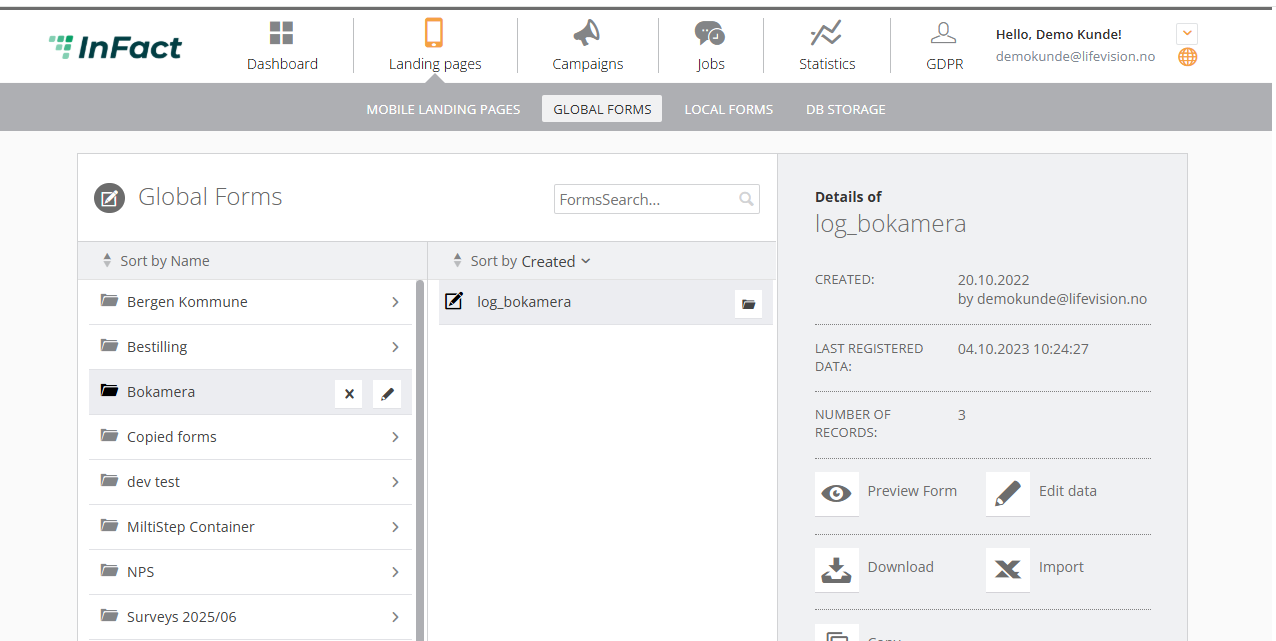
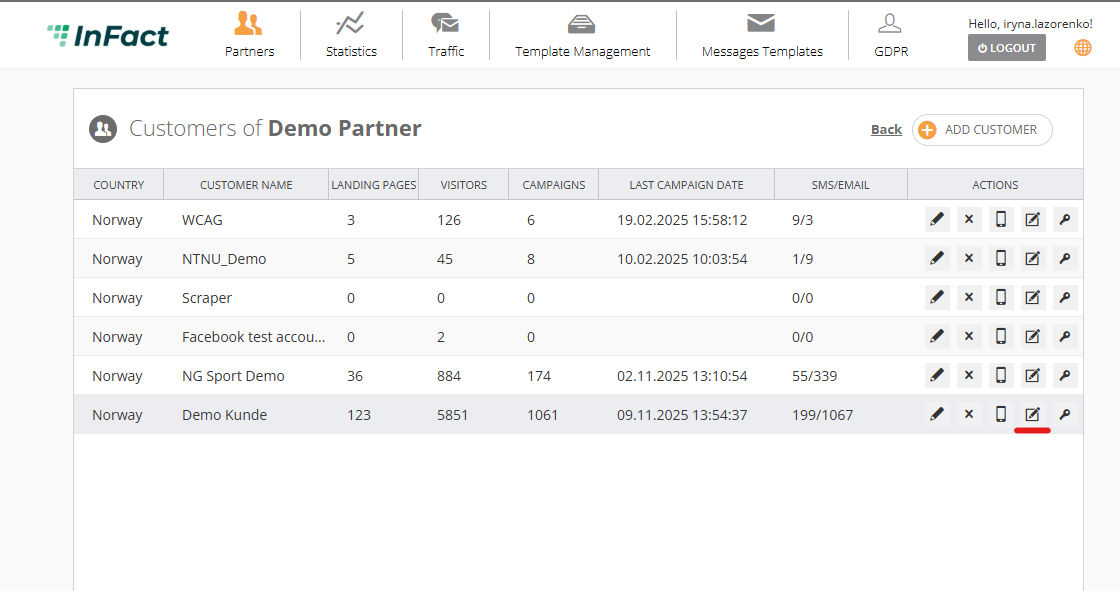
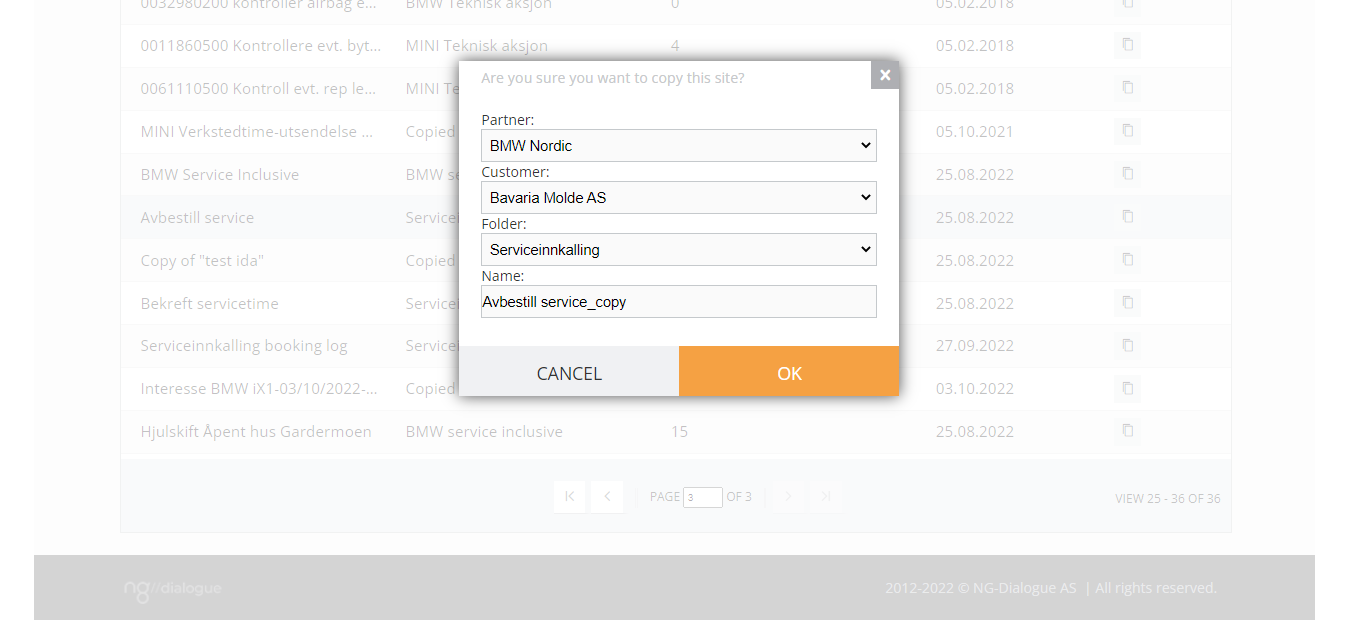
These 2 forms from a folder Serviceinnkalling need to be copied manually to a new department:

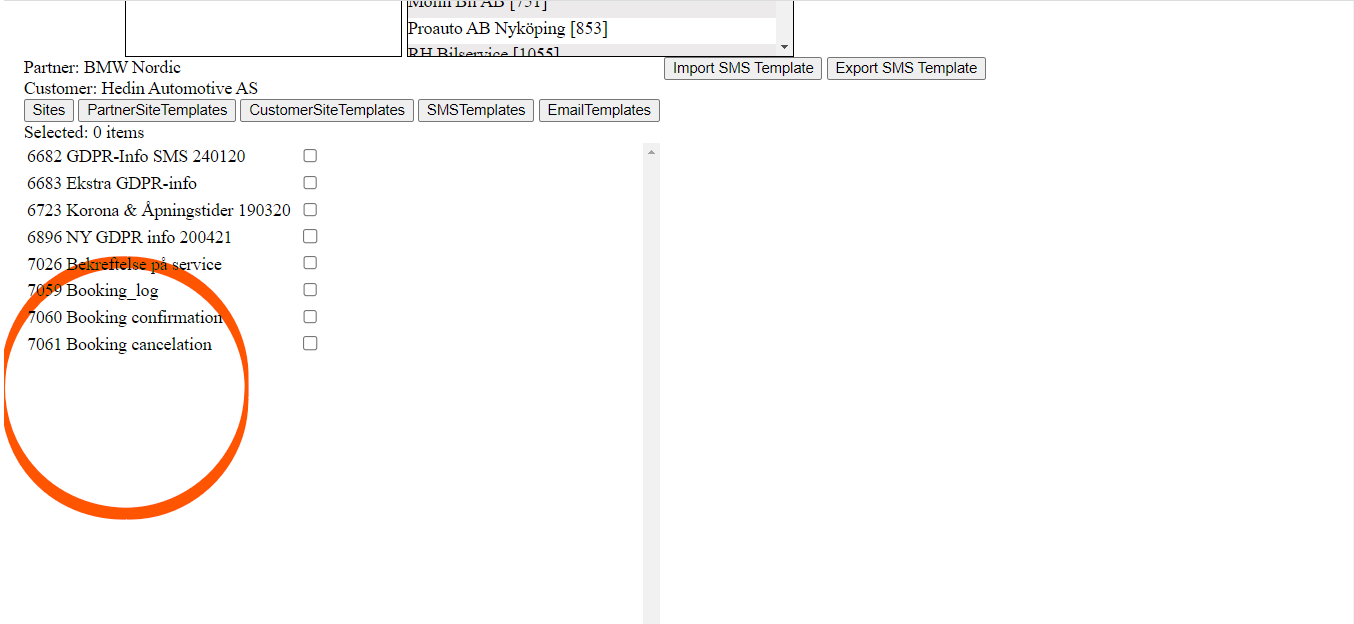
¶ 4. Copy SMS templates to a new customer via the Import_export tool
¶ 5. Add Confirmation Actions via Advanced Settings – Confirmation Actions (from templates) to the copied forms changing the signature
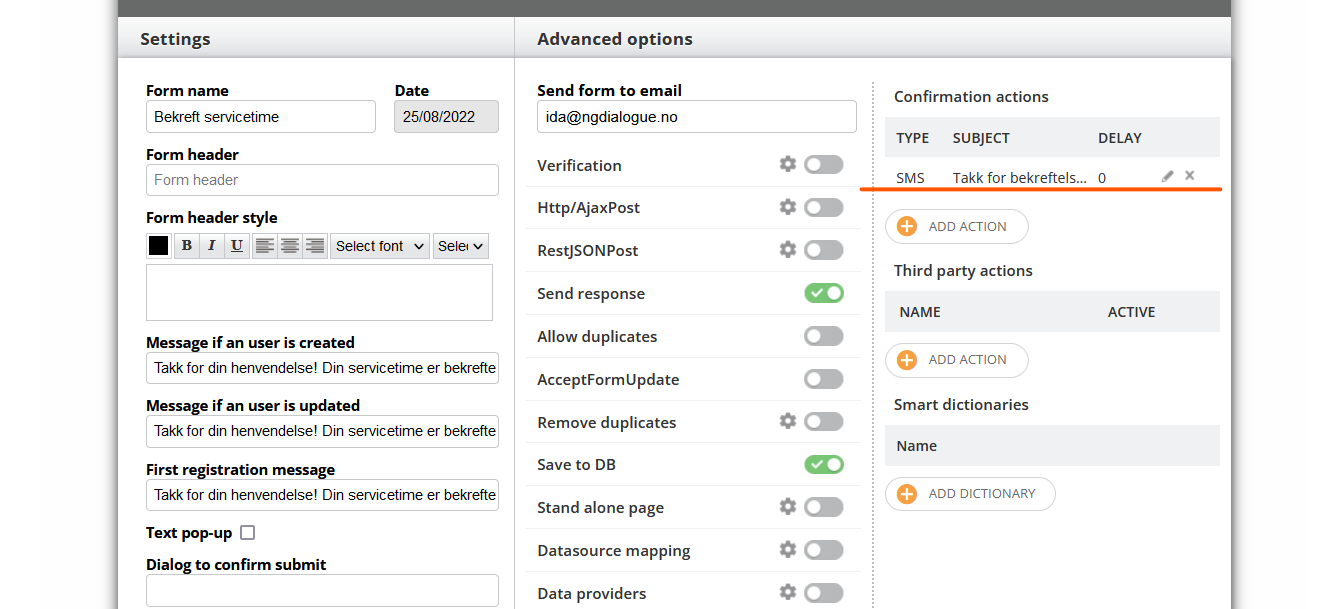
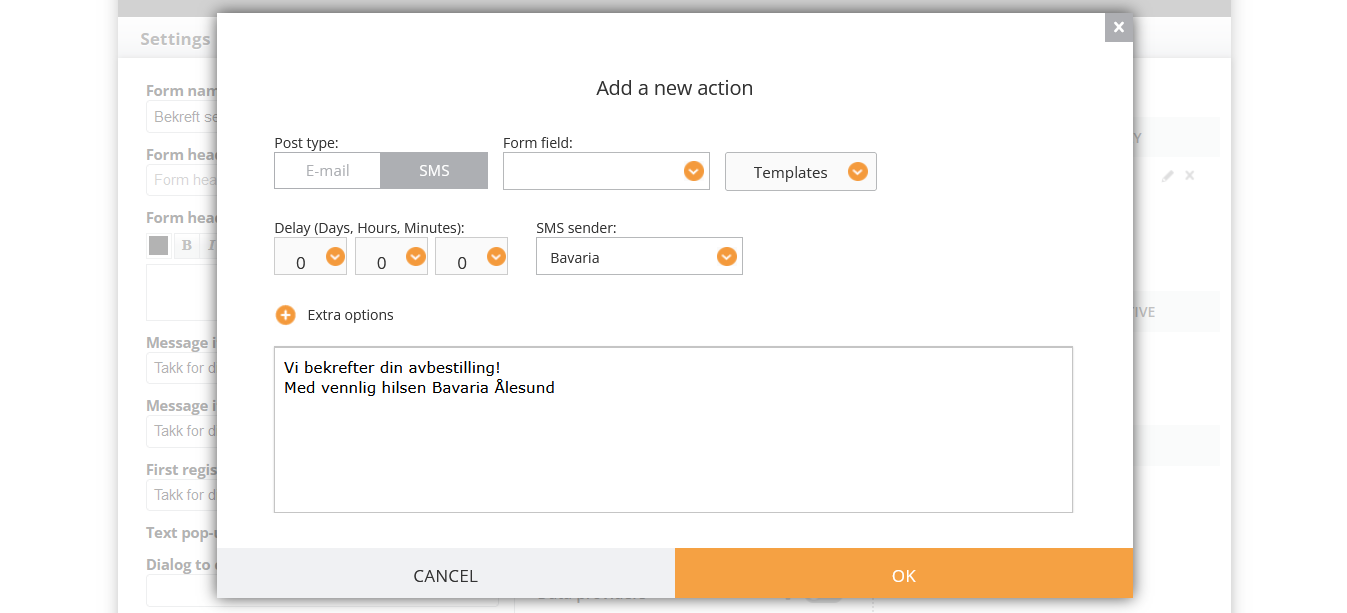
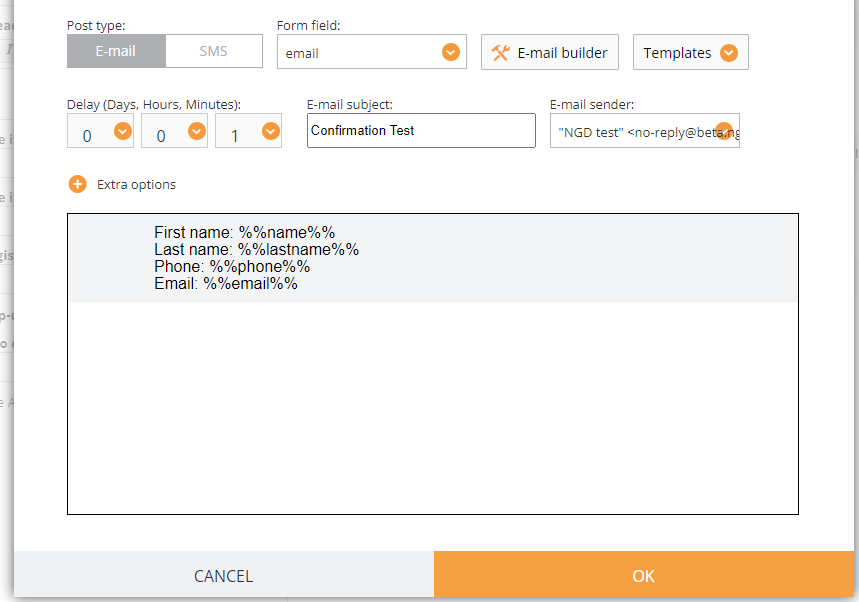
¶ 5.1. Adding custom confirmation SMS or Email
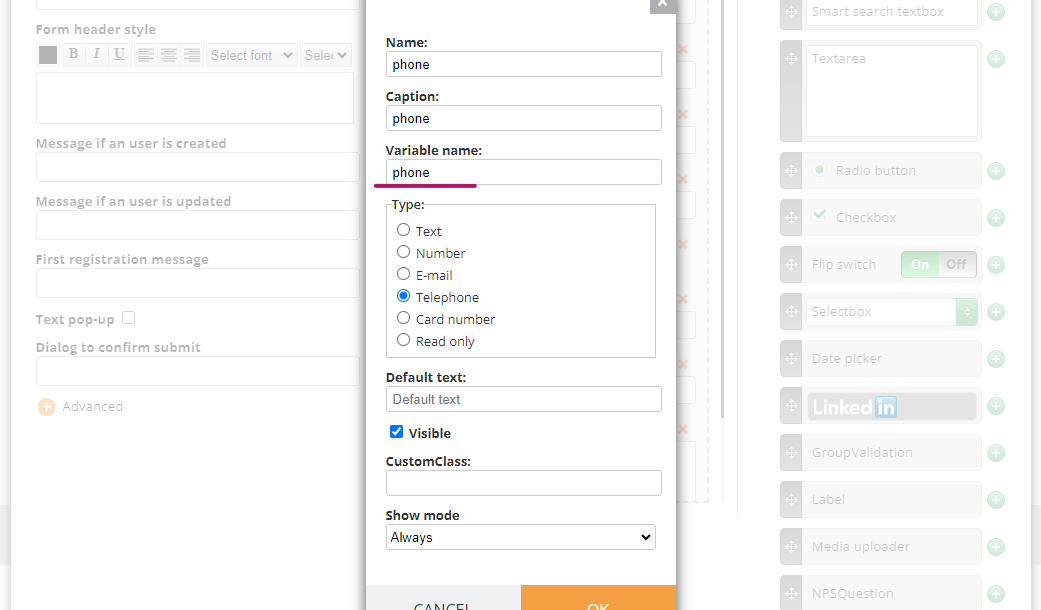
If you would like to include variables, please, make sure you are using the same ones in the form:
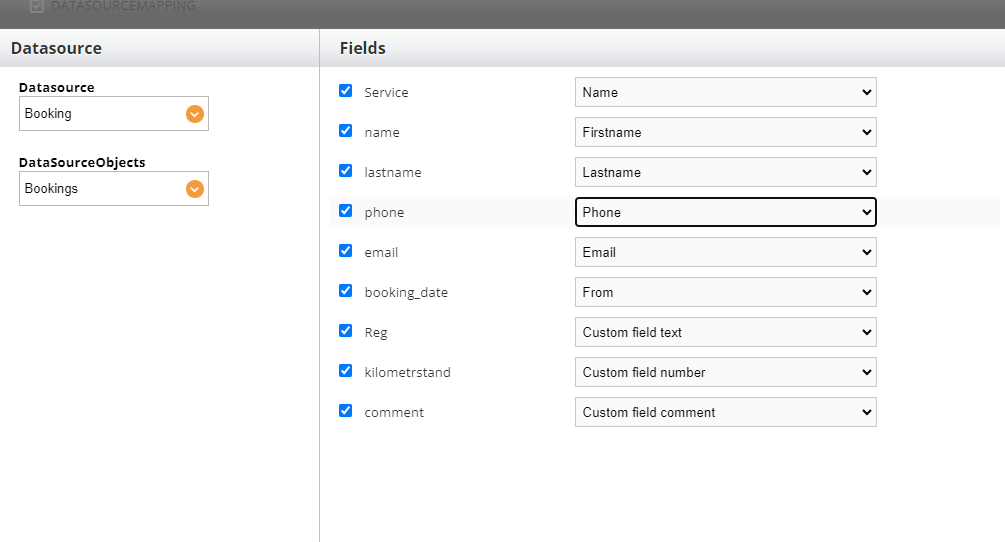
Also, the mapping must be set up correctly:
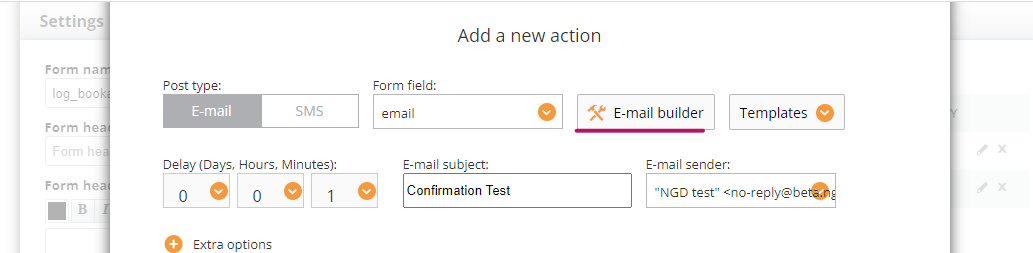
Click here and type the text:
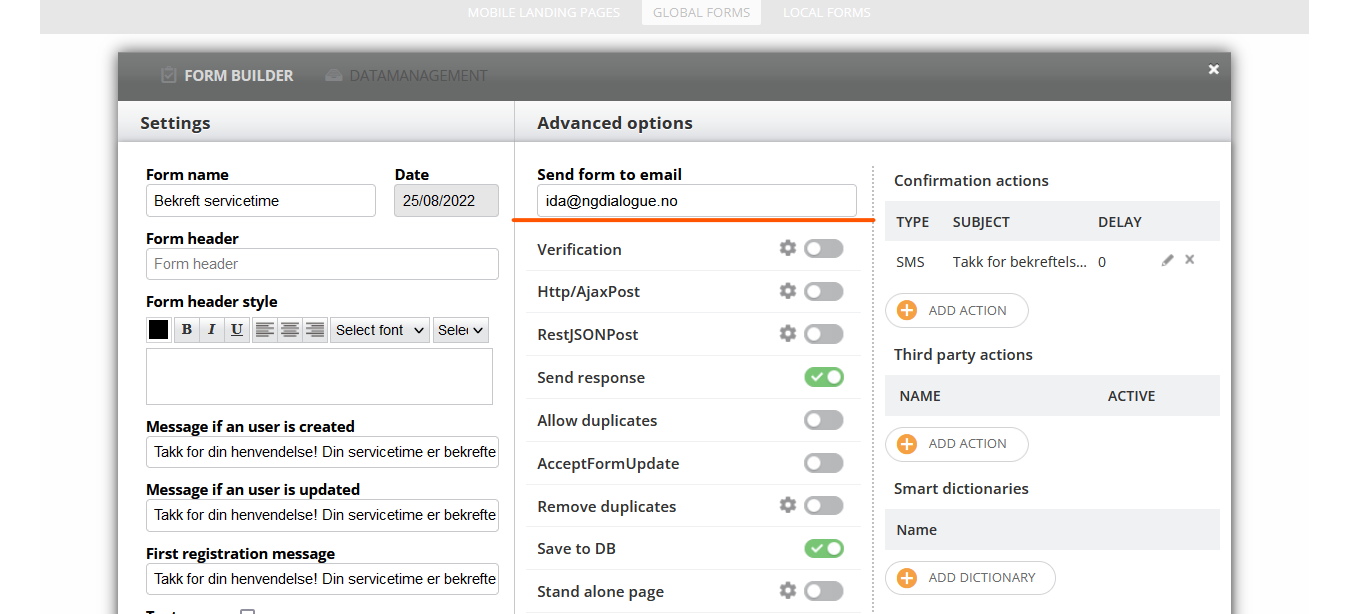
¶ 6. Delete “send to email” of the departments’ contact emails
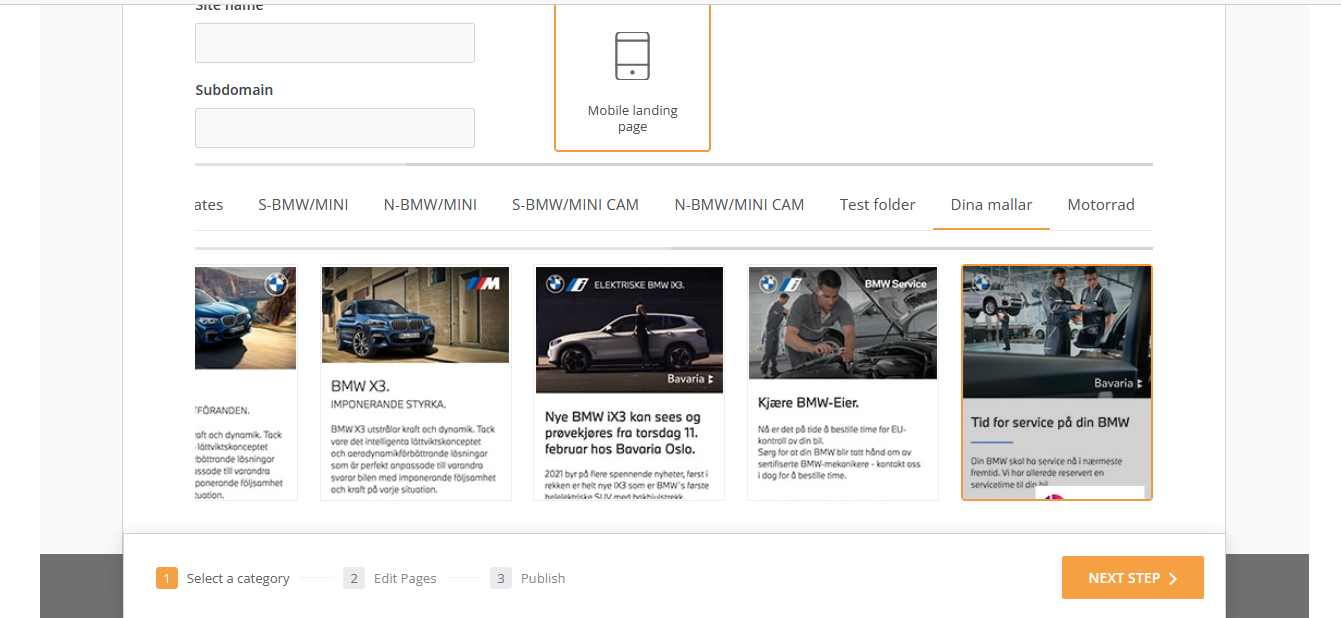
¶ 7. Creating a Landing page with a special template
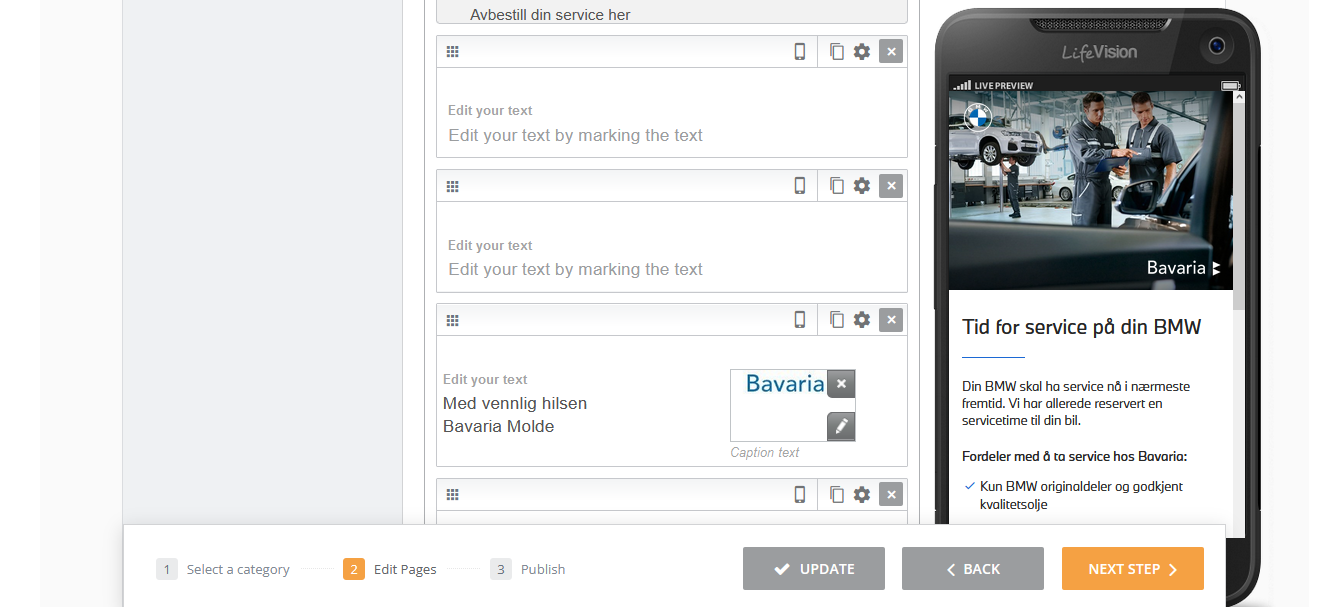
¶ 8. Change the footer
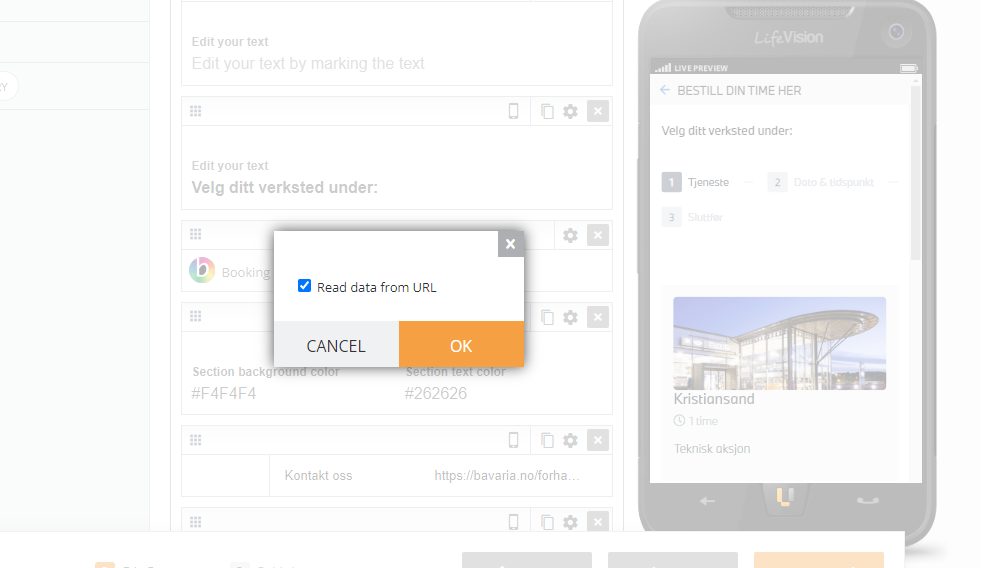
¶ When setting up a landing page with Booking form, click twice on it and enable this function:
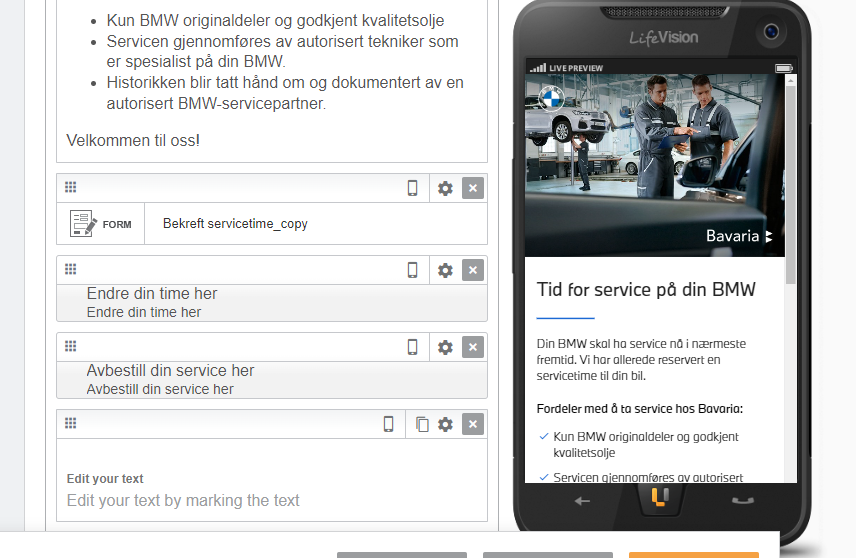
¶ 9. Set two previously copied forms on the Landing Page (cancelation and confirmation)
¶ 10. Get serviceID
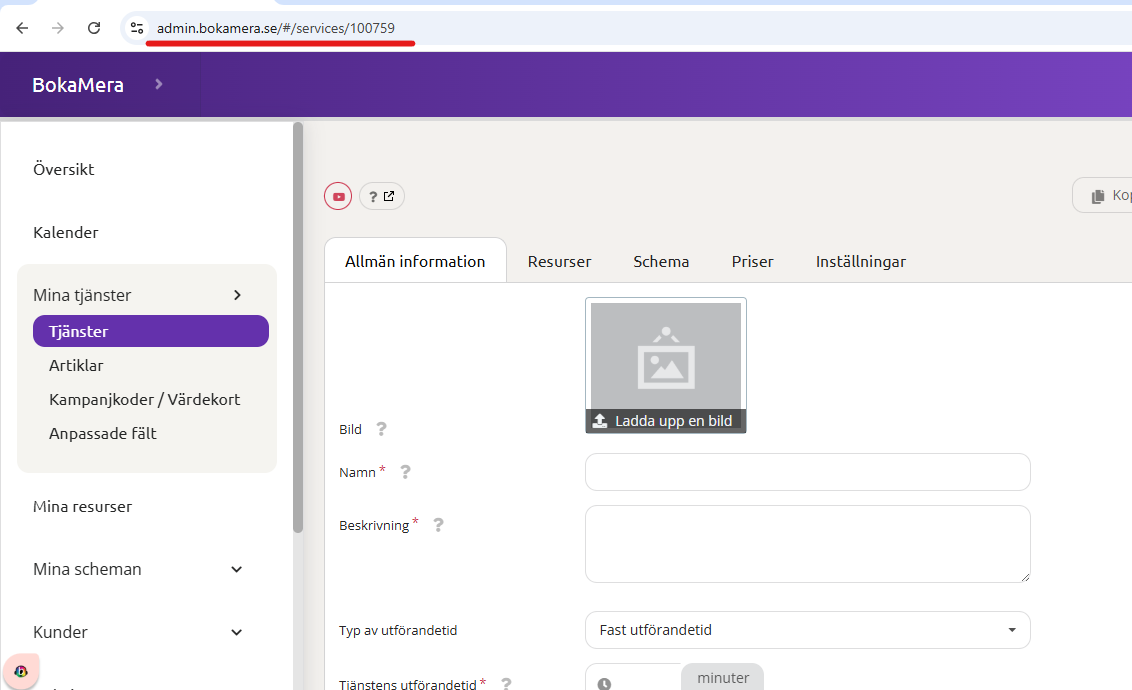
To see serviceD, do the next: log in to Bokamera admin, then open the section Service and click on the needed service. The id will appear in the search browser bar
¶ 11. Send a test campaign with the correct variables
All variables will be generated once you correctly map them when adding a link to the form and choosing “autofill the form”

¶ 12. Generate Bokamera link
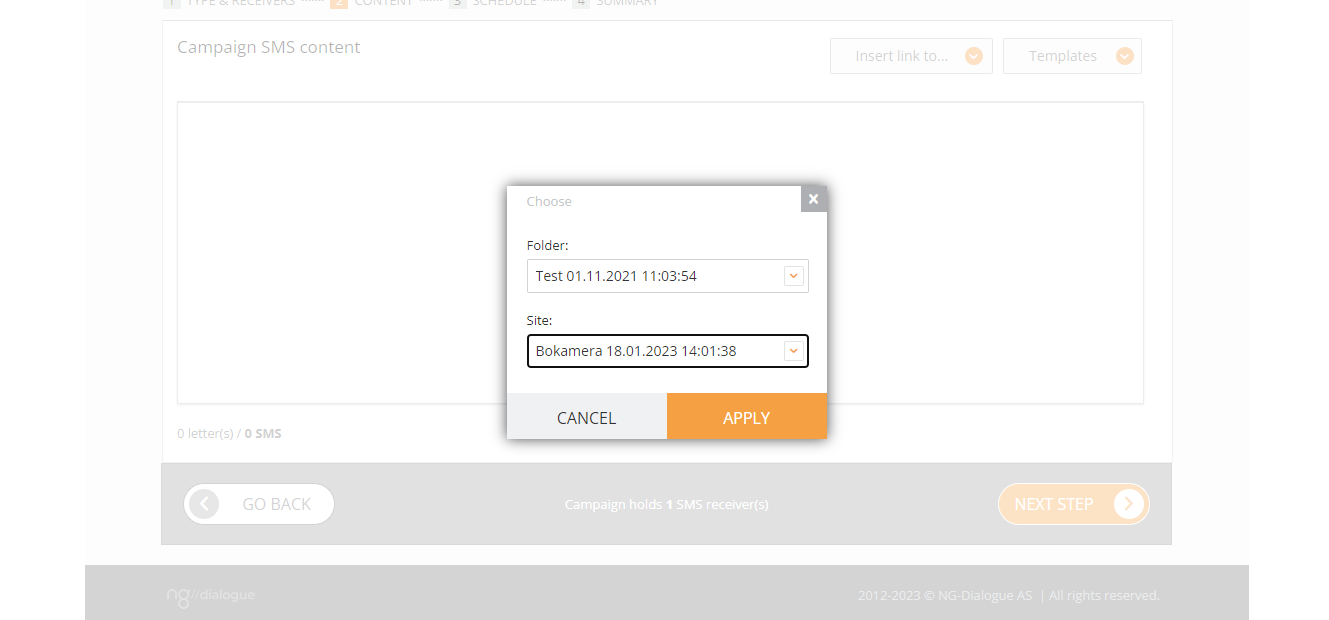
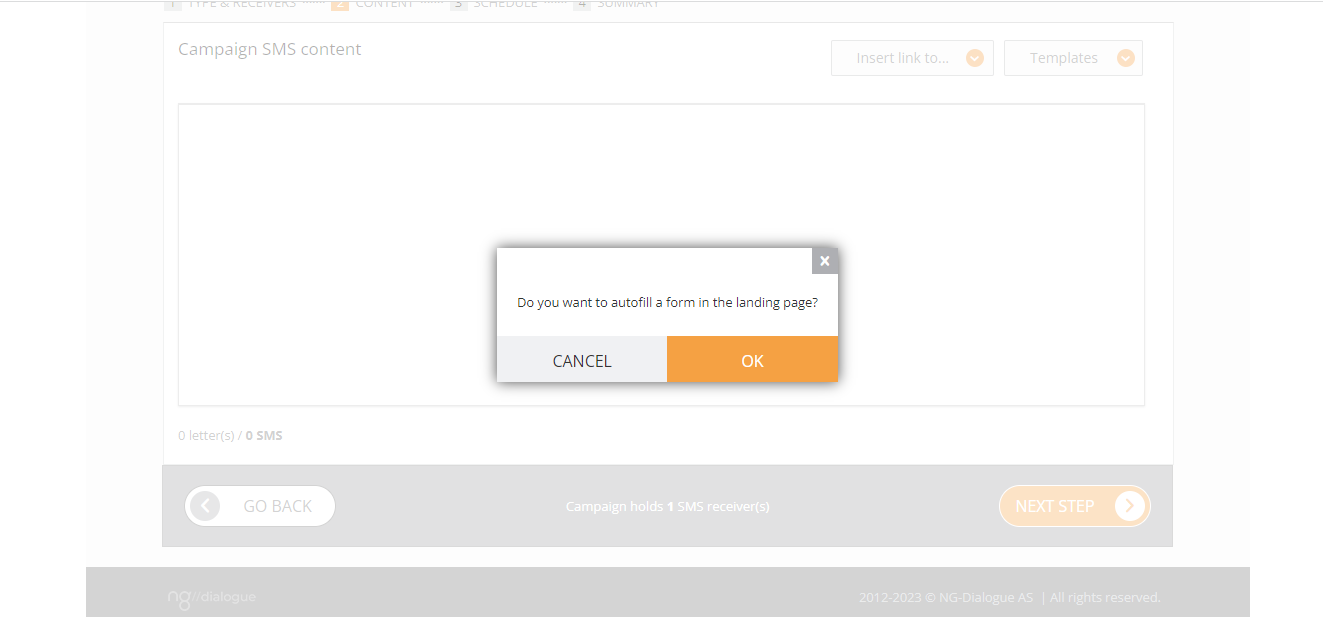
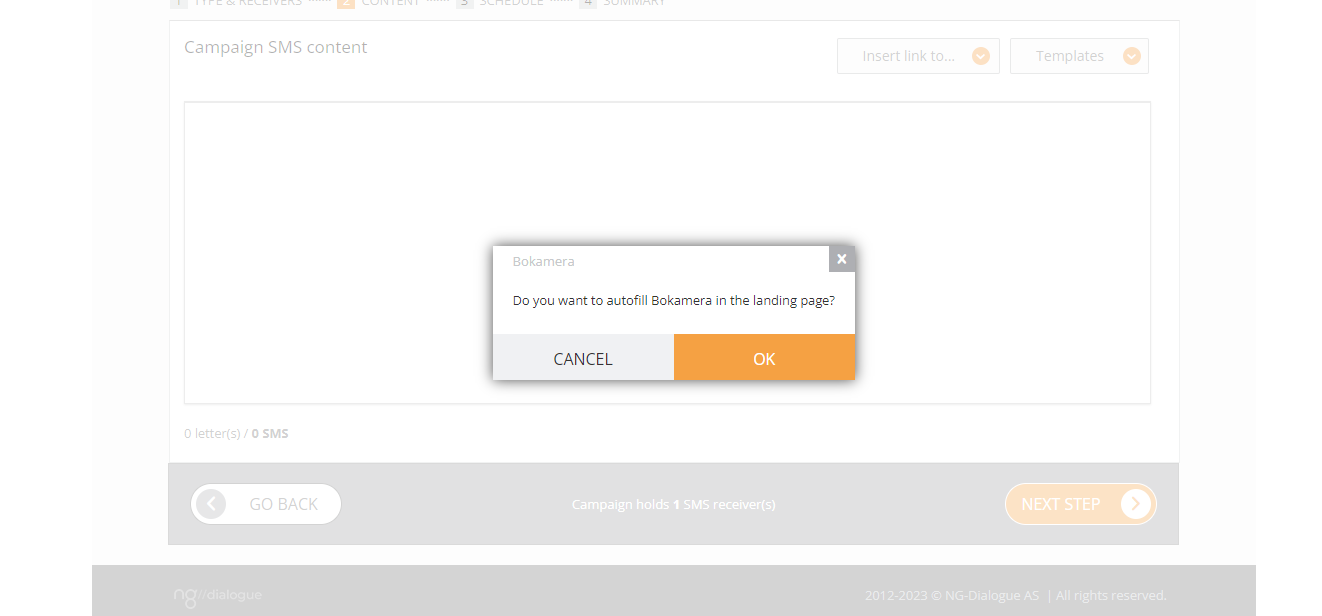
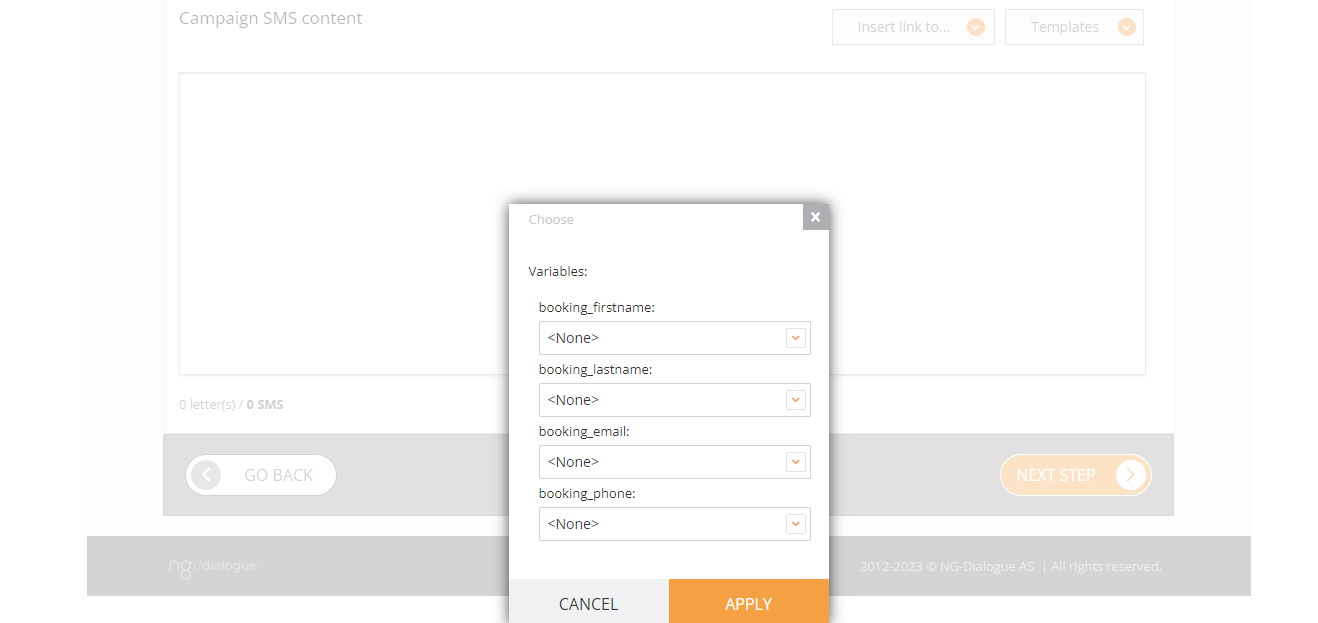
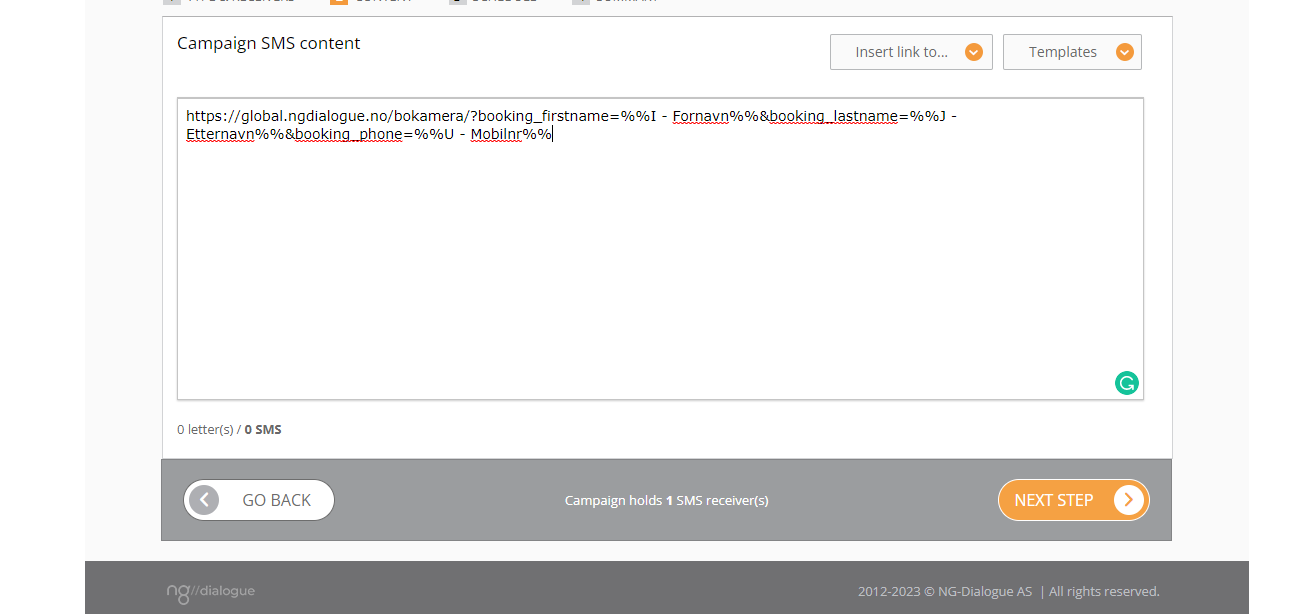
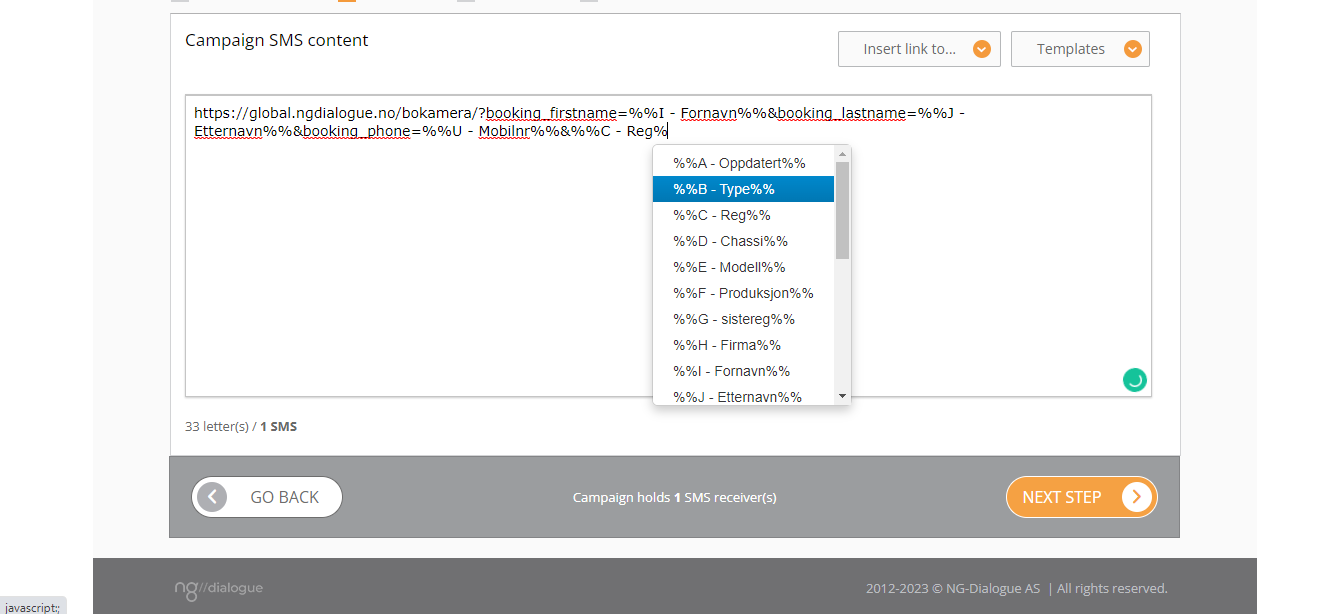

To skip the service step, please add this to the link: &booking_serviceId=
To add custom field parameters to the URL, type:
booking_customfieldtext
booking_customfieldnumber
booking_customfieldcomment
More info on additional settings of the widget
¶ 13. Check confirmation
Using a test excel file where you can assign different service dates and time to check whether they can confirm it or not depending on the current date (are there less than 2 days before the service date); whether the link and variables are correct and it auto fills the data and skips the first step of choosing the service type; if error notifications do pop up as intended etc.