¶ What is the Phone List Generator?
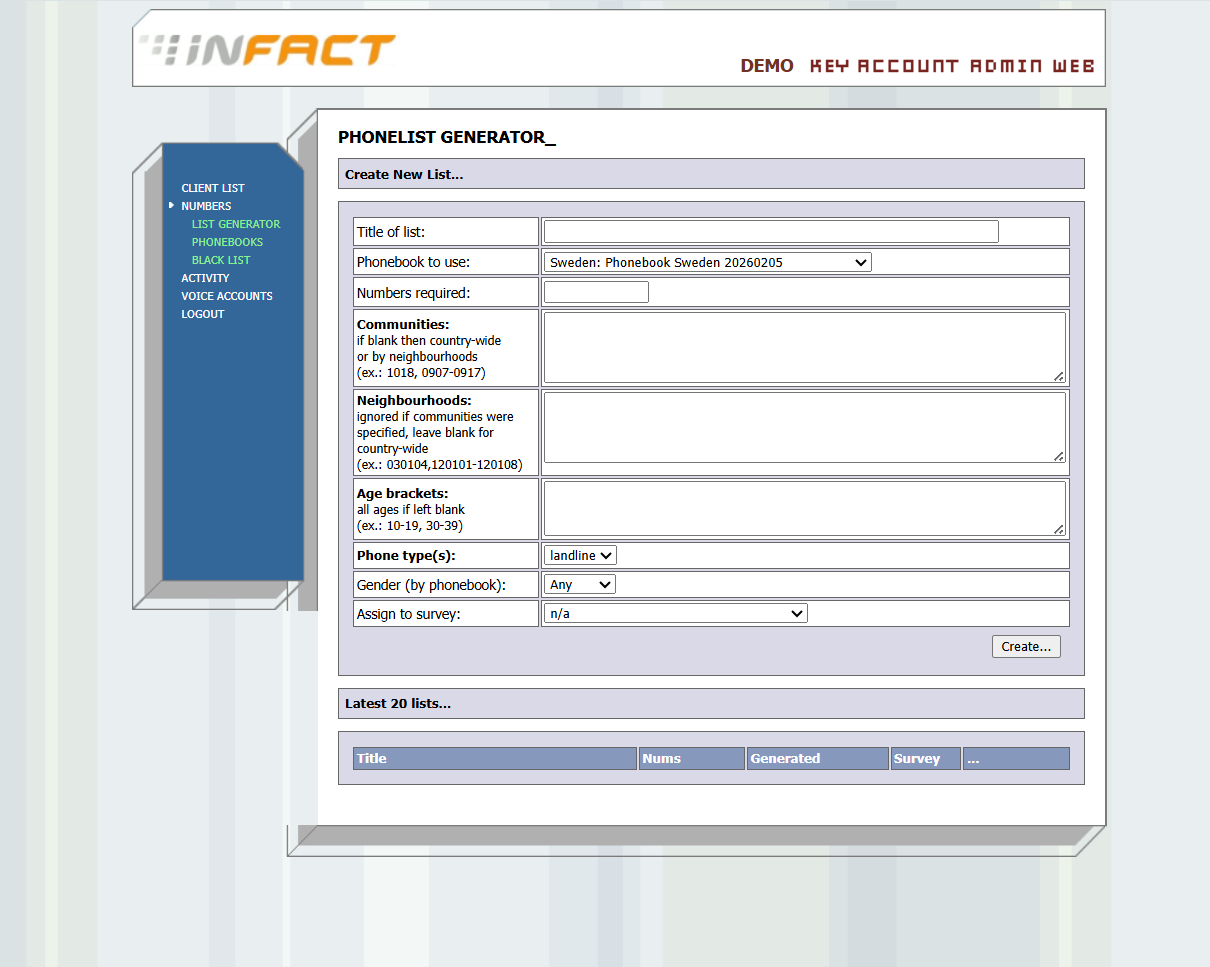
The Phone List Generator is a tool in OmniJet that creates lists of phone numbers for survey campaigns. It lets you pick numbers from a phonebook database and filter them by location, age, gender, and phone type (mobile or landline). The generated list can then be assigned directly to a survey or downloaded as a file.
¶ How to Open the Phone List Generator
1. Log in to the OmniJet web panel.
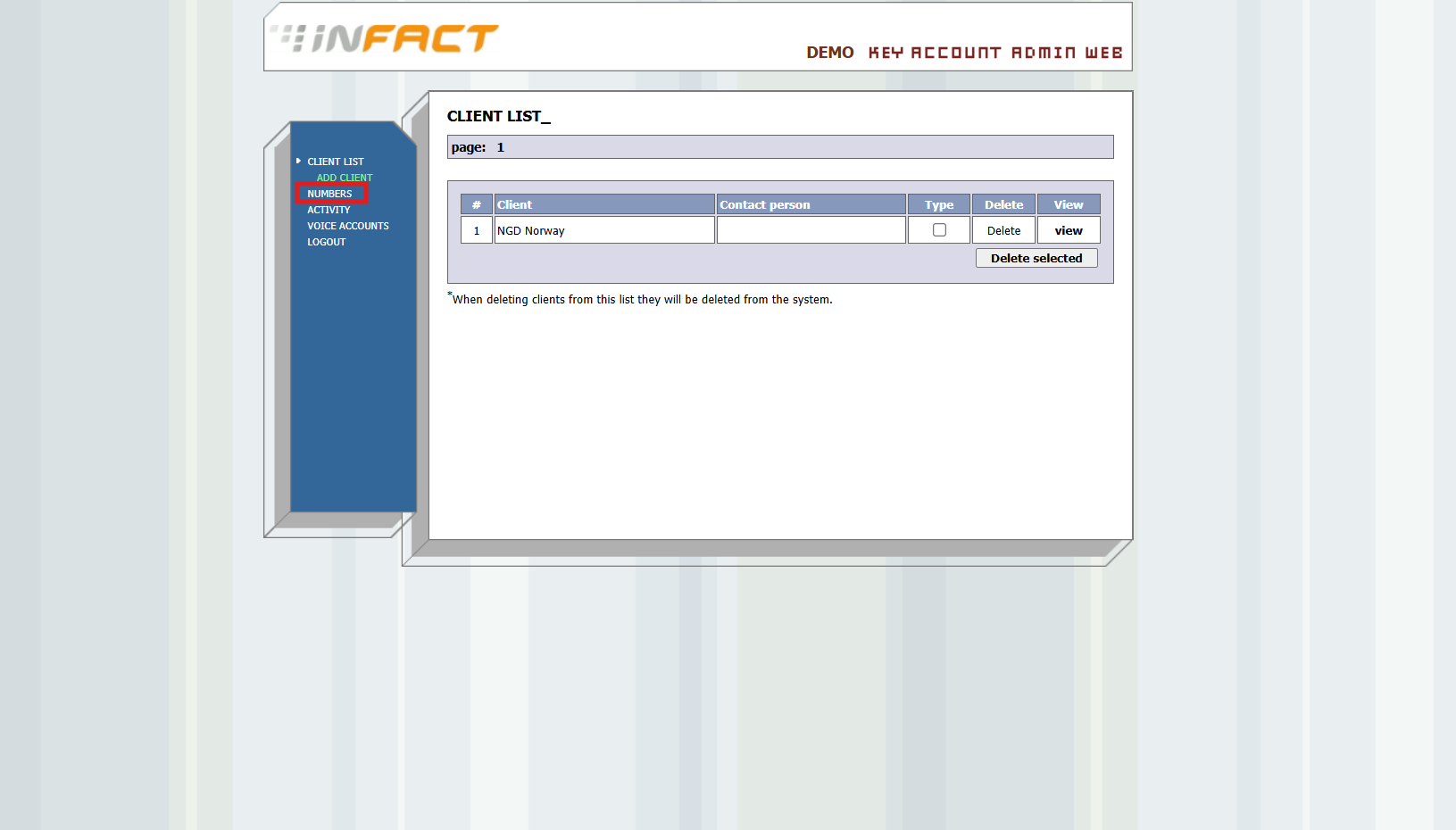
2. In the left menu, click NUMBERS:
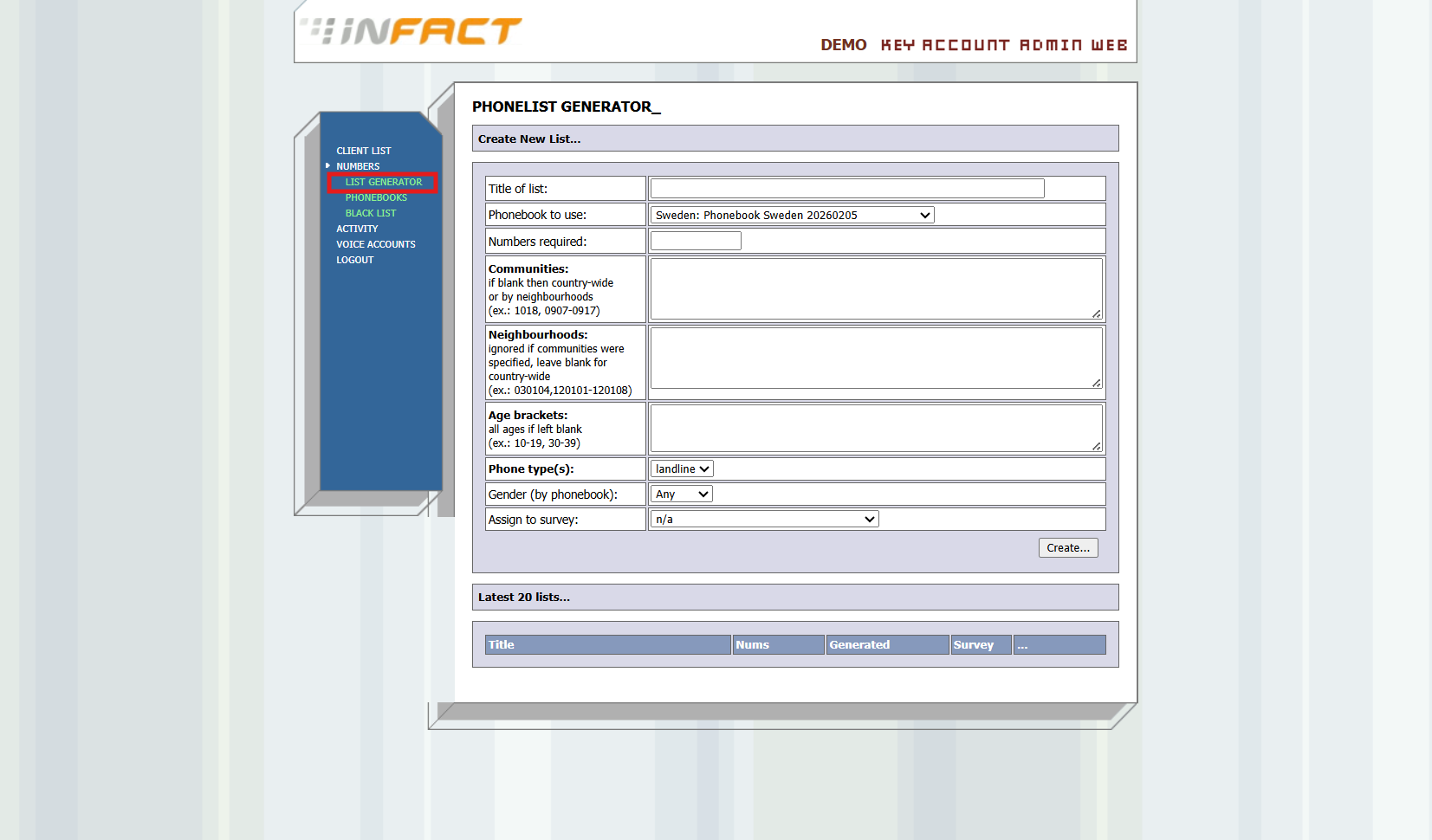
3. The submenu opens. Click LIST GENERATOR:
You will see the Phonelist Generator page with two sections:
- Create New List - the form where you create a new phone list
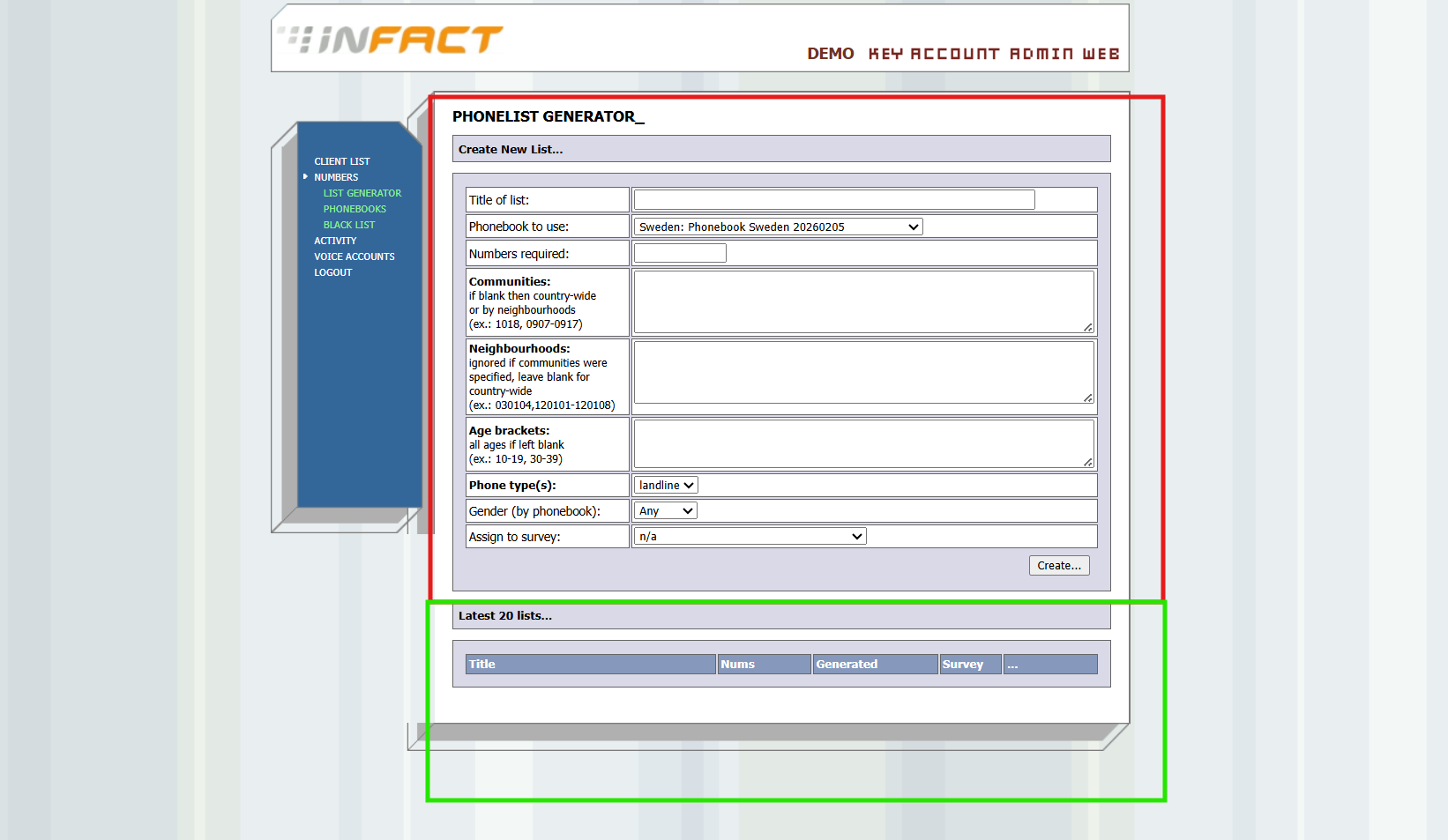
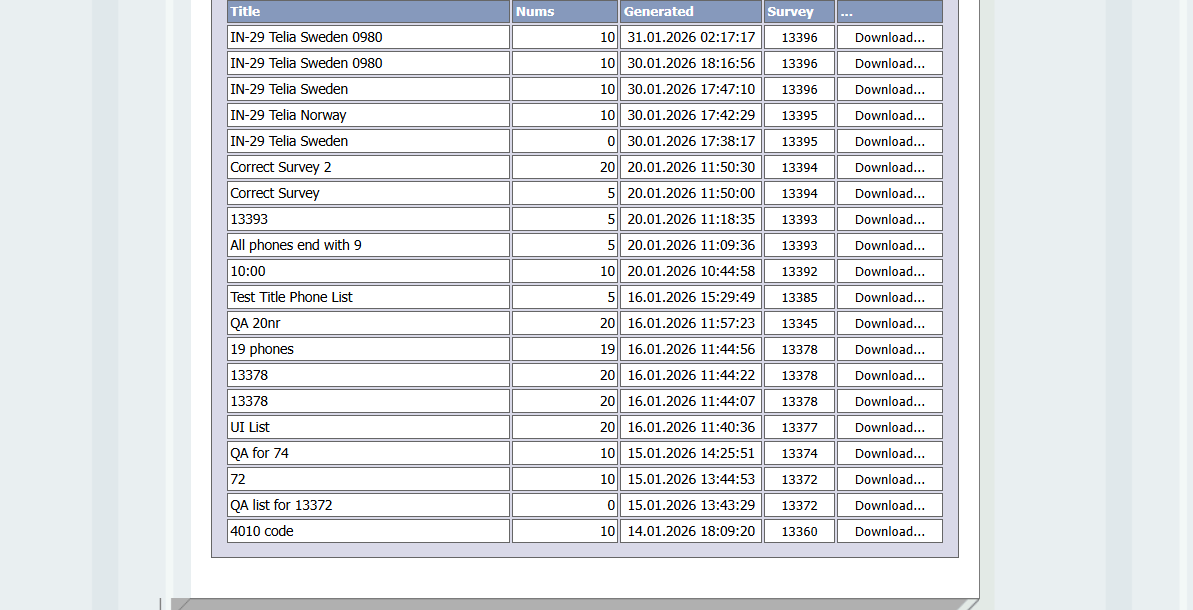
- Latest 20 lists - a table showing your recently created lists
¶ Creating a New Phone List
The "Create New List" form has several fields. Below is an explanation of each field and how to fill it in.
¶ Step 1: Title of List
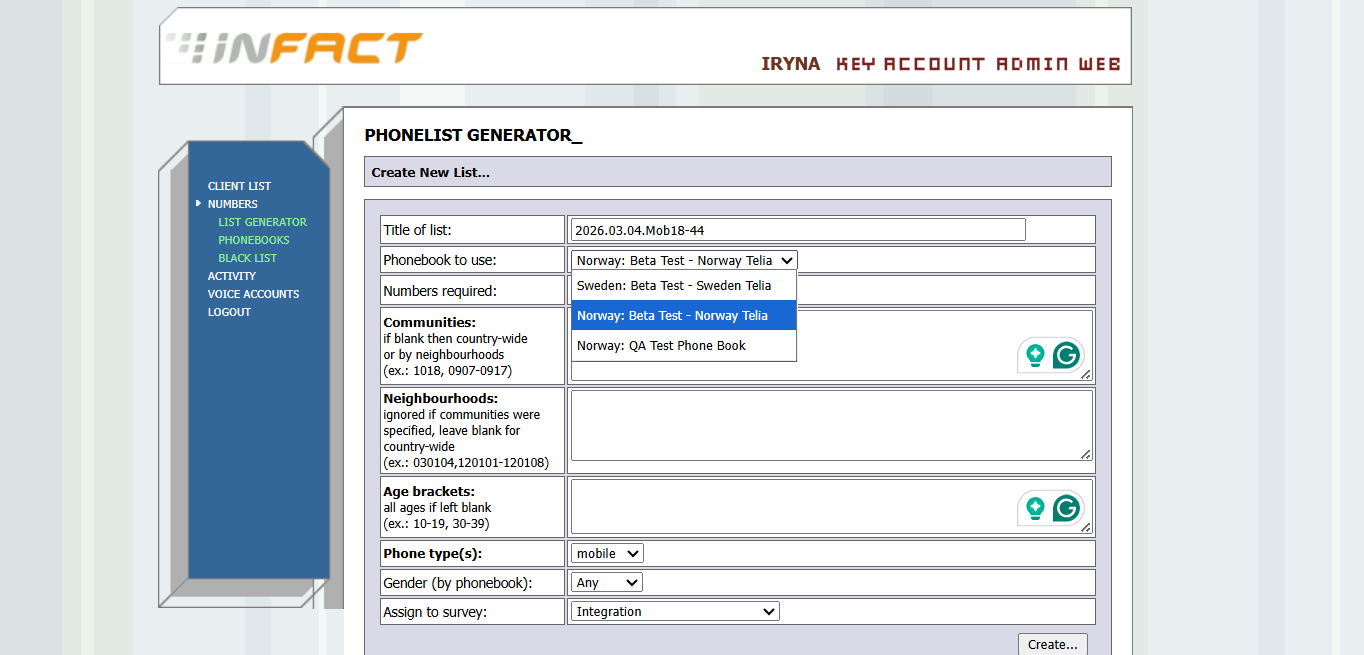
Enter a descriptive name for your list. This name will appear in the "Latest 20 lists" table, so make it easy to recognise later.
¶ Tips for good titles:
- Include the date, target group, and phone type
- Examples: `2025.12.01.Mob18-44`, `251107 test sweden 18-99`, `Landsrep Fast`
¶ Step 2: Phonebook to Use
Select a phonebook from the dropdown menu. Phonebooks are organised by country. Each option shows the country name followed by the phonebook name.
Available phonebooks include entries for different countries such as Norway, Sweden, and Denmark. The phonebook you choose determines which country's phone numbers will be used
Example options:
| Phonebook | Country | Description |
|-----------|---------|-------------|
| Sweden: Phonebook Sweden 20251103 | Sweden | ~3 million Swedish numbers |
| Norway: Combined phonebook for Norway, 202509 | Norway | ~2.8 million Norwegian numbers |
| Denmark: DK 201708 mobile, over 45 | Denmark | Danish mobile numbers, age 45+ |
| Denmark: DK 201708 landline, under 45 | Denmark | Danish landline numbers, age under 45 |
¶ Step 3: Numbers Required
Enter how many phone numbers you want in your list. Type a whole number (e.g., `5000`, `10000`, `34632`).
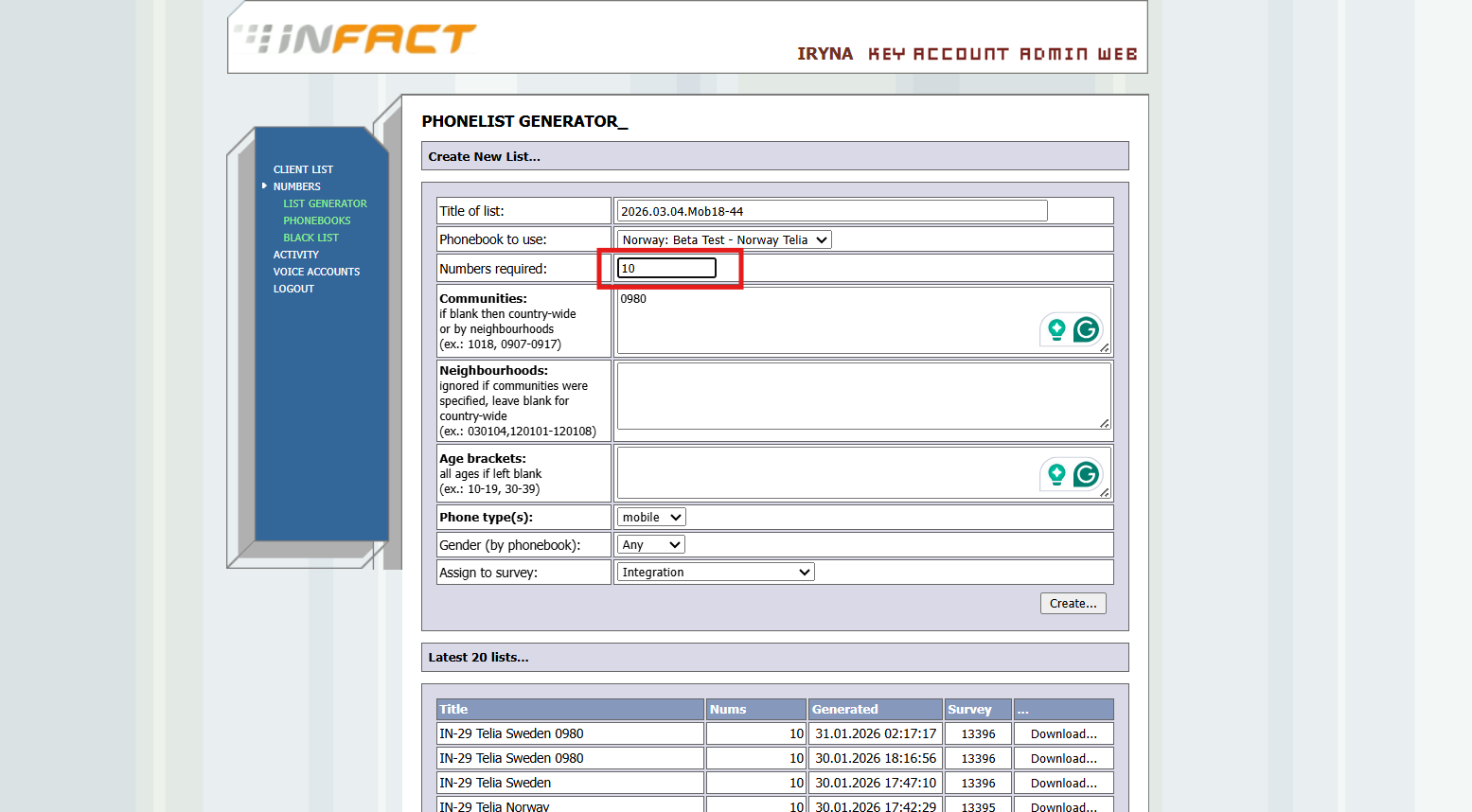
Important: The system distributes numbers proportionally across geographic regions. The actual number of generated numbers may be slightly different from what you requested (usually within a few numbers), because of rounding when distributing across regions.
¶ Step 4: Communities (Optional)
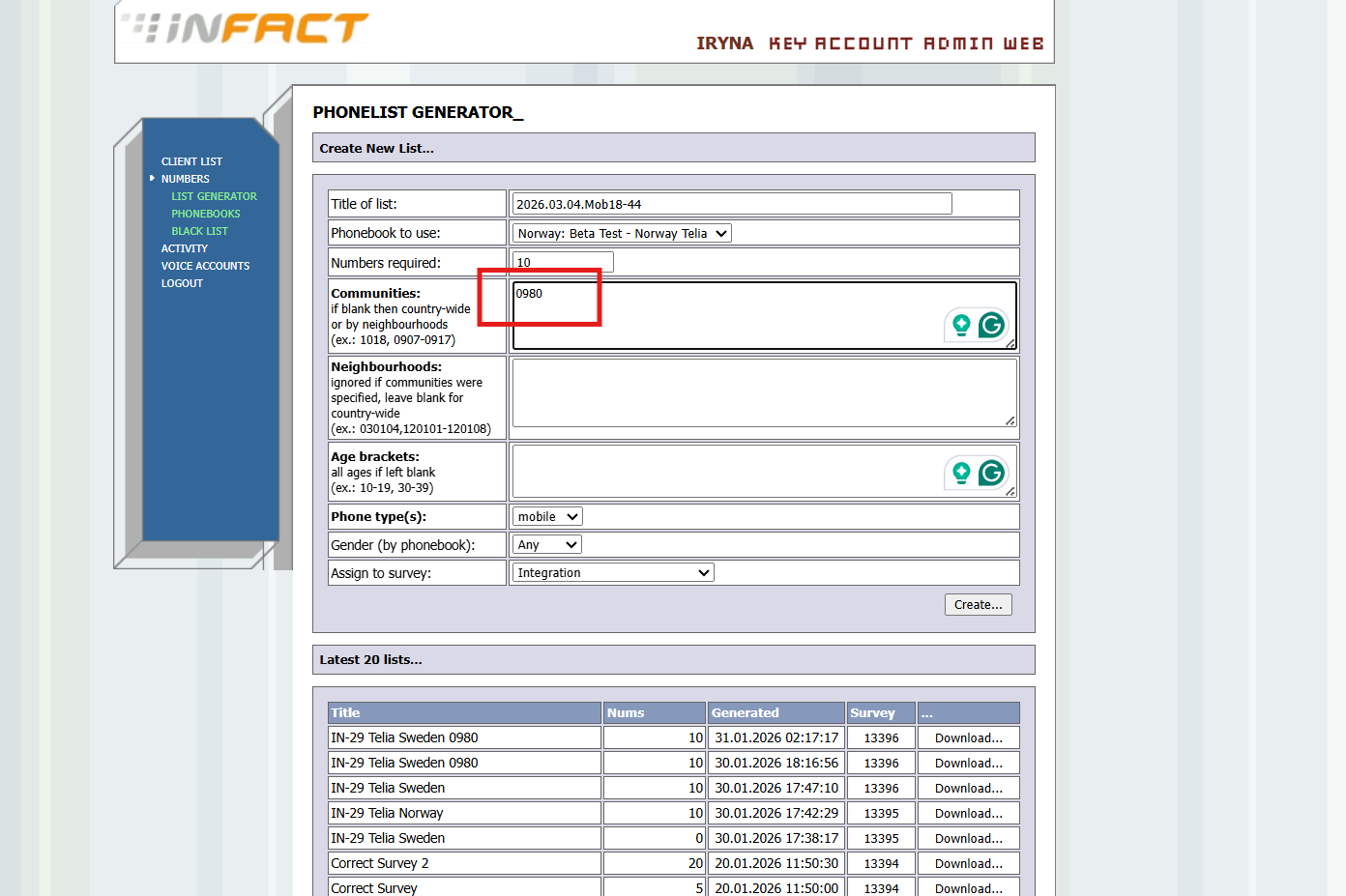
This field lets you limit the phone list to specific municipalities/communities. Leave this field empty if you want a country-wide list (numbers from the entire country).
¶ How to enter community codes:
- Single community: `0581`
- Multiple communities: `0581, 0583, 0590` (separated by commas)
- Range of communities: `0581-0590` (all communities from 0581 to 0590)
- Mixed: `0581, 0583, 0590-0599`
Community codes are official municipality codes (e.g., Norwegian kommune numbers or Swedish kommun codes).
Tip: If you leave both Communities and Neighbourhoods empty, the system will generate a country-wide list with numbers distributed proportionally based on population data.
¶ Step 5: Neighbourhoods (Optional)
This field is used for more fine-grained geographic filtering by neighbourhood/district codes (bydelid). This is mainly used for Norwegian cities like Oslo that have defined neighbourhood areas.
Rules:
- This field is ignored if you have entered anything in the Communities field
- Leave blank for a country-wide list
- Enter codes like: `030104, 120101-120108`
How to enter neighbourhood codes:
- Single neighbourhood: `030104`
- Range: `120101-120108`
- Multiple: `030104, 120101-120108` (comma-separated)
¶ Step 6: ZIP (Optional)
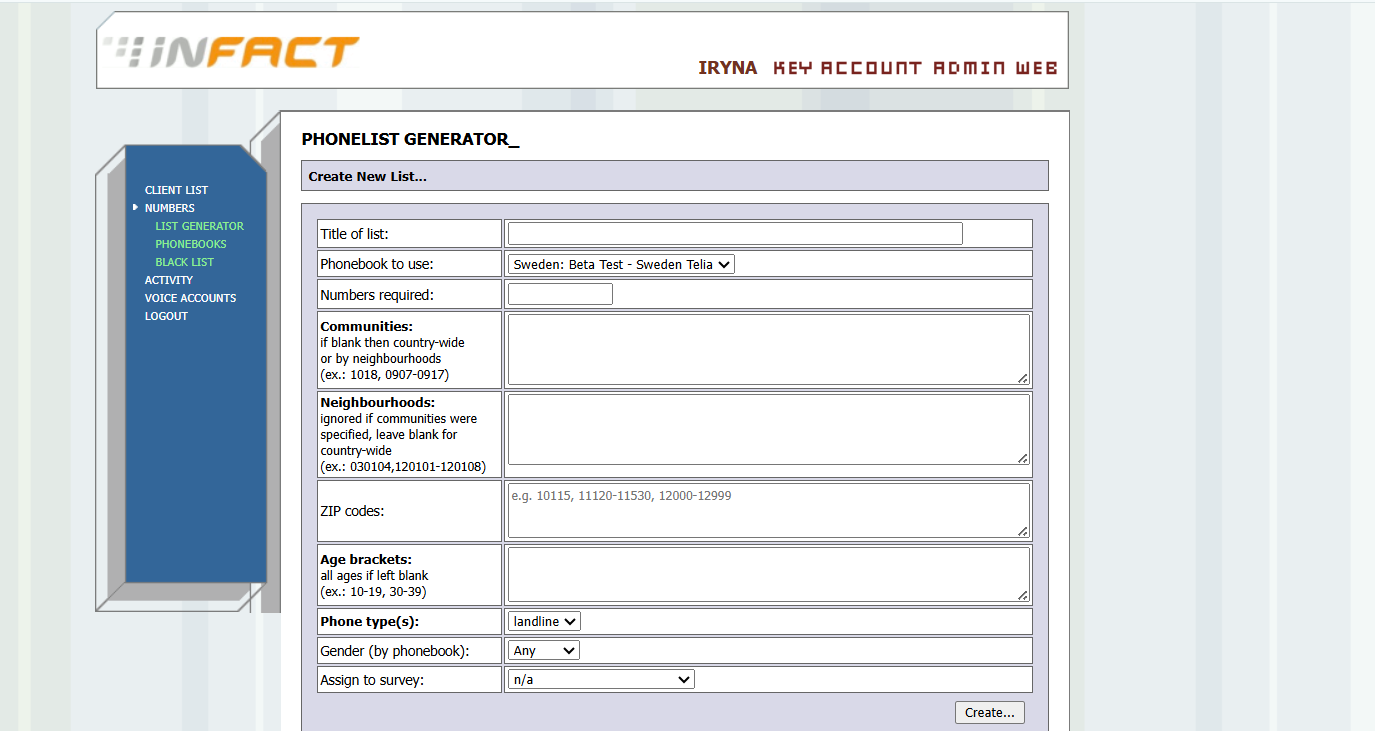
- Supports single values, comma-separated lists, and ranges (same syntax as other filters): 10115, 11120-11530, 12000-12999check mark button
- Works for both Norway (4-digit) and Sweden (5-digit) postal codescheck mark button
- When ZIP filter is active and no community filter is set, numbers are distributed proportionally based on count per ZIP areacheck mark button
- Generated list metadata stores the ZIP filter value (in the communities field alongside existing //-separated parameters)check mark button
¶ Step 7: Age Brackets (Optional)
Filter numbers by the age of the person. Leave this field empty to include all ages.
¶ How to enter age filters:
- Single age: `25`
- Age range: `18-44` (includes all ages from 18 to 44)
- Multiple ranges: `18-44, 65-99` (two separate age groups)
- Mixed: `18, 21-25, 30, 35-40`
Common age group examples:
| Description | What to enter |
|-------------|---------------|
| Young adults (18-44) | `18-44` |
| Middle-aged (45-64) | `45-64` |
| Seniors (65-99) | `65-99` |
| All adults (18+) | `18-99` |
| Specific ages | `25, 30, 35, 40` |
¶ Step 8: Phone Type
Select the type of phone numbers you want:
- landline- Fixed/home phone numbers
- mobile - Mobile/cell phone numbers
¶ Step 9: Gender
Filter by gender if the phonebook contains gender data:
- Any - Include both men and women (default)
- Men- Only male contacts
- Women - Only female contacts
¶ Step 10: Assign to Survey (Optional)
If you want the generated phone numbers to be automatically loaded into a survey's call queue, select the survey from the dropdown list.
- Choose n/a if you do not want to assign the list to any survey
- Only active surveys (status: prepared, running, or paused) are shown in the list
- When a survey is selected, all generated numbers are immediately added to that survey's call queue
¶ Step 11: Click "Create..."
After filling in all the fields, click the Create... button at the bottom right of the form.
¶ What happens when you click Create:
1. The system creates a new list record
2. Phone numbers are randomly selected from the phonebook based on your filters
3. Numbers are distributed proportionally across geographic regions
4. If assigned to a survey, numbers are copied into the survey's call queue
5. The new list appears at the top of the "Latest 20 lists" table
Note: For large lists (tens of thousands of numbers), generation may take a few seconds. Do not close the browser or click Create again while the list is being generated.
¶ Viewing Your Generated Lists
The Latest 20 lists table shows your most recently created phone lists.
Each row shows:
| Column | Description |
|--------|-------------|
| Title| The name you gave the list |
| Nums | How many phone numbers were actually generated |
| Generated | Date and time when the list was created |
| Survey | The survey ID the list was assigned to (click to go to the survey), or "n/a" if not assigned |
| ...| A "Download..." link to download the list as a CSV file |
¶ Understanding the "Nums" Column
The number shown in the "Nums" column is the actual count of numbers generated. This may differ from what you requested for these reasons:
- There were not enough numbers matching your filters in the phonebook
- Rounding during proportional distribution across regions
- A value of 0 means no numbers matched your criteria (check your filters)
¶ Downloading a Phone List
To download a generated list:
1. Find the list in the "Latest 20 lists" table
2. Click Download... in the rightmost column
3. A CSV file will be downloaded to your computer
File name format: `phonelist_[list number].csv`
CSV file contents:
- Each row contains one phone number
- Columns are separated by semicolons (`;`)
- Standard format: `PhoneNo;AreaCode`
- Extended format (if enabled): `PhoneNo;AreaCode;BydelID`
Example CSV content:
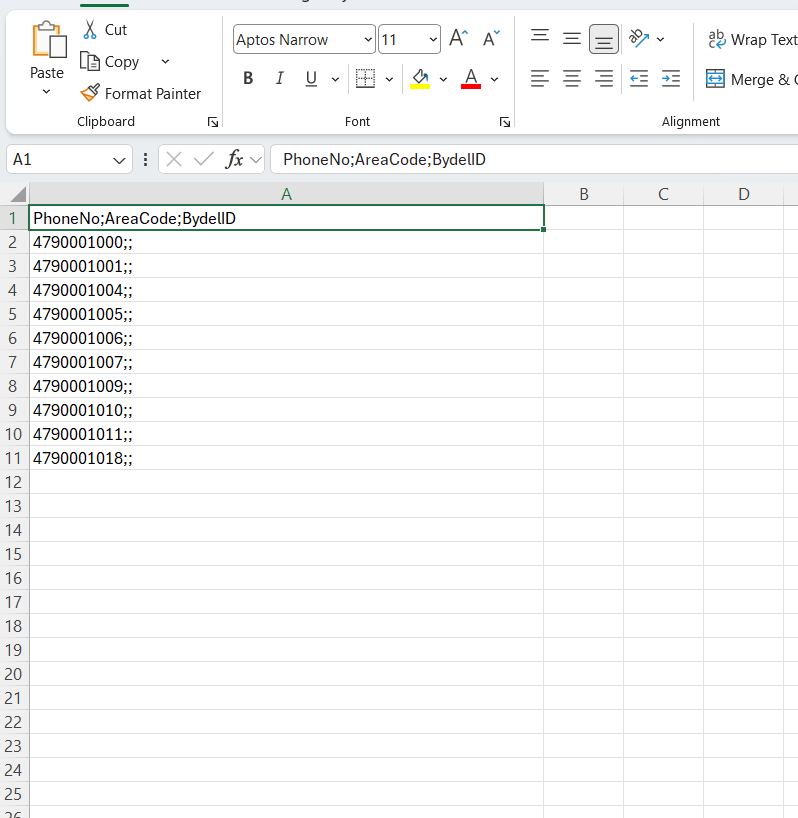
PhoneNo;AreaCode
4790012345;0301
4741234567;0301
4795554321;1103
```
You can open this file in Excel or any spreadsheet application. When opening in Excel, choose semicolon as the delimiter.
---
¶ How the System Distributes Numbers
Understanding how numbers are distributed helps you plan better campaigns.
¶ Country-Wide Lists (No Location Filters)
When you leave both Communities and Neighbourhoods empty, the system creates a representative list that mirrors the country's population distribution:
1. The country is divided into statistical regions (e.g., Stockholm region, Skane region, etc.)
2. Each region has a population coefficient (its share of the total population)
3. Numbers are allocated proportionally - larger regions get more numbers
Example: If you request 10,000 numbers for Sweden:
- Stockholm region (18.3% of population) gets ~1,830 numbers
- Skane region (11.3% of population) gets ~1,130 numbers
- And so on for each region...
¶ Community-Specific Lists
When you enter community codes, the system distributes numbers proportionally based on the population of each selected community.
**Example:** If you request 1,000 numbers from communities 0301 and 1103:
- If community 0301 has 700,000 inhabitants and 1103 has 300,000
- 0301 gets ~700 numbers (70%) and 1103 gets ~300 numbers (30%)
## How the System Handles Previously Used Numbers
The system tracks which numbers have been called before to avoid calling the same people repeatedly:
1. First, it tries to select numbers that have **never been called** (fresh numbers)
2. If there are not enough fresh numbers**, it also includes numbers that have been called before
3. After all numbers are selected, they are marked as "used" so they won't be picked first next time
This means you get the freshest possible sample each time you generate a list.
¶ Tips and Best Practices
¶ Naming Your Lists
Use a consistent naming pattern to easily find lists later. A good format is:
```
[Date] [Target Group] [Phone Type] [Age Range]
```
Examples:
- `2025.12.01.Mob18-44` (December 1st, mobile, ages 18-44)
- `251107 test Sweden 18-99` (November 7th, Sweden, all adults)
- `Landsrep Fast` (National representative, landline)
¶ Splitting by Age Groups
For surveys that need balanced representation across age groups, create separate lists:
1. First list: `Mob18-44` with age bracket `18-44`
2. Second list: `Mob45-64` with age bracket `45-64`
3. Third list: `Mob65-99` with age bracket `65-99`
Assign all three lists to the same survey.
¶ Choosing Phone Type
- Mobile numbers typically have higher answer rates among younger people
- Landline numbers are more common among older demographics
- For representative surveys, consider creating separate lists for mobile and landline
¶ Checking for Zero Results
If your list shows 0 in the "Nums" column, it means no numbers matched your filters. Try:
- Widening the age range
- Removing community/neighbourhood filters
- Switching between landline and mobile
- Choosing a different phonebook
¶ Frequently Asked Questions
Q: Can I generate the same list again?
A: You can create a new list with the same settings, but the numbers will be different because they are selected randomly. Previously used numbers will be deprioritised.
Q: What happens if I assign a list to a survey that is already running?
A: The numbers are added to the survey's call queue and will be dialled along with any existing numbers.
Q: Can I download a list more than once?
A: Yes, you can click "Download..." as many times as you need. The file content stays the same.
Q: Why is the actual number of results slightly different from what I requested?
A: The system distributes numbers proportionally across regions. Due to rounding (e.g., 18.34% of 5,000 = 917 numbers), the total may be slightly more or less than requested.
Q: Can I delete a generated list?
A: Lists cannot be deleted through the web interface. Contact your system administrator if you need a list removed.
Q: I can only see my own lists. How do I see all lists?
A: Client administrators can only see lists they created. Super administrators can see all lists. Contact your super administrator if you need access to other lists.