Use case: your client has had two appointments/services at one day and you need to send them 2 campaigns. Usually, we do not sent out more than one campaign to one email address/phone but this can be done and in this article we explain it.
¶ Create custom query
Ask the tech team to create custom query for your campaign as it cannot be created via our UI for now
¶ Create a campaign
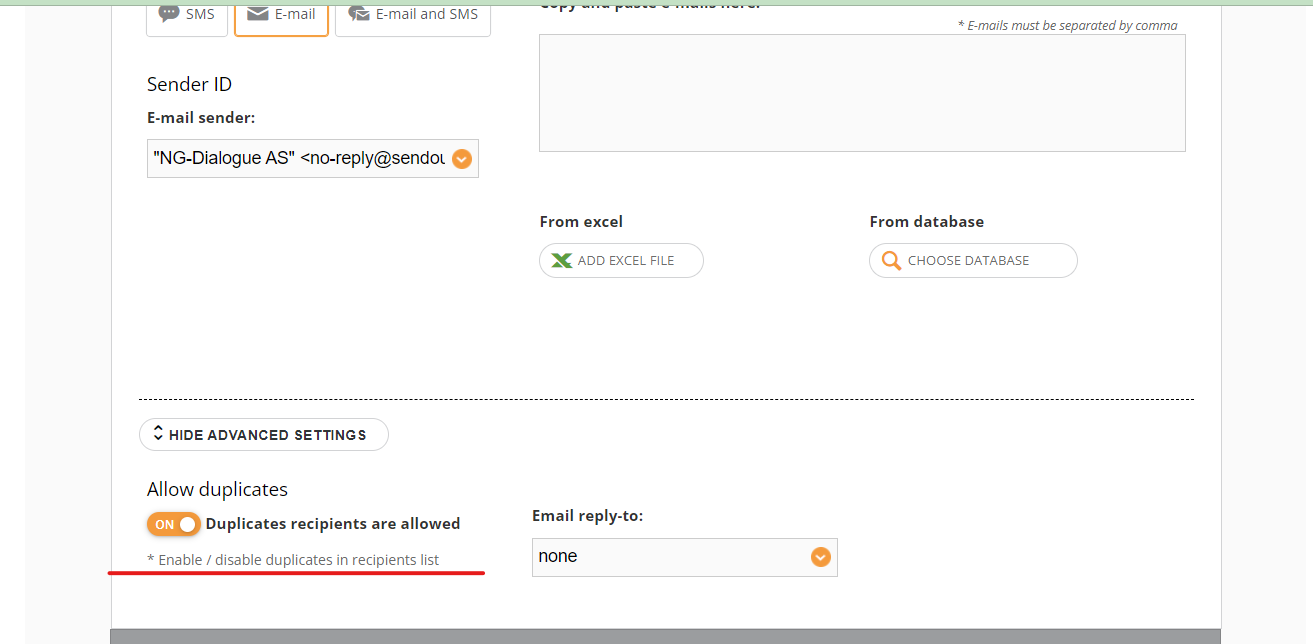
Once the query is ready, you can use it. Go to Campaign - Create Campaign and in the first step in Additional Settings select “Allow duplicates”:
¶ Select datasource
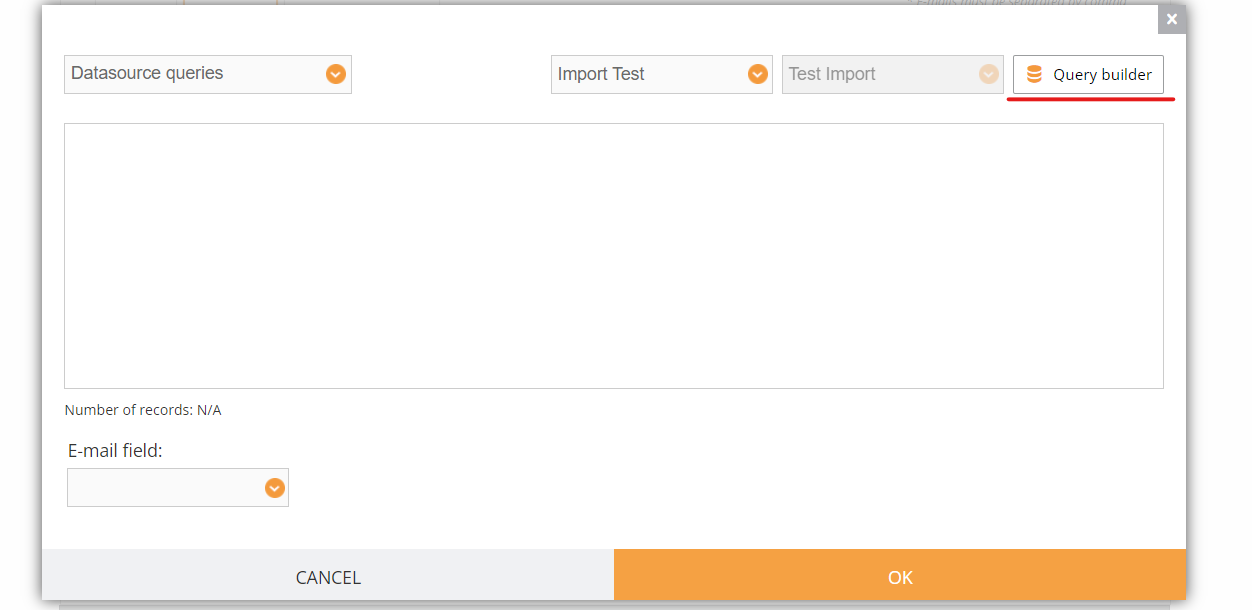
Then go to Choose database and select your datasource and click Query builder:
¶ Select the query
Go to Saved queries and type in the name of your query:
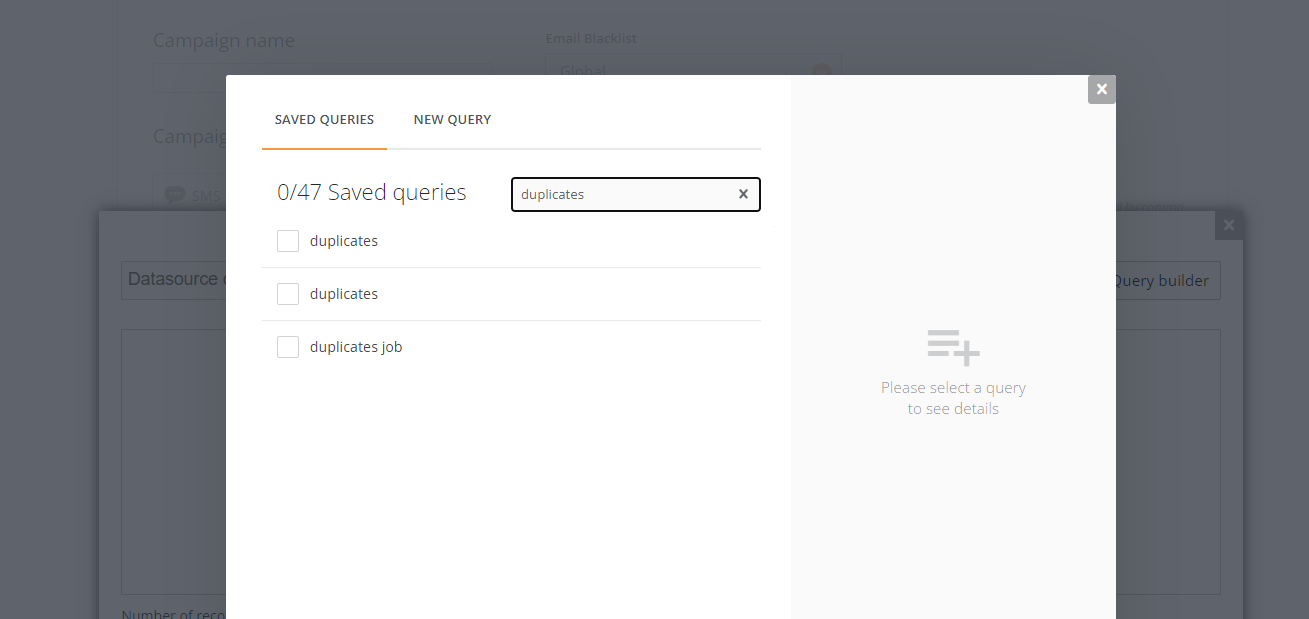
To select it, simply click on the name on the query (not the empty box):
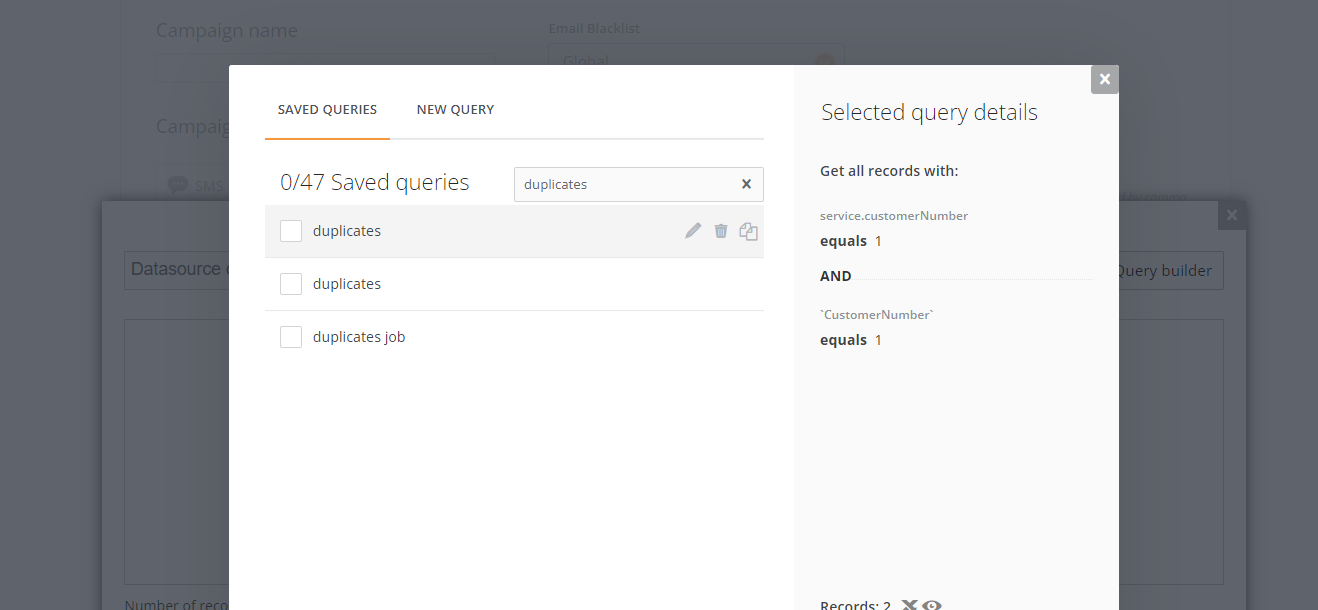
Click Apply:
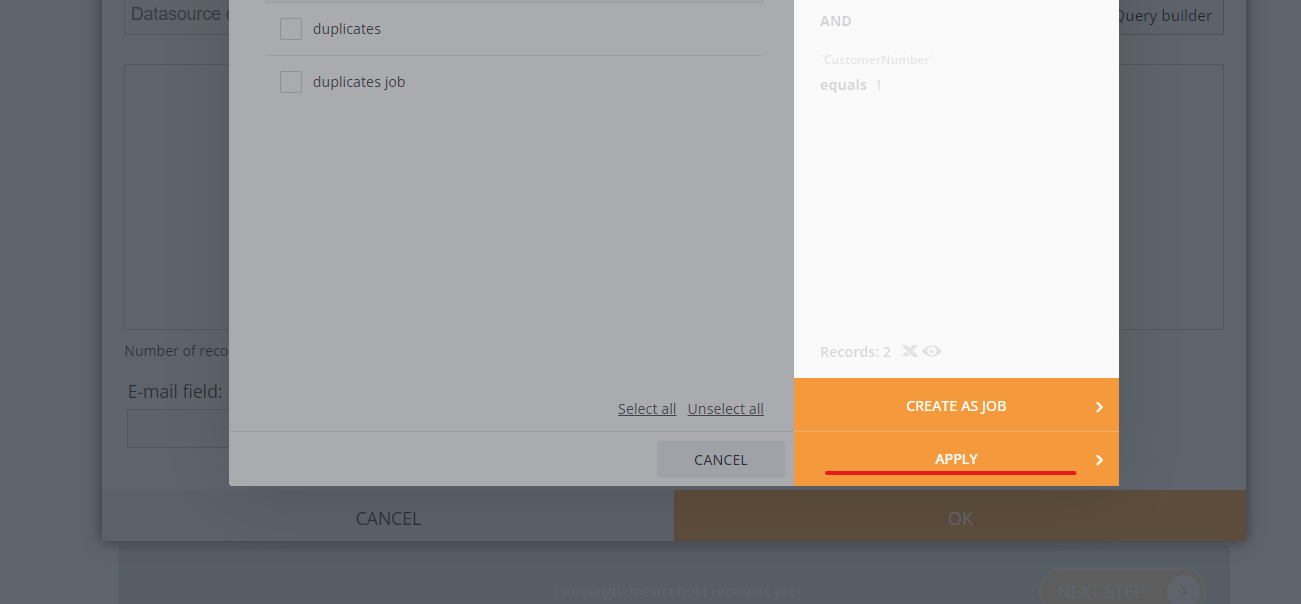
Click OK:
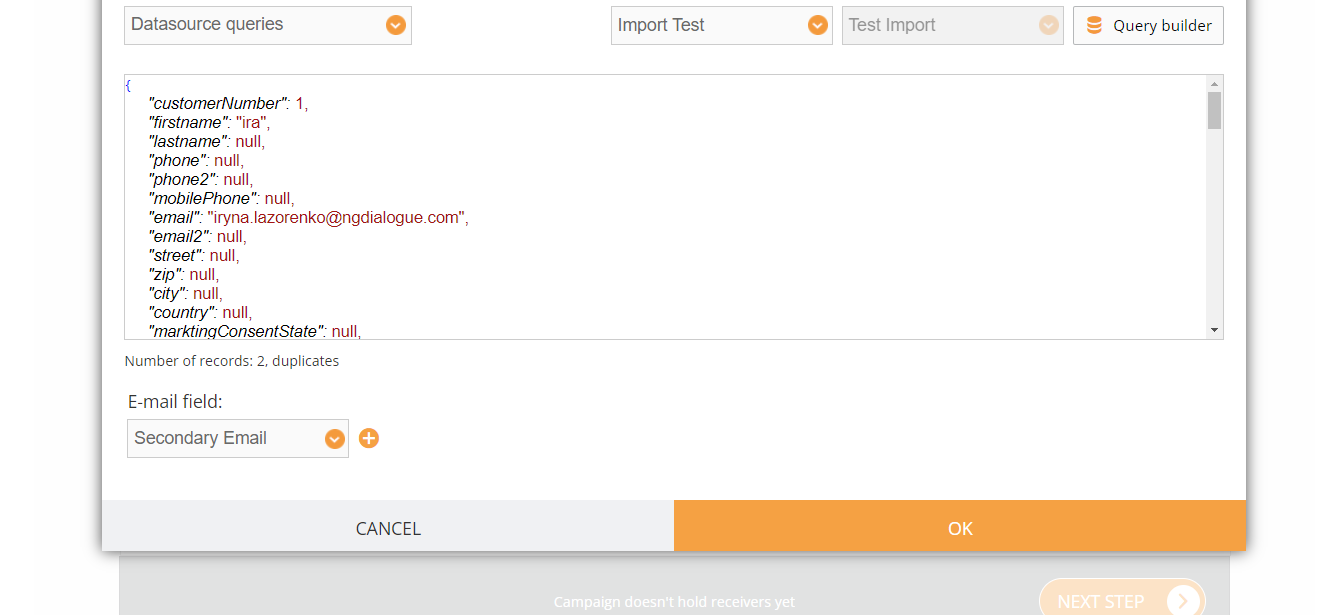
And you can now proceed to creating email/SMS templates etc.
¶ Creating a job with possible duplicates
Repeat all the steps but after the query is selected, click Create as job, not Apply:
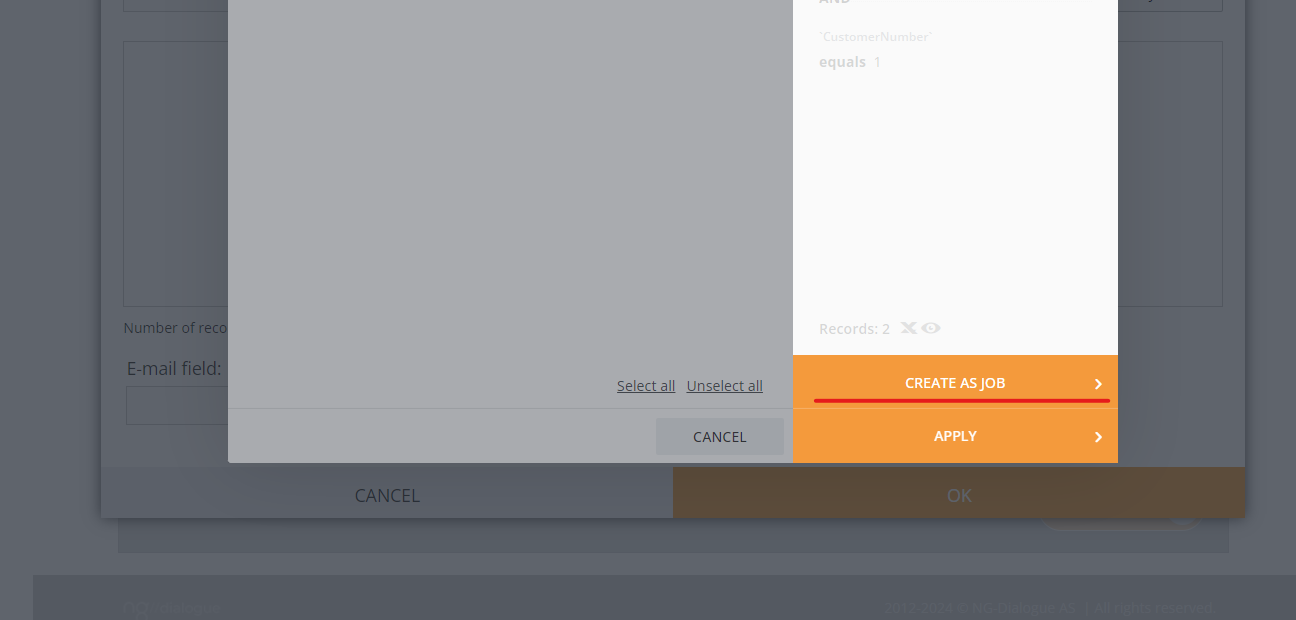
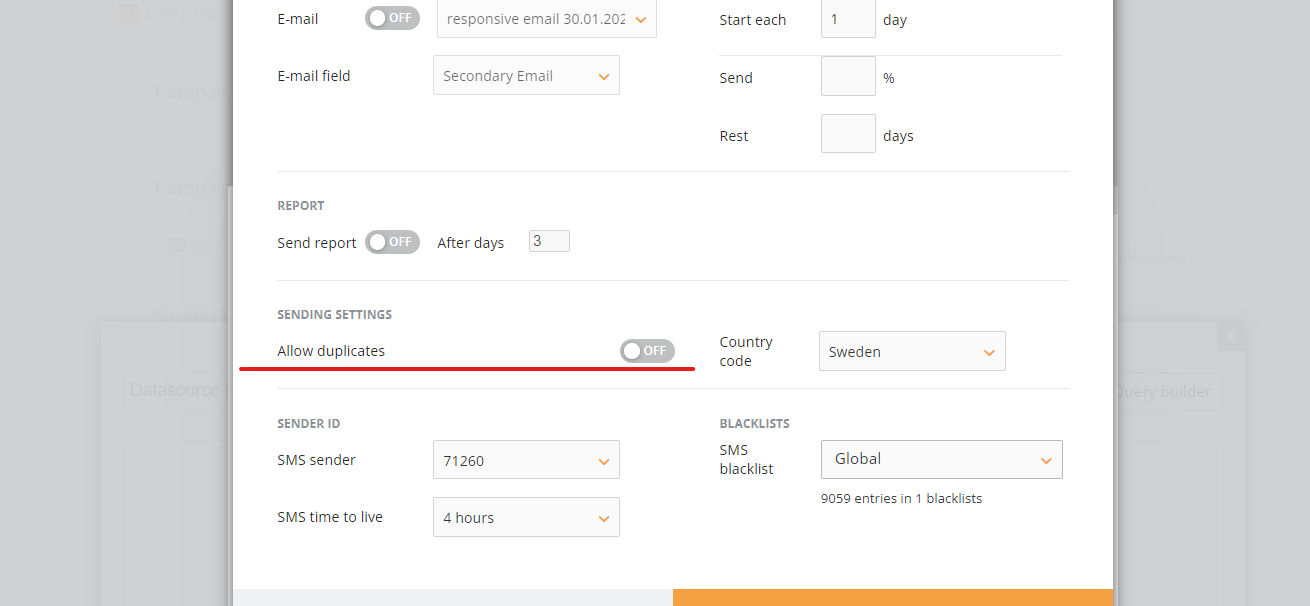
Do not forget to Allow duplicates in this window:
¶ Mistakes to avoid
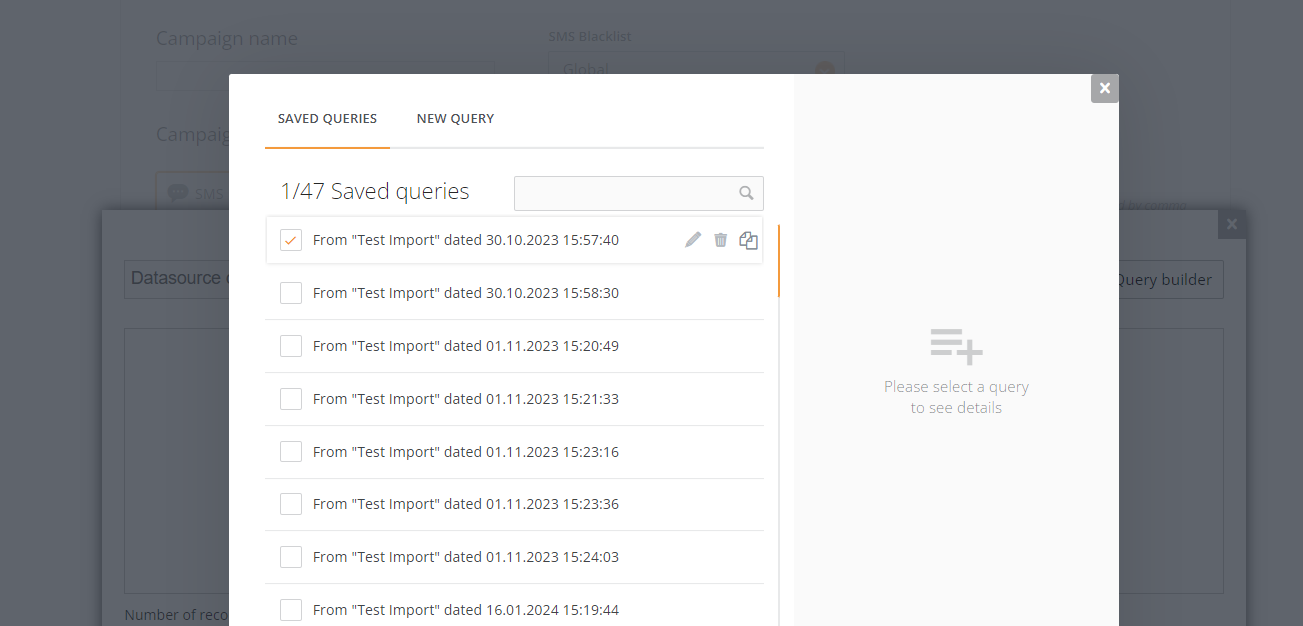
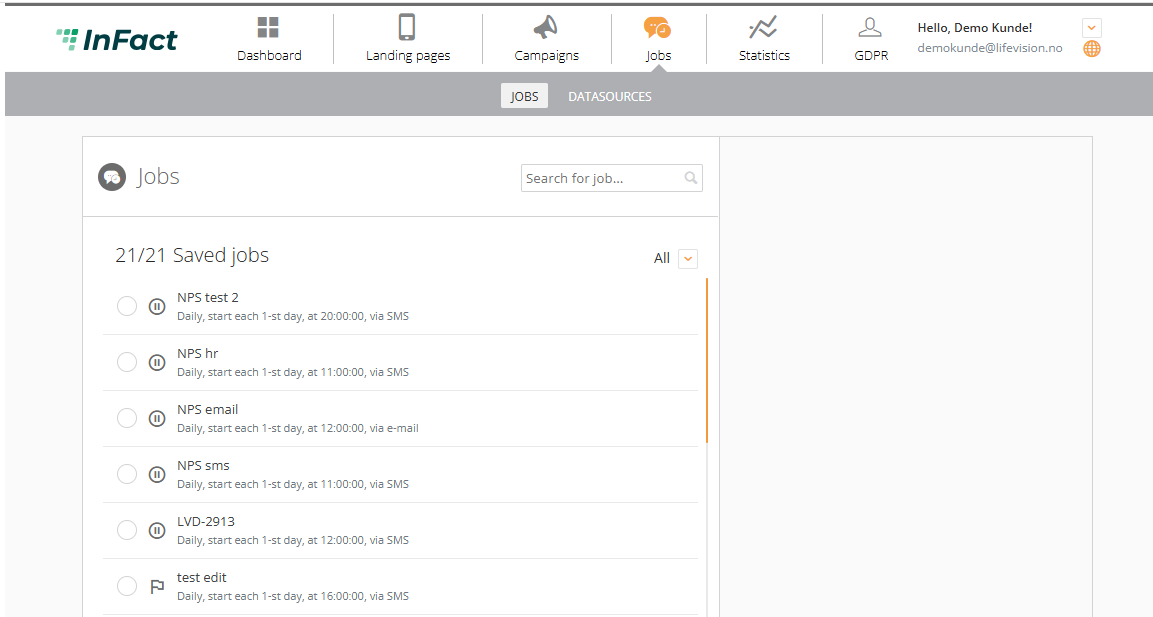
- Creating a job can only be done as explained in the article, you cannot create it via Job menu as all needed data will be lost:
- When selecting a query, you need to click on its name, not tick. This option does not select the query, it allows you use edit, delete, copy features. Editing is prohibited as you will change the query and it needs to be undone via API. Copying might look like selecting + you can edit the query via UI but for custom queries it cannot be used: the query will lose important values and duplicates won't be sent. The editing must be done only via API.