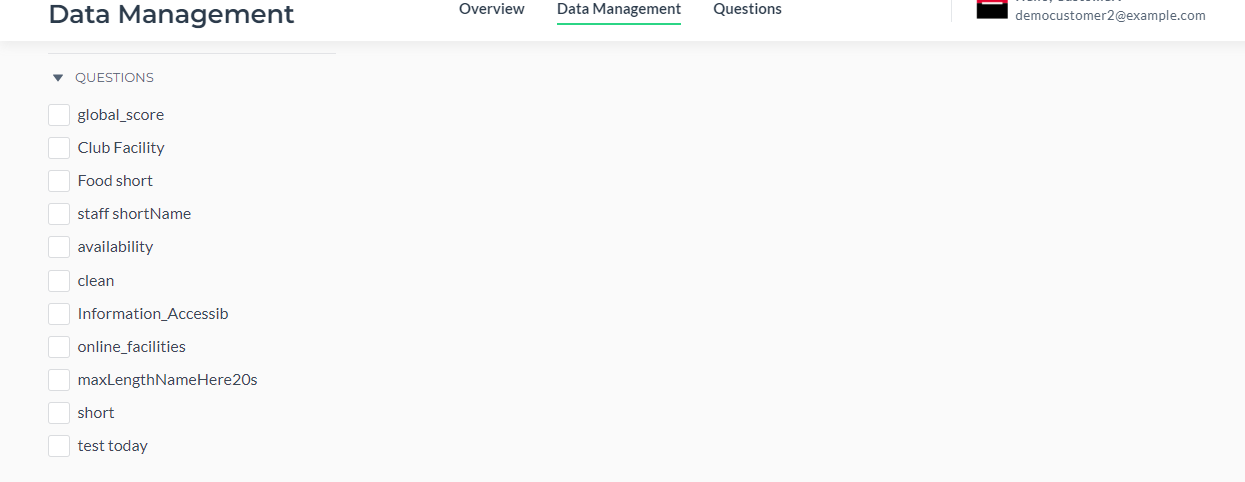
¶ Add a Card Menu
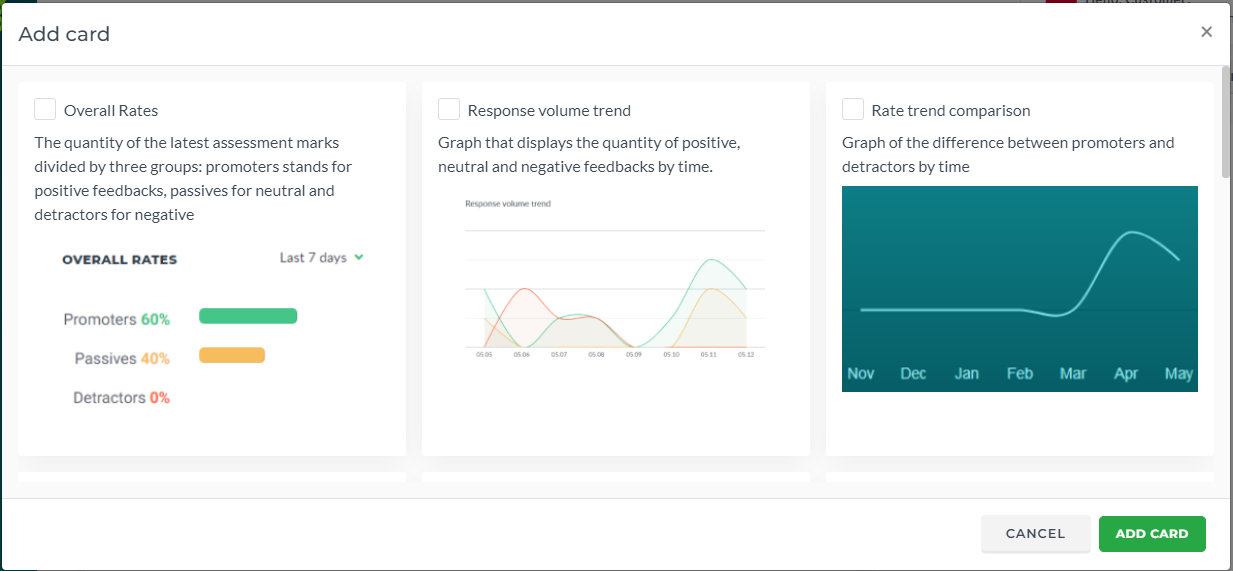
When you click Add card, you will see the cards menu and their description:
¶ General Settings
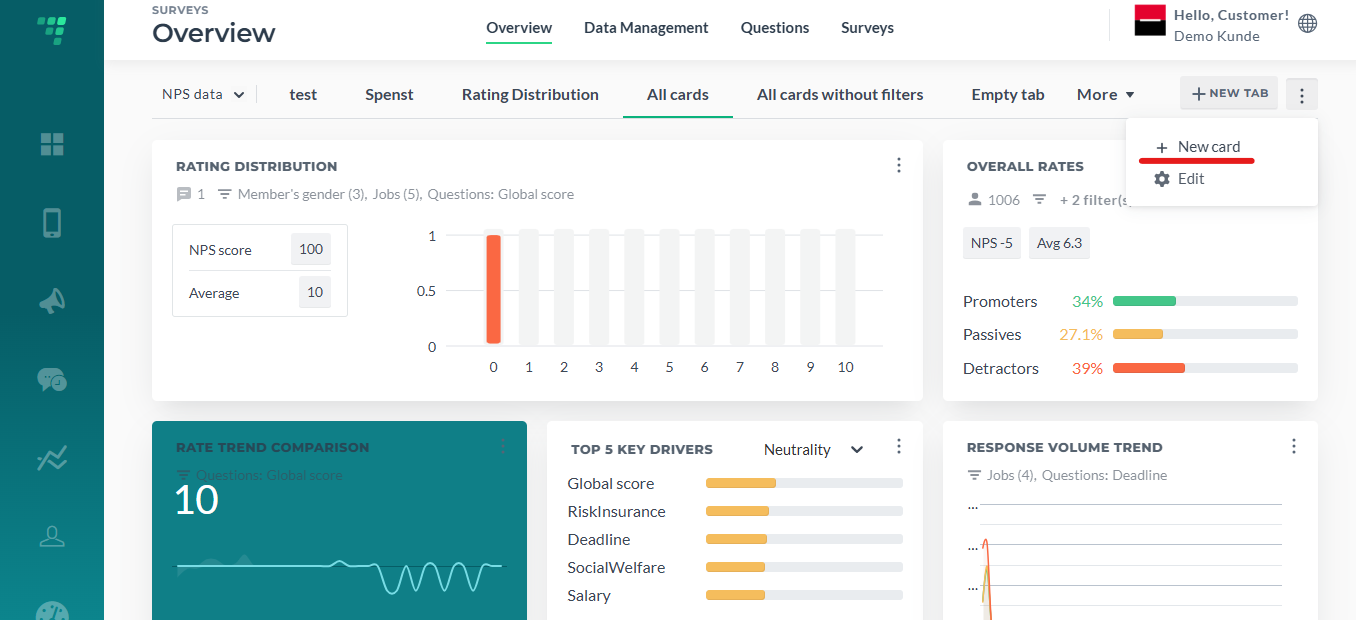
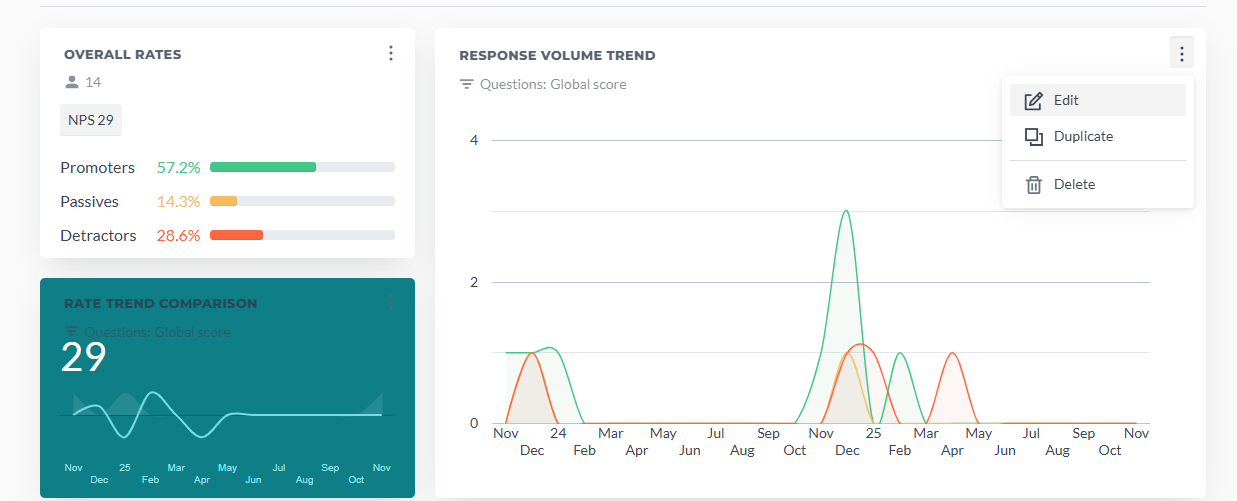
Accessible via Edit button:
You can read about different cards in the “New Card” preview when you are adding them to your Dashboard.
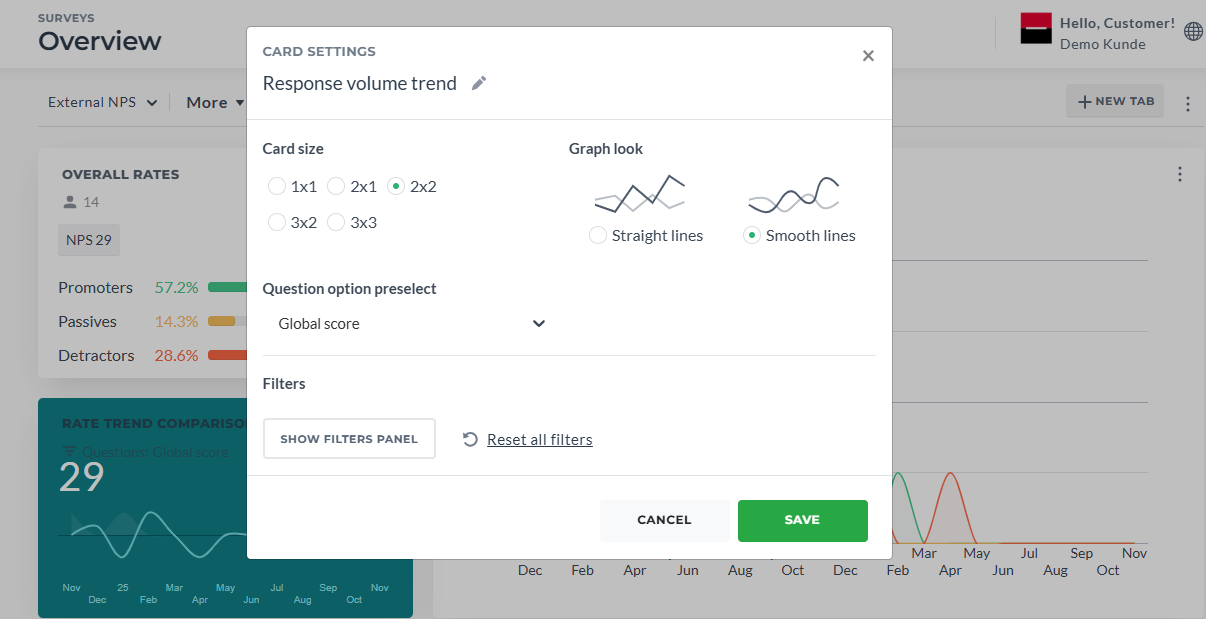
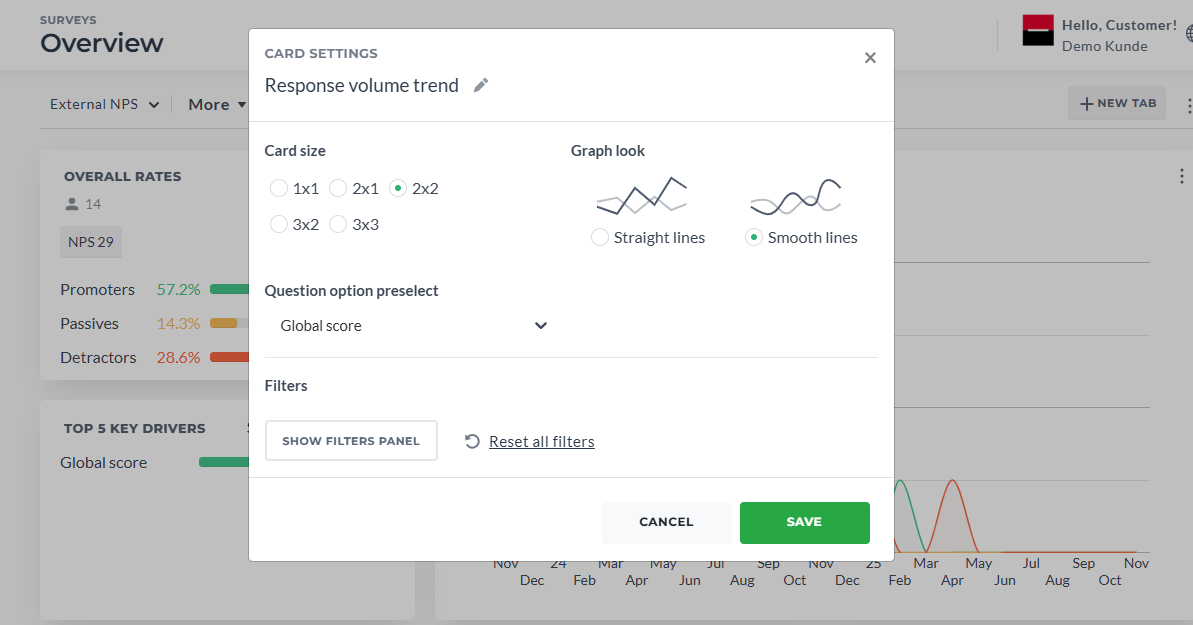
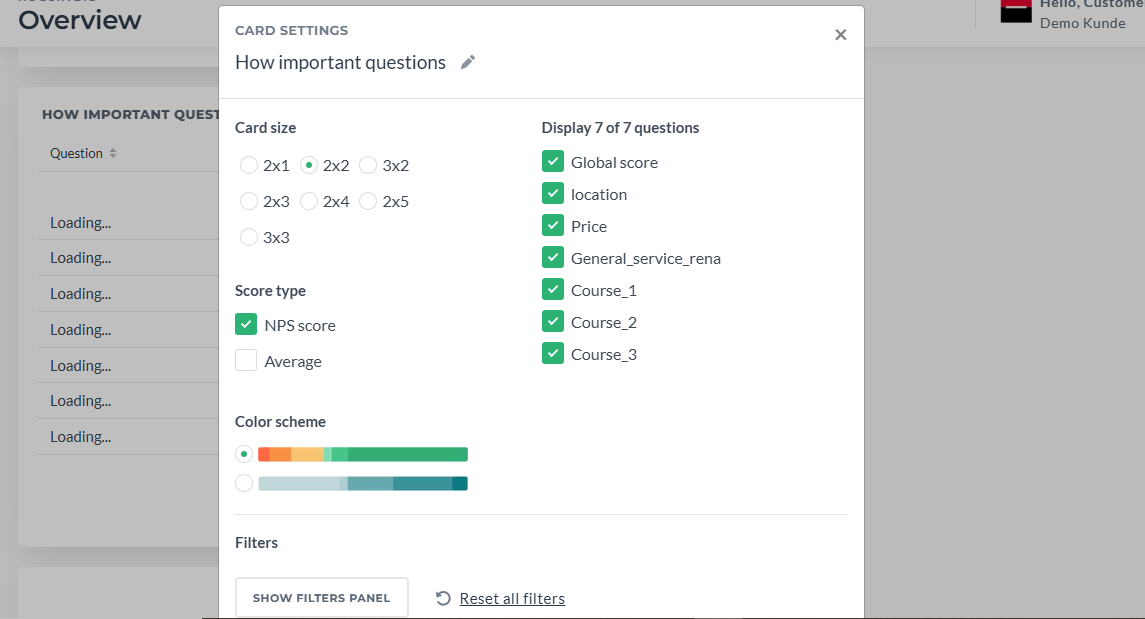
Regarding the settings of each card. You can set up its size, look, question option preselect, choose filters and rename the card.
When you copy the existing card, it is copied with the same settings (filters, size)
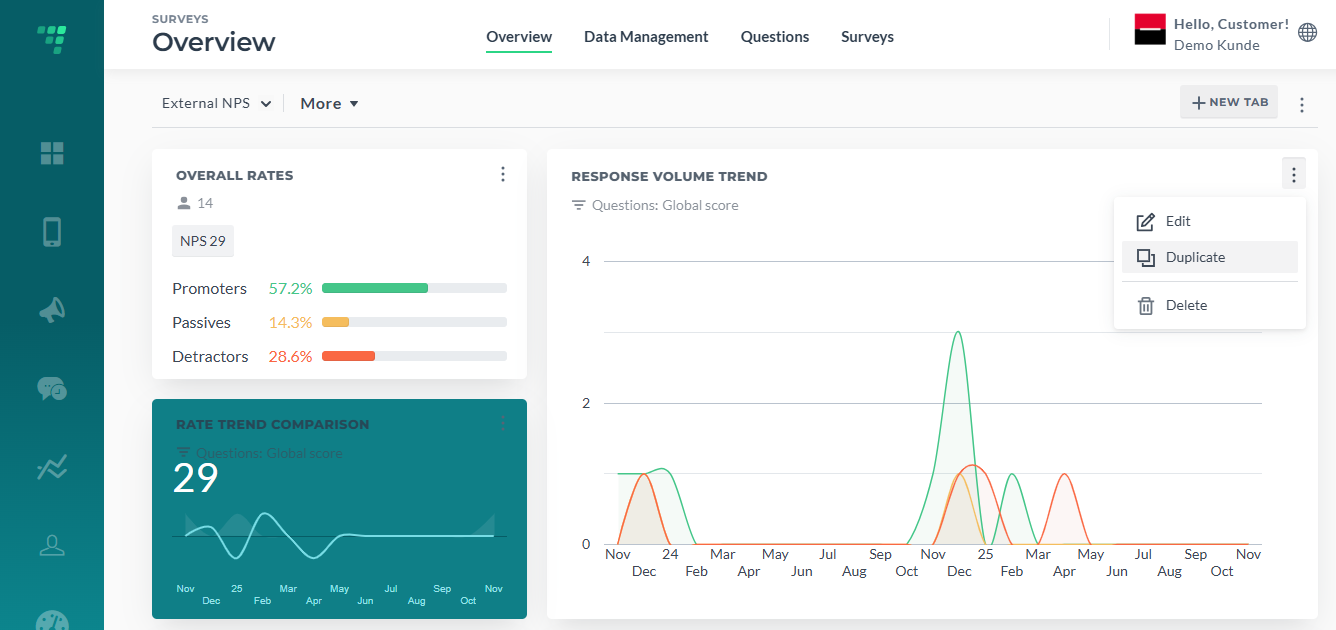
By default in the filter preview of the card you can see "Question option preselect" (it is global score if not set differently) and the date filter “All dates”. You can change this default settings of the card.
¶ Latest Feedback Card
¶ What is this card?
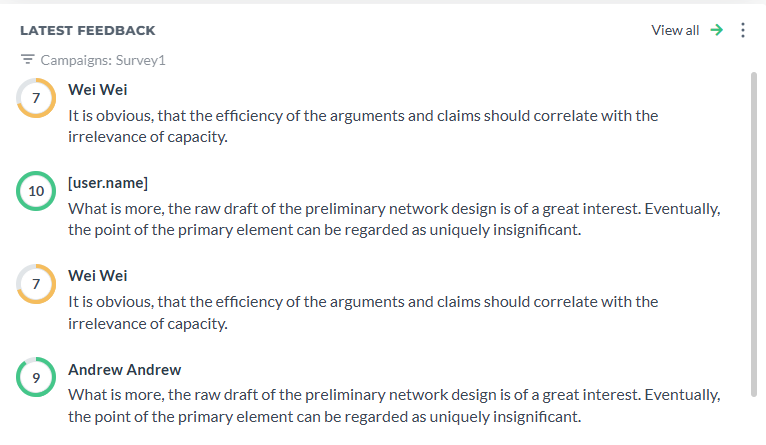
The Latest Feedback card shows the 5 most recent comments from your survey respondents. It gives you a quick snapshot of what customers are saying right now, without having to dig through all the data.
¶ What you see on the card
¶ The circular indicator (left side)
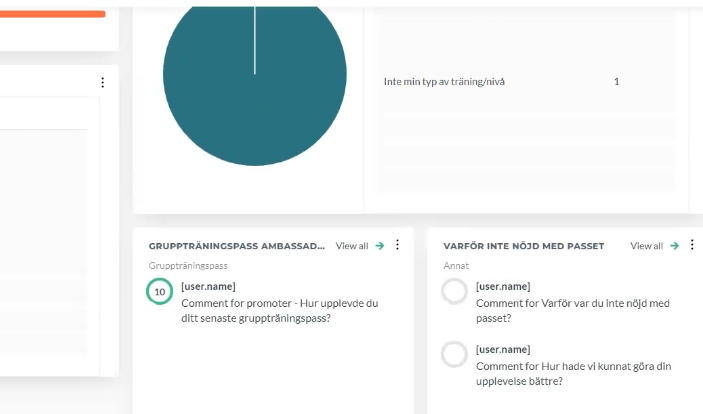
Each feedback item has a circle on the left:
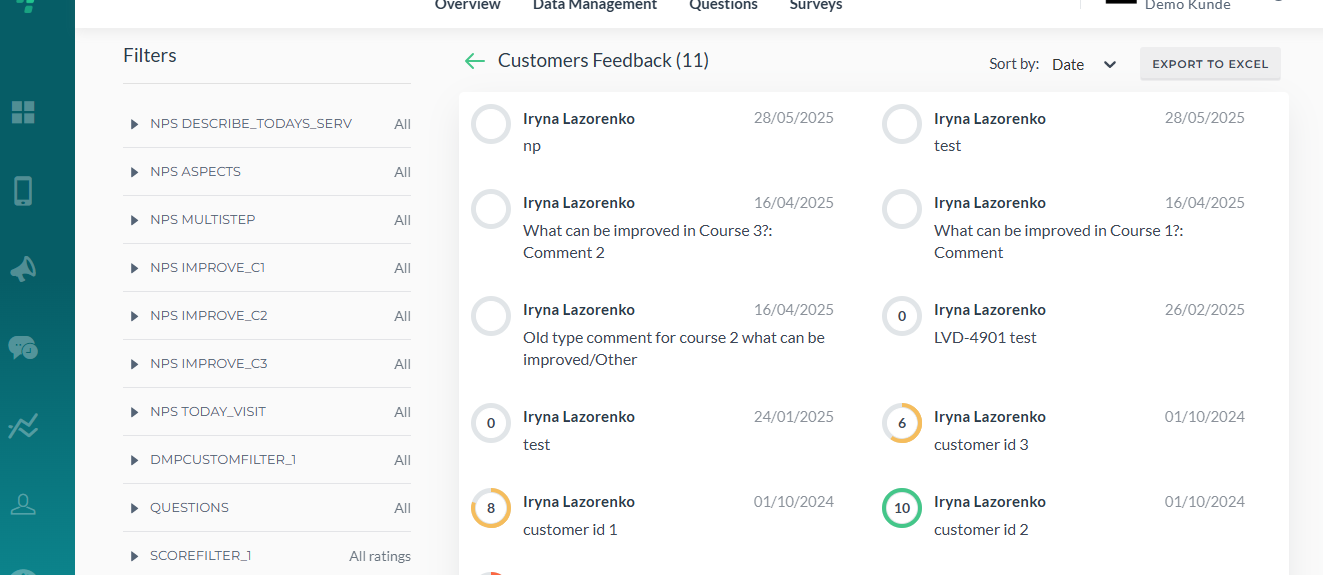
Colored circle with a number - This appears for rating questions (0-10 scale)
- Green (9-10): Promoter - very satisfied customer
- Orange (4-8): Passive - neutral customer
- Red (0-3): Detractor - unsatisfied customer
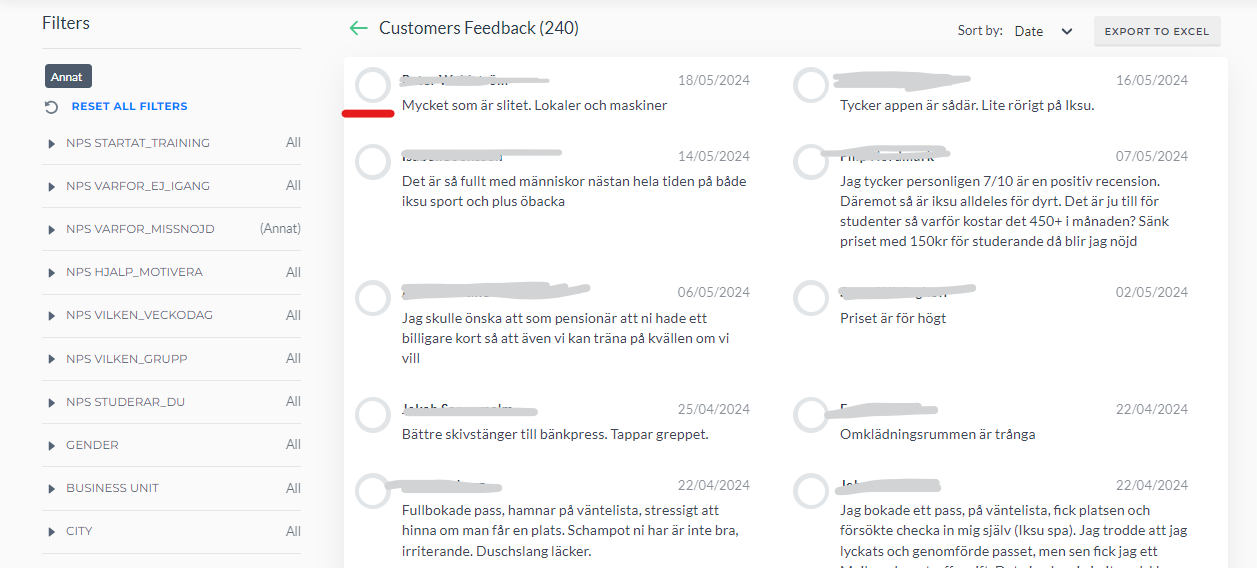
Gray empty circle - This appears for text/dropdown questions that don't have a numeric rating
¶ The name
The respondent's name appears next to the circle. Click on the name to see all responses from that person.
Note: If your survey is anonymous, names will show as "[anonymized]" instead.
¶ The date
Shows when the feedback was submitted (format: DD/MM/YYYY).
¶ The comment
The actual feedback text from the respondent.
¶ "View all" link
Click this to see the complete list of all feedback, not just the latest 5.
¶ Card Settings
Click the settings icon (three dots) and Edit on the card to configure it:
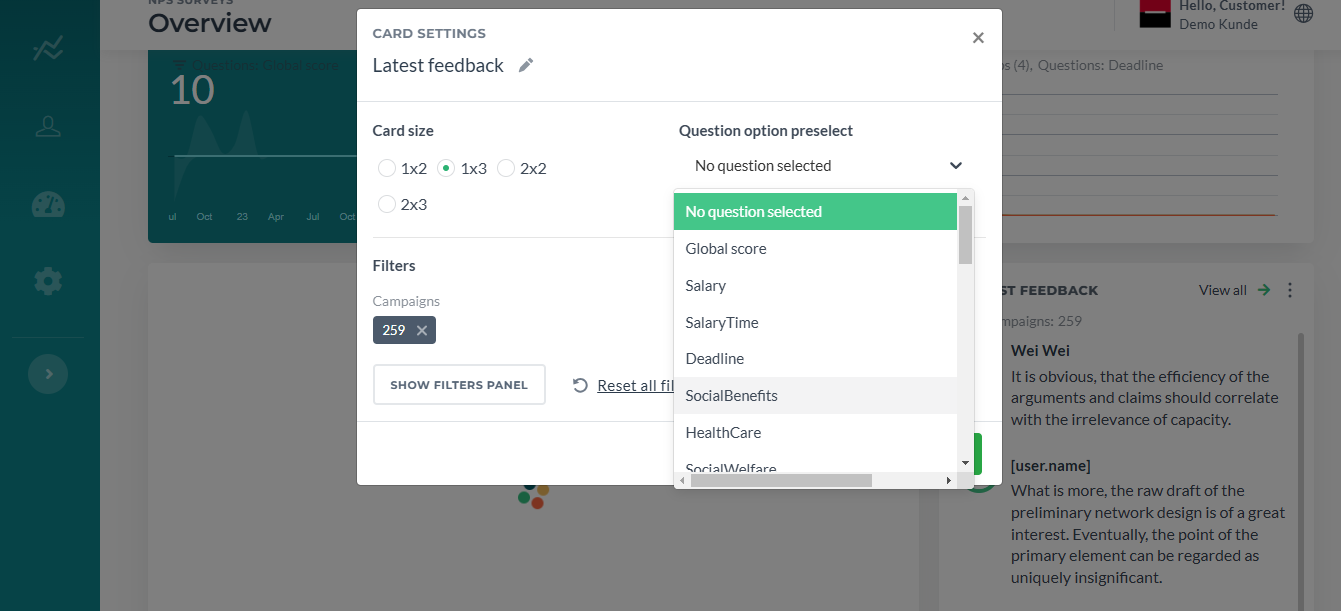
Latest Feedback Card's preview now features question option preselect for all types of questions:
¶ Question filter
What it does: Lets you choose which survey question's feedback to display.
Options:
All questions - Shows the latest feedback from any question in your survey. You'll see a mix of comments from different questions.
Specific question - Select a particular question to only see feedback for that question. Useful when you want to focus on responses to a specific topic.
Example: If your survey has questions about "Overall satisfaction", "Facility cleanliness", and "Staff friendliness", you can set this card to only show comments about "Facility cleanliness".
¶ Tips
- Use multiple cards - Add several Latest Feedback cards to your dashboard, each filtered to a different question, to monitor feedback across different topics at once.
- Check regularly - This card updates with new feedback as it comes in. Check it daily to stay on top of what customers are saying.
- Follow up on red indicators - When you see feedback with a red circle (low score), consider reaching out to that customer to address their concerns.
- Context from filters - The card respects any dashboard filters you've applied (date range, location, etc.), so you can see latest feedback for specific segments.
- This card shows comments, newest go first. Also, if one user provided one comment and then changed it, we will only show the latest one (it is updated). This card is special because it opens to its own page. If you click View all, it shows a separate page where you can view all comments. By default date is set to All Dates.
- It the card names look like this [user.name], please inform the support team, they will fix this issue. Link for the support team member.
¶ Rate Trend Comparison
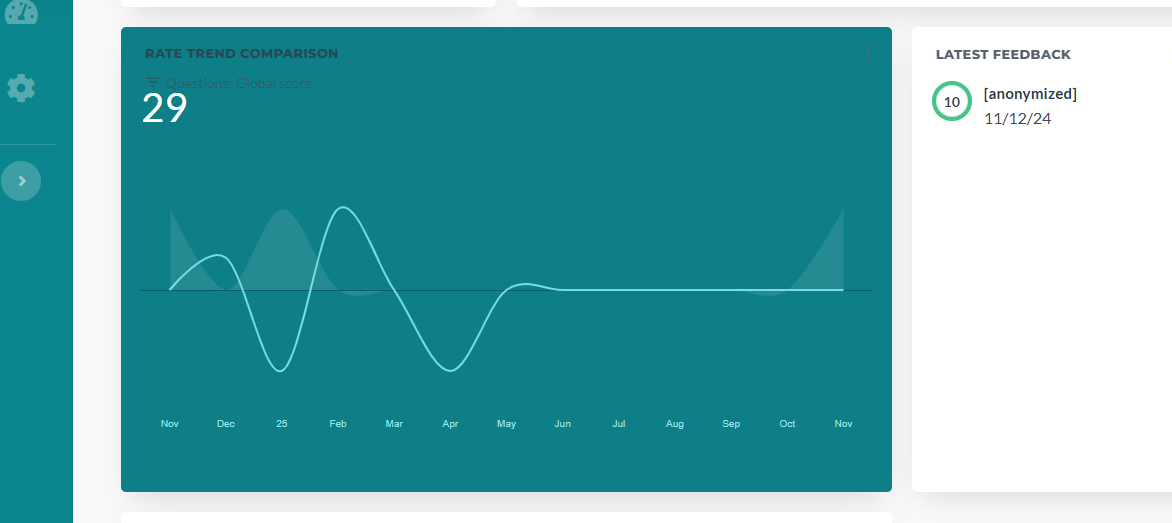
Graph of the difference between promoters and detractors by time.
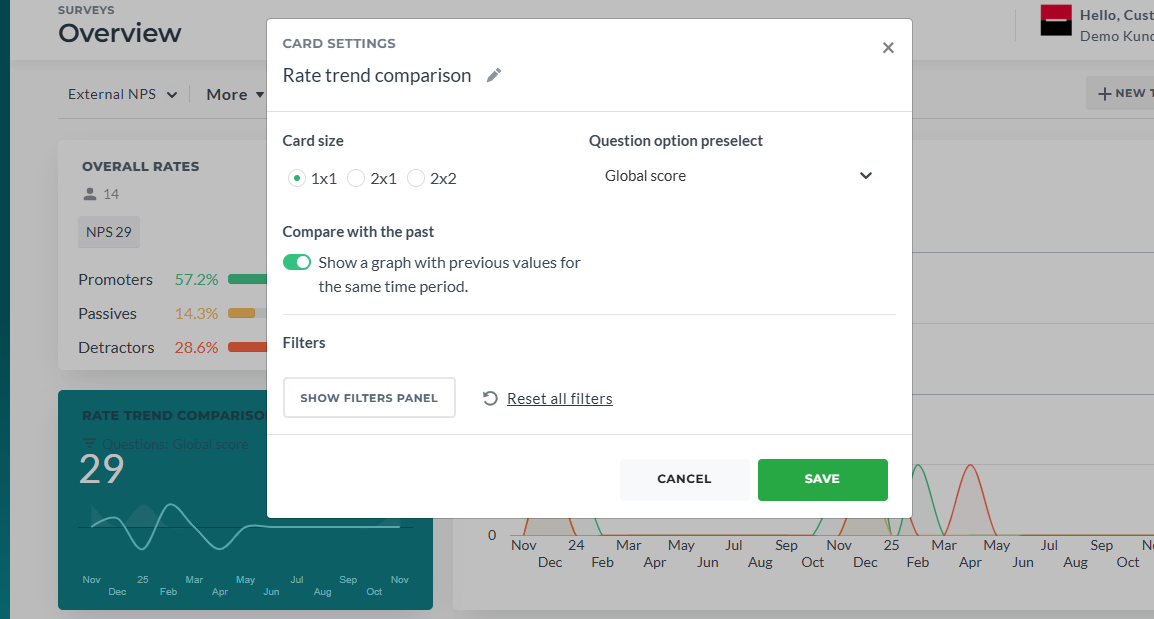
Compare with the past adds graph representing old data:
¶ Overall Rates
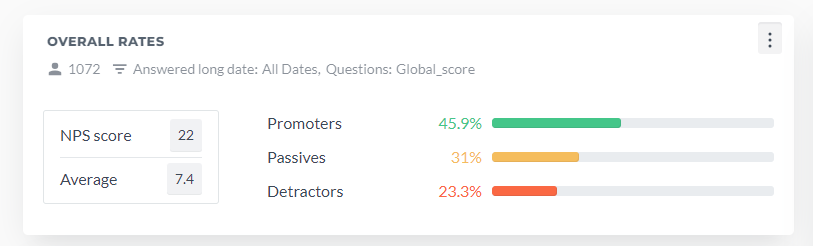
The quantity of the latest assessment marks divided by three groups: promoters stands for positive feedbacks, passives for neutral and detractors for negative. By default date is set to All Dates, preselected question is Global Score. Also, the general number or users provided answers is shown.
¶ Response Volume Trend
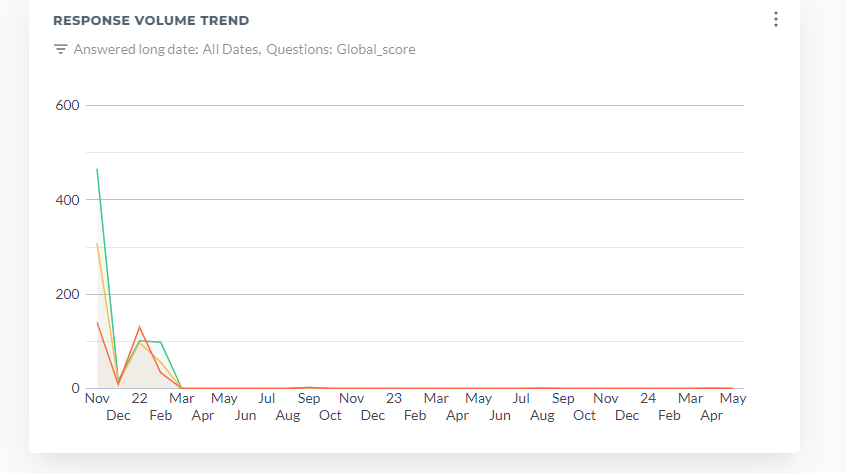
Graph that displays the quantity of positive, neutral and negative feedbacks by time. By default date is set to All Dates, preselected question is Global Score.
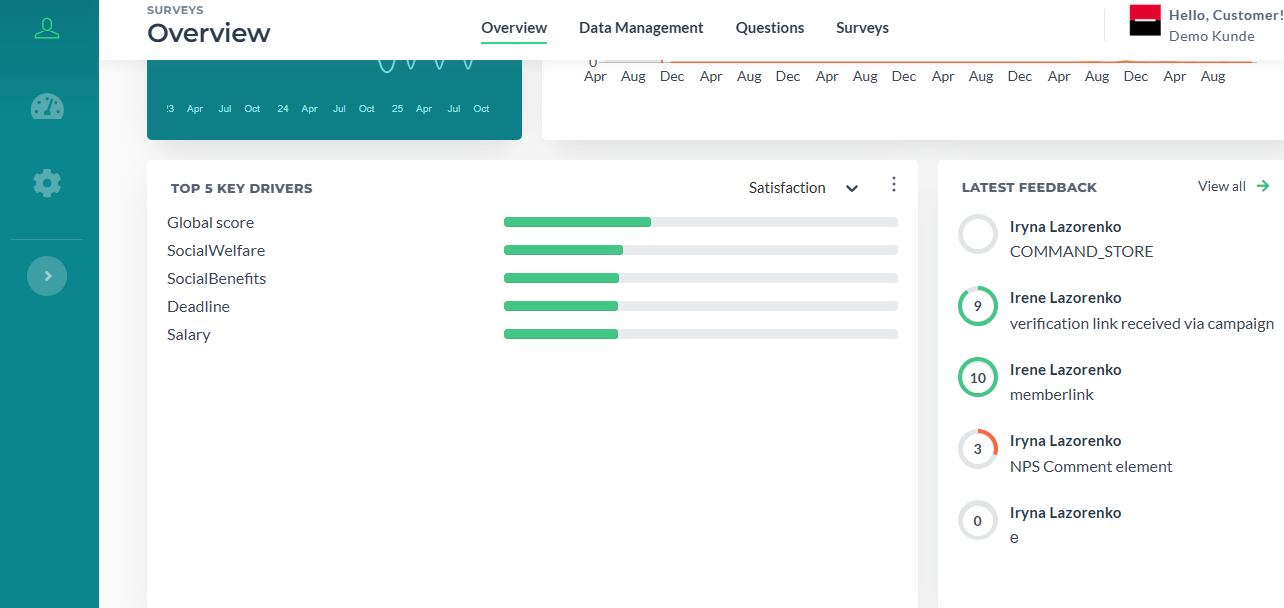
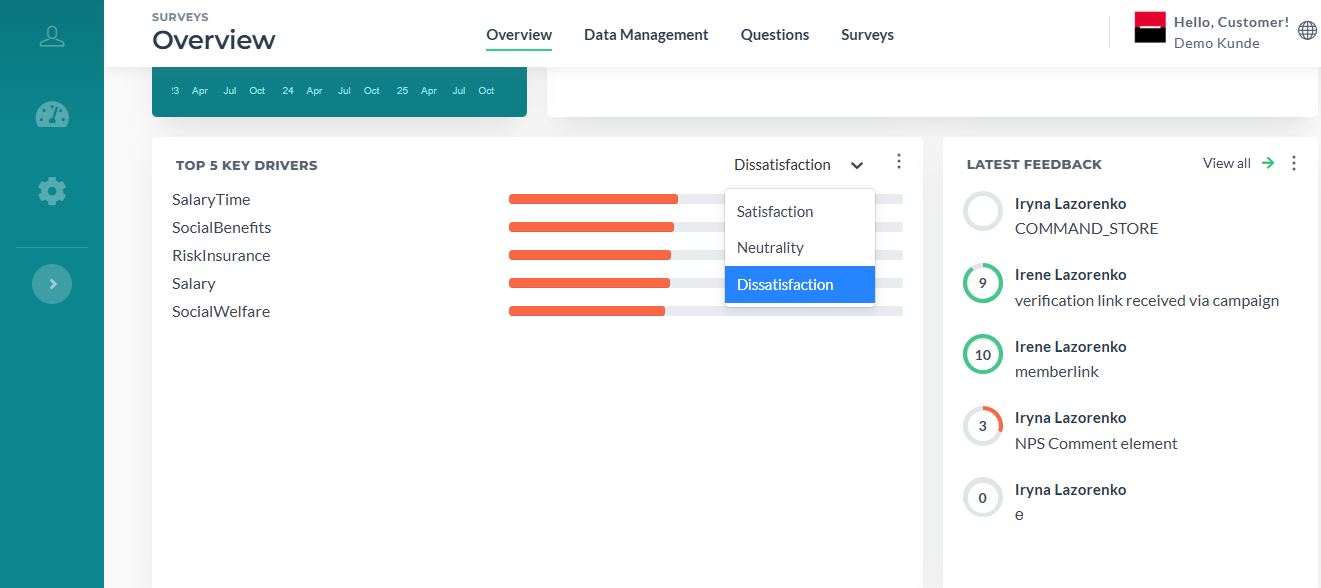
¶ Top 5 Key Drivers
5 questions with the large quantity of positive assessments. By default date is set to All Dates.
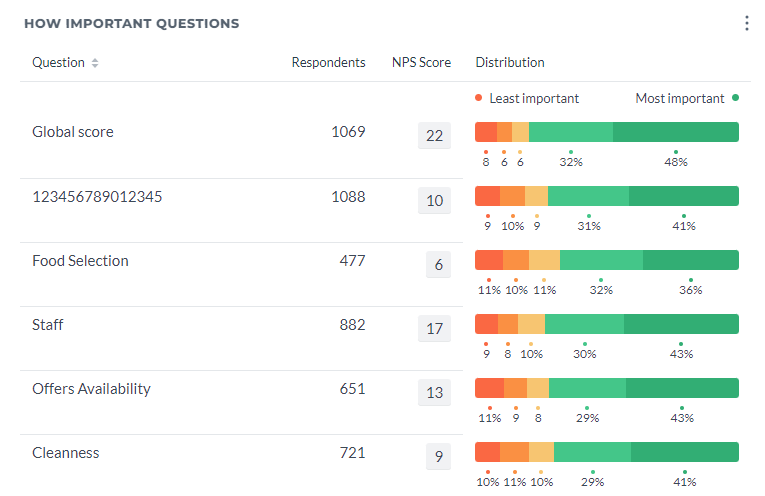
¶ How Important Question
The chart visualizes responses from series of N questions, with segments representing five levels of importance, from "Least Important" to "Most Important". Default Score Type is NPS Score.

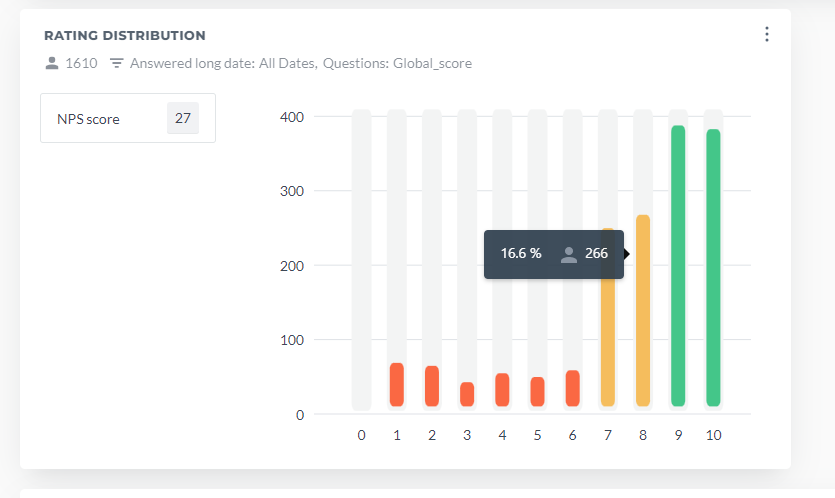
Rating distribution
Bar chart that displays the distribution of marks from 0 to 10. By default date is set to All Dates, preselected question is Global Score and default Score type NPS Score. Also, the general number or users provided answers is shown.
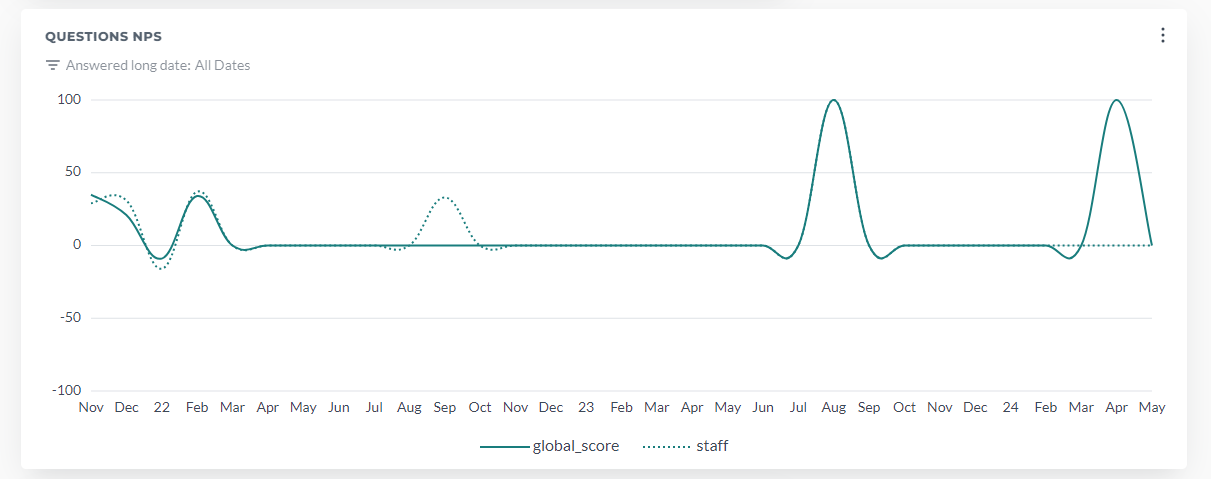
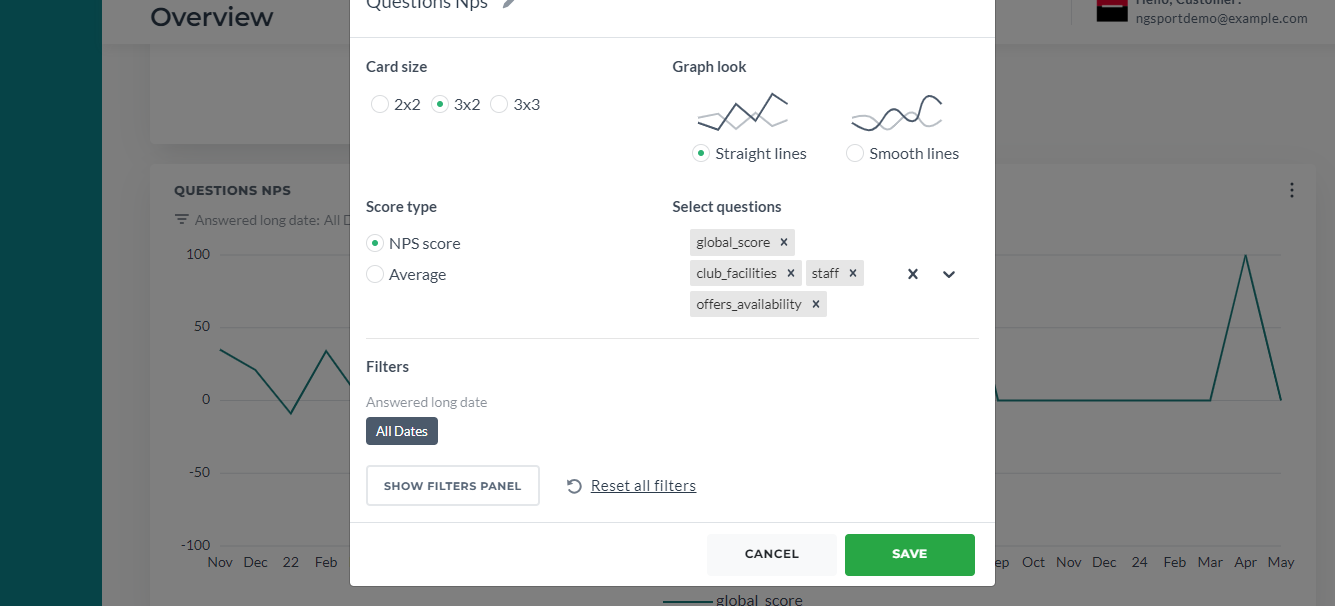
¶ Questions NPS
Graph chart that displays the NPS of selected questions. By default date is set to All Dates, preselected question is Global Score and default Score type NPS Score. 4 Questions is the limit for Selected questions.
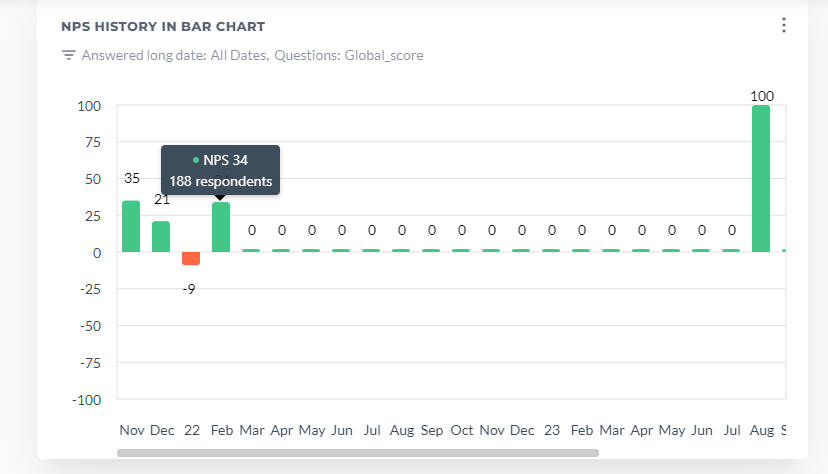
¶ NPS history in bar chart
Bar table that shows NPS score/Average score by dates for preselected question. By default date is set to All Dates, preselected question is Global Score and default Score type NPS Score.
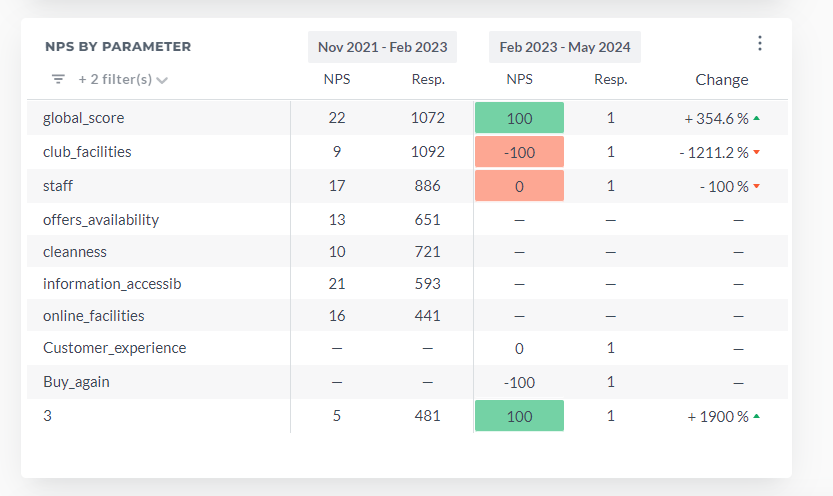
¶ NPS by Parameter
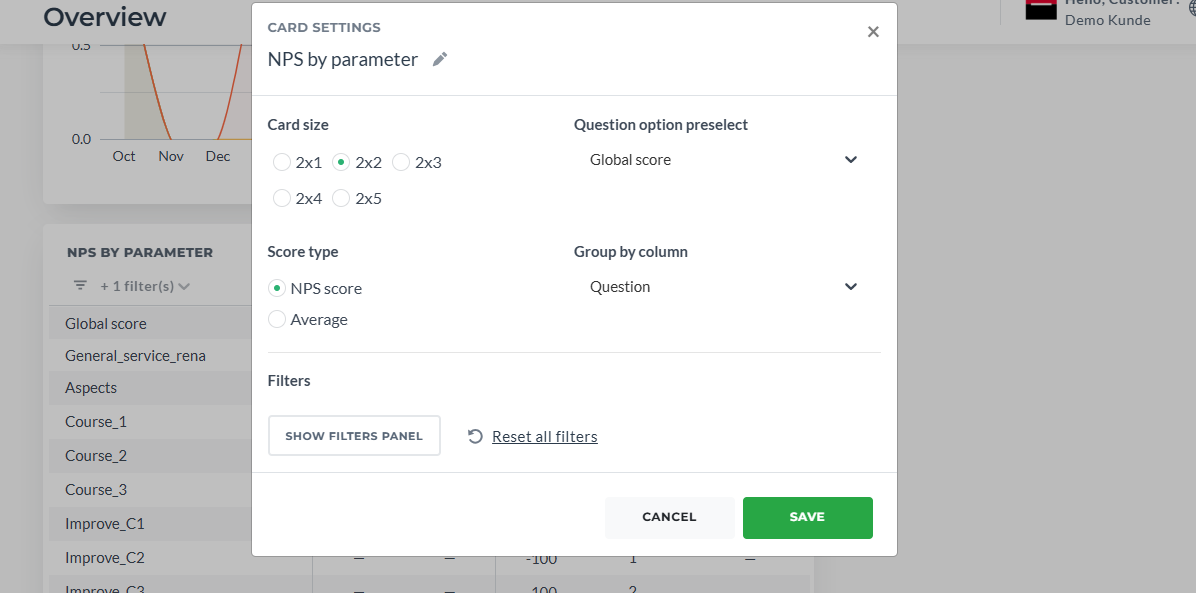
Difference between promoters and detractors in one of the questions sorted by the chosen parameter. By default date is set to All Dates, preselected question is Global Score.
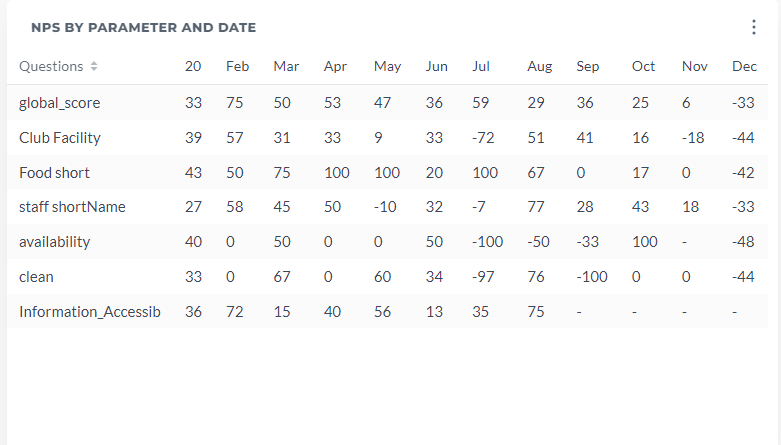
¶ NPS by parameter and date
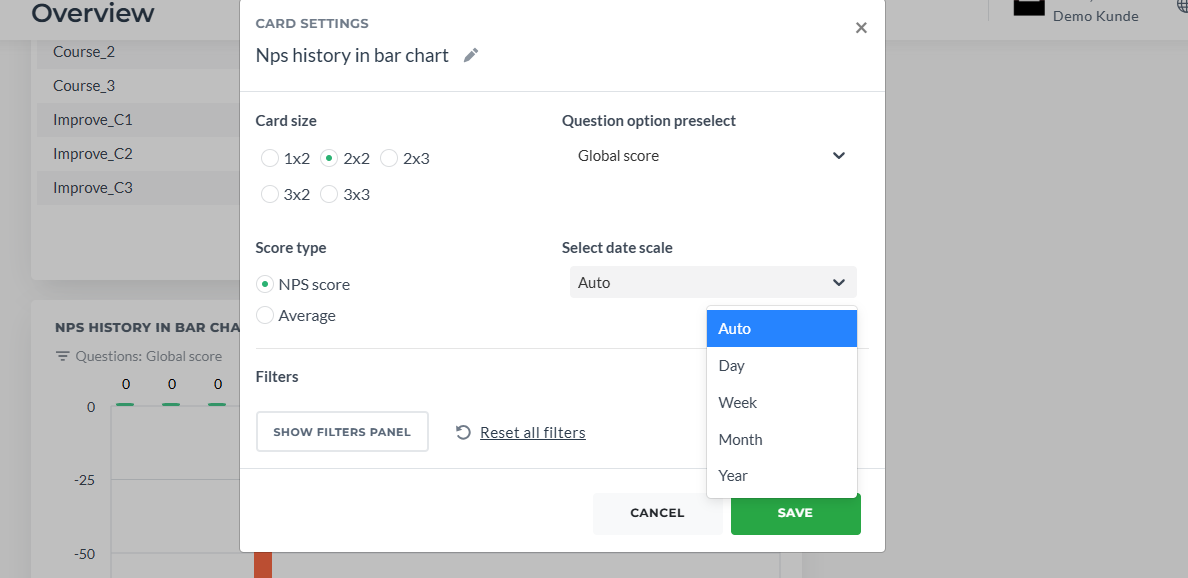
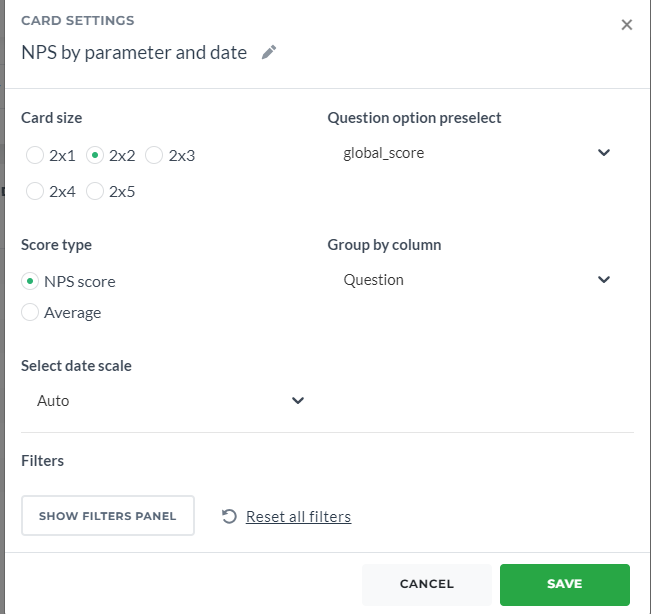
Table for one of the questions grouped by parameter and date period. By default date is set to All Dates, preselected question is Global Score, Group By default choice is Question and Score type NPS Score. Select date scale is Auto by default.
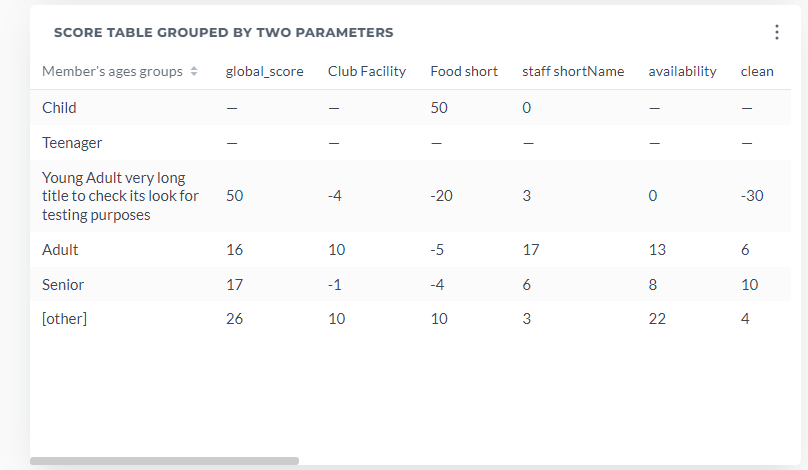
¶ Score Table Grouped By Two Parameters
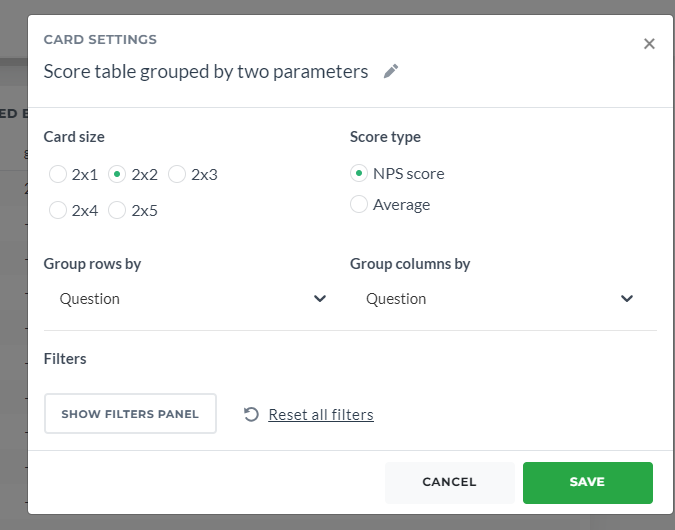
Table where you can choose groups for rows and columns. By default Group By is Question and Score type NPS Score.
¶ Special cards settings
¶ Question Option Preselect
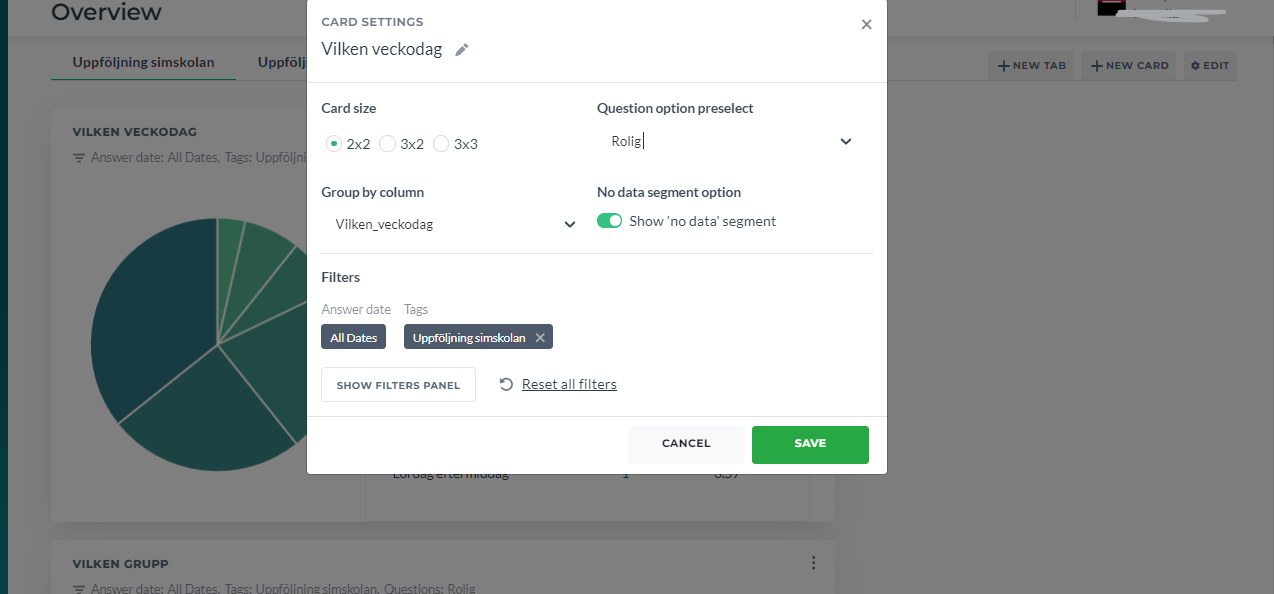
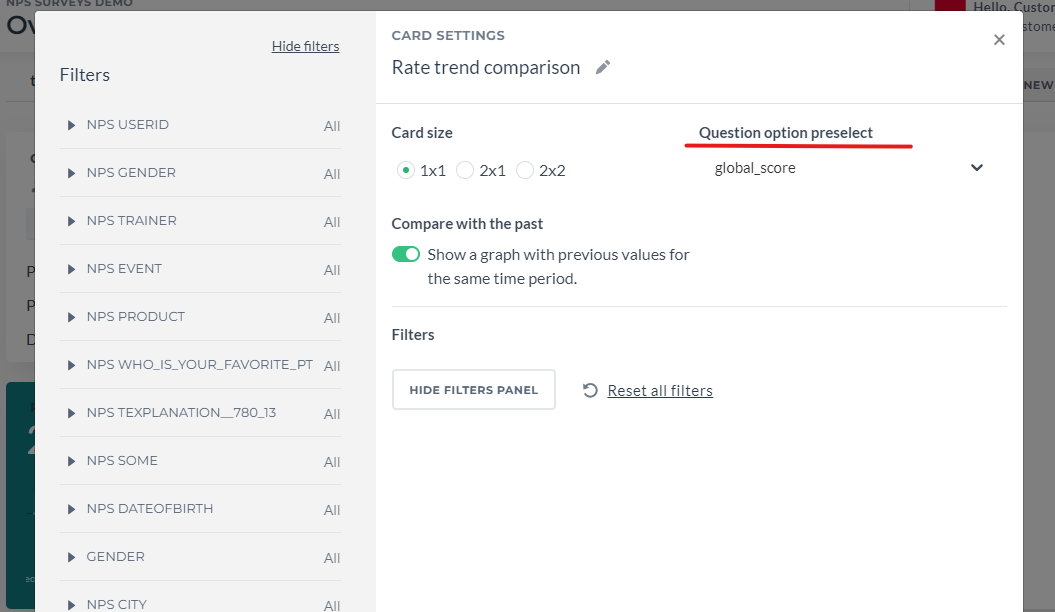
This option allows you to preselect the question for the card. The users who provided answers for this rate question will be used for the visualization. It is used for cards: Overall Rates, Response Volume Trend, Rate trend comparison, NPS by Parameter, Rating Distribution, Pie Chart, NPS History in Bar Chart, NPS by Parameter and Date.
Please note if you do not use Global Score (a default fate question that represents the main score), abovementioned cards will be broken as they use global score as a default. So you will need to change it manually.
¶ Group by column
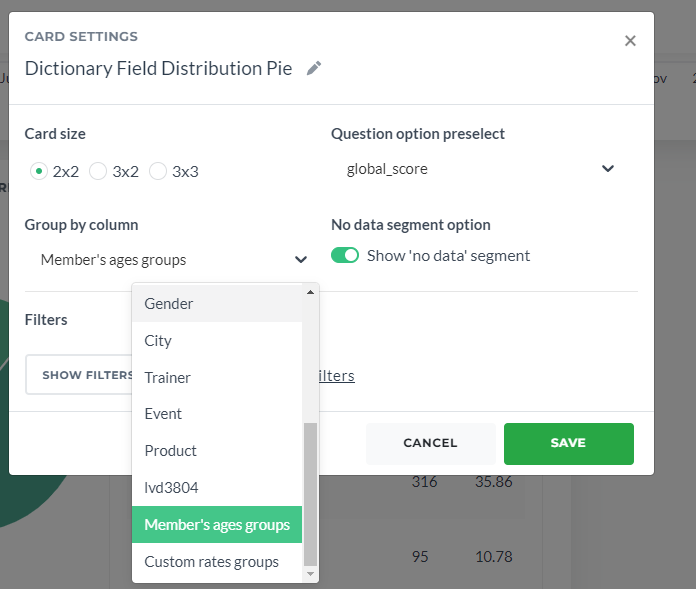
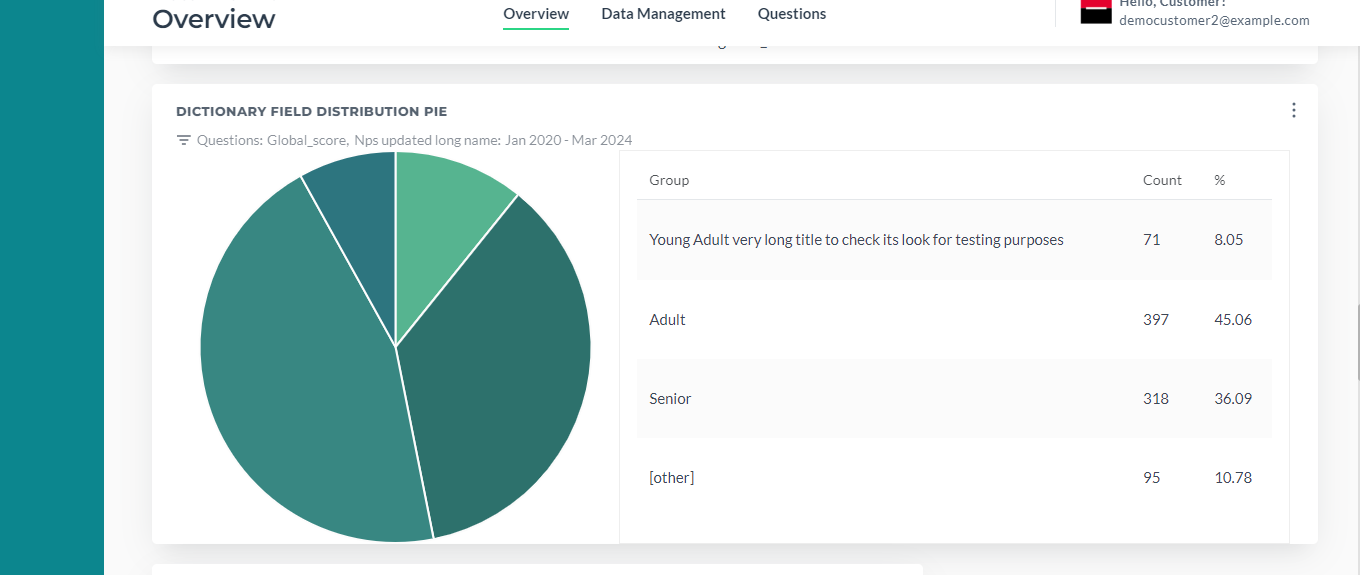
These settings allow you to choose the groups (different questions, custom rates, age groups etc.) and the distribution of answers among these groups
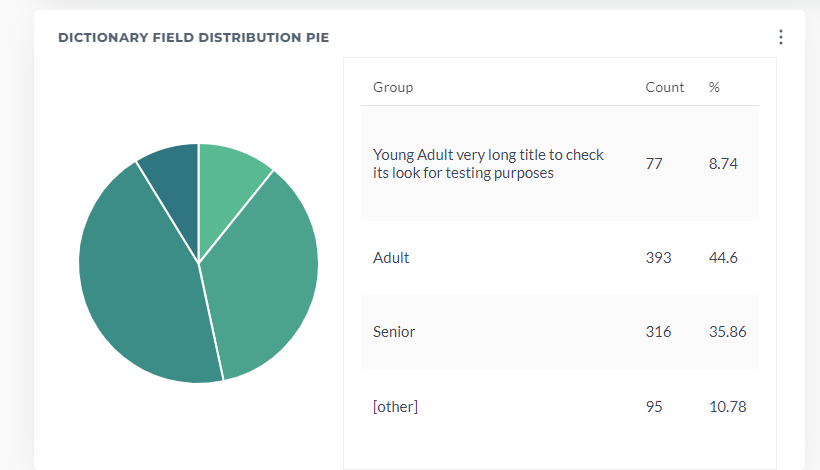
You can group the card by age, gender any other dictionary question. If you need custom age groups, custom dates and rates, please, contact tech support and here is article about this feature.
¶ No data segment
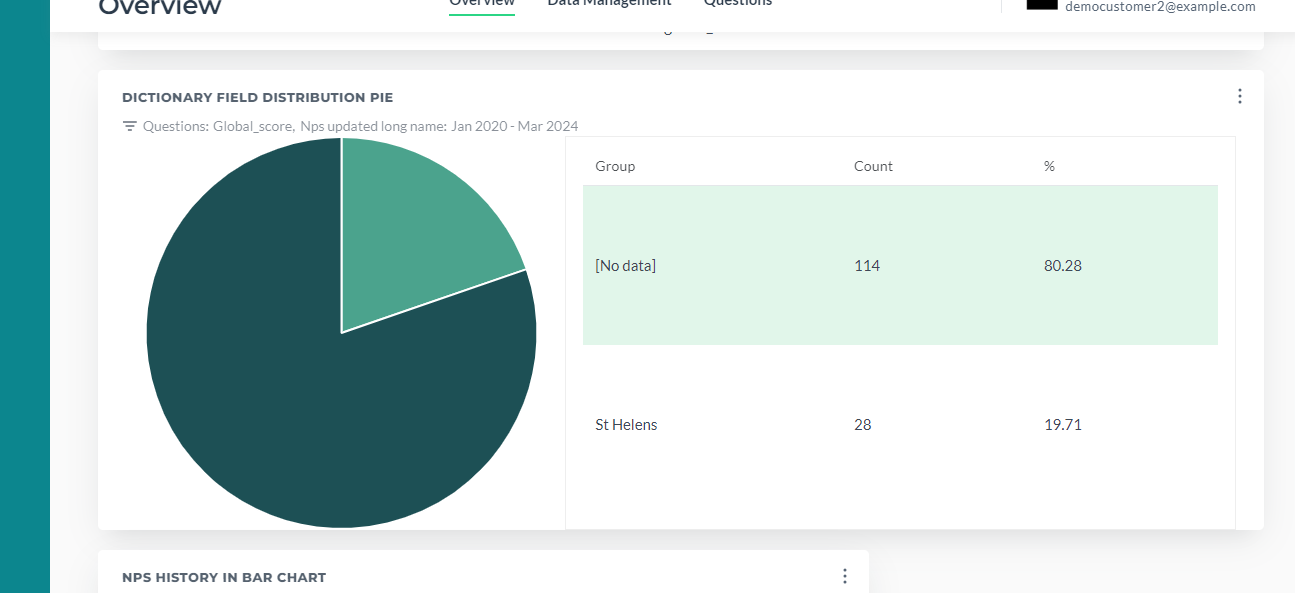
This option allows you to turn on and off visualizing the segment with no data. For example, answers provided by members which city or gender is not mentioned.
¶ Select Score Type
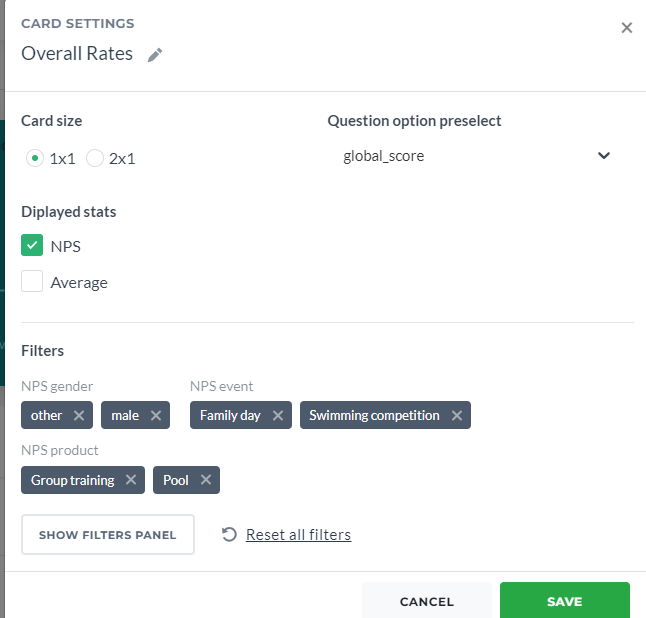
NPS by Parameter card, NPS History card, Questions NPS card, Overall Rates card and Rating Distribution card (in development) have a radio button to choose between NPS score and Average value
¶ Select questions
This option exists in Questions NPS Card. There is a limit on how many questions you can add:
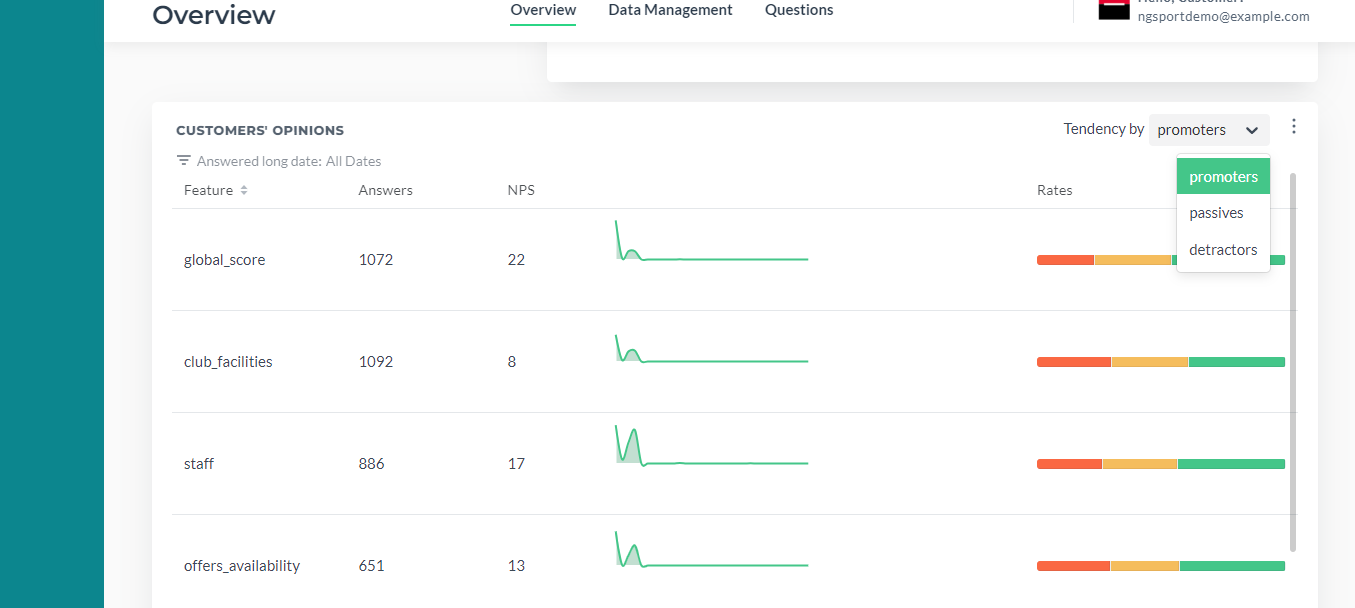
¶ Tendency
Customers' Opinions Card allows us select Tendency by NPS. This card includes a table that include the quantity of reviews, response changing graph and relation between feedbacks chart sorted by questions.
¶ Side filter panel
It can be accessed via the Overview and Data management and Card Settings page as well.
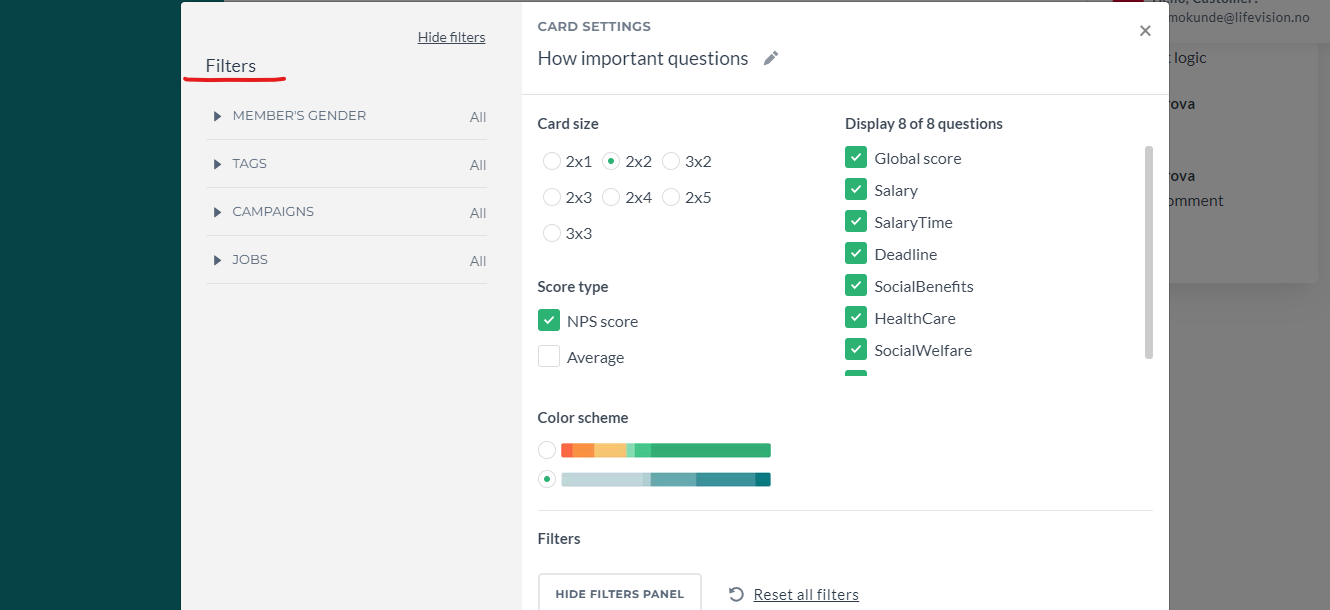
Filters could be general and custom. We could add them via hidden settings (done by support team when setting up the Dash, please, contact them https://wiki.infact.no/account-settings/filters-configuration-on-dashboard)
This filter panel is needed to set specific details to our requests.
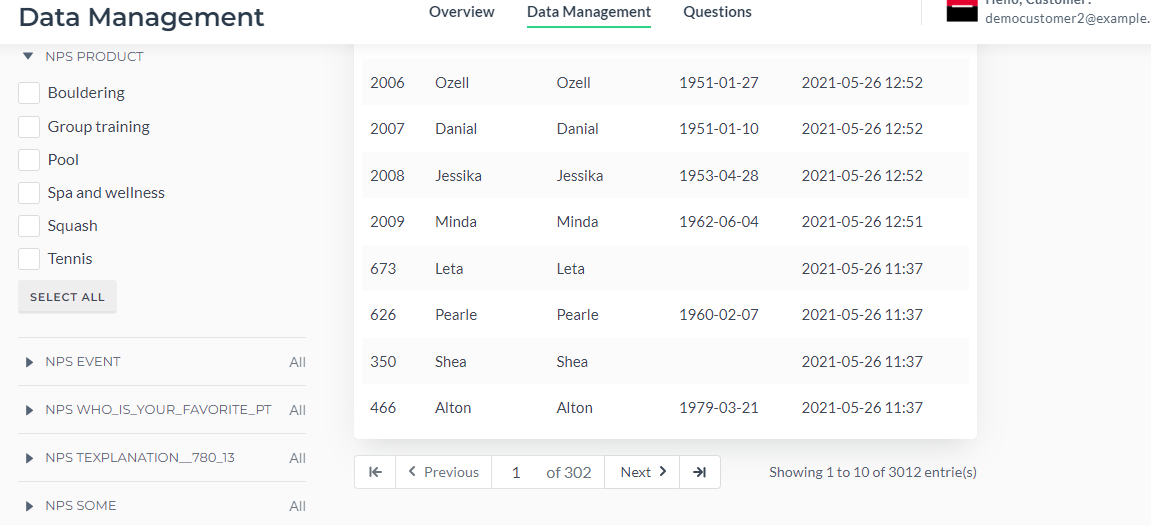
¶ NPS Question Name
Each dictionary question (the one where the answers are different options, not the rate) has its own filter:
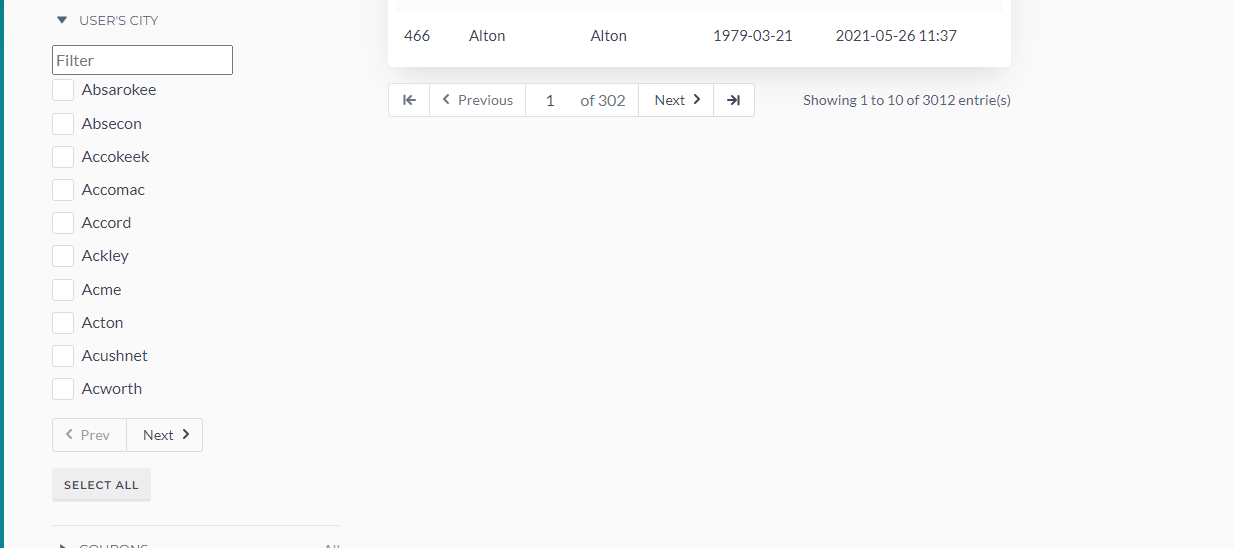
¶ Dictionary options from member datasource
Except for NPS data (campaign recipients' answers), we also can store recipients (or members/persons) data like email, birthday, gender, city. Sometimes this data is similar to NPS data. For example, we somehow do not know the recipient's city but we can ask this question in the NPS Survey. More info on members datasource.
¶ Date filters
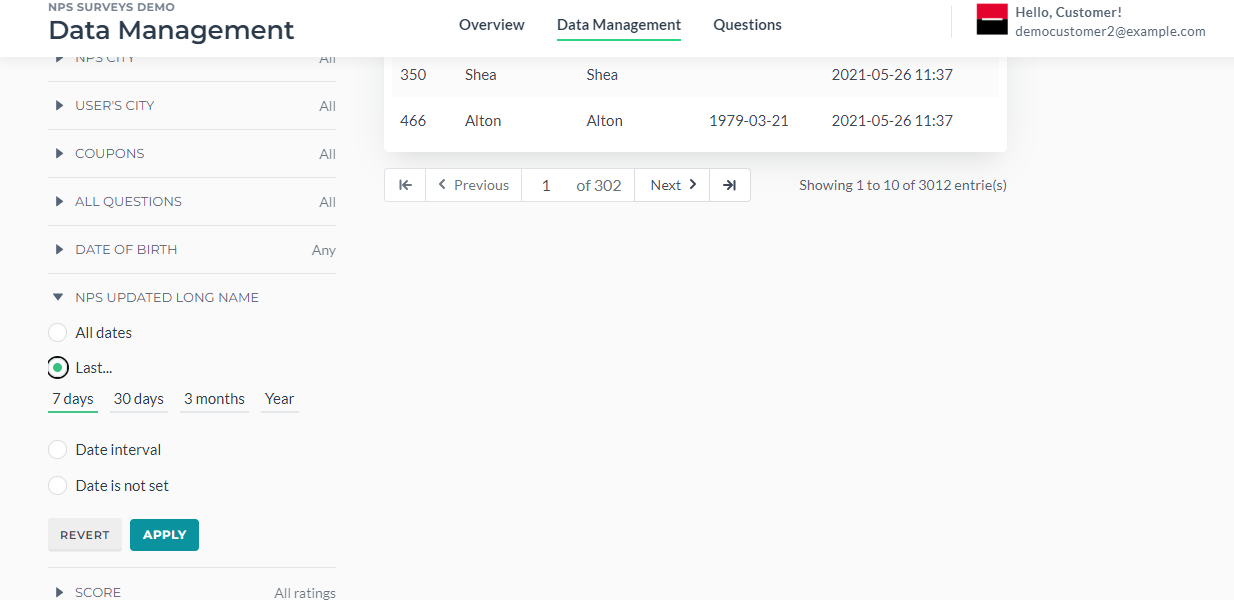
- All dates - lets you select all dates;
- Last - lets you select 7 days, 30 days, 3 months, year;
- Date interval - any two dates/ period;
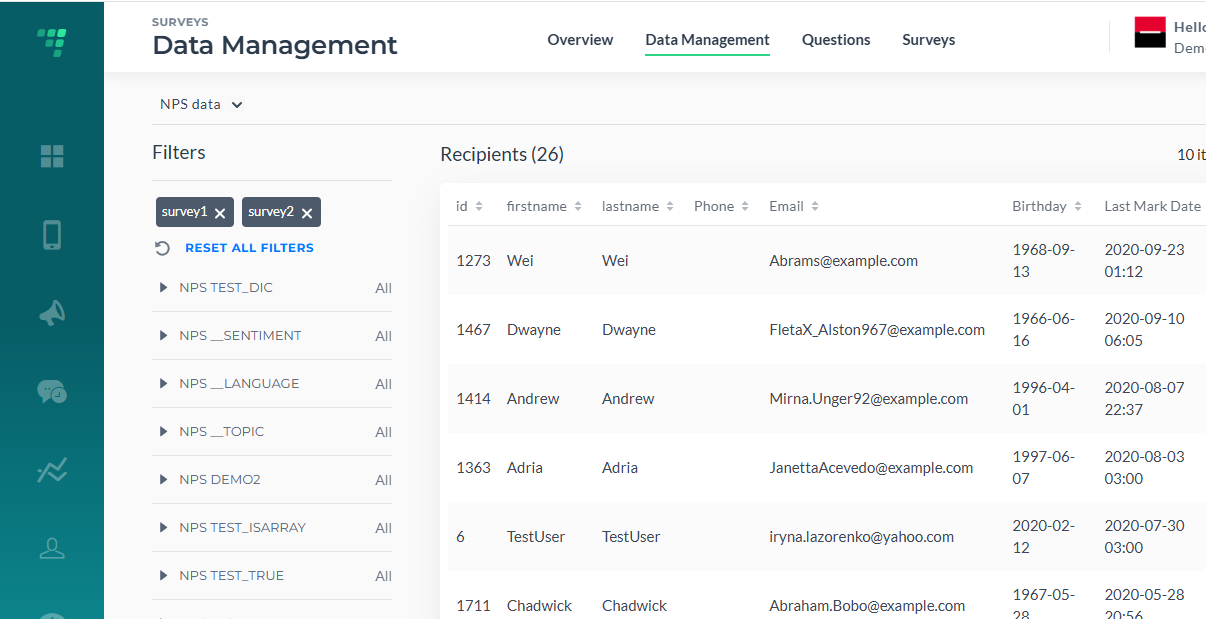
Also, note that the easiest way to remove any filter is to click on the filter
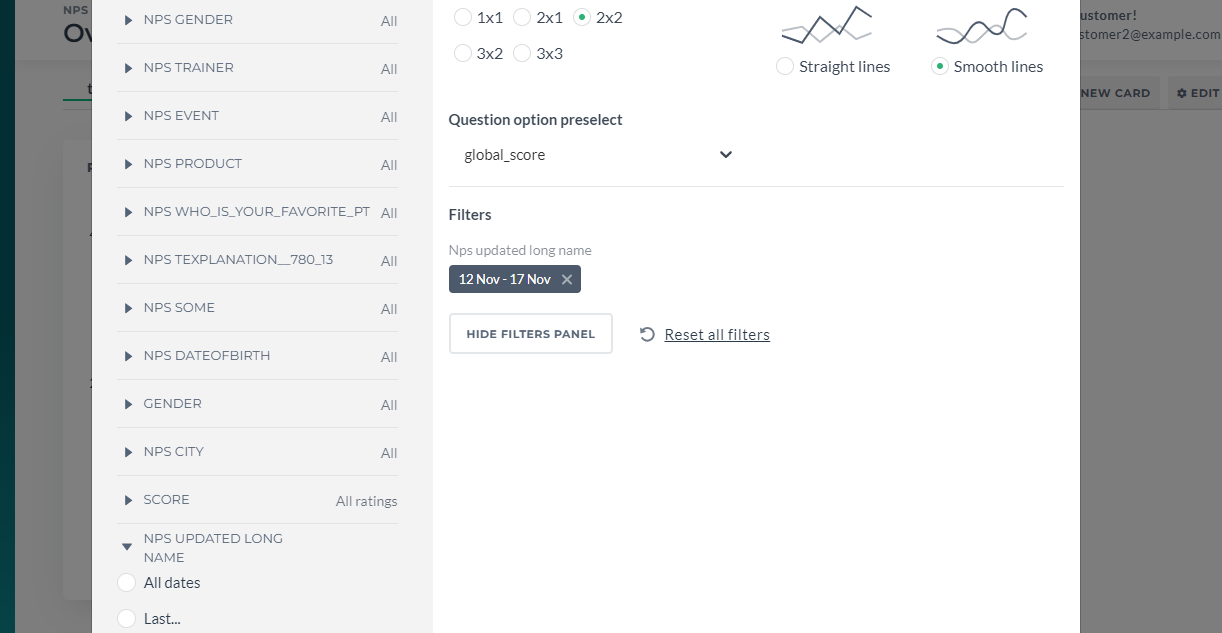
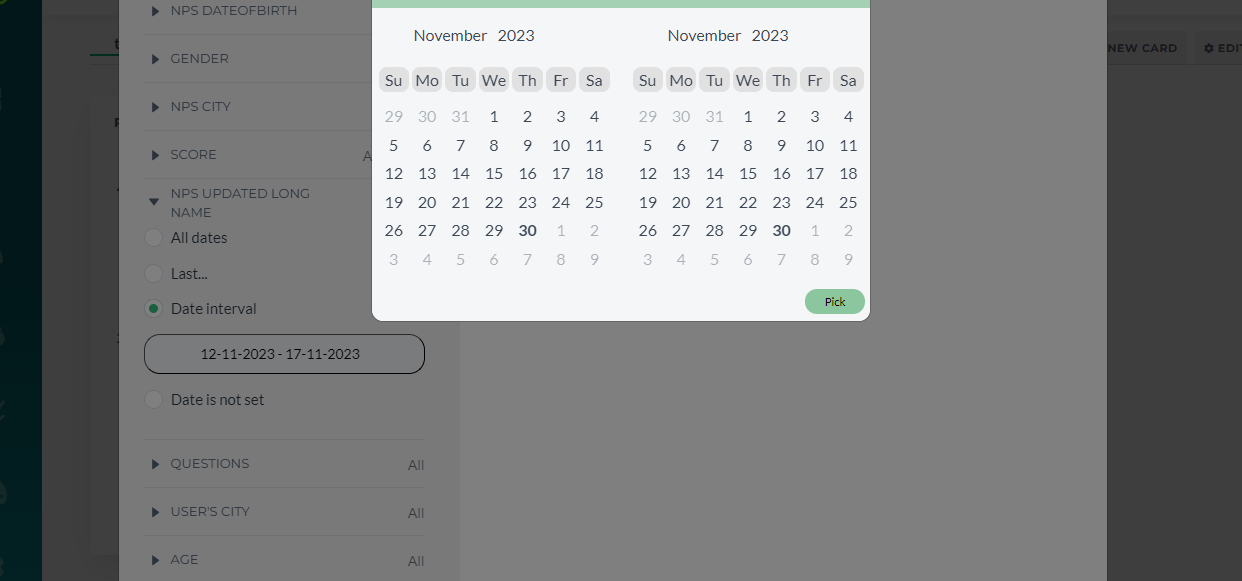
When the date has already been set, the option Clear will remove current period but
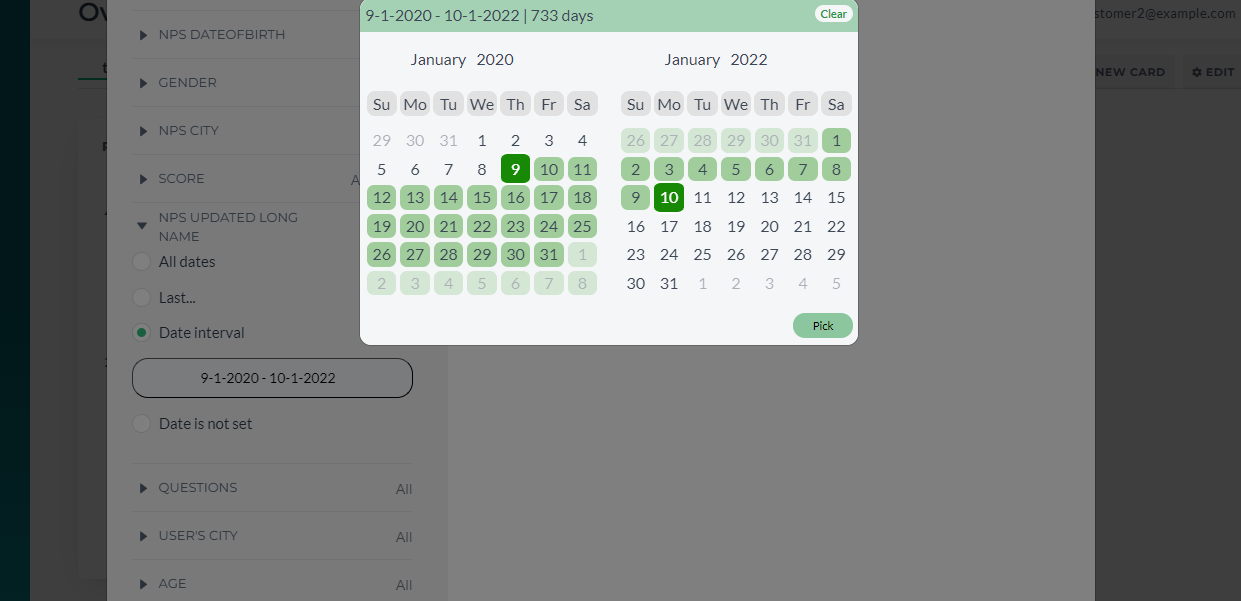
You will not be redirected to the default period (which is the one you saw when opened this menu for the first time, the current year and month).
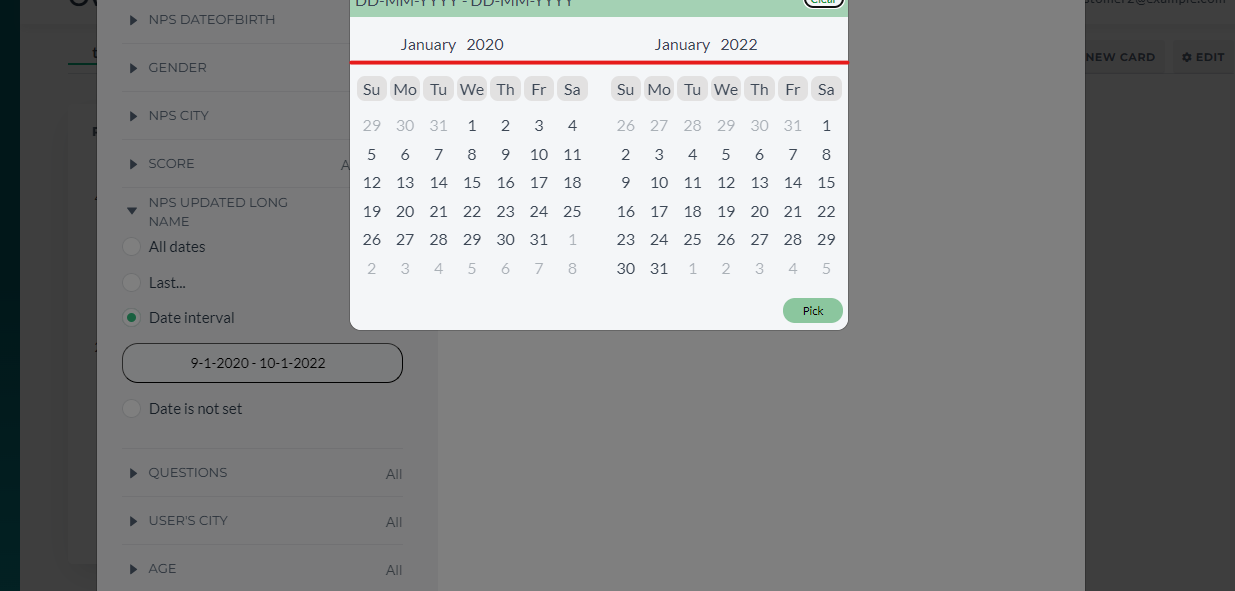
To get to this setup, it is better to just delete the filter as explained above
¶ Score
Lets you filter the exact points provided by the recipient for the global score. It is not present on all of the cards!
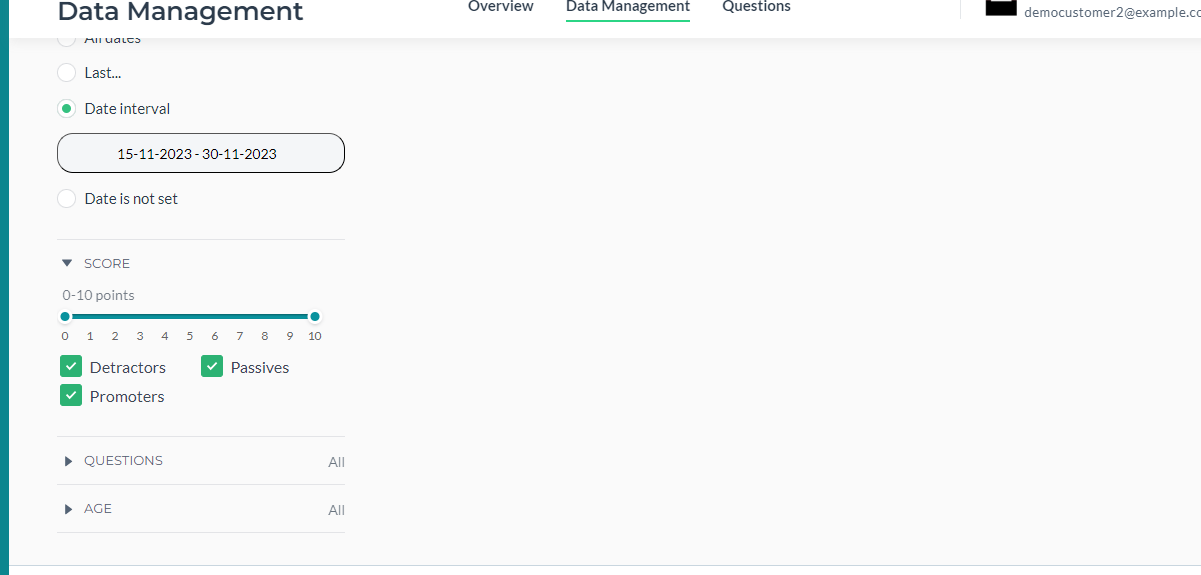
The cards which have Question Option Preselect like Rate Trend Comparison do not need Score and also which will be shown in the next subsection as Question Option Preselect already does the same as Score filter does:
¶ Questions
This filter is present in some cards as well. It allows to filter data where selected questions appear to have answers.