¶ Intro
Depending on the type from the previous step, you may either enter SMS/Email or both SMS and Email Content here.
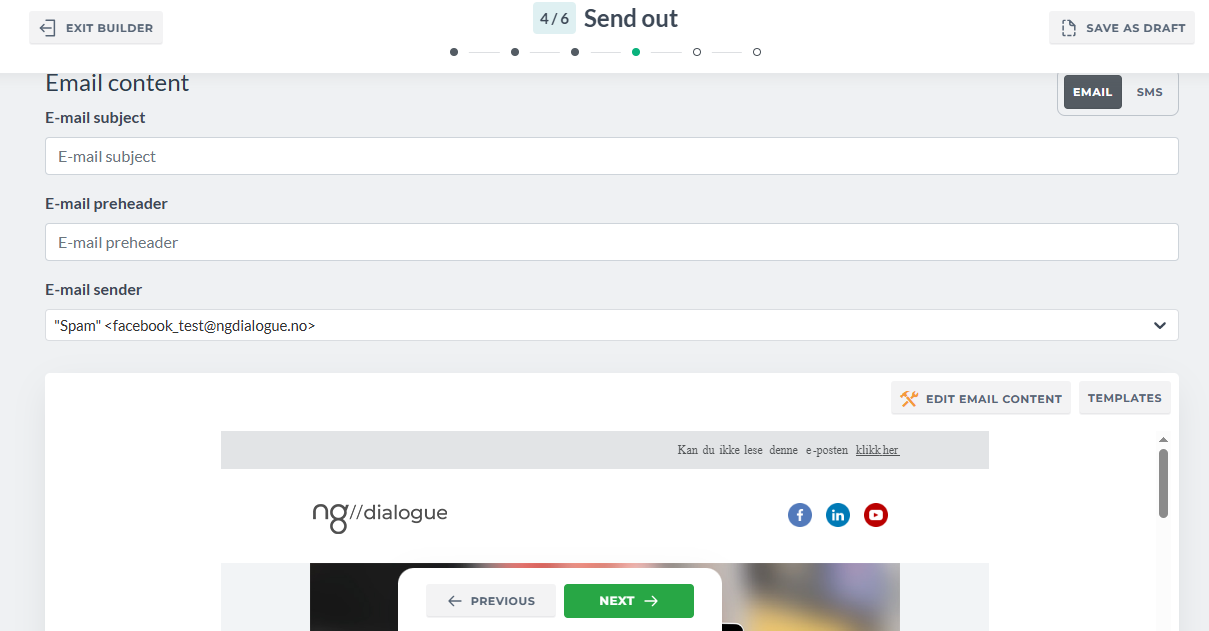
Email consists of:
- Email Subject - 2 words are required, or 1 if there is preheader used
- Email preheader - not required or 1 word if Email Subject contains 1 word
- Email Sender - required, there is always a default one, to add the custom ones with your subdomain name contact your advisor
- Email Editor - not required, edit an existing template or create your own
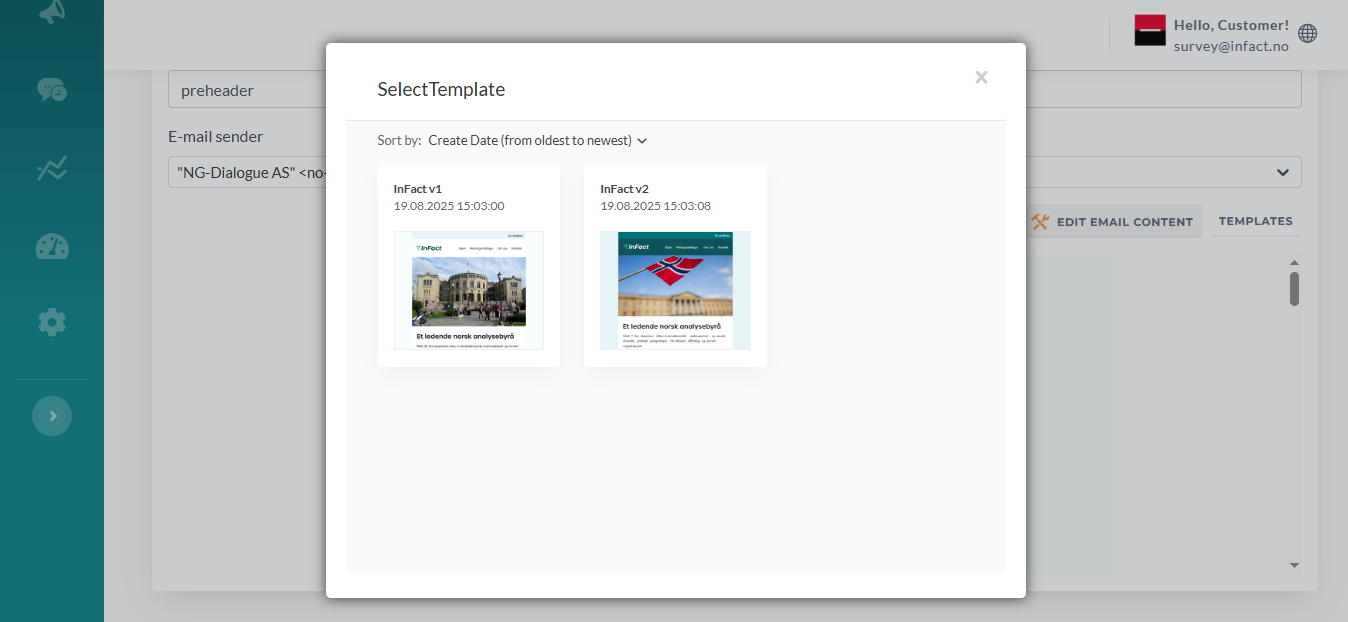
- Email Template - required for use, standart ones are available via this button, custom ones are created and added by designer, the first one is used by default
¶ Email Editor
Click Edit Email Content button to add some minor changes: pictures, links, buttons, texts
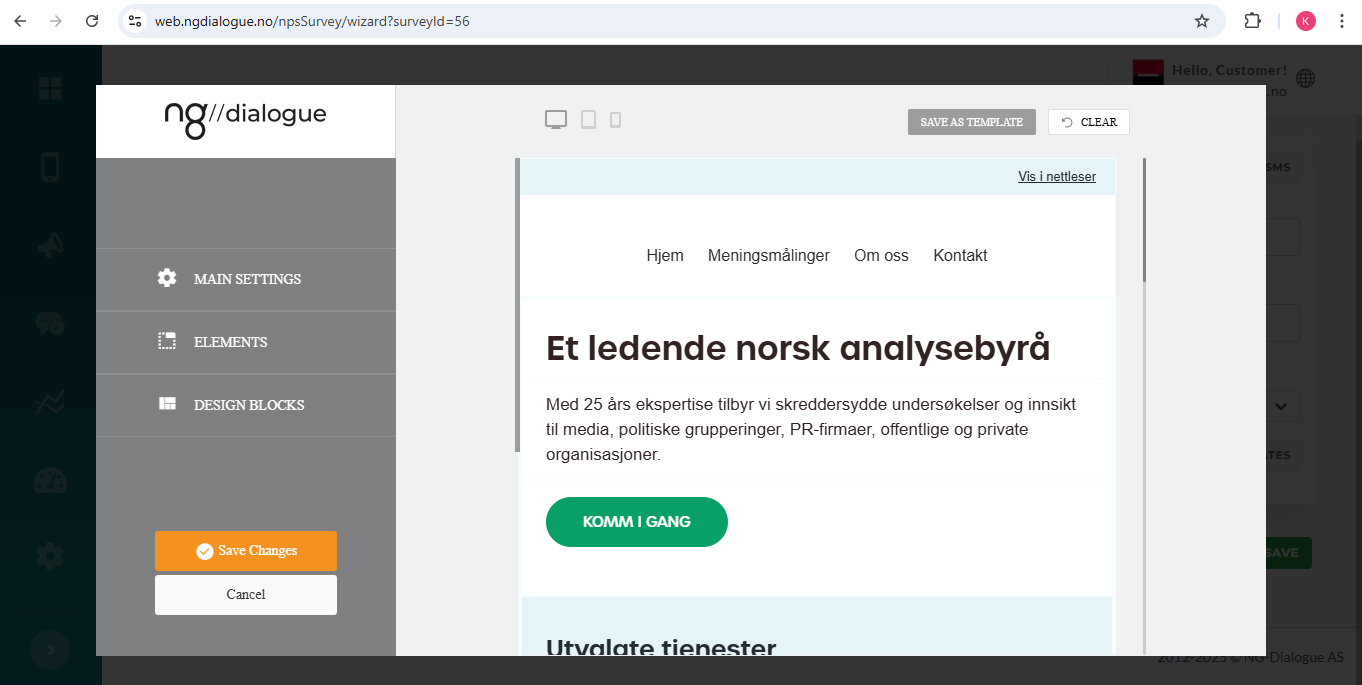
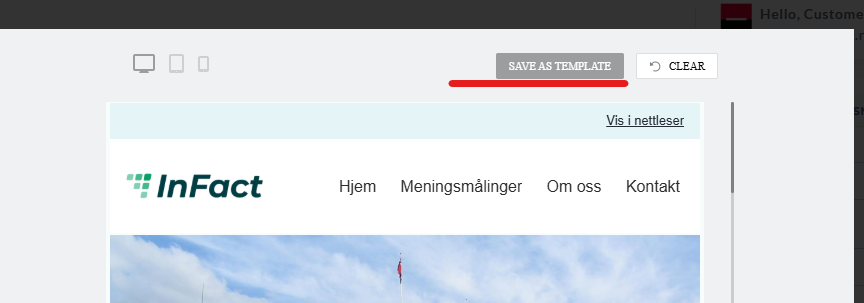
New templates can be created via this button:
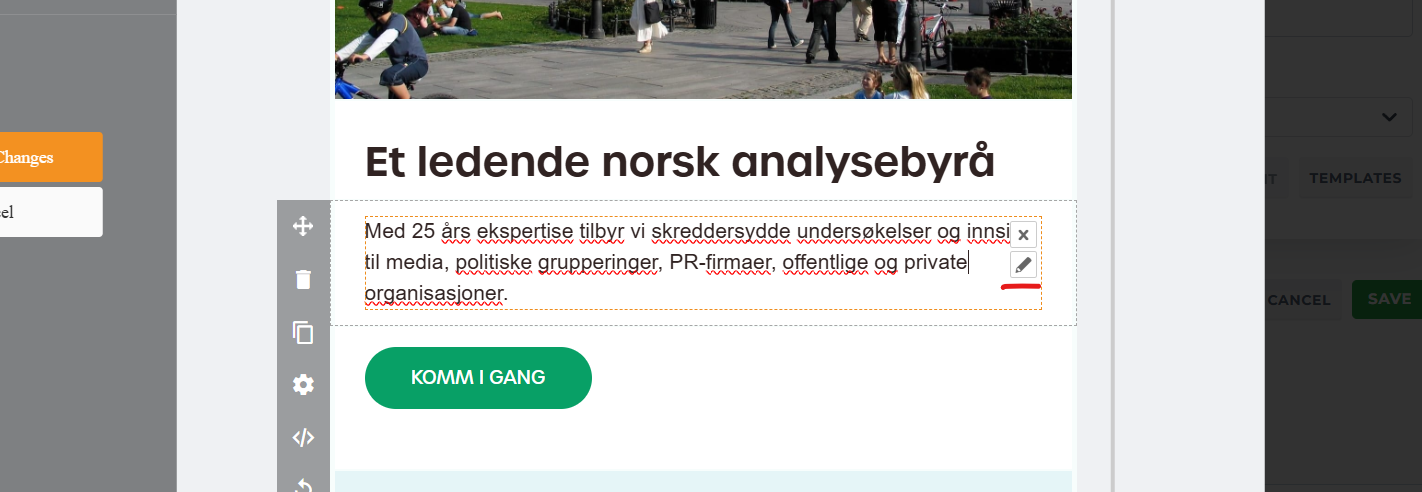
To add a link to the landing page, click Edit a textbox:
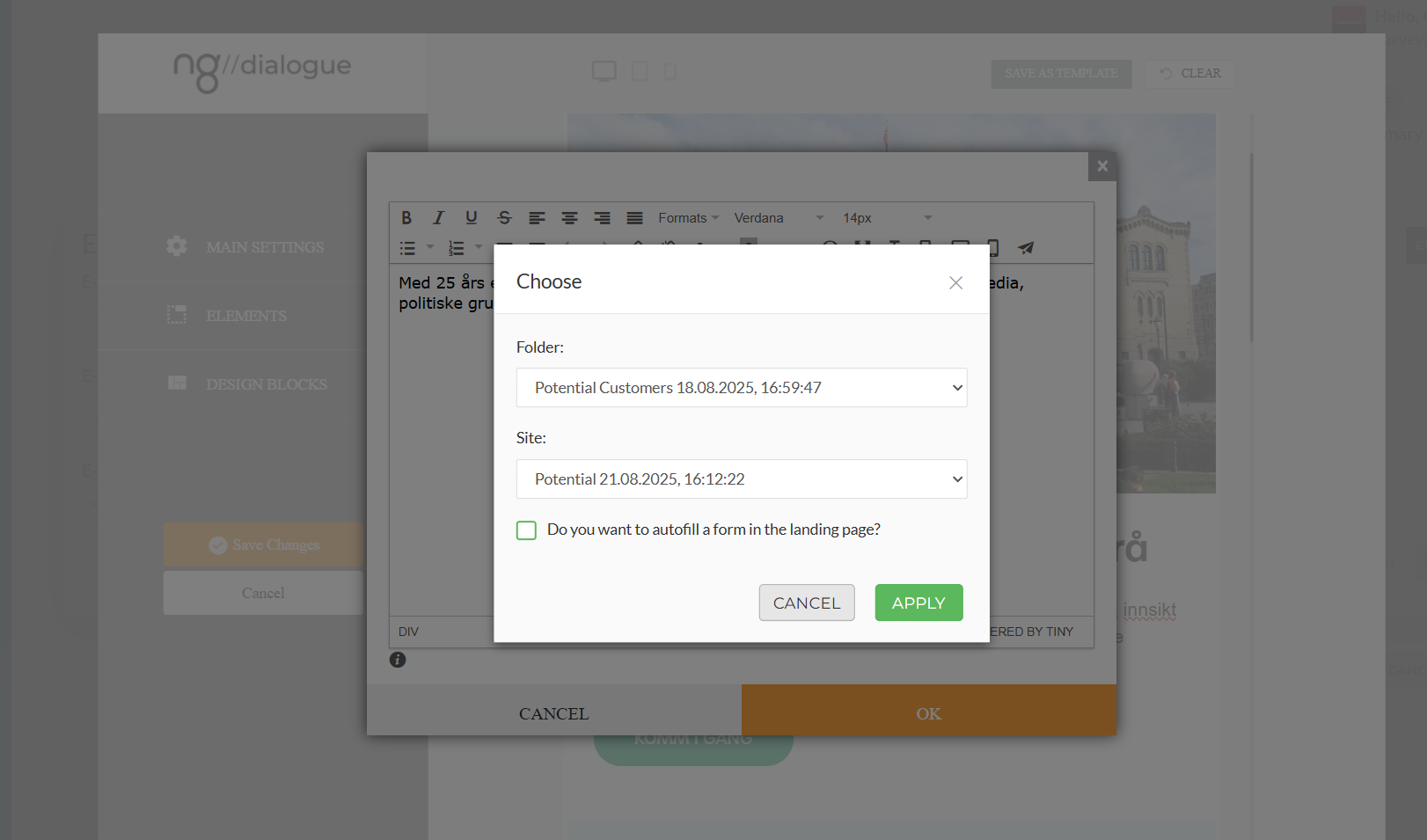
And select Insert Landing Page Link:
For recipients to participate in the survey, they need to receive an email with the survey link. To add it, use a survey variable. Either add it via “Insert variable” and select Survey Link which will add %%SURVEY_LINK%% to a button or a textlink.
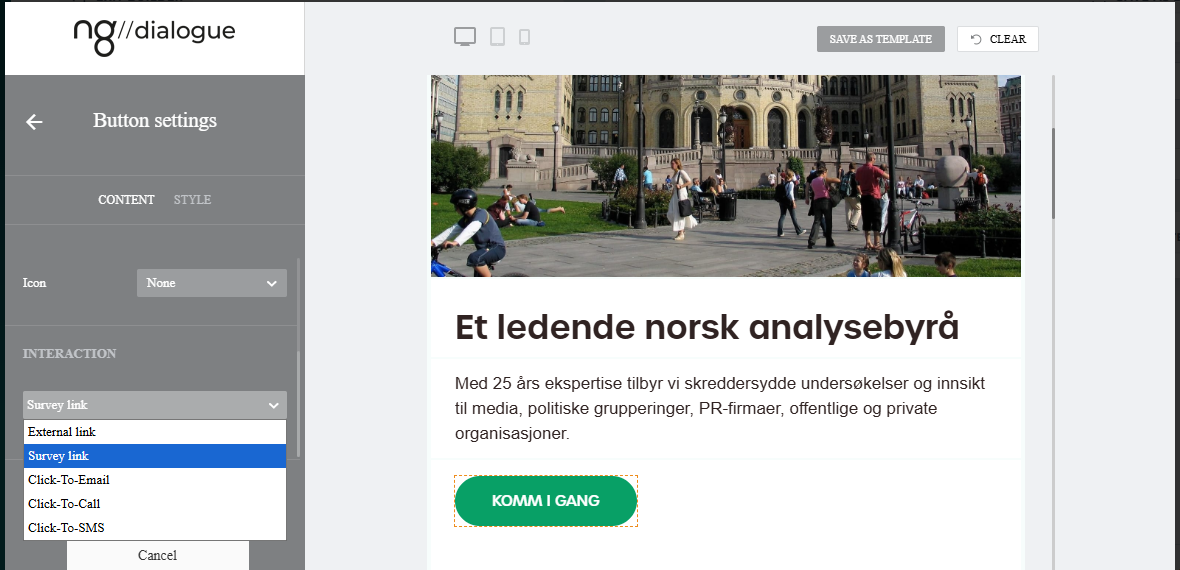
Or use button's Survey Link option directly:
¶ SMS
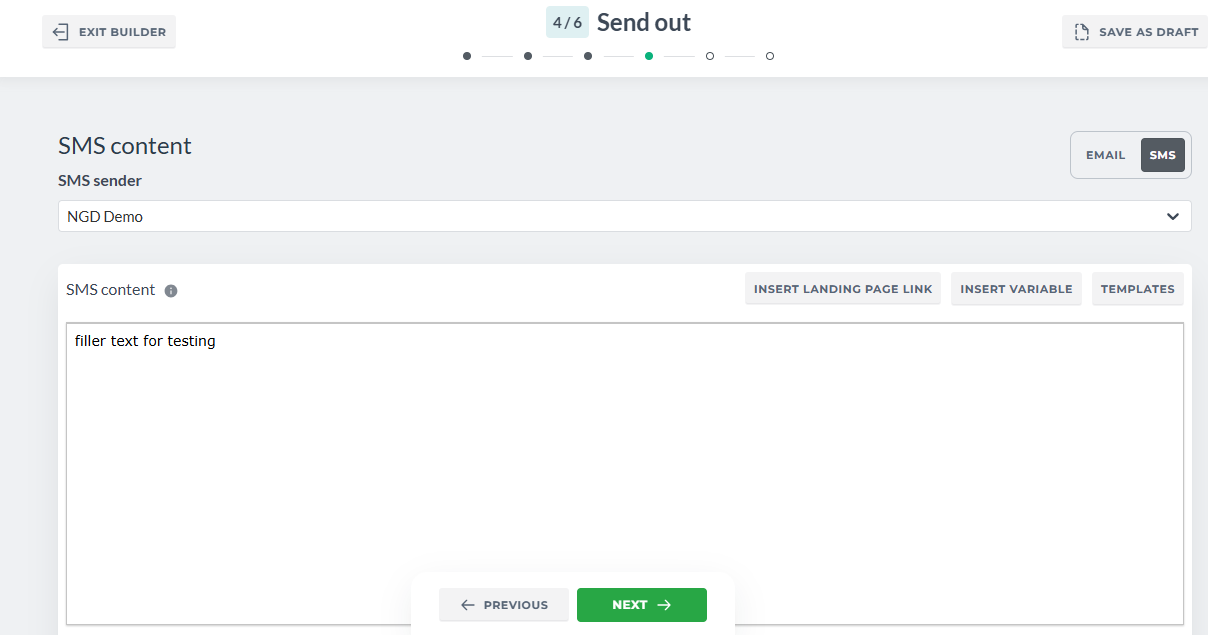
SMS consists of:
- SMS Sender - is required, there is a default number that depends on the country set in the account settings, you can always request the advisor to add more Senders (A-number in Customer Settings, 2 characters are the minimum)
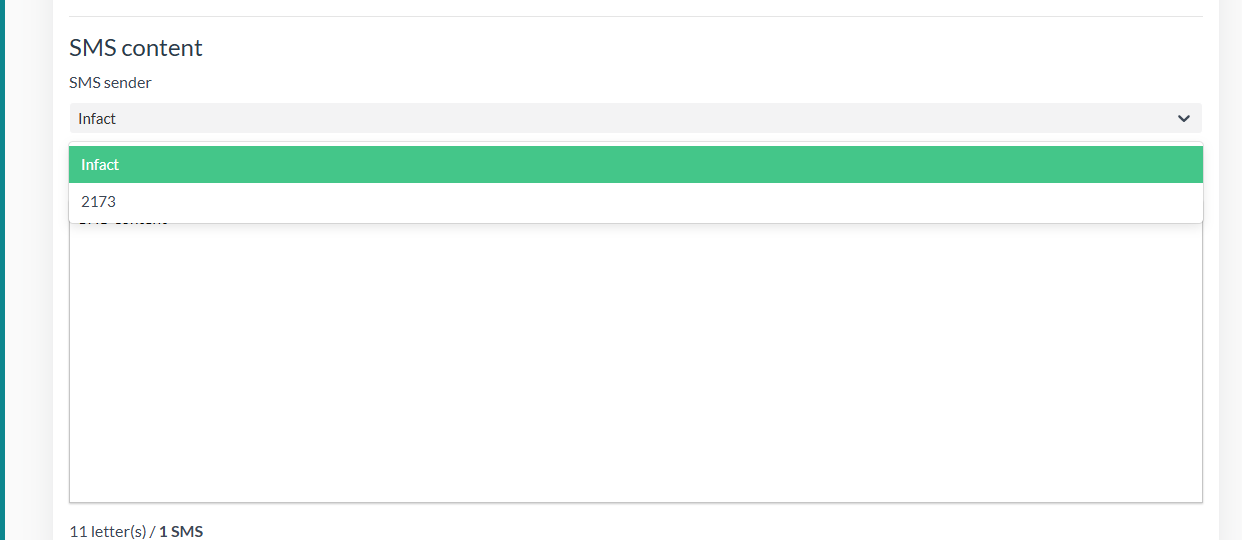
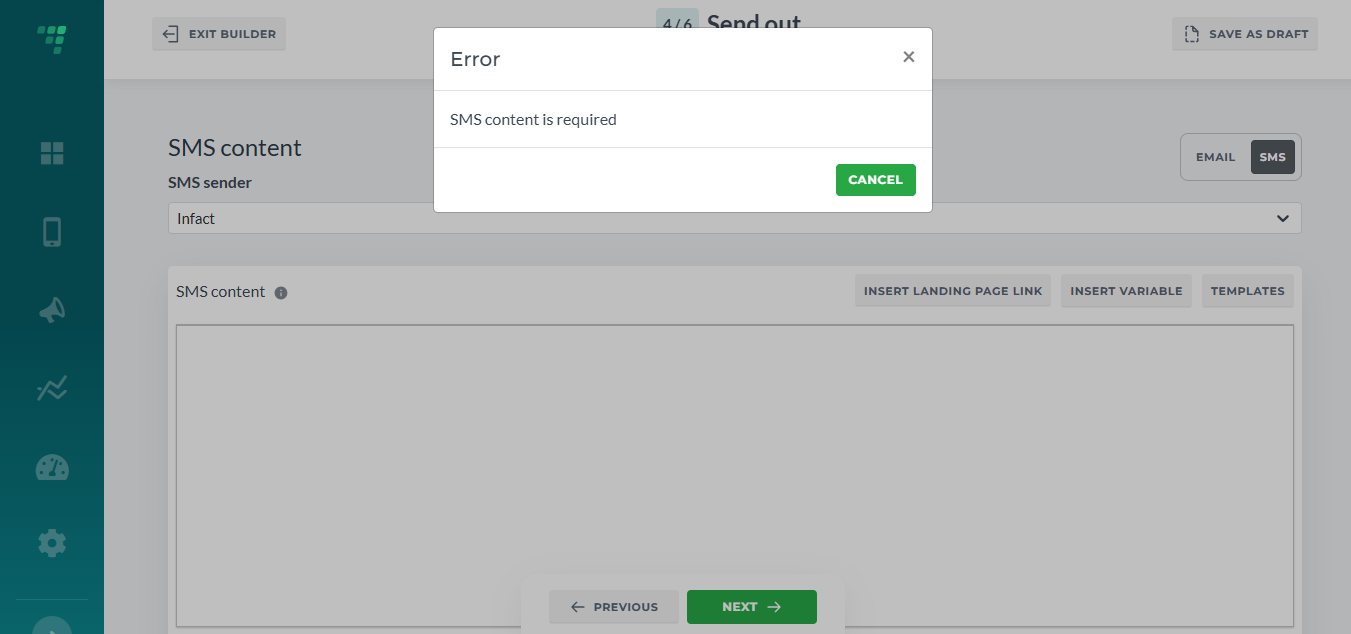
- SMS Content is required as well. You can either use a template or add your own content.
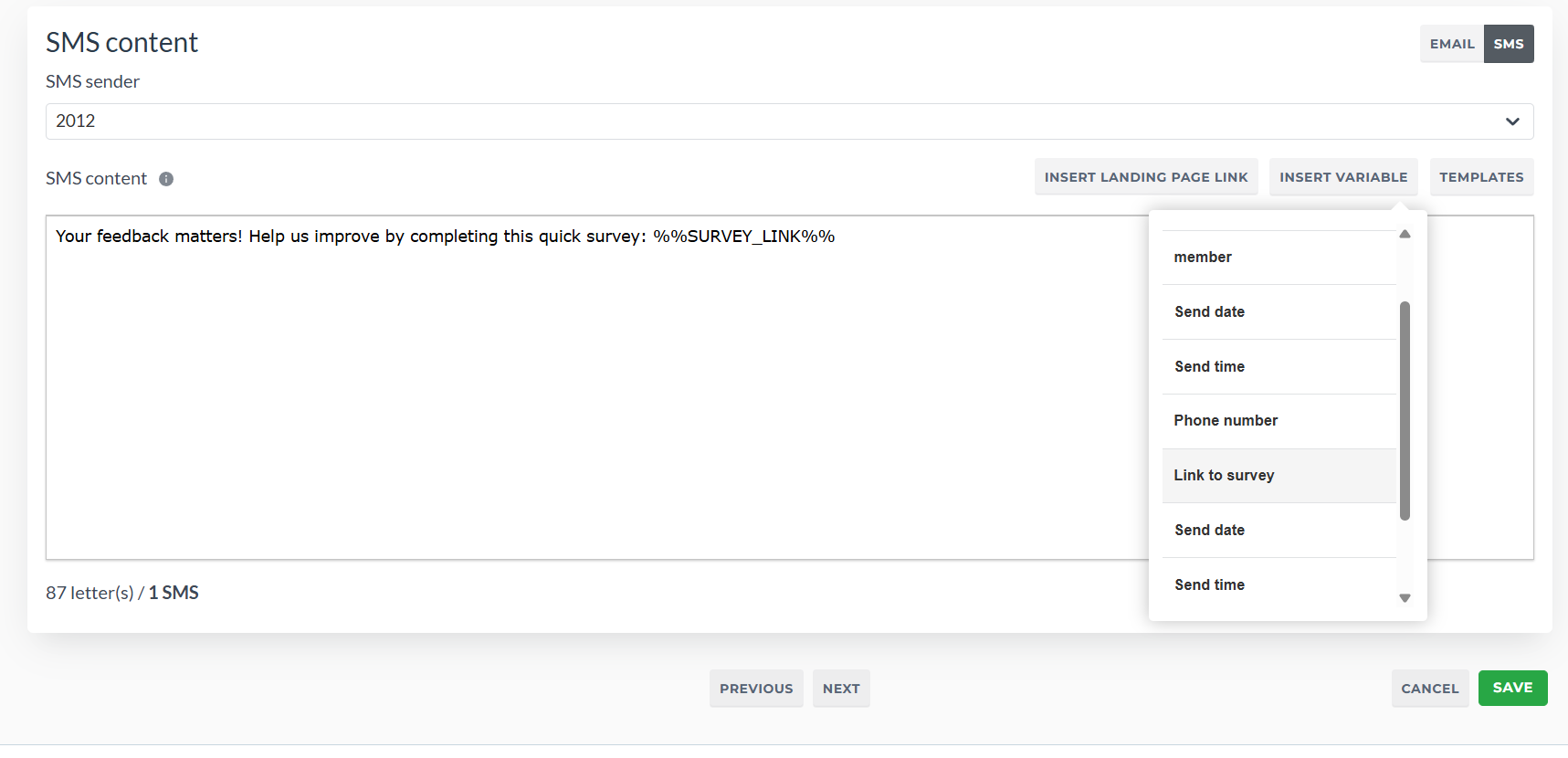
To enter variables, click Insert Variables (for example, you want each SMS to contain the recipient's name), start typing % character and you will see the list of available variables. The most important variable is the Survey Link (highlighted in the list on the screenshot) which will be unique for each recipient and will lead to your survey.
¶ Integration
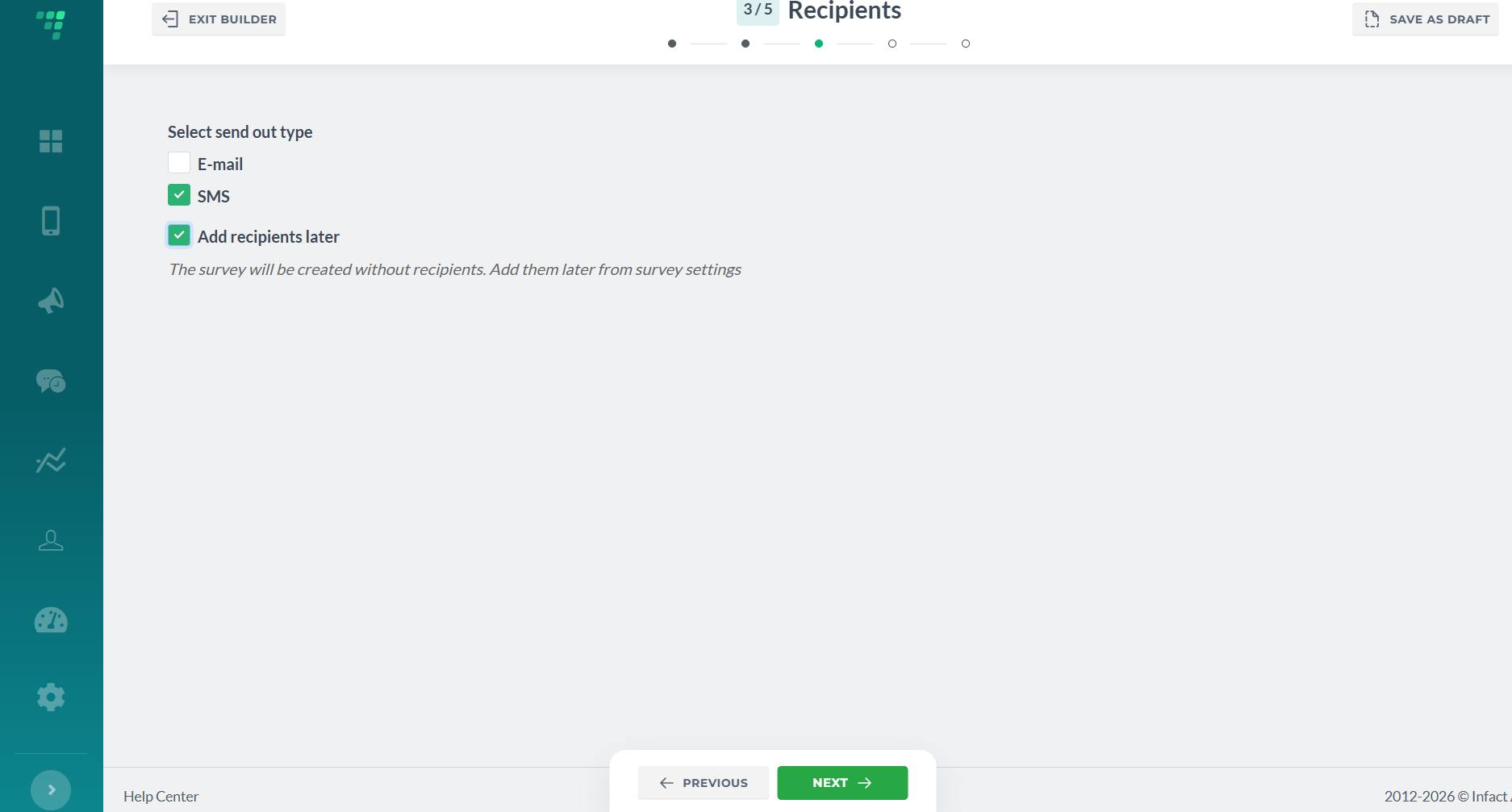
For now, Voice Poll and Survey Builder support SMS only. Also, you can tick Add Recipients later when setting up a web survey for the integration:
¶ Next Step's Guide