¶ Name and Database
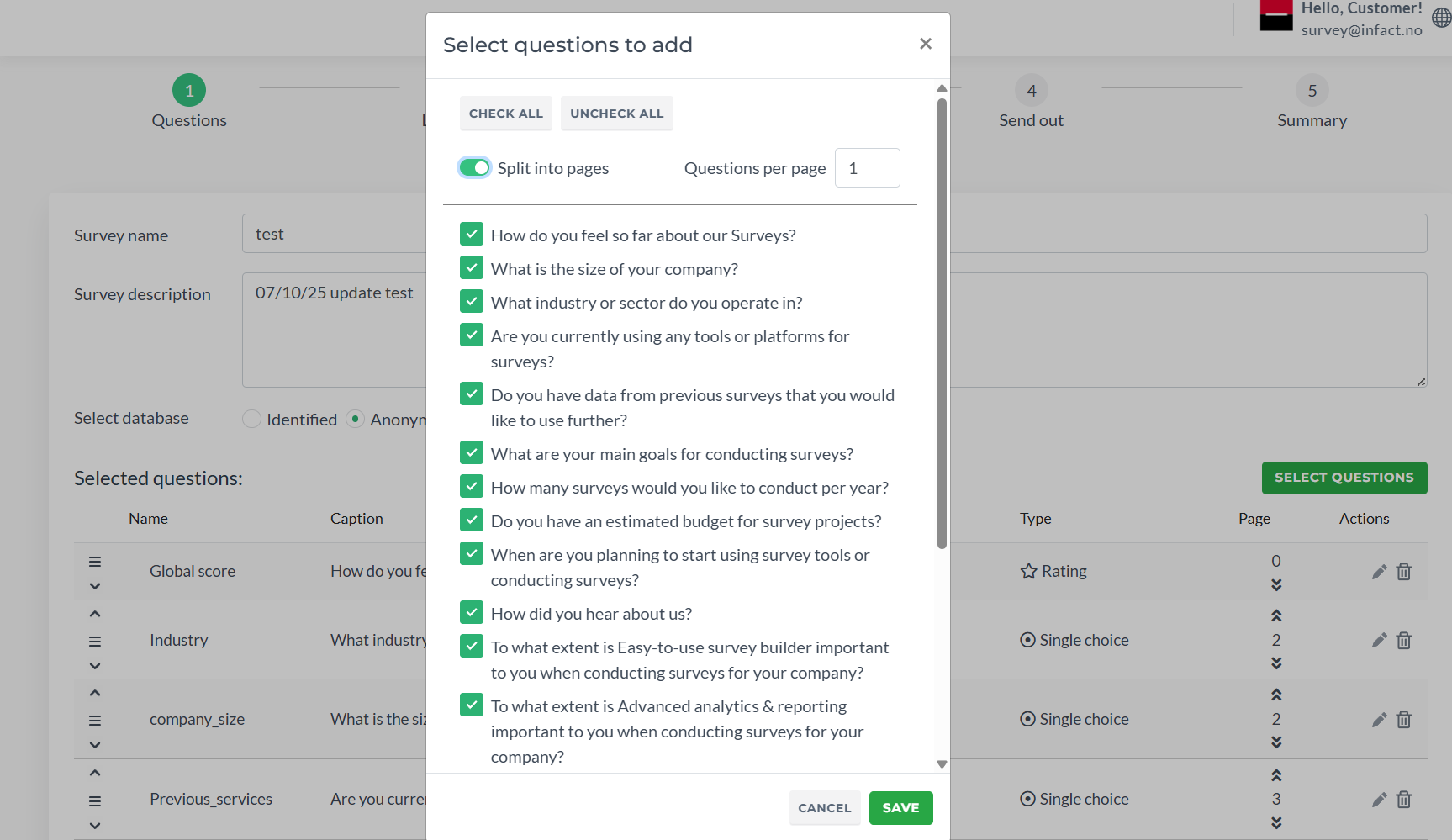
For a start, you need to enter the survey name (min 3 characters and max 20), optional description (up to 250 characters), select data base (will be created by tech team when setting up your account). If you have only one datasource, it will be selected automatically.
Identified database: With an identified database, you can send surveys directly to your member list. Each response will be linked to the correct respondent.
Anonymous database: With an anonymous database, you can run surveys without linking answers to individuals. You can use your existing customer list or upload an Excel file. Results will only be shown in a hashed (hidden) format.
If you do not have an anonymous database, ask tech team to create it. Soon we will implement a feature that allows users to add this database themselves on this step.
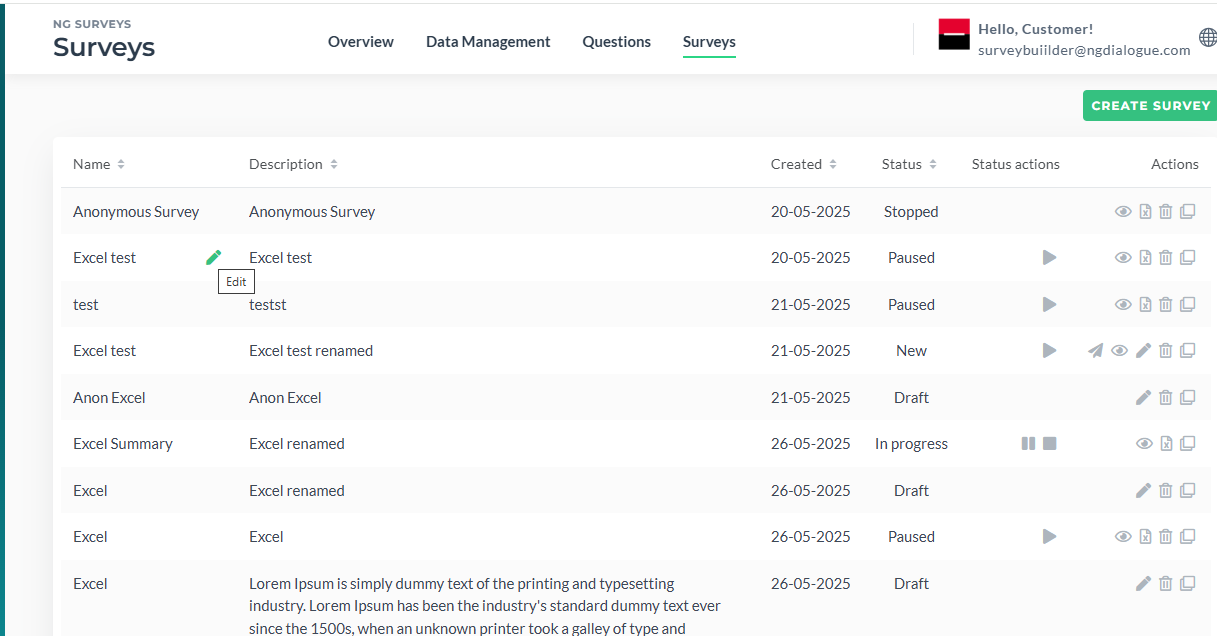
Name and Description can be edited at any time, even if the survey is running:
¶ Manage Questions
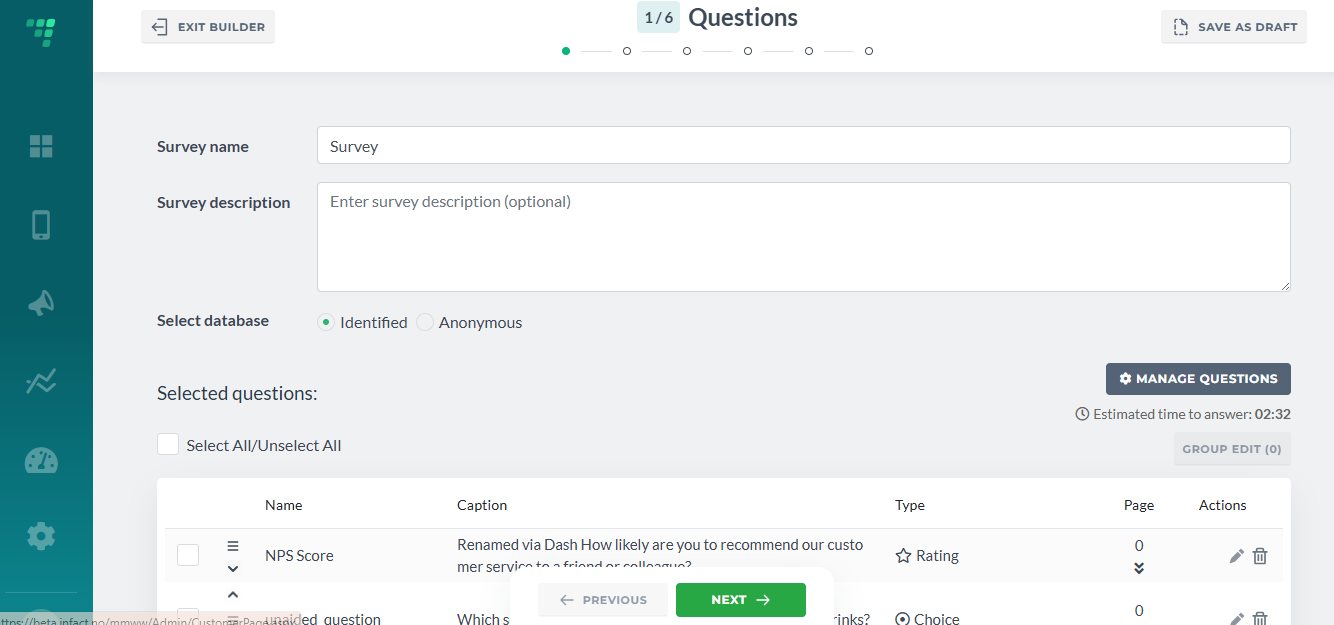
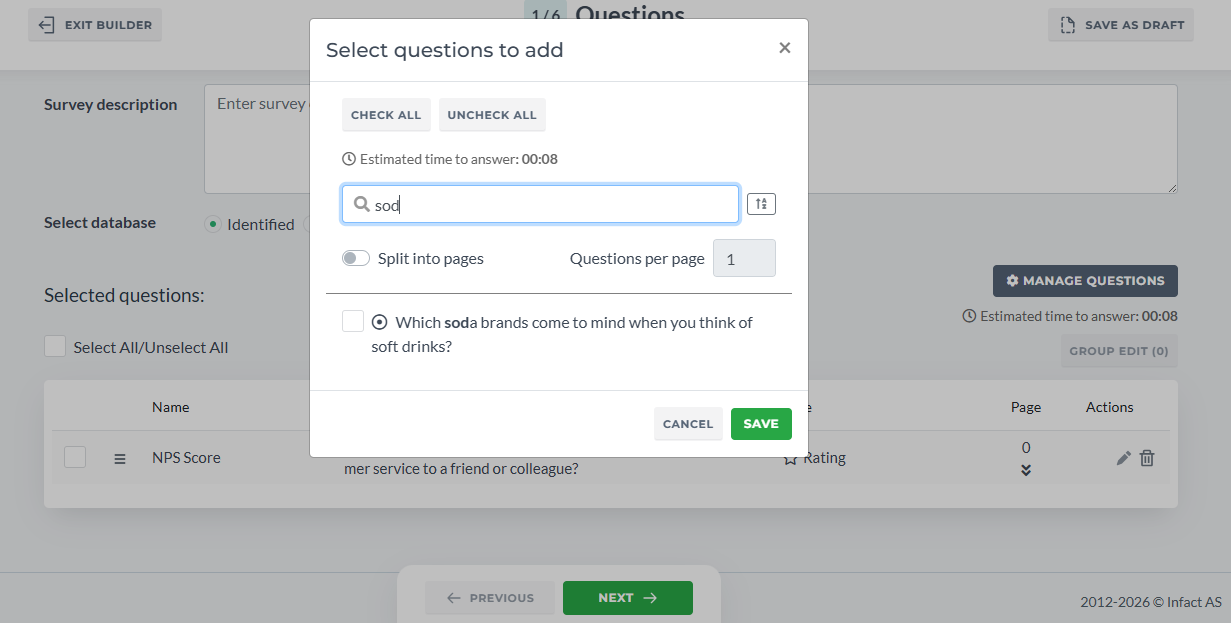
- You can add questions via the window with options Check All and Uncheck All or you can add/remove question by question. At this step you only add questions. Editing is done separately after the questions have been selected
- To add questions on differents pages, use Split into pages toggle
- Questions per page's default is one meaning when splitting questions, 1 question will be placed on 1 page. But you can place 2, 3, 4 questions per page using this options
- This window manages only questions that have not been added. If you placed questions and want to change their placement, splitting, go back to this window, select all needed questions, Uncheck them, save the option and then start again
- You can use Search field and Sort option
¶ Changing Questions Order
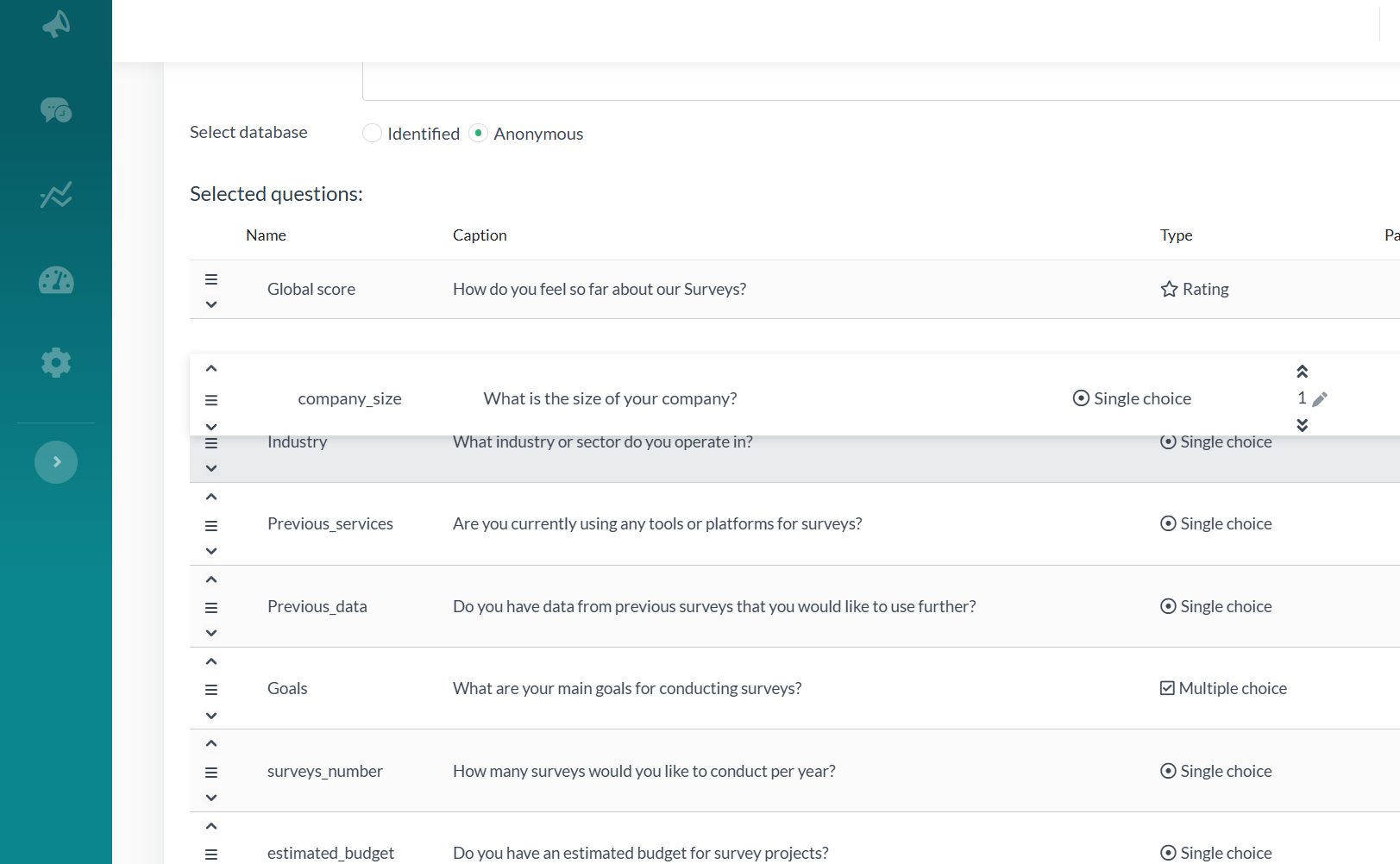
Drag&Drop or arrows on the left to change the order for a one-page survey, which is used by default and Double Arrows with number input on the right to change the page if multipage container is used:
¶ Editing Questions
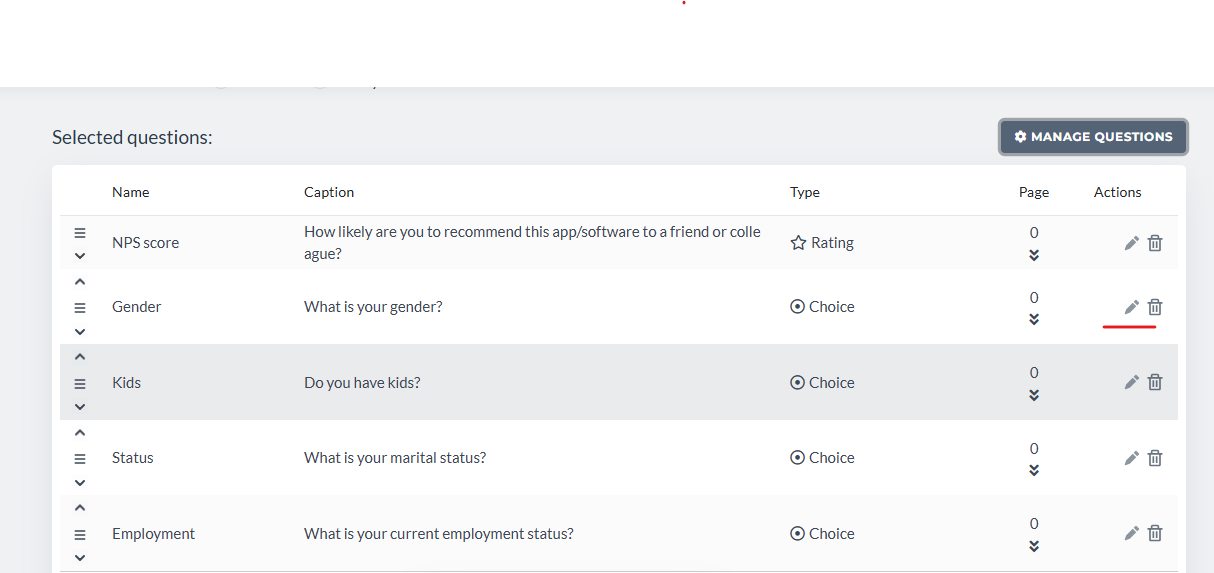
Clicking Edit allows you to customise questions:
¶ Main Settings
By default, questions are non-mandatory; toggle the Mandatory to change it:
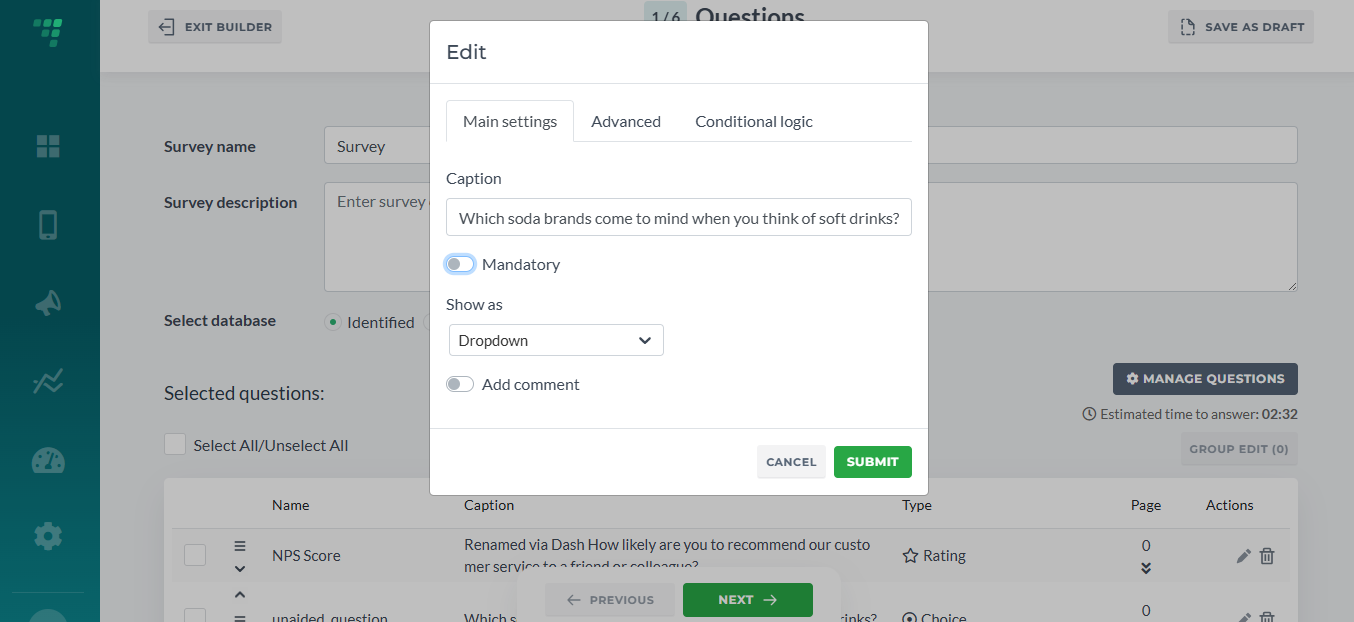
The caption can be changed as well. Note: Renaming the Caption will only work for this specific survey. If will not rename the actual question that can be used in more than one survey. To go that, go back to Question on Dashboard and rename it. Also, renaming will be applied only to further usages of questions. All the previously created surveys will not be affected.
Rate questions can be shown as numbers or stars:
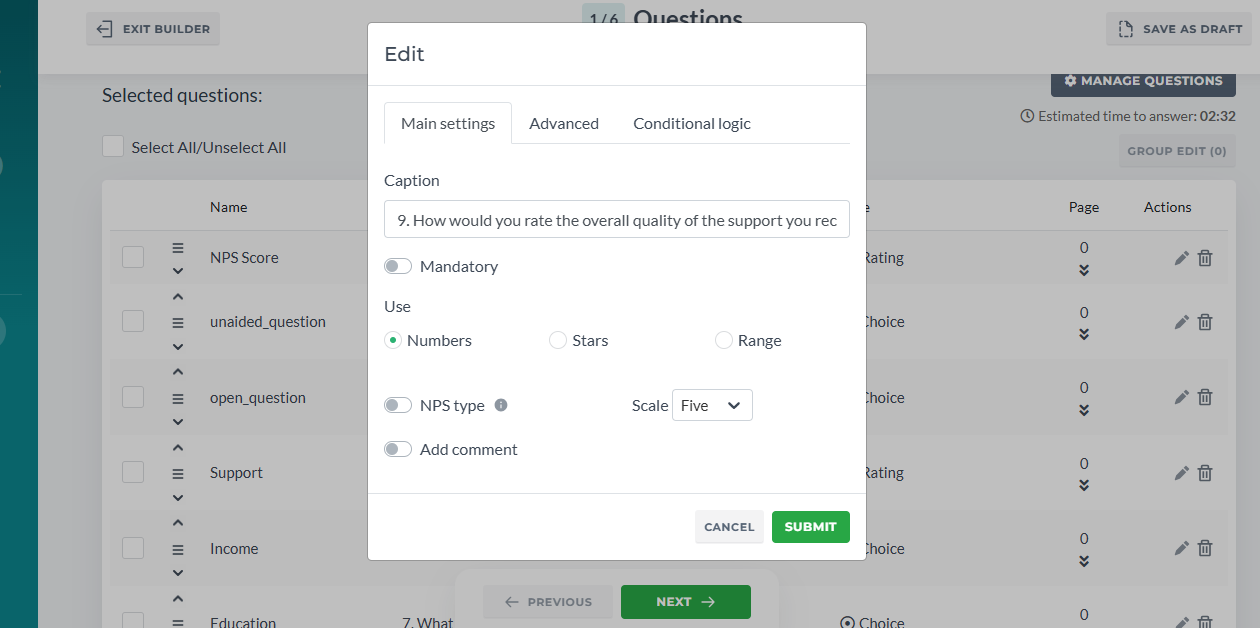
Using different scales is supported as well:
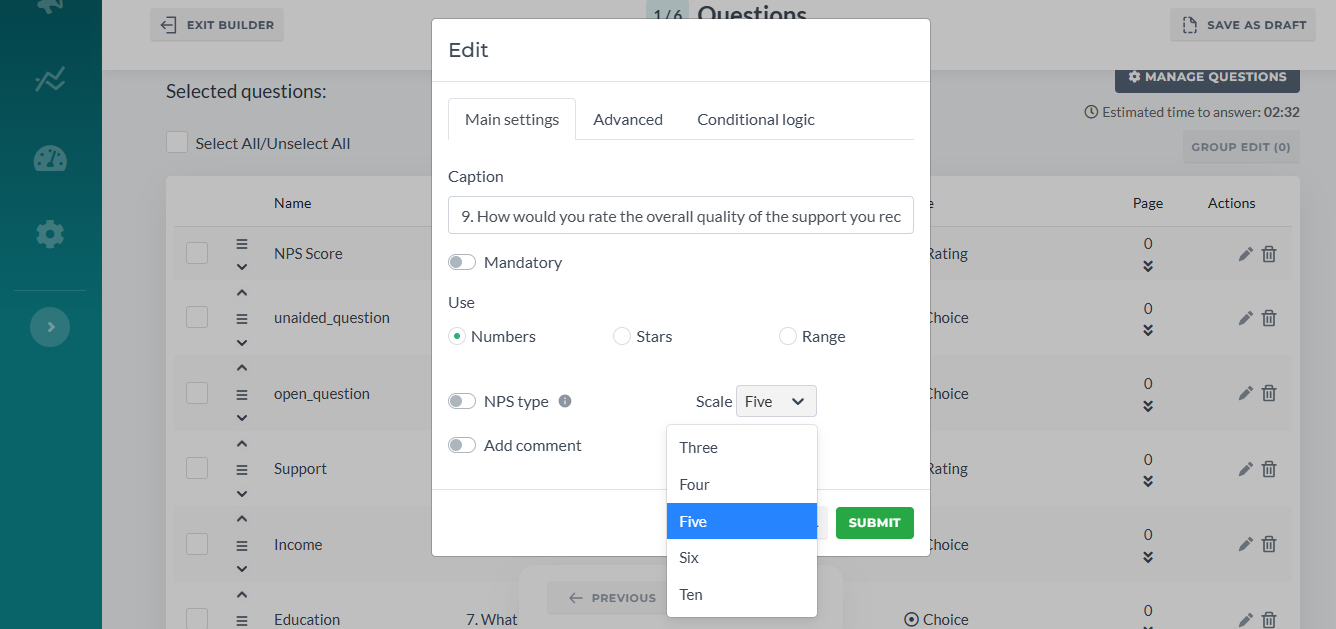
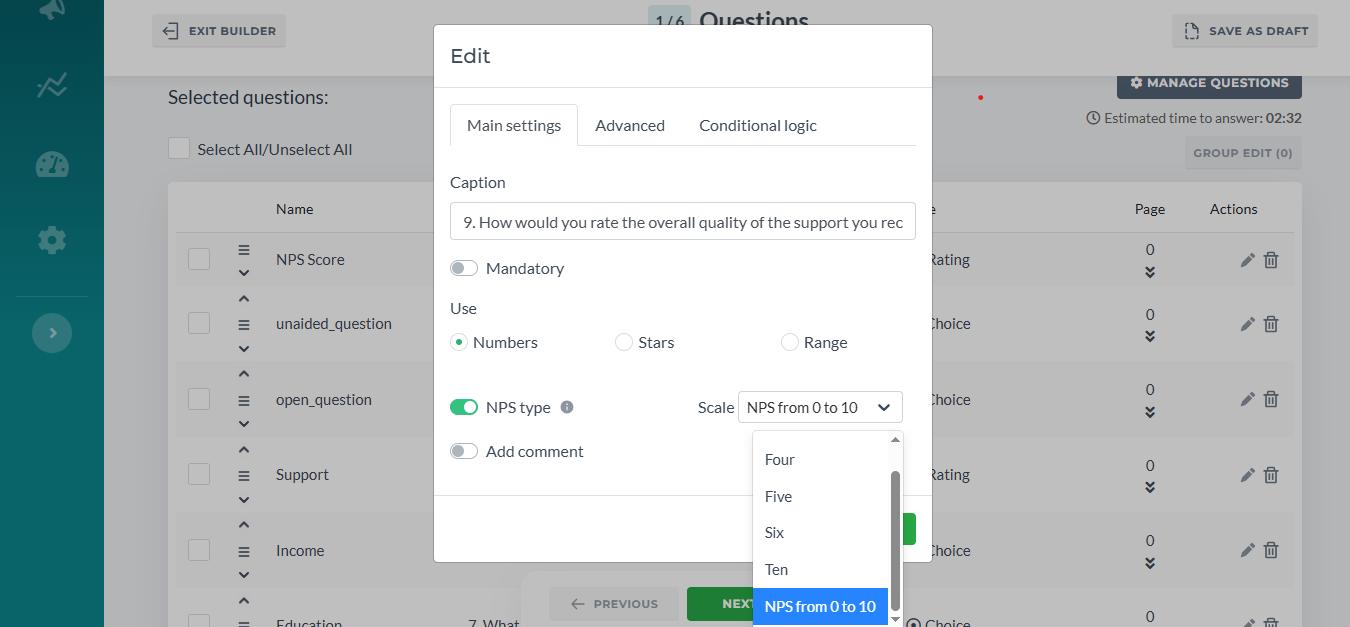
By default NPS type is on (as our cards use this scole for their metrix) and all rates will be converted to NPS scale. Toggle it off to disable. Also, the original NPS scale from 0 to 10 (see the screeshot above) is available only with this toggle on:
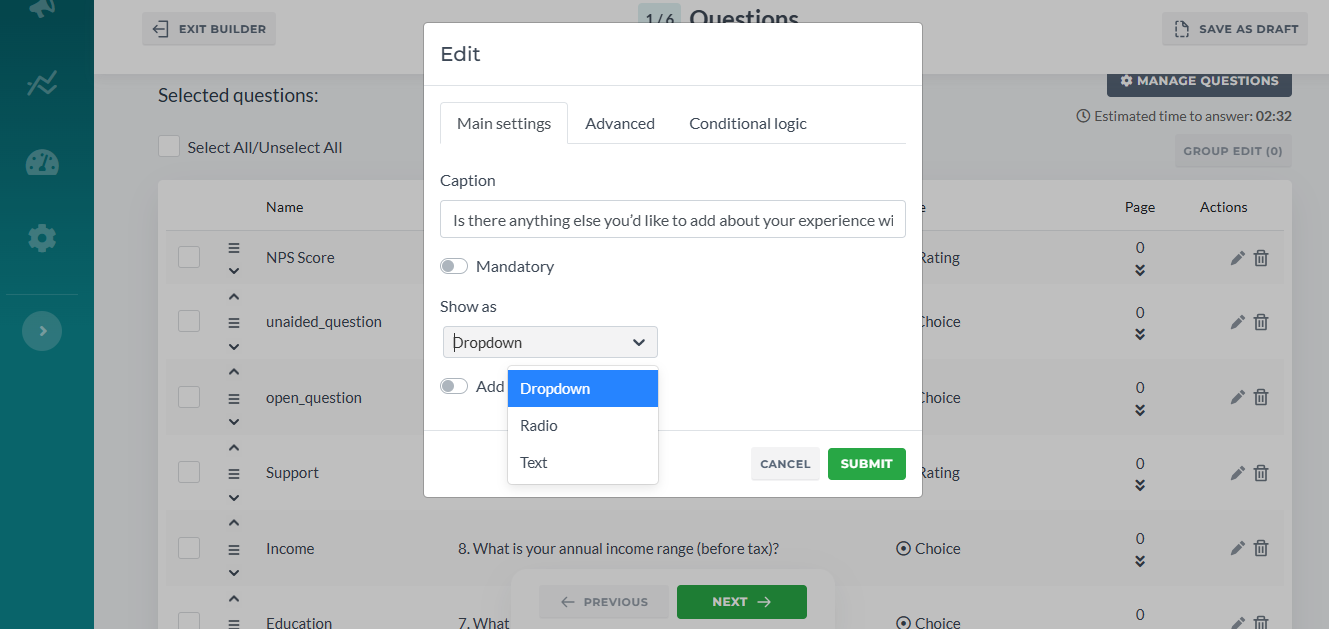
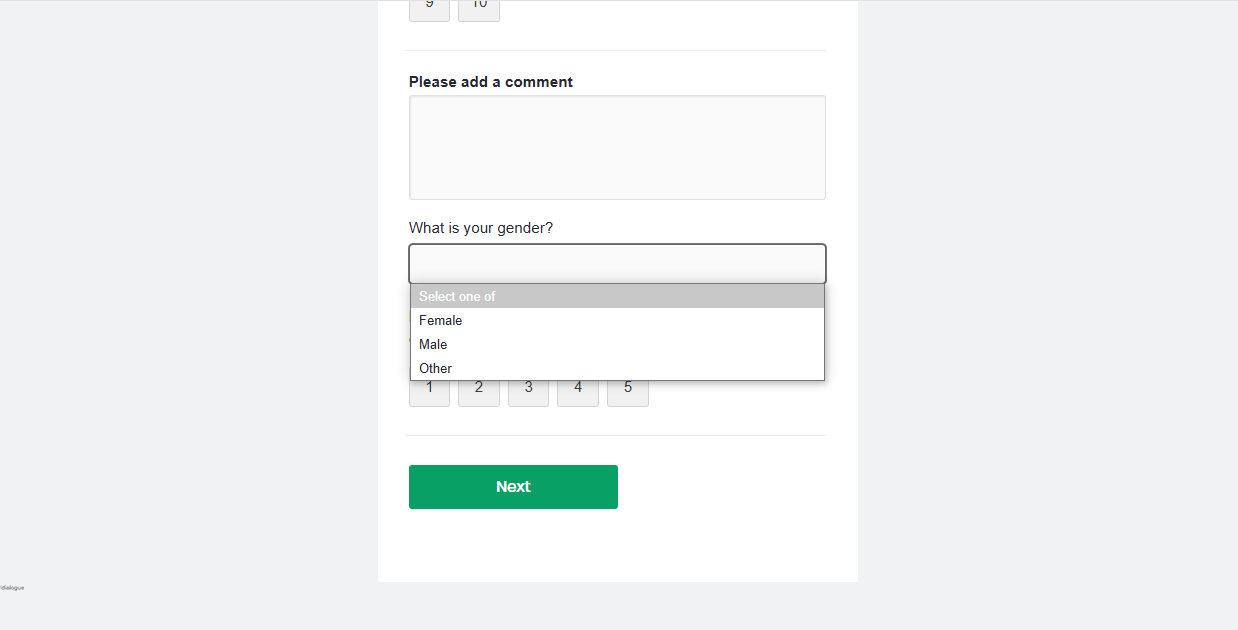
Dictionary questions with single choice have these settings:
Radio Element:
Select Element:
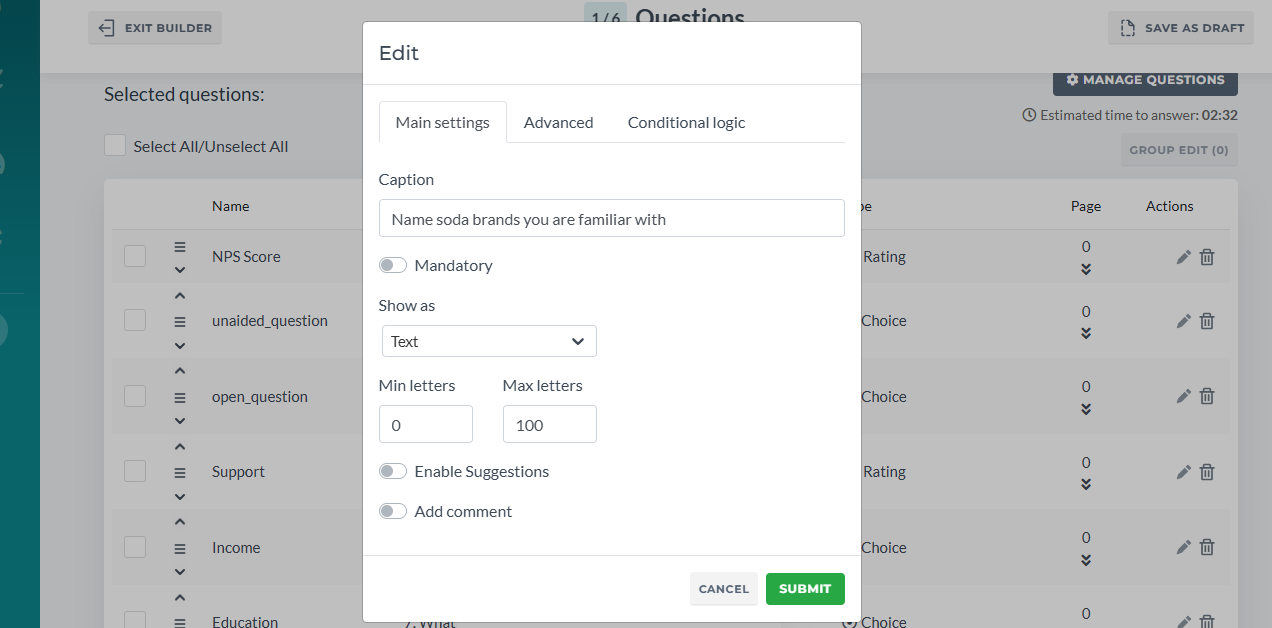
If you need to add Unaided or Open questions, use Select from Dictionary Single Choice question and select Text in Show as:
When “show suggestions” is enabled, the respondent will see suggestions which are essentially dictionaries of this question:
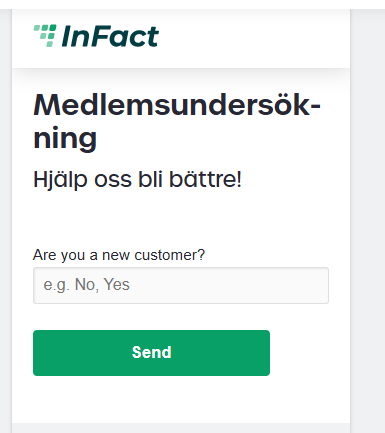
Each new answer will be saved as options for next respondents.
If Show suggestions is disabled, the question may either be used as unaided as well or as open question.
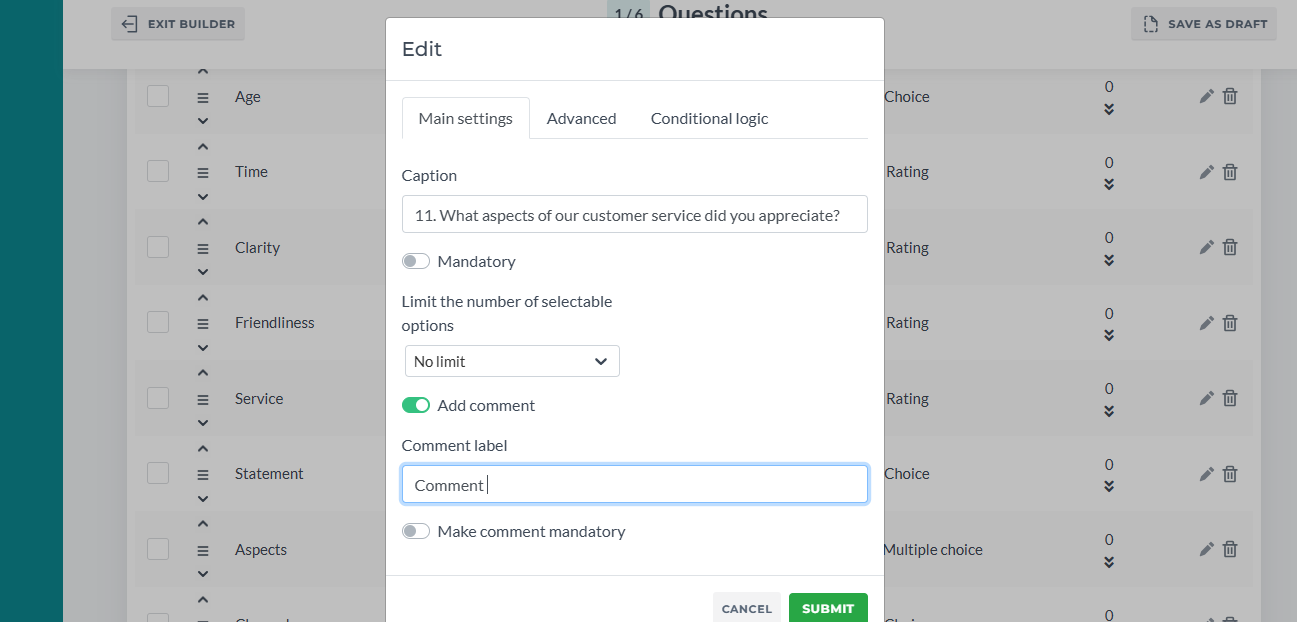
If the question is a Multiple select Dictionary, you can set up the limit:
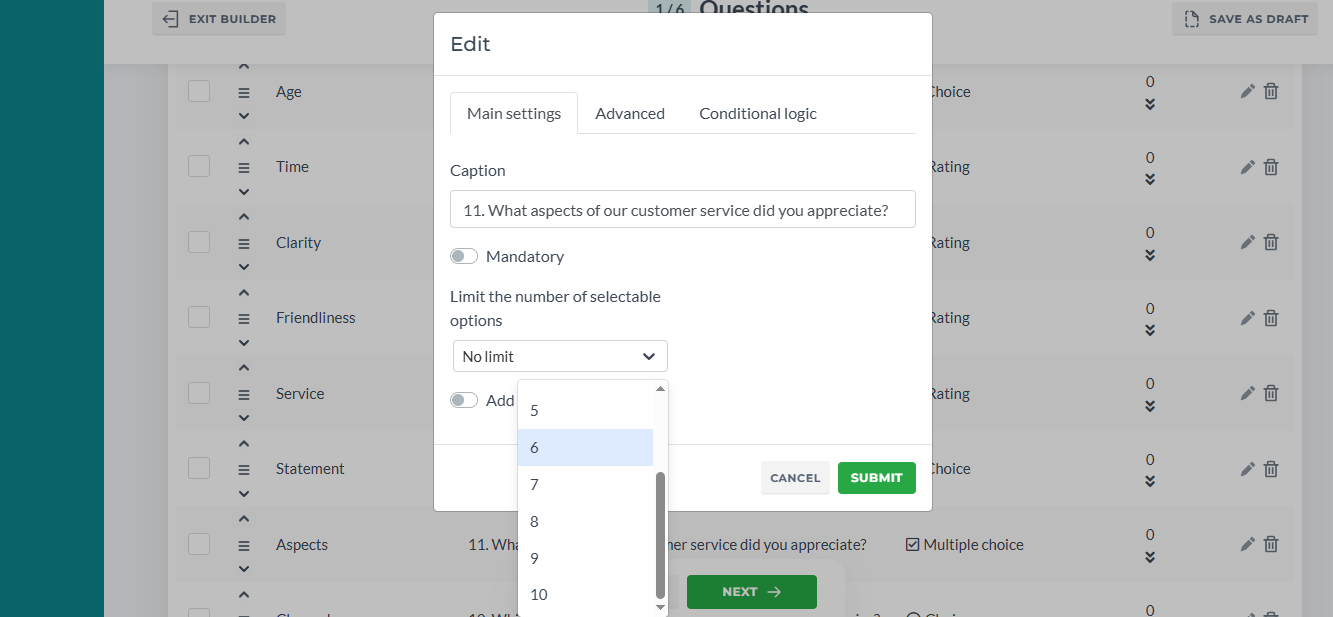
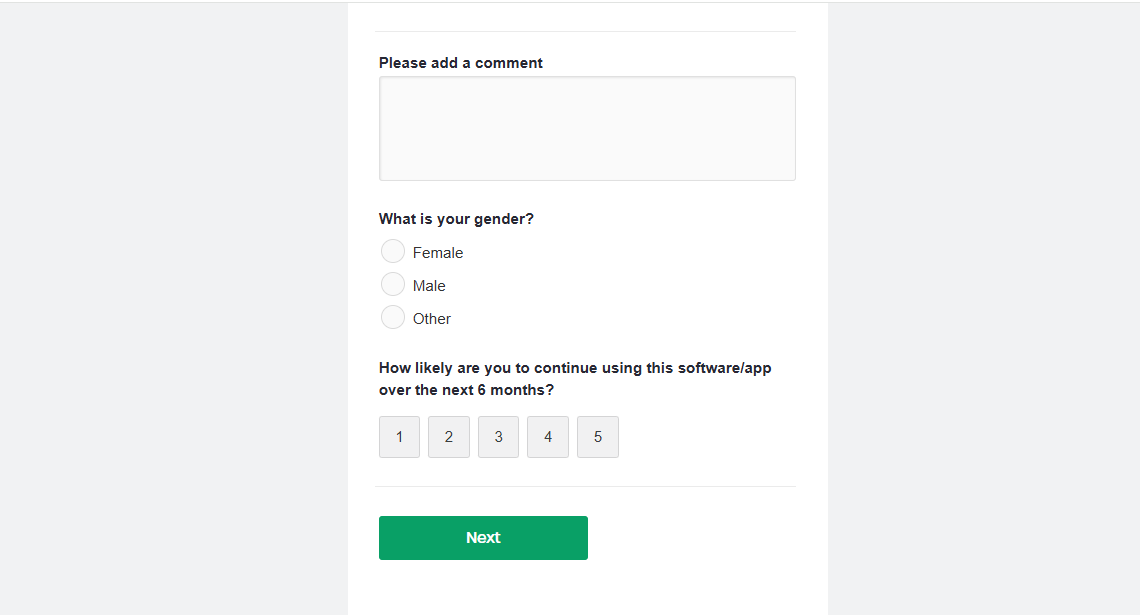
And Add Comment option that automatically adds an open area box for a comment with custom class and customizable caption. Leave it empty if you do not want the comment to have a caption.
¶ Advanced
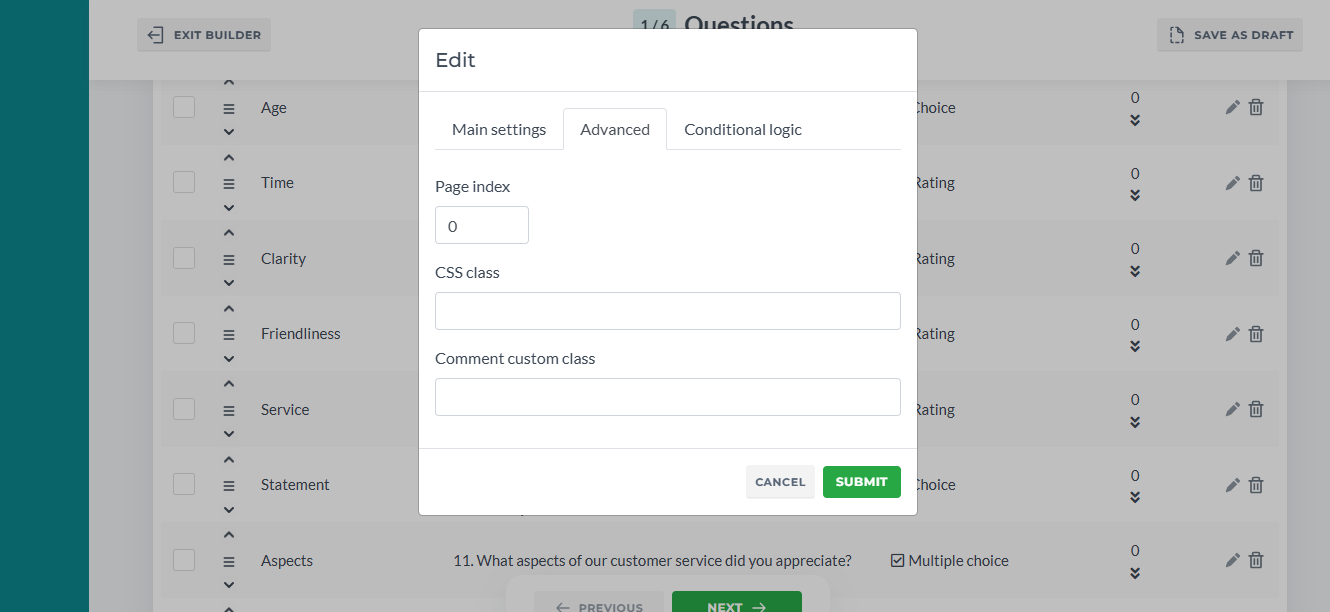
All types of questions also have the next settings: custom class (allows you to add custom classes used in coding for different styles and animation), page index, which basically places questions on pages (Multipage Container). If you want to have only one page, leave it as a default.
¶ Conditional Logic
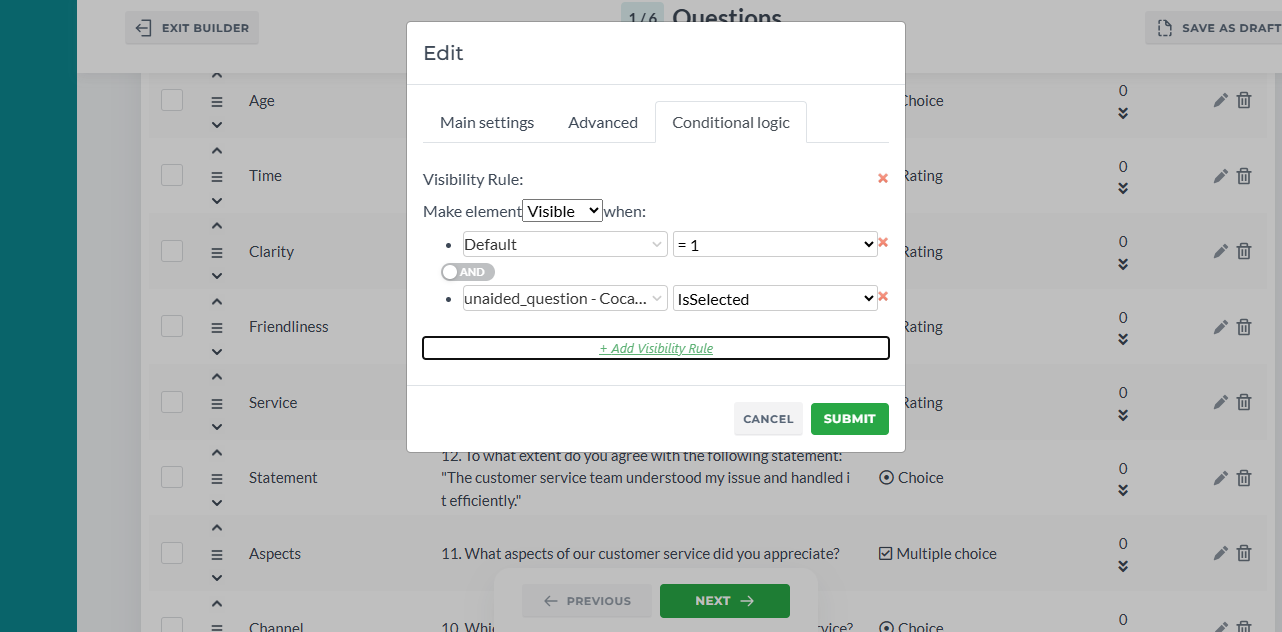
Conditional Logic tab allows users to set up Visibility rules for questions. General info on Visibility Rules here
¶ Multipage Control
Apart from the page index setting in the Advanced tab, a user can change the question or questions page in Page column via arrows or input:
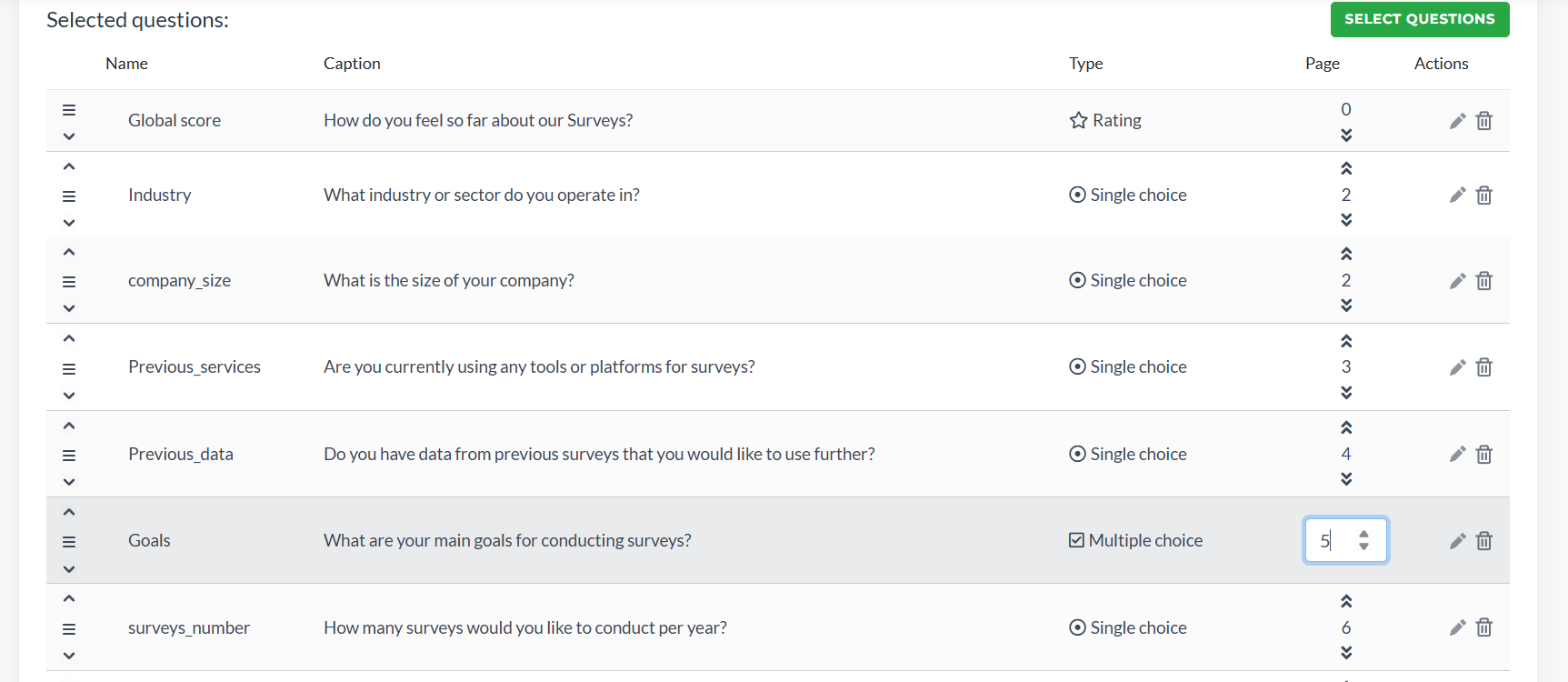
Additionally, when adding new questions via Select Question, you can specify the number of questions per page you want to have and place them in bulk. Note that this feature works for newly added questions only. To re-apply it for already added questions, uncheck them, save and go back to this window