¶ Intro
Not all platform features available in Form and Landing Page Builder are available via Survey Builder yet. Here is the list of these features and how to access them.
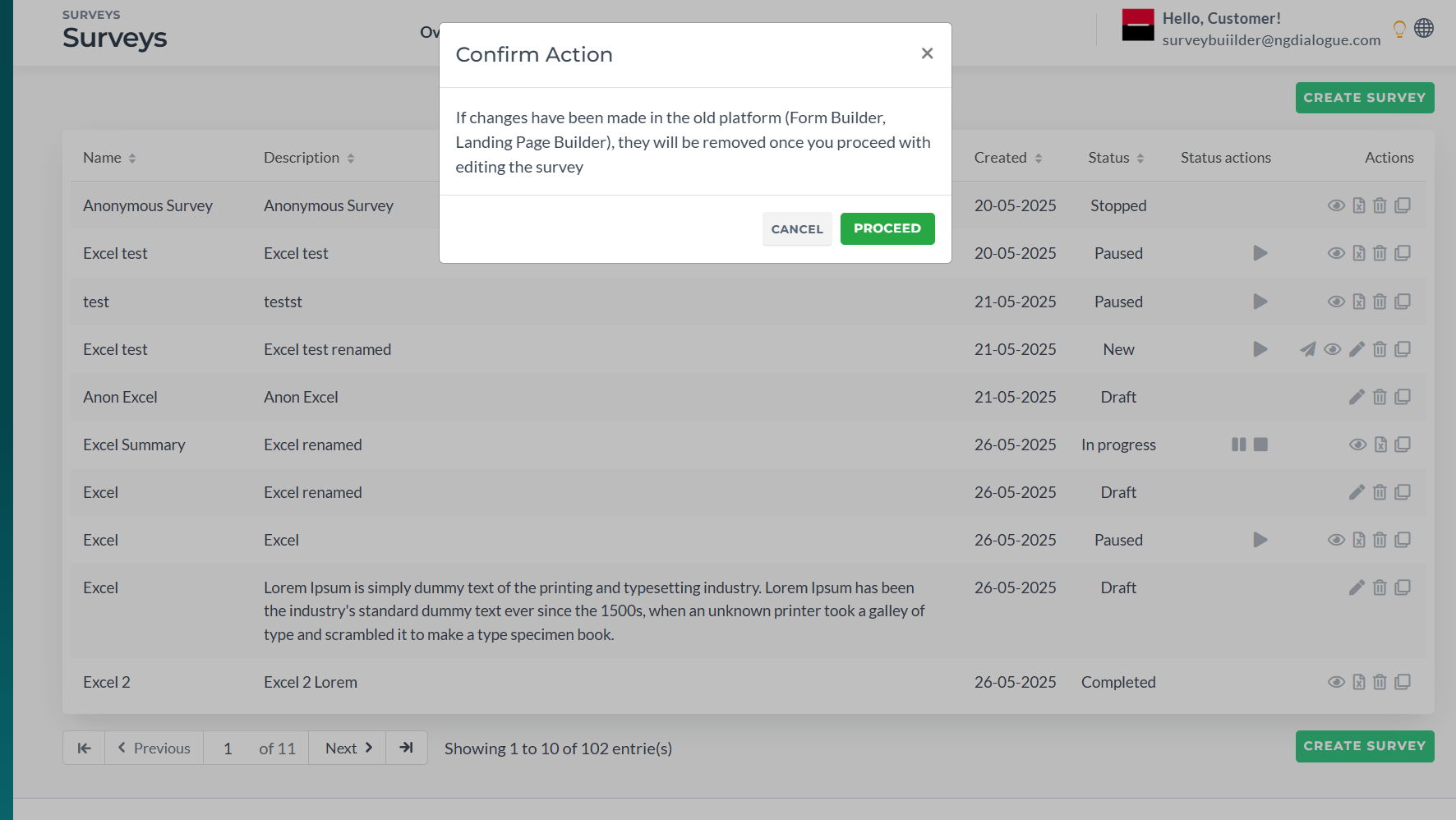
Make sure you set up your survey via Survey Builder completely before you need to add any advanced/custom solution. If you add any change in the main platform, you will not be able to edit the survey in Survey Builder. Your progress will disappear.
¶ Comments
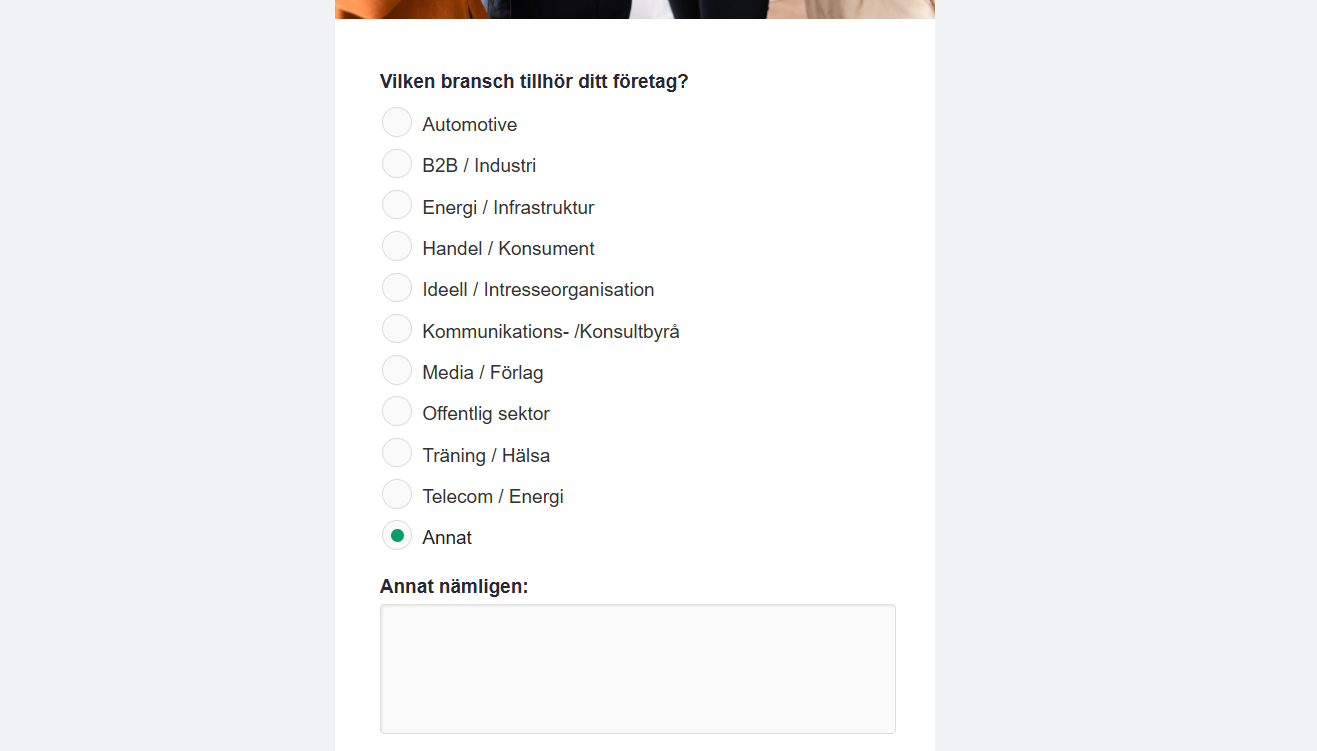
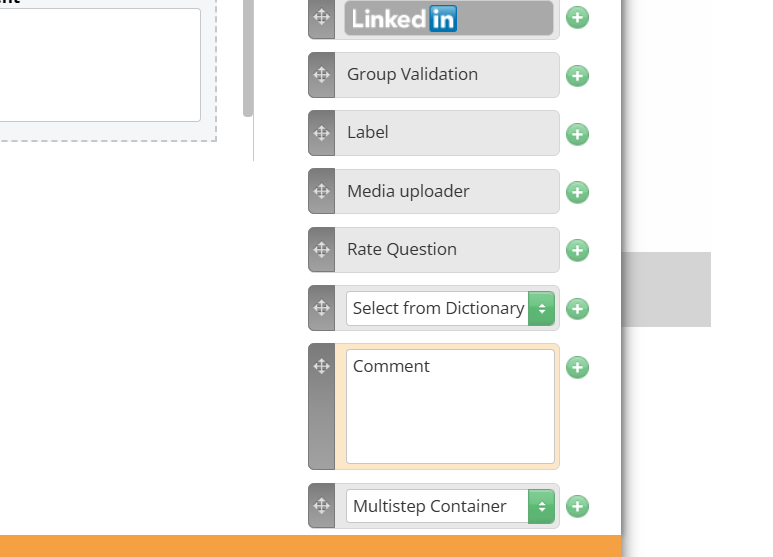
Cannot be placed on a different page and cannot have Visibility Rules added to them (the comment appears when you click an option):
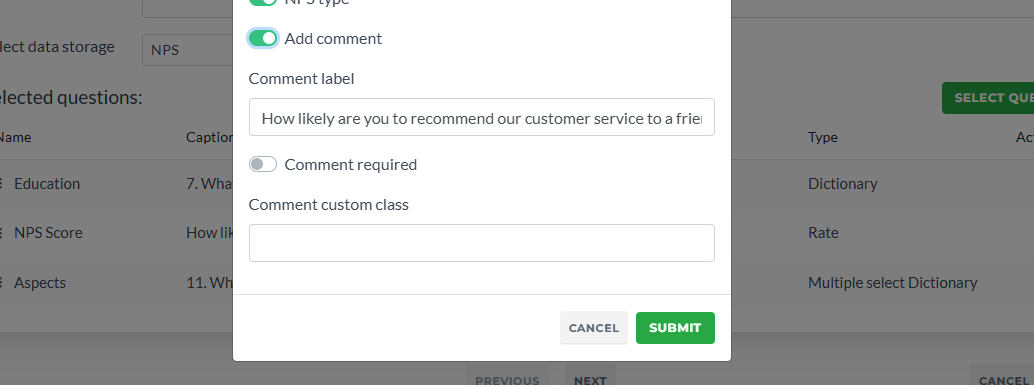
You can either add them via Survey Builder:
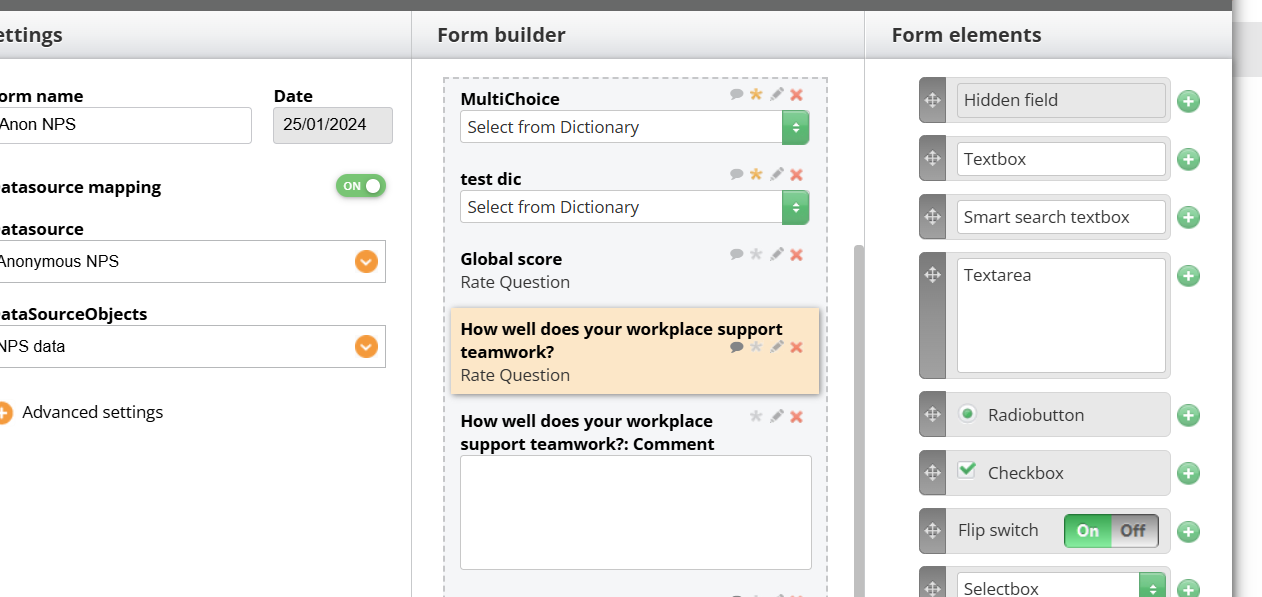
and then move/add rules via Form Builder or add them in Form Builder:
¶ Choice questions (in Form Builder Select From Dictionary) having custom options order
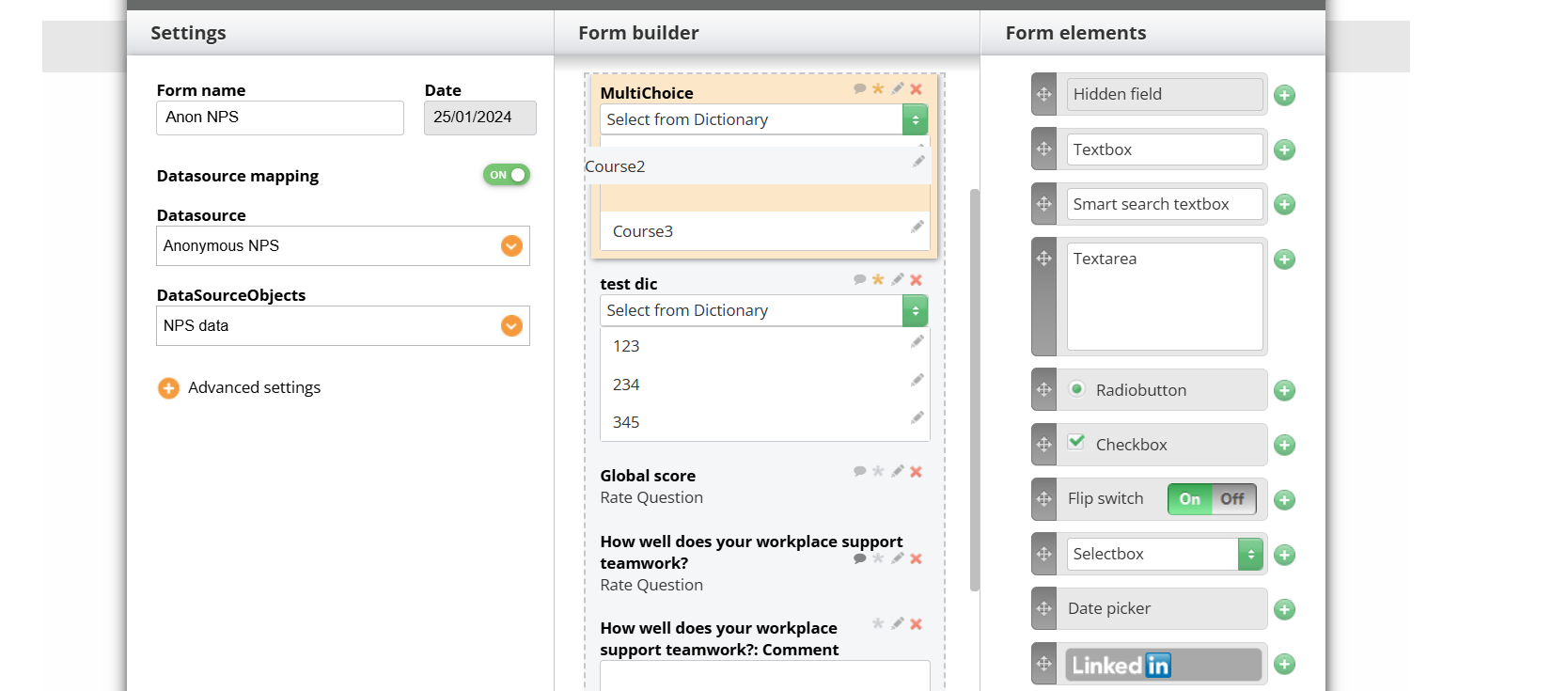
To change the order, click on the Select From Dictionary white textbox so it would expand and you can drag & drop the options in the needed order. Note: if you add or remove the options via Dashboard, the order will be reset to the default (alphabetical)
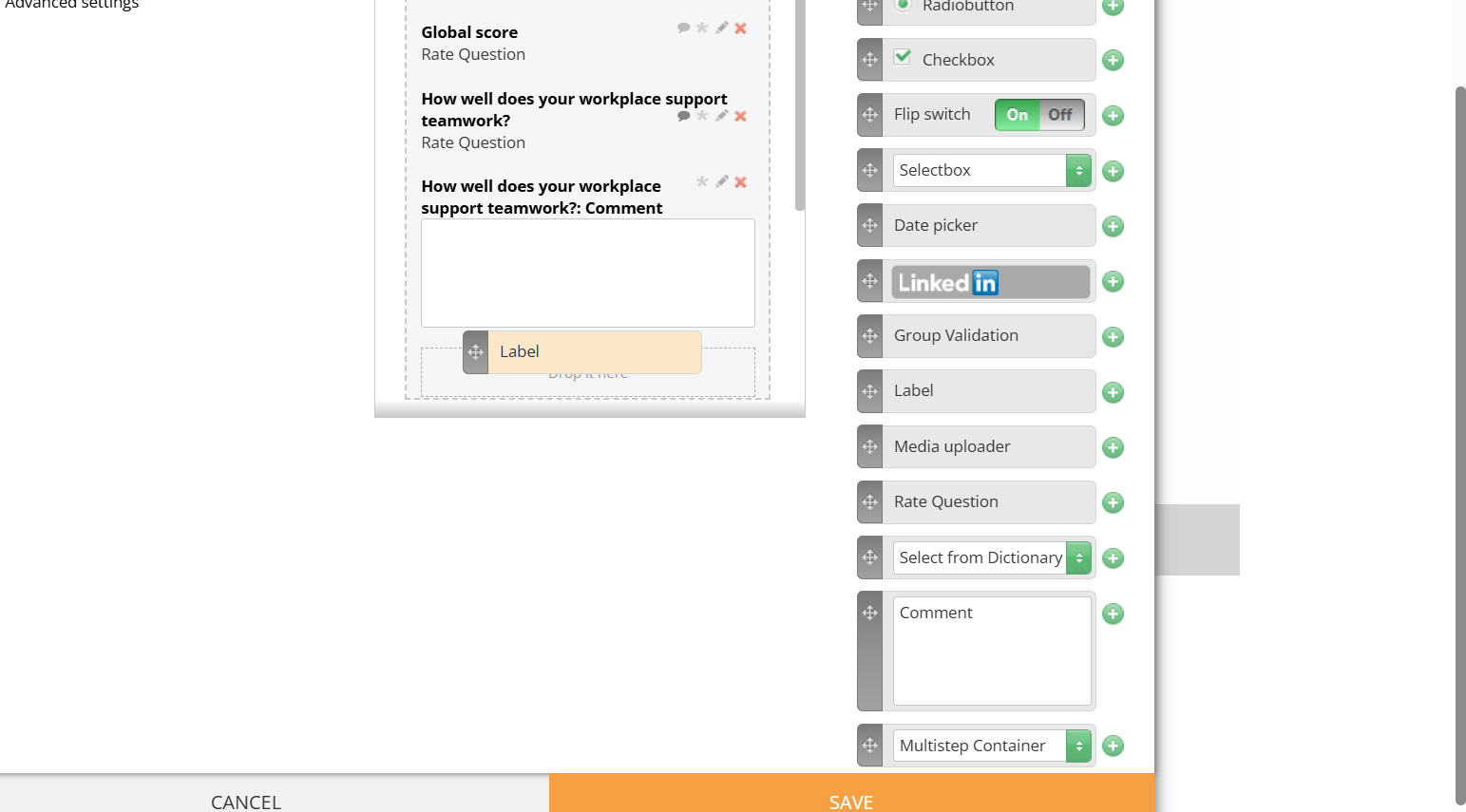
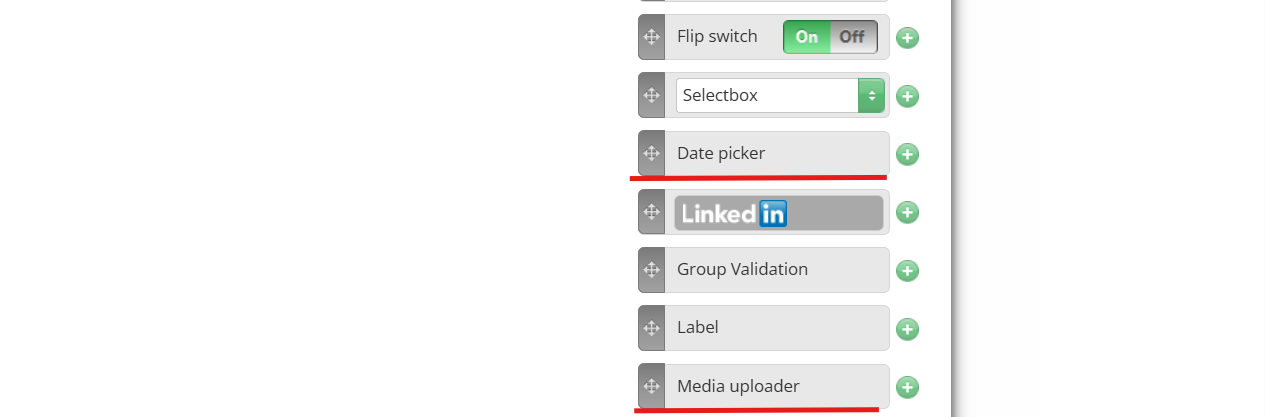
¶ Text labels, date, media
It can be added via Form Builder only
¶ Multipage Container's buttons renamed
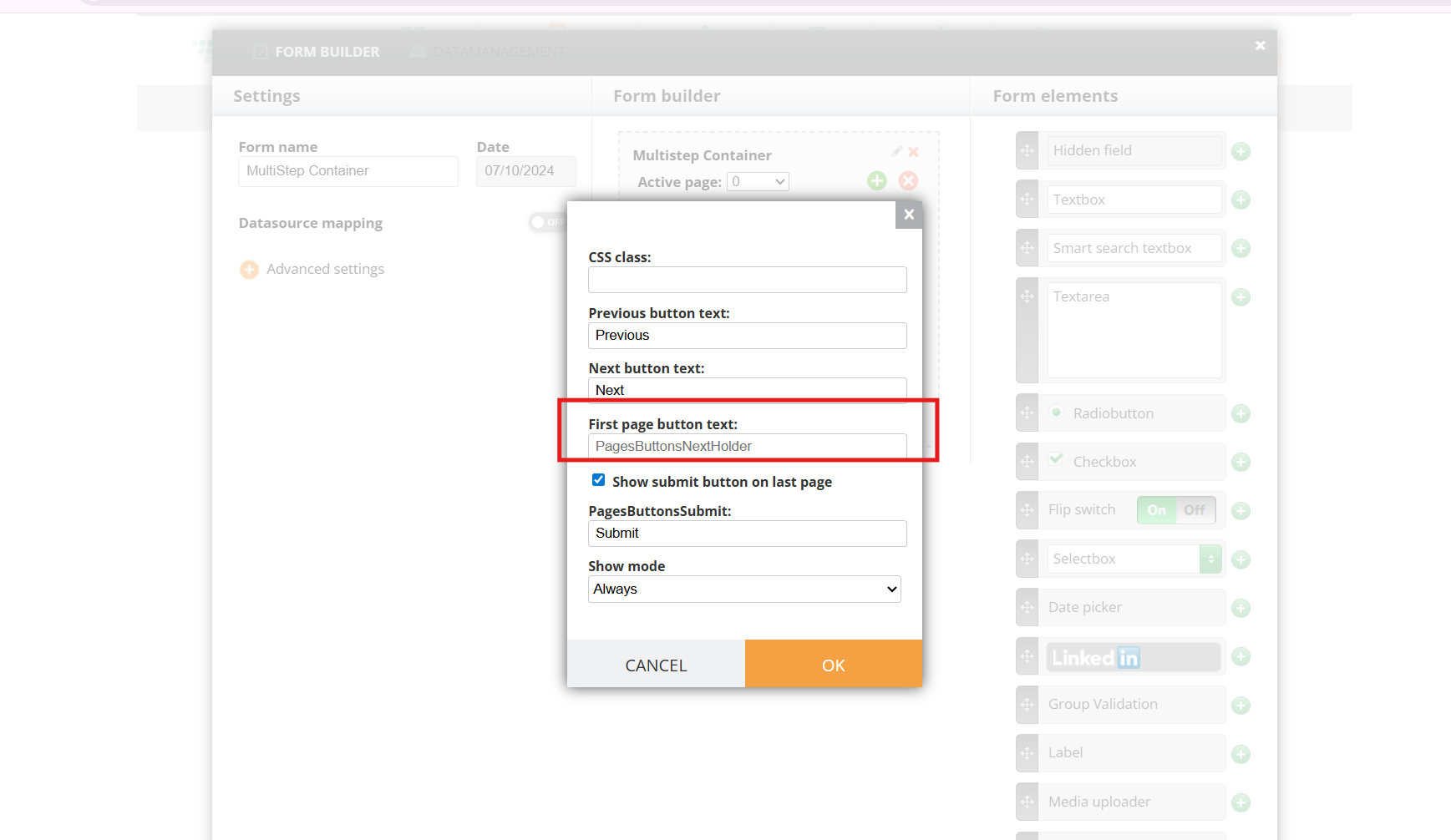
By default the buttons are in English. To rename, open the Form and click Edit on Pages:
¶ Custom Start Button for Multipage Container
- To add the Start button, make sure you have an empty page 0 (it can be added via Survey Builder or Form Builder directly).
- Click Edit on Buttons element:
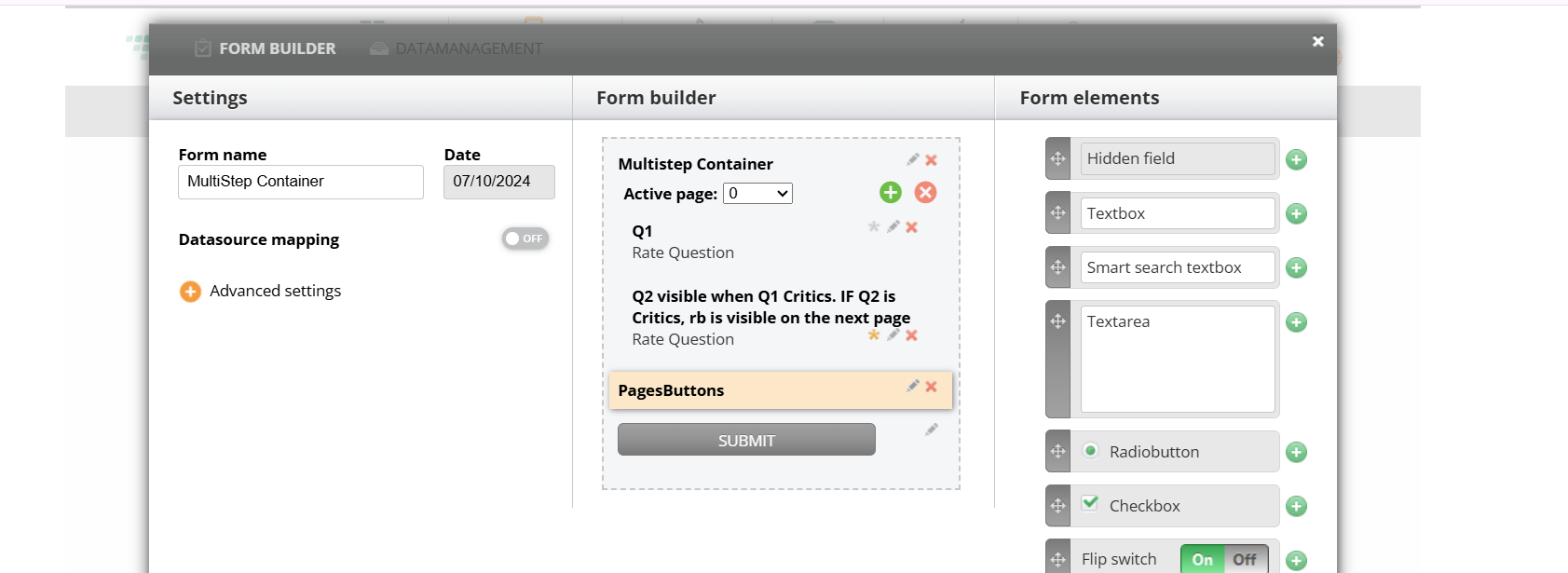
3. And add text to this field:
¶ Multilingual survey
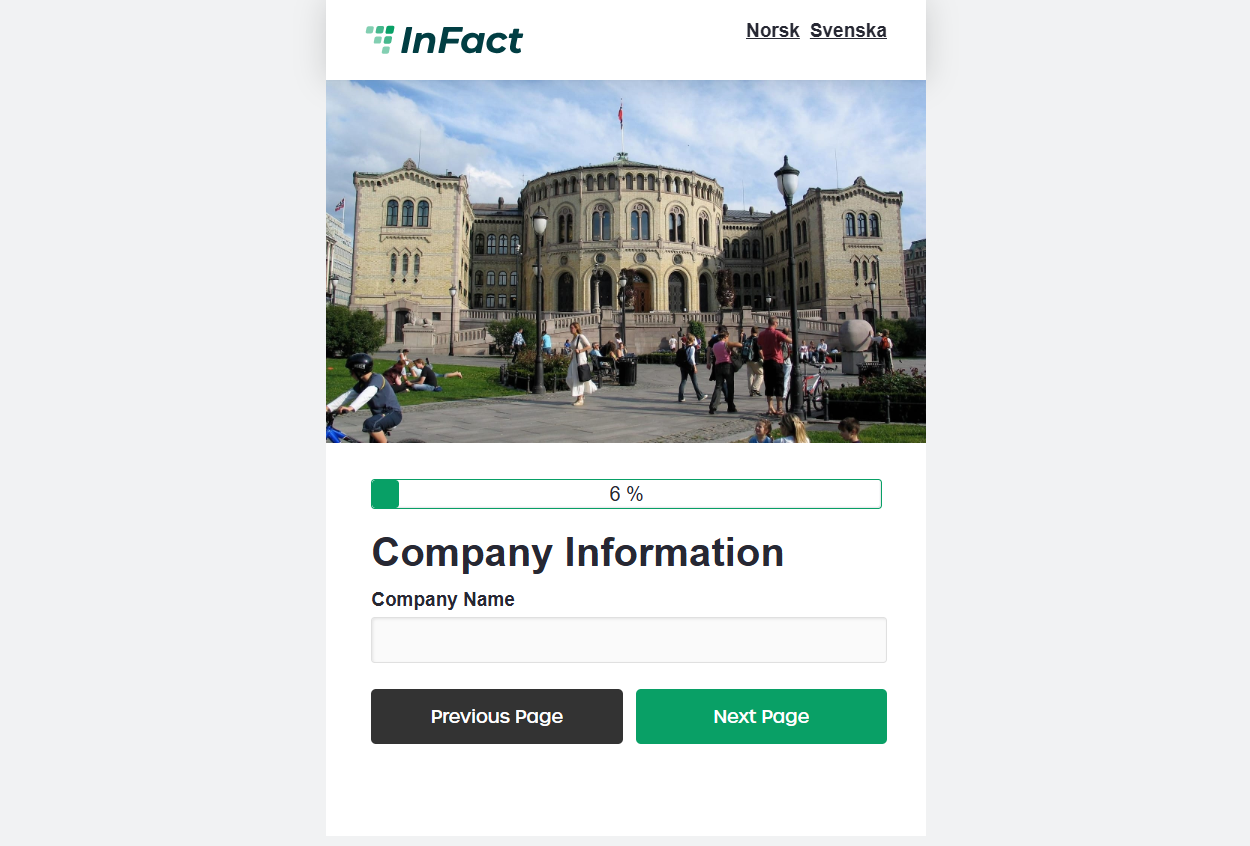
Language switch requires having one form per language and the switch is added to the landing page builder. The article on the Multilingual page.
¶ Custom validation/pop-ups
If you need to check if the text field has the correct email, phone, or any other input format, the custom scripts must be applied. Request tech team assistance.
¶ Custom designs
Any custom look (animation, color scheme) that involves designer post-template intervention is not available via Survey Builder and needs to be discussed with the designer before setting up the survey.
¶ Long question captions or options
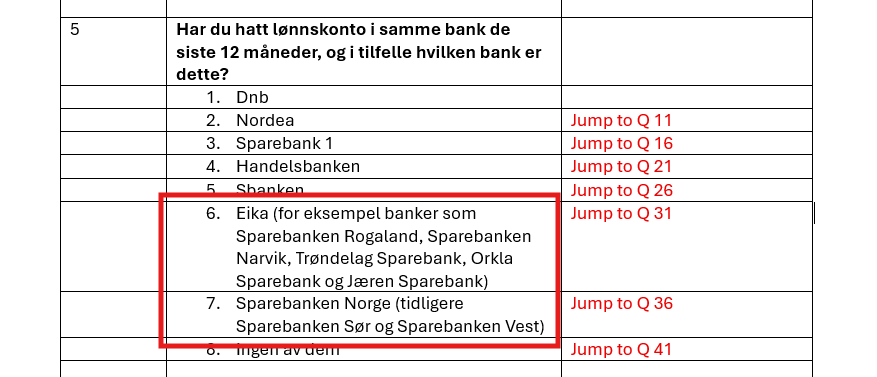
This version of Dashboard does not support long options. For example, we cannot include these two as options. Instead, we would add Eika and Sparebanken Norge but add a custom script substituting the short text with the long explanation for the end respondent:
¶ Instructions that must be placed between the caption and the options
Først vil jeg be deg om å tenke tilbake på dine erfaringer med DnB. Totalt sett, hvor fornøyd eller misfornøyd er du med DnB? is a caption and is added via Dashboard. We can also include the instruction Fyll ut på skalaen, der 1 betyr svært misfornøyd og 10 betyr svært fornøyd. in the caption and apply the custom style (italics in this case) but then it will be included in the data export. If you do not want that we must either apply custom script for it to look this way:
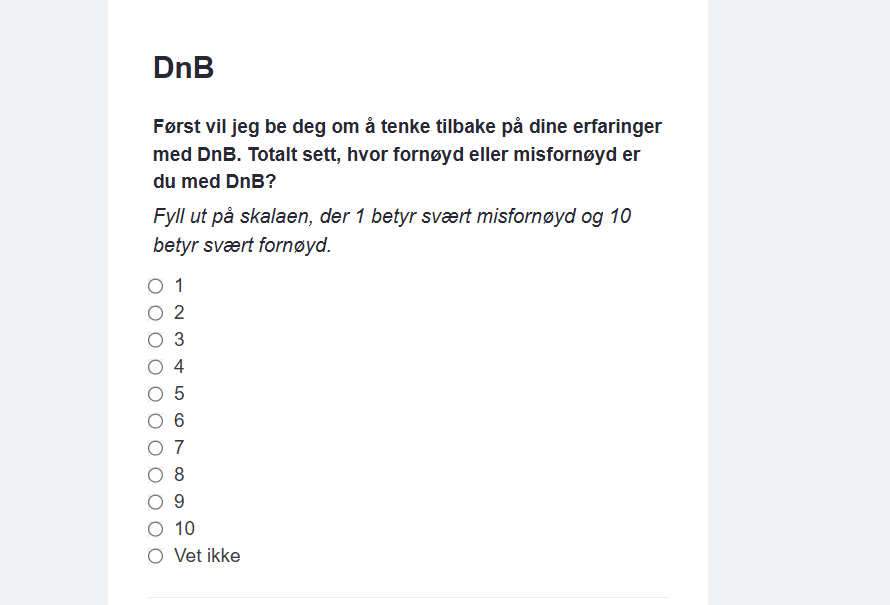
Or place the instruction above, which is less time-consuming:
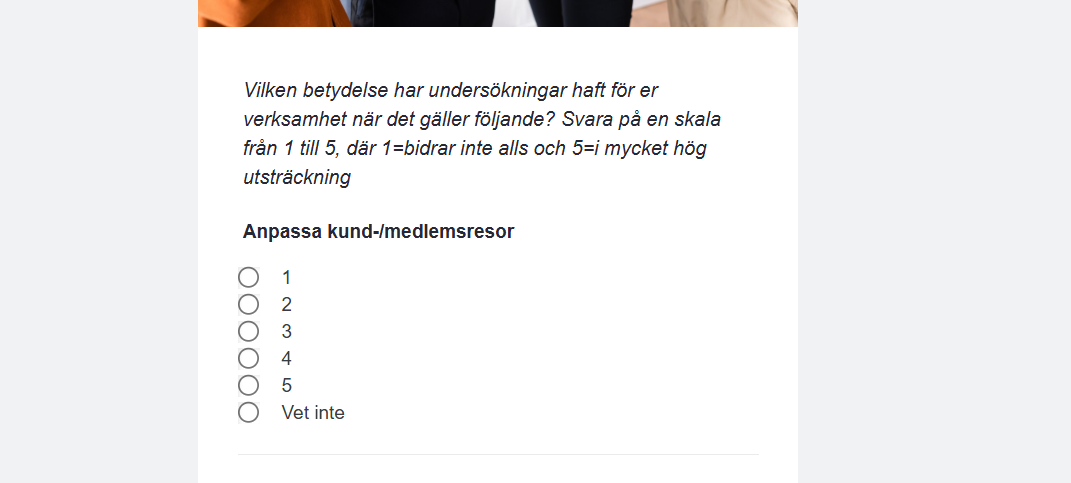
¶ Complex questions
Our system does not yet support all of the existing question types. We
- Matrix (grid):
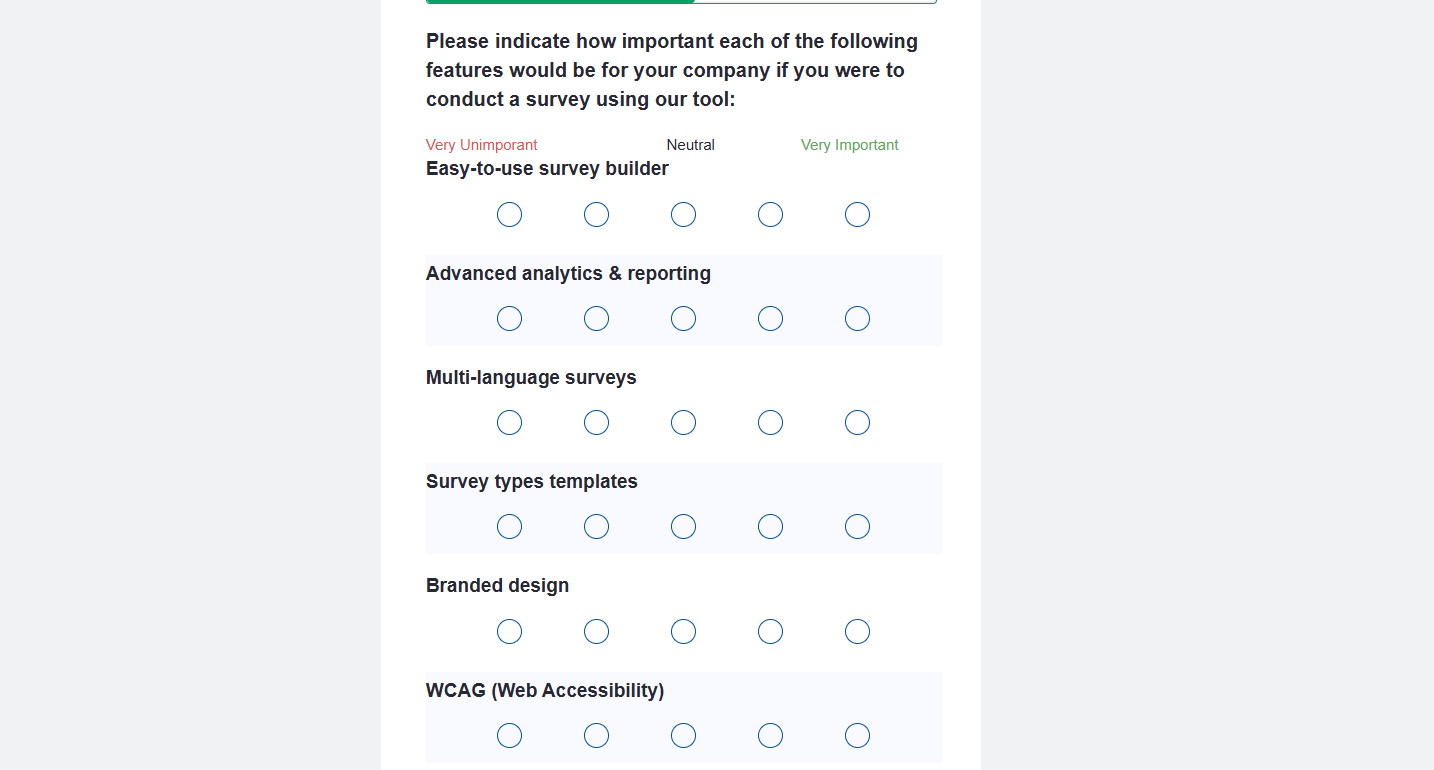
- Rates with “I don’t know” option:
- Shuffle (choice questions, options appearing in a random order for every respondent)
- Heat Map (it hasn't been implemented as a custom solution at all)
Each custom solution requires additional time for programming. Please remember this when planning the survey)