¶ SMS Campaigns
¶ Types of Phone Numbers' Sources
First thing you need to set up SMS campaign is to add phone numbers of recipients.
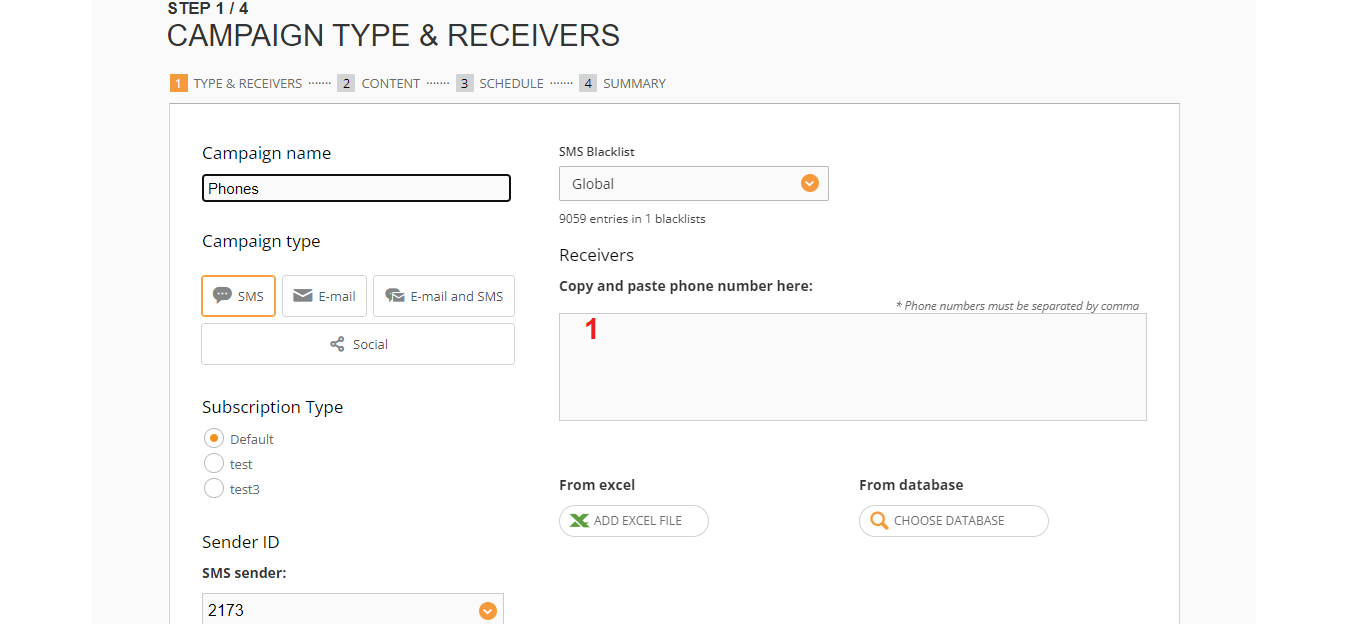
You can do it in several ways that are described below.
¶ Manual Input
To add phone numbers manually you should enter or copy numbers to the field (1) separated by comma. This case is usually used mostly for testing your campaigns.
¶ Excel File
You simply upload a file with your data
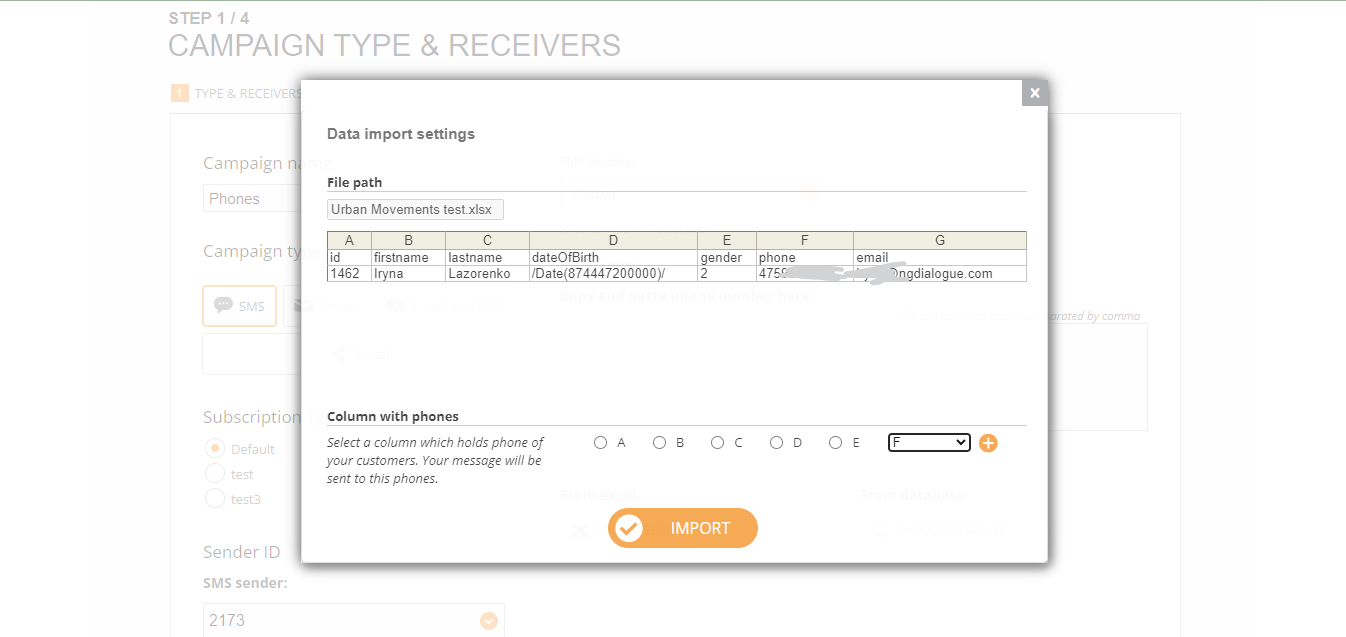
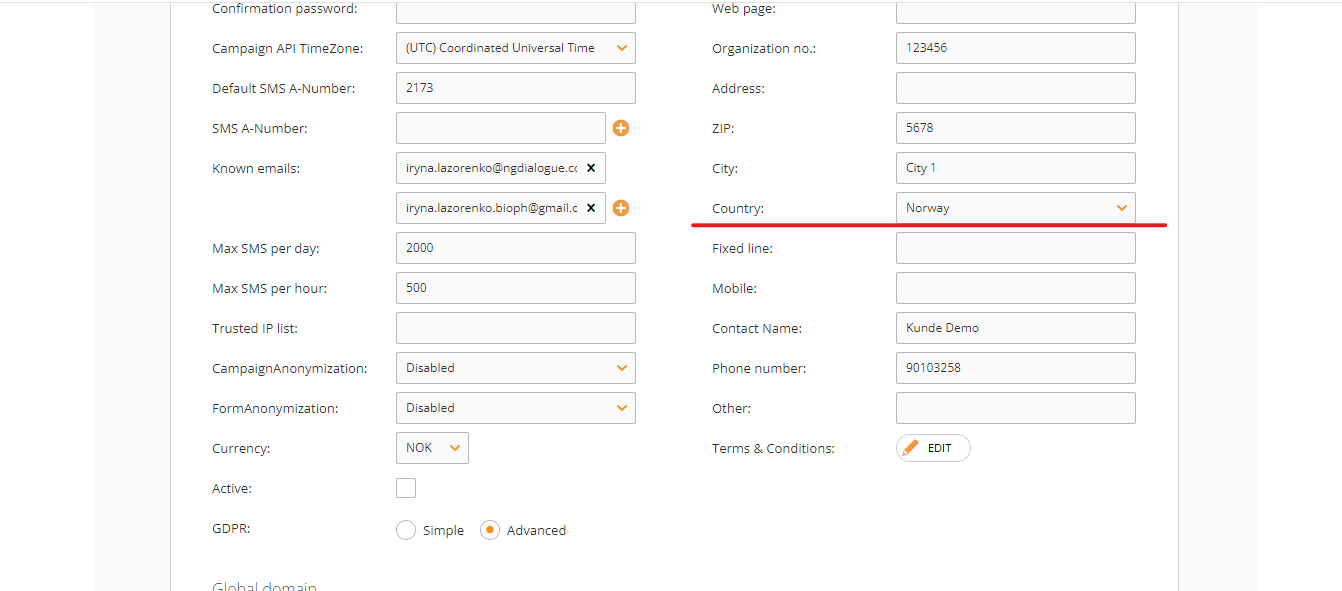
Please note that for proper work, the Excel file has to have phone numbers with country codes (if these phone numbers do not belong to our account's country
Excel phone format
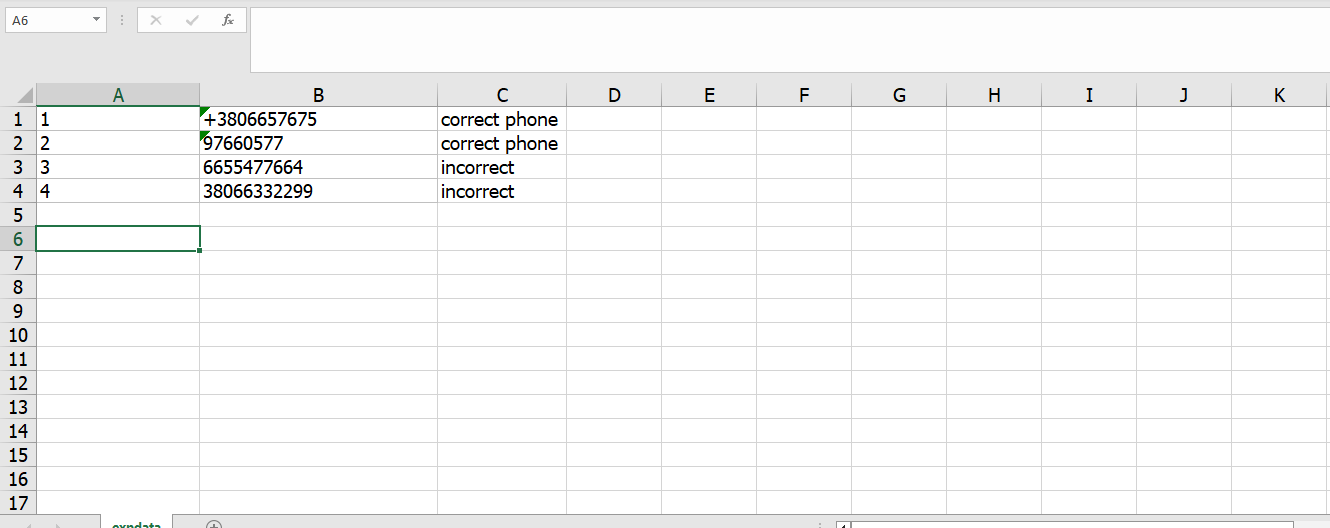
- Phone #1 is correct because there is a proper country code starting with +. To achieve this, you need to right-click on the cell, select “Cell Format” and change it to Text. Excel will allow you to add + and your phone. Again, country code is needed only when phones do not belong to the country that is mentioned in your account settings.
- Phone #2 is correct as it is a Norwegian phone number and we do not need a country code. But if it is there, it will not cause any issues.
- Phone #3 is incorrect. The phone is not Norwegian and cell format is numeric and you tried to write it starting with “0”, the system deleted 0 and the phone cannot be read
- Phone #4 is incorrect as you tried to type country code for non-Norwegian phone but again the cell format is numeric and Excel does not let you write +
¶ Datasource
¶ 1. Click “from datasource”
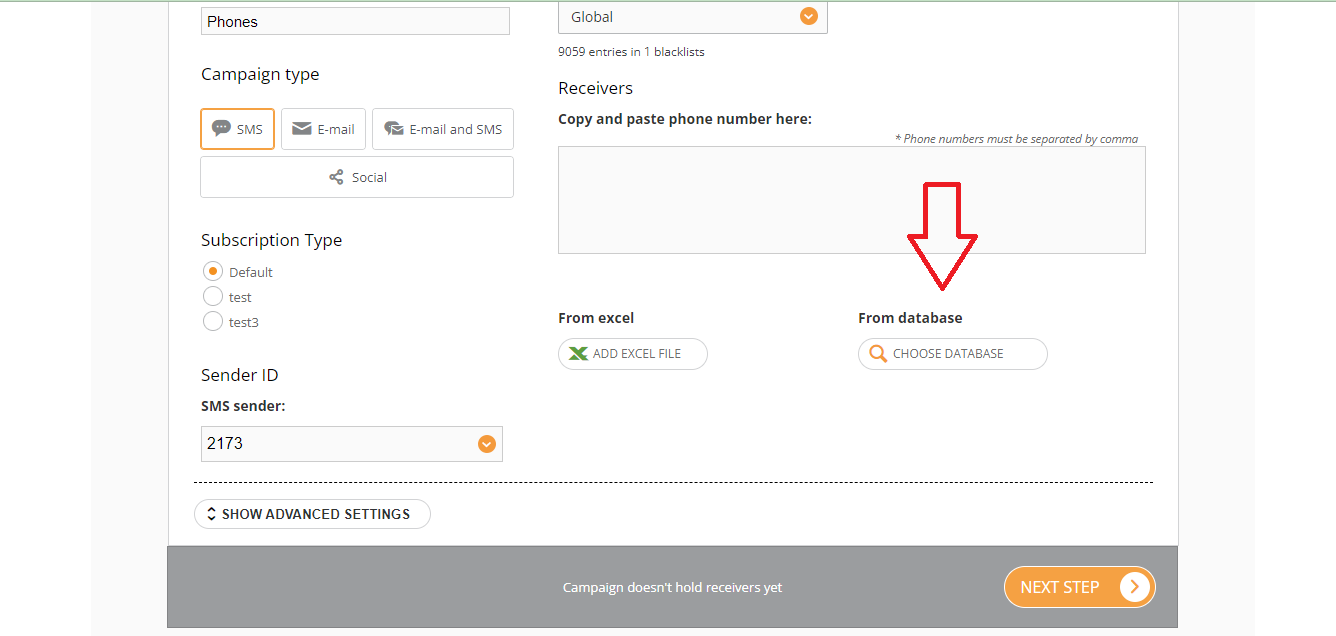
¶ 2. Choosing a datasource
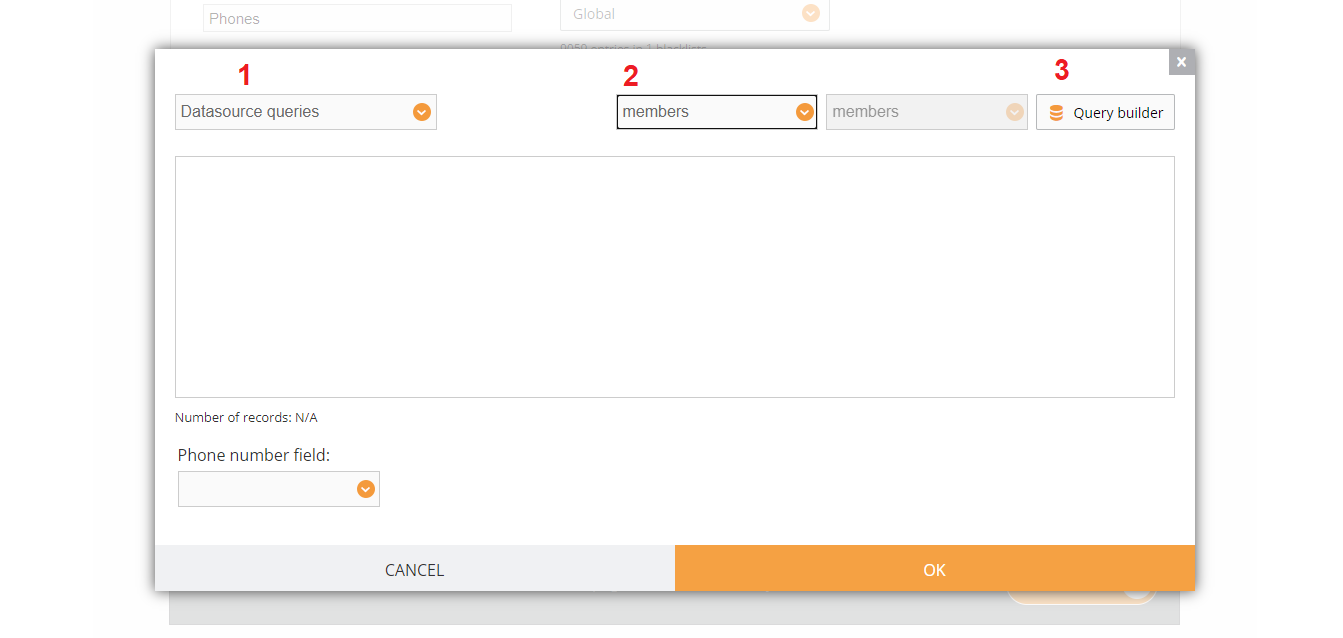
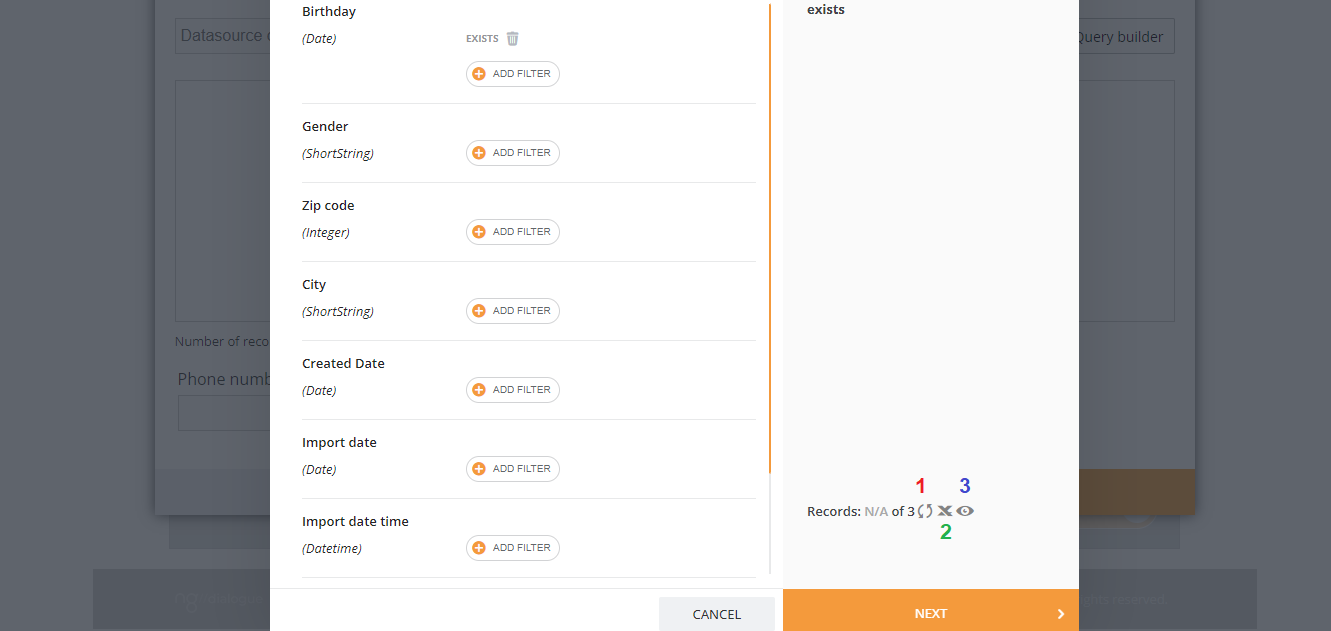
¶ 3. Filter your recipients
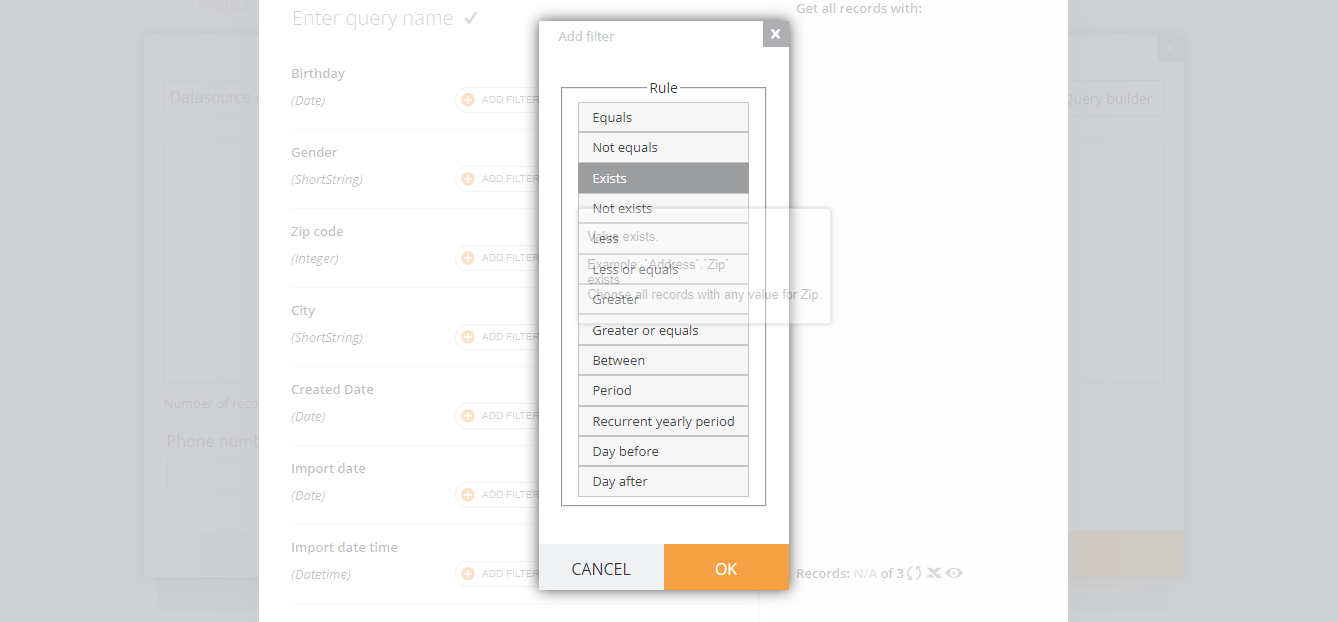
¶ 4. Refresh the list
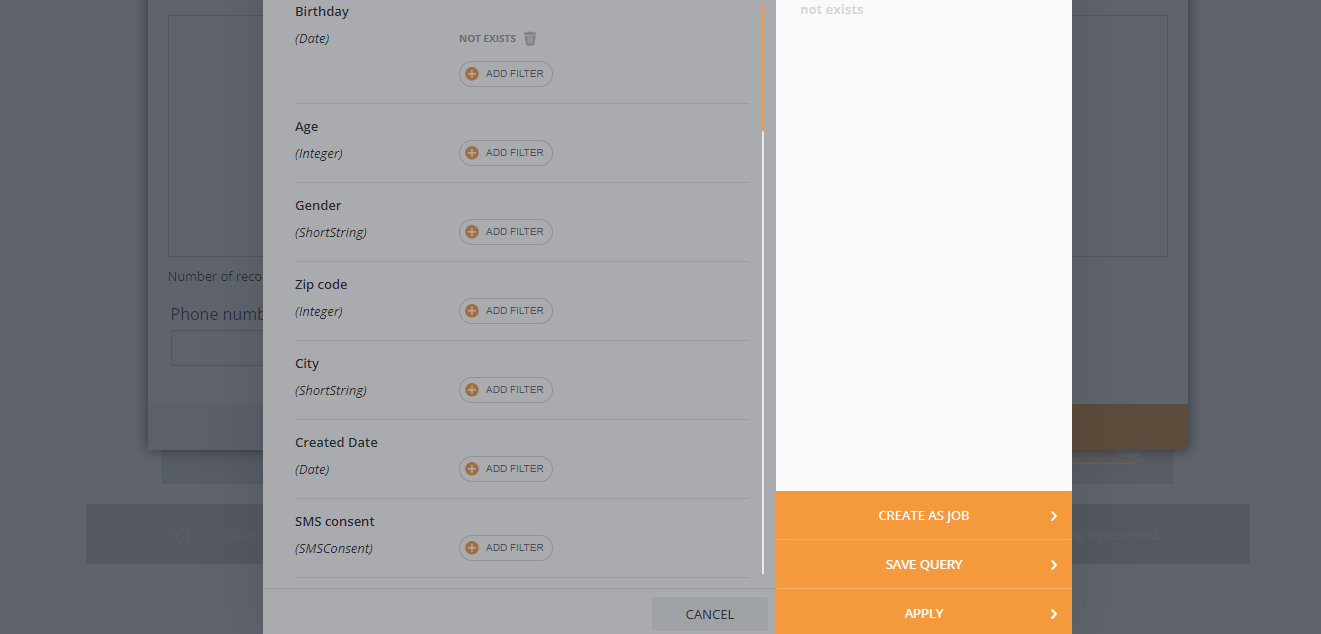
¶ 5. Select Apply
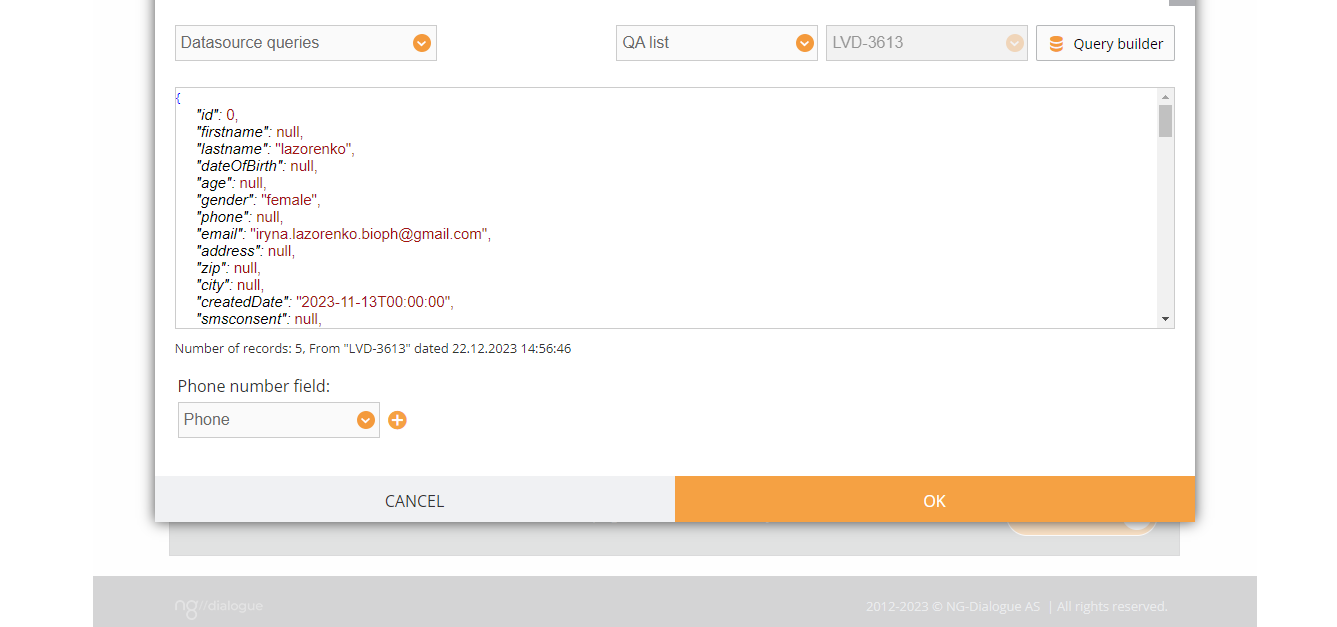
¶ 6. Press OK
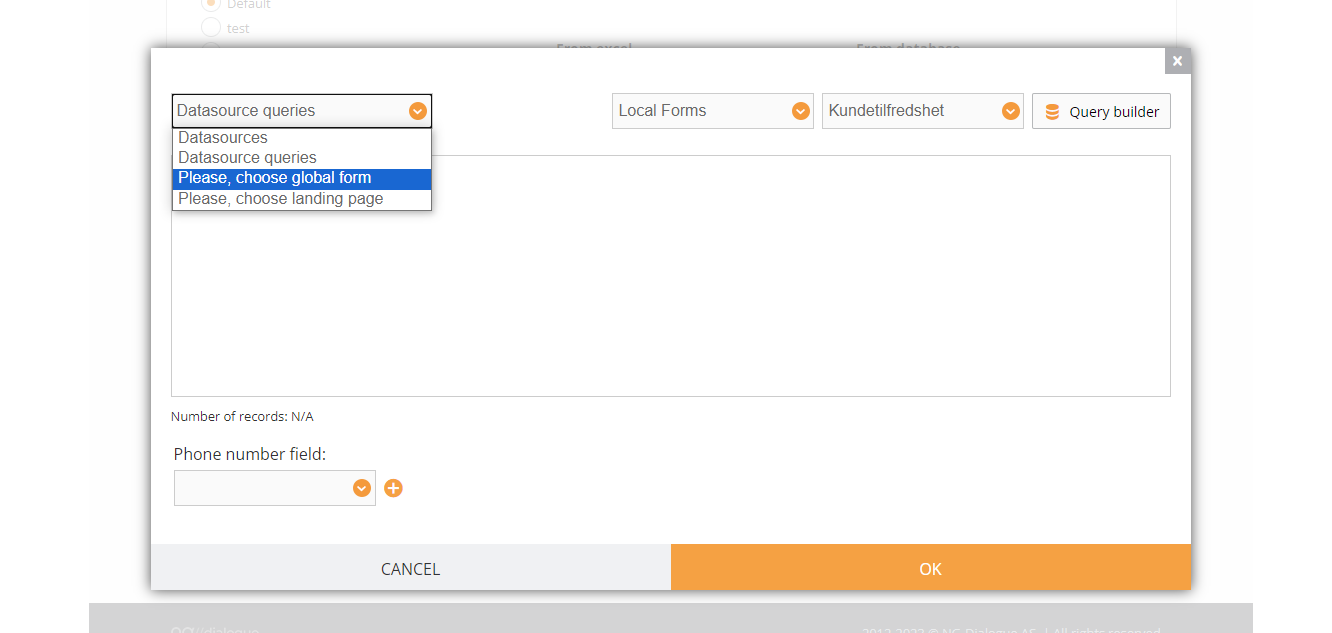
Also, note that we can use a form or a landing as a datasource if you have data being stored there:
¶ Advanced Settings
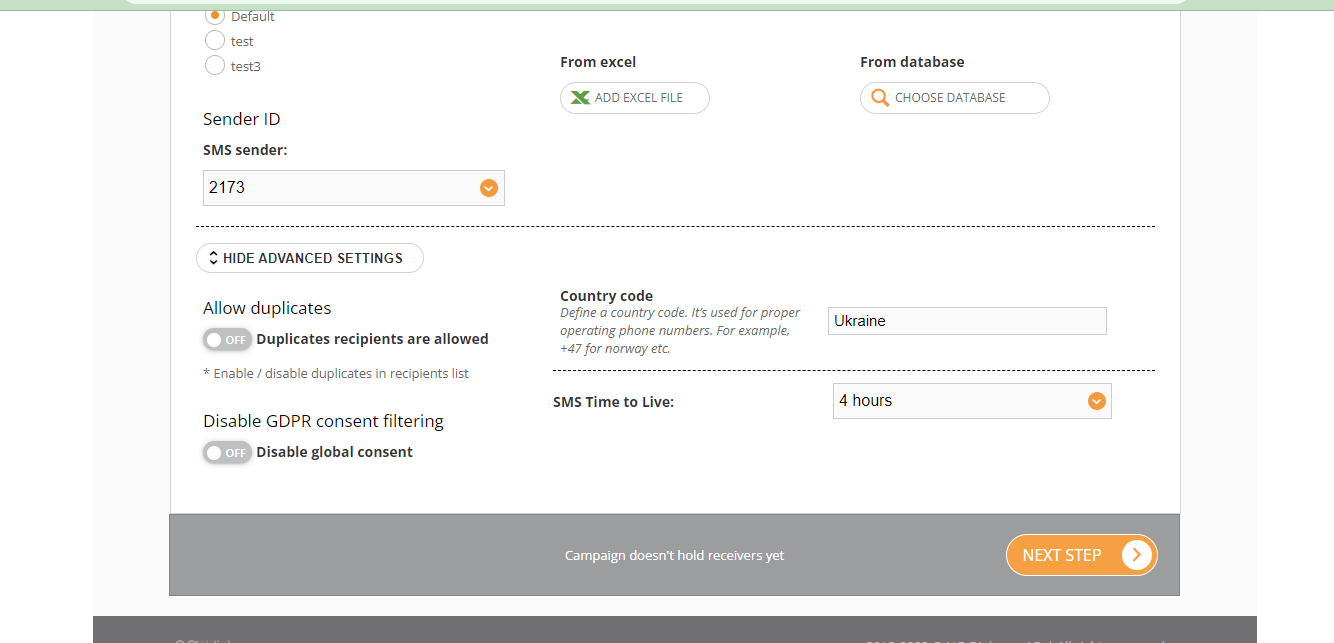
You will need these settings in case you:
- would like to disable the consent system (possibly for testing). More on that
- allows duplicates - then 1 recipient might receive the same SMS more than once
- Select Country code - if you are sending out an SMS campaign and have decided to enter data manually (see Manual Input), and you have phones that belong to recipients from other countries (your account has Norway in its settings and you are using Swedish phones, for example). You need to select the proper country from this list
- SMS Time to Live - allows you to set the time when we will try to send your SMS. For example, there has been an error with the SMS provider, and we have a 4-hour time period to try again