¶ Start
¶ Open Dashboard
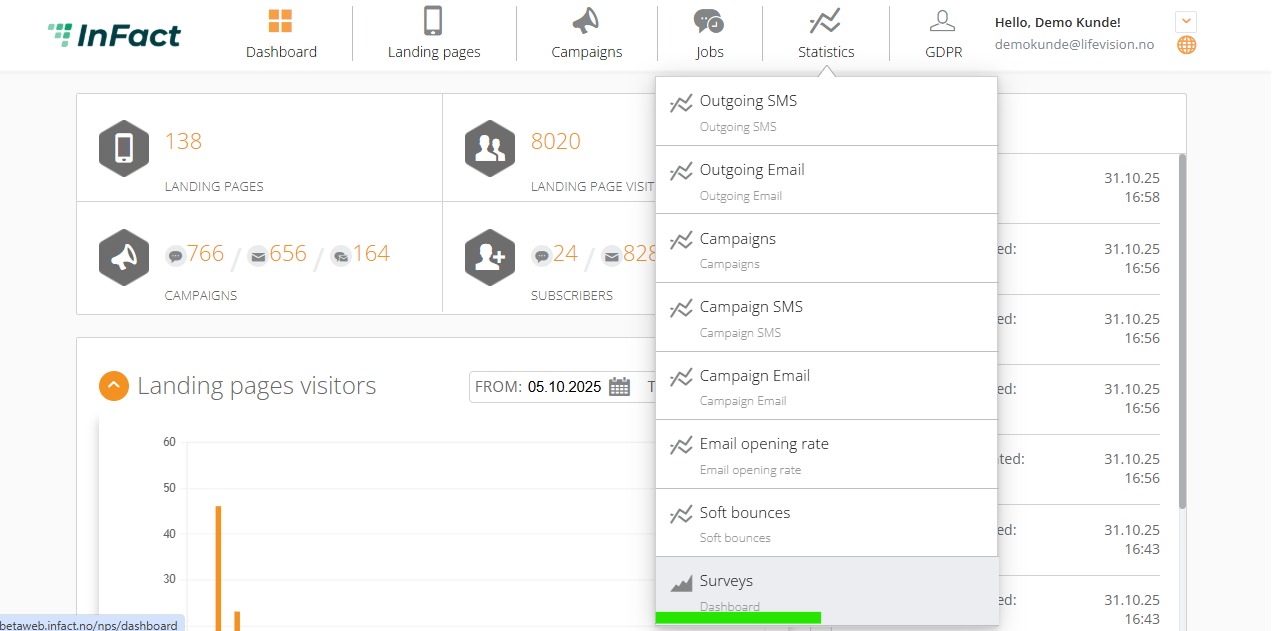
Log in to your account and go to Statistics ⇢ Dashboard (if you cannot access it, ask your digital advisor to set it up)
¶ Add Questions
Go to Questions:
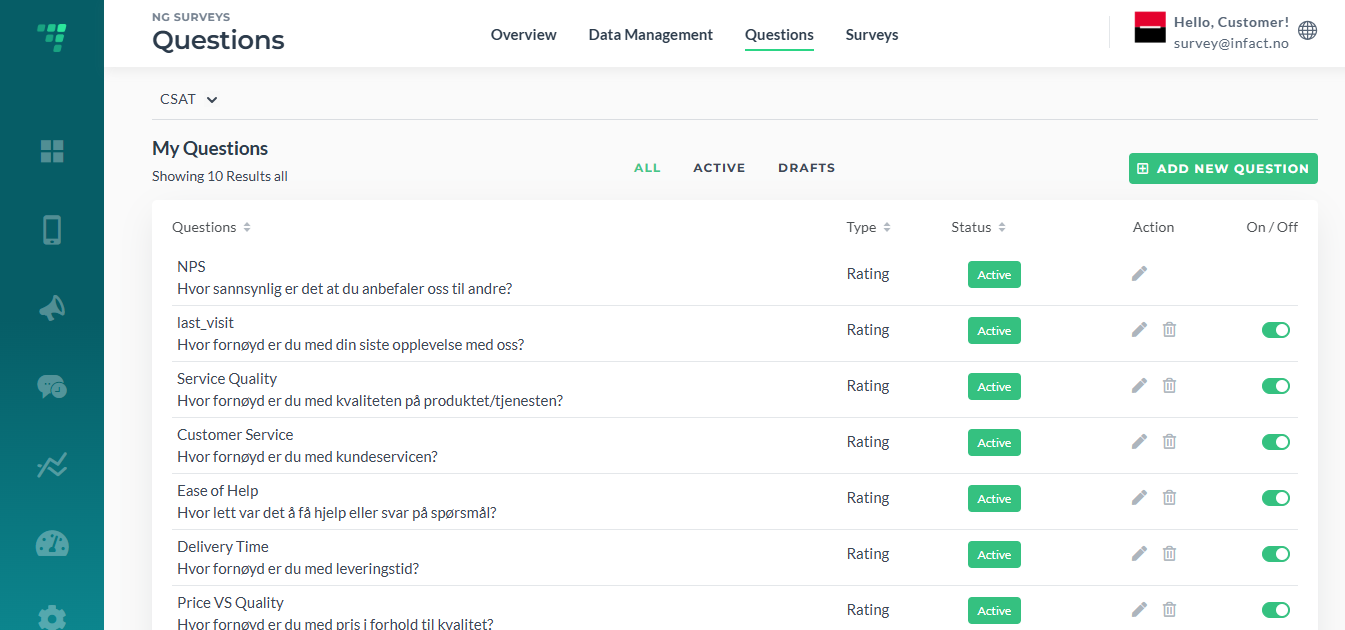
Questions have three sections: all, active and drafts. You can add/delete questions, activate and deactivate them.
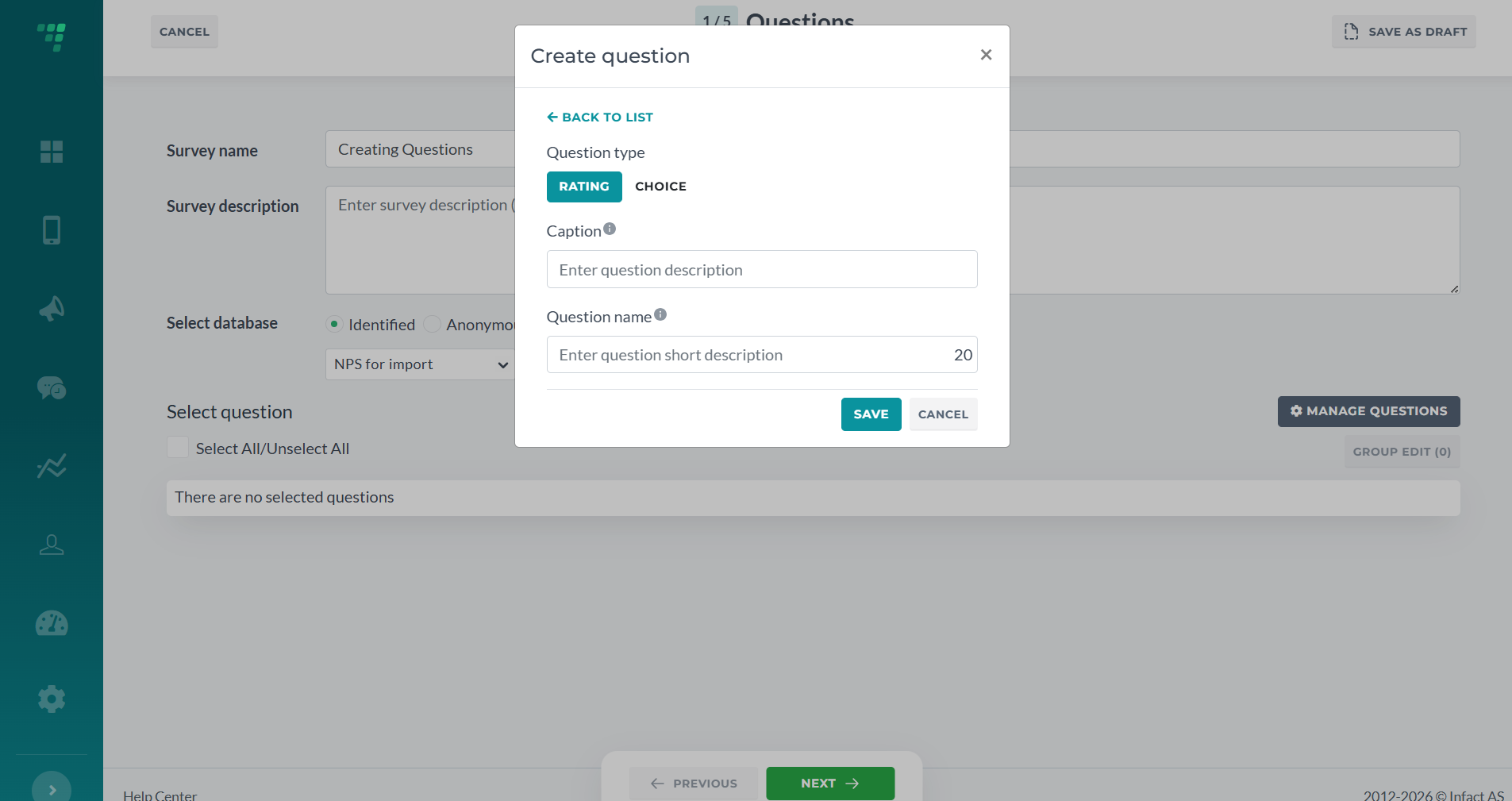
A question can consist of such fields: caption and name. For example, in a question "online_facilities
How happy are you with our online facilities, such as notifications via emails, payment service, etc.?" online_facilities is a name you will see as a short form in the cards, filters et,c and How happy are you… is a caption which is a full question visible to a respondent.
¶ Types of Questions
¶ Rating
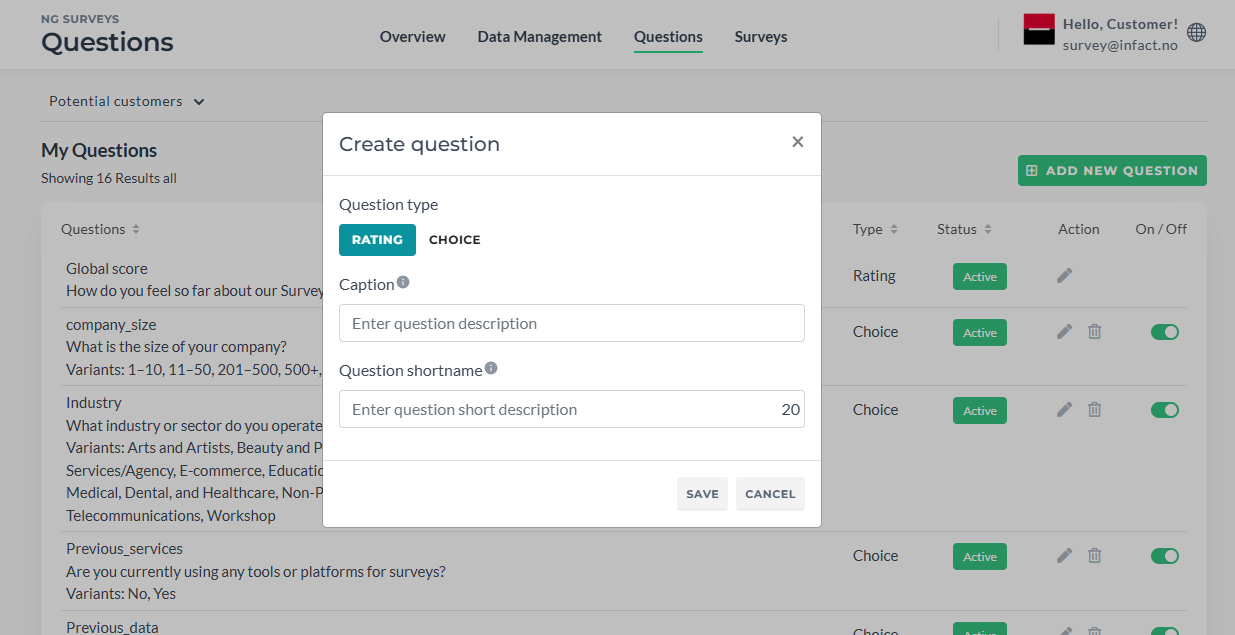
Rating question is a question where answers are numbers, points, stars. When we add them in Dashboard, we can only set up caption and name. The rest (scale, NPS or not, stars, numbers or silder look) can be done in the form builder when creating the form or in Survey Builder's Question Step.
¶ Choice (Select from Dictionary, Dictionary, Aided Question)
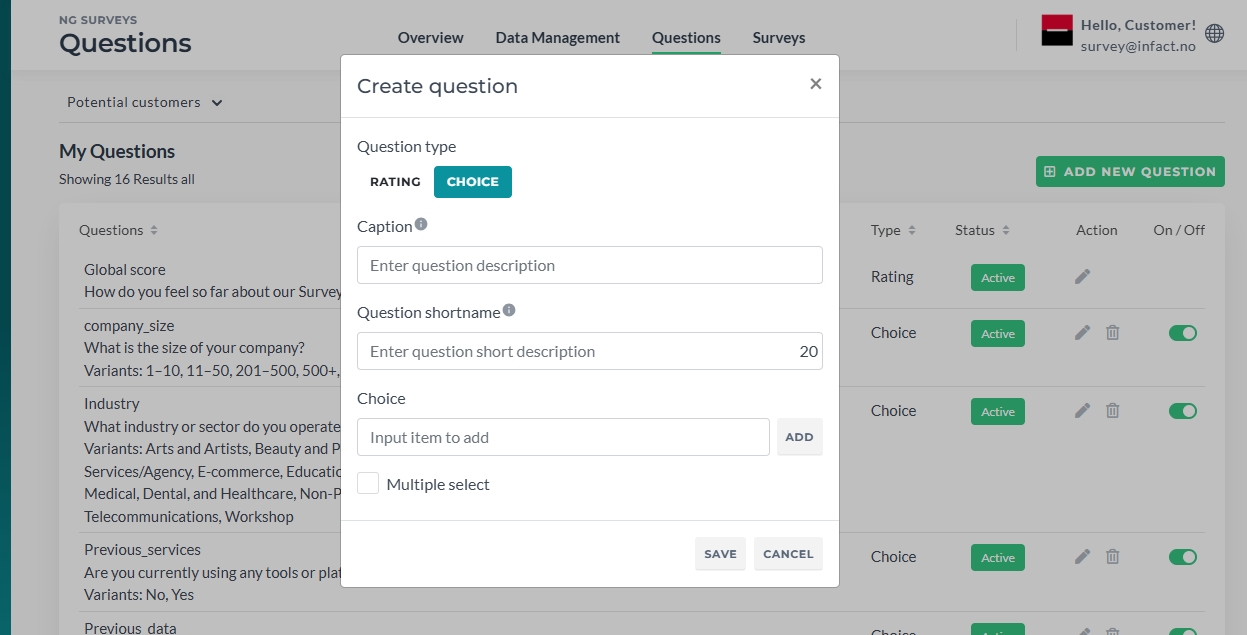
A choice question is a question where answers are provided as options. For a Dictionary-type question, we also have a dictionary field. This basically is an answer option. There must be more than 1 option (for exampl,e Yes and No).
¶ Multi-choice Question
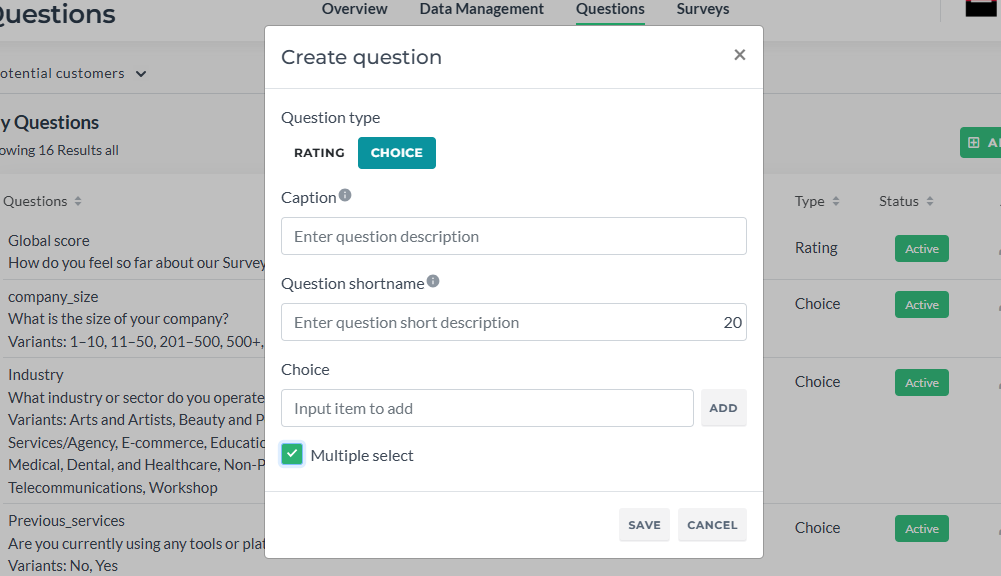
If, for example, your survey includes a question “Which courses have you taken?” and there should be an option to select more than one, you can make your dictionary question a multi-choice. To do so,
- Go to Questions in the Dashboard
- Click Add Question
- Click “Choice”
- Tick "Multiple select checkbox"
Note: you cannot change the Choice type. Delete and re-create it.
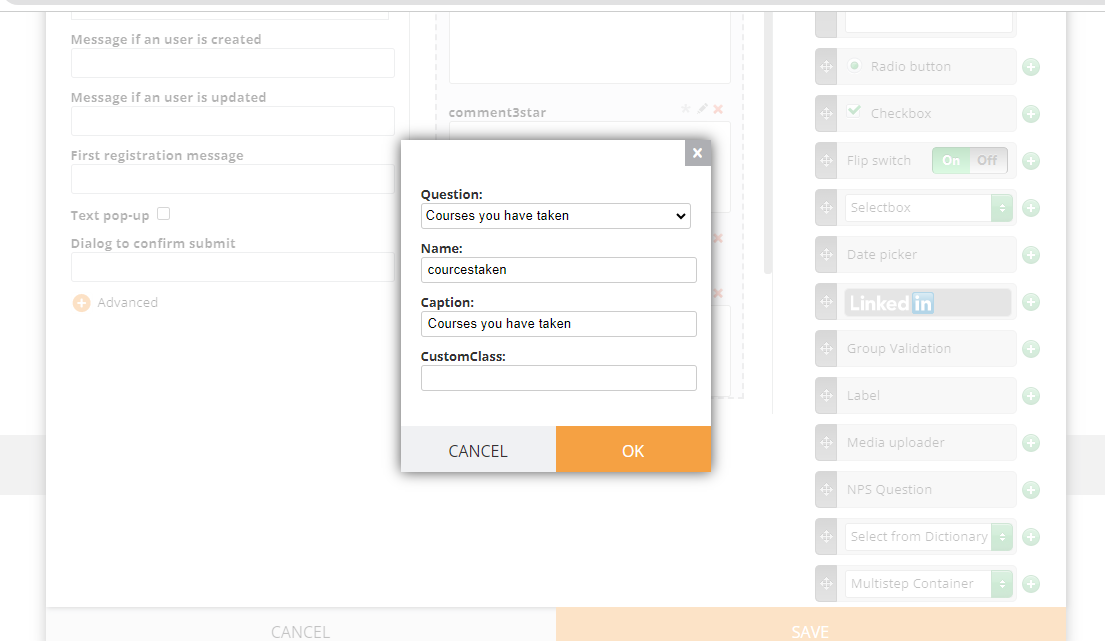
As this is a modified version of a dictionary question, to add it in a form, simply click “Select from Dictionary” and select it from the list and set up limits if needed:
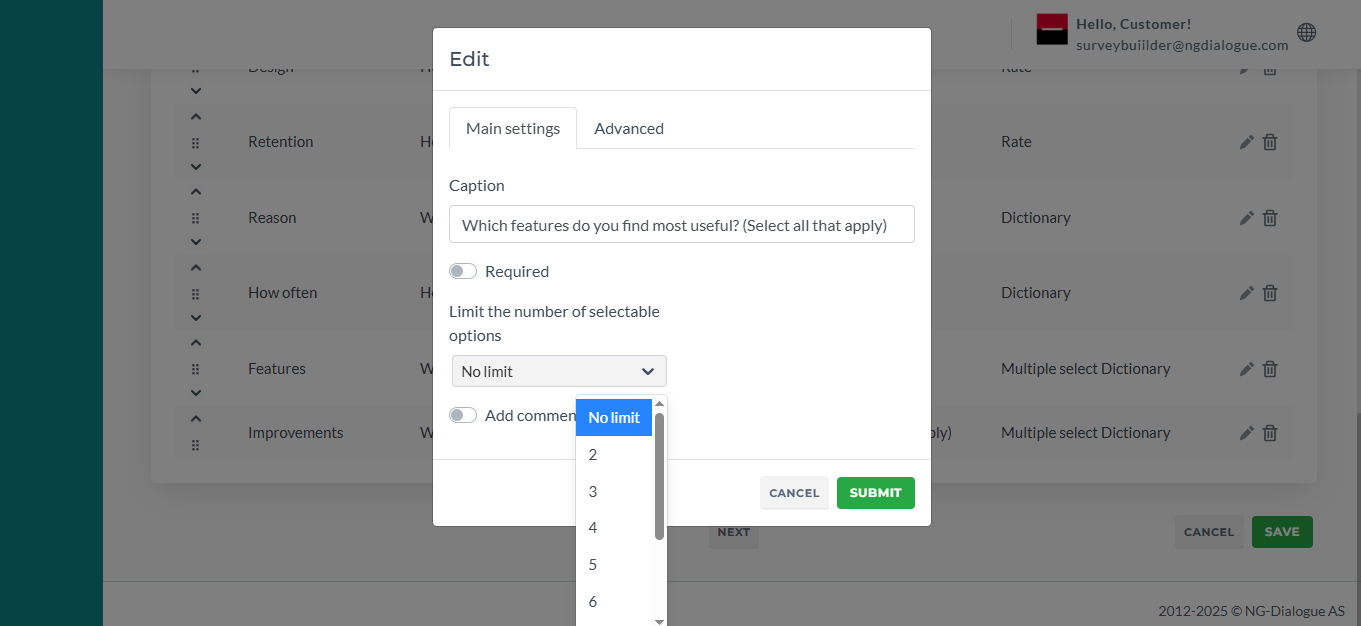
Or in Survey Builder:
¶ Unaided/Open Questions
If you need to add Unaided or Open questions, use Select from Dictionary Single Choice question and select Text in Show as:
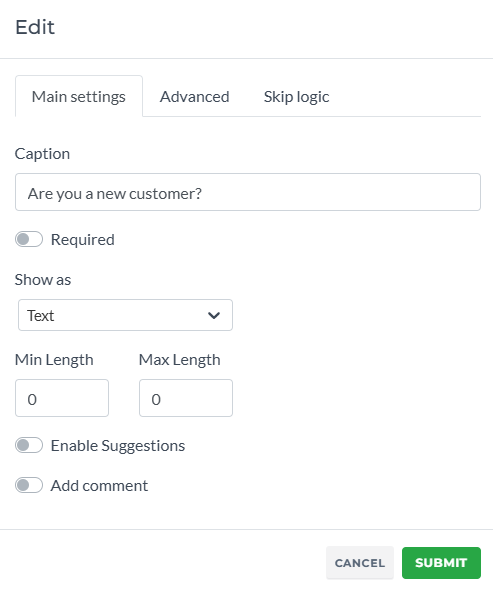
When “show suggestions” is enabled, the respondent will see suggestions which are essentially dictionaries of this question:
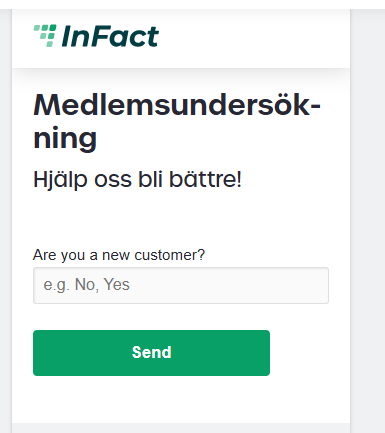
Each new answer will be saved as options for the next respondents.
If Show suggestions is disabled, the question may either be used unaided as well or as an open question.
¶ Survey Builder
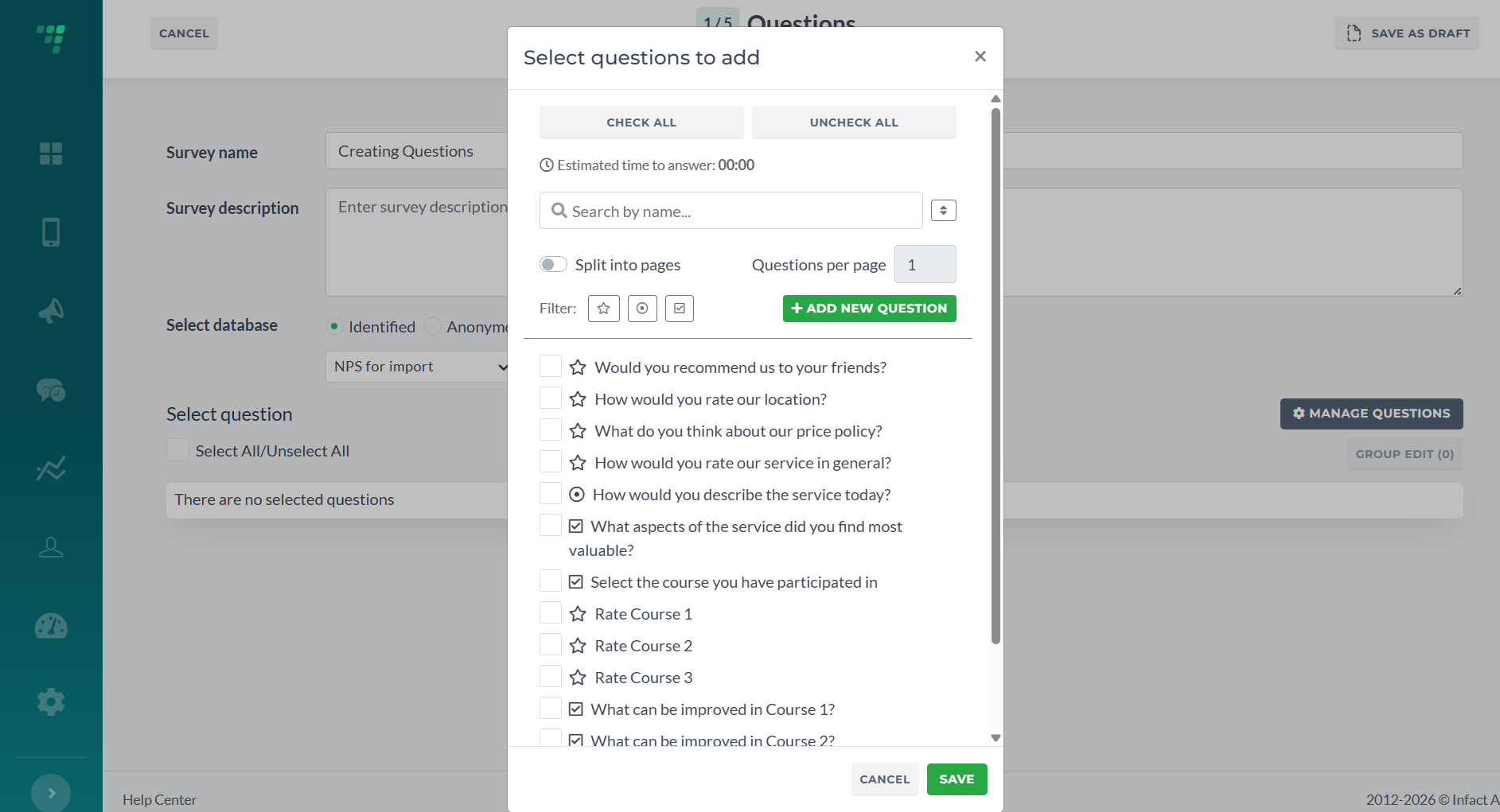
Now you can add questions (but not edit or delete) directly via Step 1 of Survey Builder.
Client Manage Questions and then Add New Question:
For further steps We recommend on checking this article