¶ 1. Go to Data page
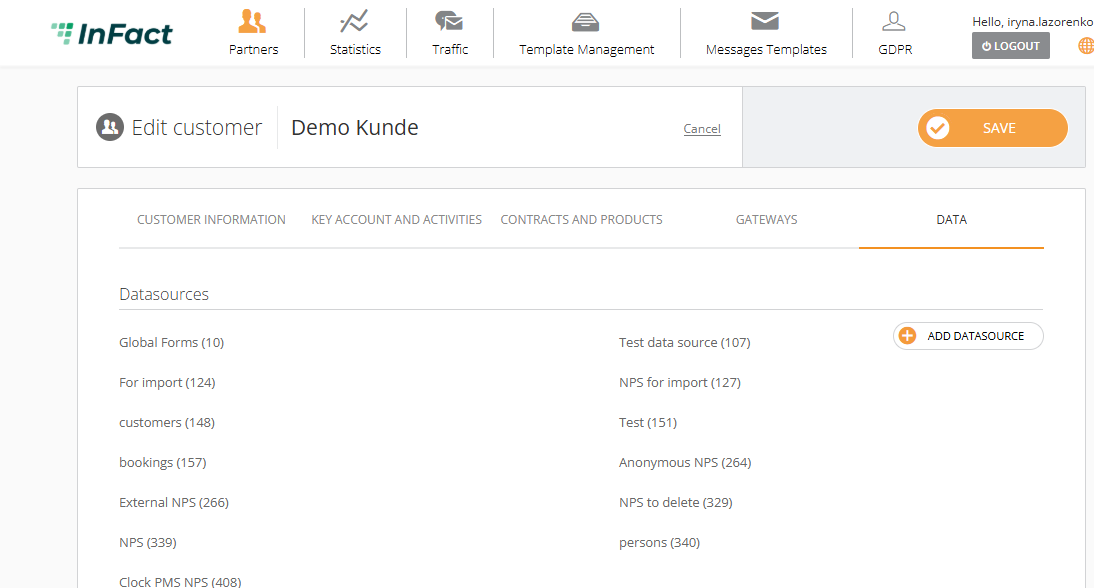
To start creating a Datasource, you need to log in with an Employee role. This will open a page with a list of Partners. Next, locate the specific Partner you need from the list and click on it to view the list of Customers inside. To enter, click on the icon to the right of the partner's name, which visually resembles the icon on the top panel of the Partners section (2 figures). Choose the desired customer from the list and go to the editing option by clicking on the pencil icon to the right of the customer's name. This will open the customer editing window. In the top-right menu, the option furthest to the right will be DATA. Click on it. Here you will find a list of datasources (if you already have them) and also an ADD DATASOURCE button which you need to press.
¶ 2. Create Generic (members) Datasource if the survey is not anonymous
After clicking the "ADD DATASOURCE" button, a datasource creation window will open where you should specify the type (generic), name, and basic properties.
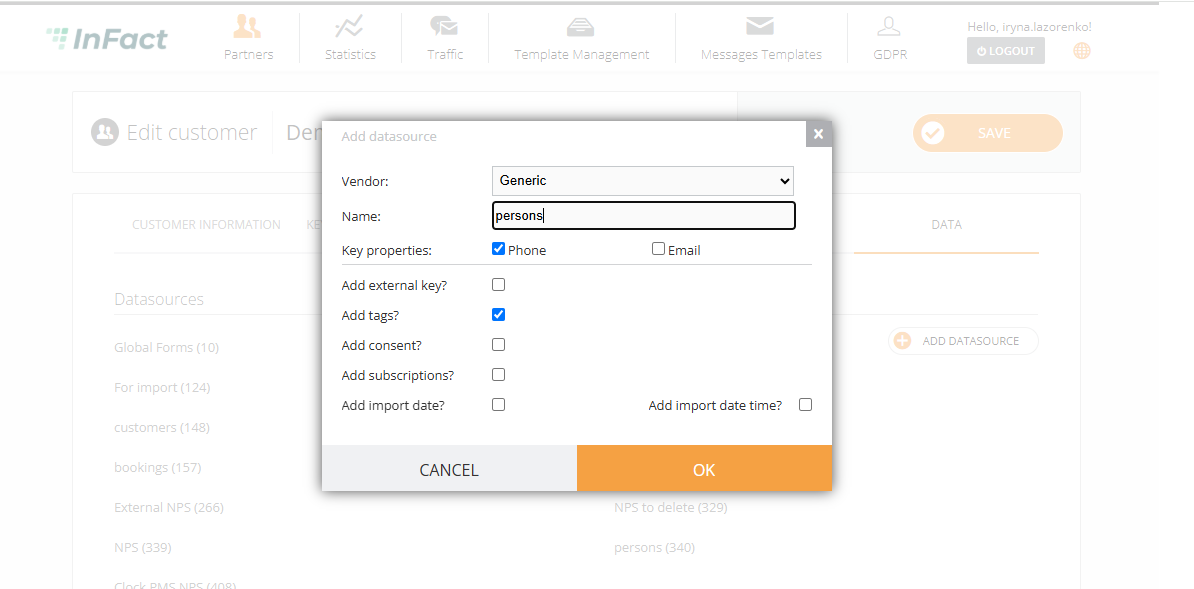
- Add subscriptions — no unless otherwise instructed (this segment is in development);
- Add import date — always added unless otherwise instructed;
- Add import time — always added unless otherwise instructed;
- Add external key — no unless otherwise instructed;
- Add tags — is on by default;
- Add consent — no unless otherwise instructed;
- Key properties — phone is on by default, you can add email as well. Key property allows you then merge your data via Import;
Press OK and check if the newly created Datasource has appeared in the list of Datasources.
¶ 3. Create Survey Datasource connected to members Datasource
After you have created the Generic (members) datasource, you can proceed to create the Survey Datasource. This is crucial as they need to be mapped together. In the creation window, select the appropriate previously created Datasource from the dropdown list that you would like to map with your Survey Datasource.
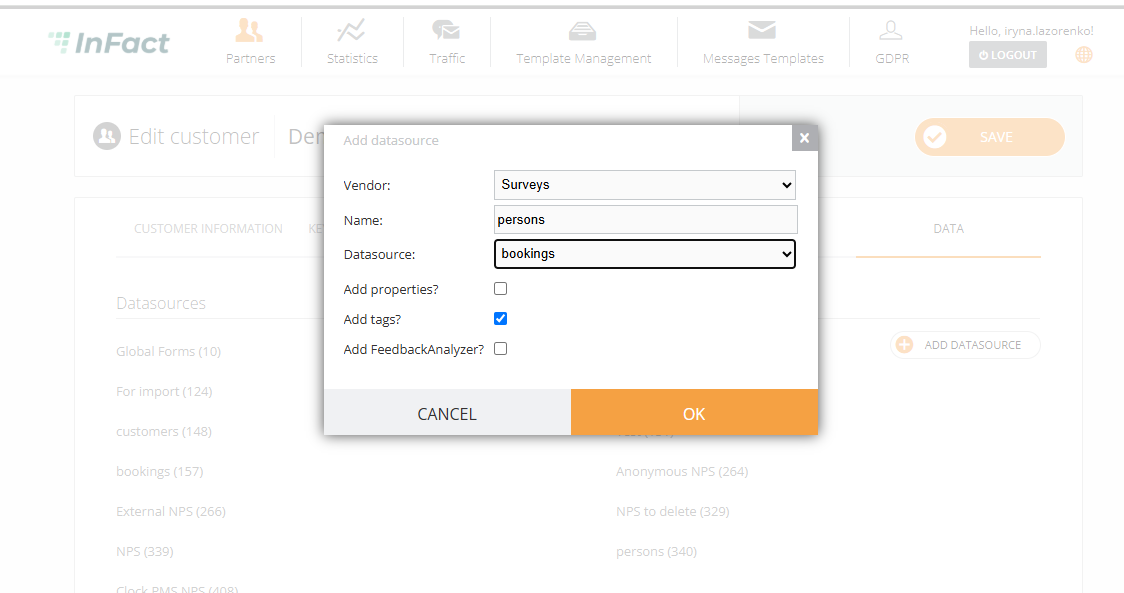
- Add tags — is on by default;
- Add properties — no unless otherwise instructed;
- Name can be “Survey” or anything related to it;
Press OK and check if the newly created Survey Datasource has appeared in the list of Datasources.
¶ 3*. Create Anonymous Survey Datasource if the survey is anonymous
You do not need to have a members datasource to connect to
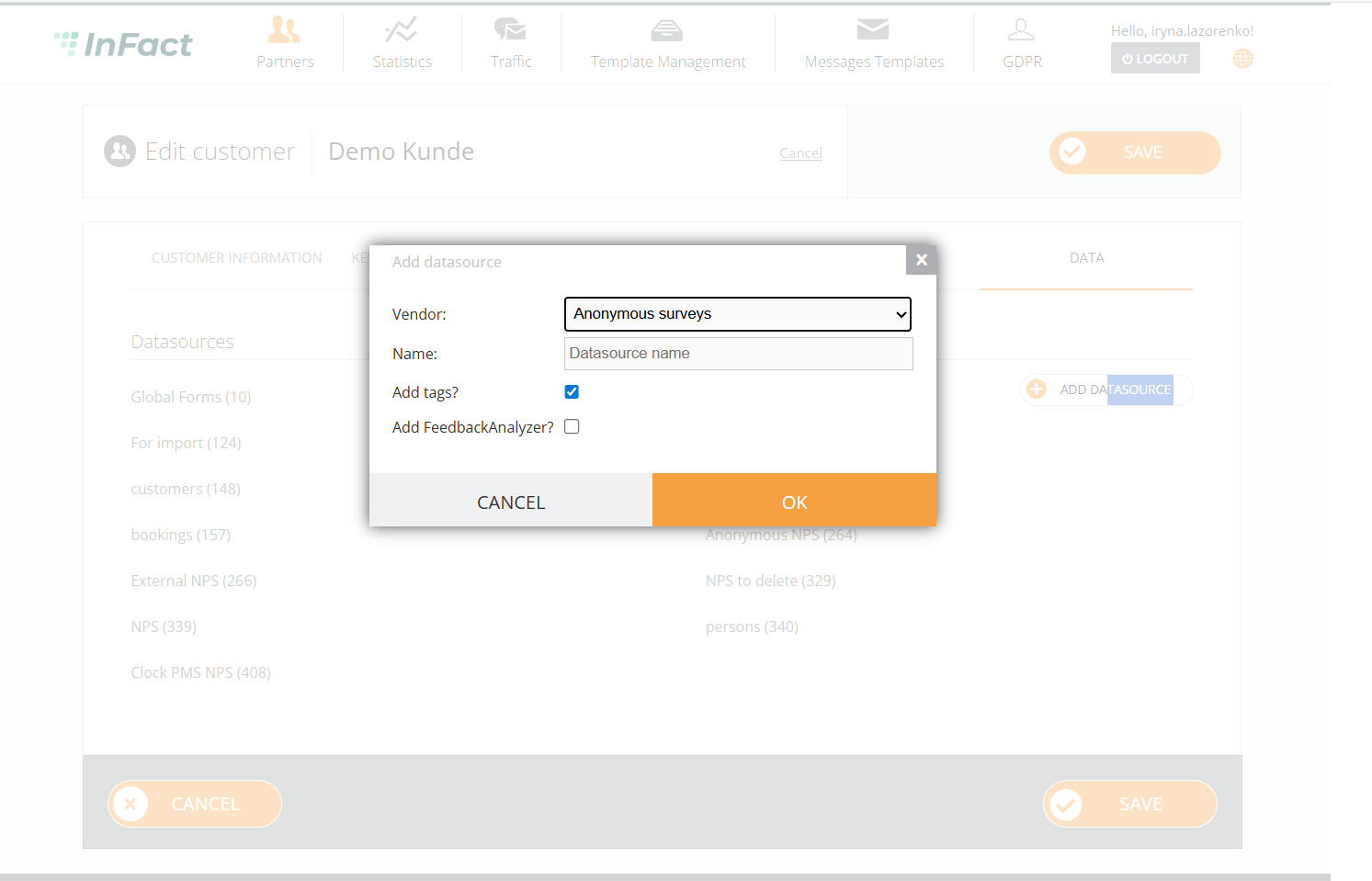
- Add tags — is on by default;
- Add properties — no unless otherwise instructed;
- Name can be “Anonymous Survey” or anything related to it;
Press OK and check if the newly created Survey Datasource has appeared in the list of Datasources.
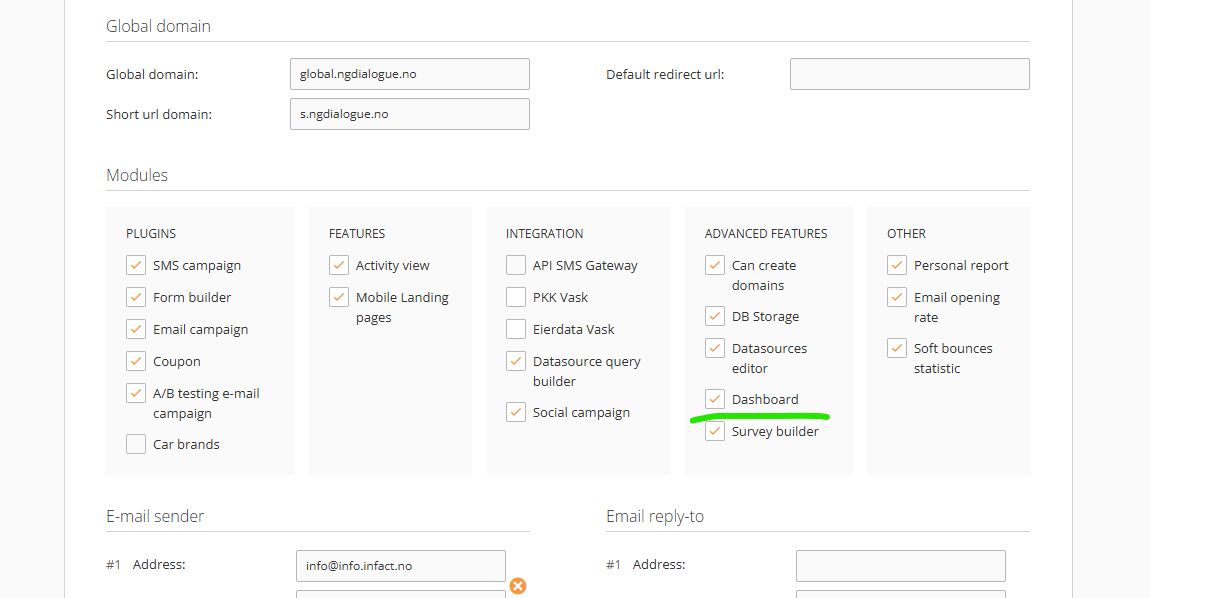
¶ Make sure Dashboard feature is enabled
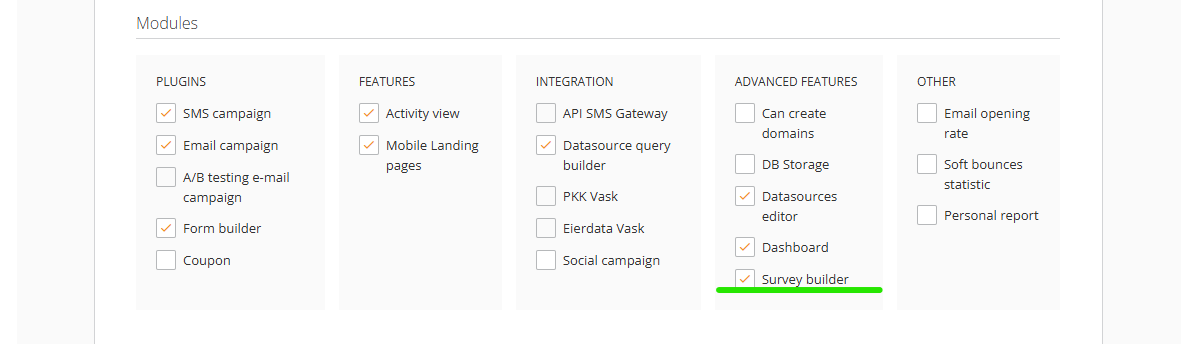
In the same window, within the main menu at the top panel, navigate to the first section labelled "Customer Information". Scroll down to the "Modules" section. Here, you can select all the necessary settings you require.
¶ Make sure Survey Builder feature is enabled if you intend on using it
By default the Survey Builder is disabled for a Partner and all its customers
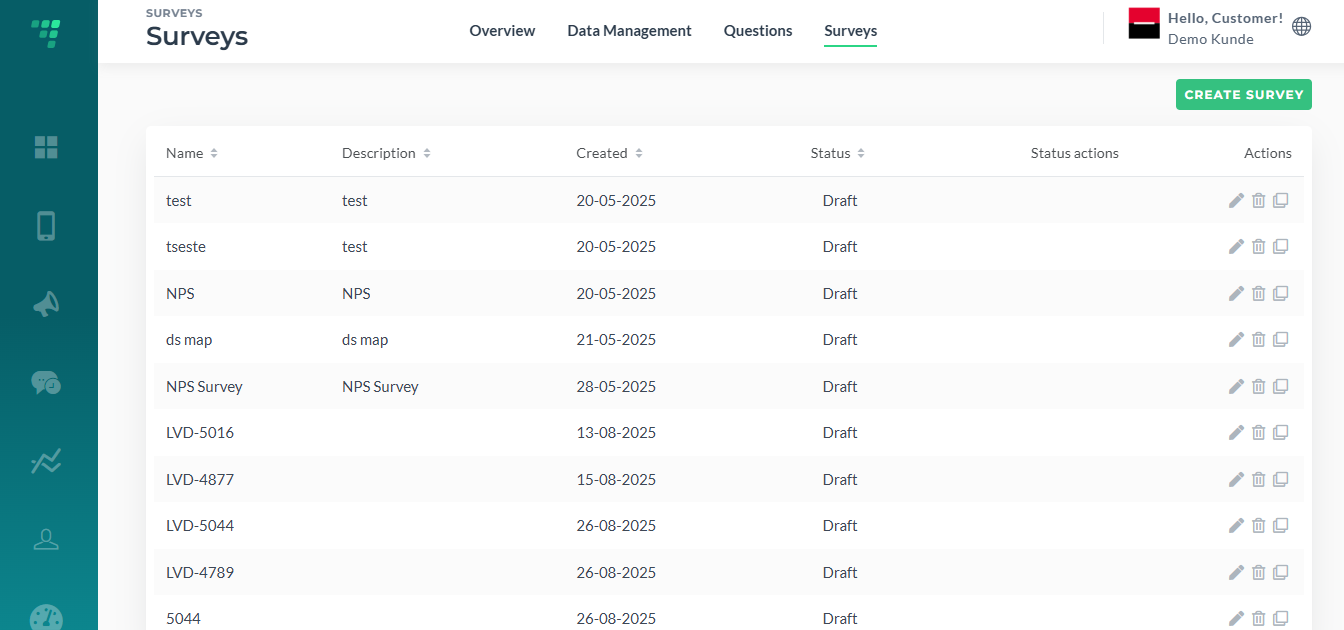
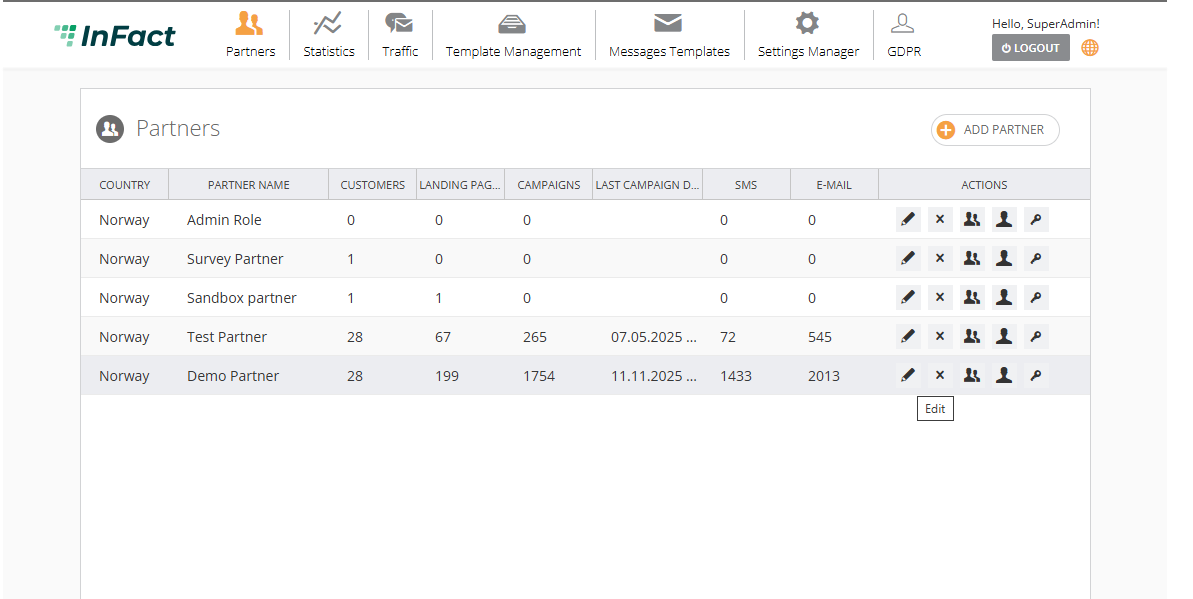
You need to enable it for the Partner
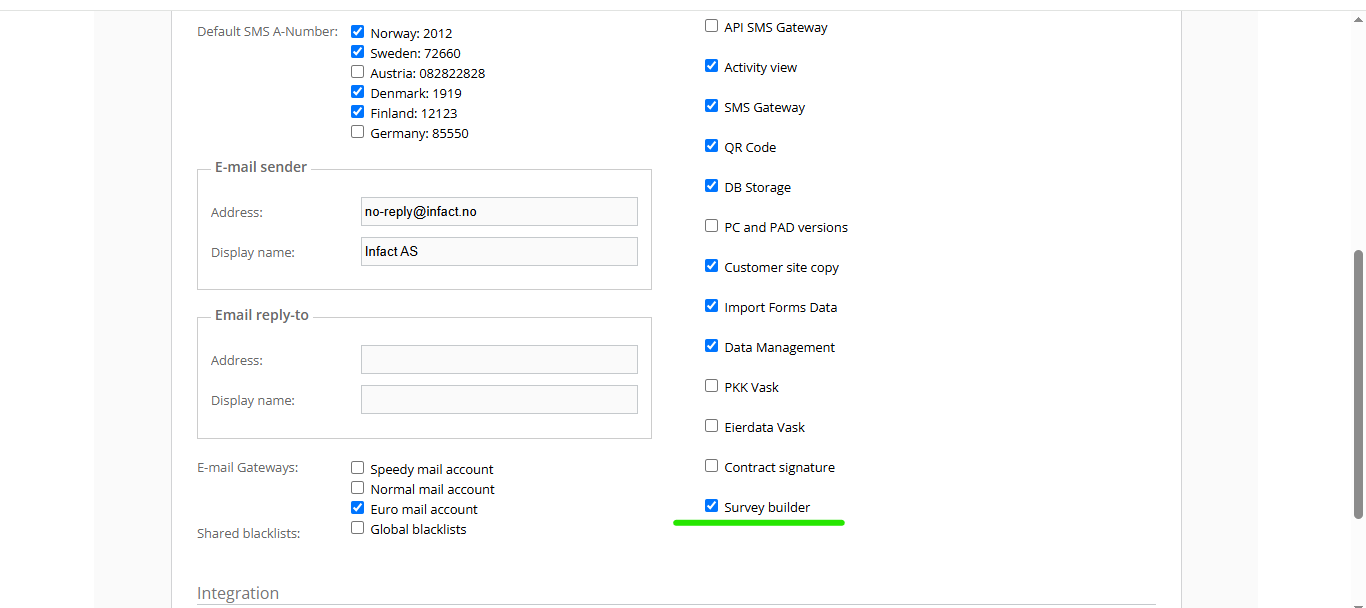
Then the module will be active for the customers and you can turn it on.
¶ Make sure Voice Poll Inteegration feature is enabled if you intend on using it
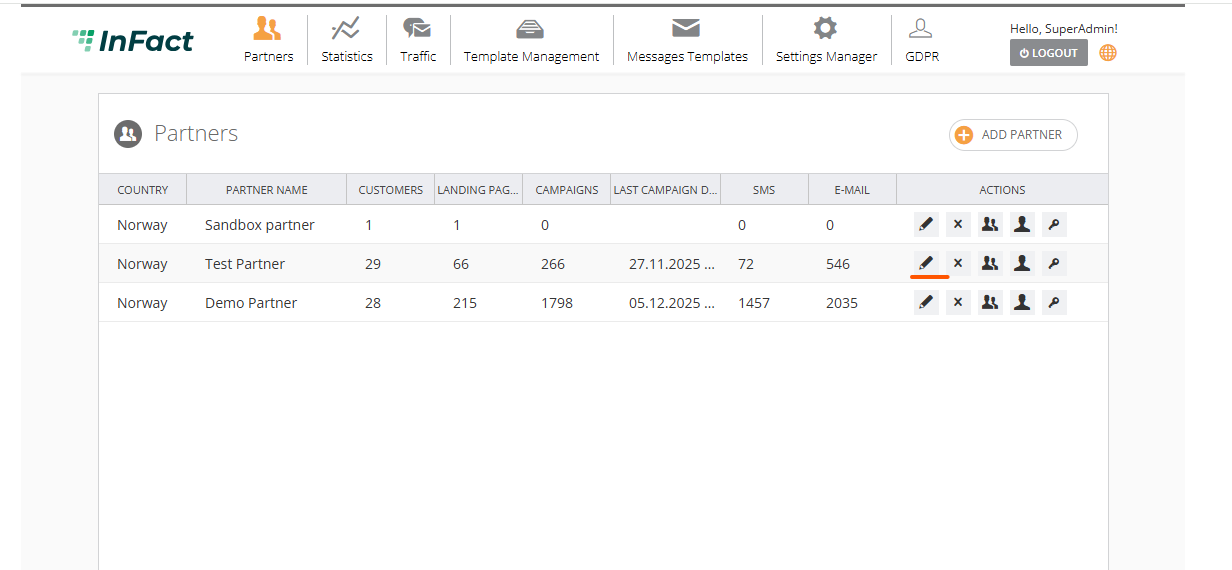
¶ Enable Voice Poll for Partner
Log in under Employee and click Edit Partner:
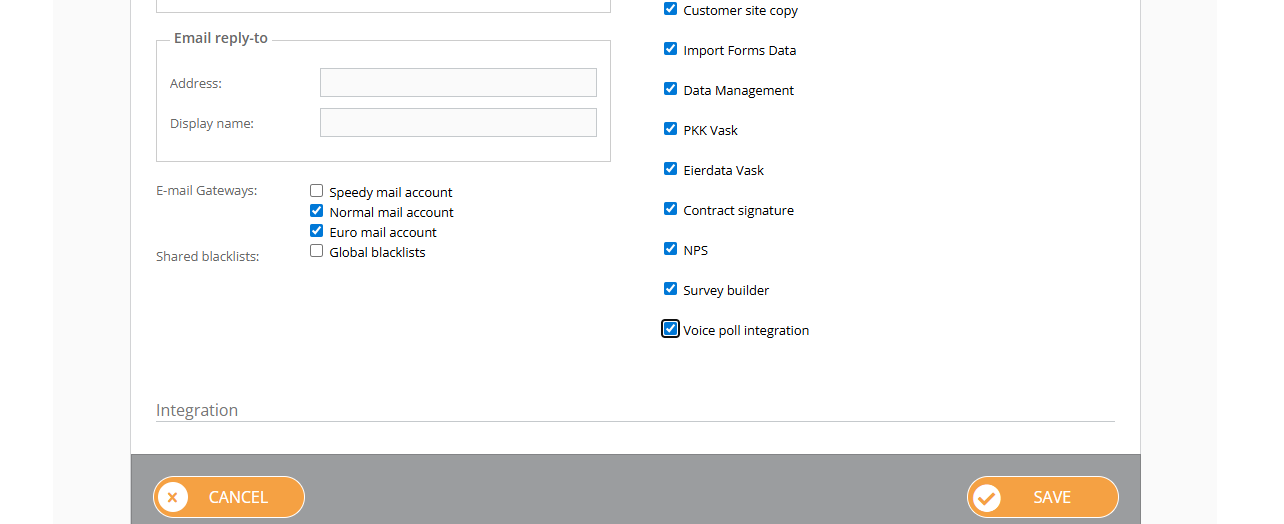
Enable Voice Poll and save:
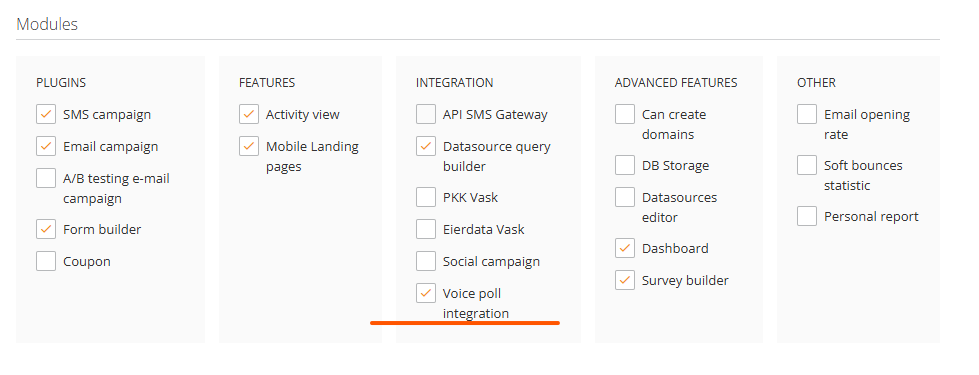
¶ Enable Voice Poll for Customer
Click Edit Customer and scroll down to Modules, enable Voice Poll and Save:
After the integration is on, you will see the list of clients who have permission to use Surveys:
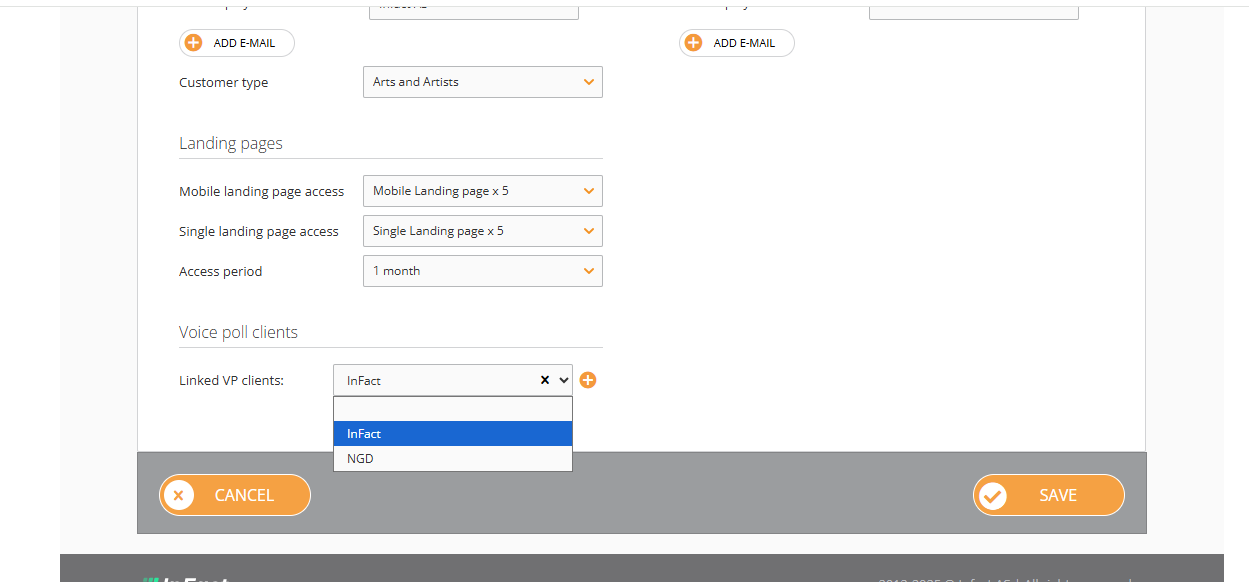
After this is done, a customer can create a web survey via Survey Builder.
¶ NB!
You cannot log in under both Employee and Customer (generally, you can be logged in only as one user). To use more than one account at a time, use different browsers/different Google account/Incognito account. Logging under a different under will lead to being logged out as a previous user.