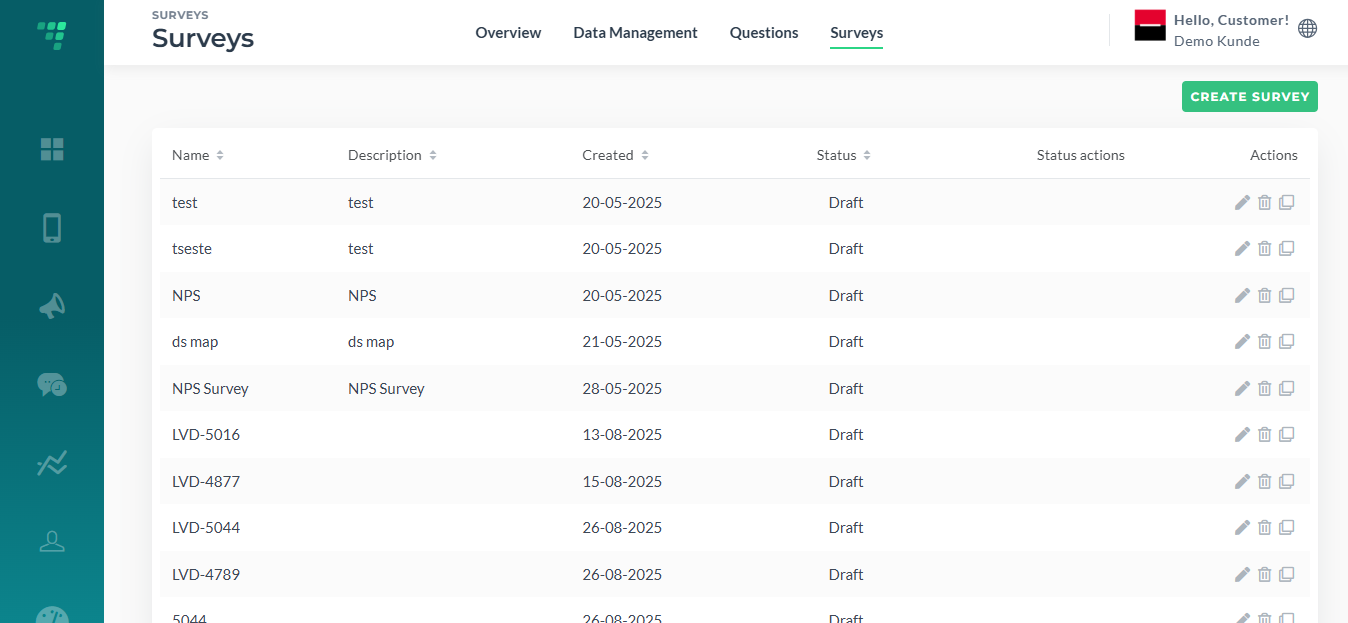
¶ How to access it?
Log in under Customer, go to Statistics ⇢ Surveys
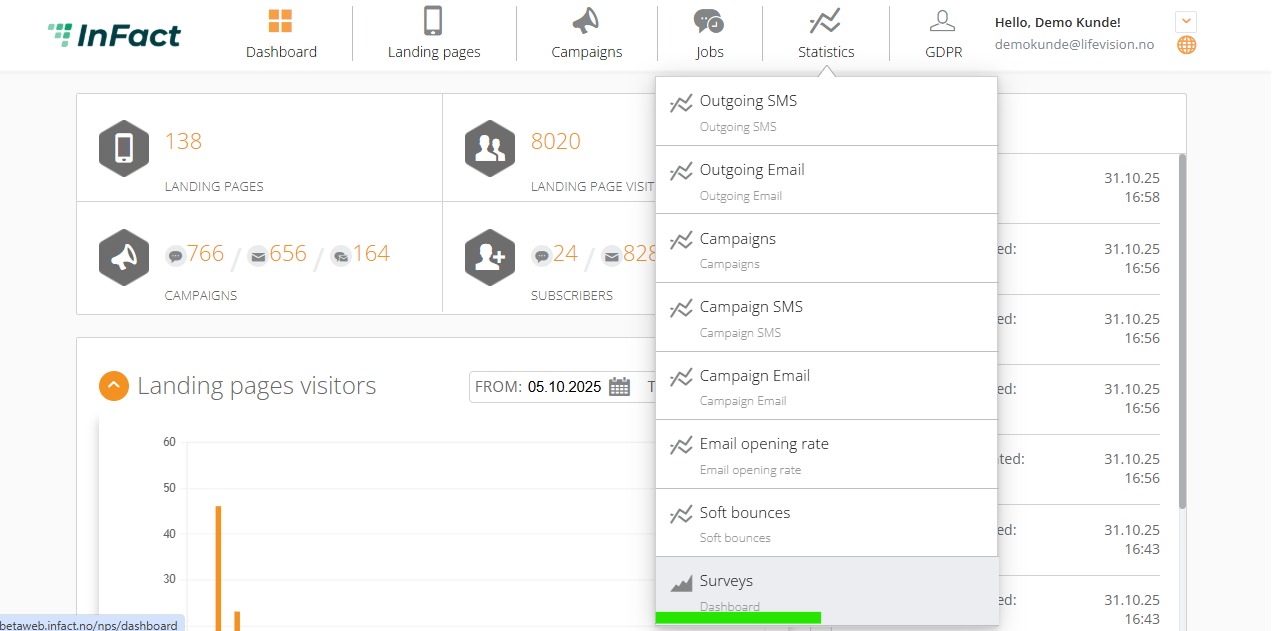
or
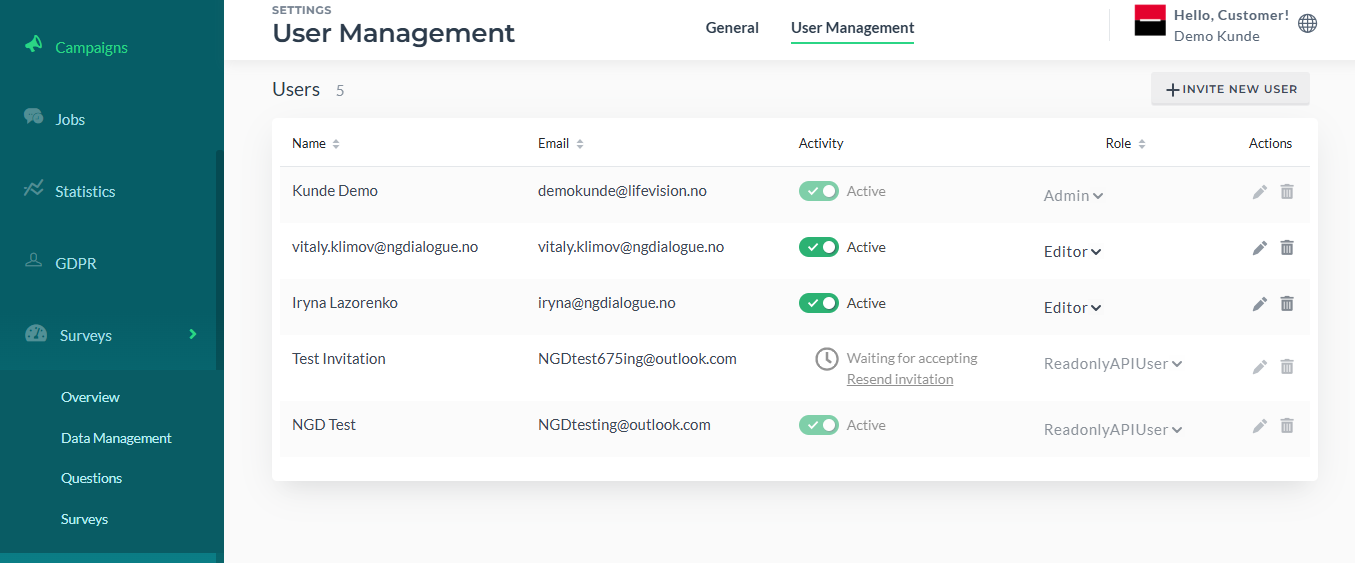
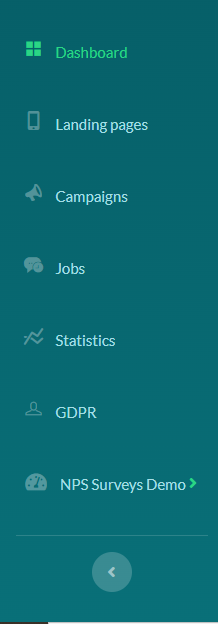
If you are located on any of the web pages (User Management Page, for example), you can expand the left panel and click on any section under NG Surveys:
¶ Create NG Survey Dashboard
If you still do not have it, you can request your project manager to create it for you. Guide for managers on how to create datasources and Dashboard.
¶ How to Set up your NG Survey Dashboard
After you have Dashboard, you need to add questions and then add them to the form that will collect recipients' data. Learn how to do it:
Article how to set up your Dashboard.
¶ Overview
In this section, we have cards representing gathered data.
¶ Upper panel
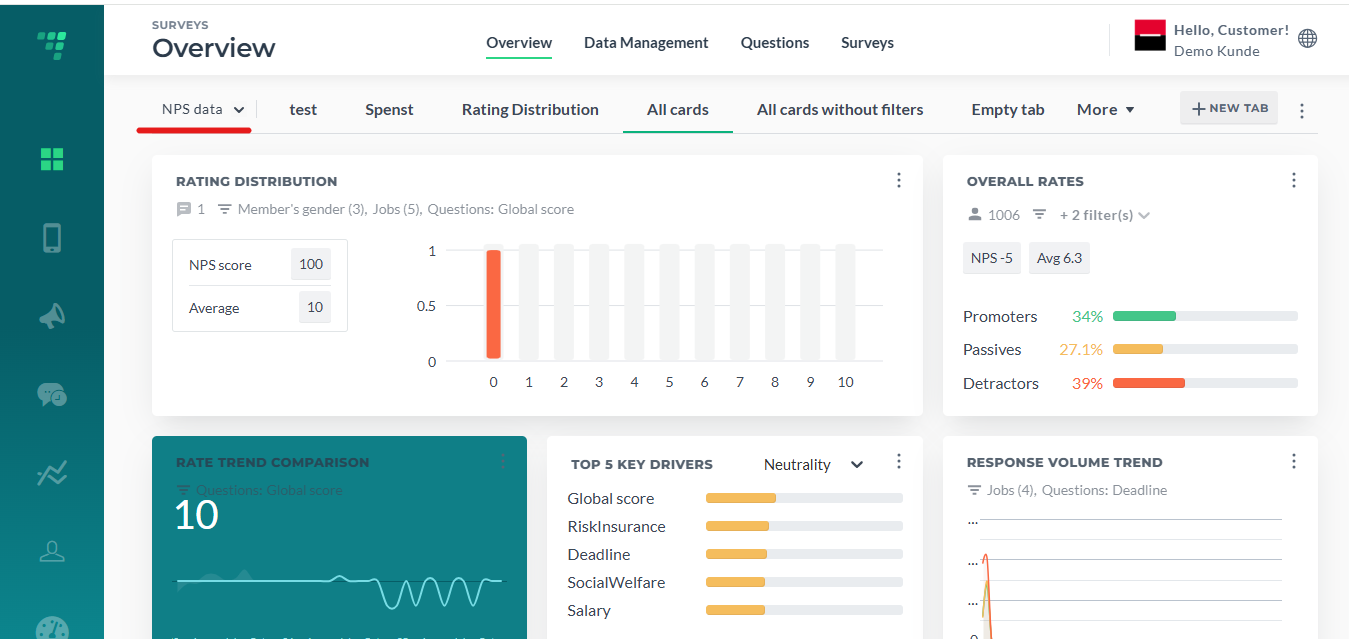
It has a datasource switch, tabs and the buttons “new tab”, “new card” and “edit”.
¶ Datasource switch
¶ Tabs
The first tab can only be renamed and duplicated. Other can also be deleted:
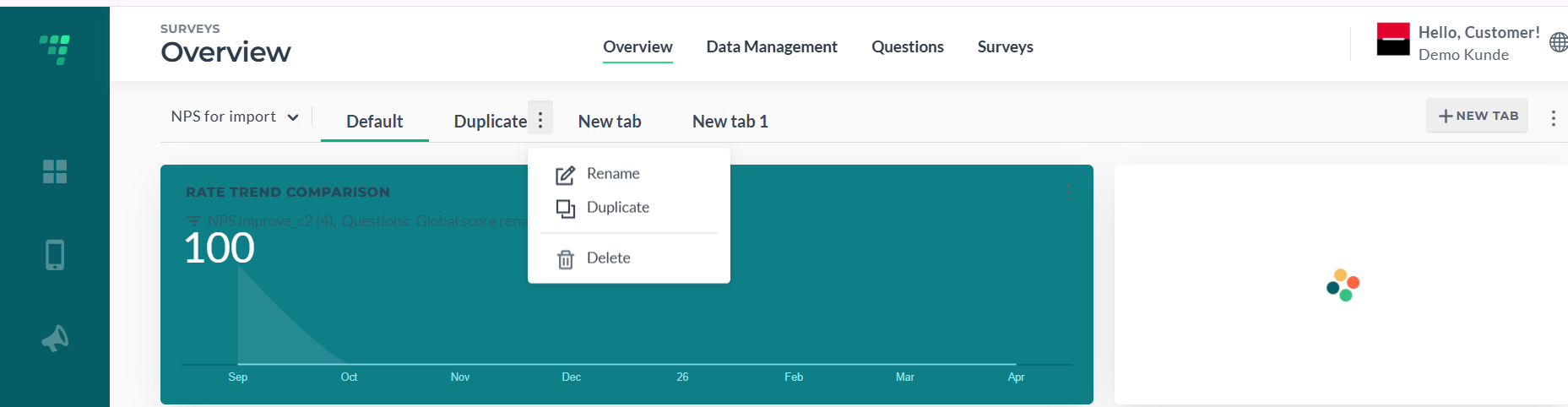
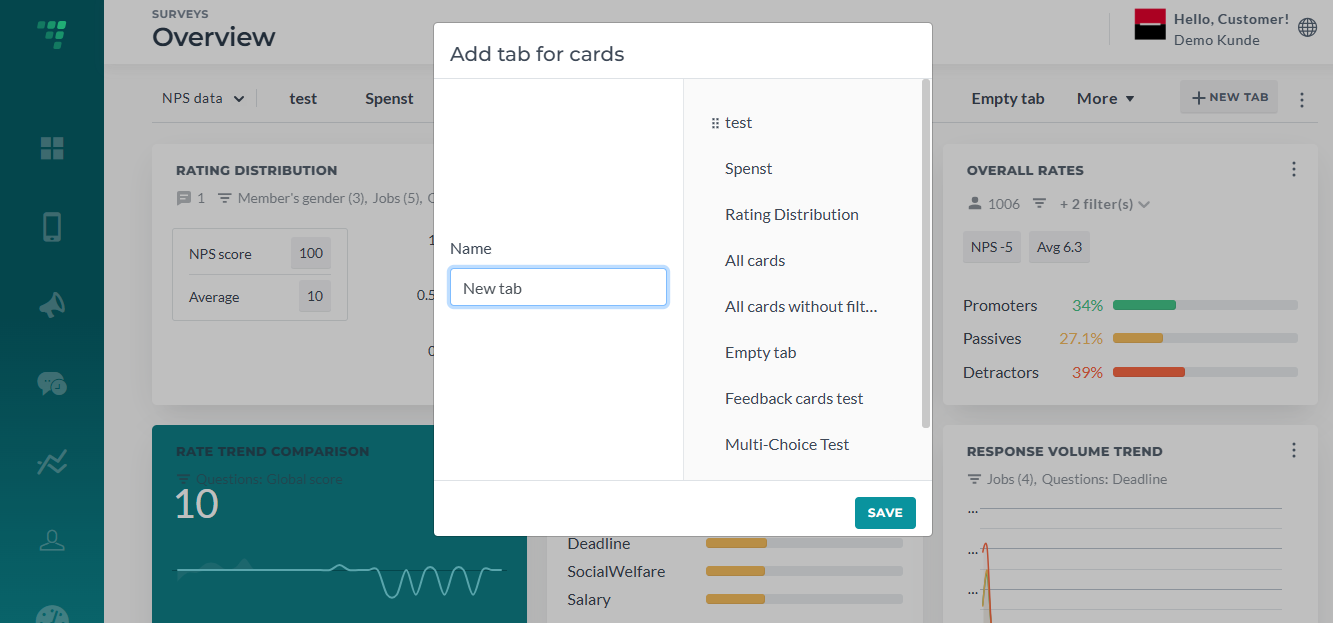
Clicking New tab can help you add a new tab and also change the order of existing tabs.
¶ New card
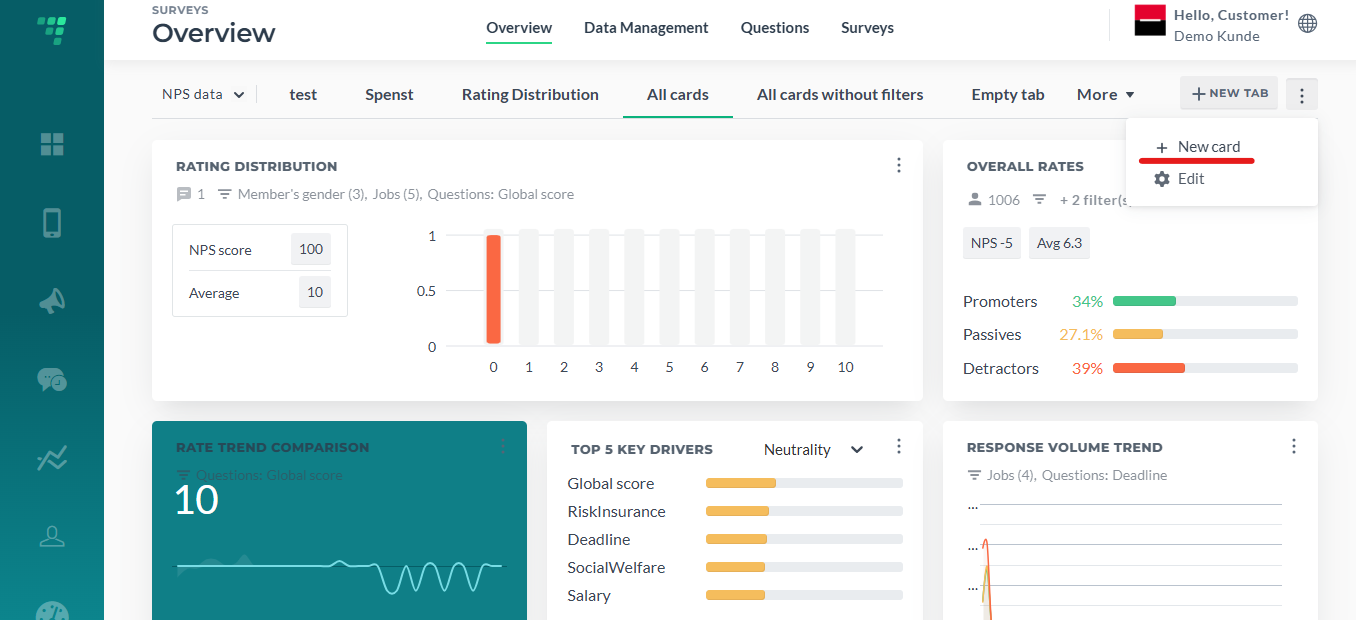
New card can be added in two ways: by clicking New Card and in Edit Menu:
¶ Add Card
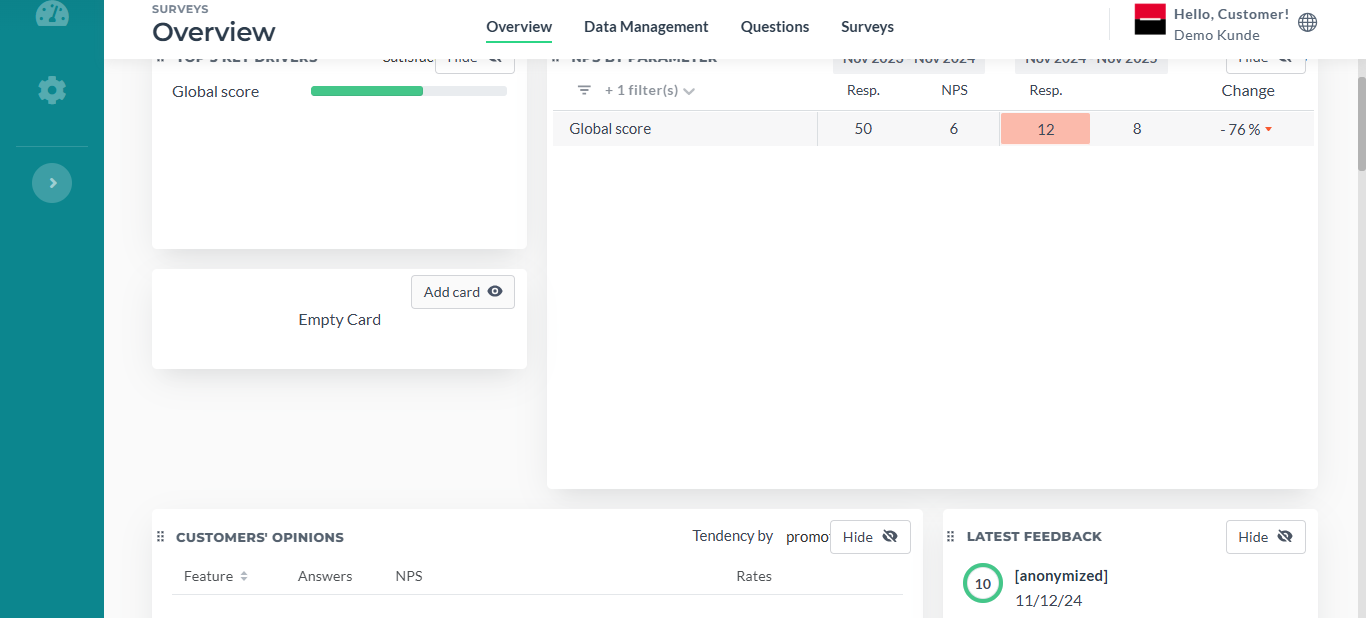
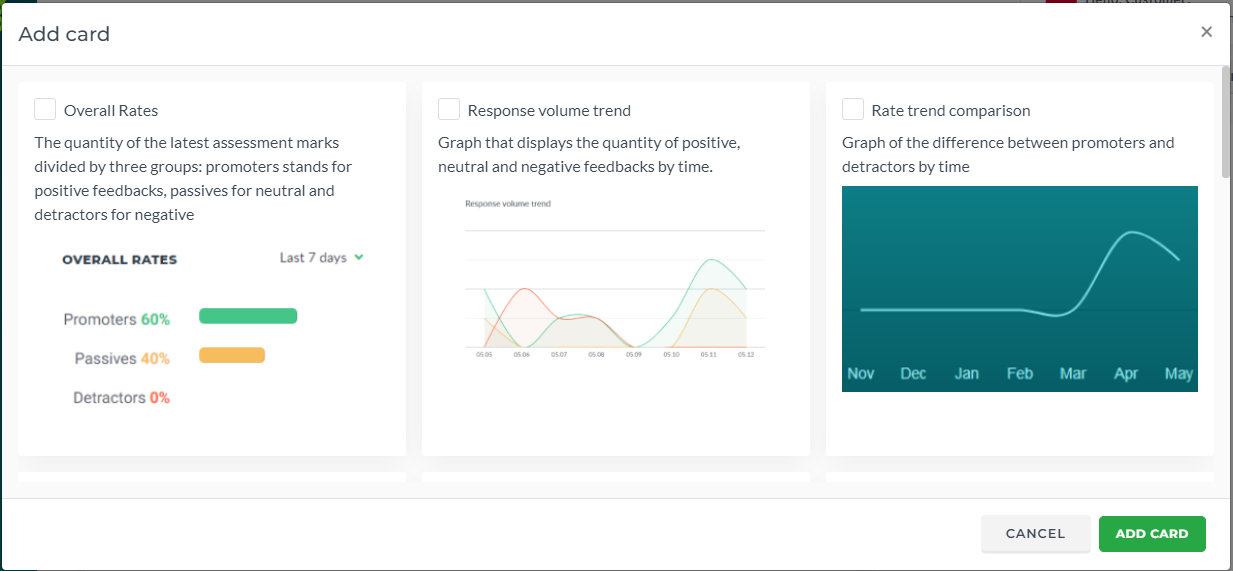
When you click Add card, you will see the cards menu and their description:
¶ Edit
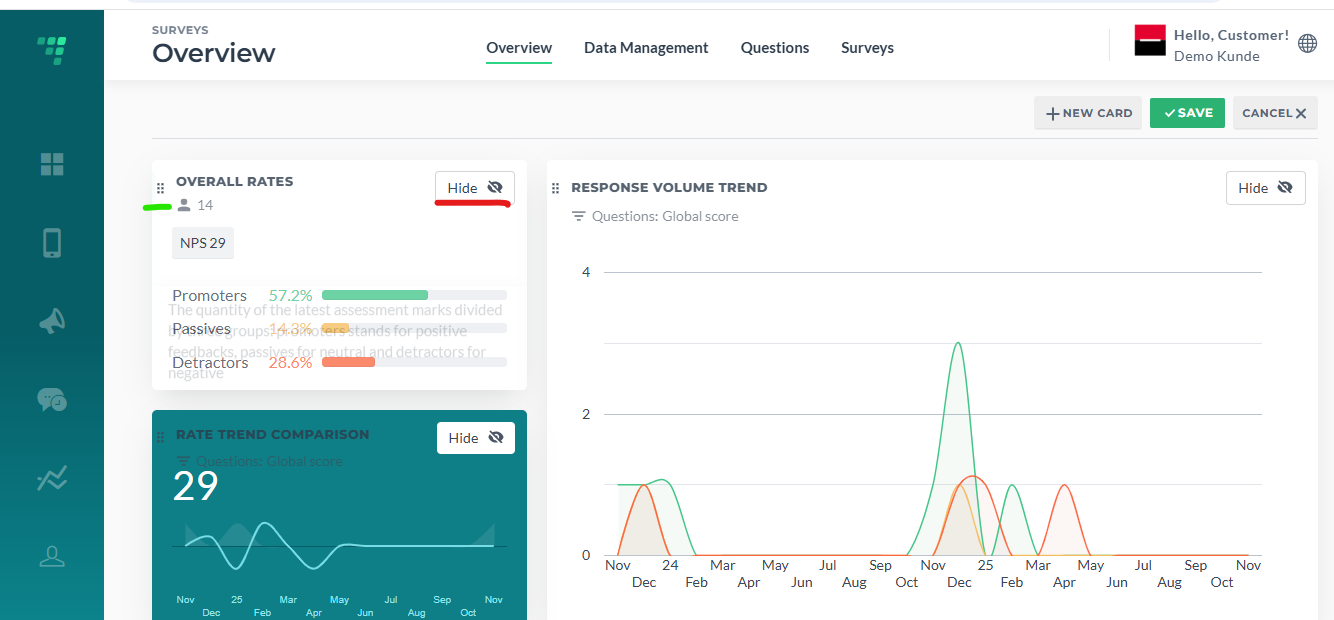
You can Save and Cancel your actions by clicking Save and Cancel in the upper-right corner.
¶ Cards
You can read about different cards in the “New Card” preview when you are adding them to your Dashboard.
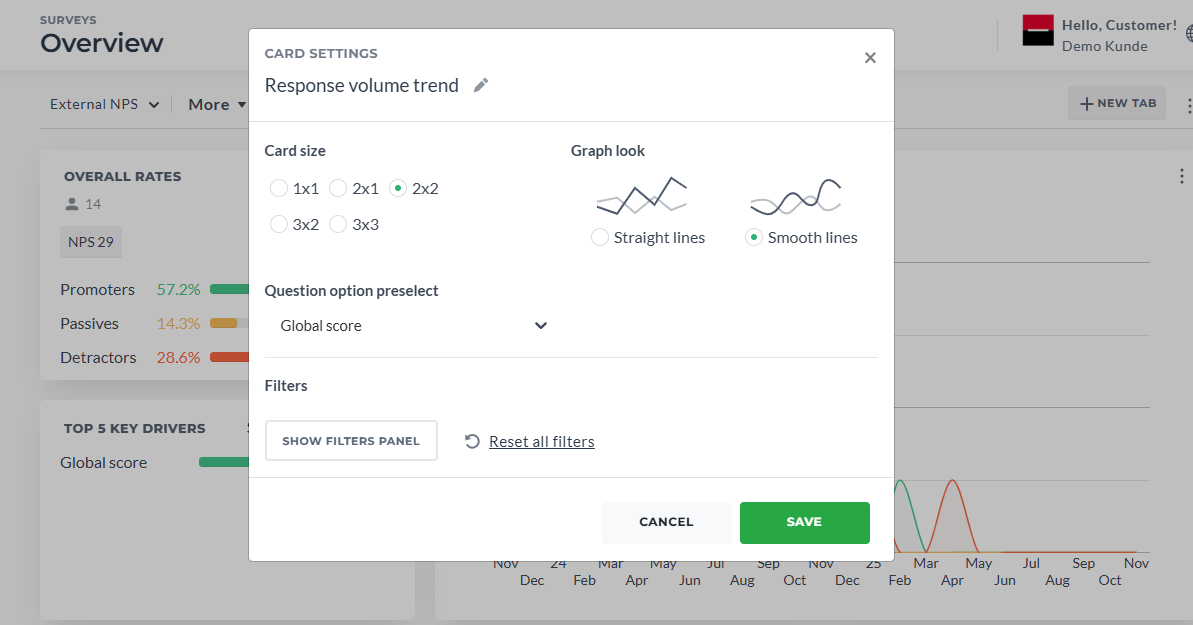
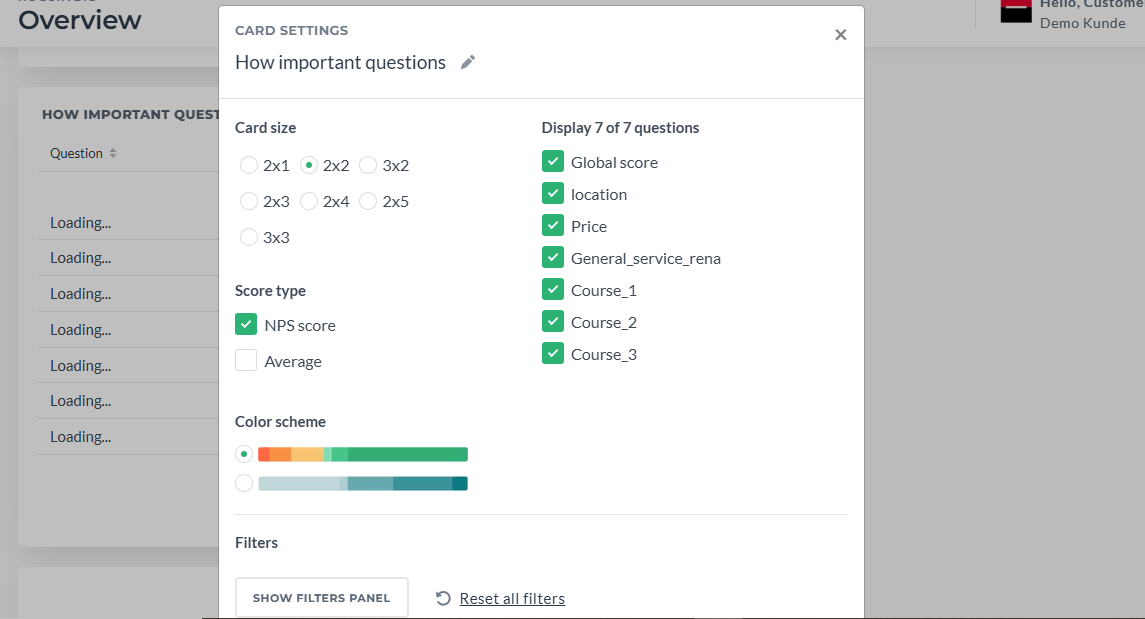
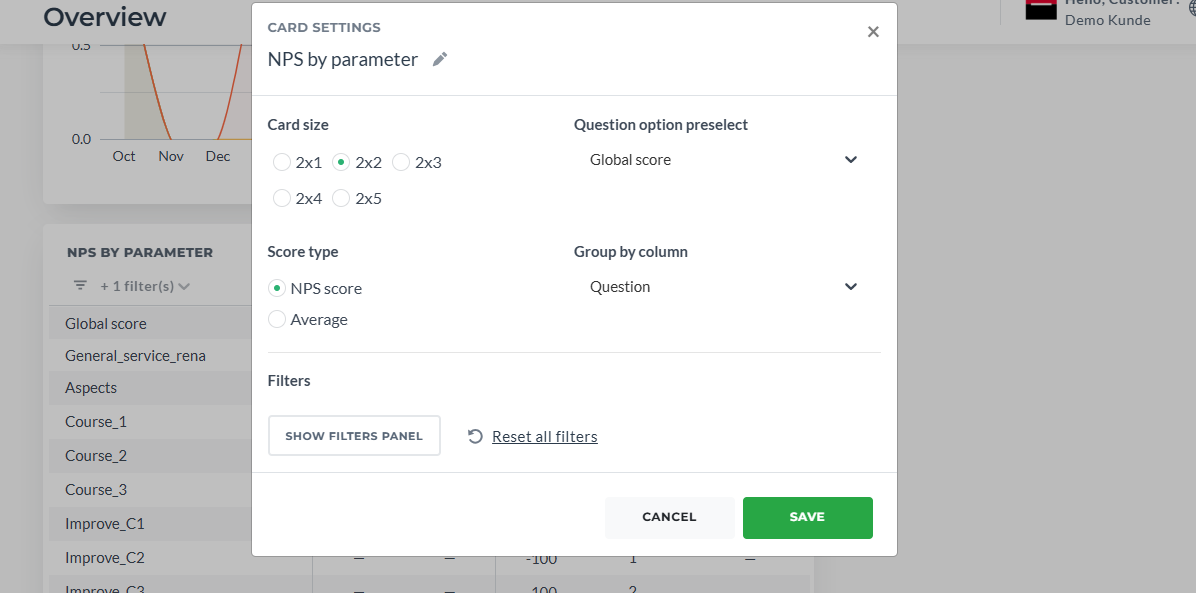
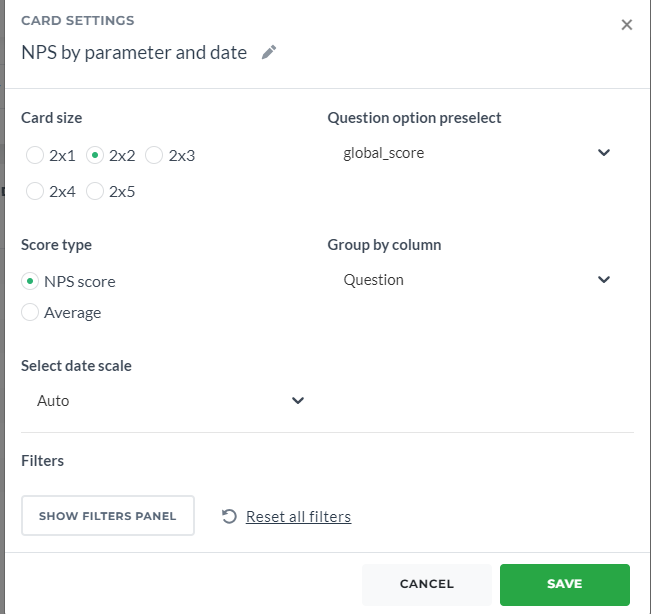
Regarding the settings of each card. You can set up its size, look, question option preselect, choose filters and rename the card.
When you copy the existing card, it is copied with the same settings (filters, size)
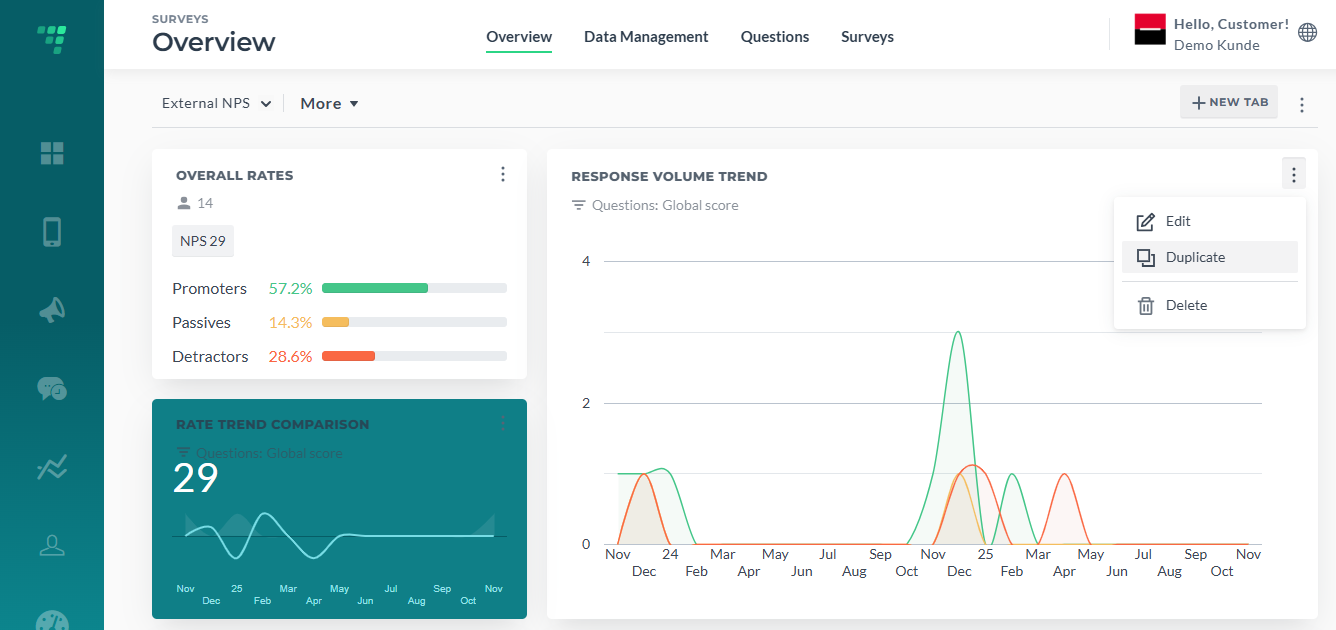
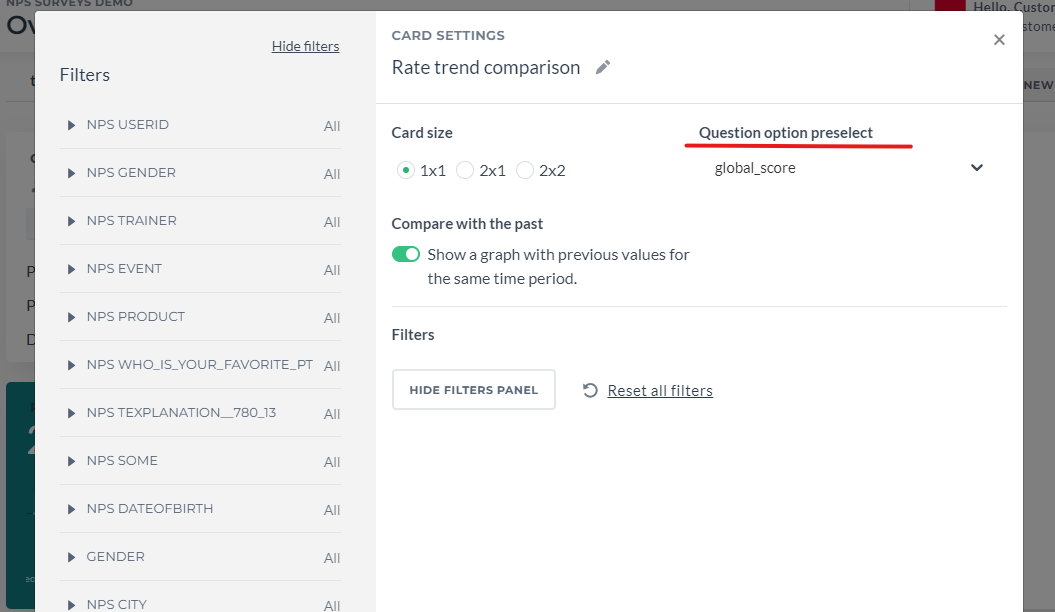
By default in the filter preview of the card you can see "Question option preselect" (it is global score if not set differently) and the date filter “All dates”. You can change this default settings of the card.
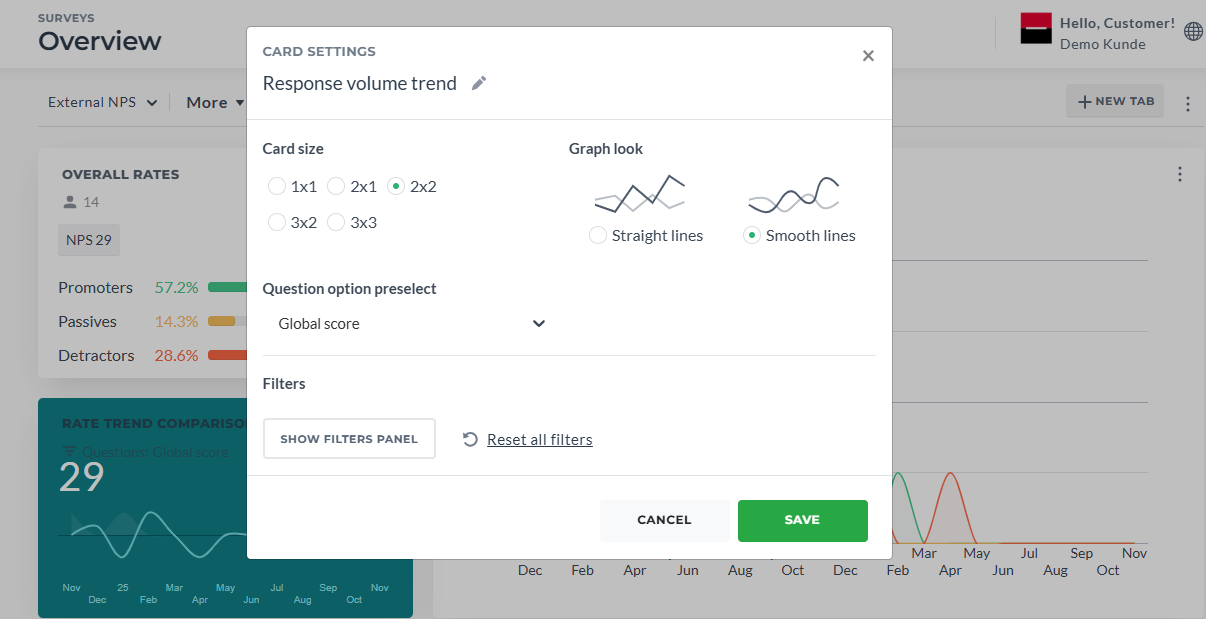
¶ Rate Trend Comparison
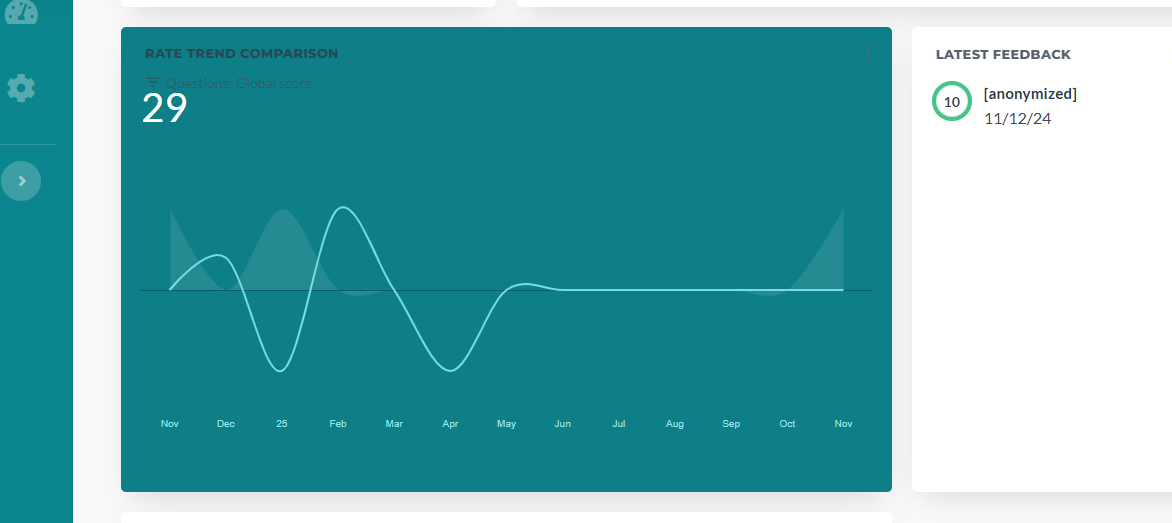
Graph of the difference between promoters and detractors by time.
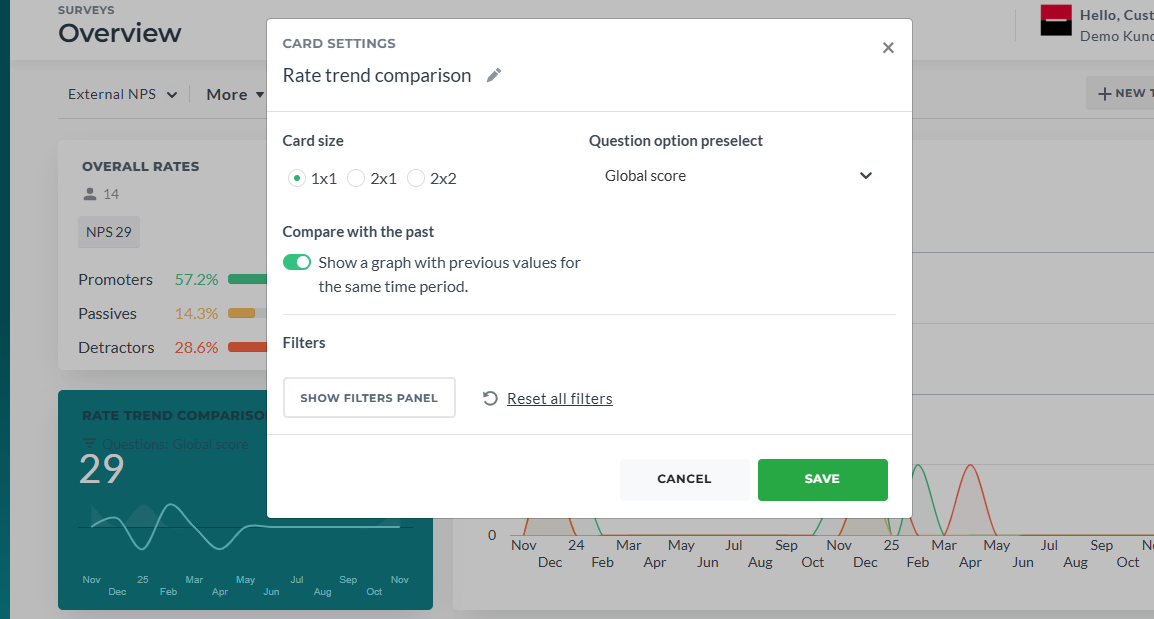
Compare with the past adds graph representing old data:
¶ Overall Rates
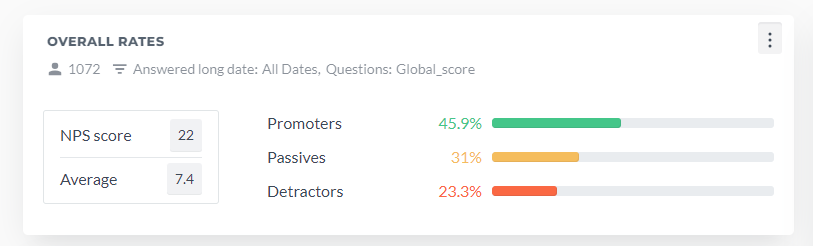
The quantity of the latest assessment marks divided by three groups: promoters stands for positive feedbacks, passives for neutral and detractors for negative. By default date is set to All Dates, preselected question is Global Score. Also, the general number or users provided answers is shown.
¶ Response Volume Trend
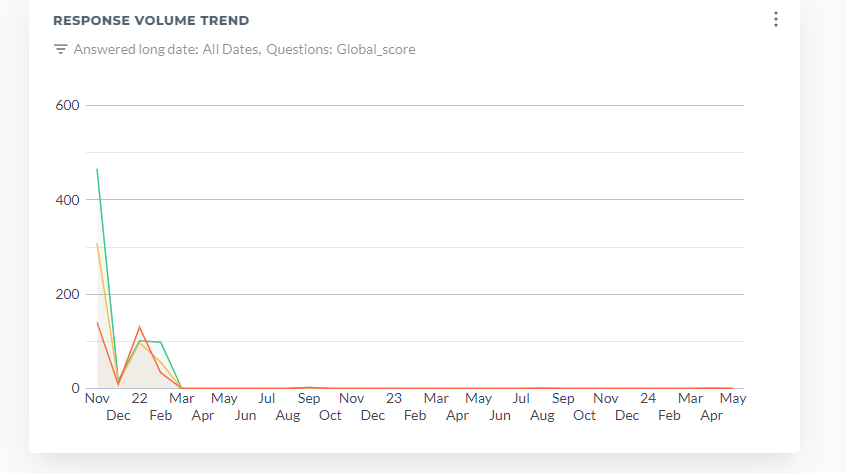
Graph that displays the quantity of positive, neutral and negative feedbacks by time. By default date is set to All Dates, preselected question is Global Score.
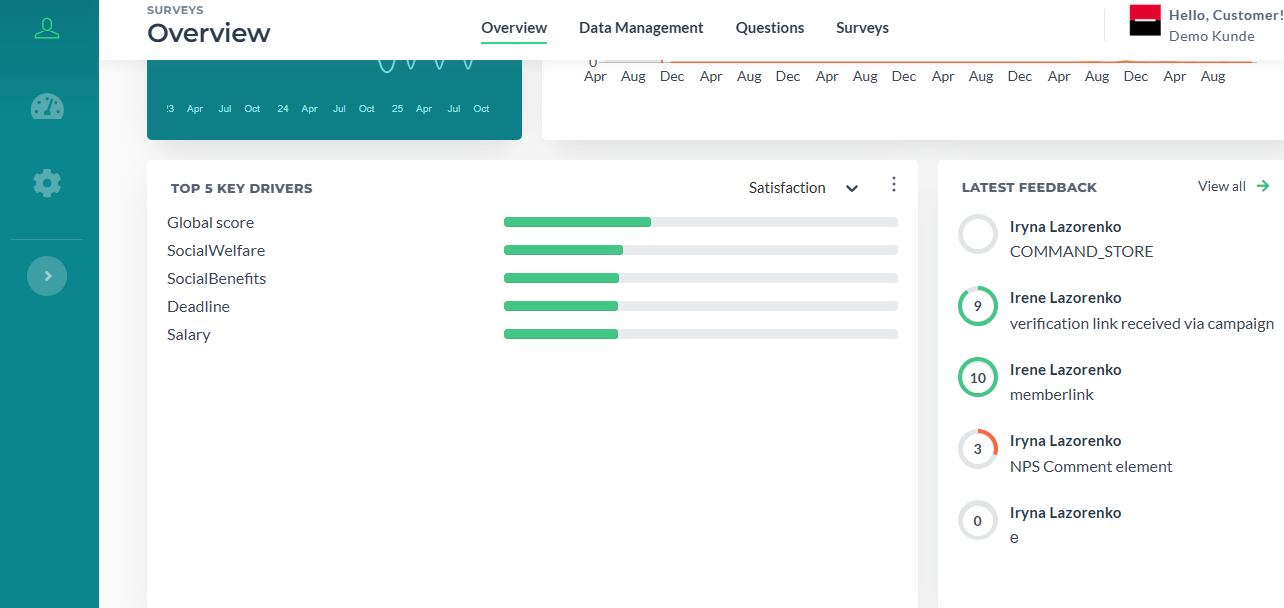
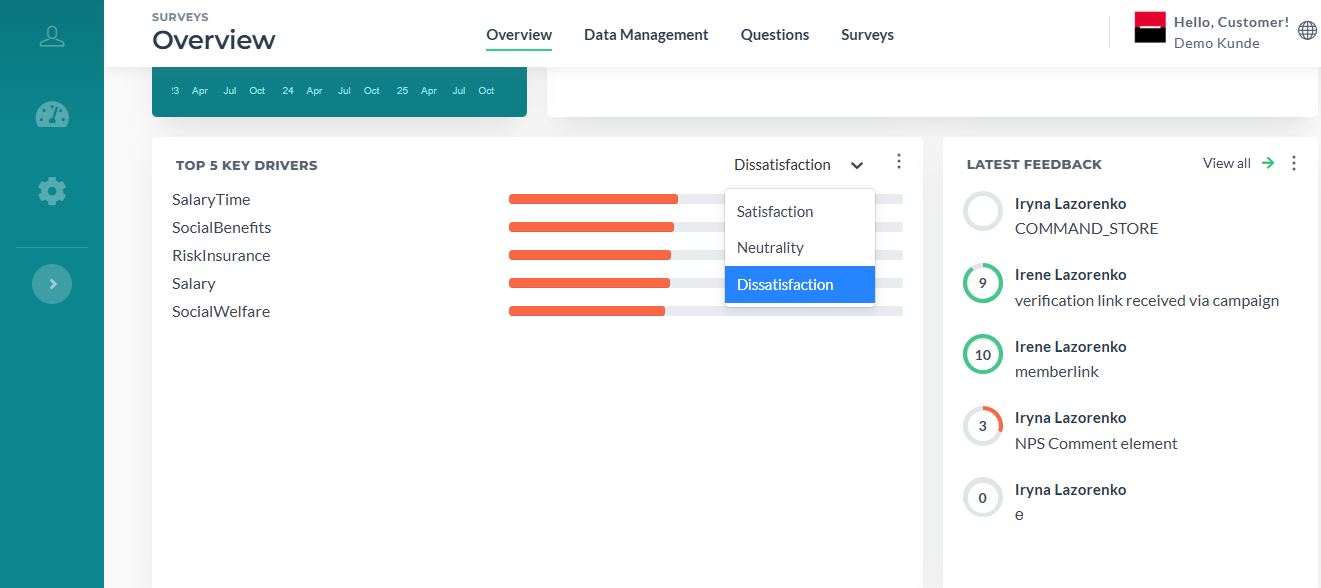
¶ Top 5 Key Drivers
5 questions with the large quantity of positive assessments. By default date is set to All Dates.
¶ Latest Feedback Card
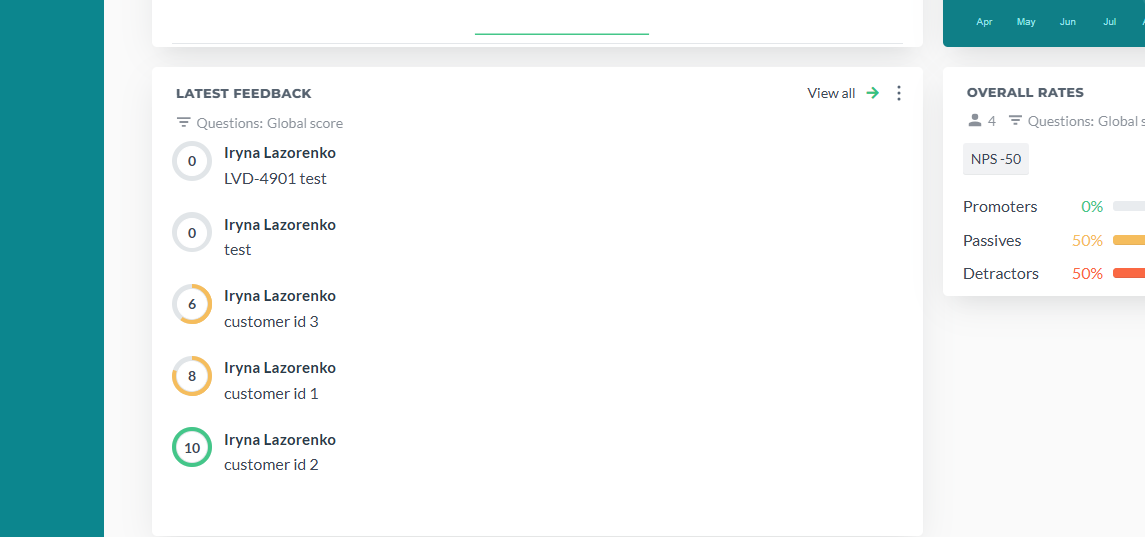
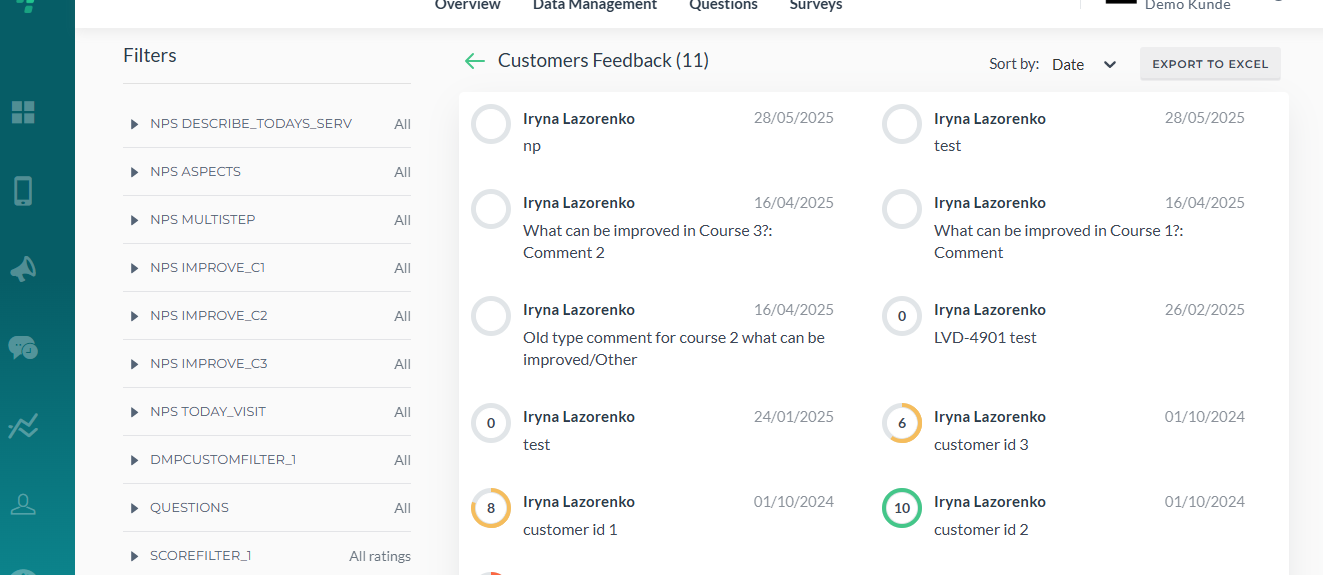
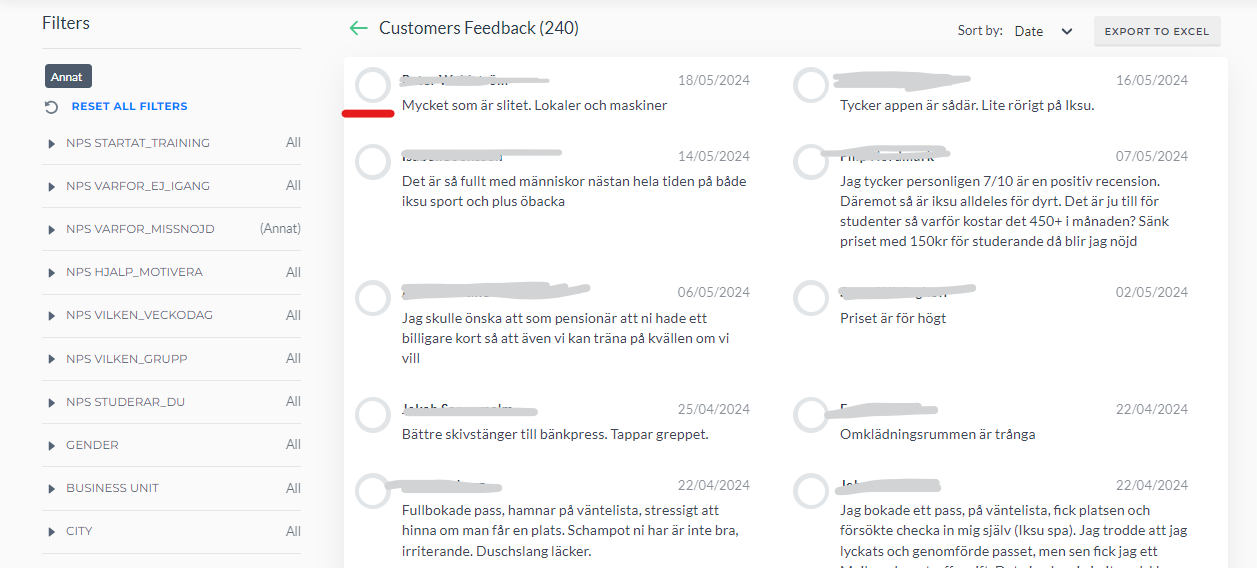
This card shows comments, newest go first. Also, if one user provided one comment and then changed it, we will only show the latest one (it is updated). This card is special because it opens to its own page. If you click View all, it shows a separate page where you can view all comments. By default date is set to All Dates.
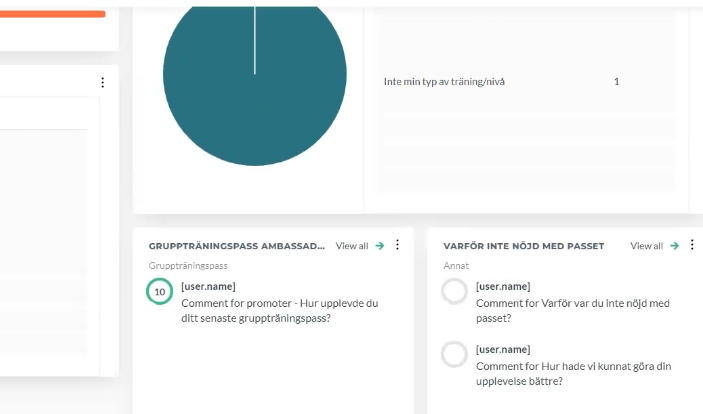
¶ It the card names look like this [user.name], please inform the support team, they will fix this issue. Link for the support team member.
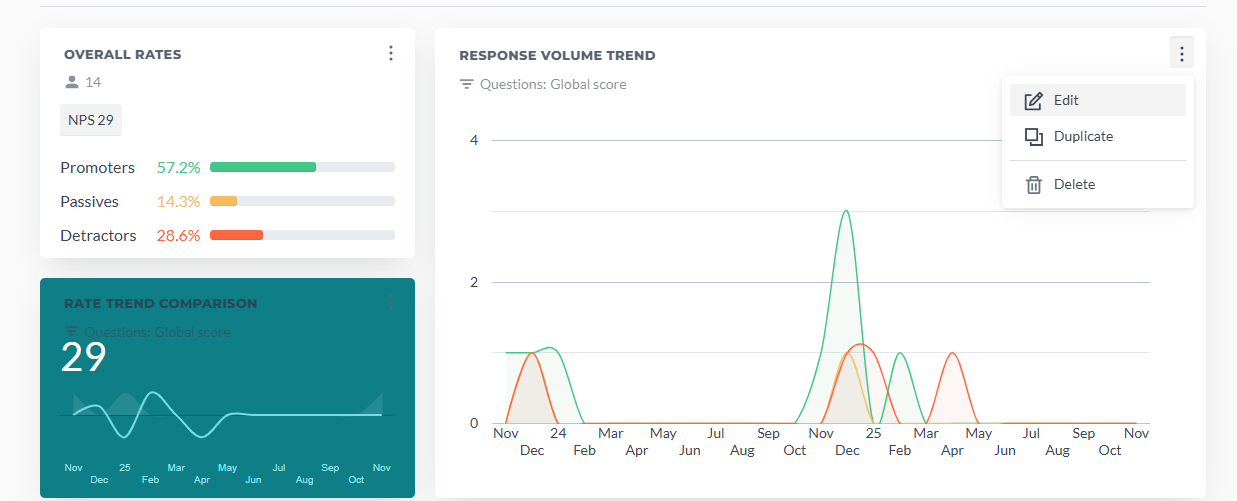
If you just need to add filters, change the card's size, click Edit:
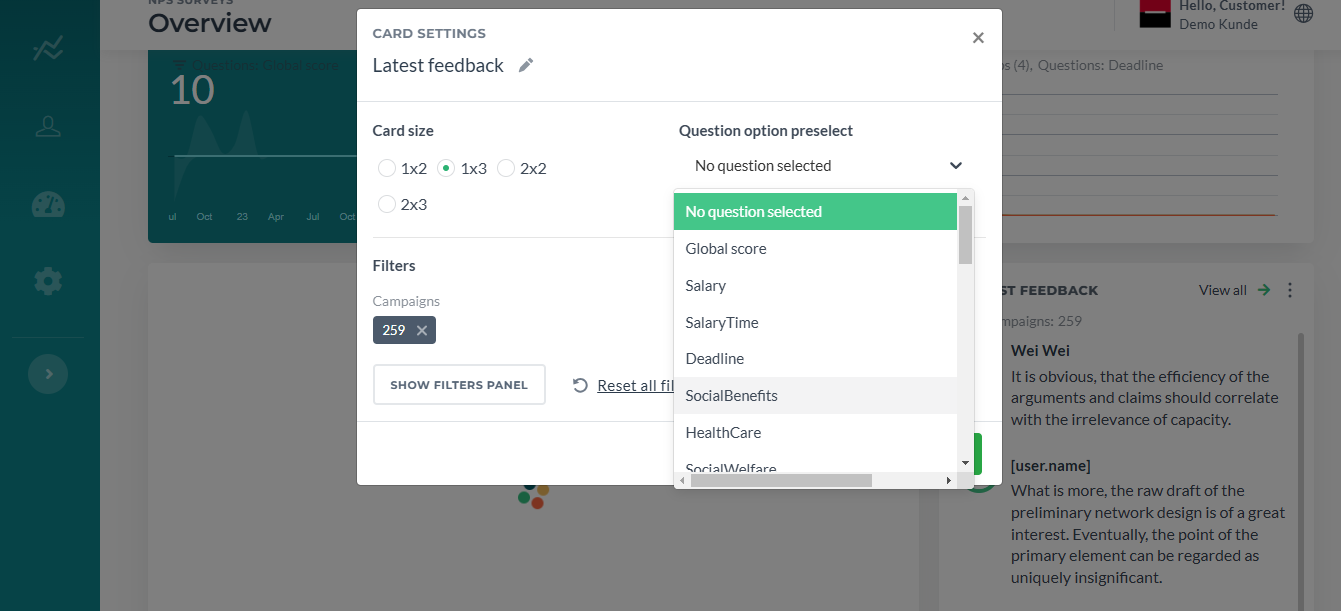
Latest Feedback Card's preview now features question option preselect for all types of questions:
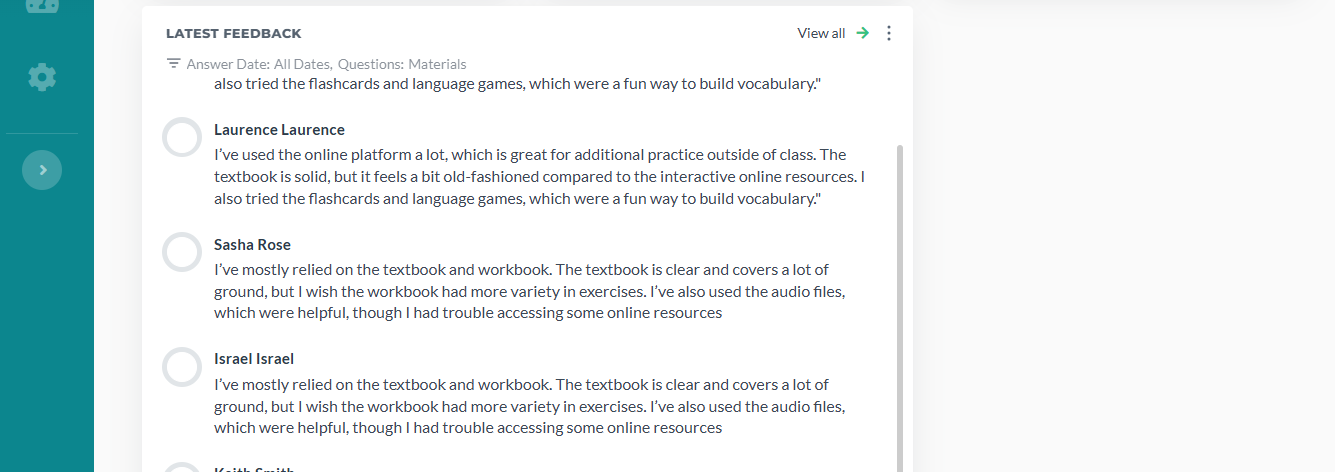
If you are not using Global Score question, there won't be color and score inside the circle above the comment:

¶ How Important Question
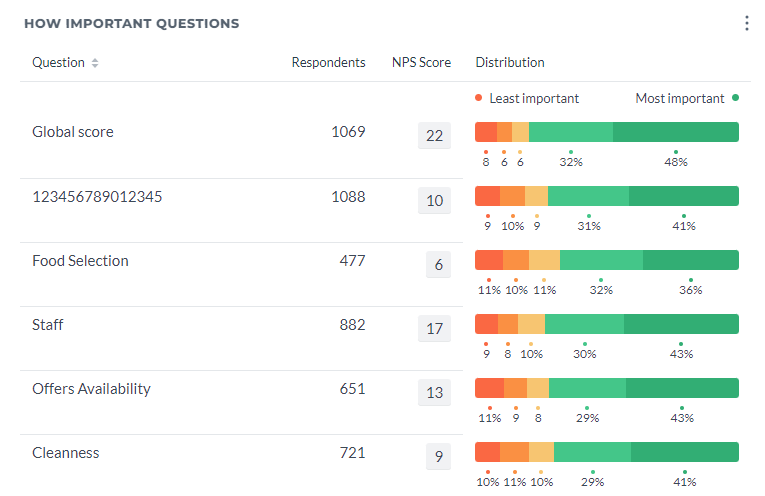
The chart visualizes responses from series of N questions, with segments representing five levels of importance, from "Least Important" to "Most Important". Default Score Type is NPS Score.

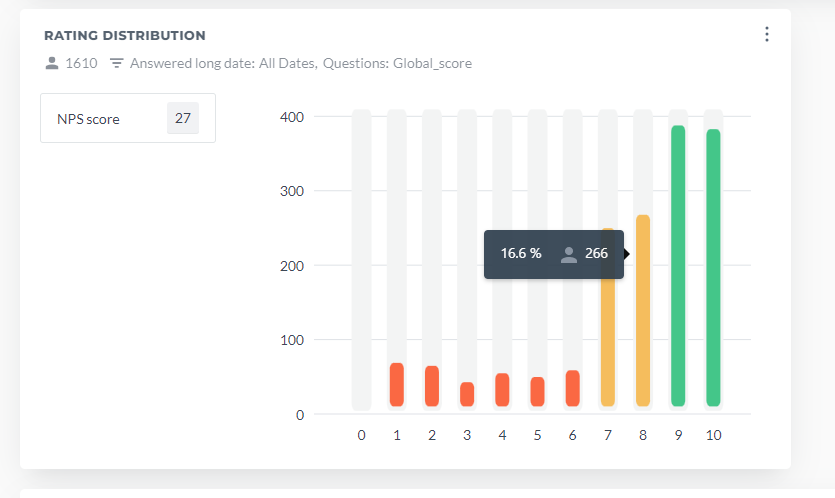
Rating distribution
Bar chart that displays the distribution of marks from 0 to 10. By default date is set to All Dates, preselected question is Global Score and default Score type NPS Score. Also, the general number or users provided answers is shown.
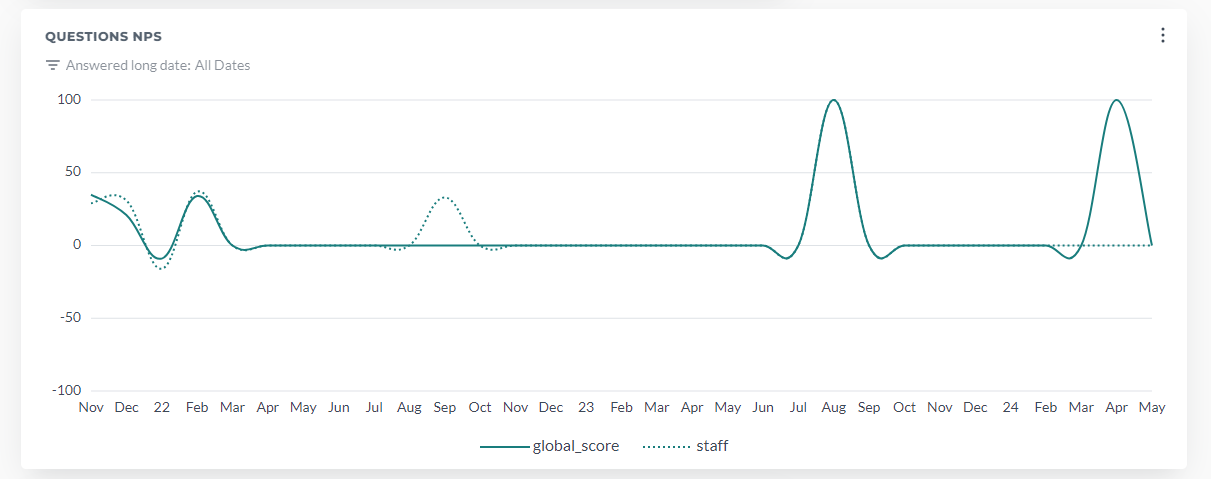
¶ Questions NPS
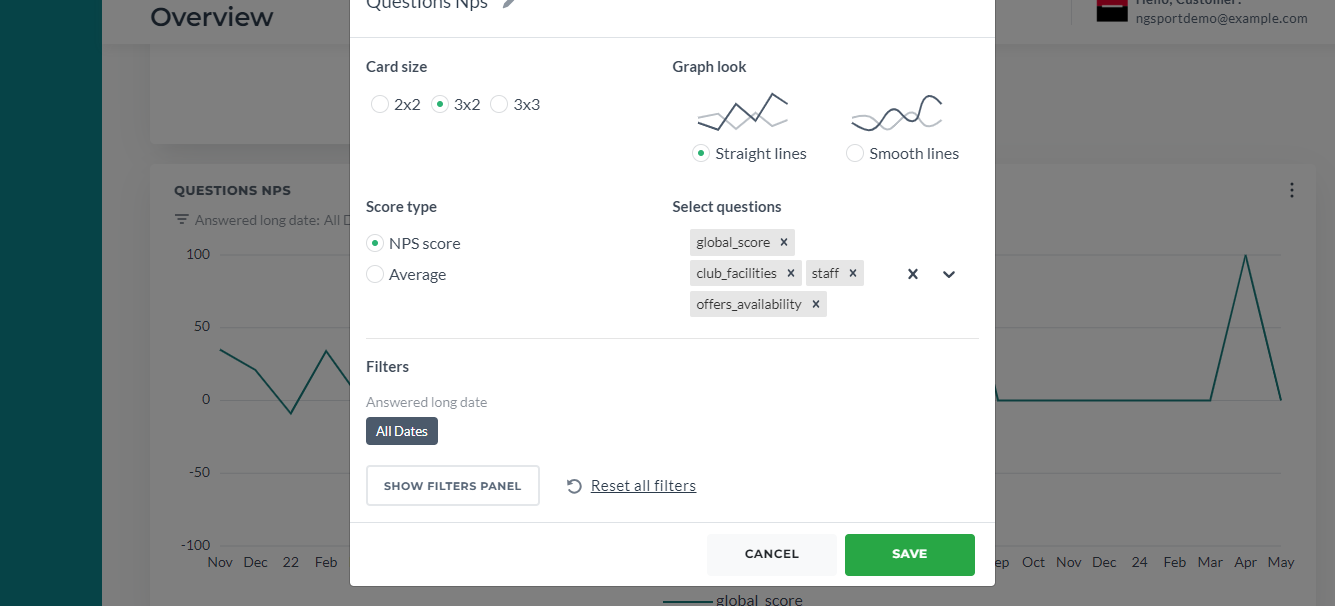
Graph chart that displays the NPS of selected questions. By default date is set to All Dates, preselected question is Global Score and default Score type NPS Score. 4 Questions is the limit for Selected questions.
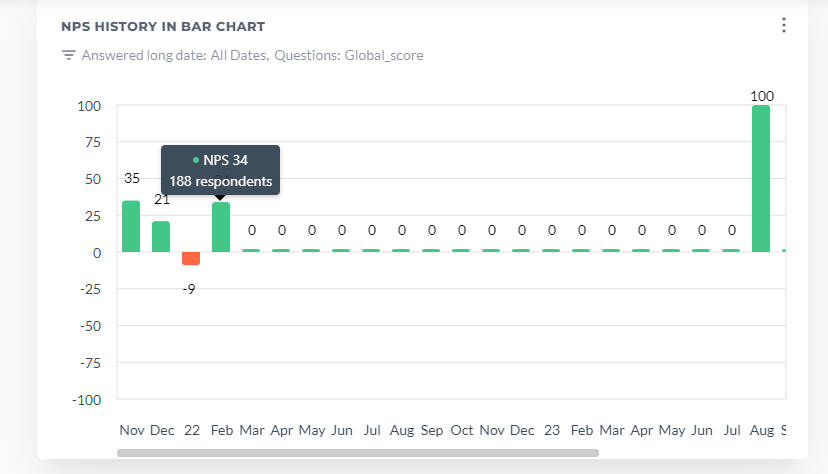
¶ NPS history in bar chart
Bar table that shows NPS score/Average score by dates for preselected question. By default date is set to All Dates, preselected question is Global Score and default Score type NPS Score.
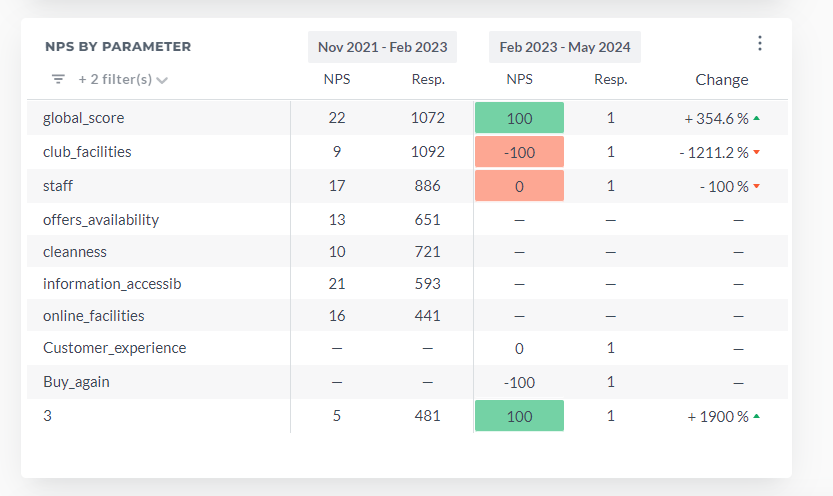
¶ NPS by Parameter
Difference between promoters and detractors in one of the questions sorted by the chosen parameter. By default date is set to All Dates, preselected question is Global Score.
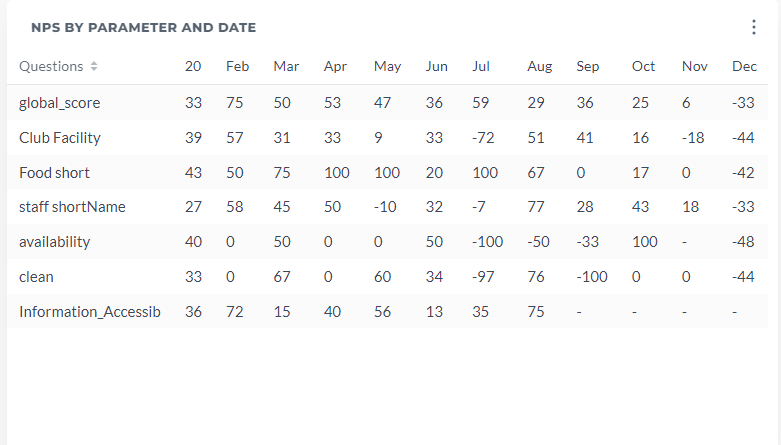
¶ NPS by parameter and date
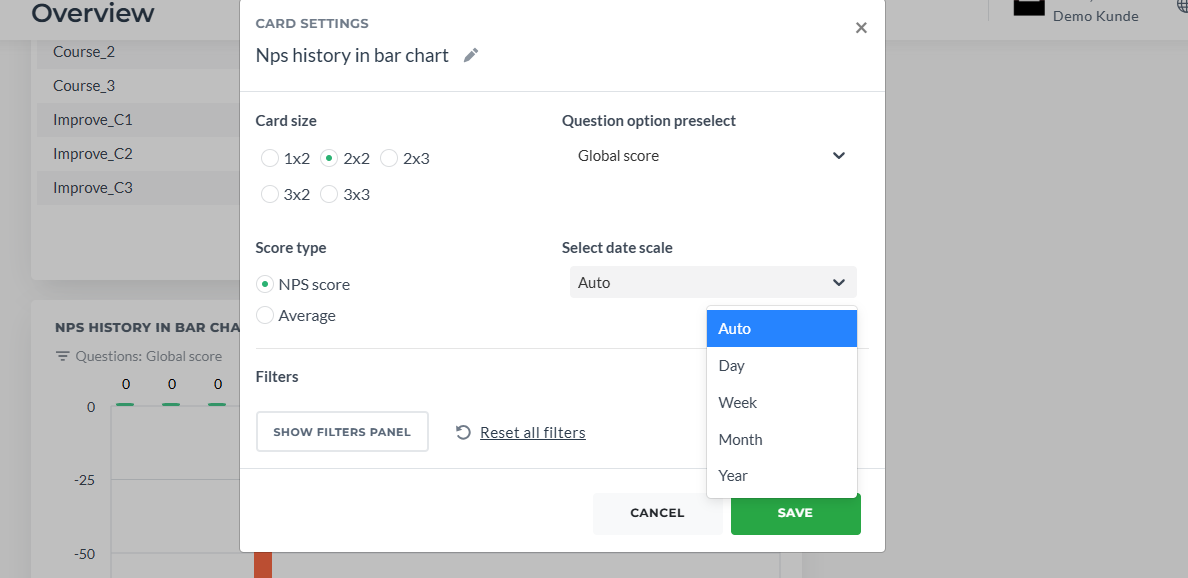
Table for one of the questions grouped by parameter and date period. By default date is set to All Dates, preselected question is Global Score, Group By default choice is Question and Score type NPS Score. Select date scale is Auto by default.
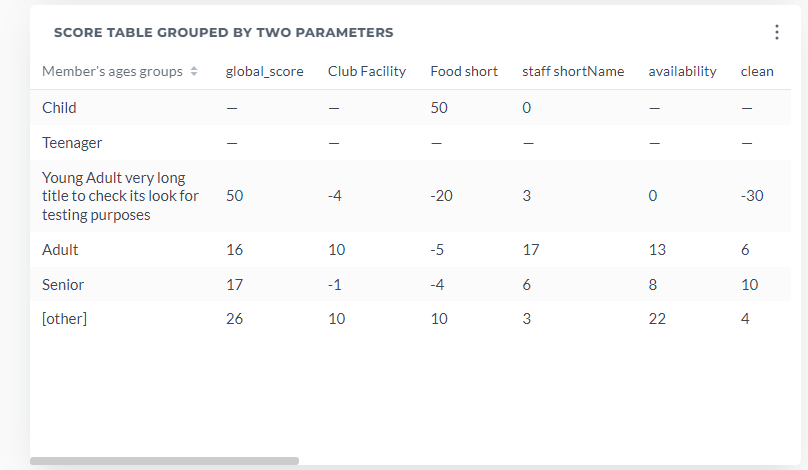
¶ Score Table Grouped By Two Parameters
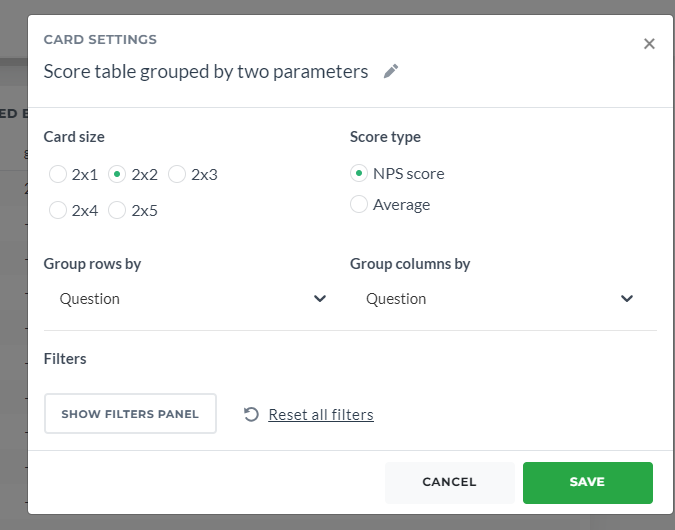
Table where you can choose groups for rows and columns. By default Group By is Question and Score type NPS Score.
¶ Special cards settings
¶ Question Option Preselect
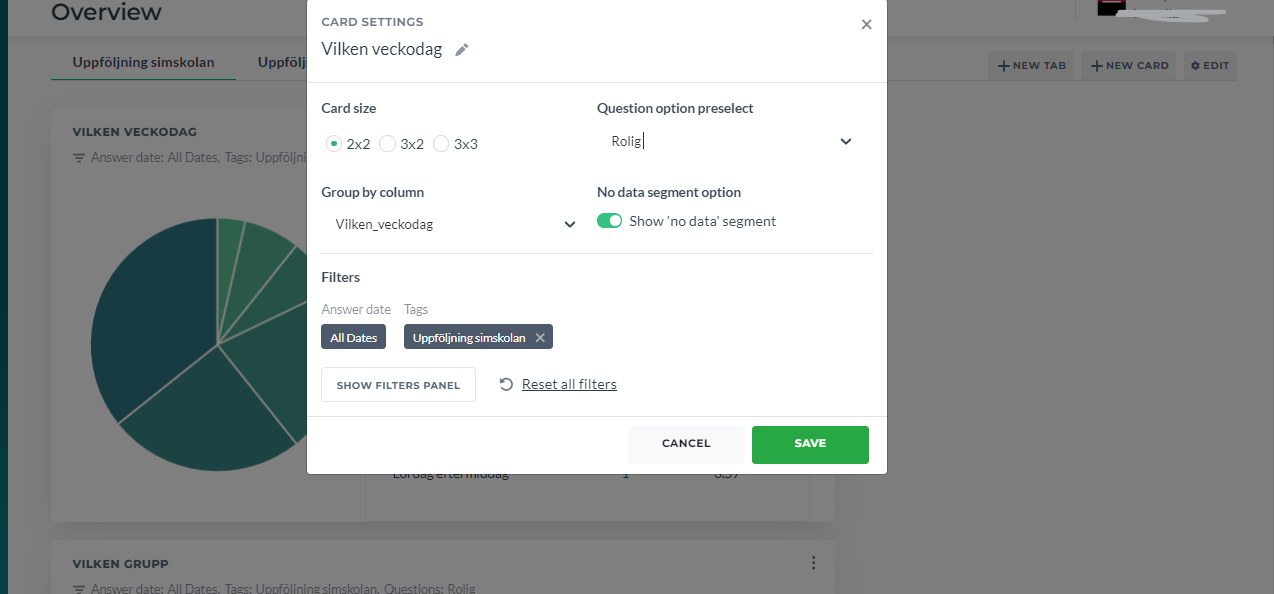
This option allows you to preselect the question for the card. The users who provided answers for this rate question will be used for the visualization. It is used for cards: Overall Rates, Response Volume Trend, Rate trend comparison, NPS by Parameter, Rating Distribution, Pie Chart, NPS History in Bar Chart, NPS by Parameter and Date.
Please note if you do not use Global Score (a default fate question that represents the main score), abovementioned cards will be broken as they use global score as a default. So you will need to change it manually.
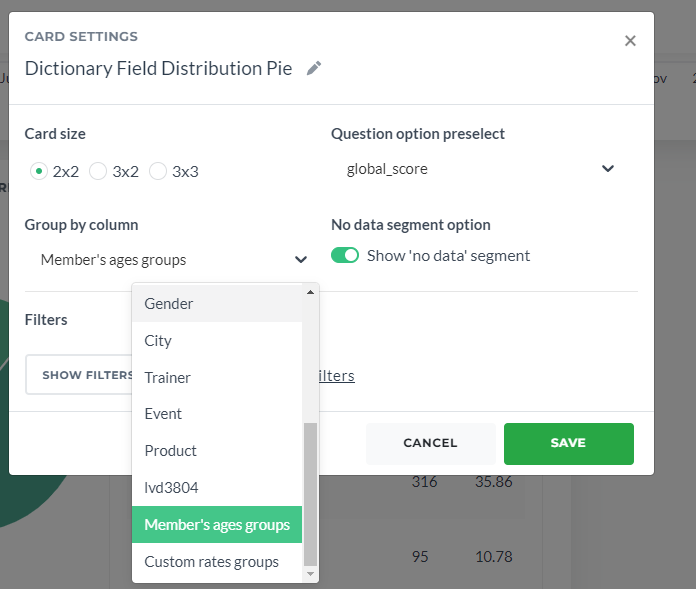
¶ Group by column
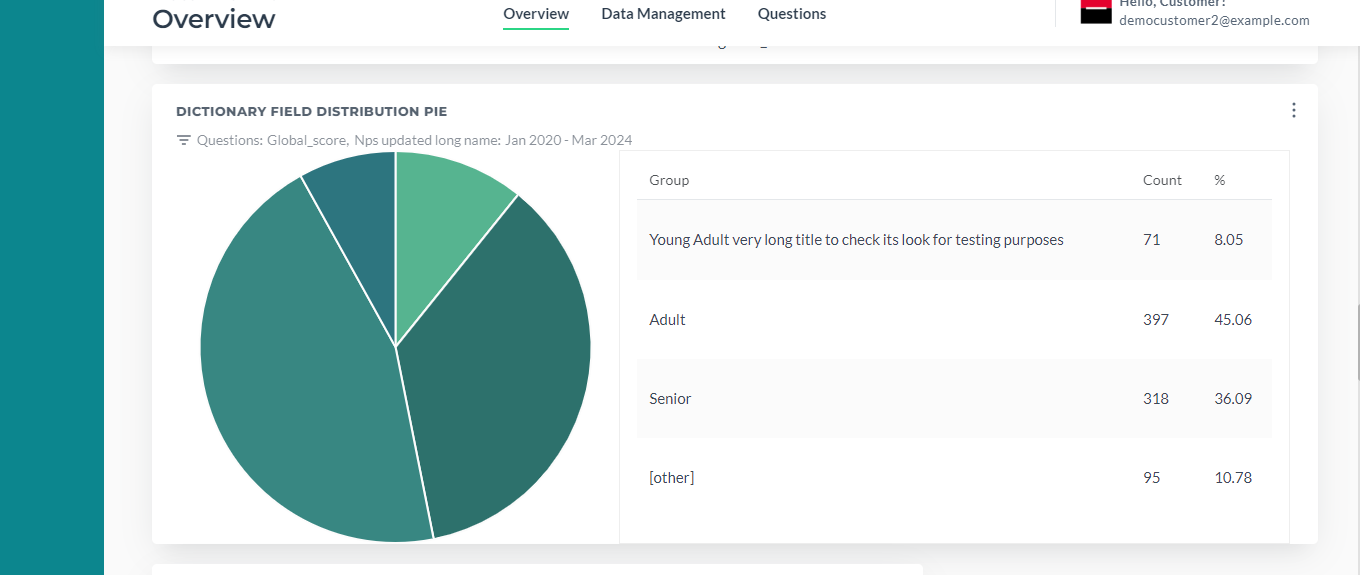
These settings allow you to choose the groups (different questions, custom rates, age groups etc.) and the distribution of answers among these groups
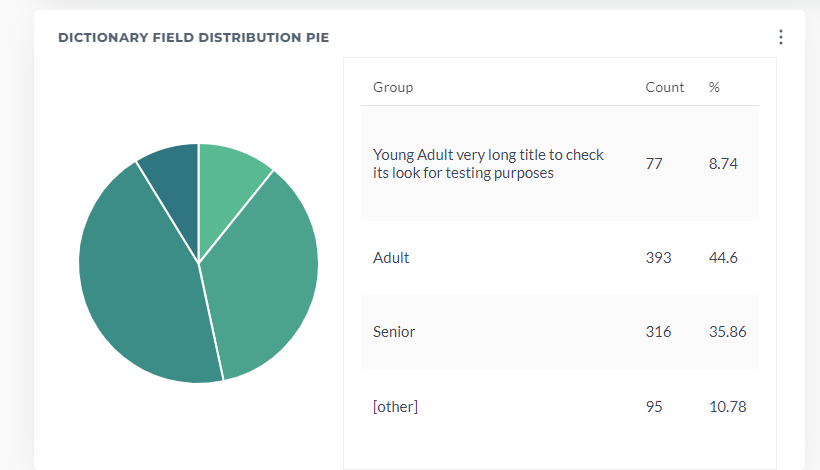
You can group the card by age, gender any other dictionary question. If you need custom age groups, custom dates and rates, please, contact tech support and here is article about this feature.
¶ No data segment
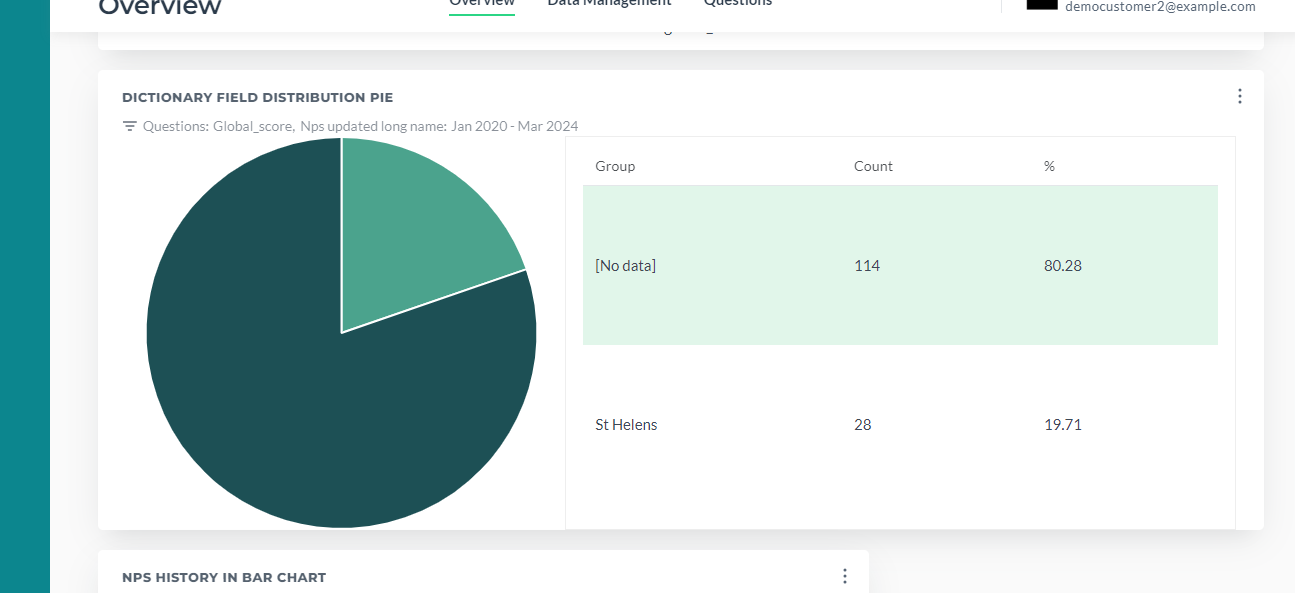
This option allows you to turn on and off visualizing the segment with no data. For example, answers provided by members which city or gender is not mentioned.
¶ Select Score Type
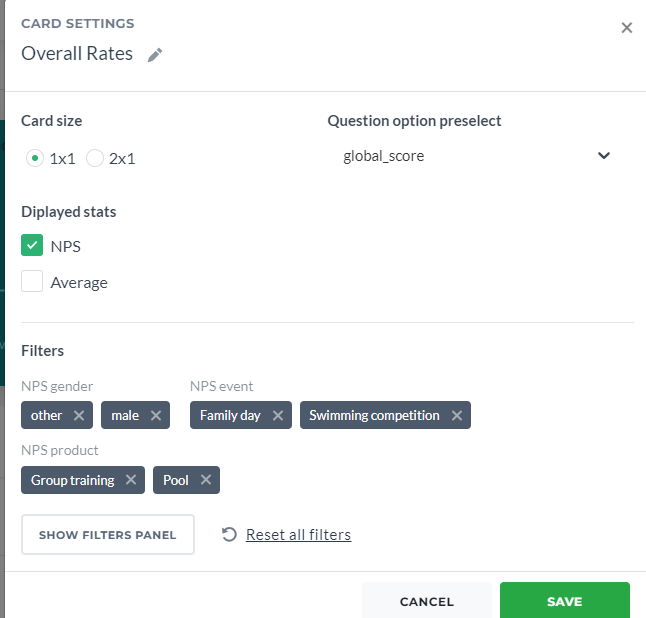
NPS by Parameter card, NPS History card, Questions NPS card, Overall Rates card and Rating Distribution card (in development) have a radio button to choose between NPS score and Average value
¶ Select questions
This option exists in Questions NPS Card. There is a limit on how many questions you can add:
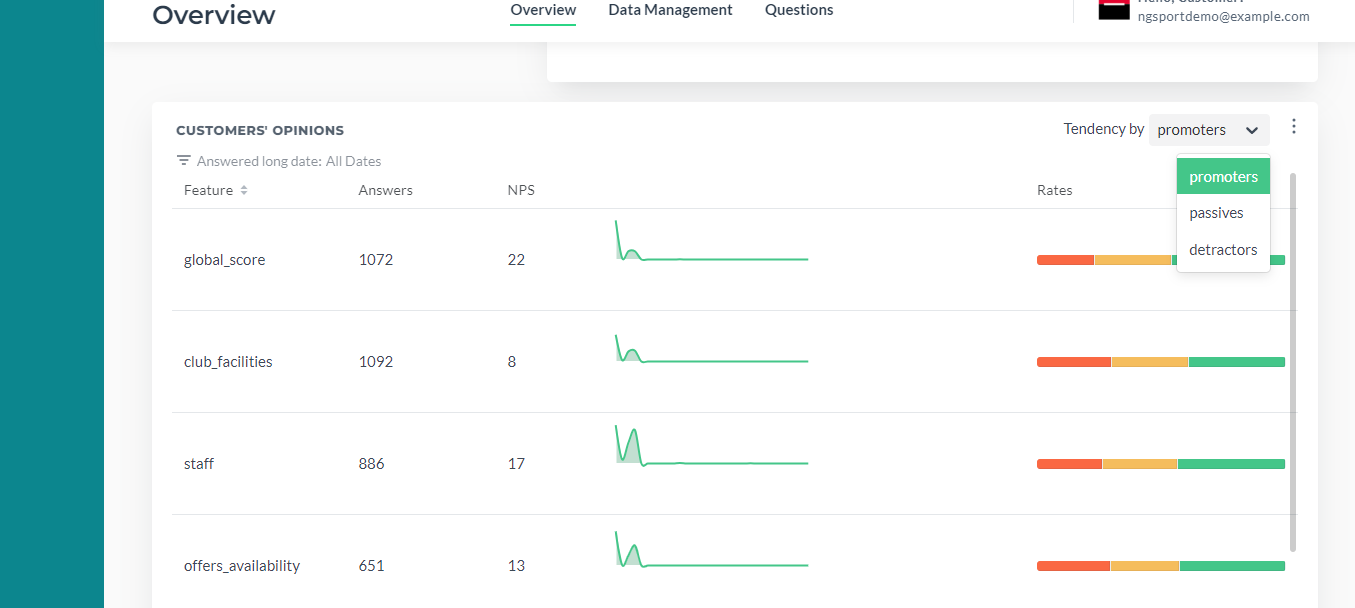
¶ Tendency
Customers' Opinions Card allows us select Tendency by NPS. This card includes a table that include the quantity of reviews, response changing graph and relation between feedbacks chart sorted by questions.
¶ Side filter panel
It can be accessed via the Overview and Data management and Card Settings page as well.
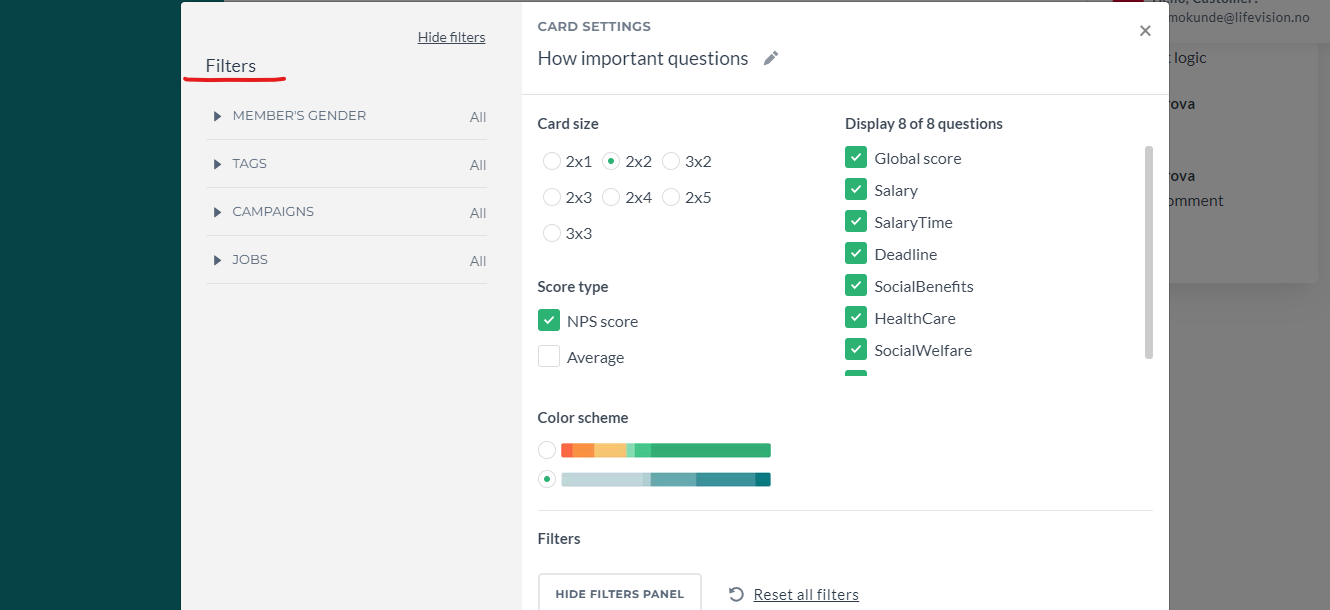
Filters could be general and custom. We could add them via hidden settings (done by support team when setting up the Dash, please, contact them https://wiki.infact.no/account-settings/filters-configuration-on-dashboard)
This filter panel is needed to set specific details to our requests.
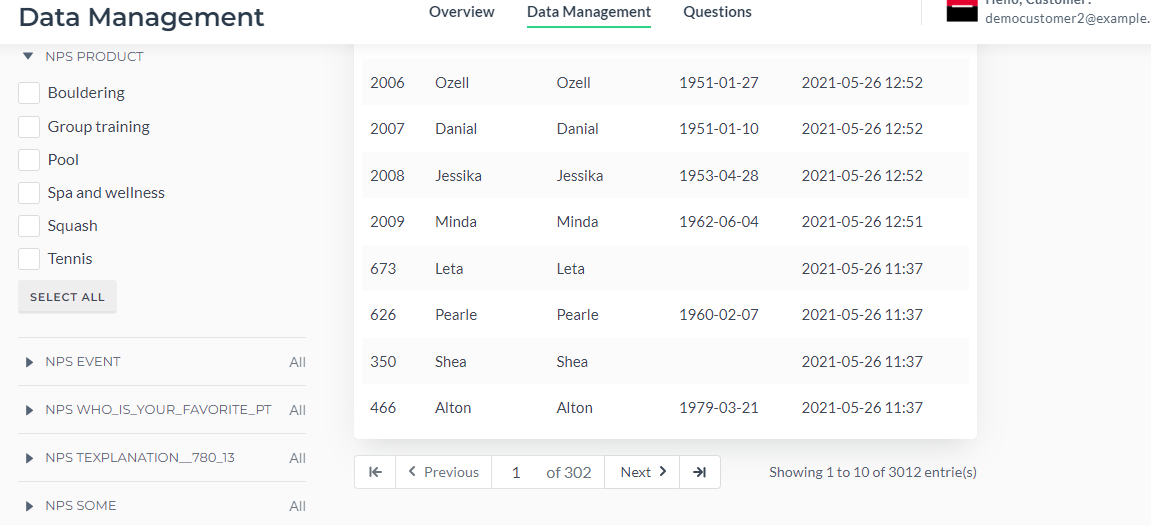
¶ NPS Question Name
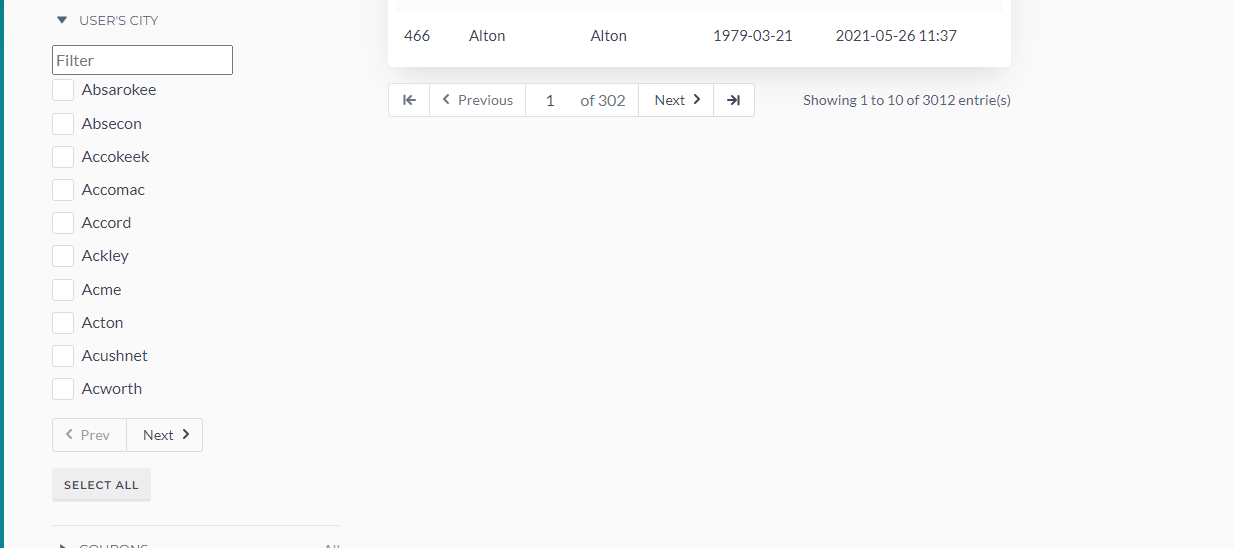
Each dictionary question (the one where the answers are different options, not the rate) has its own filter:
¶ Dictionary options from member datasource
Except for NPS data (campaign recipients' answers), we also can store recipients (or members/persons) data like email, birthday, gender, city. Sometimes this data is similar to NPS data. For example, we somehow do not know the recipient's city but we can ask this question in the NPS Survey. More info on members datasource.
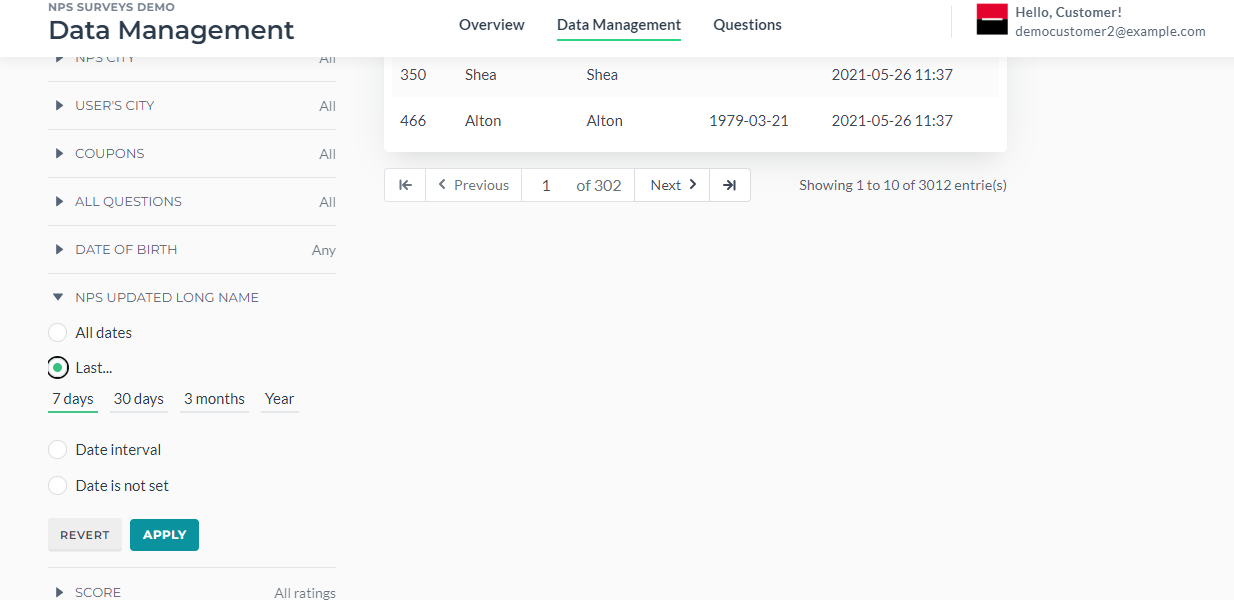
¶ Date filters
- All dates - lets you select all dates;
- Last - lets you select 7 days, 30 days, 3 months, year;
- Date interval - any two dates/ period;
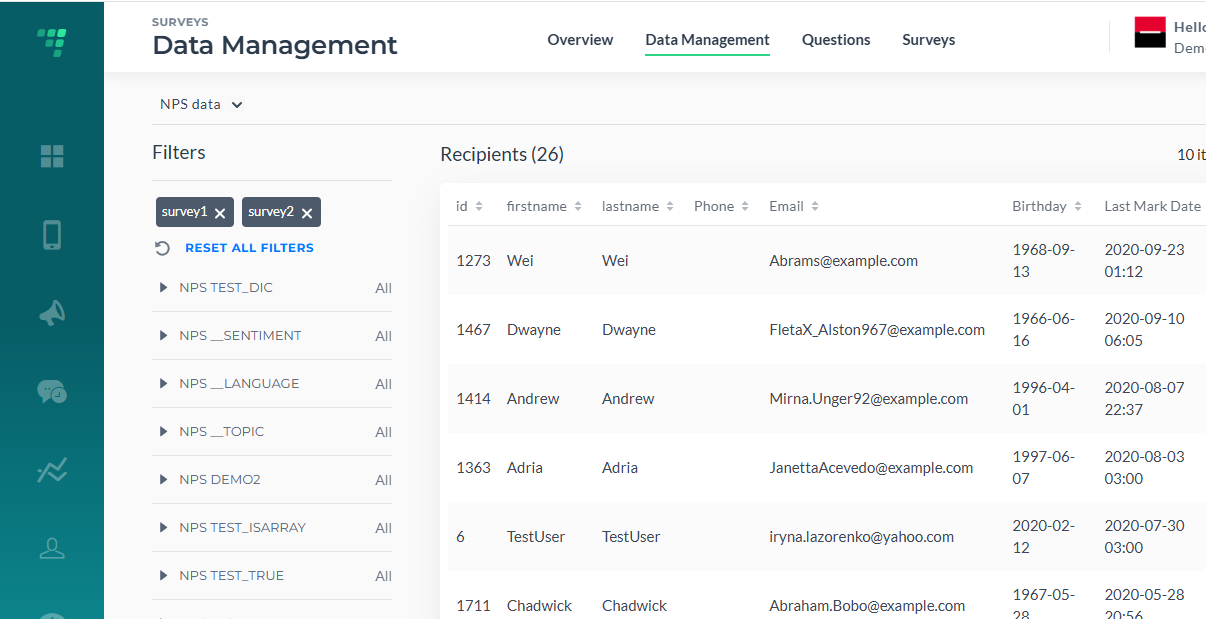
Also, note that the easiest way to remove any filter is to click on the filter
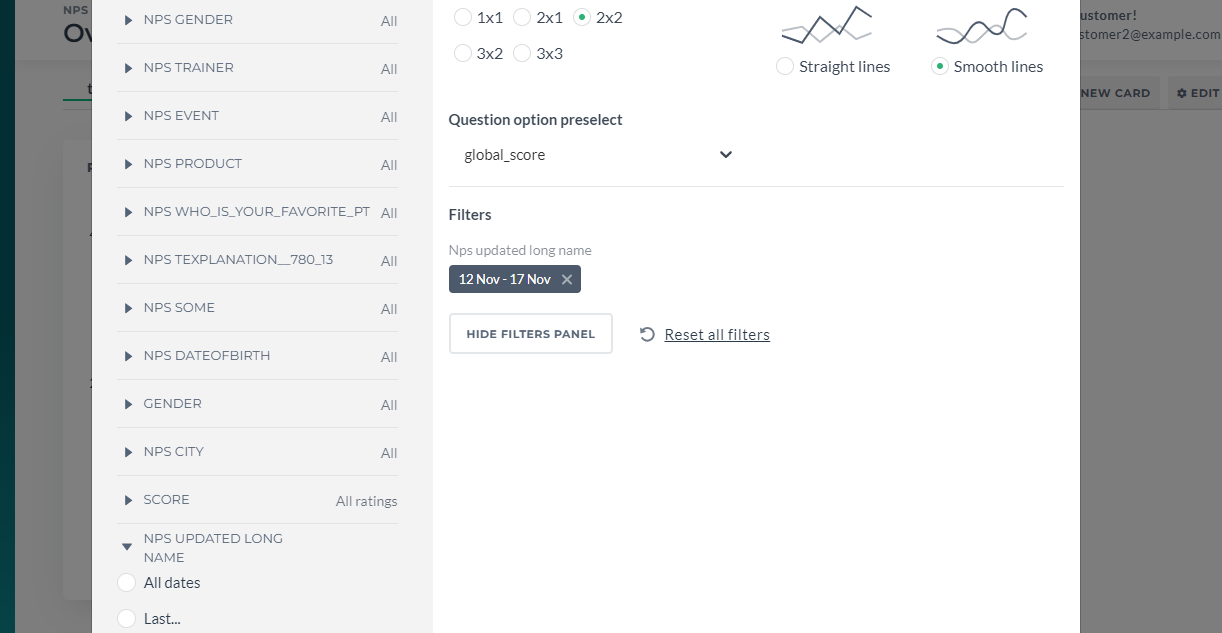
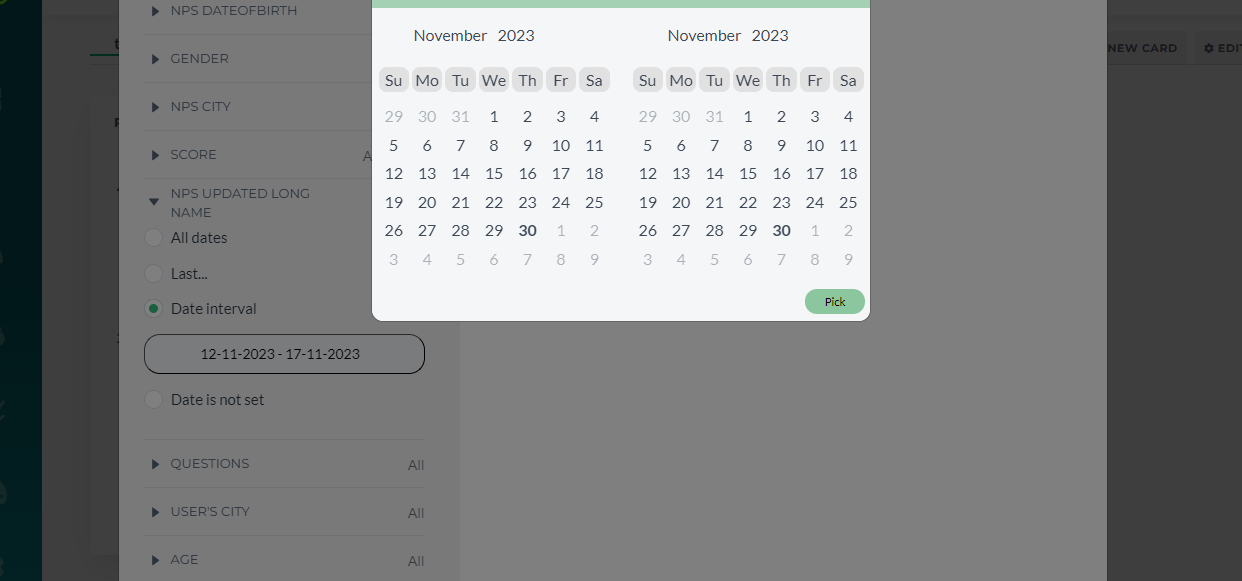
When the date has already been set, the option Clear will remove current period but
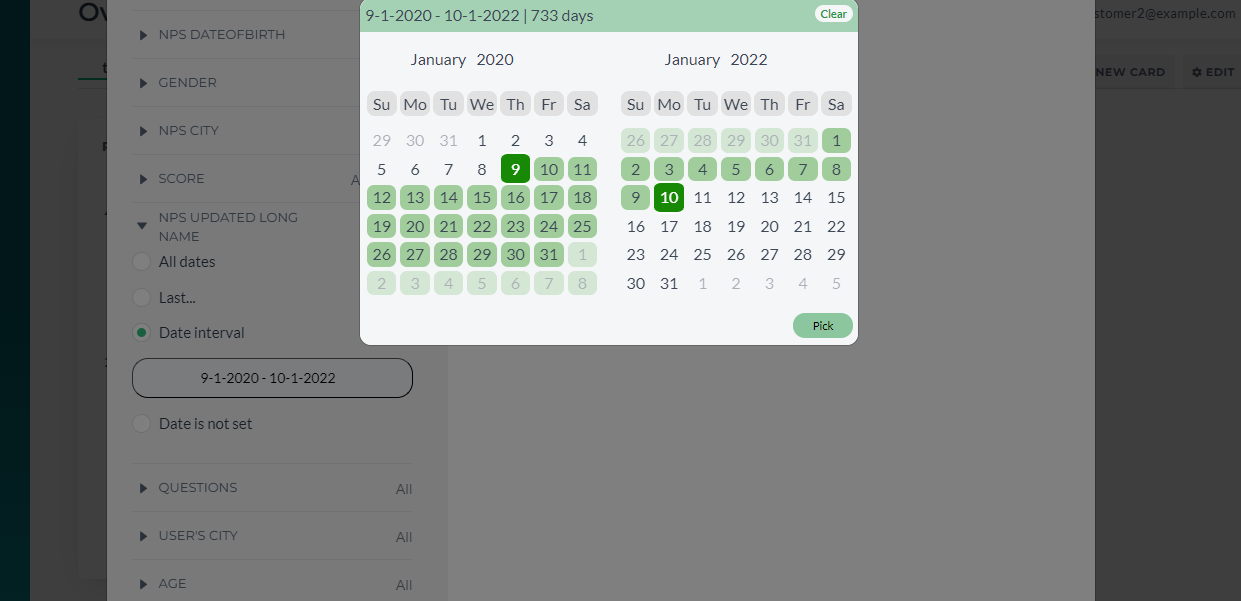
You will not be redirected to the default period (which is the one you saw when opened this menu for the first time, the current year and month).
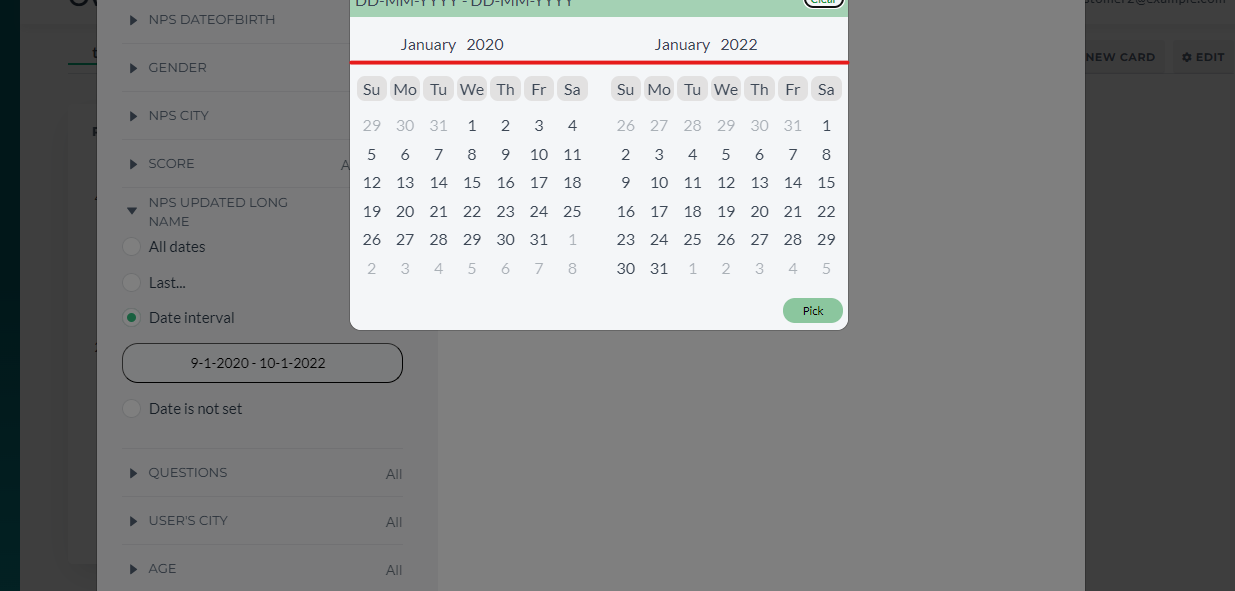
To get to this setup, it is better to just delete the filter as explained above
¶ Score
Lets you filter the exact points provided by the recipient for the global score. It is not present on all of the cards!
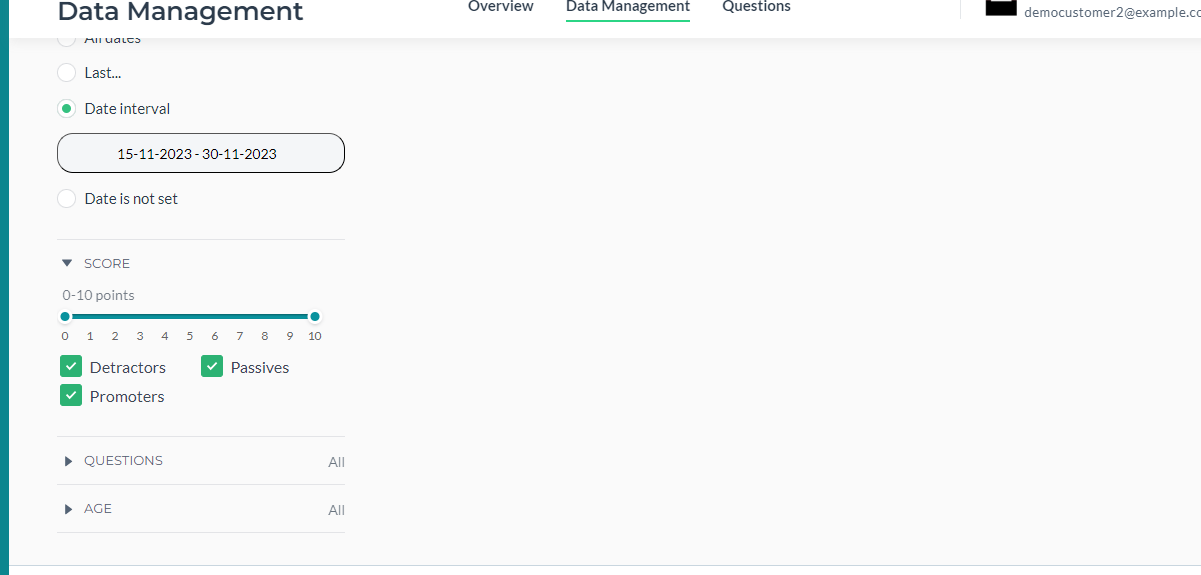
The cards which have Question Option Preselect like Rate Trend Comparison do not need Score and also which will be shown in the next subsection as Question Option Preselect already does the same as Score filter does:
¶ Questions
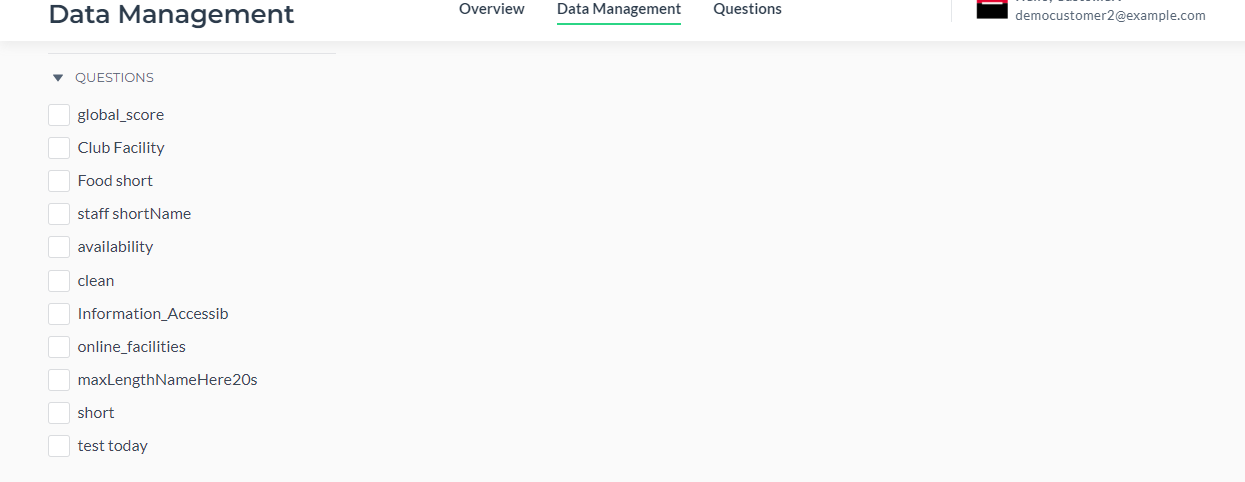
This filter is present in some cards as well. It allows to filter data where selected questions appear to have answers.
¶ Data Management Page
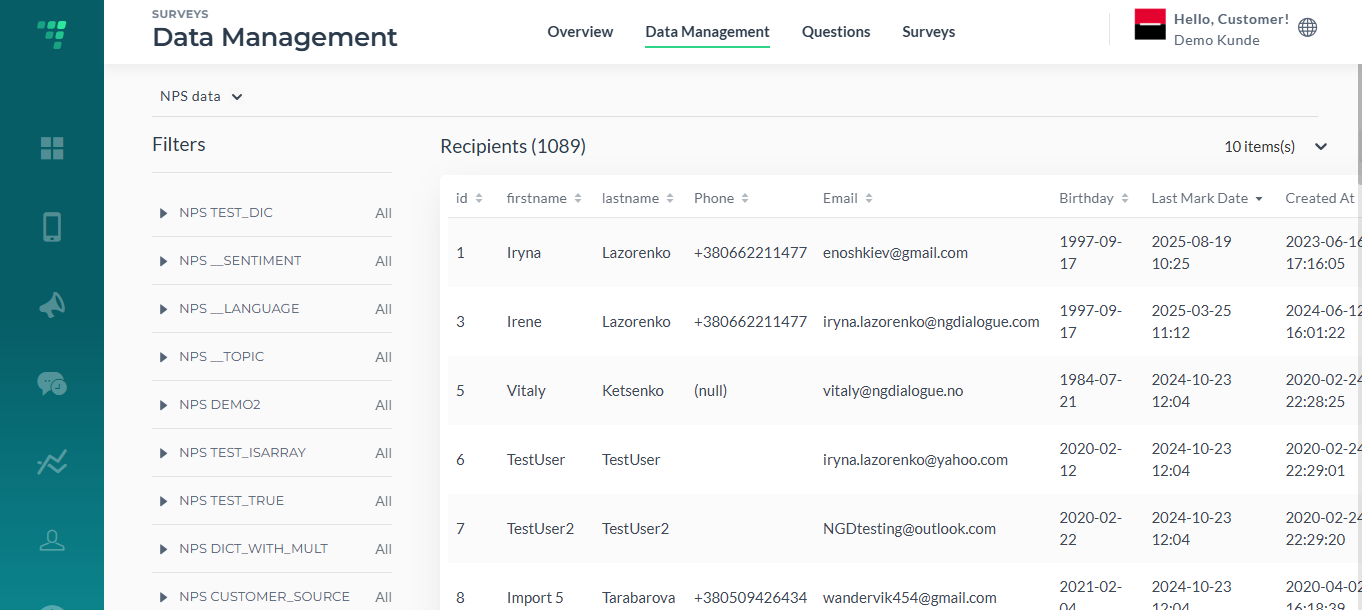
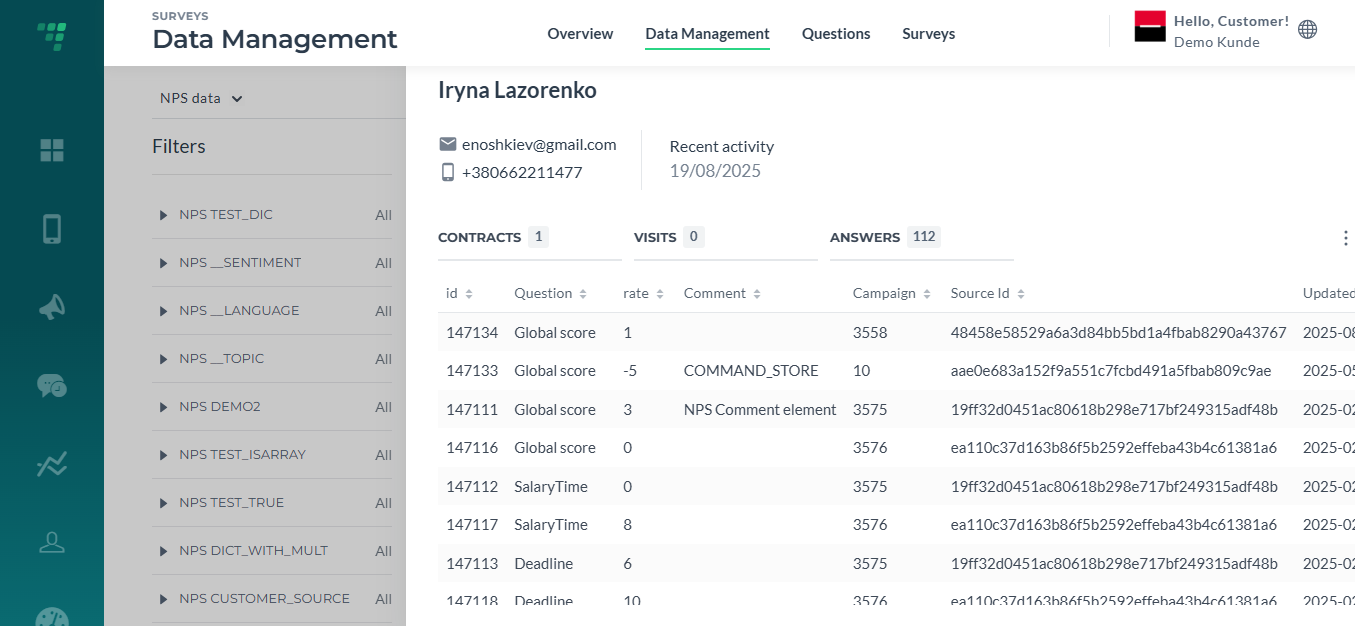
¶ Additional features can be found in DMP:
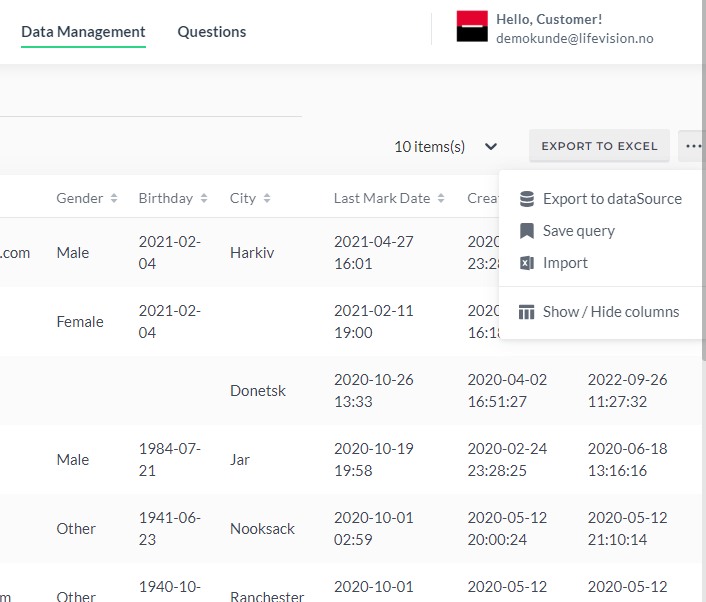
¶ Export to Excel
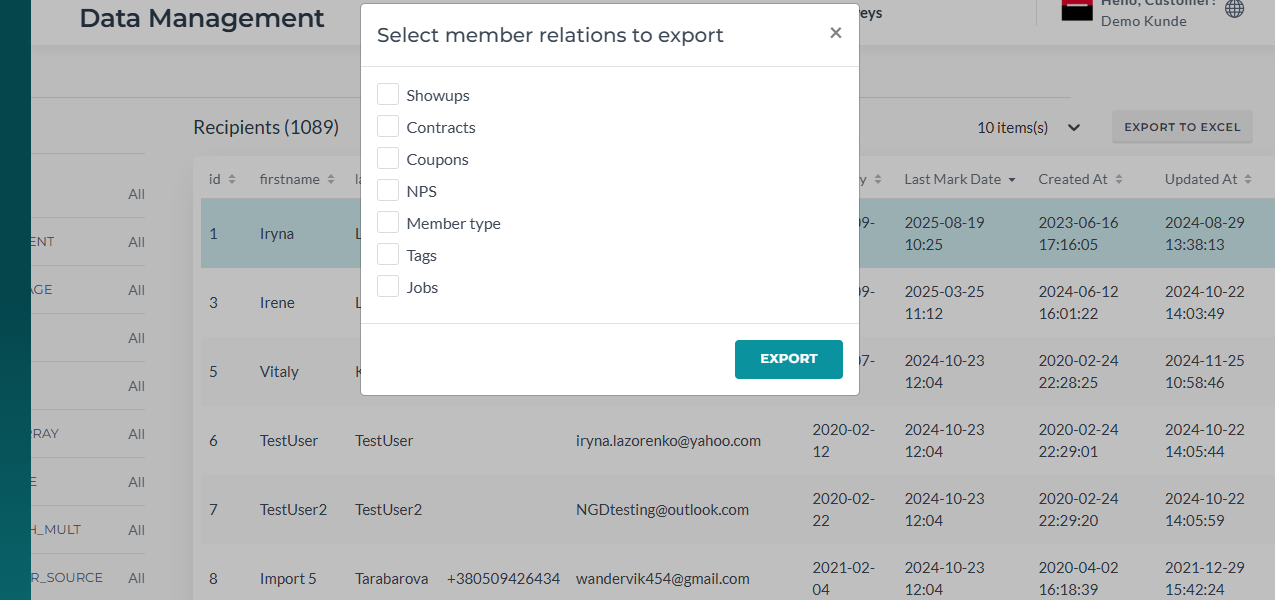
To customize the downloaded data:
- Select all the filters you need in the left Filter Panel
- Then click Export to Excel and tick NPS
- Download the file
To filter the data of the exact survey, use campaign or job filters or date filters (Answer date).
¶ Export to datasource
in development
¶ Save query
in development
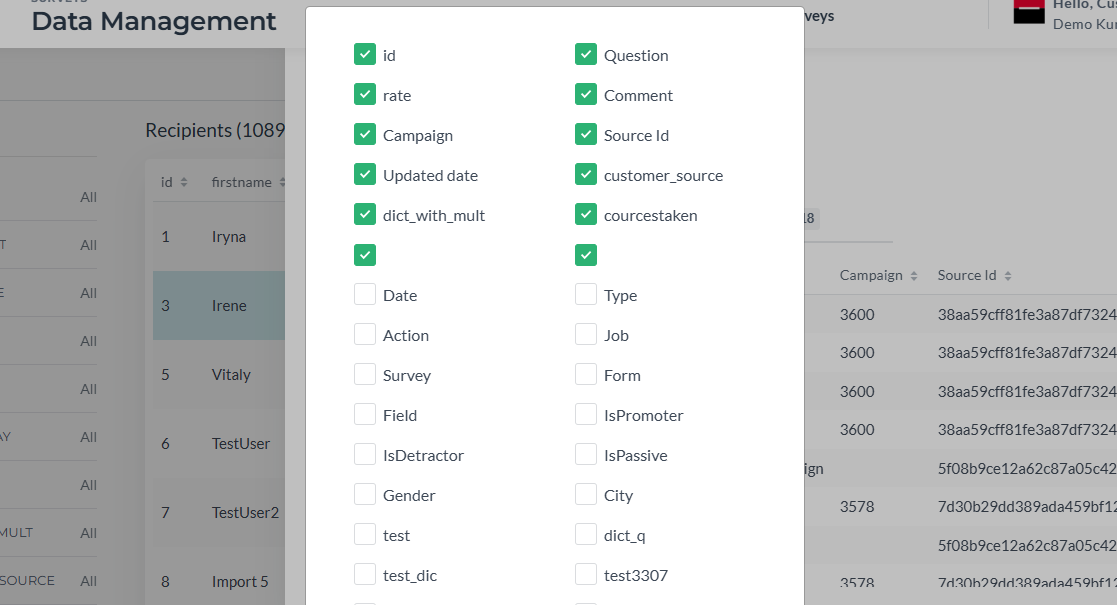
¶ Show/Hide Columns
¶ Import
¶ Step 1
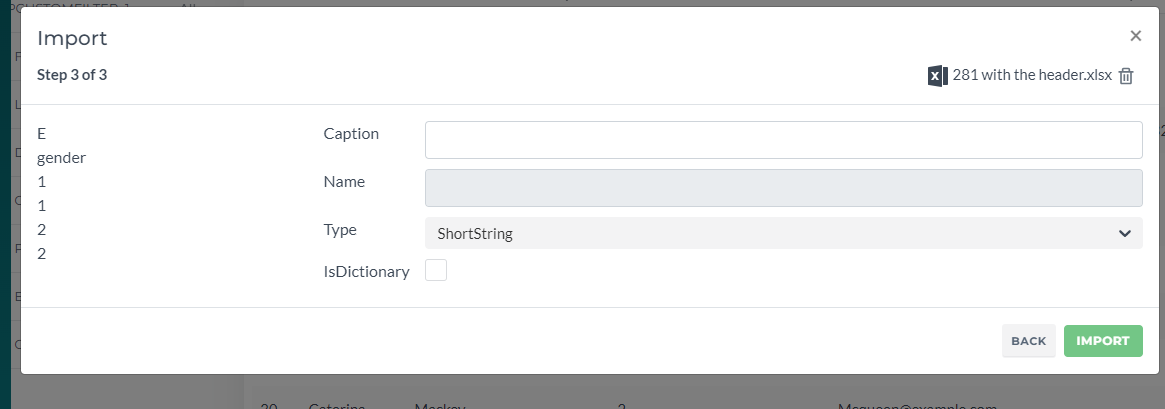
You can upload an Excel file with data and map all fields you need to import or add new ones:
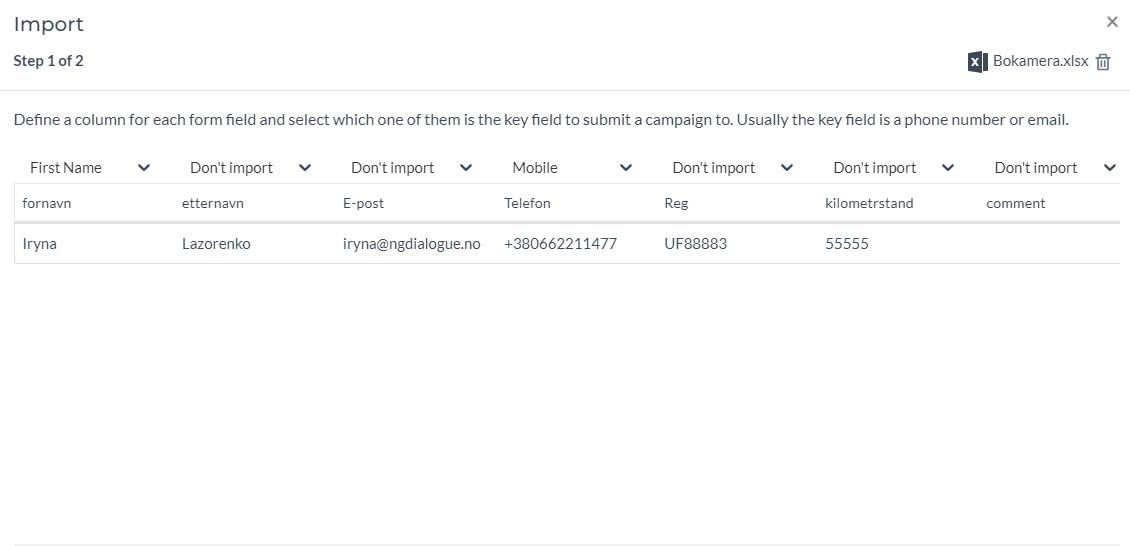
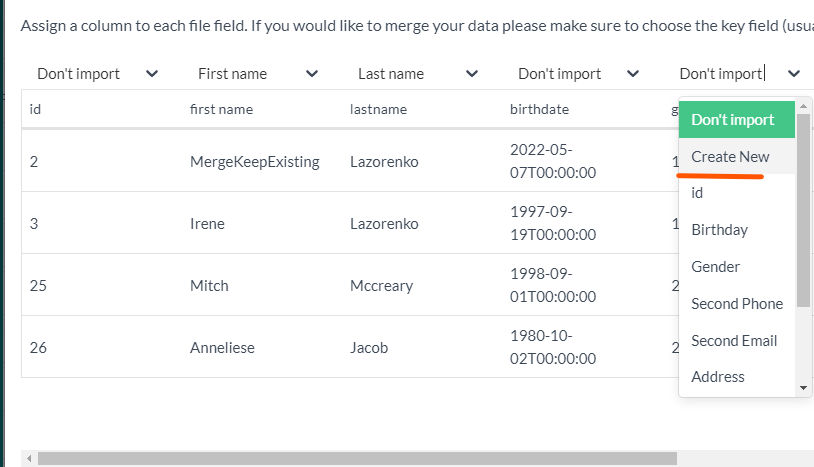
IsDictionary - is always a short string type and represents a limited set of options. For example, customer’s courses course 1, course 2 or languages English, Swedish
Type:
ShortString - data that can have numbers, letters and other characters (space included) with a maximum length of 255 characters. For example, Operator 23 or Gym Malmö
Integer - numeric value from -2 billion to 2 billion. Usually used for IDs (1, 3, 1000, 60000 etc)
BigInt - the same as integer but is used for bigger numbers (over 2 billion)
Float - numeric value with a decimal point like prices or kilometres. For example, 35.3 (Euros), -2.34 (degrees), or 357.34 (km)
Date - any date with day, month, year like 16-02-2001 (if your data has special settings like it starts with month mm/dd/yyyy or is divided not by “-” but by “:” or “/”, please contact support)
Datetime - date + time stamp 00:00:00 ((if your time has special settings like it is divided by “/”, please contact support)
Boolean - data with two options, true (1) and false (0). For example, consent Do you want to receive letters? True/False
guid - (globally unique identifier) is a 128-bit text string that represents an identification (ID)
Email - any email address
Mobile - any mobile number. Note if your account settings have a specific country, you can import phones with or without a country code. But if the phone belongs to a user from a different country, it must have a country code
Phone - any phone number that is not a mobile

¶ Step 2
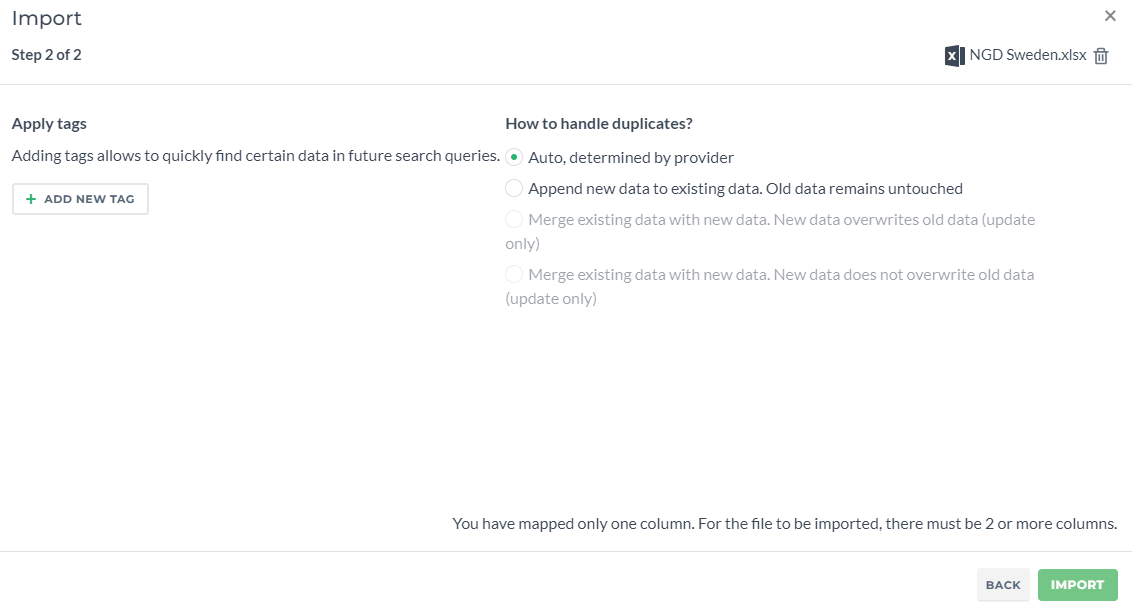
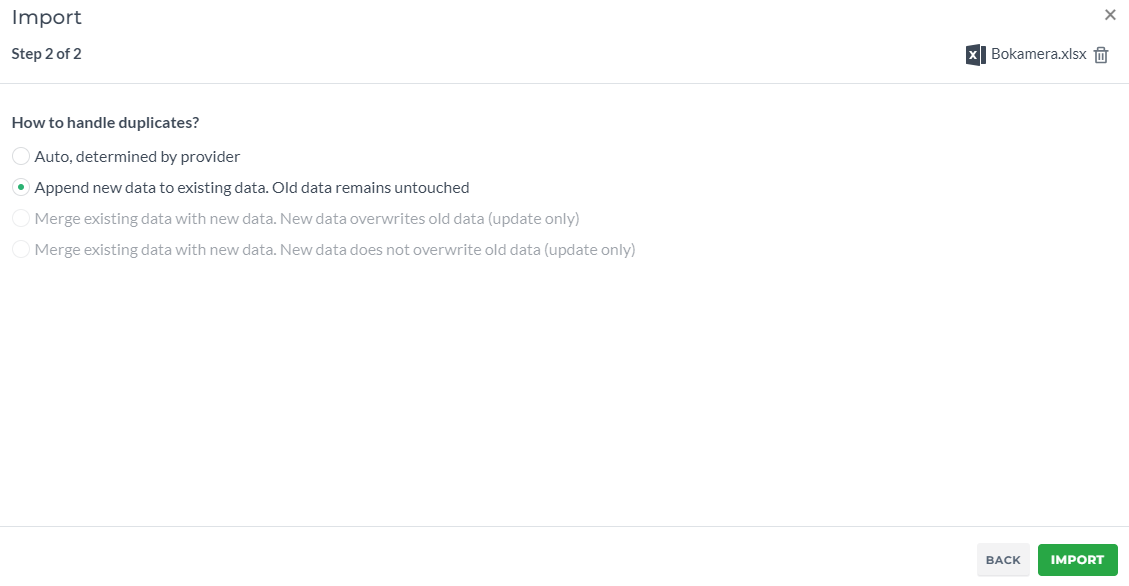
In this step you select an import strategy. Merge strategies differ depending on datasource type.
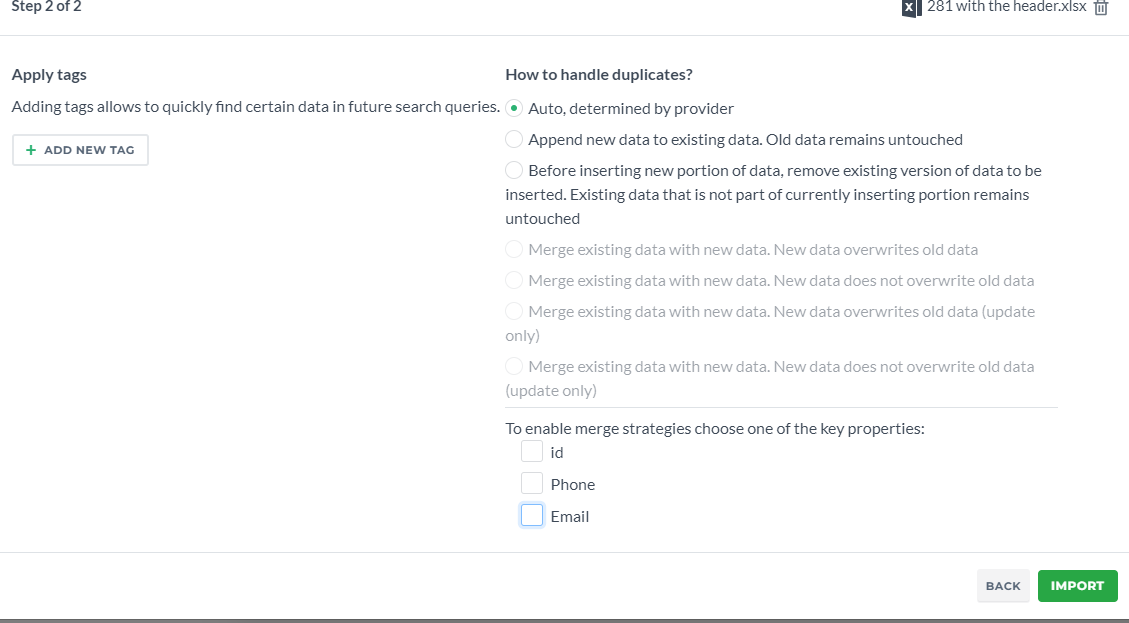
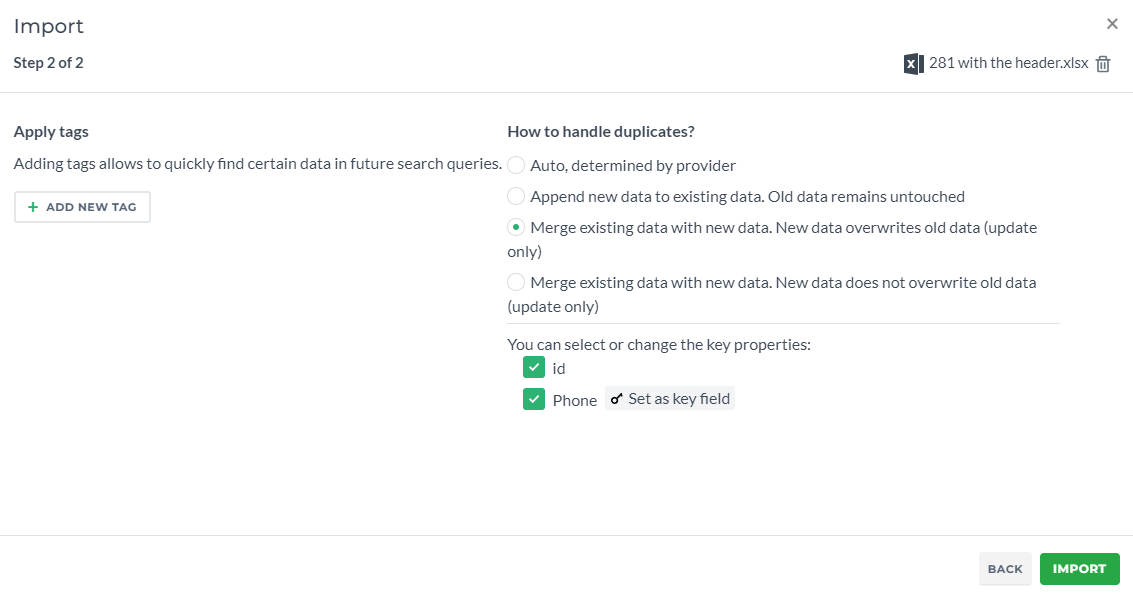
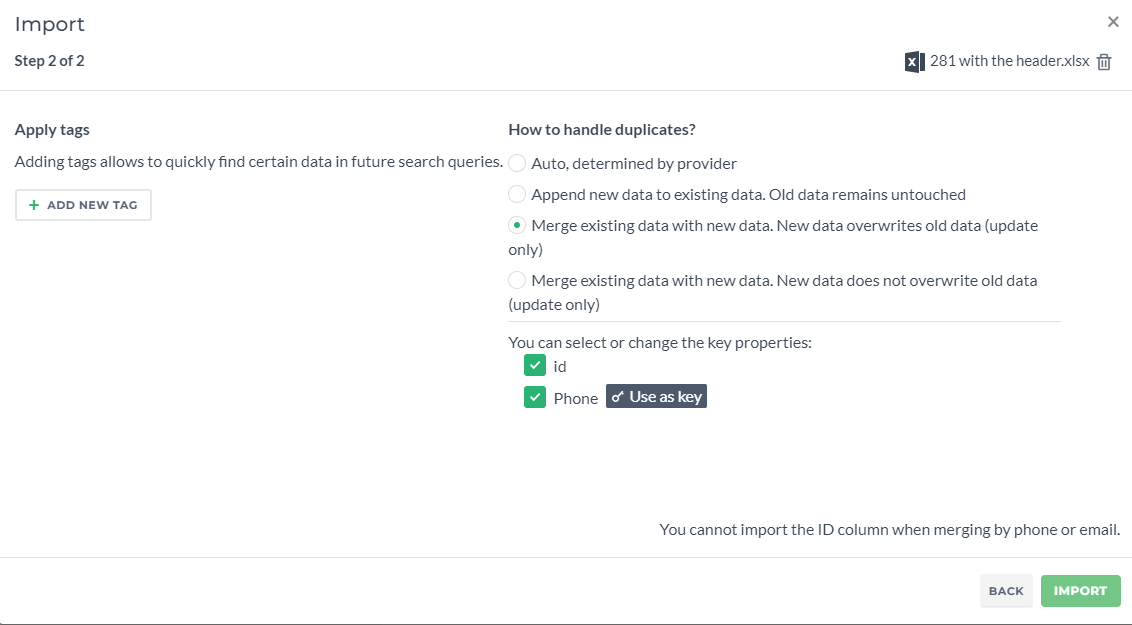
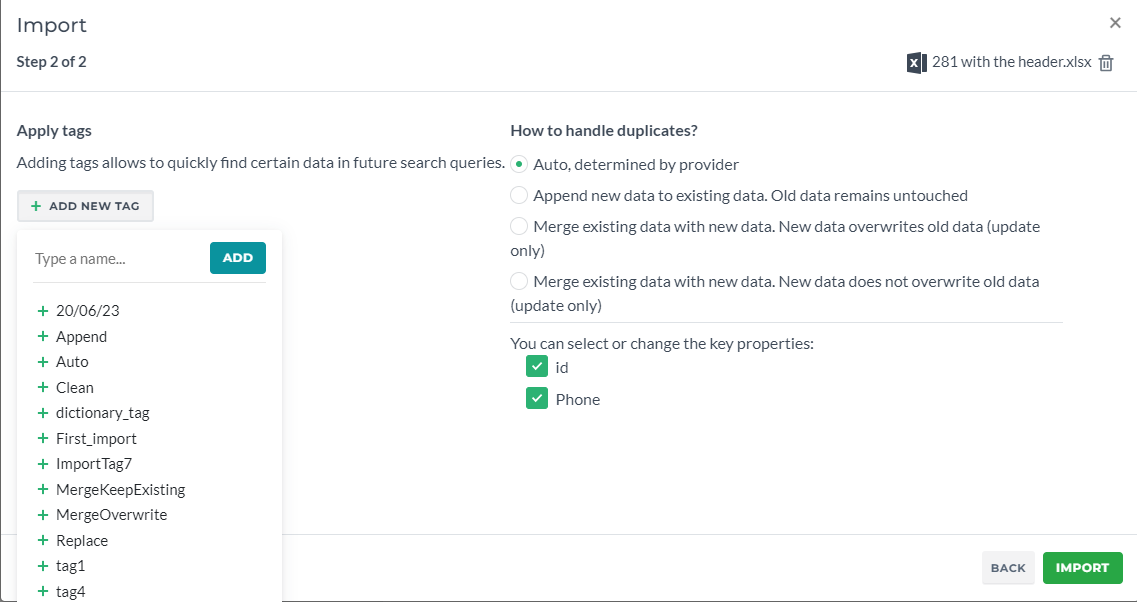
Also during Step 2 you can add tags.
¶ Additional details regarding strategies and datasources
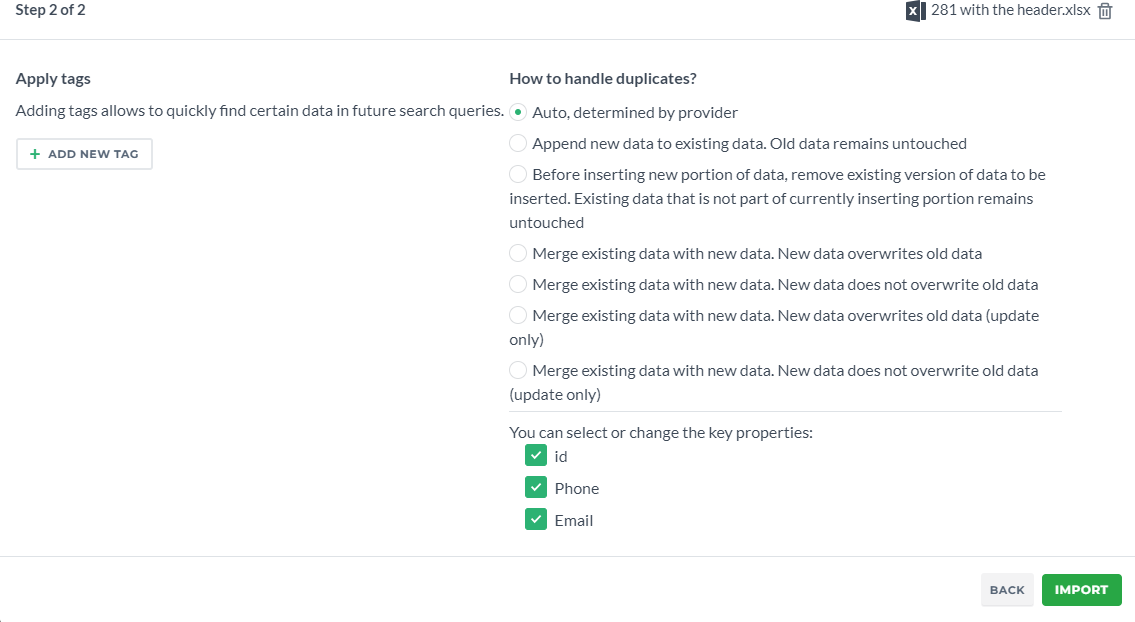
Auto is in most cases Append strategy and in some rare cases - Merge.
- First Merge strategy in the list MergeOverwrite allows adding new records and replacing the data in old records using key values;
- Second Merge strategy in the list MergeKeepExisting allows adding new records but does not replace the data in old records, it can only fill in the empty cells (for example missing gender or city);
- Third Merge strategy in the list MergeOverwriteUpdateOnly works the same as MergeOverwrite only without adding new records;
- Fourth Merge strategy in the list MergeKeepExistingUpdateOnly works the same as MergeKeepExisting only without adding new records;
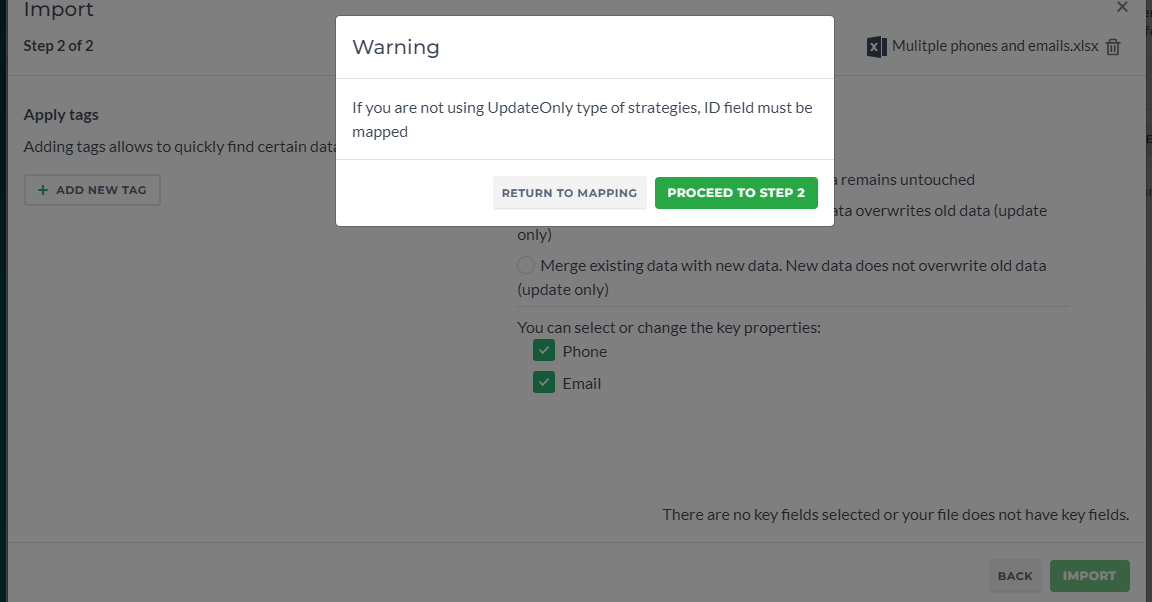
- By default the Merge strategies work with IDs. To use other fields like phone or email, please ask the Support Team to add it.
- We have different types of datasources depending on the data we import. If your excel file does not have the ID column (or it does not matter and is used simply for count), just a name column, phone column etc., this is the first type. When you import this type of file, the IDs are automatically assigned for new records (1, 2, 3, 4, n+1). In this case you can: use 1) Auto/Append strategy 2) use any of the Merge strategies BUT if something has changed and your new file has the ID column, you cannot import the IDs AND merge by phone/email at the same time. You can either merge by IDs OR merge by other fields and skip the ID column;
- If you have an Excel file with the IDs column and it is crucial to be imported or the data is imported from a different datasource (there is an integration), then it is type 2 datasource (BRP customers have it). You can 1) use Auto/Append only if your file has an ID column; 2) Use only MergeOverwriteUpdateOnly and MergeKeepExistingUpdateOnly;
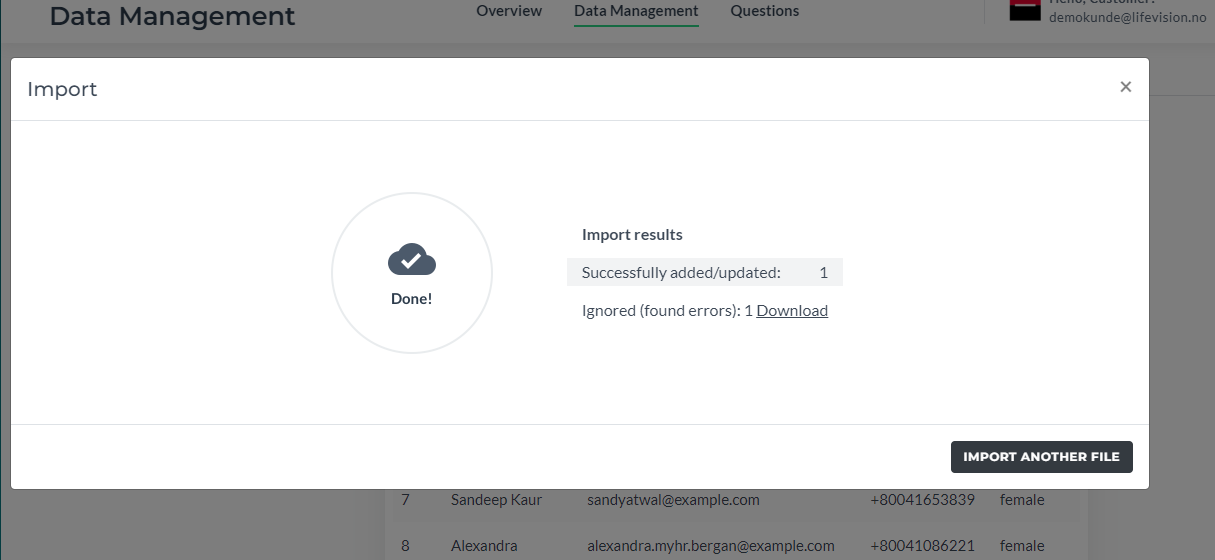
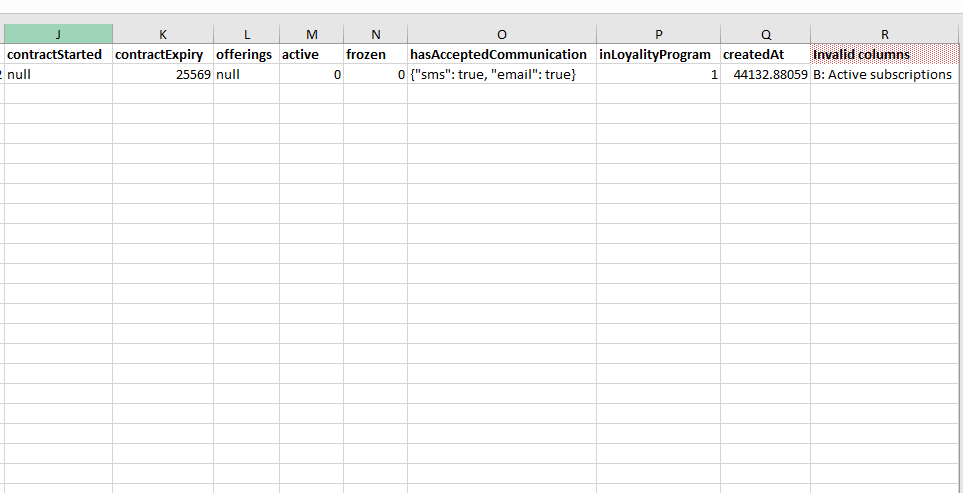
Detailed guide on merging records.
¶ Questions
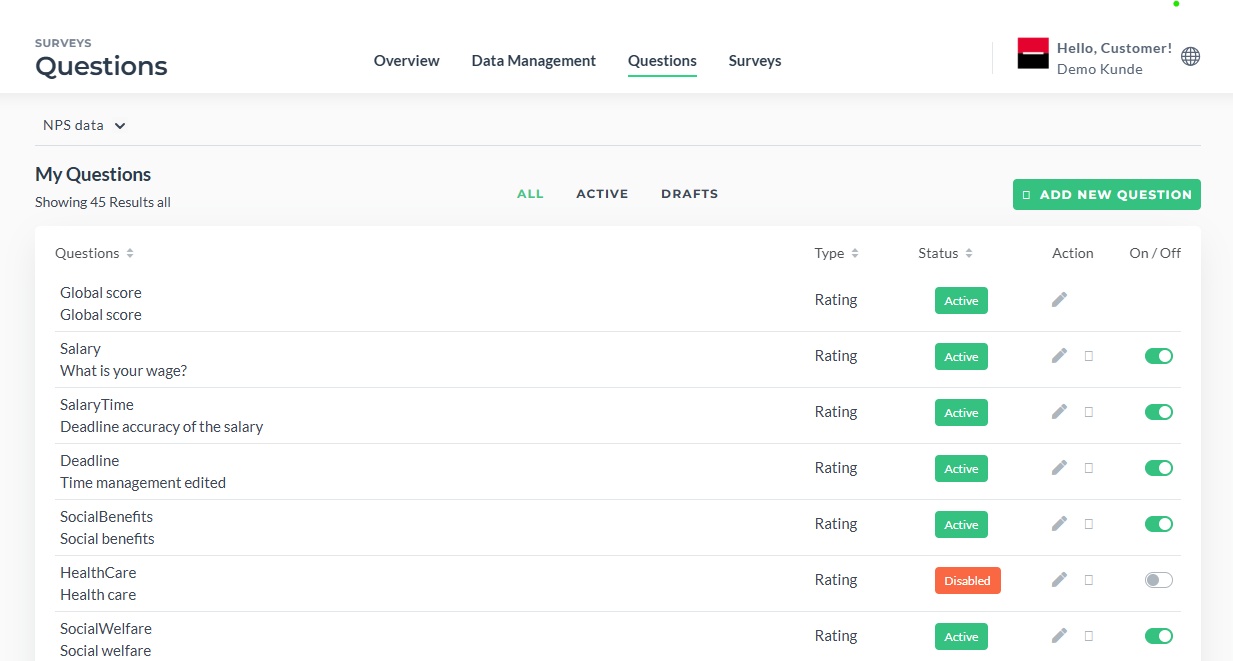
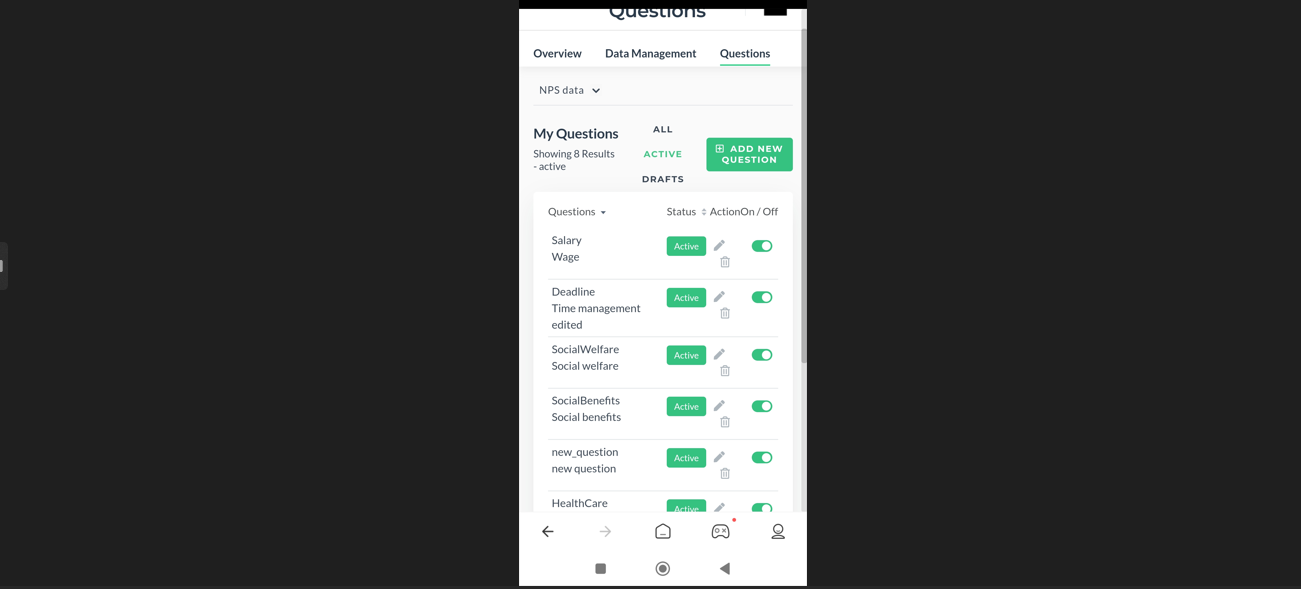
Questions have three sections: all, active and drafts. You can add/delete questions, activate and deactivate them.
Go to the Visibility Rule page, Sections Survey Questions and Select From Dictionary to get additional info on how to map these questions to your form.
Questions have three sections: all, active and drafts. You can add/delete questions, activate and deactivate them.
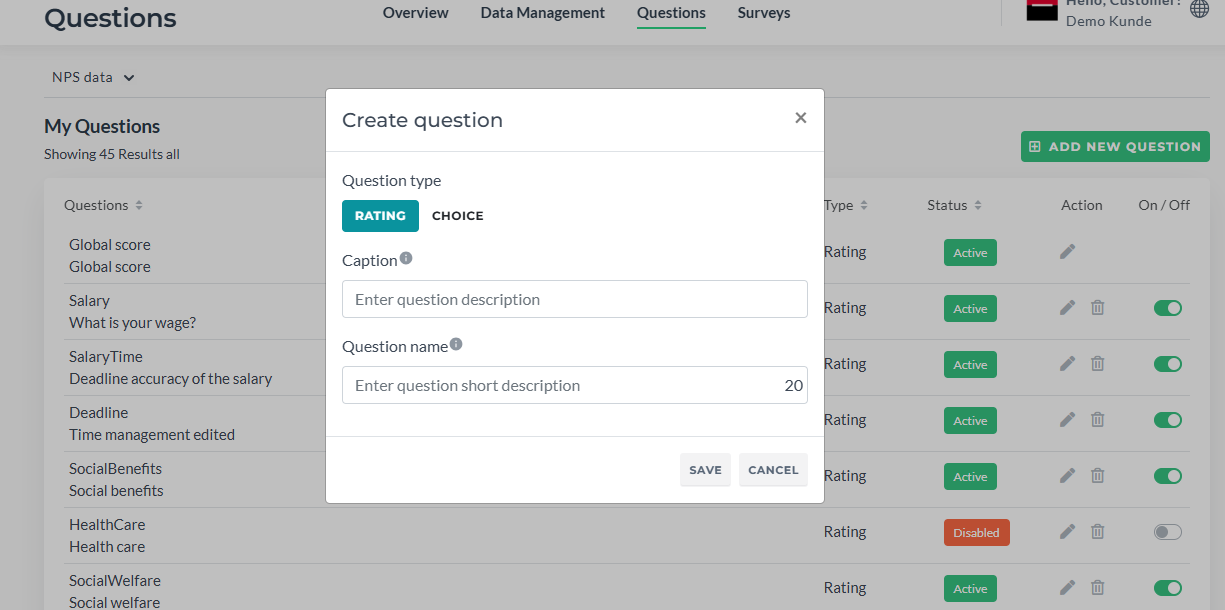
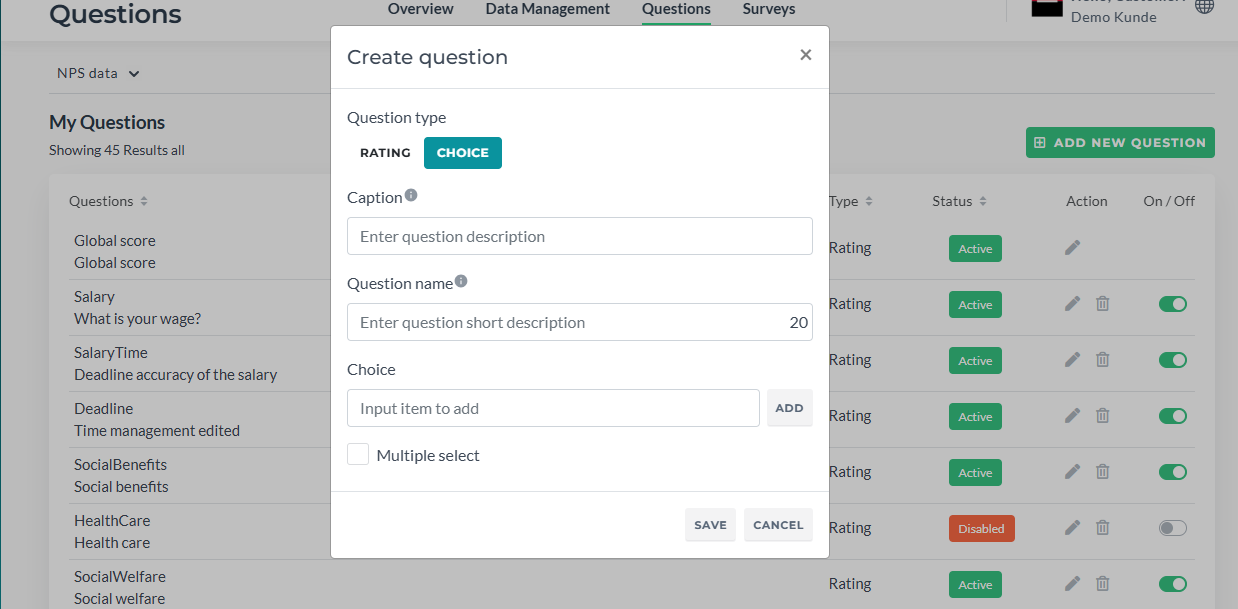
Question can consist of such fields: caption and shortname. For example, in a question "online_facilities
How happy are you with our online facilities, such as notifications via emails, payment service, etc.?" online_facilities is a short name and How happy are you… is a caption.
For Dictionary-type question we also have a dictionary field. This basically is an answer option. There must be more than 1 option (for example, Yes and No).
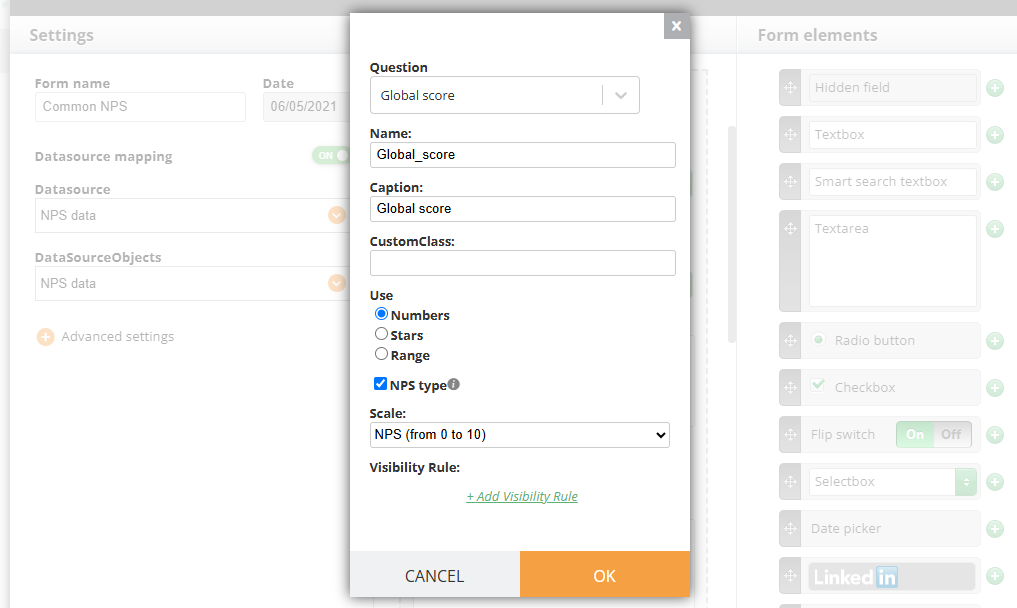
¶ Custom numbers/stars range can be set up here in Form Builder:
¶ Other
¶ Side panel
Allows you to access the main site's sections https://www.infact.no/mmww/Admin/CustomerPage.aspx
¶ Logout button
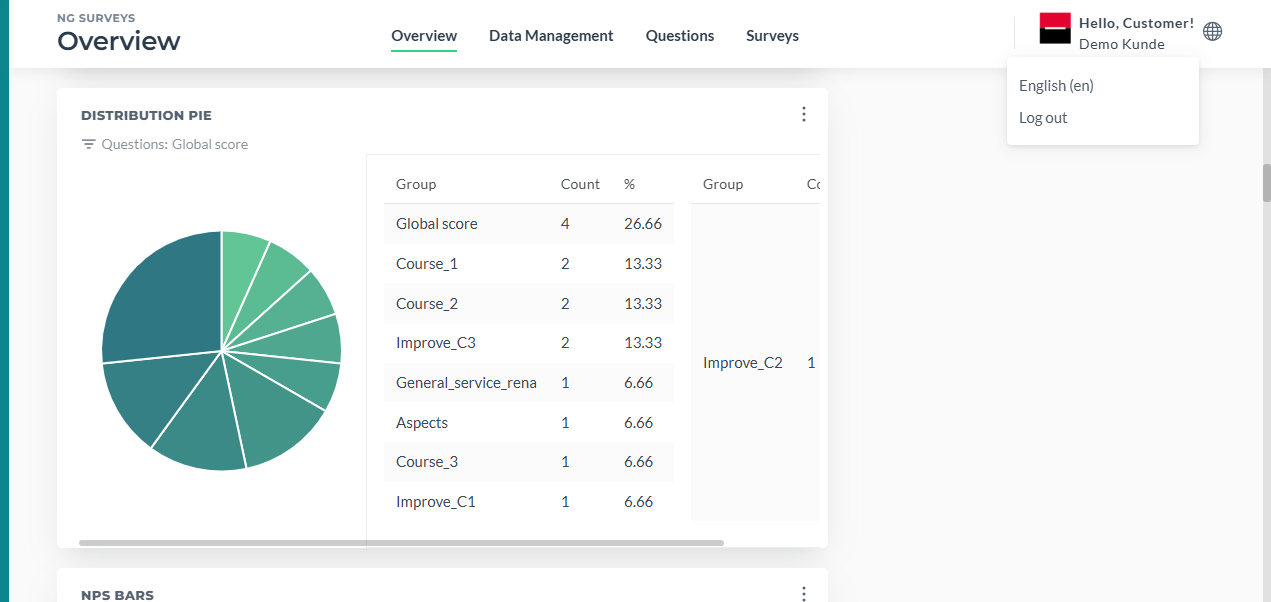
logging out via Dashboard will automatically log you out your account on the main platform. Same works with changing the language.
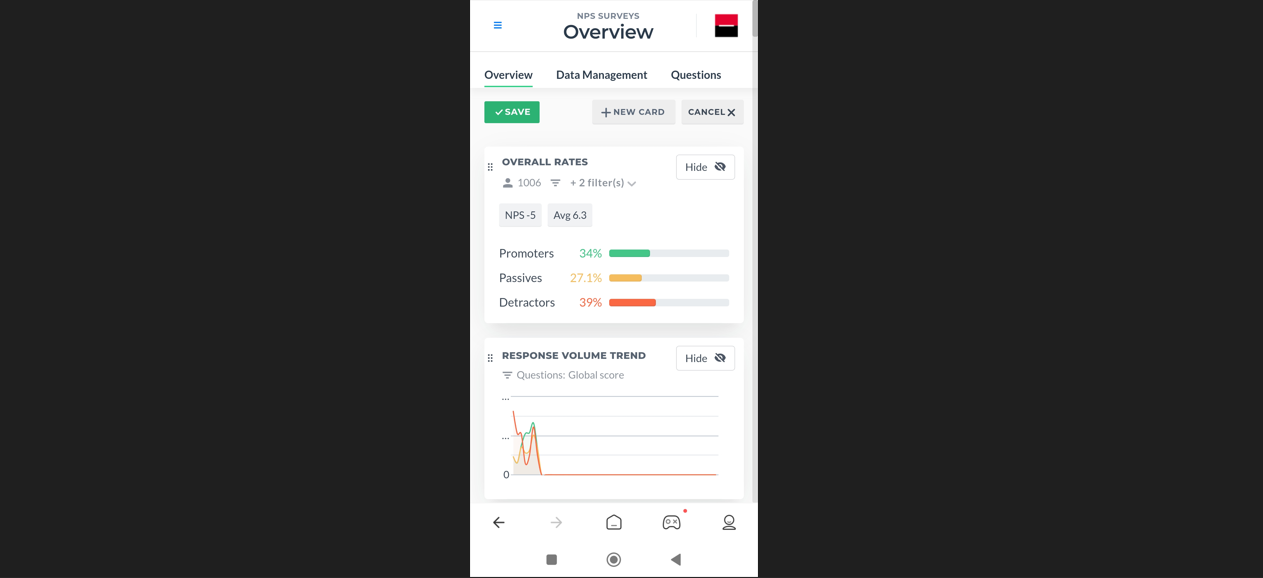
¶ Mobile Version
Overview, Data Management and Questions sections are presented just as onthe Desktop version.
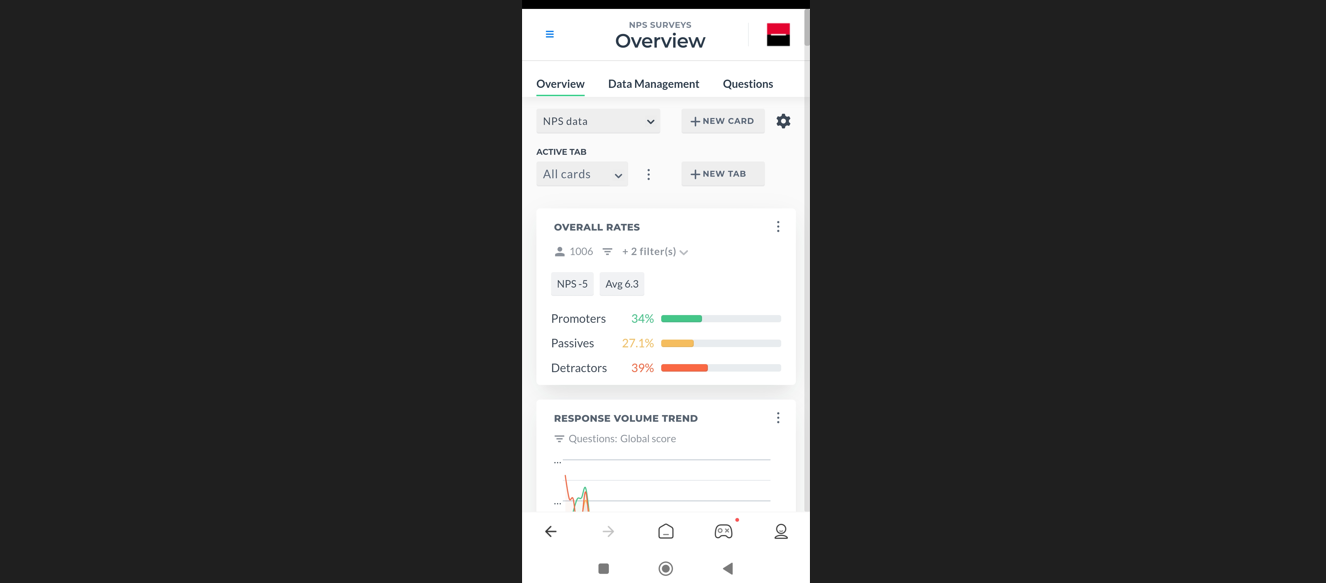
In mobile view you can easily switch between datasources, tabs, add new tabs and cards.
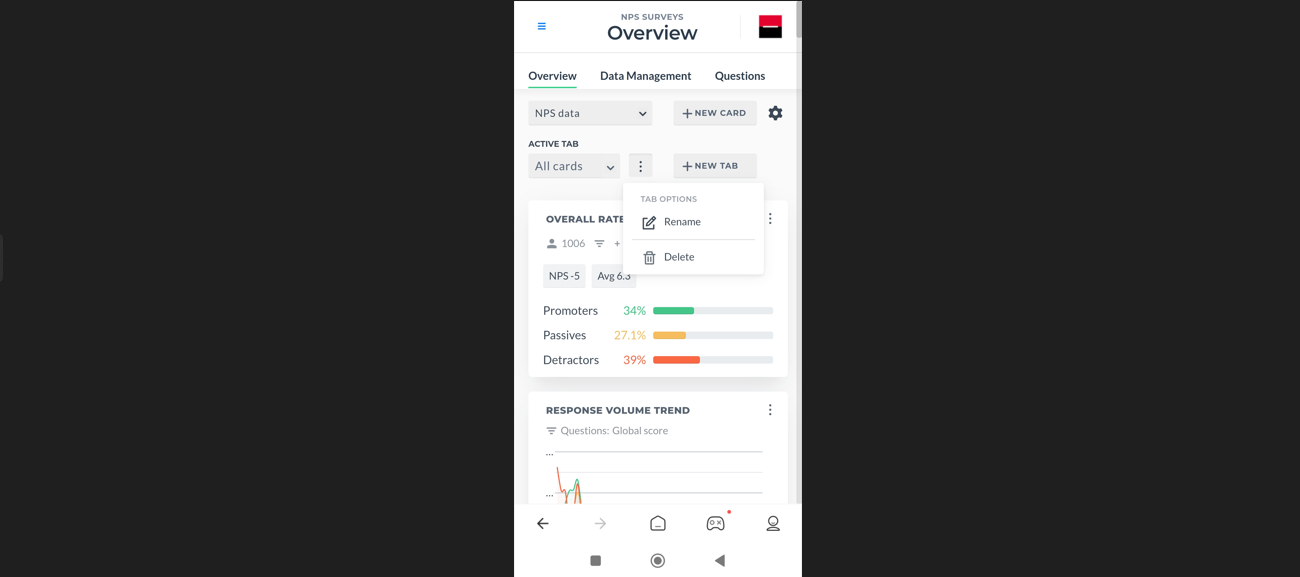
Clicking Gear icon allows you to hide cards, move them.
Also, in Questions/Active you can disable questions, delete and rename them. Also, add new ones.
¶ Customer with different users
NB! All users have the same view in our main site (where we create forms and campaigns) but the Dashboard is set differently meaning that the cards, tabs and filters are different for different users.
¶ Surveys
To create a survey, open an article: https://wiki.infact.no/en/customer-use-cases/survey-builder