¶ Create New Landing Page
NB! You can always create a new landing page, but you do not need to prepare it from scratch; the designer prepares a template for your use. This article explains how to work with landing pages.
¶ What is a landing page?
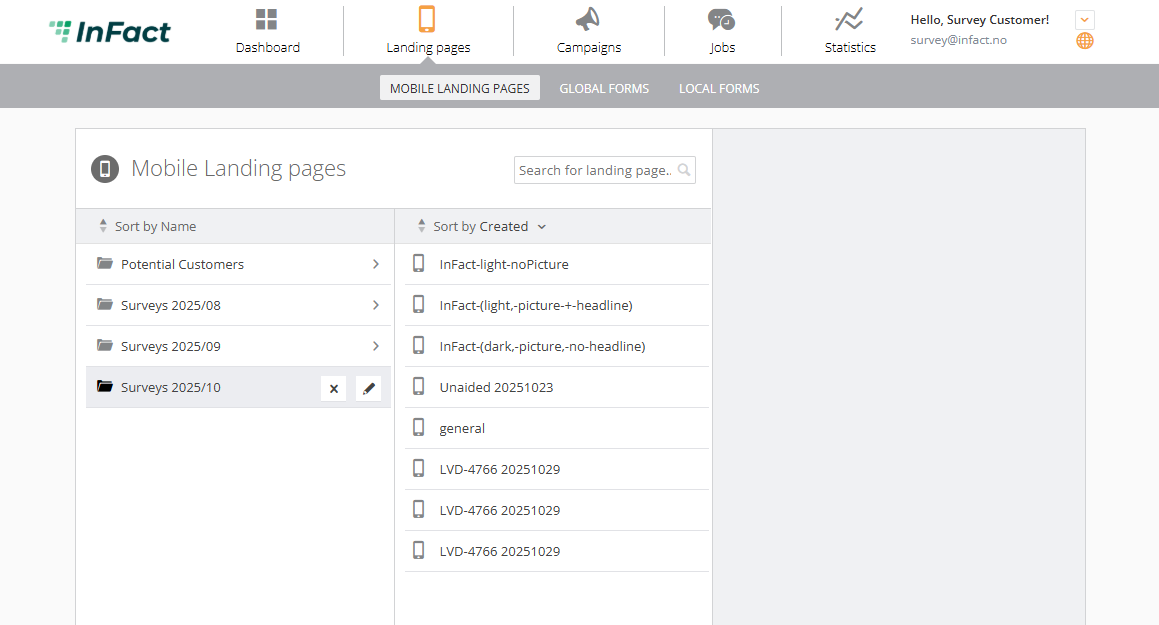
In digital marketing, a landing page is a standalone web page (website), created specifically for a marketing or advertising campaign. It’s where a visitor “lands” after they click a link in an email, or ads from Google, Bing, YouTube, Facebook, Instagram, Twitter, or similar websites on the web. At Infact, we can create landing pages with Surveys for your customers to provide feedback.
Example: Survey link
¶ Steps
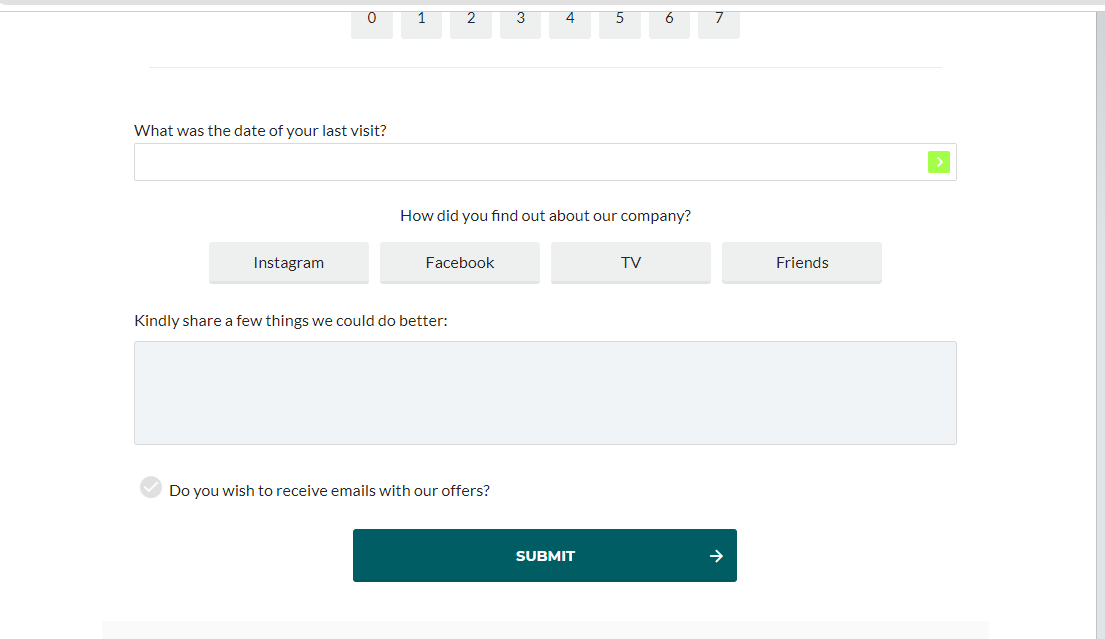
To create a new mobile landing page, you need to go to the "Landing page" - "Mobile landing page" section and select either an existing folder or create a new folder using the "New folder" button
To create a new landing page (or site), click the New landing page button, located down to the list of landing pages' folder content.
The following dialogue will appear:
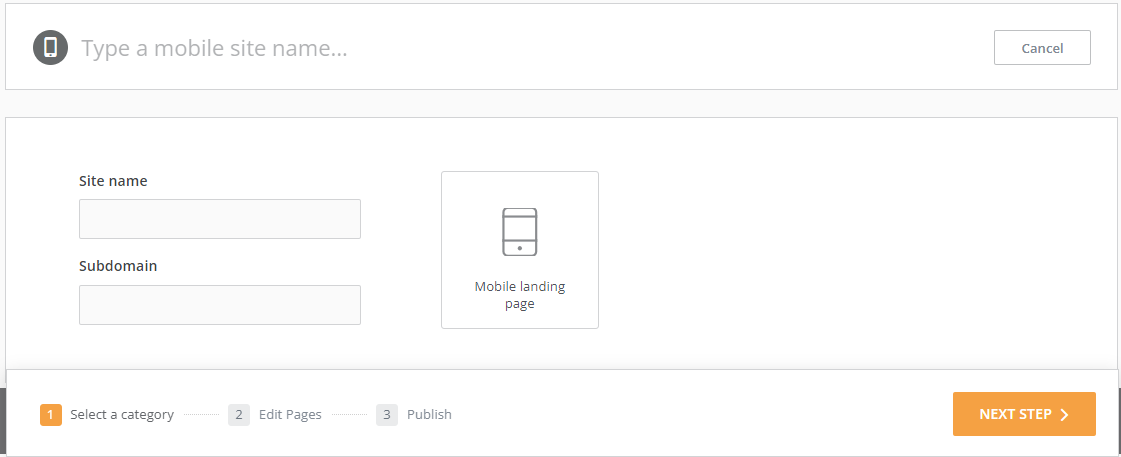
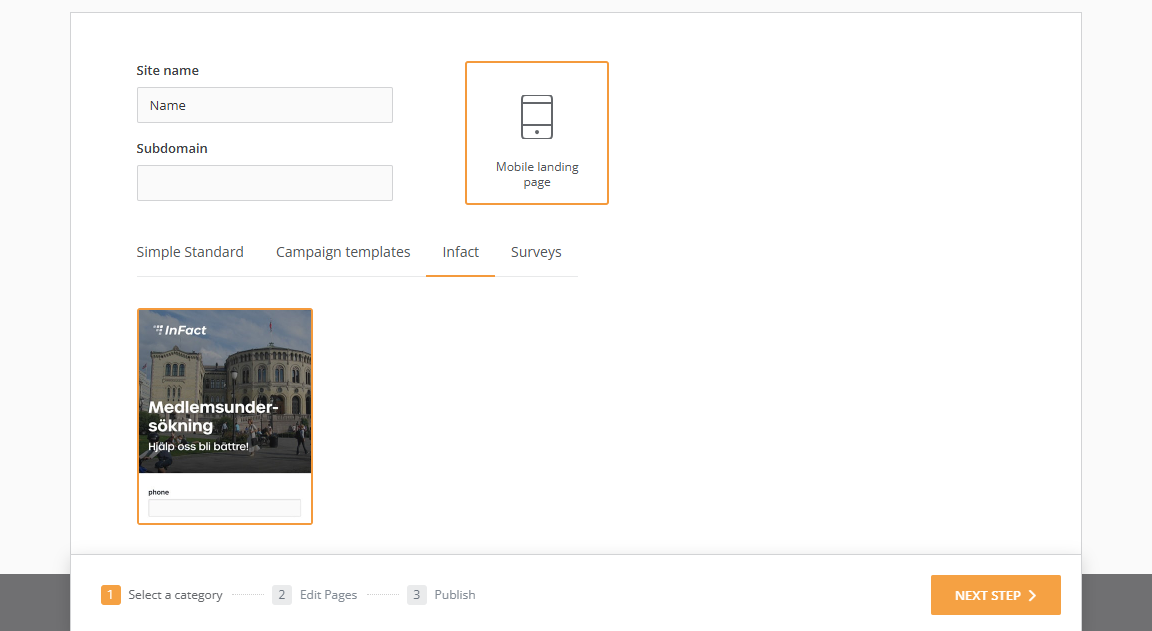
- Fill in a subdomain field if needed and choose a name for your landing page:
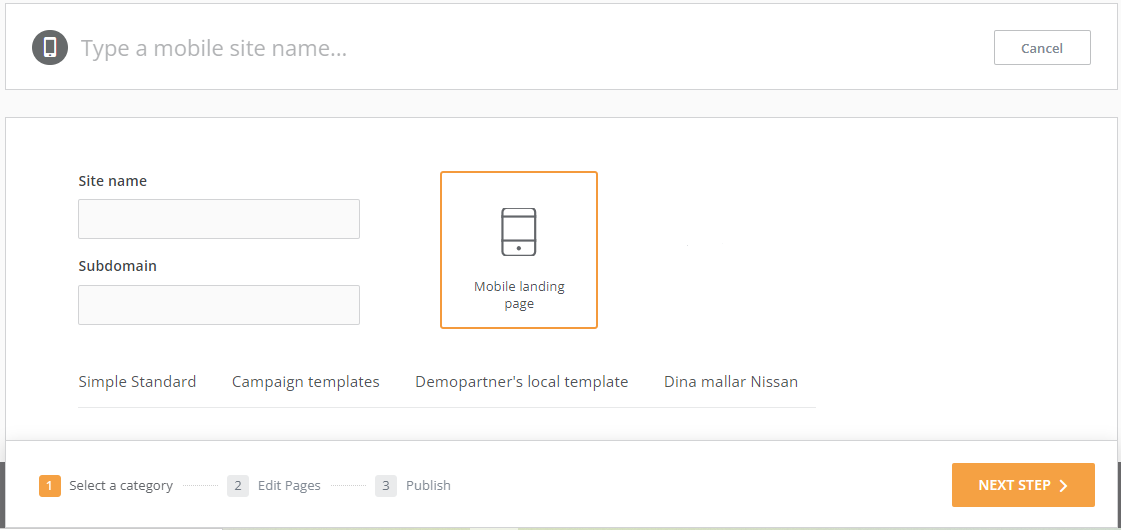
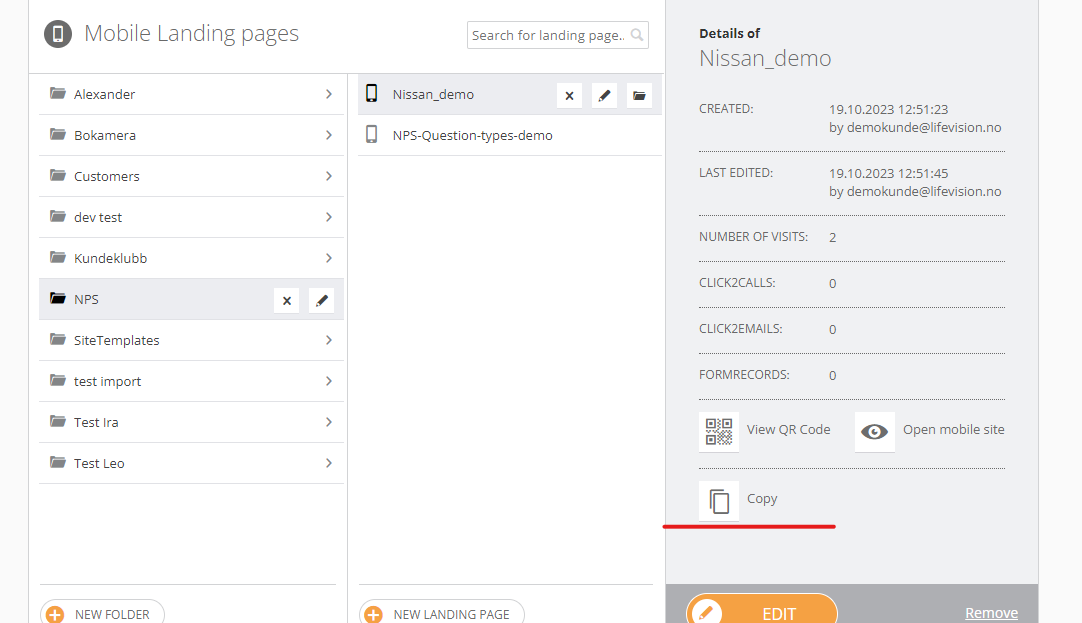
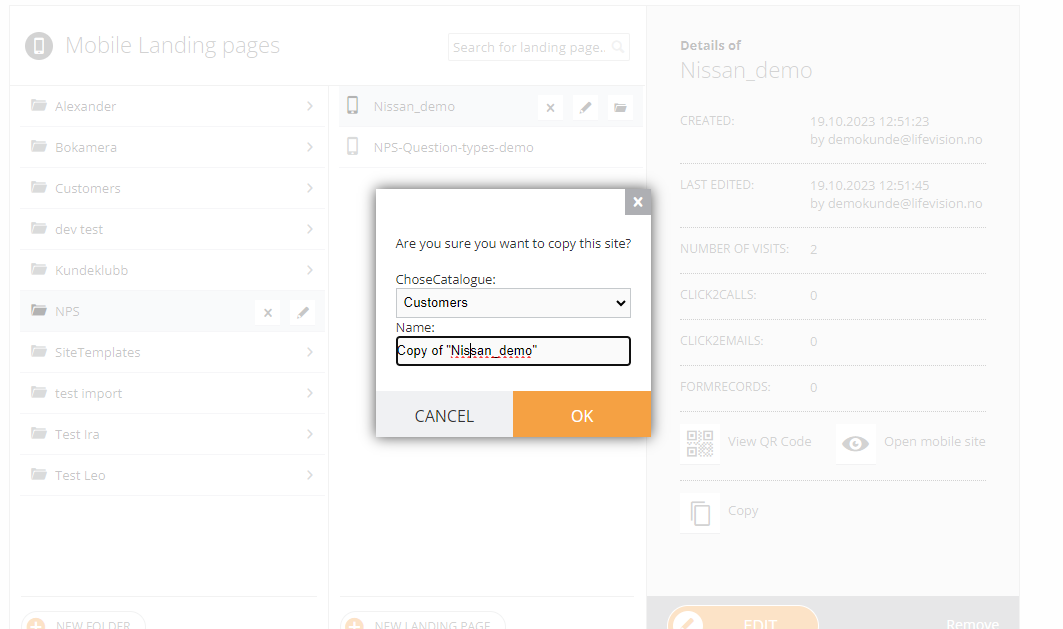
OR copy an already existing landing page:
2. Select one of the existing landing page templates (you cannot reselect the template; the only solution is to delete and create the page again).
On some new templates if user changes anything in the landing page editor and presses update button, some styles are changed to incorrect
The problem is that those templates have scripts that make changes on site load, but do not take into account preview behaviour when the update button is pressed. The correct script must wait for the 'mobile-ready' event and only then make changes to HTML.
Here is an example of the correct script:
   $(document).bind('mobileready', function(event, context){
//here we can change html and it will work in preview as well
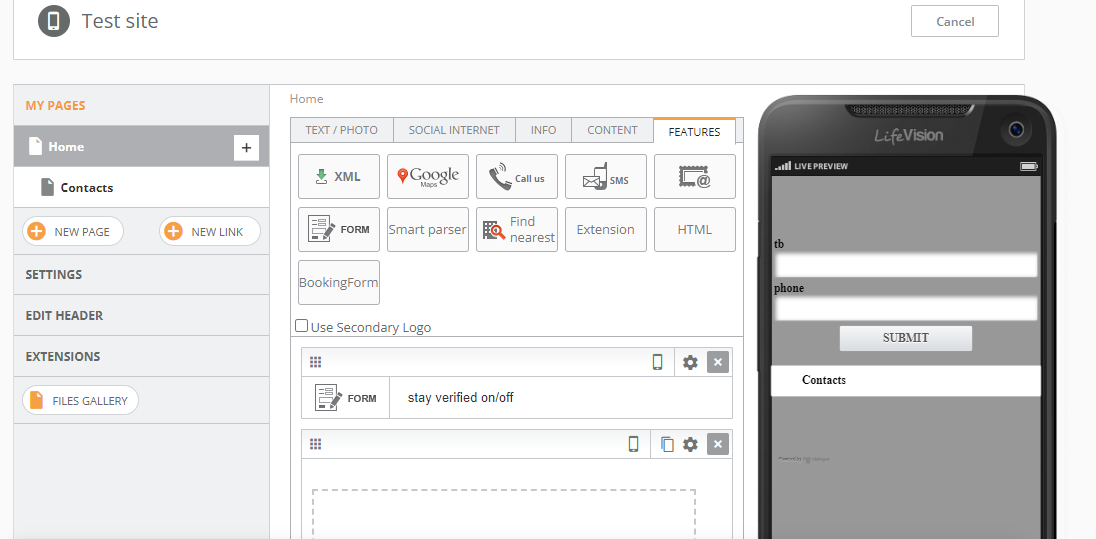
});3. To place a form, go to the Features tab. How to create your first form to collect data for your Survey, visit this page.
4. To make the landing page always be shown in a narrow format, switch on this function. The following settings are enabled by default: "Force portrait view", "Active", and "Enable auto loading".
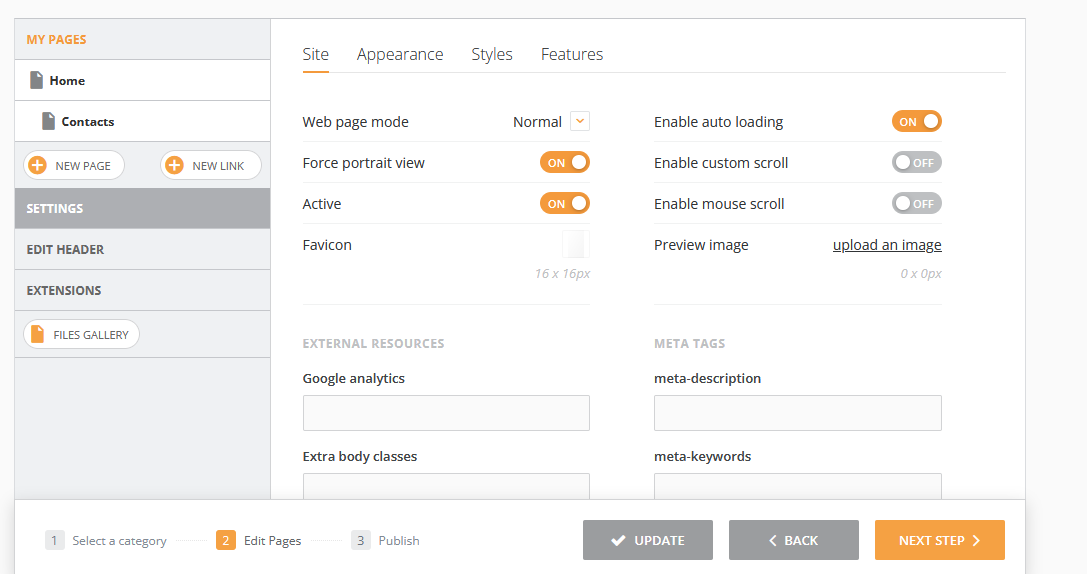
5. Adding a new page:
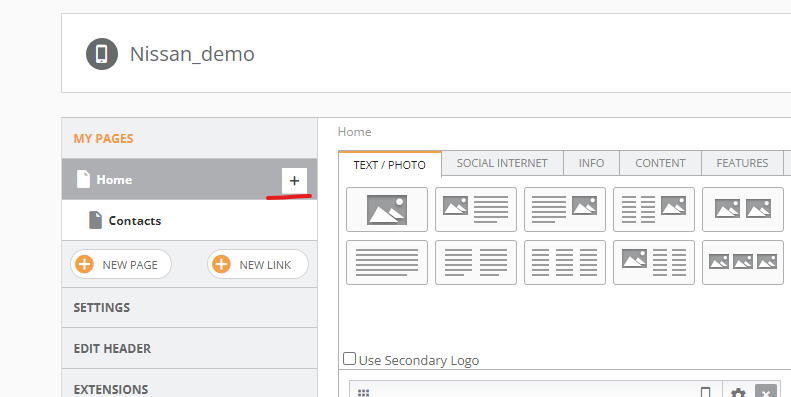
Additionally, how to rename the landing page:
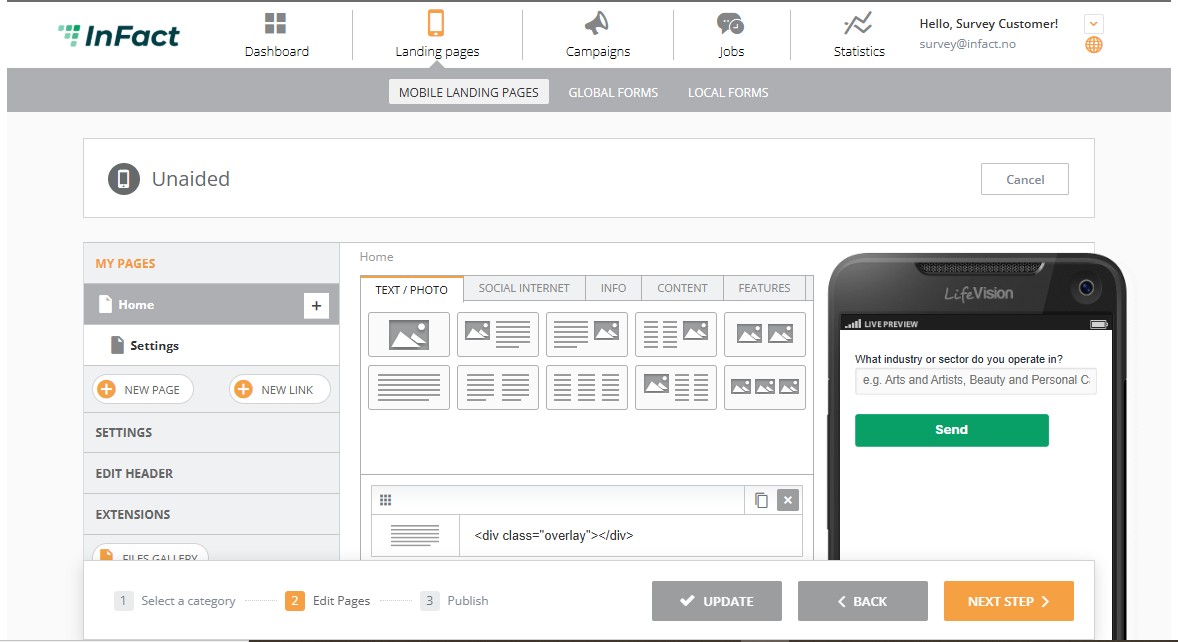
6. Add a logo here
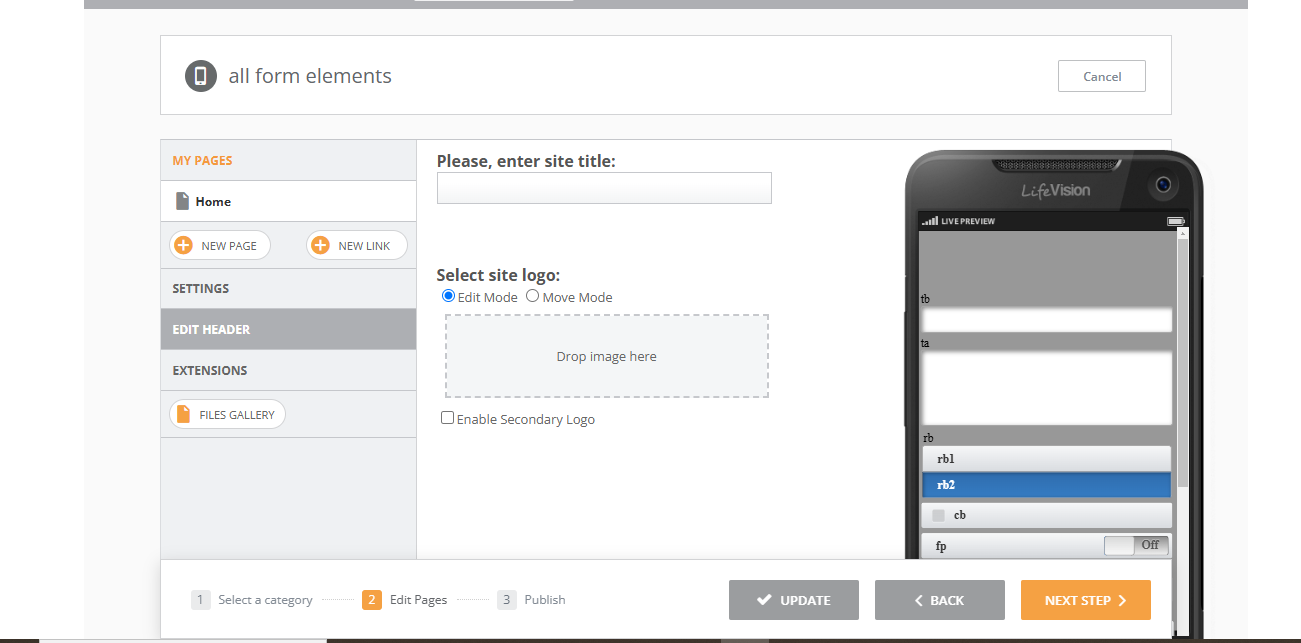
7. In extensions, you can add your scripts and styles
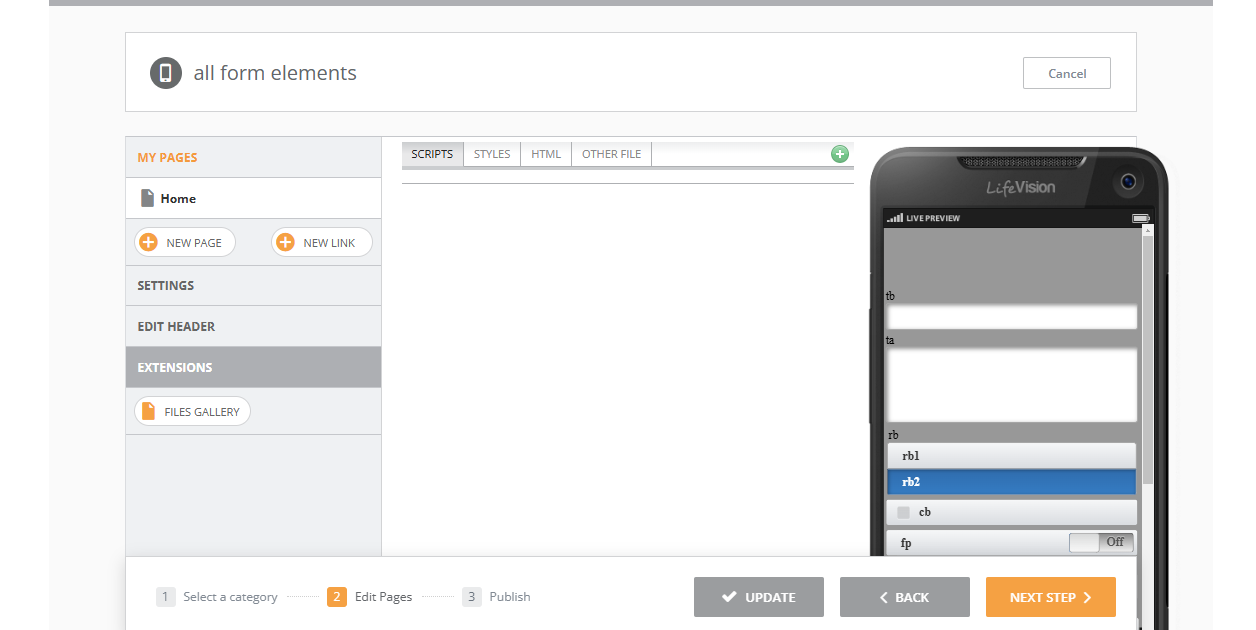
To check applied changes, click the “Update” button.
See some advice regarding landing page design.
¶ Other useful features
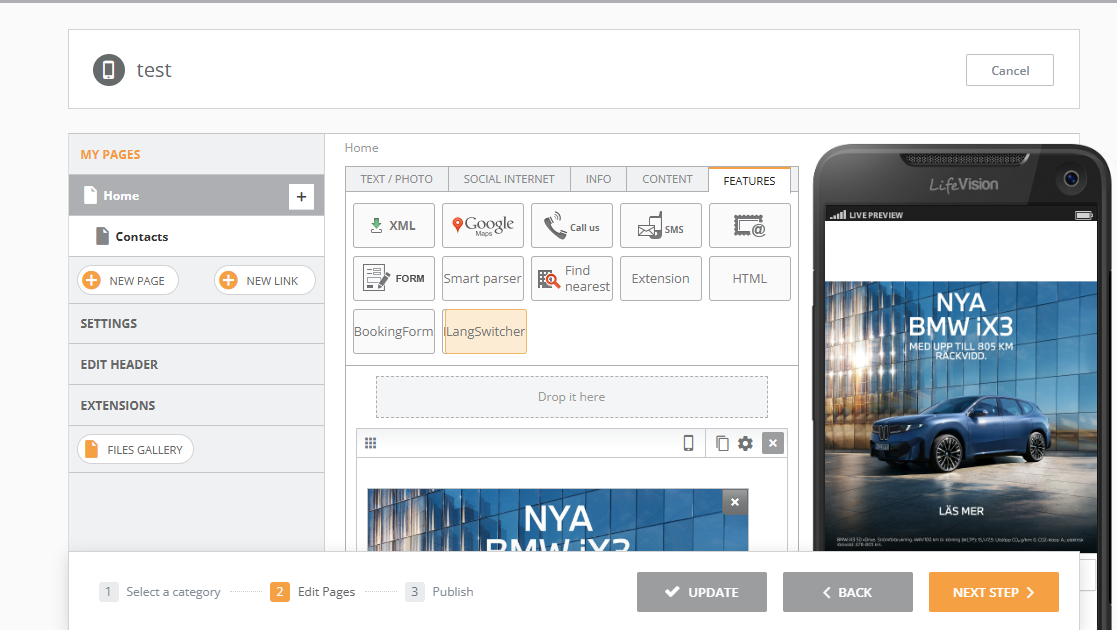
¶ Multilingual landing page
Check out the article on how to set up a multilingual landing page
¶ Adding links inside images
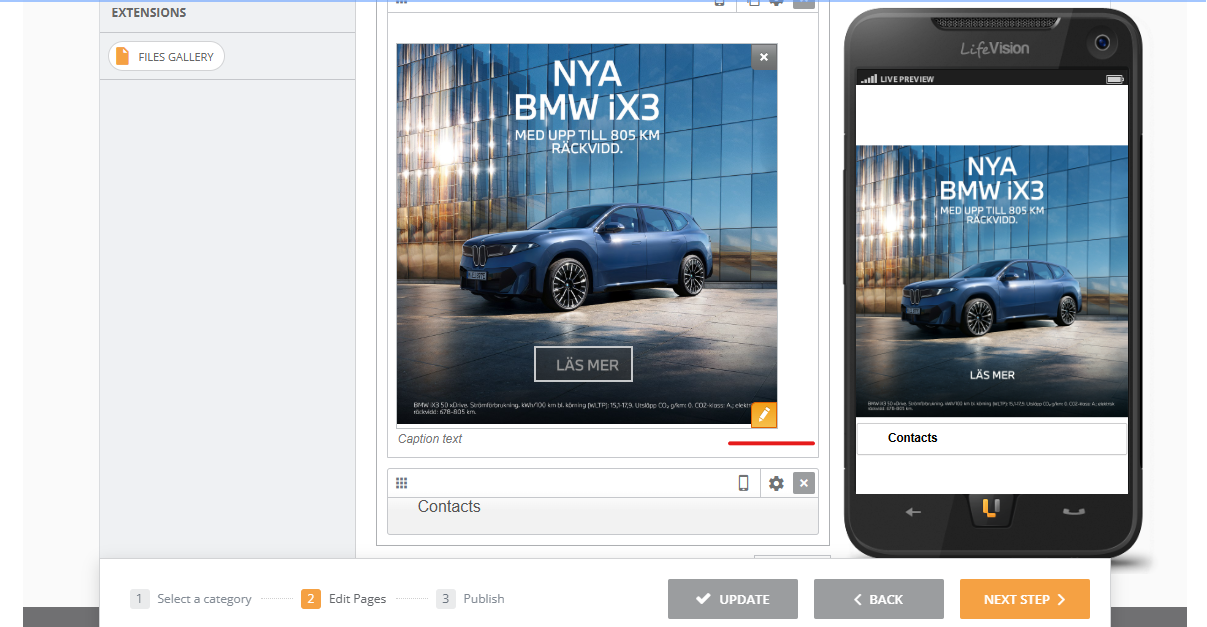
When you have added a picture, click Edit:
Click Add a link:
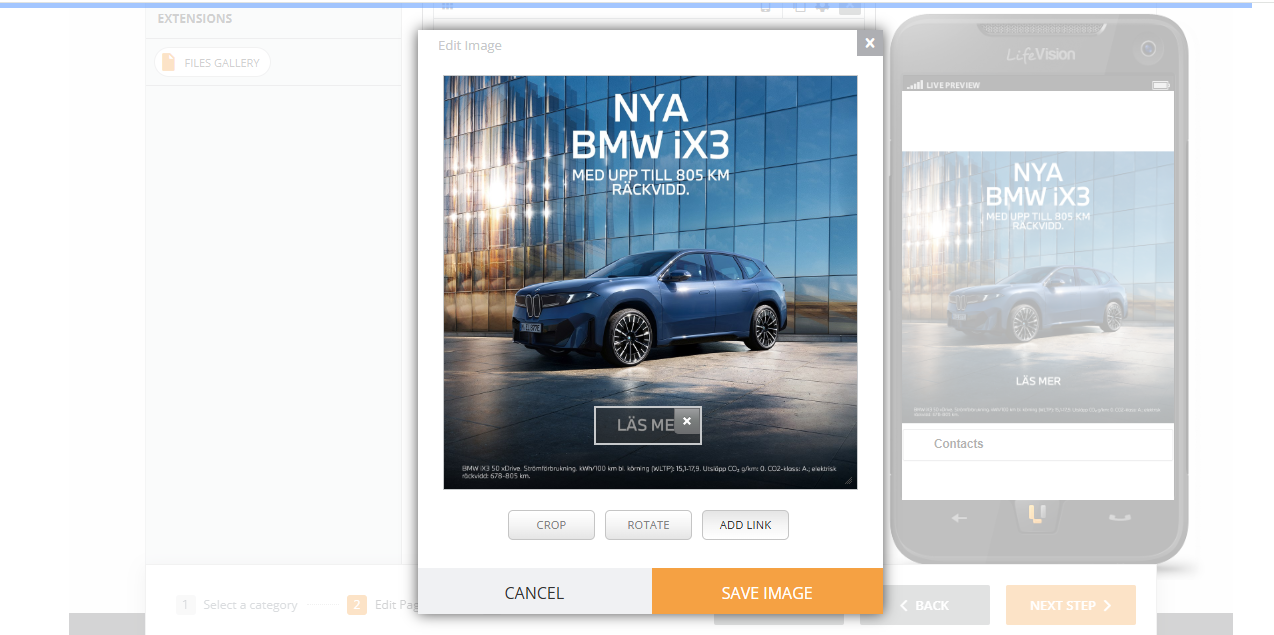
You can either make a whole pic clickable or just an area by selecting it:
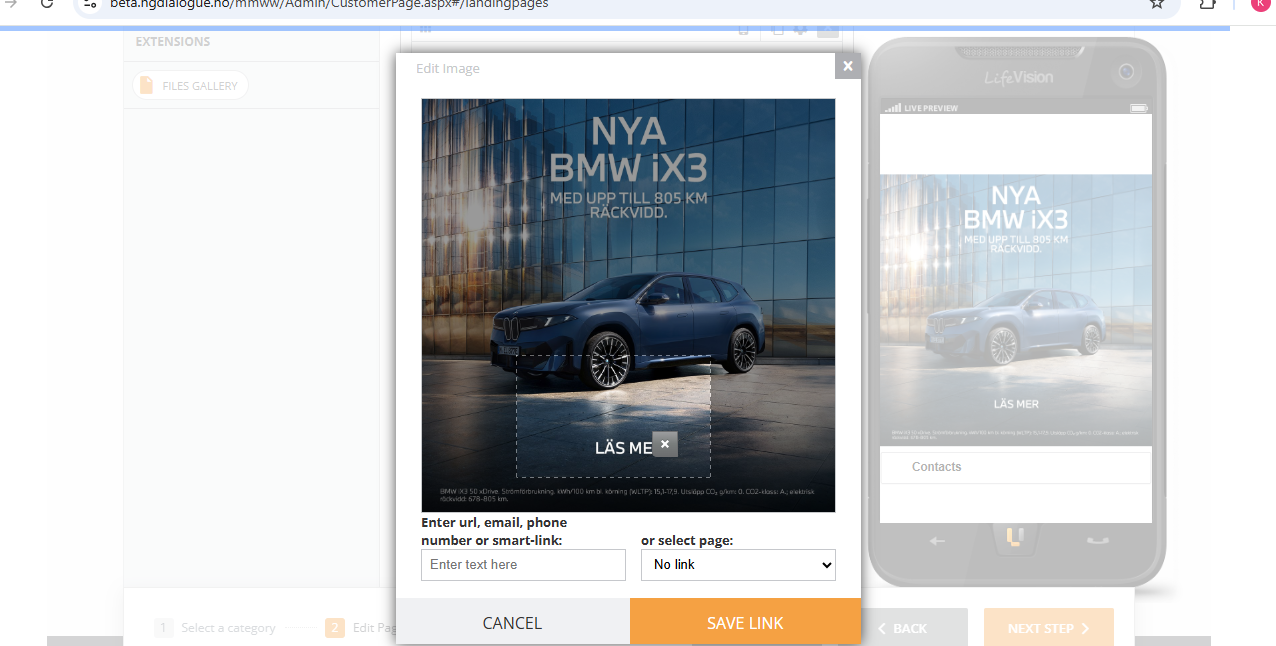
Add your link in the left empty box and save.
¶ Search and Sort by Tool
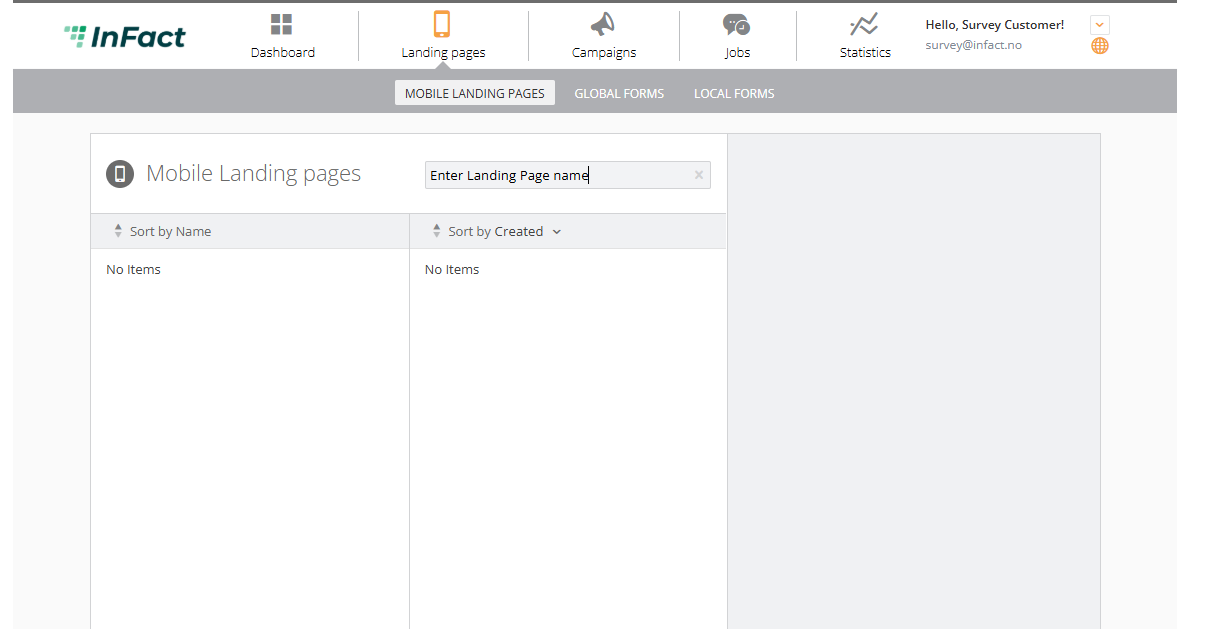
To find your landing, use the search tool. It is available under the Landing Page category and allows you to search for landing pages within one account under all folders.
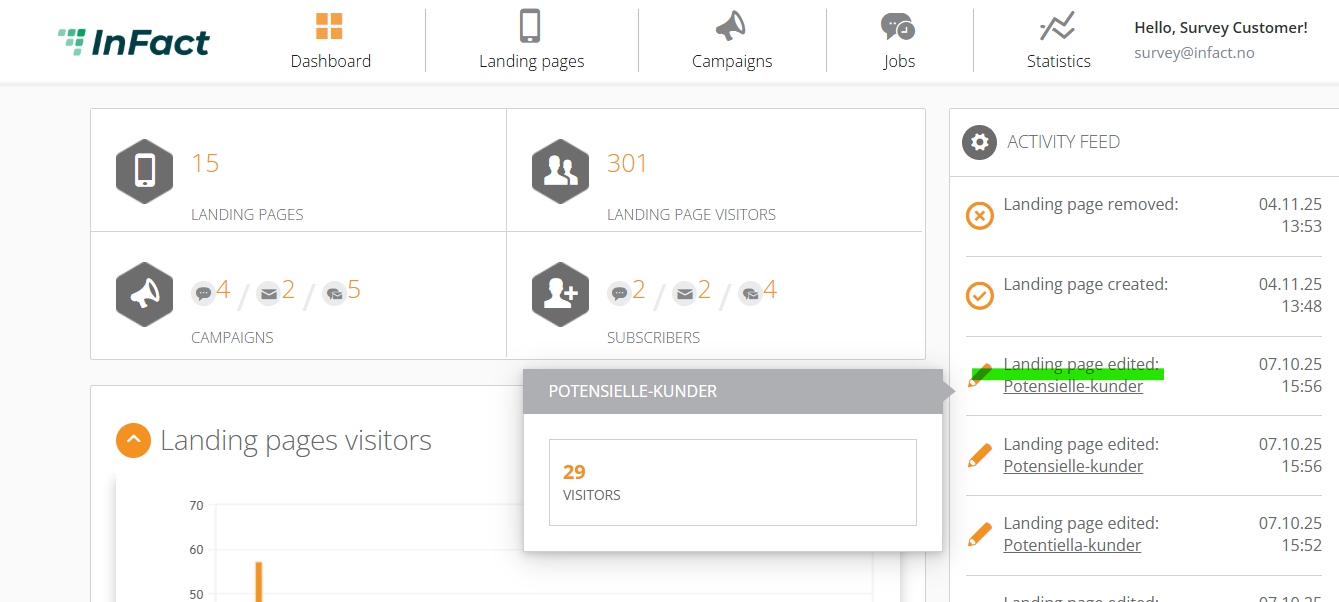
Also, you can click on a landing page from Activity View, and you will be redirected:
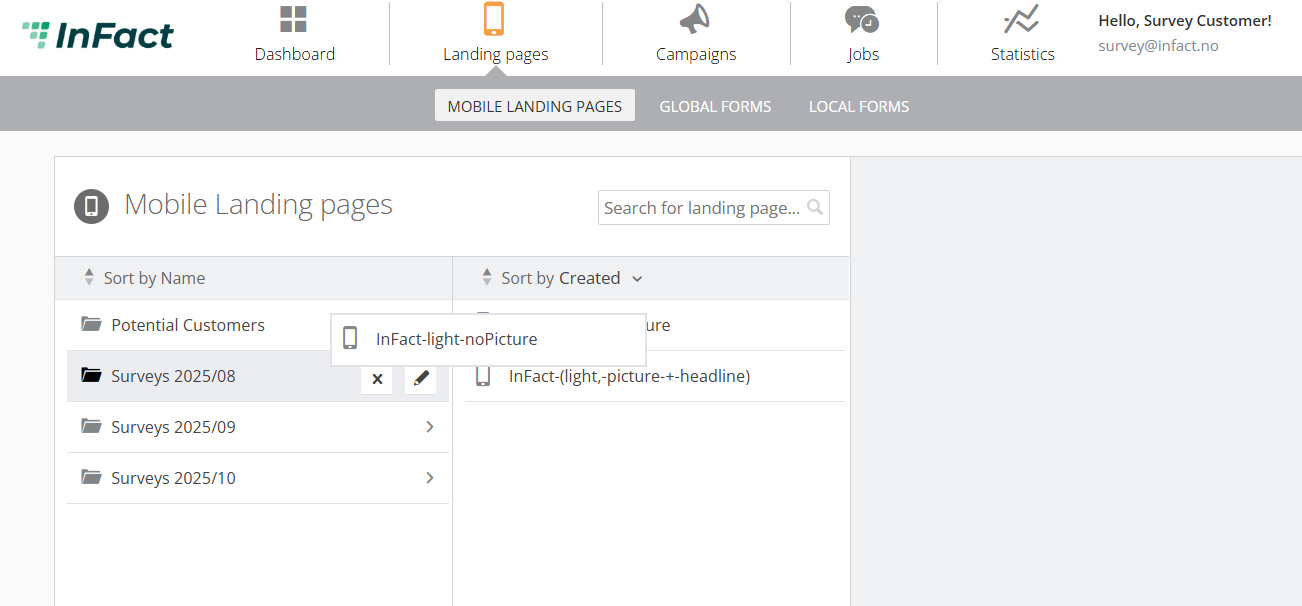
To move, simply Drag & Drop:
¶ Other useful articles:
Additionally, a guide on how to add Google Tag Manager to the page.