¶ Overview
Forms are a common way to collect data from your customers. To publish the form and send it to the customer, you need to place it on one of the created landing pages.
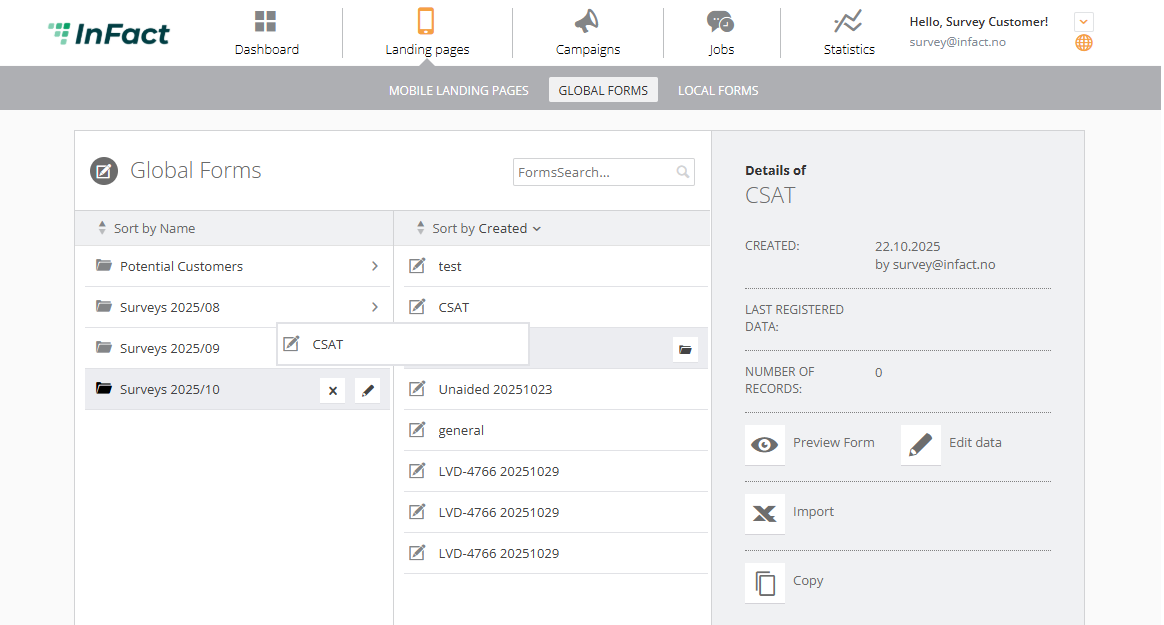
The list of your forms are placed in the menu Landing pages → Global Forms
See the screen:
¶ Create your first global form
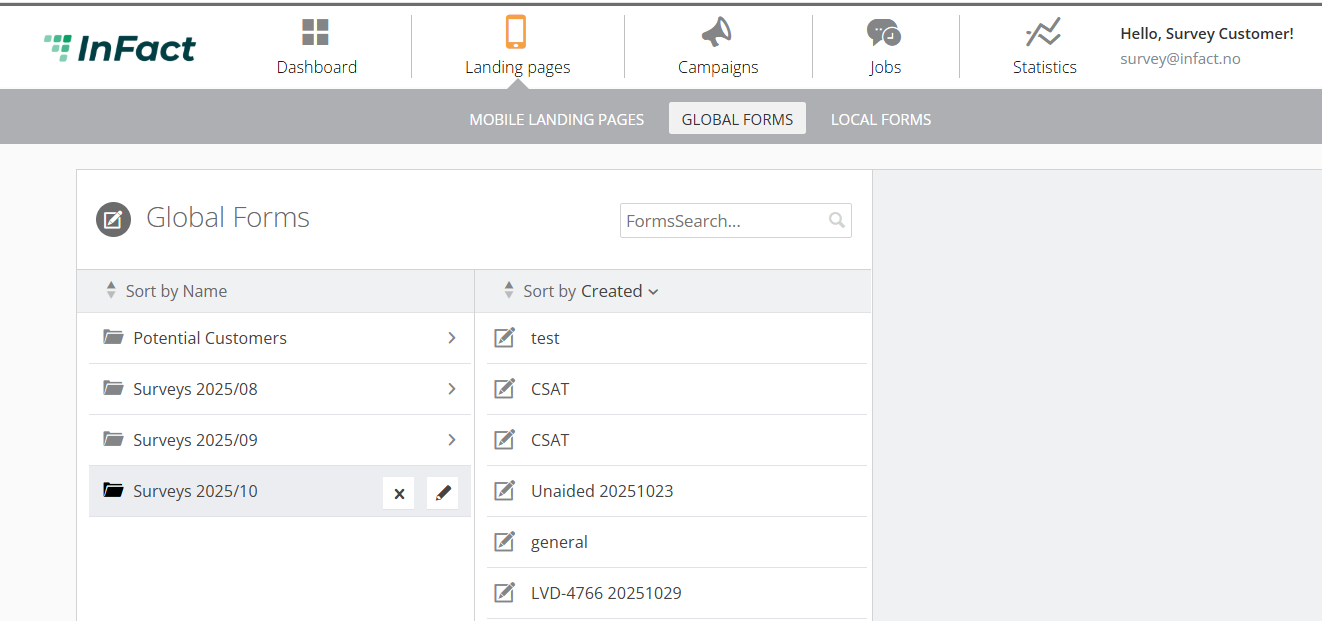
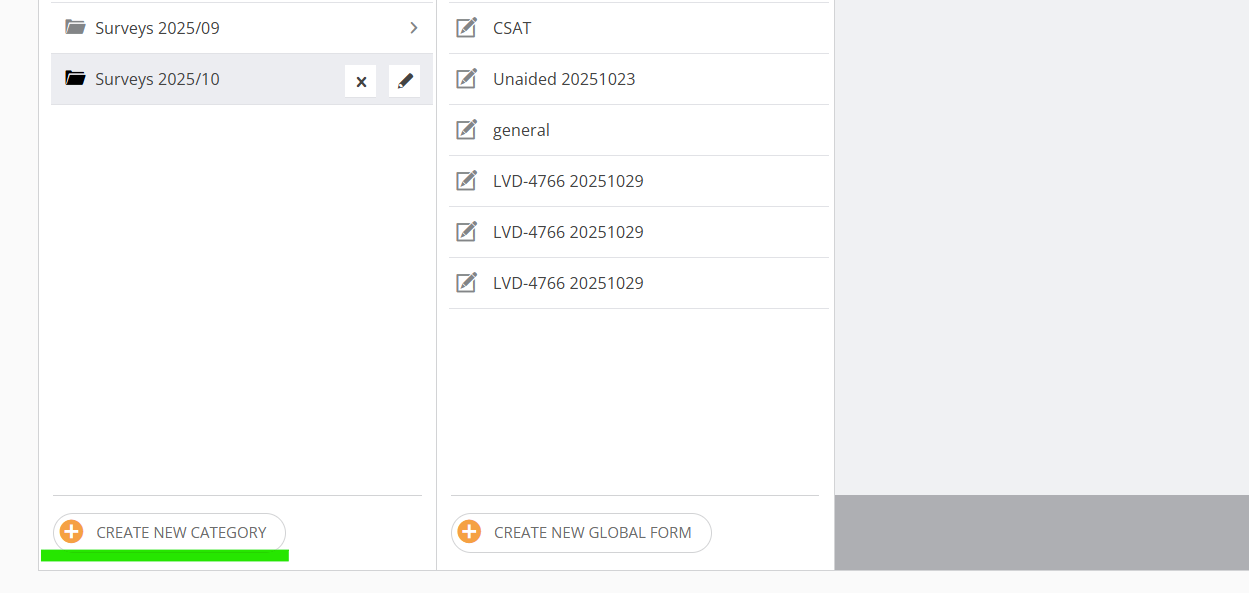
¶ Create a form directory
Before you start with your new form, you can create a new form directory.
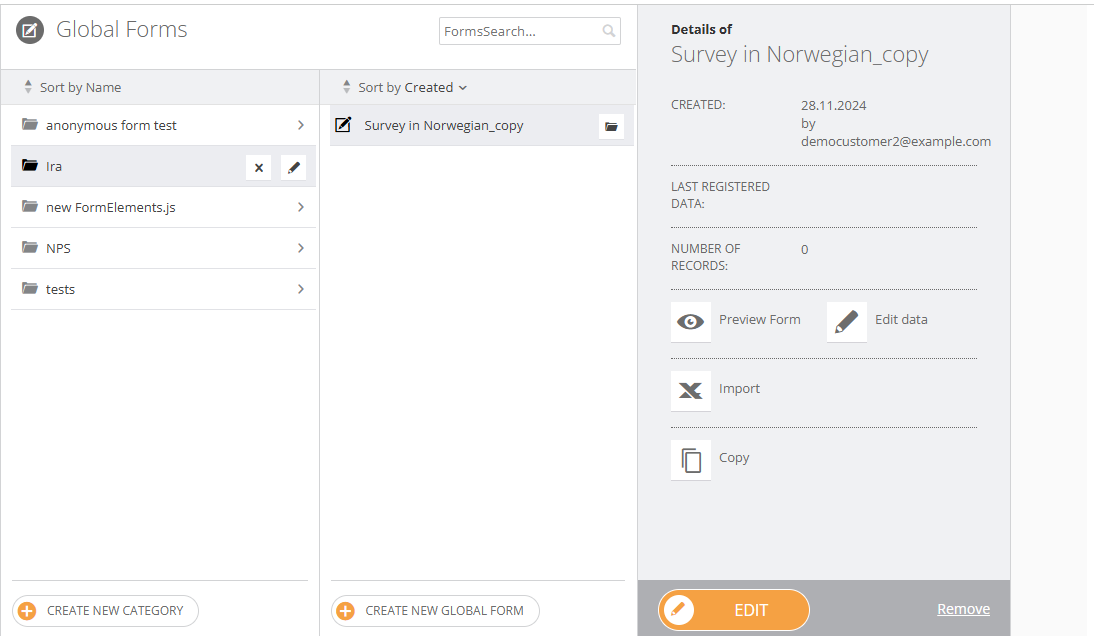
If it is an existing form click “Edit”
¶ Form Builder
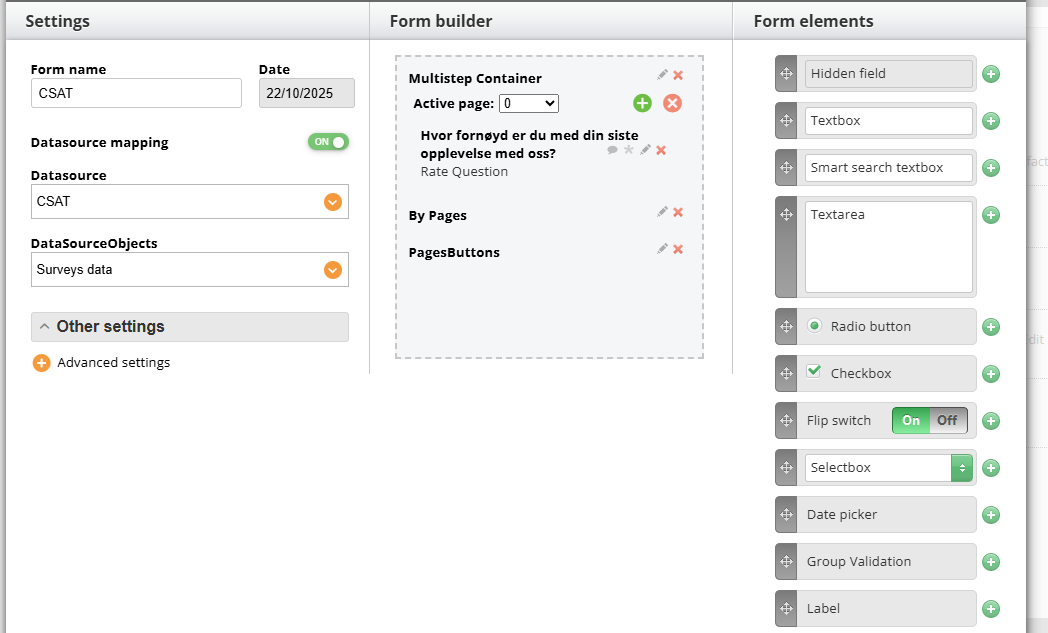
¶ General Settings
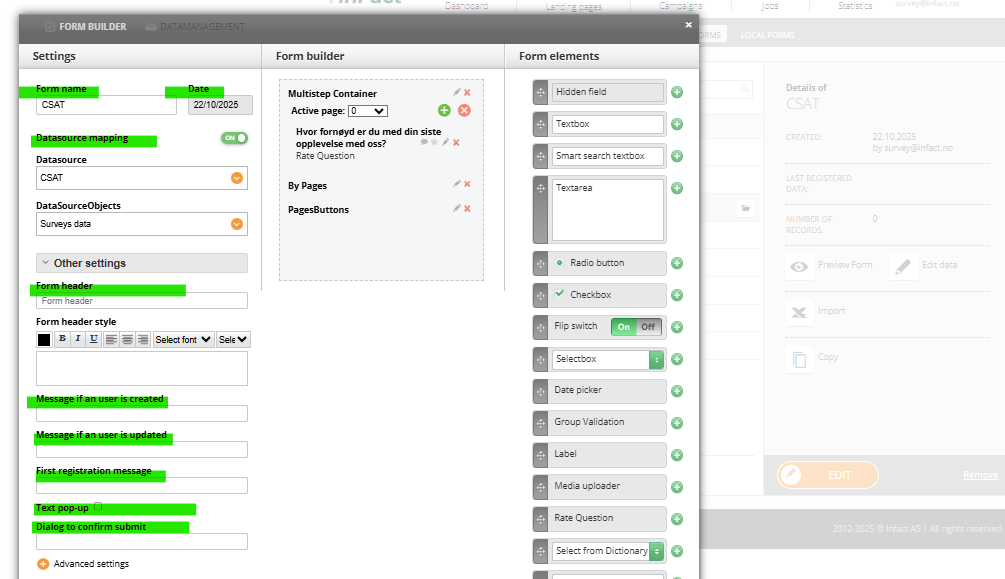
¶ Other Settings
- Form header is the text that the user will see as the title of the form. It can be customised with the Form header style.
- A message if a user is created (added to the form the first time) or updated (if the user has been in the form and updated his data) will appear as a pop-up after submitting data.
- Text pop-up - this tick allows you to not close the form after the user submits it.
- Dialog to confirm submit does not submit the form before the user agrees with the text that is in this dialog (if left empty the dialog window will not be shown).
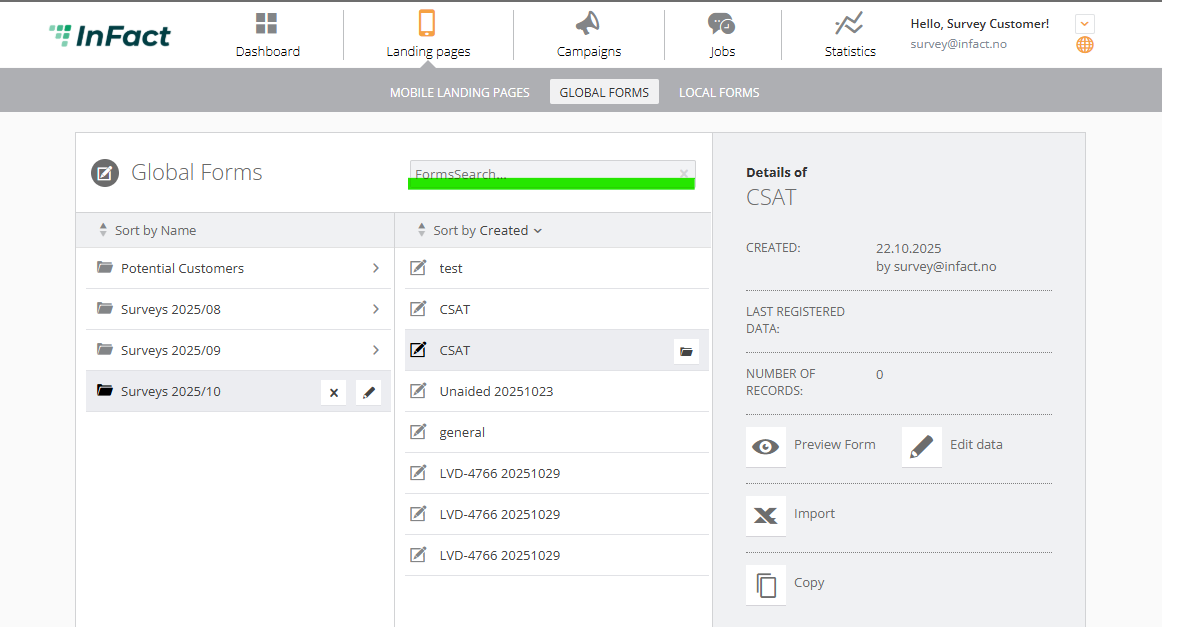
¶ Search Tool
Use the form's name or a part of the name to locate it.
¶ Other
To add the first element of content, use the form builder. Detailed information about form builder features on the form builder and elements page.
As soon as you finish with form elements, go to the advanced settings where you can set up verification, update settings, mapping with datasourse, and other.
Also, check out the page regarding Visibility Rule - the rule allowing you to set up elements on the form so that they are visible only if the condition is met.
How to connect your form with your Survey (ex-NPS) datasource and see answers in the Dashboard, check this article.
¶ How to move form
To move, simply Drag&Drop