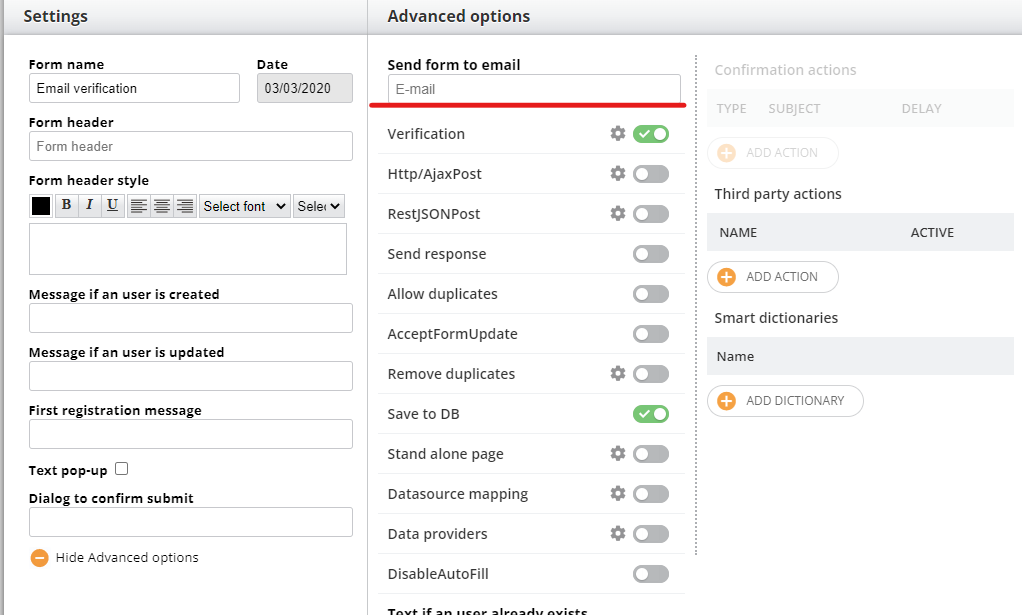
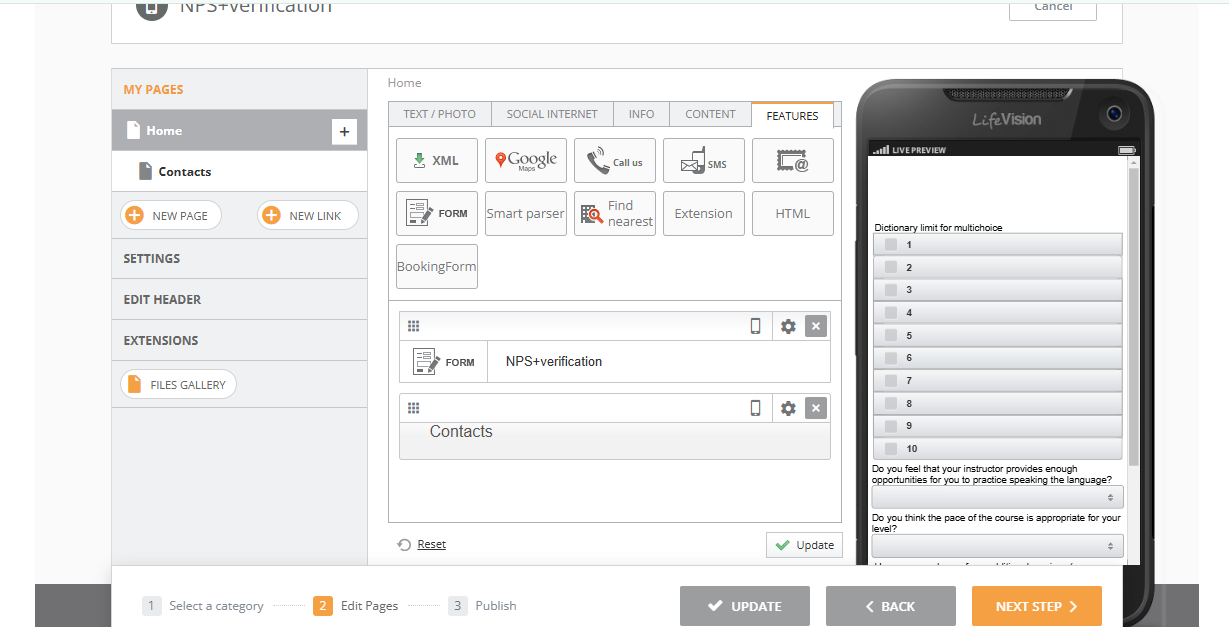
The verification feature allows you to set up verified access to your global form. If verification is enabled, a user won't see the global form until they have passed verification. Access can be implemented in several ways.
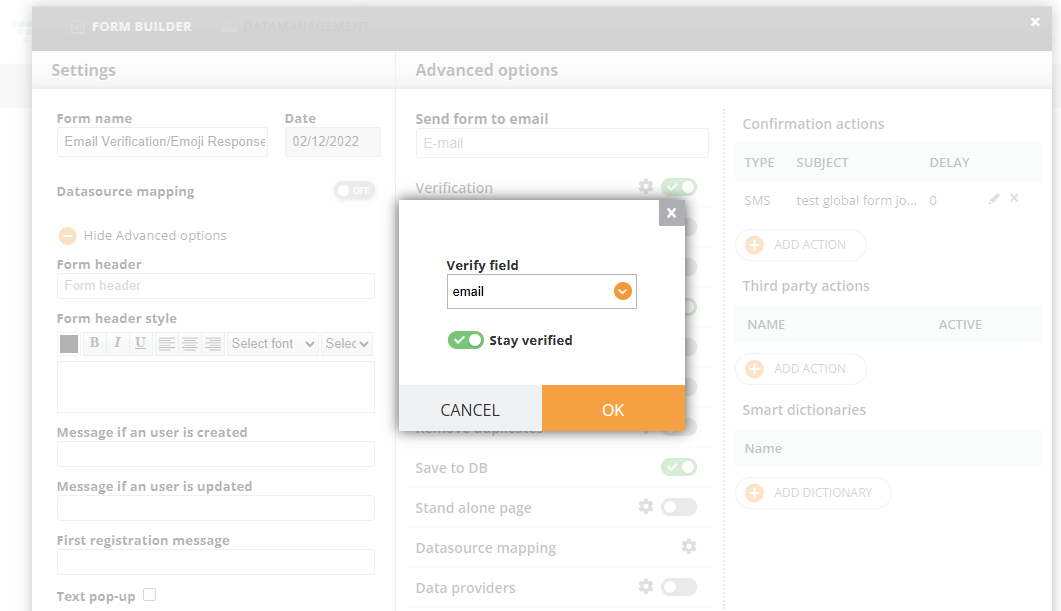
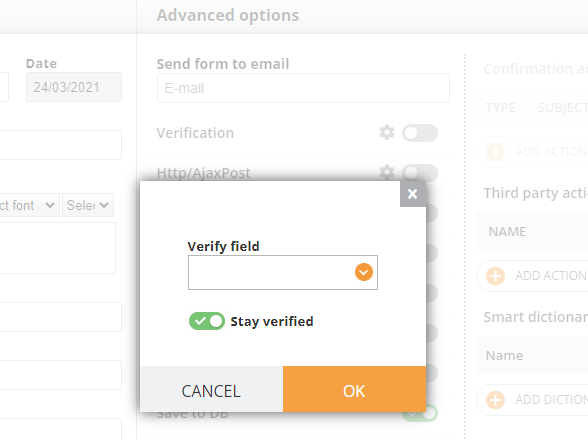
Enable verification, and the following dialogue will appear:
After you set the field, access to the form will be granted only after passing the verification:
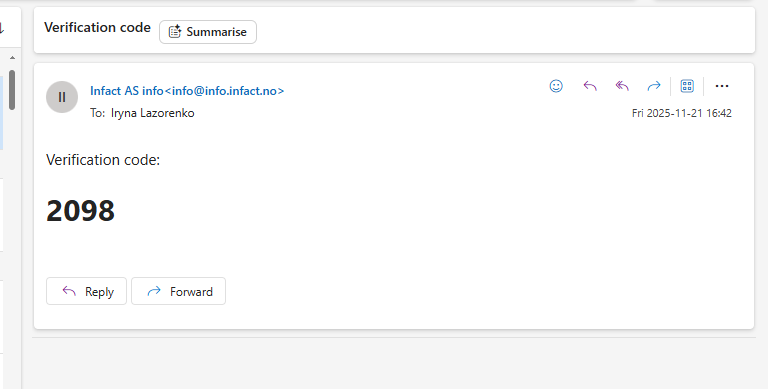
After you fill in the phone number or email, you will get a verification code:
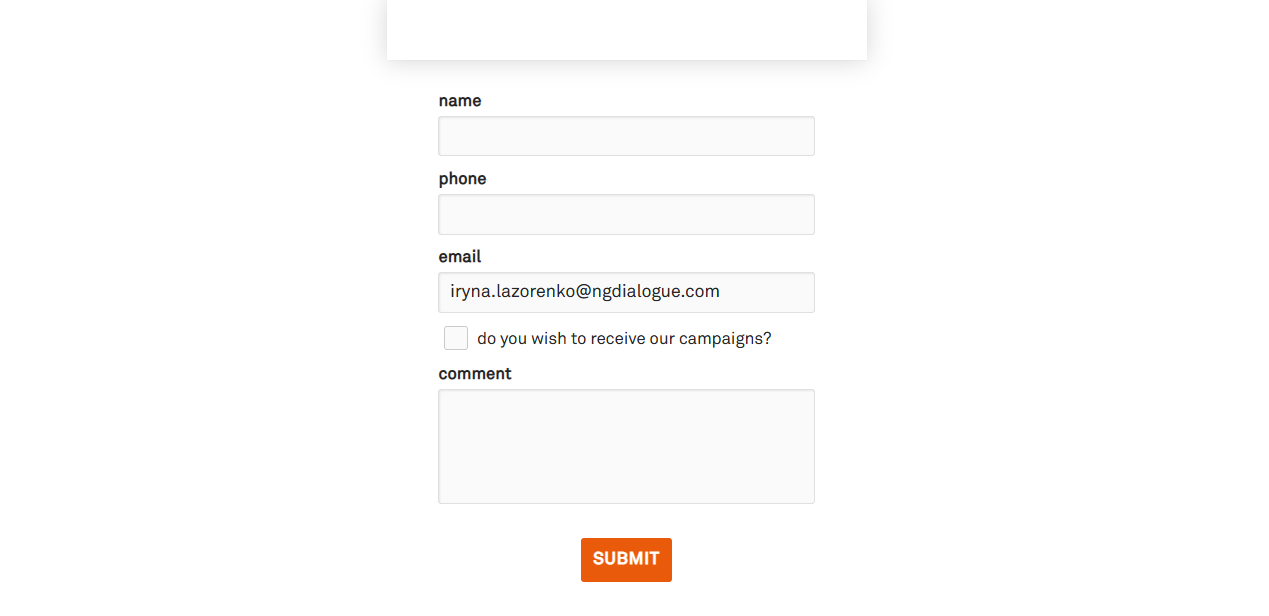
After submitting it, you will get access to the form:
It is important to set up verification, especially when we send responses for each form record, as we might get a spam attack.
Stay verified toggle allows you to have access to the form's fields during the session (if the respondent wants to click the same link and change his info he has to undergo verification each time if the “stay verified” is off).
Datasource mapping has to be enabled to use this feature
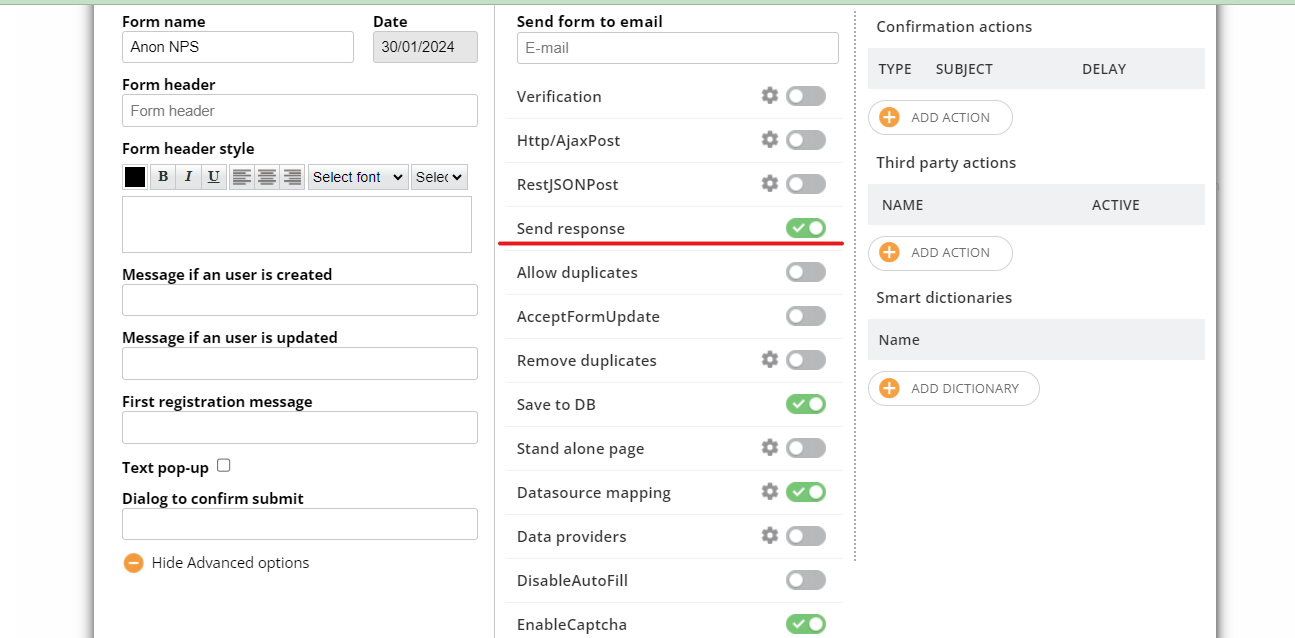
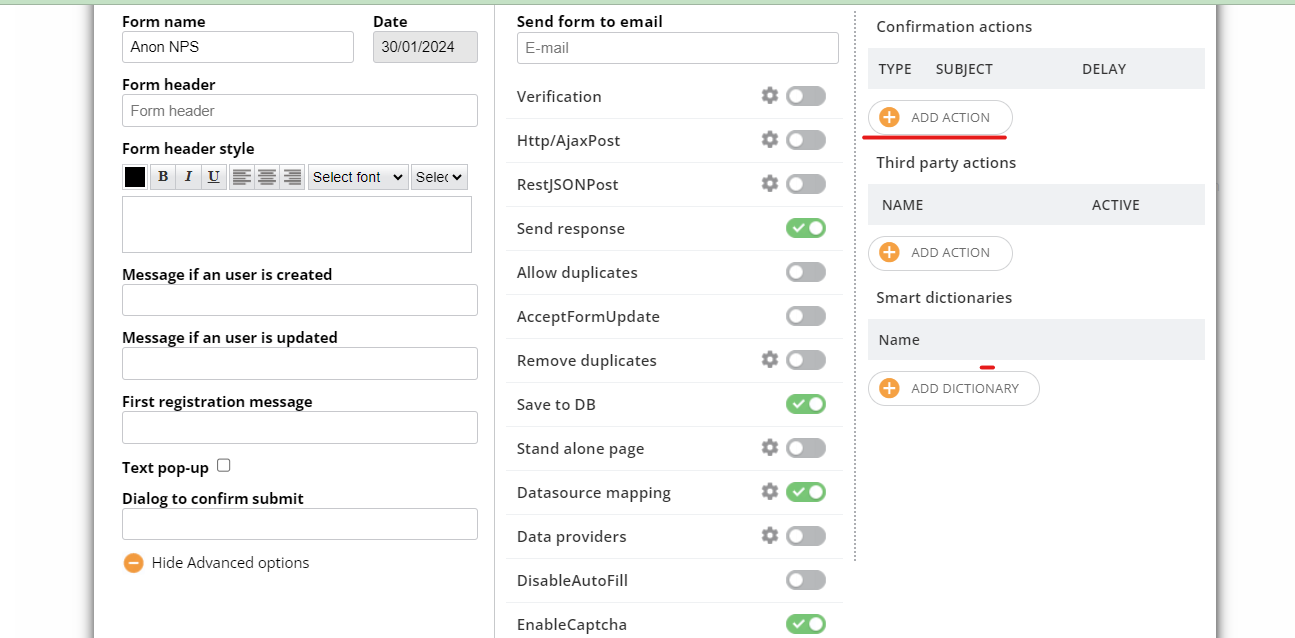
This feature will allow your recipients to get a response after they submit their data (for example, they have negative experience and you would like to send a follow-up email or SMS asking them to provide additional info).
Enabled send response allows you to set up confirmation actions listed below:
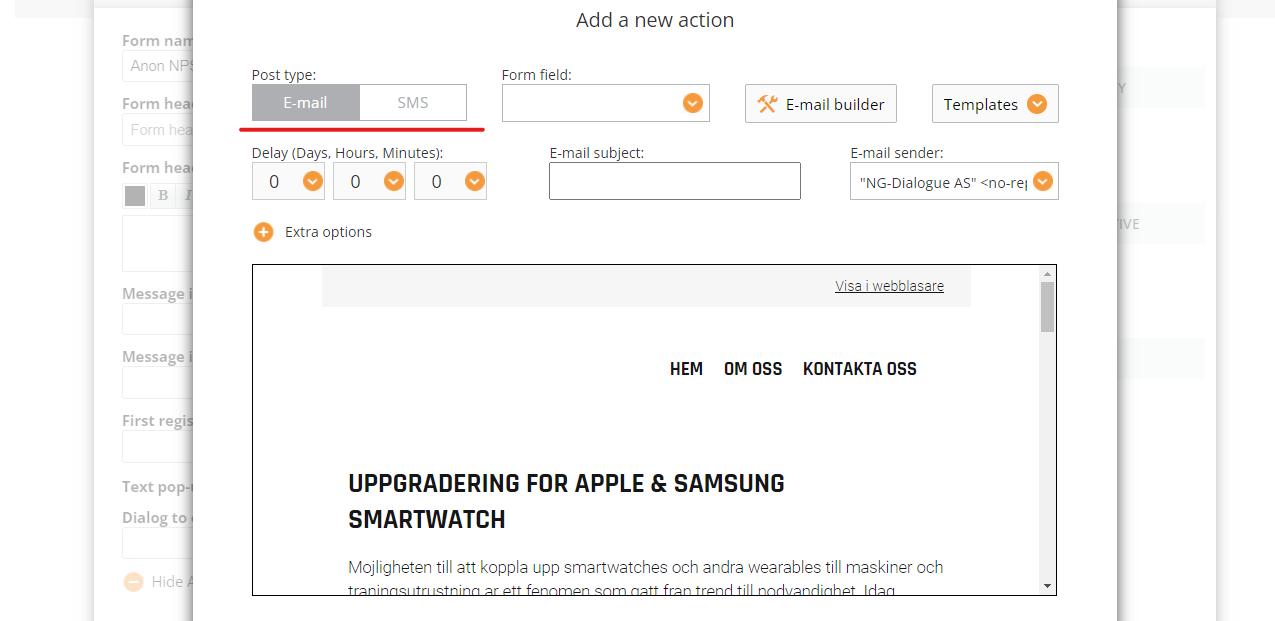
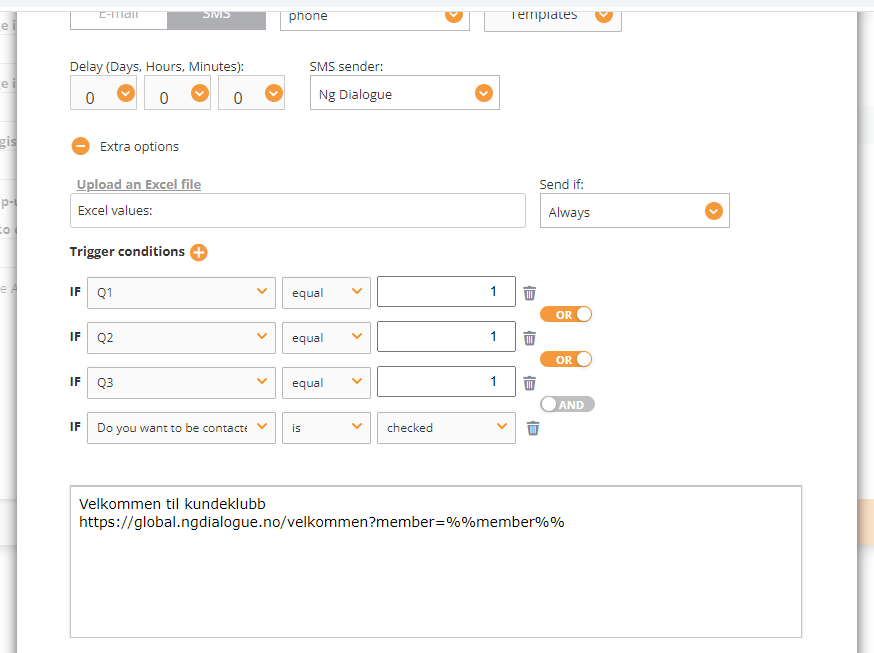
You can set up several SMS/Email confirmation actions by clicking + sign
Choose post type, the form field is a field that stores the phone number of the user:
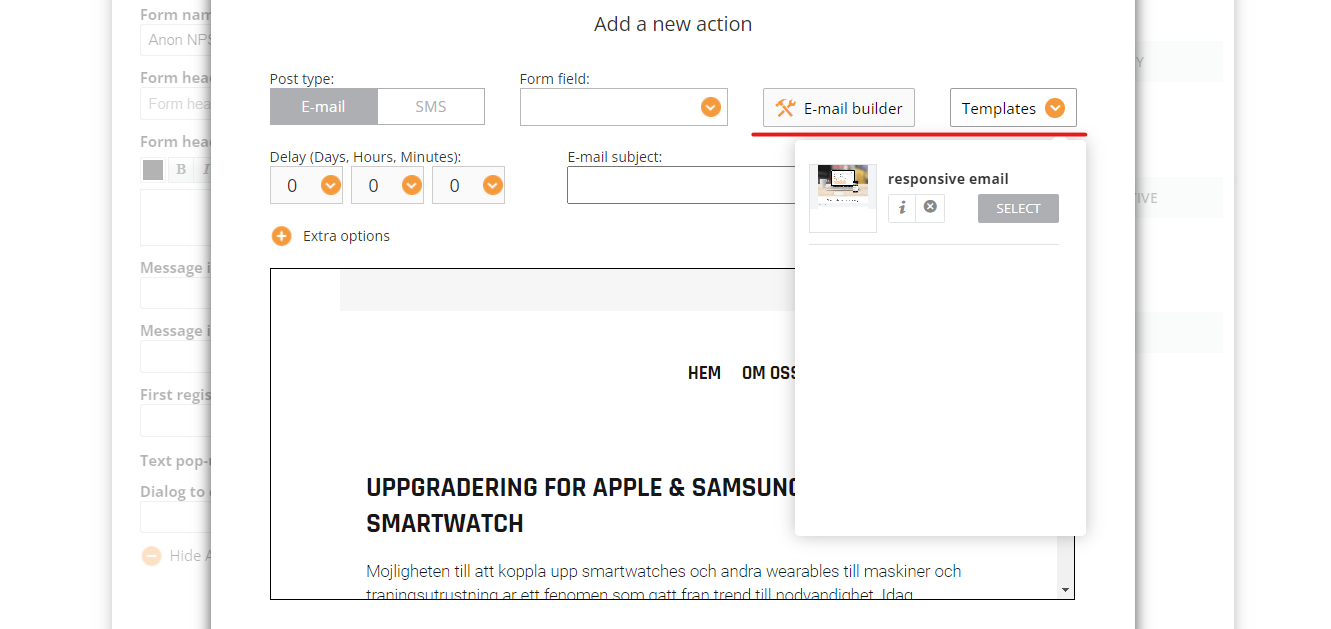
You can choose text from the templates or type a new one
Click Email Template to create a new one or Templates to choose among existing ones
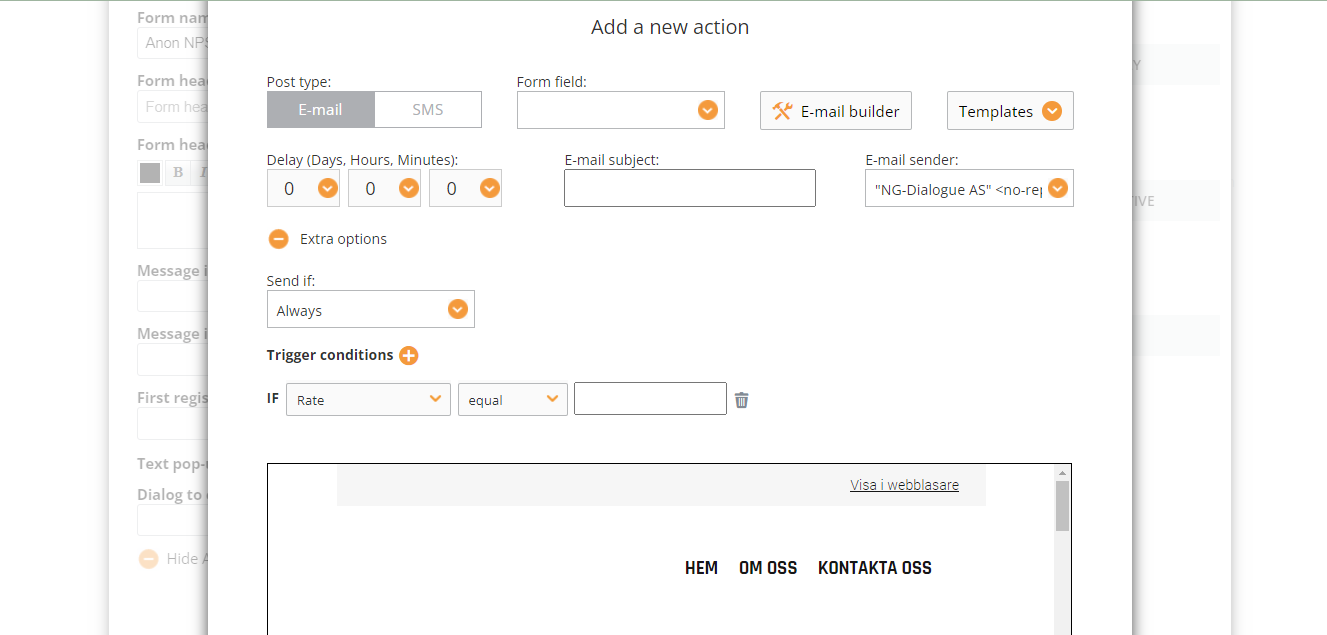
Also, you can add some extra options like Send if and Trigger conditions
In case you choose one of the Send if conditions, a user gets a message in the following cases:
if a new record: a user doesn’t exist in the datasourse
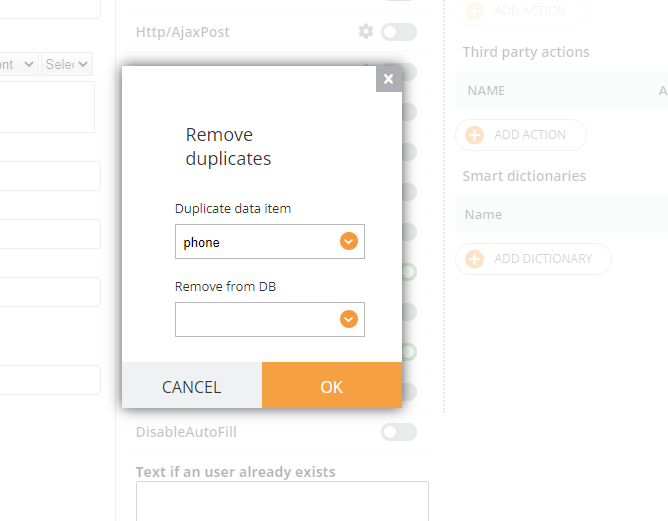
if an updated record: a user’s phone number already exists
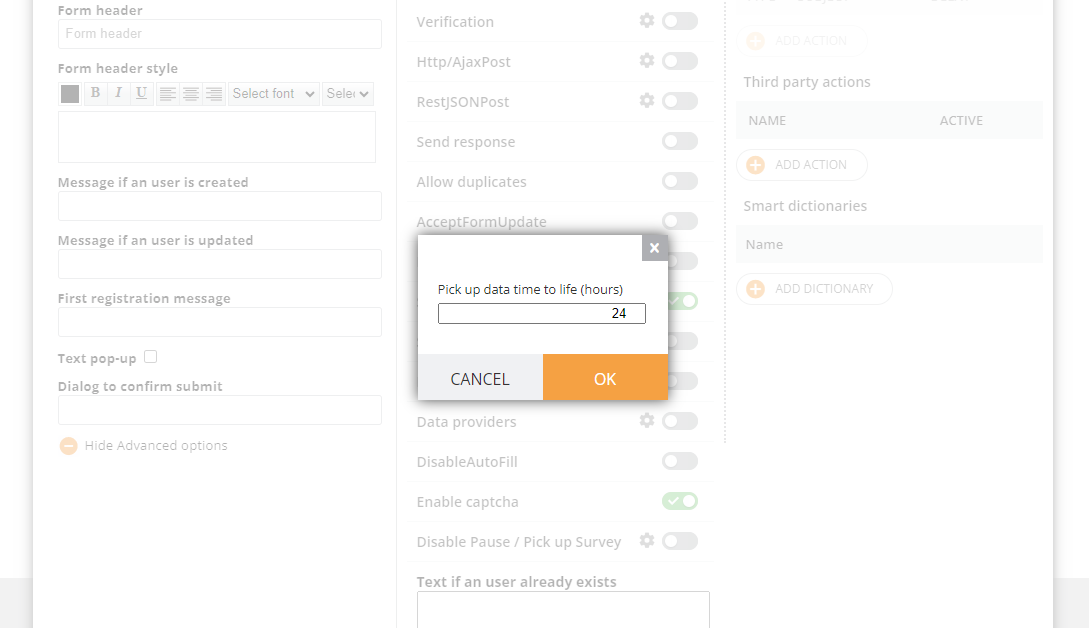
Being able to close and open the Survey and continue where ended.
So, if you have 10 questions, and only answer 2 of them, then close the browser or tab, coming back in a couple of hours, accessing the survey via link or else, it will be picked up where you left it.
For now it only works in one device.
By default this feature is enabledYou can also set up time-to-live for the saved data (default save time is 24 hours)
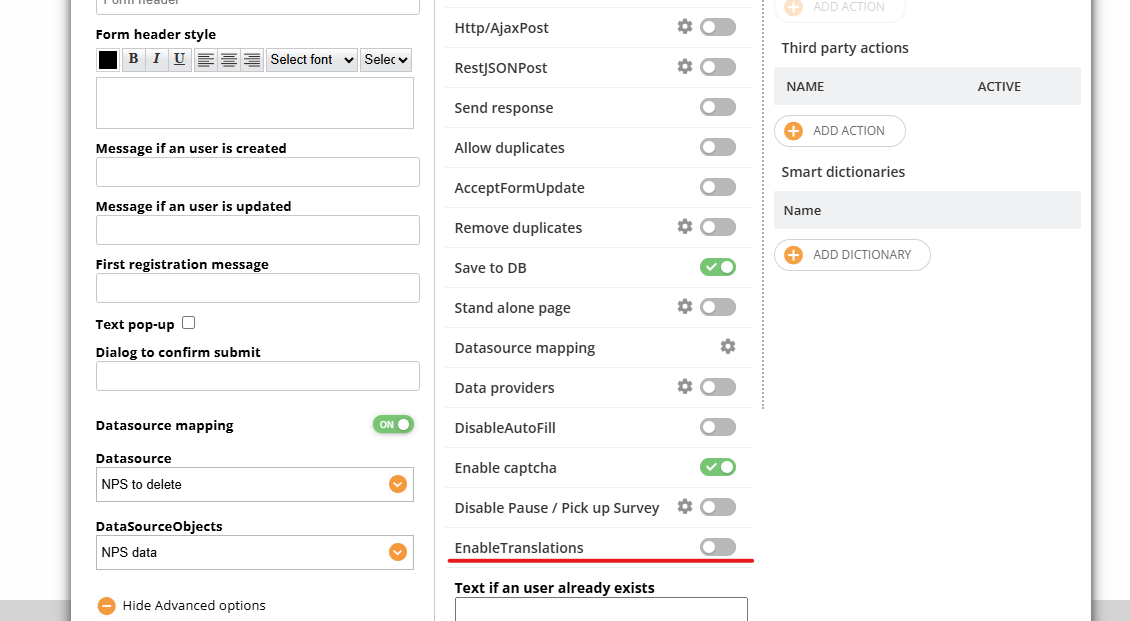
If your form needs to have more than 1 language, you need to enable this setting and upload a JSON with translations as a landing page extension. Contact tech support to use this.