¶ Create Anonymous Survey Datasource
Log in as an Employee, go to the Customer Edit Page:
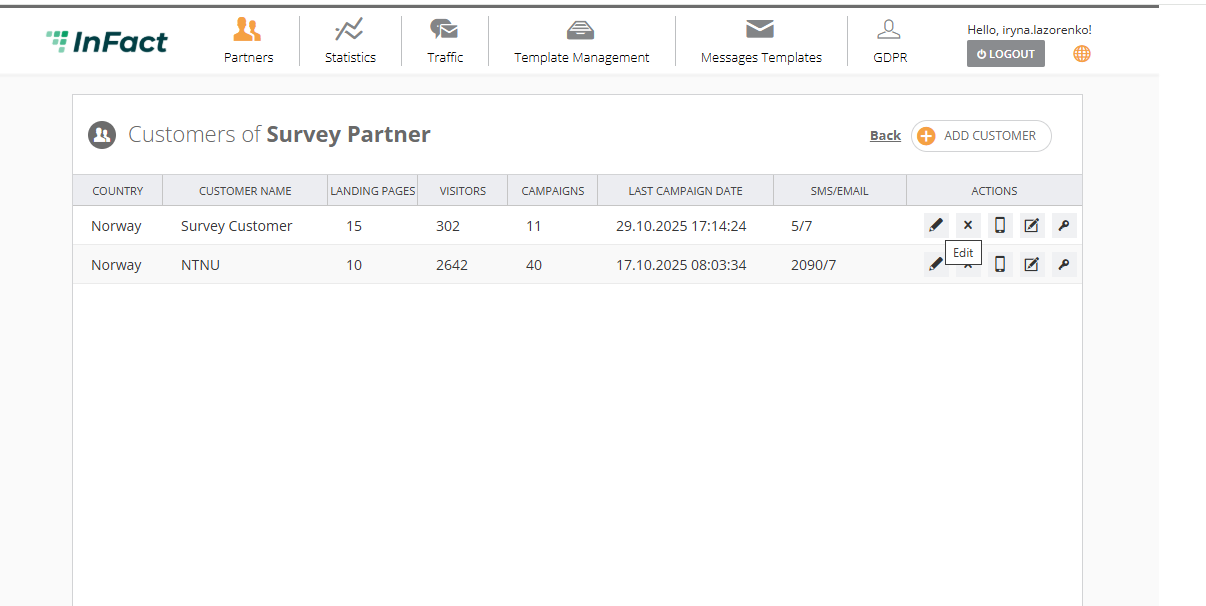
Go to the Data Section of this Customer:
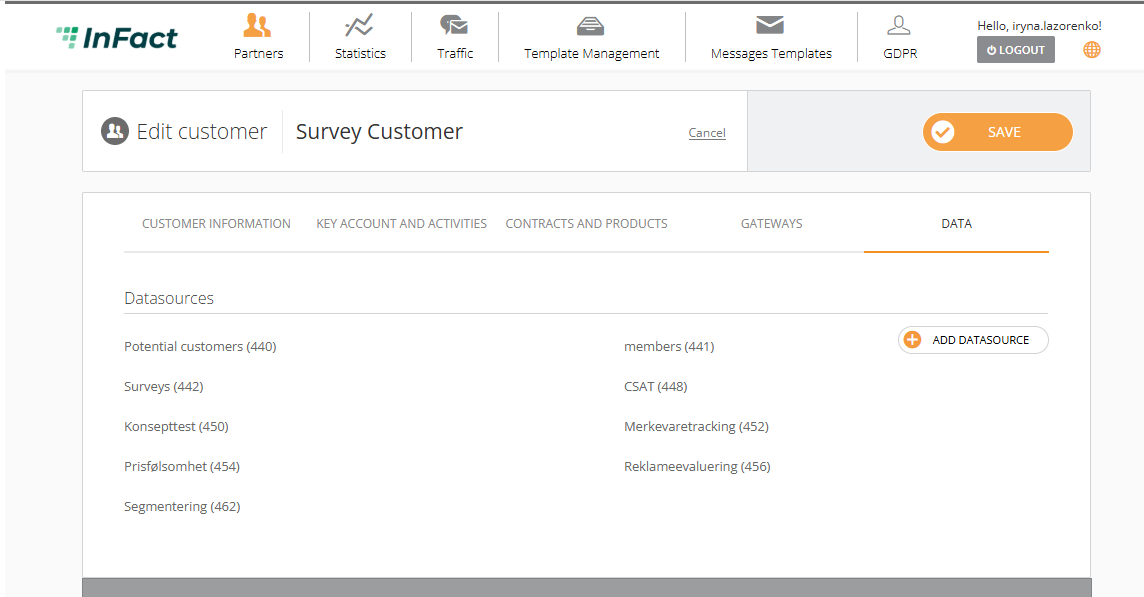
Click Add Datasource and select Anonymous surveys type:
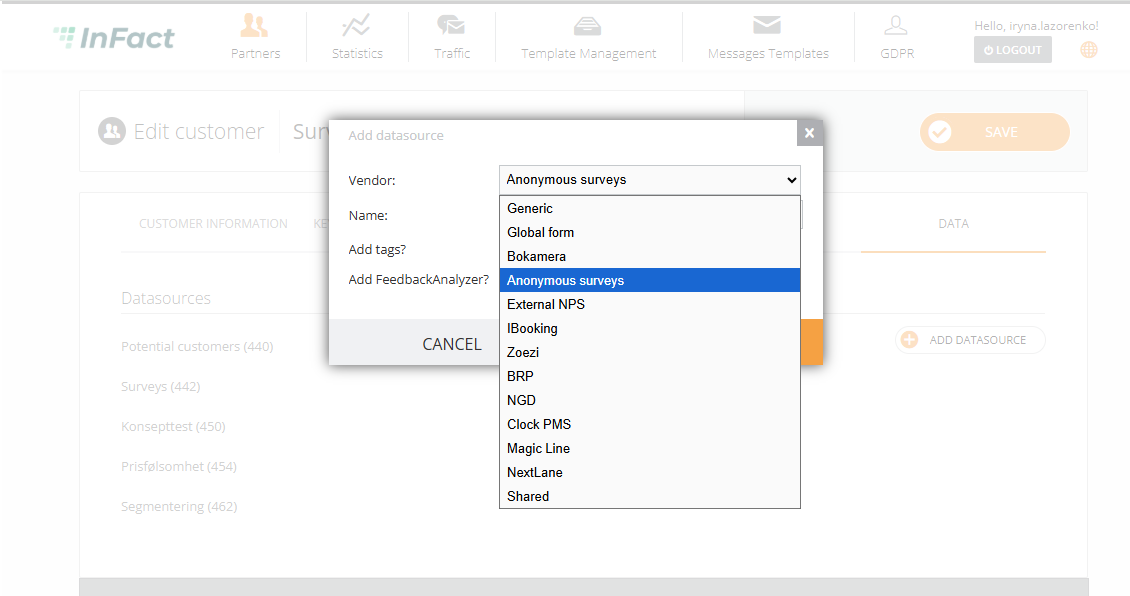
Type any name, for example, Anonymous Survey and click OK.
¶ Setting up the Dashboard
Log in to the Customer's account and go to Statistics — Dashboard
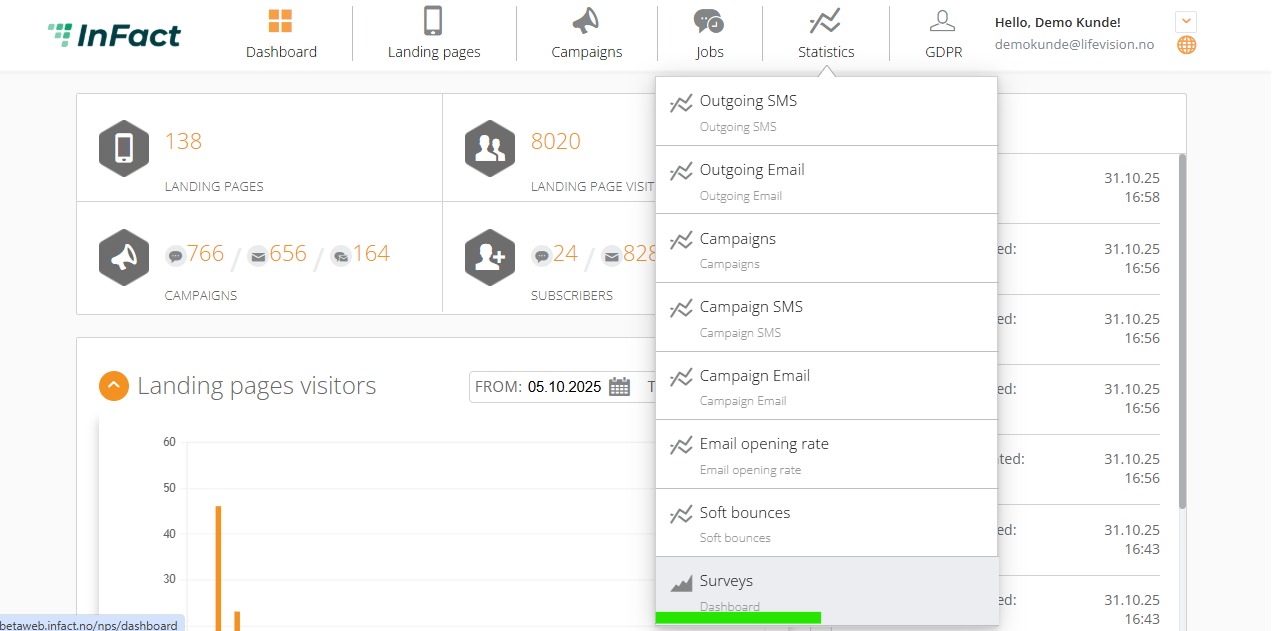
Go to Questions
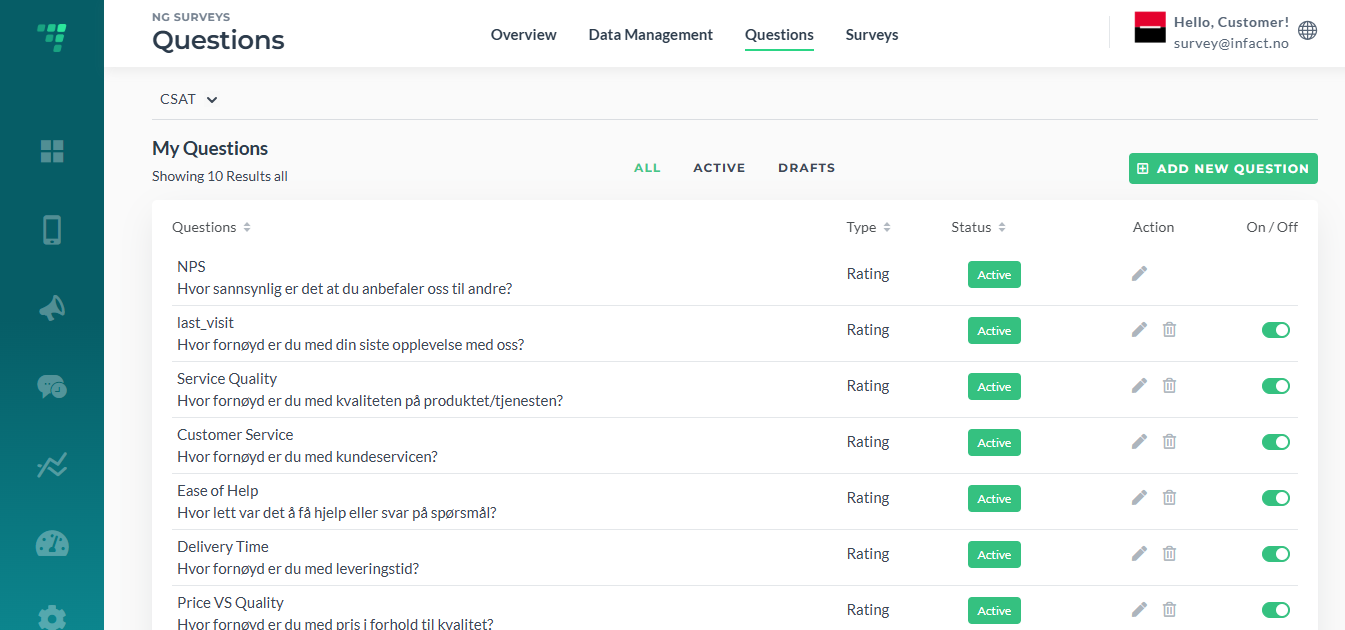
Questions have three sections: all, active and drafts. You can add/delete questions, activate and deactivate them.
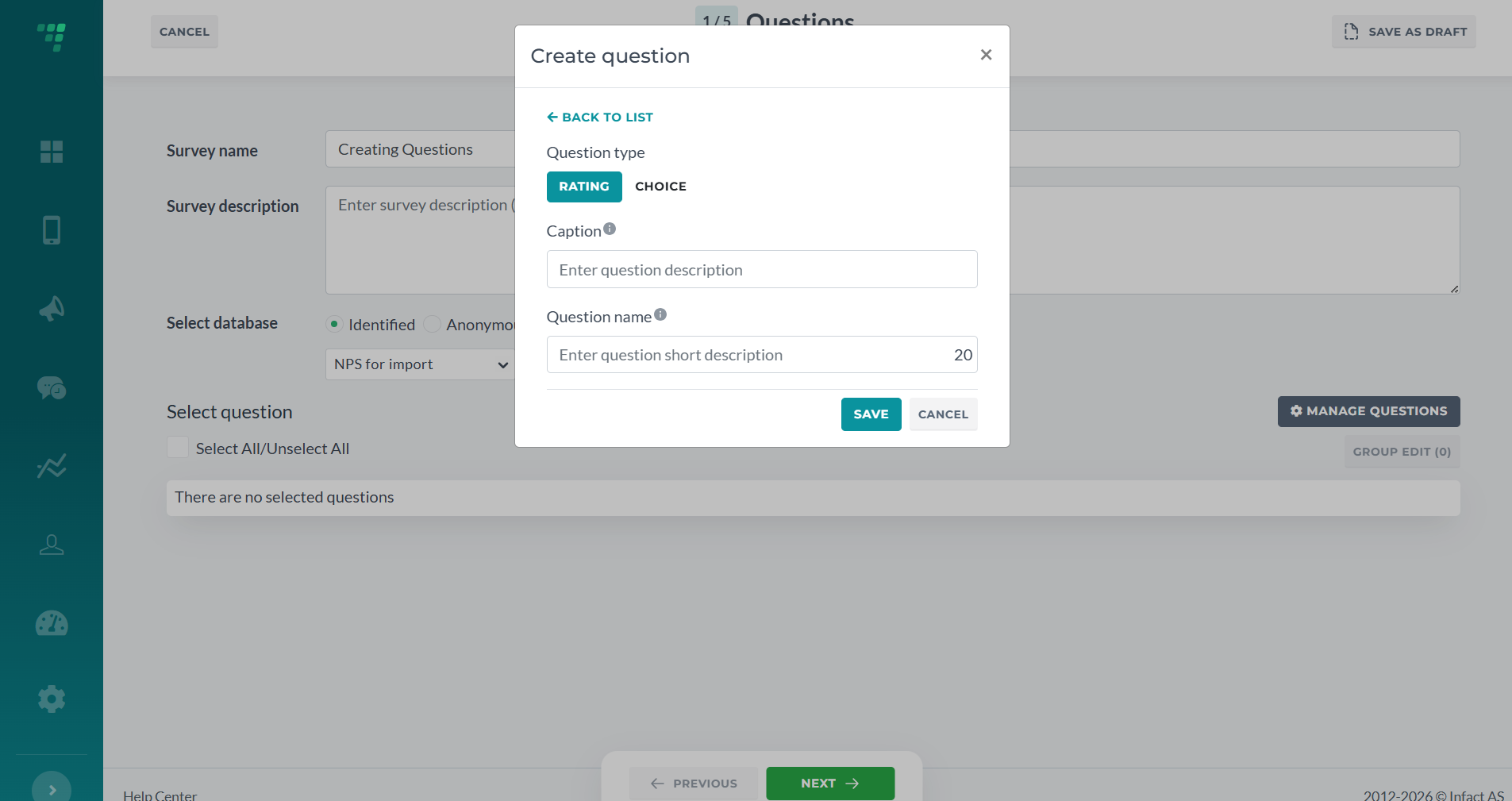
A question can consist of such fields: caption and short name. For example, in a question "online_facilities
How happy are you with our online facilities, such as notifications via emails, payment service, etc.?" online_facilities is a short name and How happy are you… is a caption.
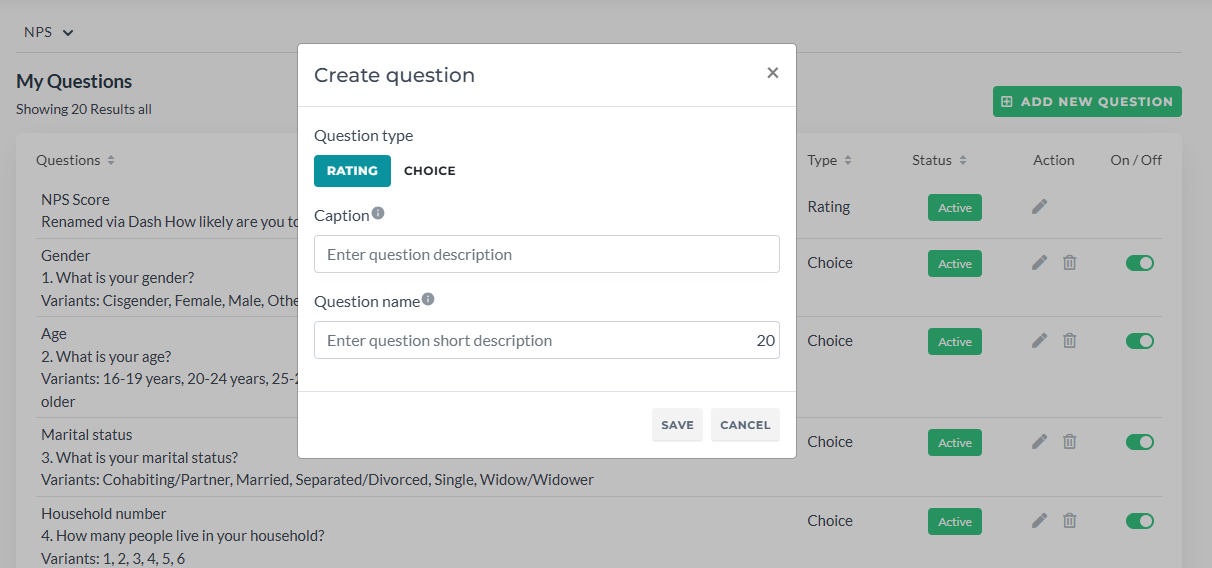
Rating question is a question where answers are numbers, range, or stars. When we add them in the Dashboard, we can only set up a caption and a name. The rest (like how many points this question should have) can be done in the form builder when creating the form.
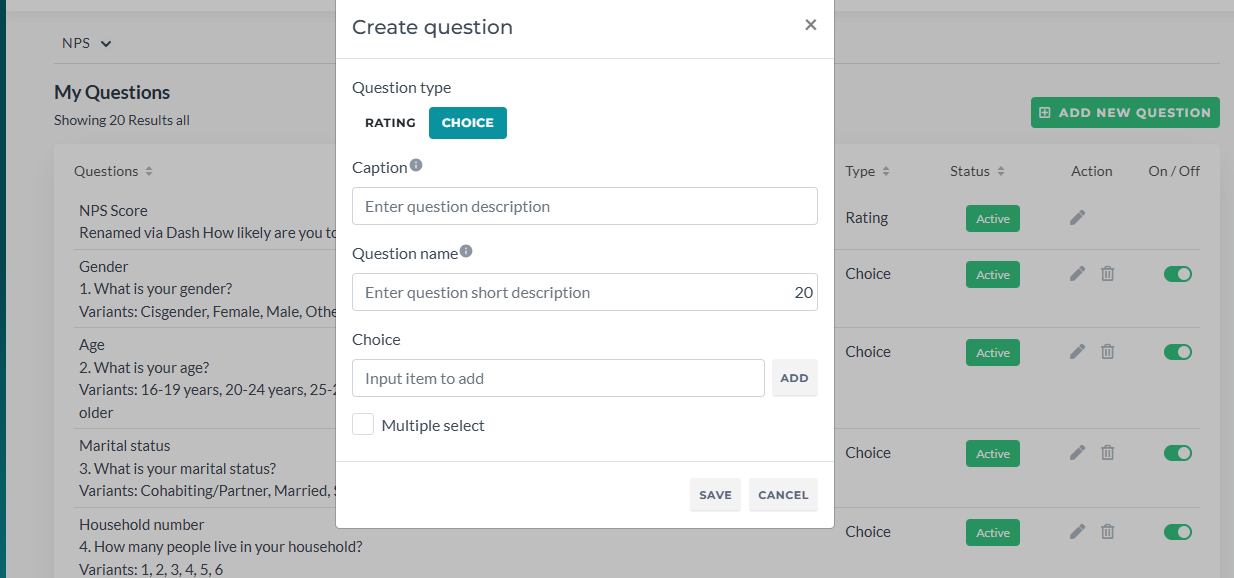
A choice question is a question where answers are provided not as points but as options. For Choice questions, we also have a dictionary (option) field. This basically is an answer option. There must be more than 1 option (for example, Yes and No).
Add questions and save them.
¶ Survey Builder
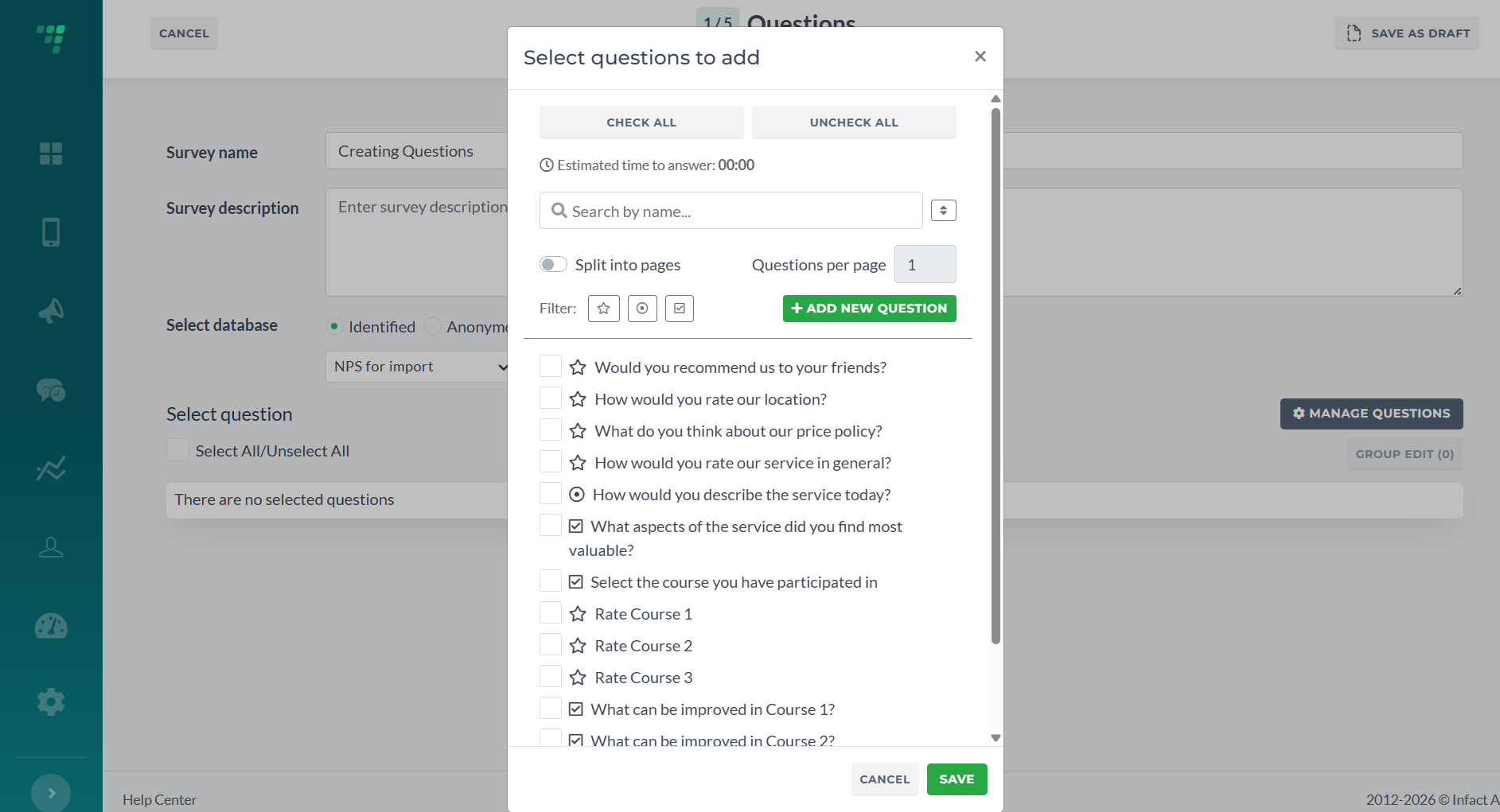
Now you can add questions (but not edit or delete) directly via Step 1 of Survey Builder.
Client Manage Questions and then Add New Question:
For further steps We recommend on checking this article