¶ How to access Query Builder
If you are sending out a campaign (as this article explains or this one about using a datasource) or a job, you will need to use Query Builder to select some recipients to send out a campaign to.
¶ In Campaigns
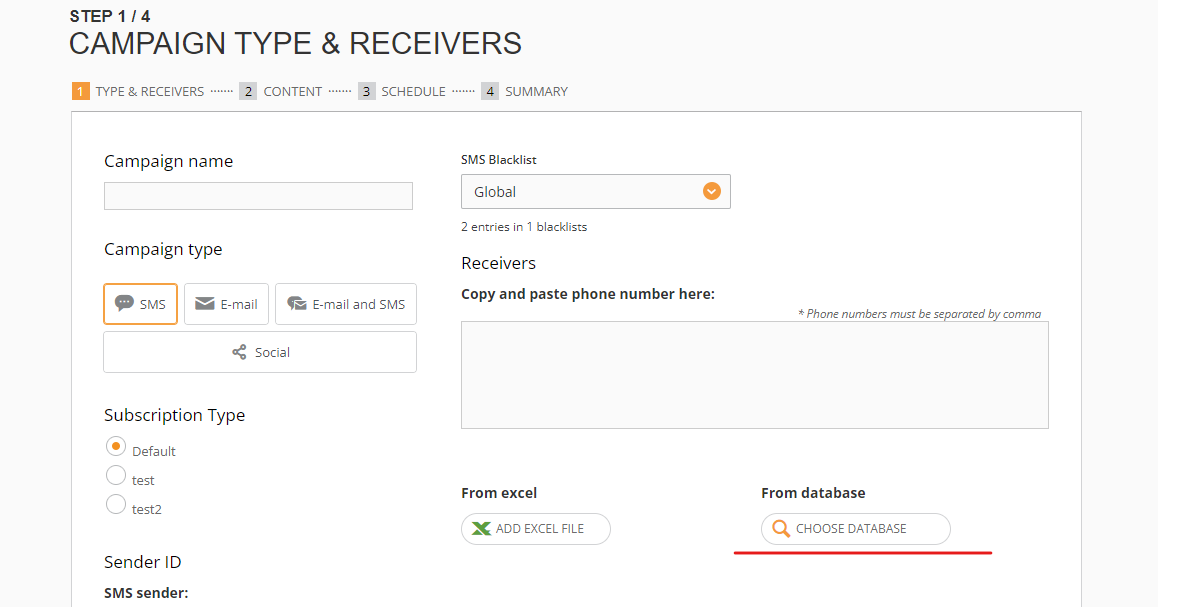
When you are creating a campaign, you will locate Query by clicking Choose Datasouce:
Datasource queries
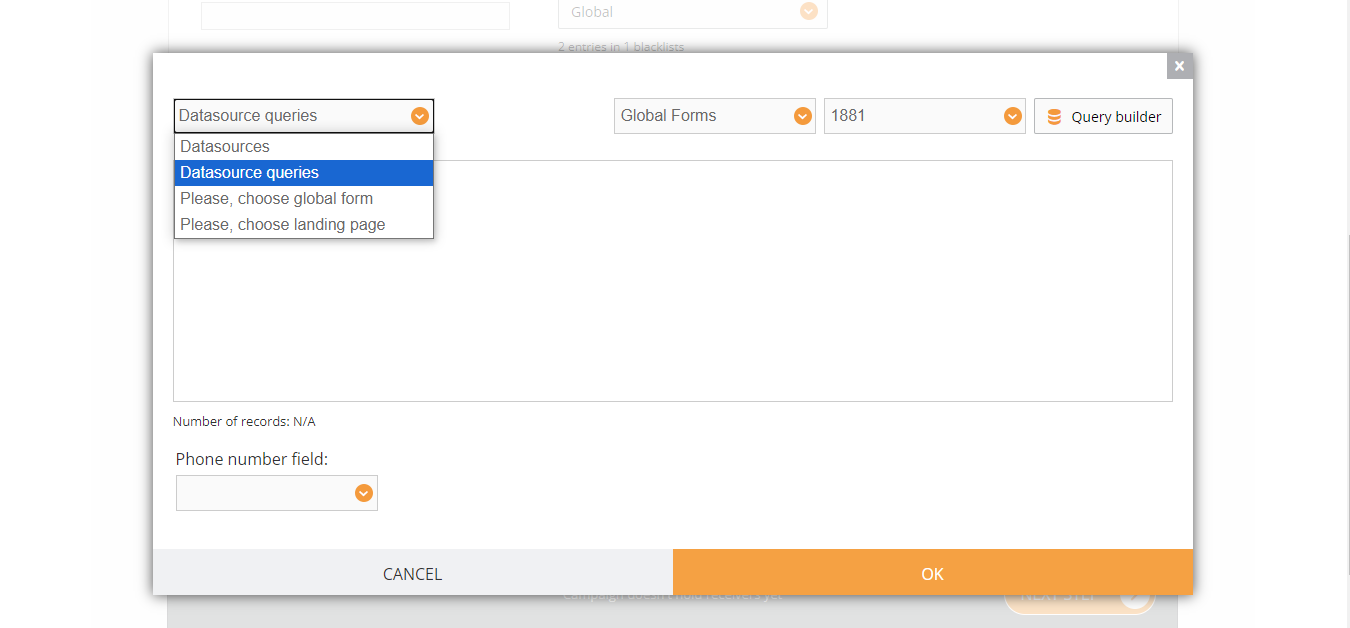
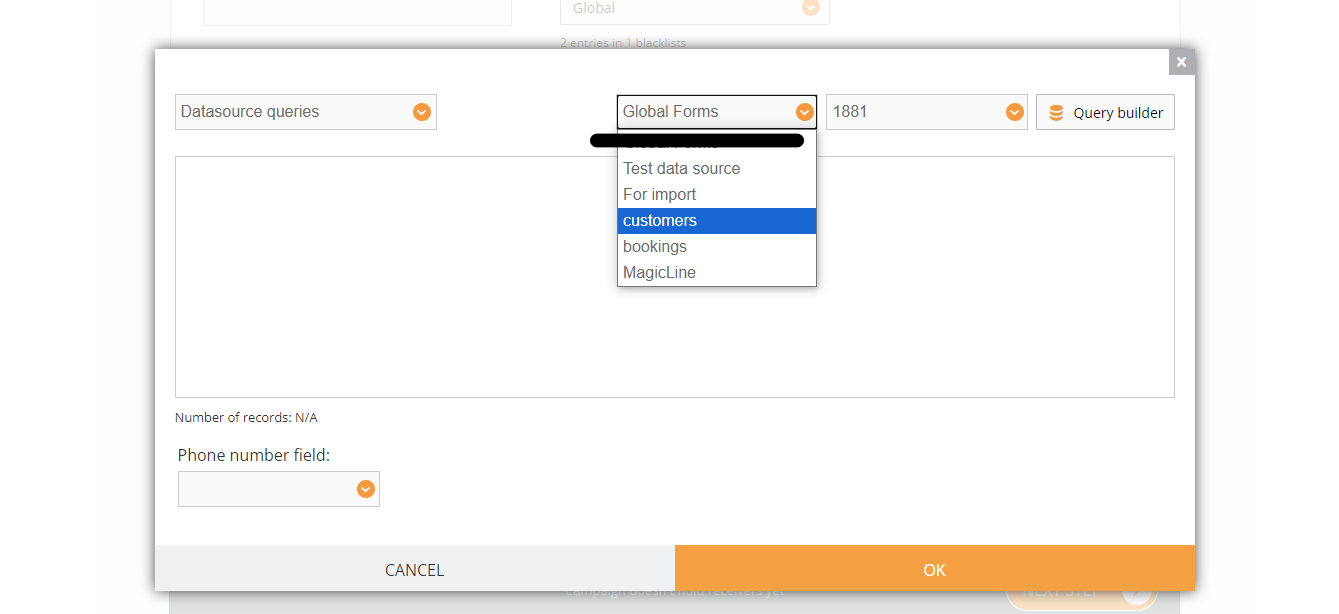
Then you select a datasource (or a form if it is used as a datasource, as in this example), and then once the datasource is selected, we click Query builder in the upper right corner:
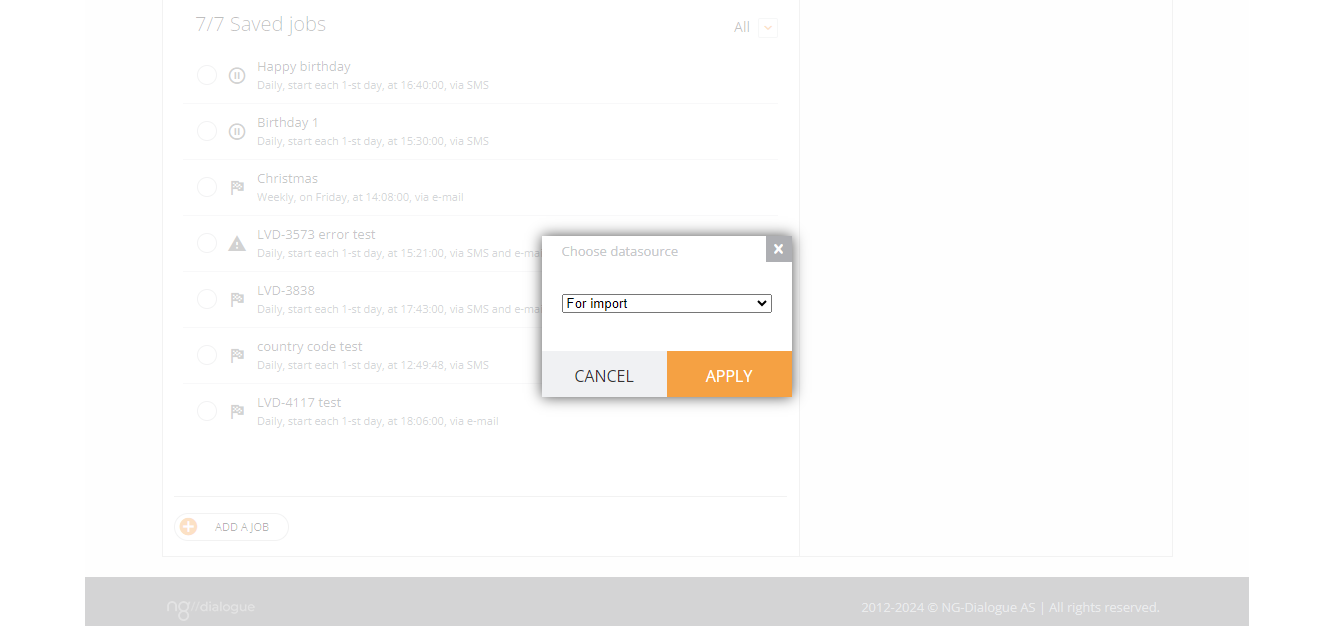
¶ In Jobs
¶ Query Builder Navigation
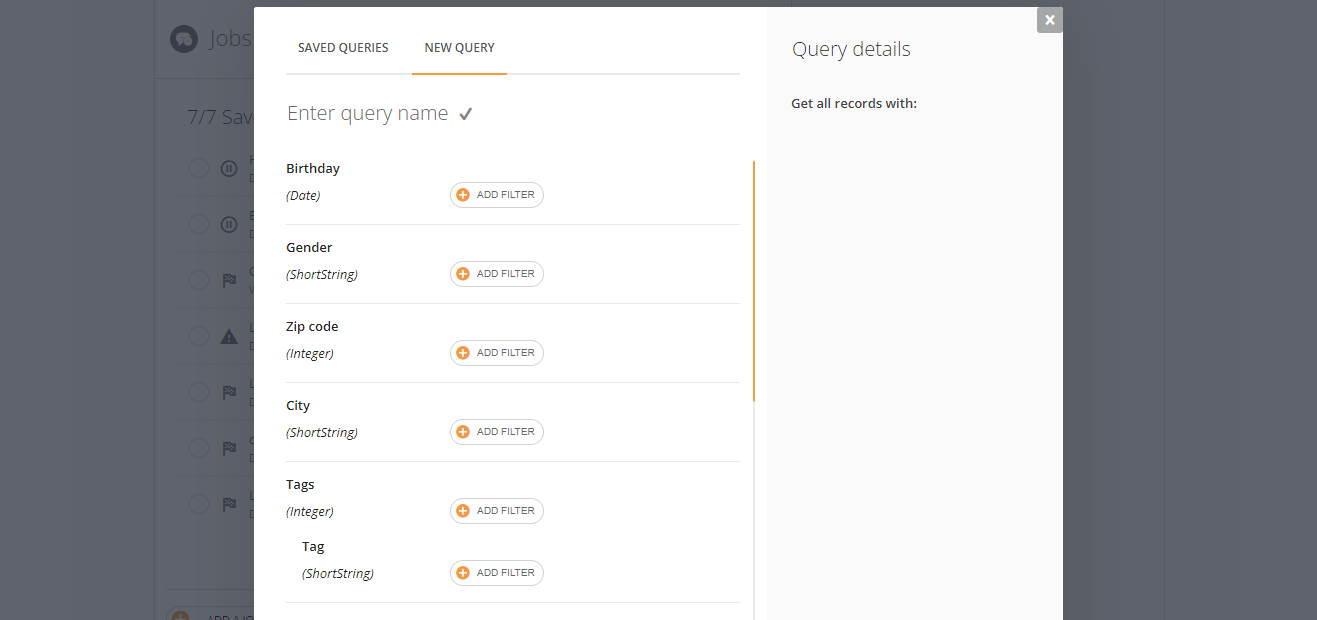
1 - Saved Queries is a separate tab with previously used or saved queries
2 - not obligatory. You can name your query. If you don't, it will have a name with the date and time created
3 - Add filter button
4 - The cancel button will lead you to the first step of creating a campaign
5 - Advanced settings list
6 - Refresh the list (needs to be applied every time the filters are added or removed); download the list as an Excel file; see the list results in a window
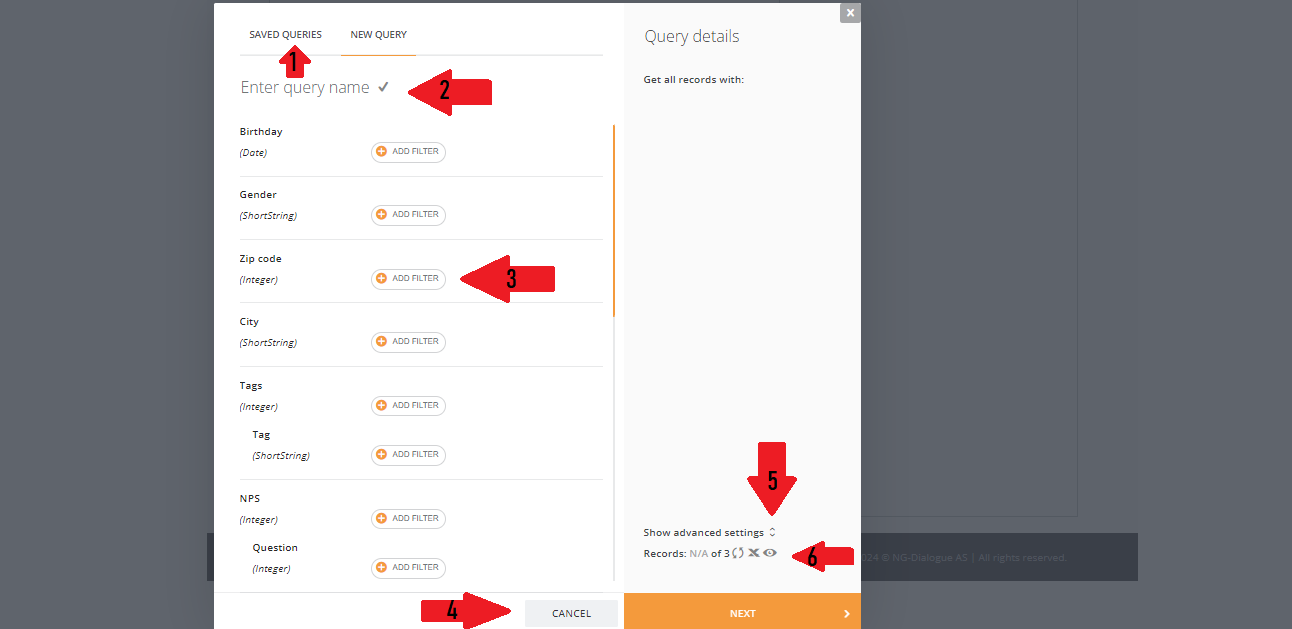
Saved Queries tab
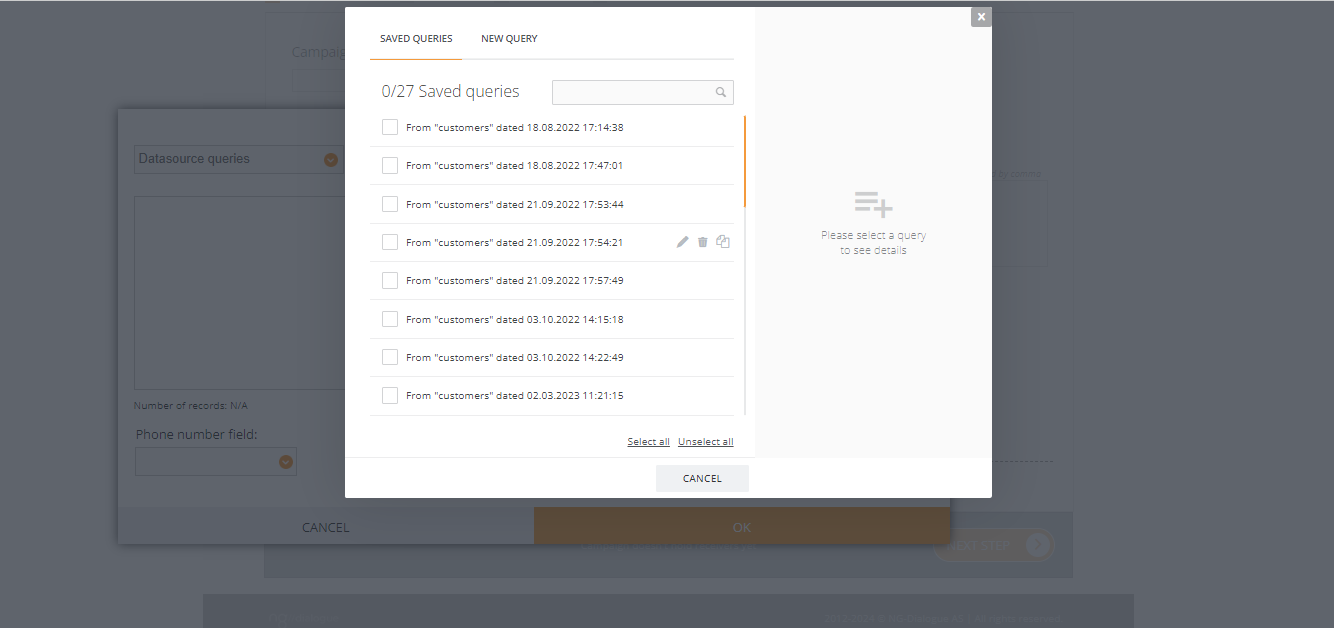
Button Next, when clicked and it will have different options depending on whether it is a campaign (apply or save) or a job (apply)
¶ Data types
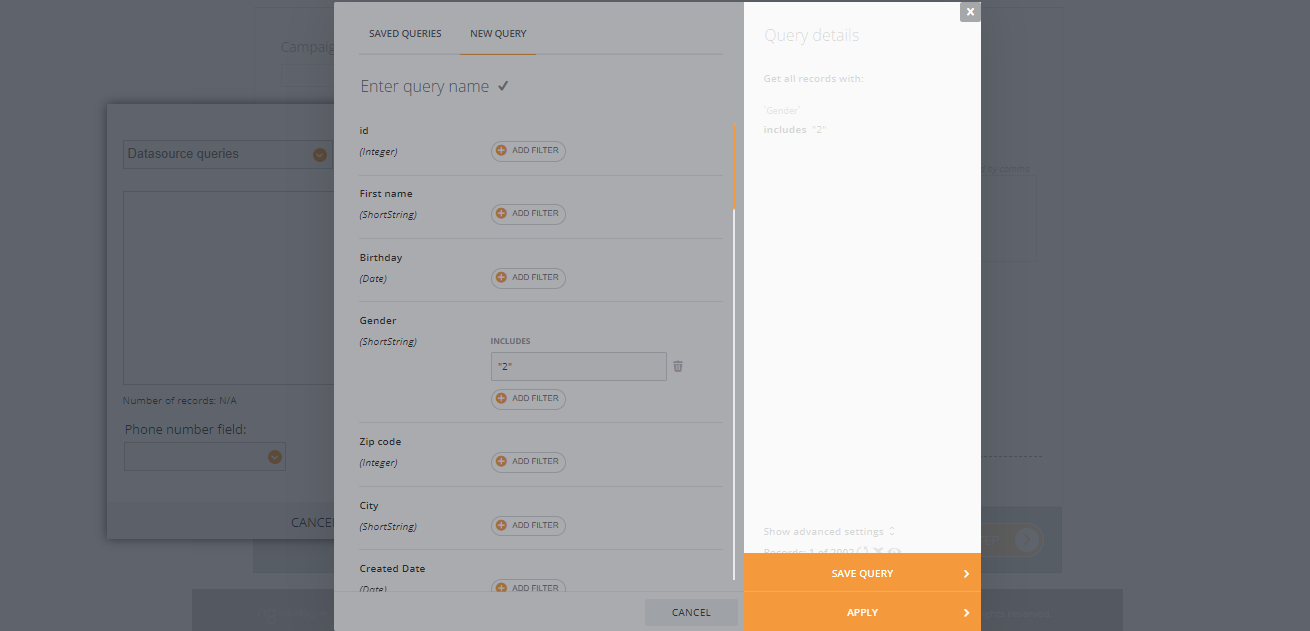
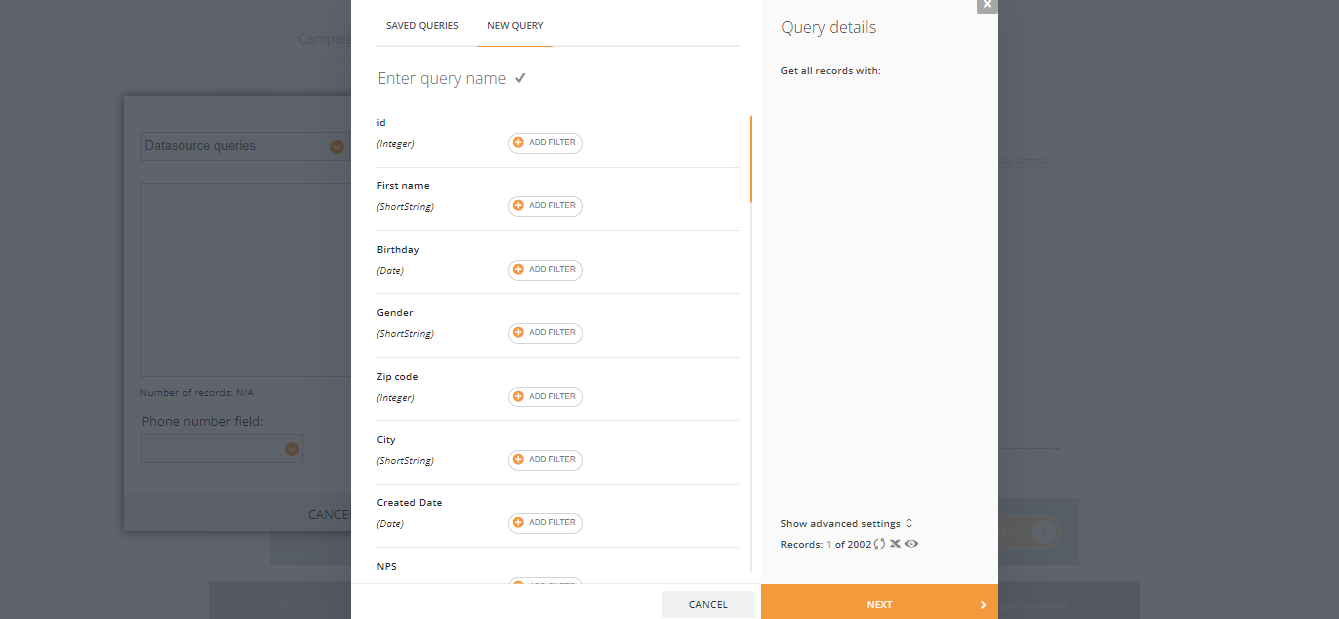
The variety and type of filters depend on data types. On the screenshot, we can see such columns as id, first name, birthday etc. Each column (field) has its data type in () below.
- Integer - a number that is not a fraction; a whole number. Like an id it can be 1, 2, 3…100 and so on;
- ShortString - data that holds sequences of characters up to 255 in length like names of recipients, managers, car numbers;
- Date - any date with different formats like dd/mm/yyyyy, mm/dd/yyyy, dd-mm-yyyy;
- Date and time - any date and time with different formats;
- Dictionary (not shown) - is a subtype of almost any data type but classified and repeated, for example, types of courses (Skateboarding, Bouldering), list of managers (Anna, John), list of preferred languages (Eng, Se, No), nr of a type of a product (777, 11145) etc.
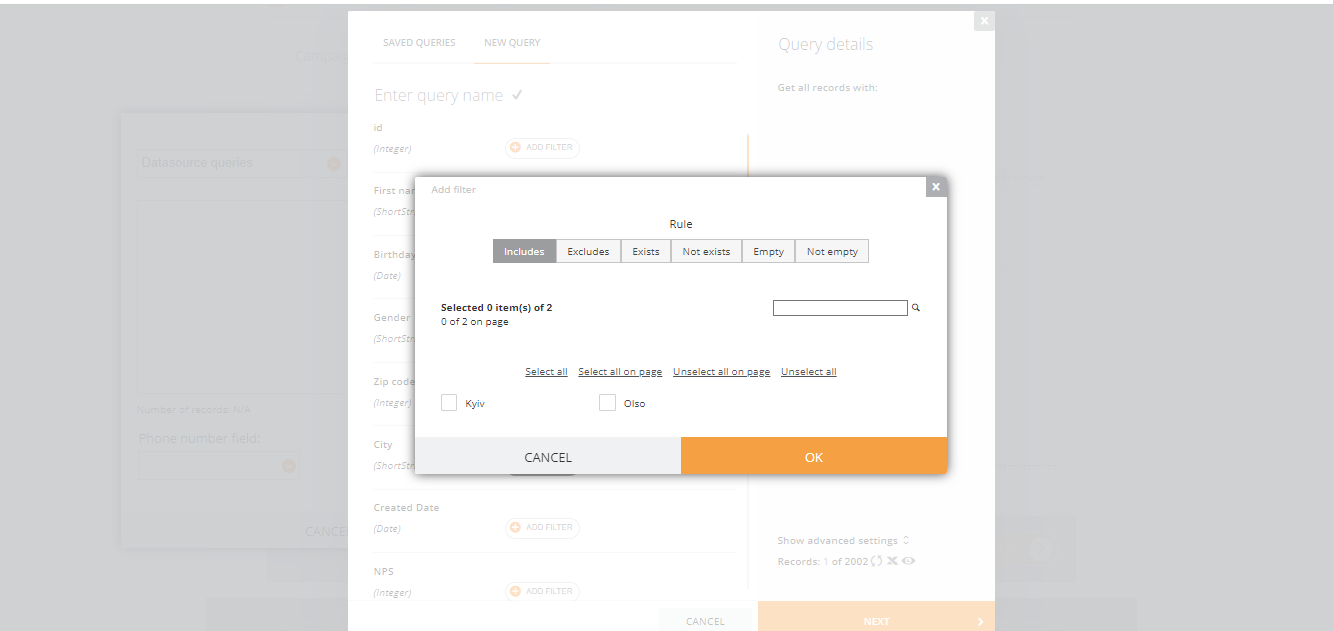
- Text - long string-like comments;
- BigInt - a large integer, for example, a campaign id;
- Boolean - true or false/yes or no data ("is an active member or not?")
- Float - is used to store positive and negative numbers with a decimal point, like 35.3, -2.34, or 3597.34987 like temperature or price;
- String - longer than ShortString data and can also be a dictionary;
- Phone - usually not visible in the query;
- Mobile Phone - usually not visible in the query;
- Email - usually not visible in the query;
- Consents - SMSConsent, EmailConsent, PushConsent, PostConsent are part of Consent and Subscription system;
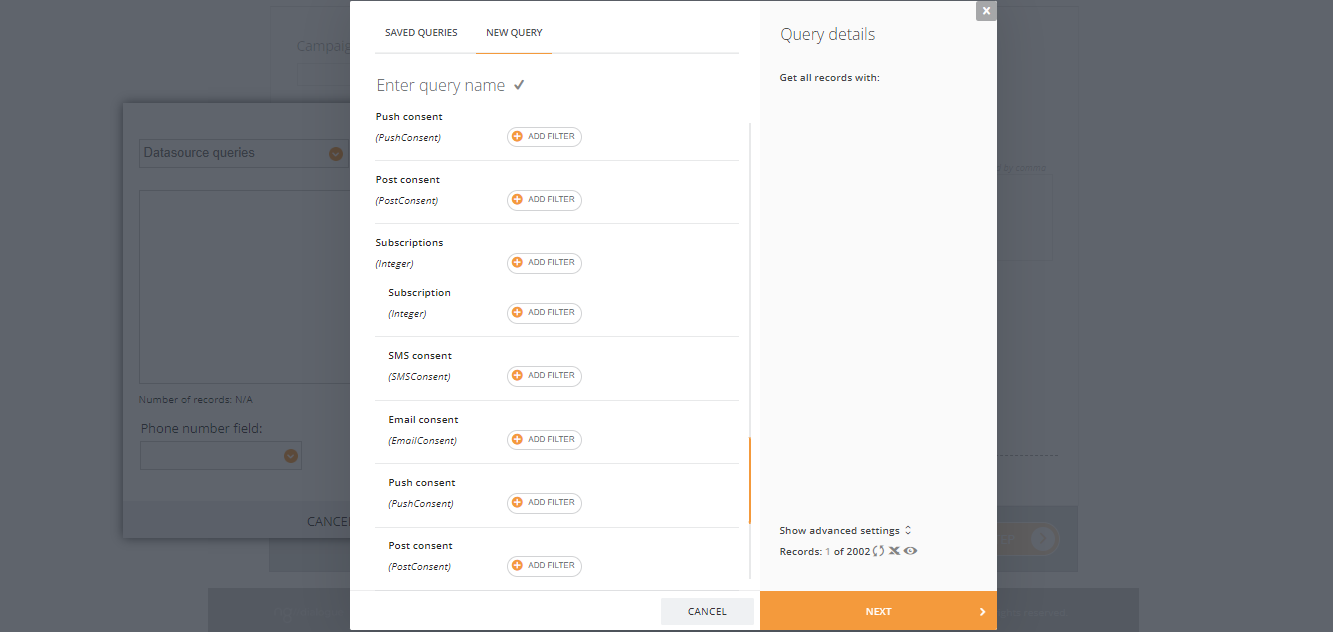
Different Subscriptions:
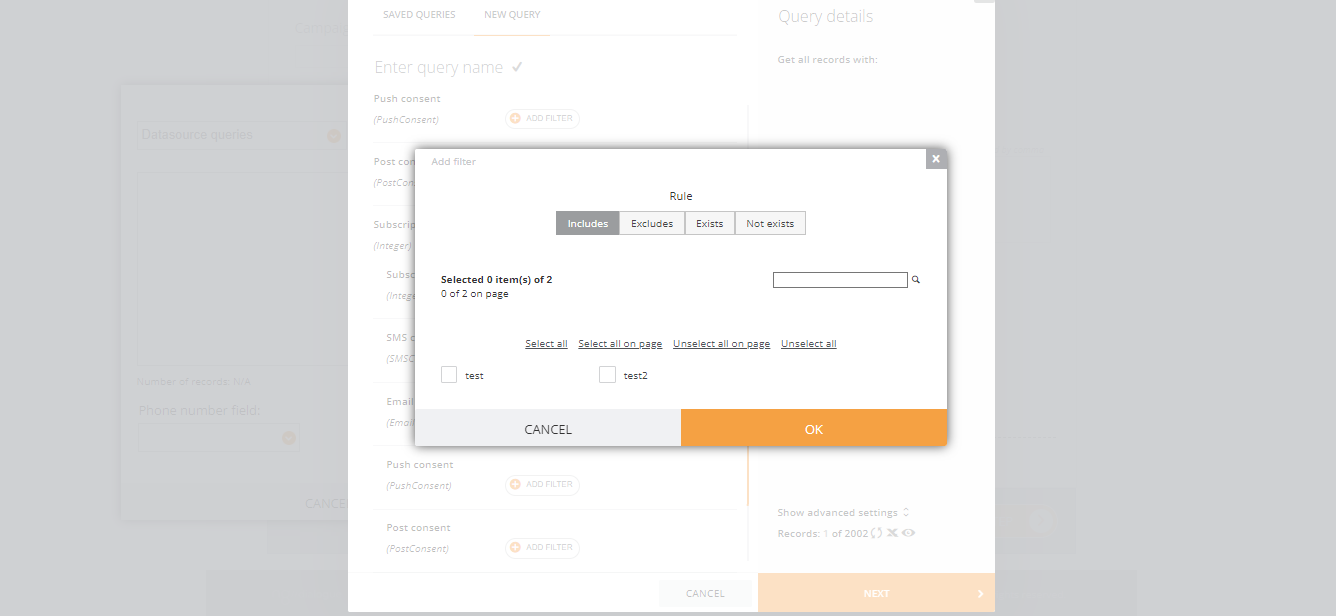
¶ Filter Rules
Different datatypes have a different set of rules.
Integer, BigInt, ShortString, String that are NOT dictionaries have such rules:
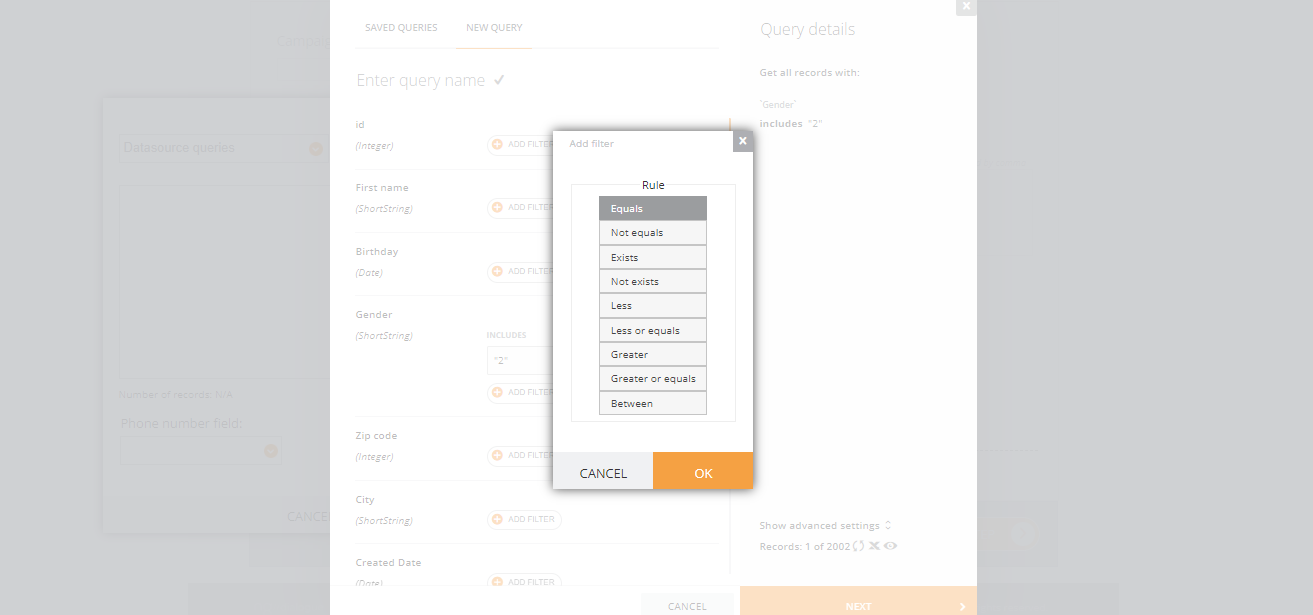
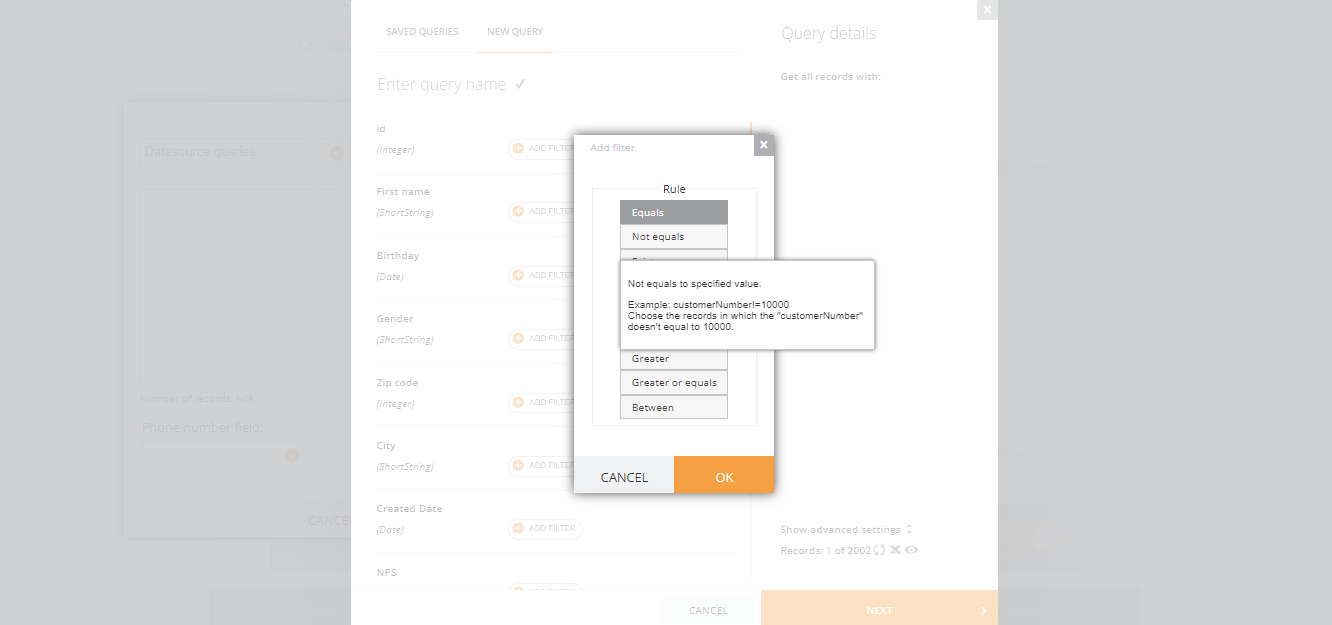
If you hover over each of them, you will be shown a short explanation:
Examples of usage for numeric filters:
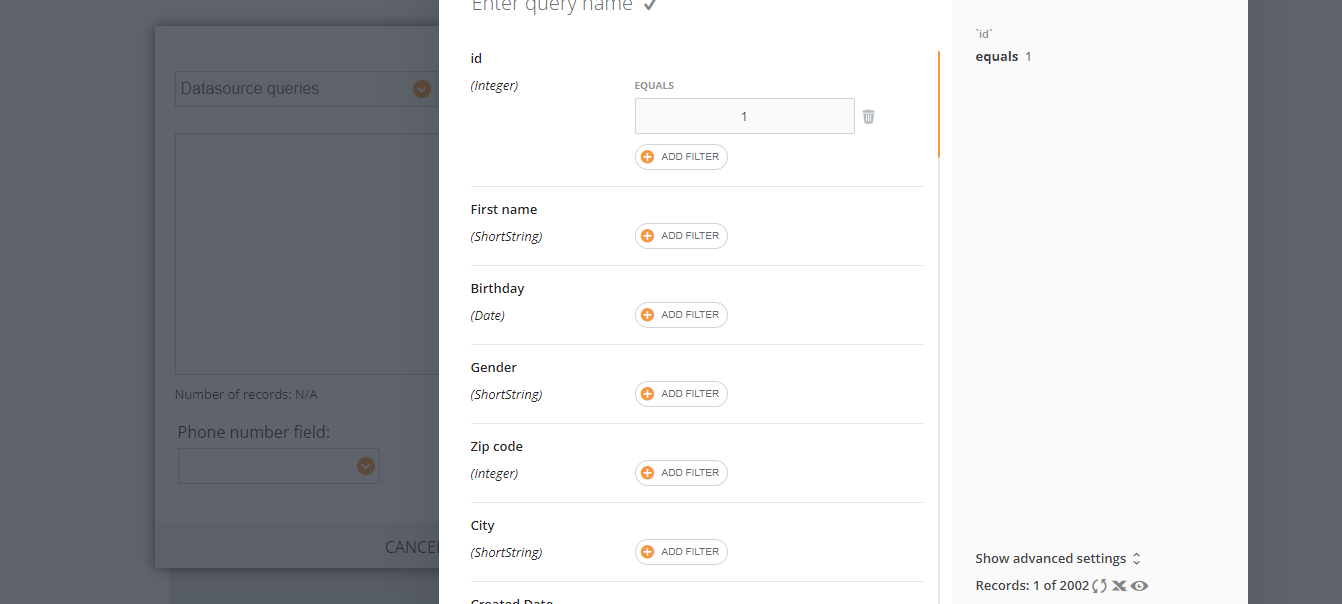
- Equals. Example: Id = 1
- Not equals. Every record where id is NOT 1.
- Exists. All records that have a customer number;
- Not exists. All records that have an empty value in a specific field, like those that do not have a house number, we need to send the campaign to them.
- Less. For example, you need to send this campaign to users with ids from 1 to 100, then the second campaign to users from 100 to 200 etc. And you select id less than 100 for the first batch (you will have the list of 99 records).
- Less or equal. The same as Less but the last digit is included. For example, less than or equal to 100, the list will have 100 recipients.
- Greater. You need records with customer numbers more than 100,0 starting from 1001.
- Greater or equal. The same as greater but including the last digit in the range.
- Between. You need all records between 100 and 1000 customer numbers.
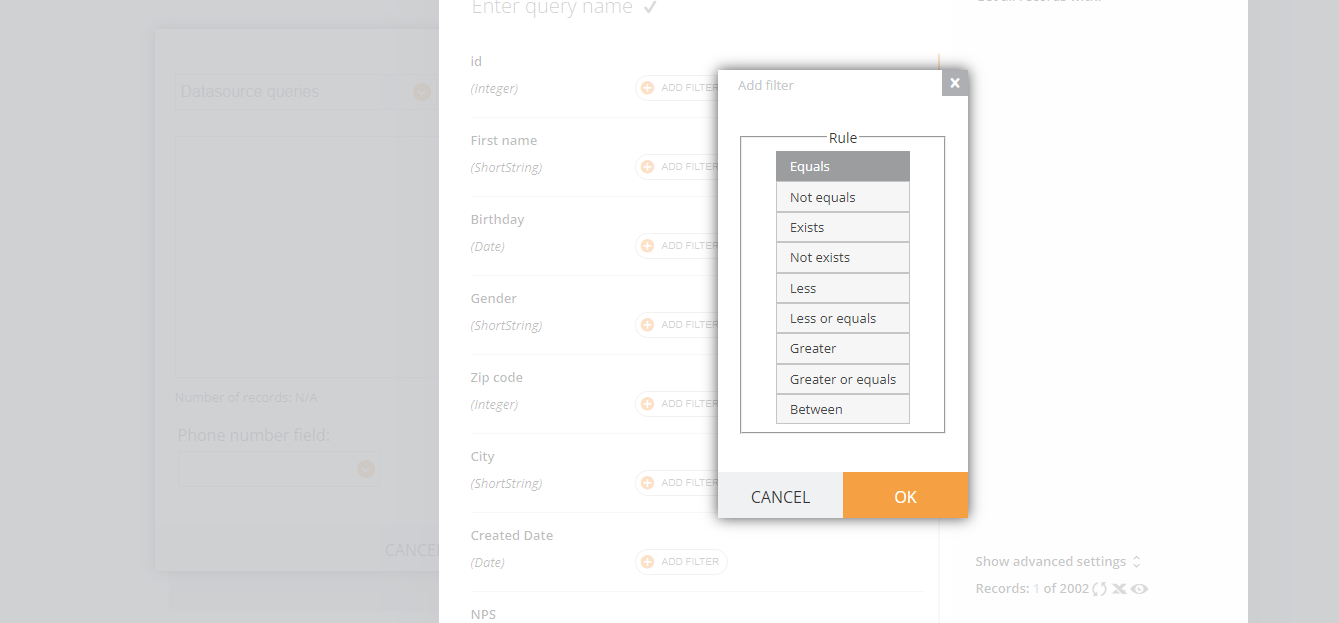
Rules for non-numeric filters:
- Equals. Example: City = Oslo;
- Not equals. Every city that is not Oslo;
- Exists. All records that have cities;
- Not exists. All records with no value;
- Empty. All records that have an empty value in a specific field. It may be similar to Not Exists but there is a little difference. In the database there can be no value or null when for example this value was deleted or a recipient decided to submit an empty form field;
- Not Empty. Records with not null values;
- Starts with. First name start with “W”;
- Contains. Last name contains specific character combination if you do not remember the spelling;
- Ends with. The name ends with “er”;
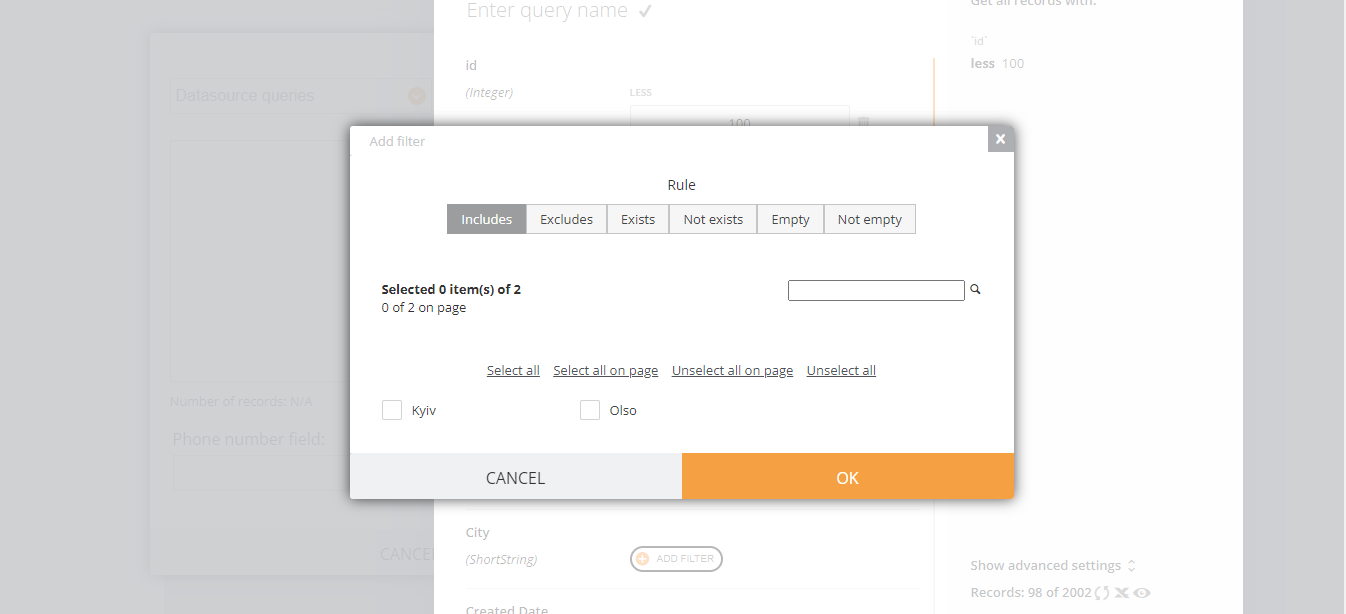
Dictionaries
- Includes. All records that have a specific dictionary, for example, gender female;
- Excludes. All records that do not have this dictionary;
- Exists. Is shown but cannot be applied;
- Not exists. Is shown but cannot be applied;
- Empty. Is shown but cannot be applied;
- Not Empty. Is shown but cannot be applied;
- Search bar to find a dictionary is the list is too long;
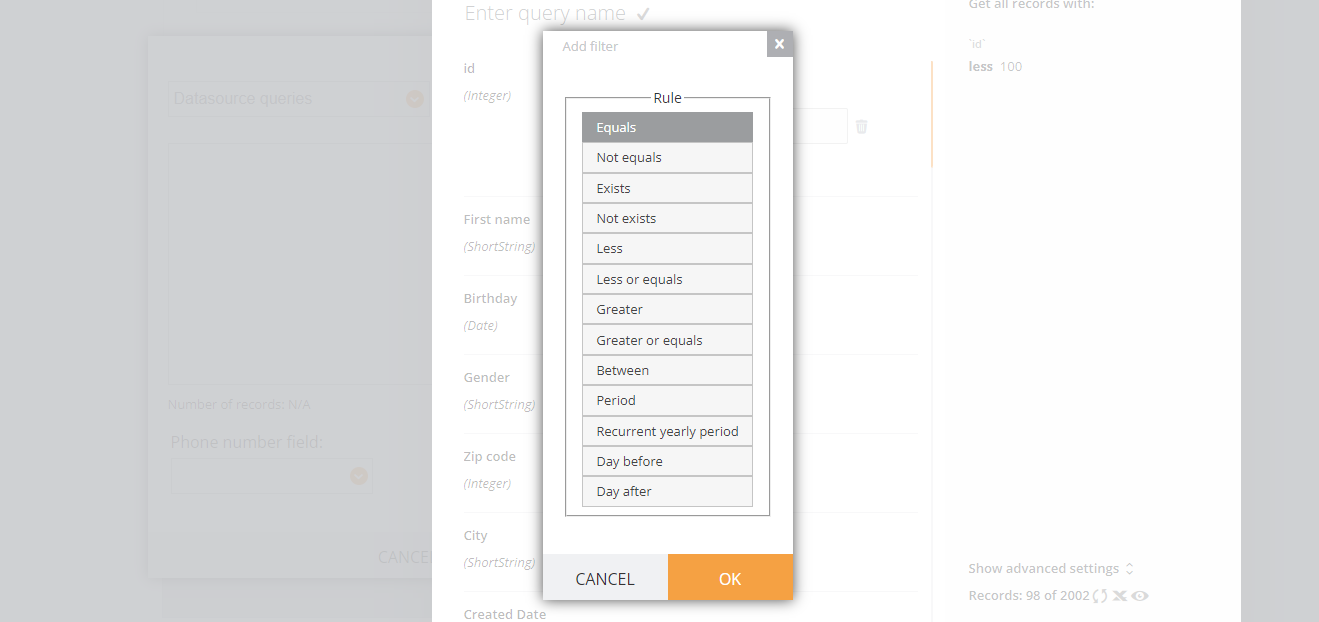
Dates:
- Equals. Example: date is 06/09/2024 for contract start date;
- Not equals. Every record with contract start date not 06/09/2024;
- Exists. All records that have a specific date;
- Not exists. All records that have an empty value in a specific field;
- Less. The contact end date is before 06/09/2024;
- Less or equals. The contact end date is before and including 06/09/2024;
- Greater. The contact end date is after 06/09/2024;
- Greater or equals. The contact end date is after and including 06/09/2024;
- Between. The contact end date is a after 06/09/2024 and before 09/09/2024;
- Period. All dates for the last 5 months;
- Recurrent yearly period. Every year at a specific date for example birthday or date of contract renewal;
- Day before. For example, date of contract start set 5 days before which means users who receive a campaign will have contract start date today and 5 more days;
- Day after. 10 weeks after the last visit date - users whose last visit was 10 weeks ago will receive a campaign;
When choosing a rule for a date, there is a list of additional information you need to set up:
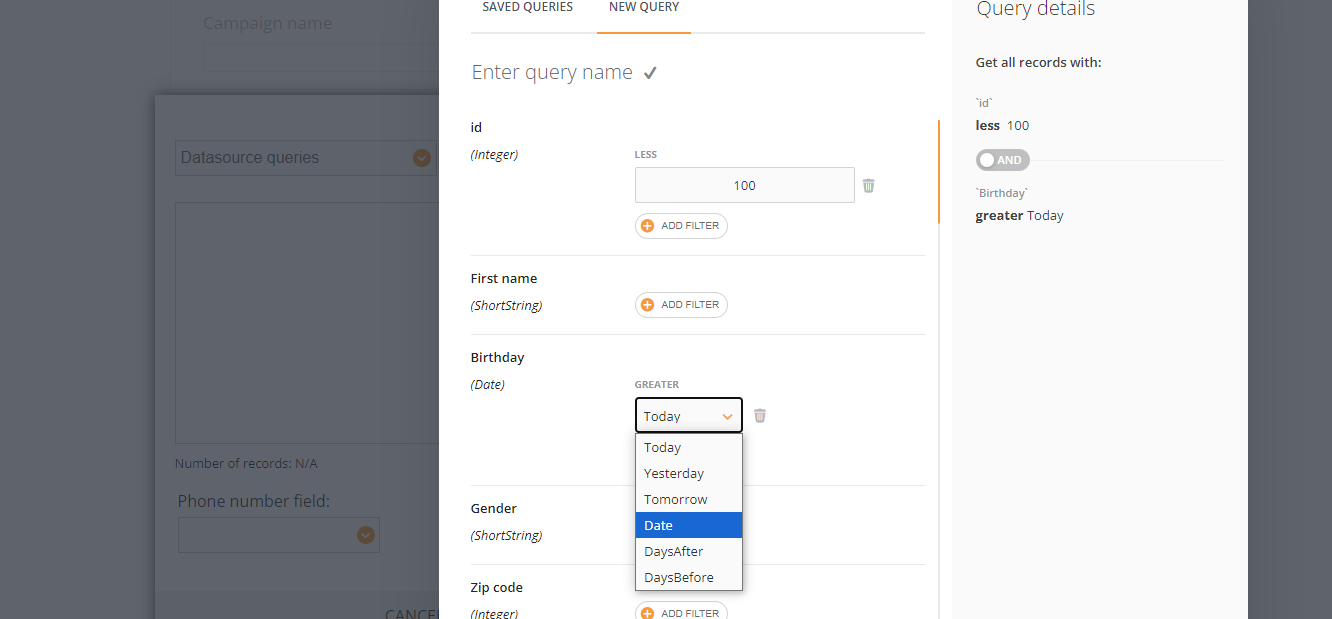
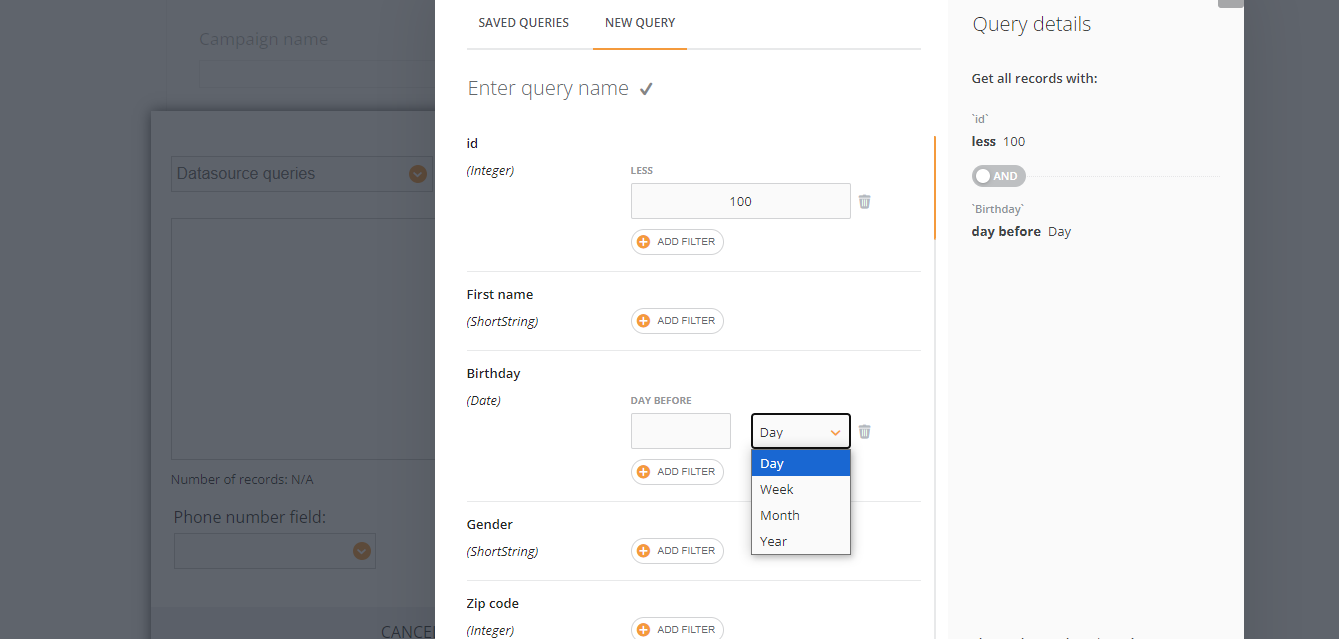
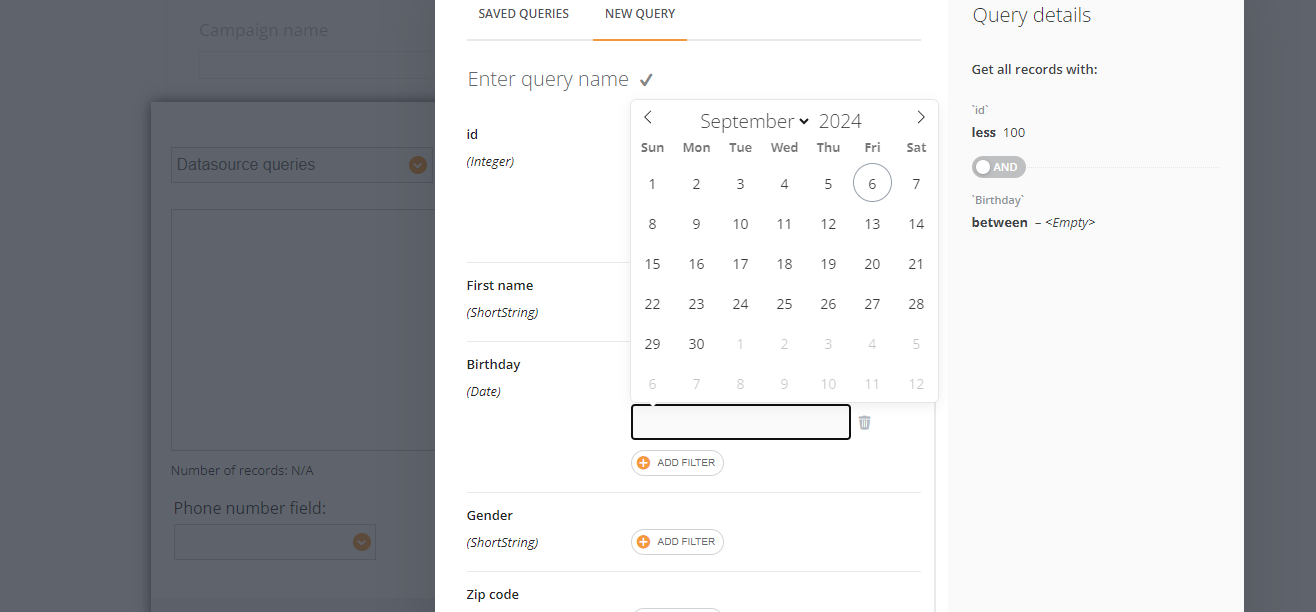
For period the list has values: today, yesterday, tomorrow, this week, last week, last 2 weeks, last 3 weeks, next week, next 2 weeks, next 3 weeks, this month, last month, last 2, 3, 4, 5, 6, 7, 8, 9, 10, 11 months, next month, next 2-11 months, this year, last year, last 2-5 years, next year;
For recurrent yearly period: today, yesterday, tomorrow, this week, last week, last 2 weeks, last 3 weeks, next week, next 2 weeks, next 3 weeks, this month, last month, last 2, 3, 4, 5, 6, 7, 8, 9, 10, 11 months, next month, next 2-11 months, days after, days before;
¶ AND / OR rule
If you add more than one filter, you need to match them together. By default filter are added with a rule AND. Meaning your list has to contain men AND from city Oslo AND the ones with birthday on 01/01/1980-01/01/1990. You can click a toggle and change the rule to OR then the list will have more recipients as your recipient have to be men OR from Oslo meaning to fall into at least one rule, not all of them.
¶ Other issues
After applying every new filter you need to refresh the list;
If you create a job, you can later edit the query;
If the list has 0 recipients that is okay as if the campaign is sent later, perhaps, the database will be renewed and the records matching the filters will appear;
if the list is short (up to 100 or 1000 users), you might not find some records you want comparing to the list with 10k users;
the campaign/job cannot be sent if no filters are applied;
there are some custom filter combination made via API, this is done by tech support team, usually they know about this case and set up the campaign by themselves or they save such queries and they can be selected from Saved list (read To use Saved Queries here).